

































































Workspaces
A Workspace is a layout with different editors. For example, in most workspaces you have a 3d view editor, a outliner and a properties editor. It includes Top Bar and Footer. And every workspace can have some specific…
Introduction
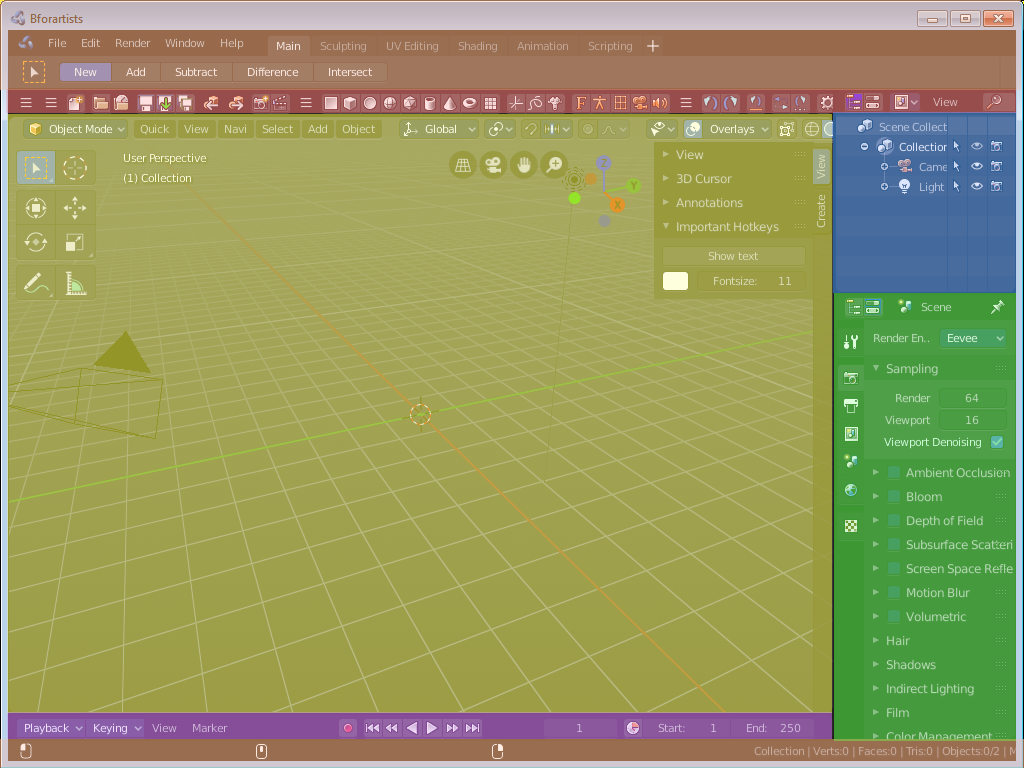
A Workspace is a layout with different editors. For example, in most workspaces you have a 3d view editor, a outliner and a properties editor. It includes Top Bar and Footer. And every workspace can have some specific settings. The Sculpting Workspace starts for example in Sculpt mode. And not in Edit Mode like the default workspace.
To switch between the workspaces simply click at the tabs.
The chapter tabs and default workspaces is explained in the chapter Topbar. It is menu functionality. And menu functionality gets explained where the menu is.
This chapter here is about the general functionality of workspaces.
Modifying Workspaces
Resizing Editor Windows
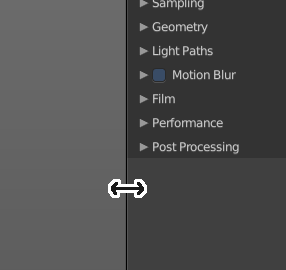
Move the mouse over a border between the editors. The mouse cursor will turn into a double arrow. Drag the arrow around and the editor will resize with your moving mouse.
In the Default layout there are two editors that are collapsed to just show the menu. The menu bar at the top is an own editor. The Info editor. You can drag it down to reveal a text field. Here Bforartists displays all the former actions as strings. When you create a primitive for example, then it displays a string with the python command for it.
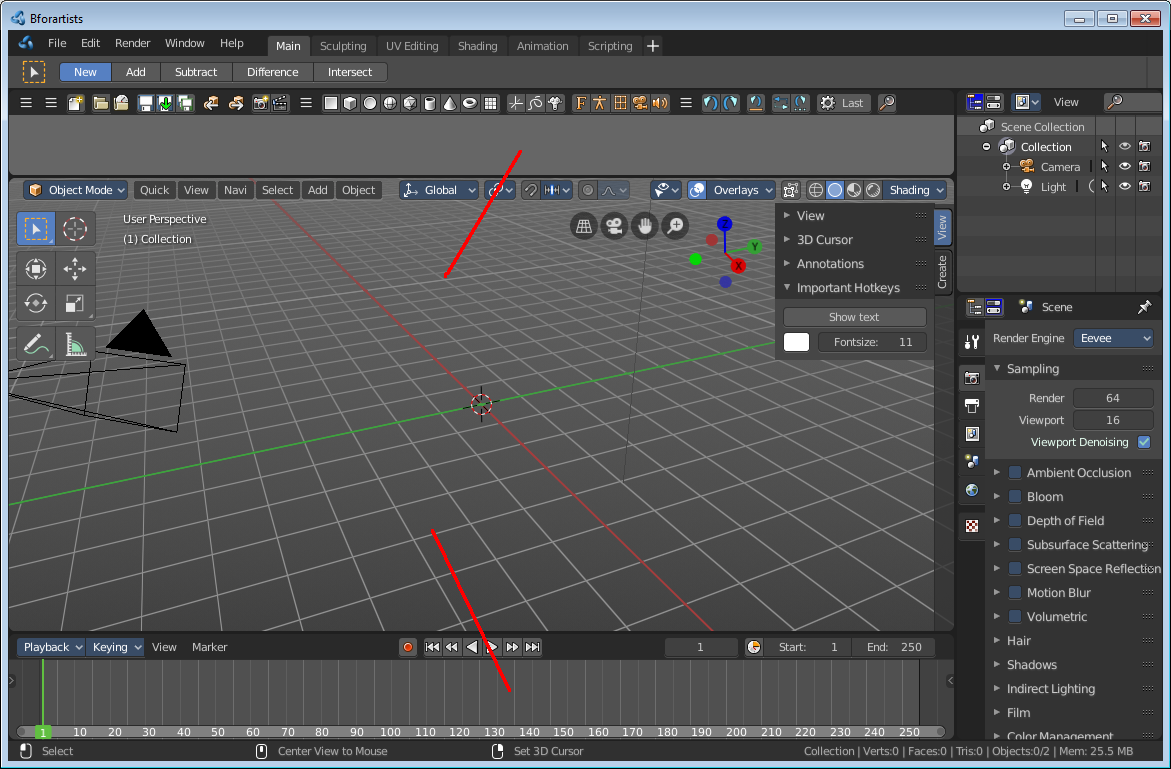
The other collapsed editor is at the bottom. The timeline.
Splitting Editor Windows
When you move the mouse over the upper corner of an editor window, then the mouse pointer turns into a white cross.
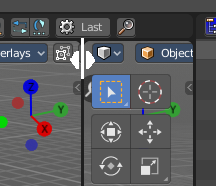
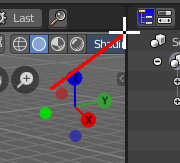
When you click and drag the mouse inwards of the current editor, then the editor splits up. You open a second 3D view for example.
Unioning Editor Windows
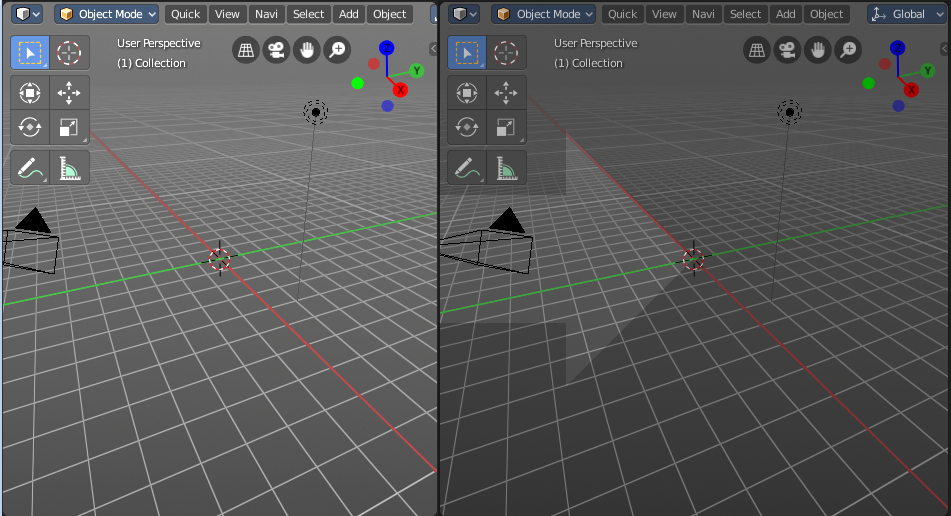
The method is nearly the same than with splitting the editor windows. When you move the mouse over the upper corner of an editor window, then the mouse pointer turns into a white cross.
When you click and drag the mouse outwards of the current editor, then the editor unions with the neighbor editor. Note that this just works when they are in one row, horizontally or vertically.
Swapping Contents
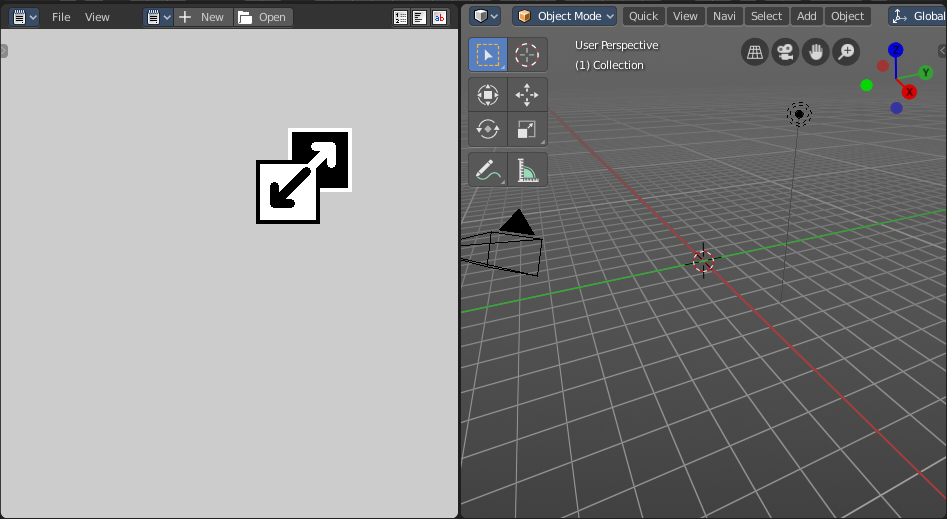
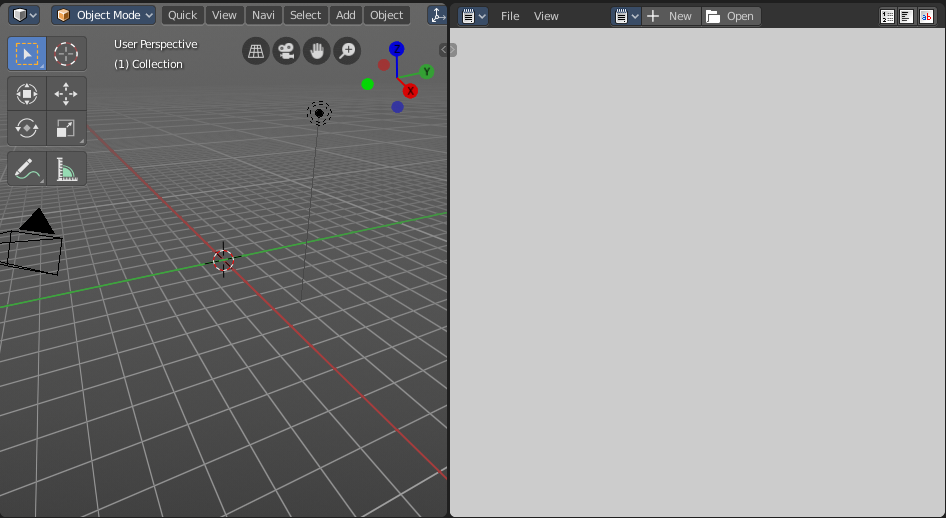
You can swap the contents between two editors with clicking at the corner area, holding Ctrl, and drag into the target editor. The mouse pointer will turn into a swap icon. When you release the mouse the two editors will swap their positions.
Make Editor Window floating
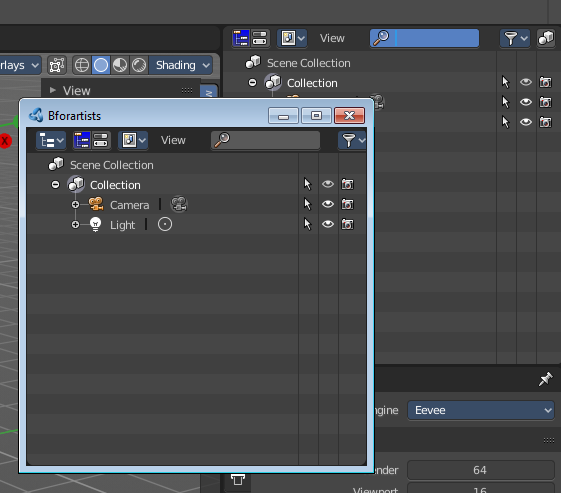
When you move the mouse over the upper corner of an editor window, then the mouse pointer turns into a white cross.
Hold down Shift, and drag the mouse. The editor will detach from the Blender surface. This is useful for a multi monitor setup for example. Now you can place this editor at Monitor 2.
Note that there is no way to reintegrate this floating editor window back into the Blender UI once it is detached. You have to close it.
Change Editor Type
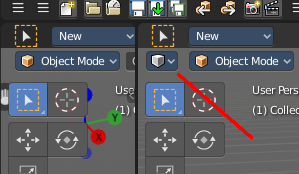
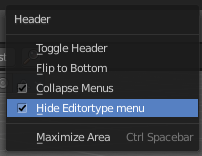
There is a Editor Type menu in every header. This menu is usually hidden in the default layouts. It can be revealed by either splitting the editor window. Or in the right click menu in the header. Hide editortype menu. See next point.
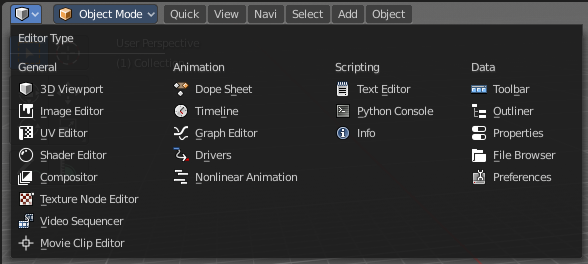
When you click at this button then a menu with all available editor types opens up. And you can change the current editor to another editor type.
Show / Hide the editor type menu
You might have noticed that the editor type menu is not available in the editors of the standard layouts. This is to reduce visual noise and to free some UI space.
You can show and hide this editor type menu. To do so right click at an empty space somewhere at the menu bar of an editor. You will see a menu now. Check or uncheck the menu item Hide Editortype Menu to show or hide the Editor Type menu.
Collapse Menus
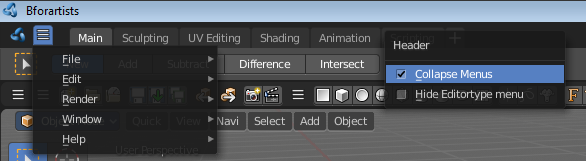
The text menus can be collapsed to free some UI space. Right click at an empty space somewhere at the menu bar of an editor. You will see a menu now. Choose if you want to display the text menu collapsed or expanded.
Resize Tool Shelf and Properties content
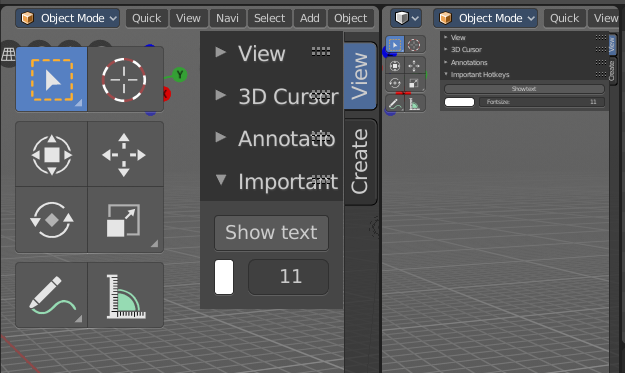
You can resize the Tool Shelf content and the Properties Sidebar content. This means that you can zoom in or out. This trick also works in the Properties Editor.
Move the mouse over the upper region of the Tool Shelf.
Hold down Ctrl key
Click with Middle Mouse button. The mouse pointer will turn into two white triangles.
Now drag up or down to resize the area content
OR
Move the mouse over the upper region of the Tool Shelf.
Simply press Numpad + or Numpad -
To reset the area content to default scale move the mouse over the area and press Home key ( german keyboard layout Pos 1)
Create new Workspace
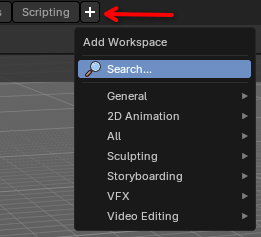
To create a new workspace, simply click at the + sign at the of the workspaces, a menu will popup for the user to choose what new workspace they want.
Once you choose a workspace, it will add it at the end of all other tabs and immediantly switches to it.
The name will be something like mycurrentworkspace.001
To rename the new layout, double click at the name. The text becomes editable, now you can start to edit your workspace and its settings.
Workspace Settings
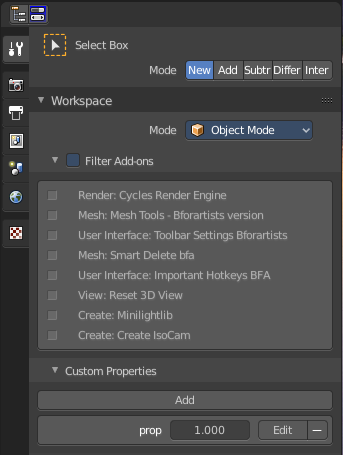
A workspace is not only a set of editor windows. In the Properties editor you can also find some workspace specific settings.
In this settings you can define in what mode the workspace starts. You can exclude addons. And you can add custom properties. Which are basically just values for scripting needs.
The settings from this panel will load every time you switch to this workspace.
Save changes at the Workspace
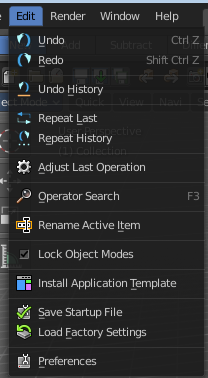
You cannot save new workspaces or modifications at an existing workspace directly. To save modifications at an existing workspace you have to save the Startup File. This menu item can be found in the File menu.
Once saved you will find this new workspace also in the add workspace menu under your template.
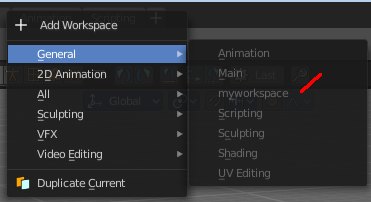
When you are in the default application template then this settings will save the new workspace to the defaults.
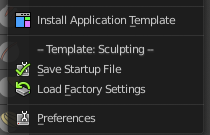
When you are in one of the other application templates though, then you will save the new workspace to the template. Same counts for the factory settings. You will then load the factory settings from the current active application template.
The menu entry will also look a bit different then. You will see a label that gives you a hint about the current application template in use. In this case the sculpting application template.
Note that this also affects other changes. Bforartists will for example now start with the currently active layout. And it will also preserve the changes that you did at other layouts before saving.
So when you work at a layout be sure that you don't accidentally do changes at other areas. And before you save the startup file you should switch back to the layout with which you want to start Bforartists.
Workspace Context Menu
Duplicate
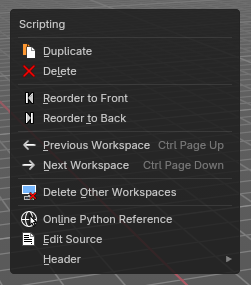
Creates a copy of the current workspace, including its editor layout and active tools.
Useful for experimenting with variations without losing the original setup.
| Entry | What it does |
|---|---|
| Delete | Workspace can also be deleted. To do so right click at the tab that you want to delete, and choose delete in the menu. Note that you can remove your own created workspaces this way. But the default workspaces will remain in the menus. They will just vanish from the tabs. These workspaces are protected so that you cannot remove them completely. |
| Reorder to Front | Moves the selected workspace tab to the beginning of the workspace list (far left). Ideal for prioritizing frequently used layouts. |
| Reorder to Back | Moves the selected workspace tab to the end of the list (far right). Useful for archiving less-used layouts. |
| Previous Workspace | Switches to the workspace tab immediately to the left of the current one. Shortcut-friendly navigation for rapid layout switching. |
| Next Workspace | Switches to the workspace tab immediately to the right. Complements the previous operator for fluid tab cycling. |
| Delete Other Workspaces | Deletes all workspaces except the currently selected one. Great for cleaning up clutter or preparing a minimal layout for export or sharing. |
Load Workspace layout from Blend Files
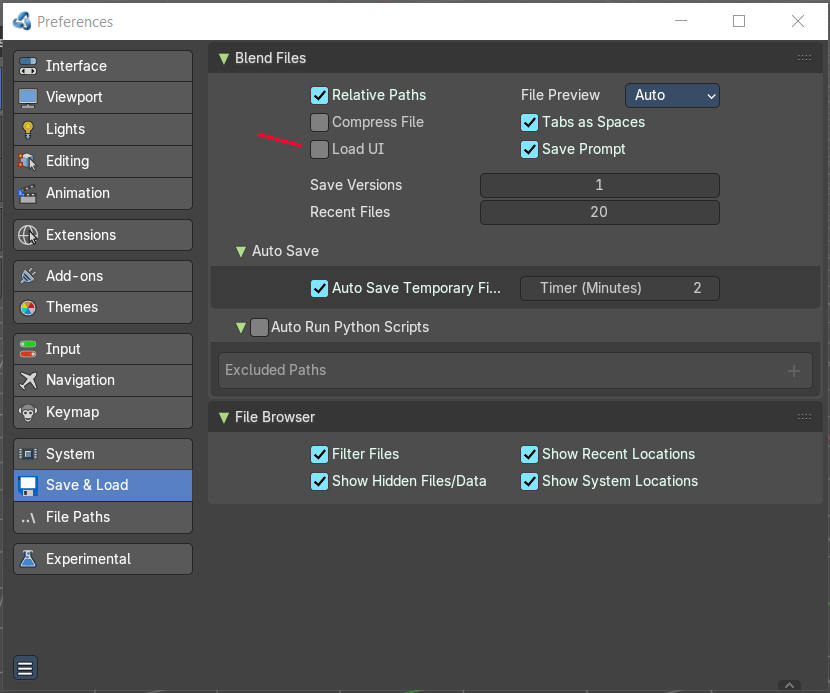
Every blend file saves also the layout in which the scene is at the point of saving. Means you can load a layout from the blend file.
This feature is off by default since it is usually unwanted behavior to load layouts from other people.
You can turn it on in the User Preferences in the File tab. Tick the menu item Load UI. Then save User Settings.
Note that now all Blend files that you open will load the workspace layout that the Blend files are saved with.
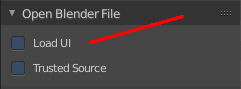
You can also do this at a file by file base. The file browser allows you to load a blend file with the saved layout. This setting can be found down left in the file browser.
Standard Workspaces
| This layout is for general 3D work. Here you work at your 3D scene. Here happens modeling, texturing, etc. . It is also the workspace with which Bforartists opens up. It contains a 3D View editor, an Info editor, a Timeline editor, a Outliner editor and a Properties editor. It starts in Object Mode. | 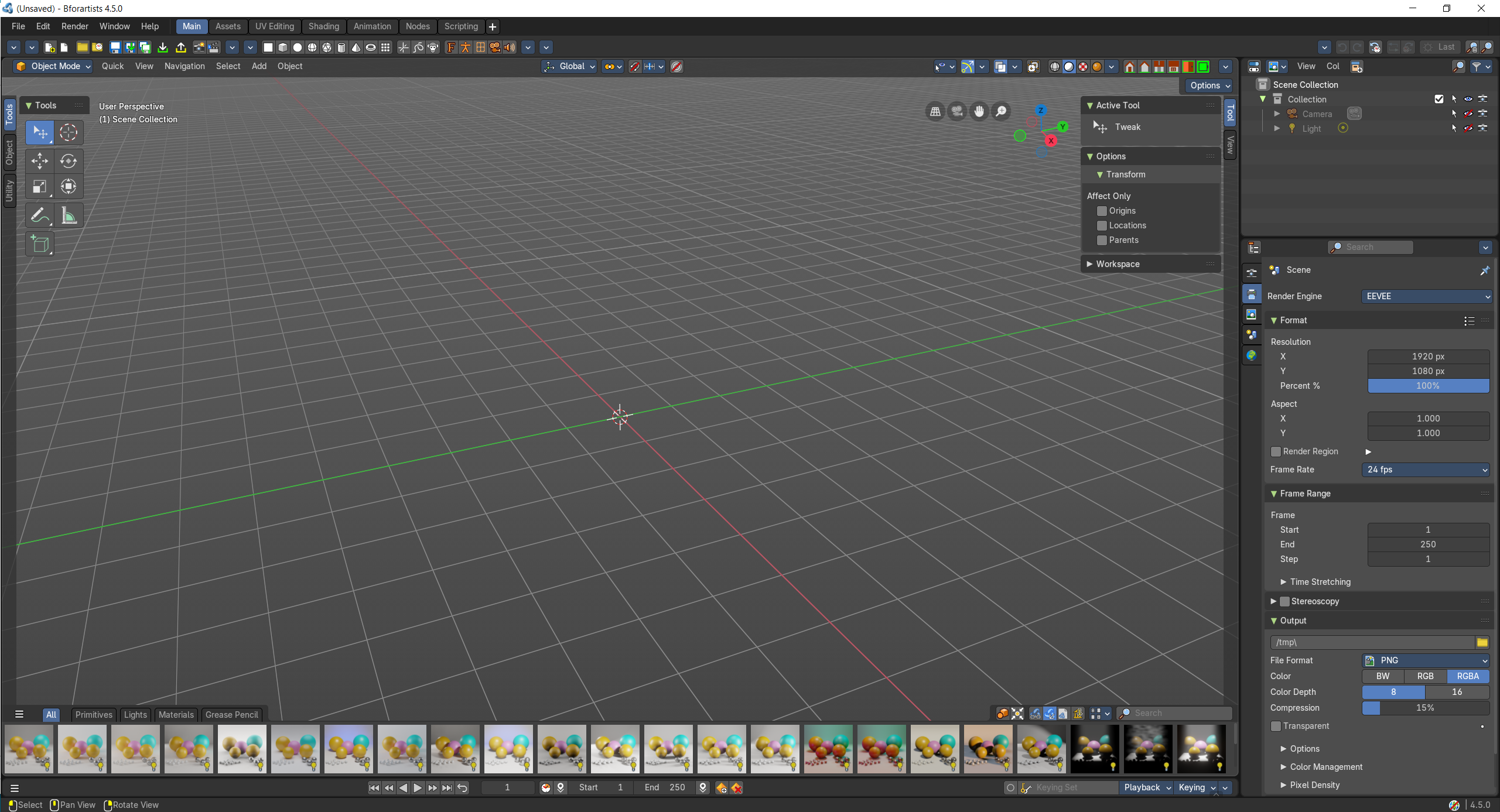 |
| The UV Editing is made for texturing and UV mapping. It contains an Info Editor, a UV Editor and a 3D View editor. The 3D View starts in Edit mode. | 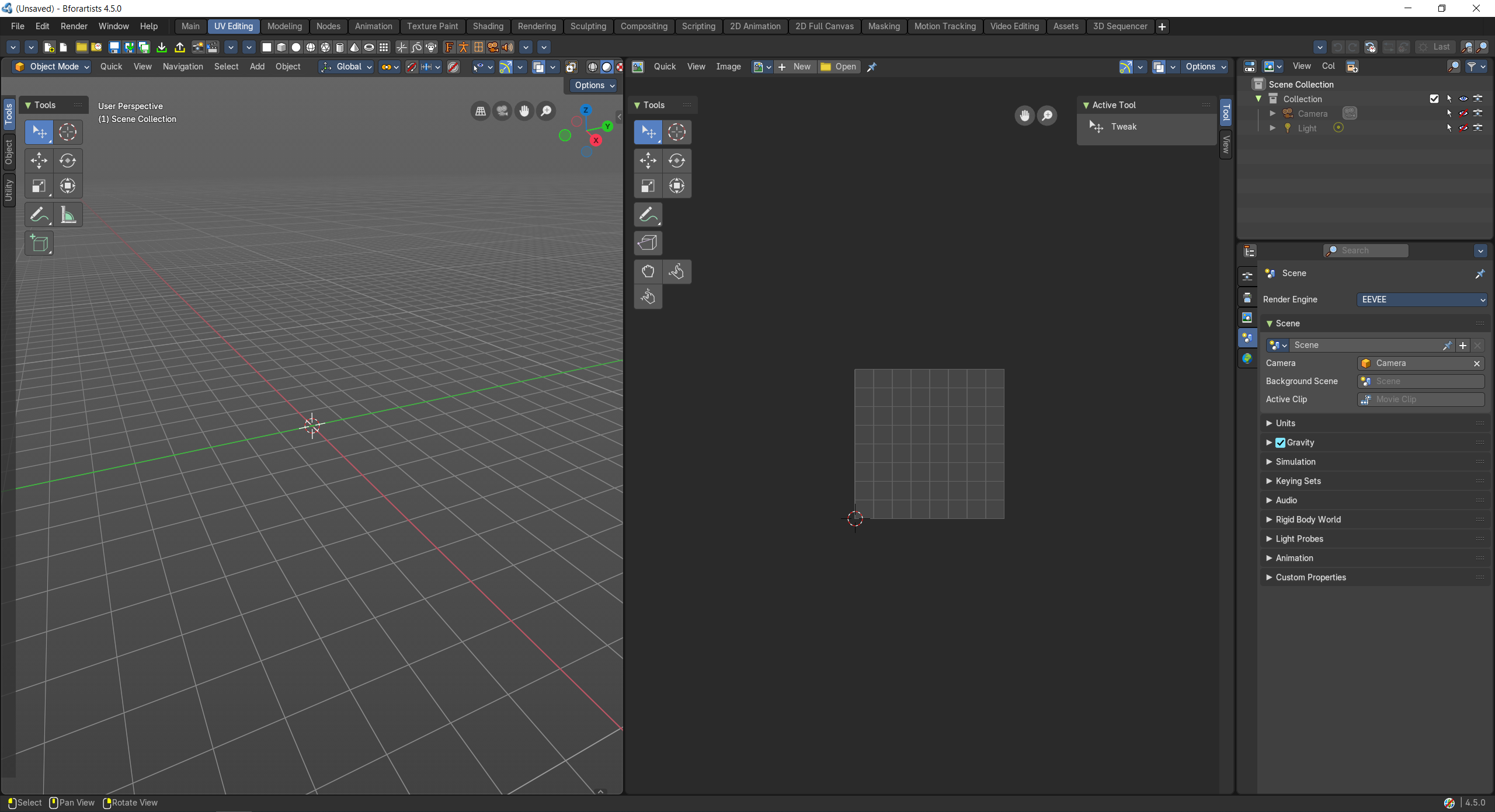 |
| Same as the Default workspace. It starts in Object Mode. | 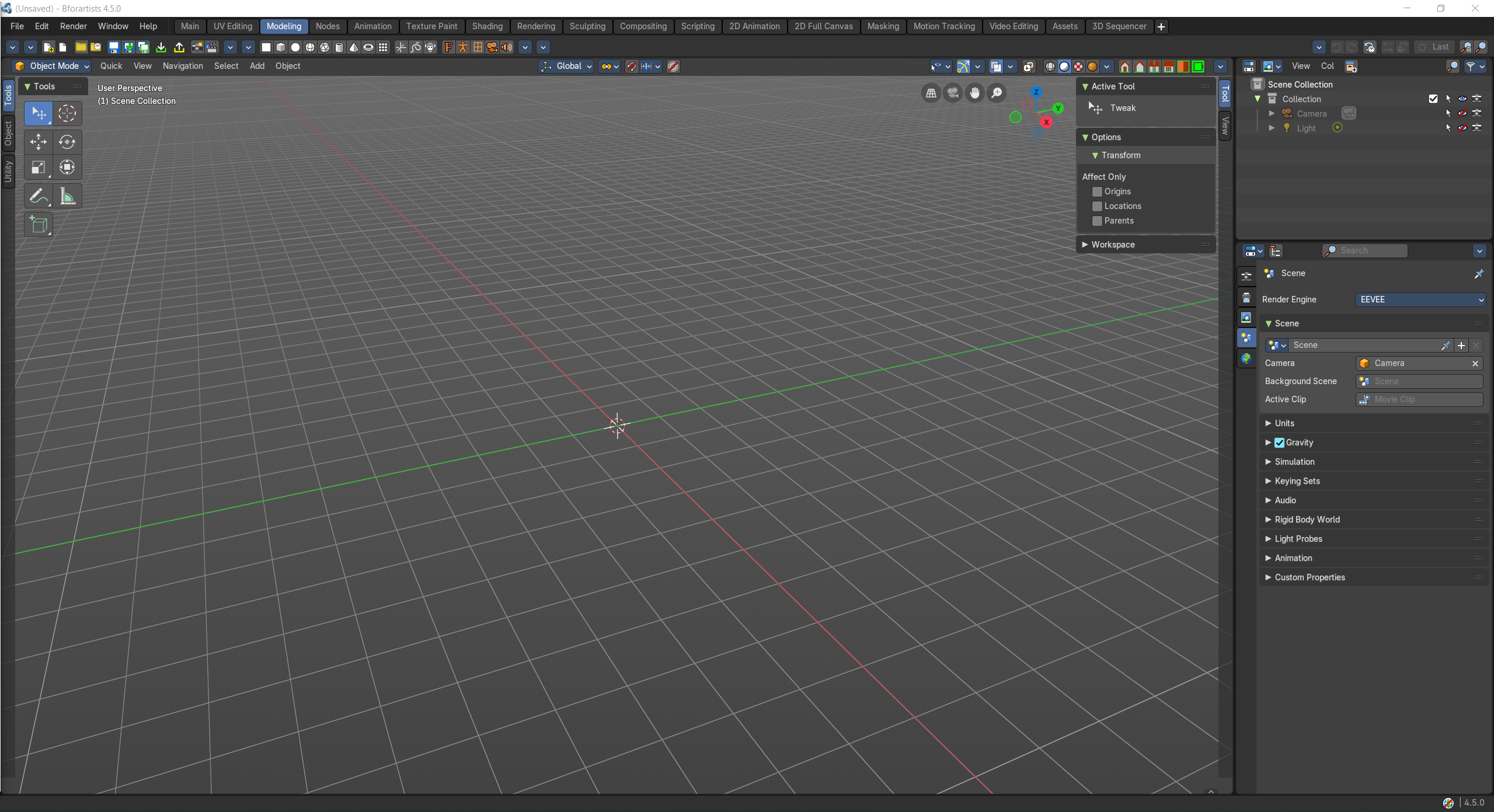 |
| The workspace to work with the geometry nodes. Basic 3d view with the geometry nodes editor plus the spreadsheet editor to have access to the mesh data. A timeline at the bottom. And the usual outliner and properties editor. | 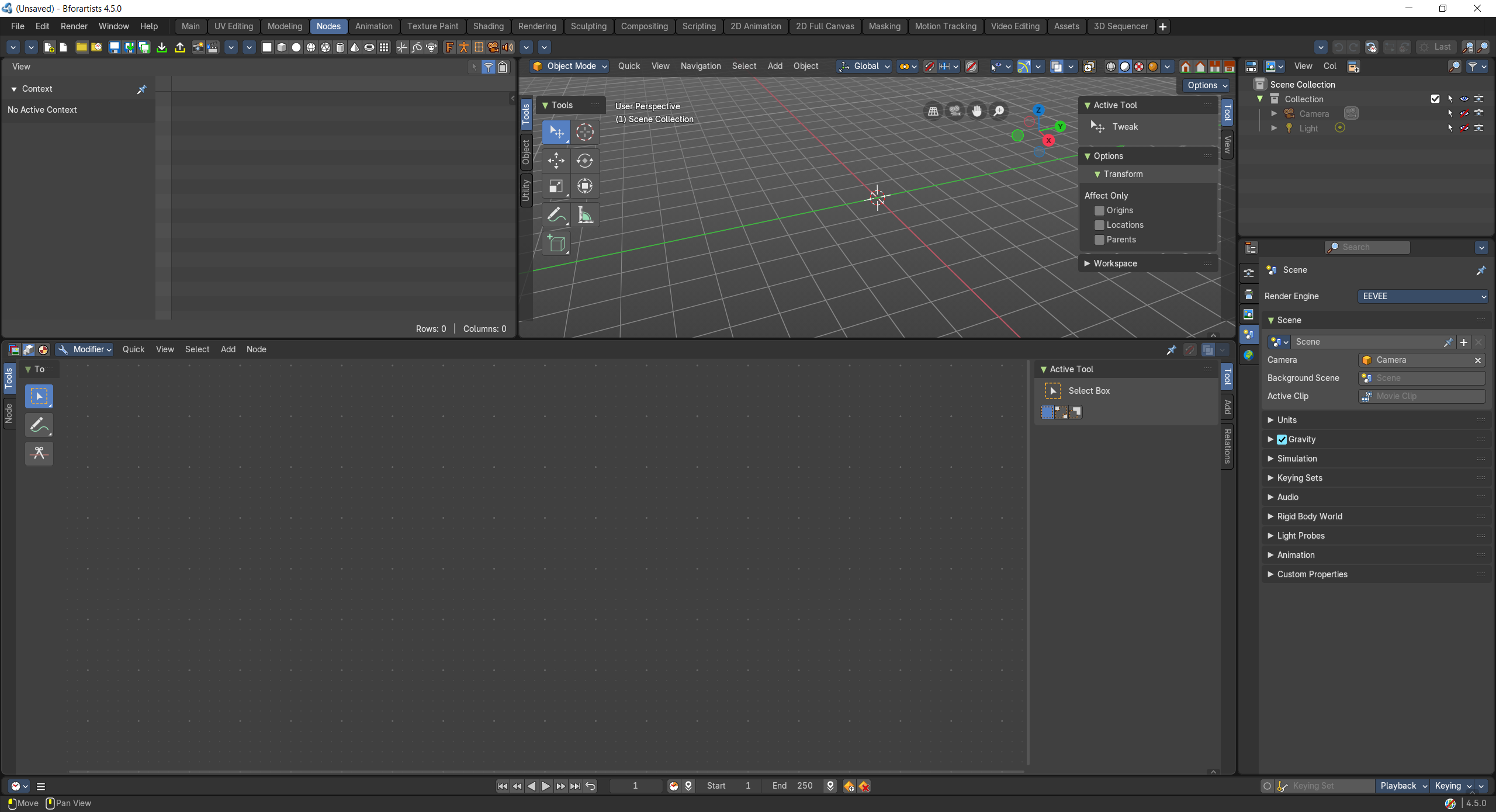 |
| This workspace provides you with a layout that is optimized for Animation tasks. It contains two 3D View editors, an Info Editor, a Outliner Editor, a Properties Editor, a Timeline Editor, a Dope Sheet Editor. | 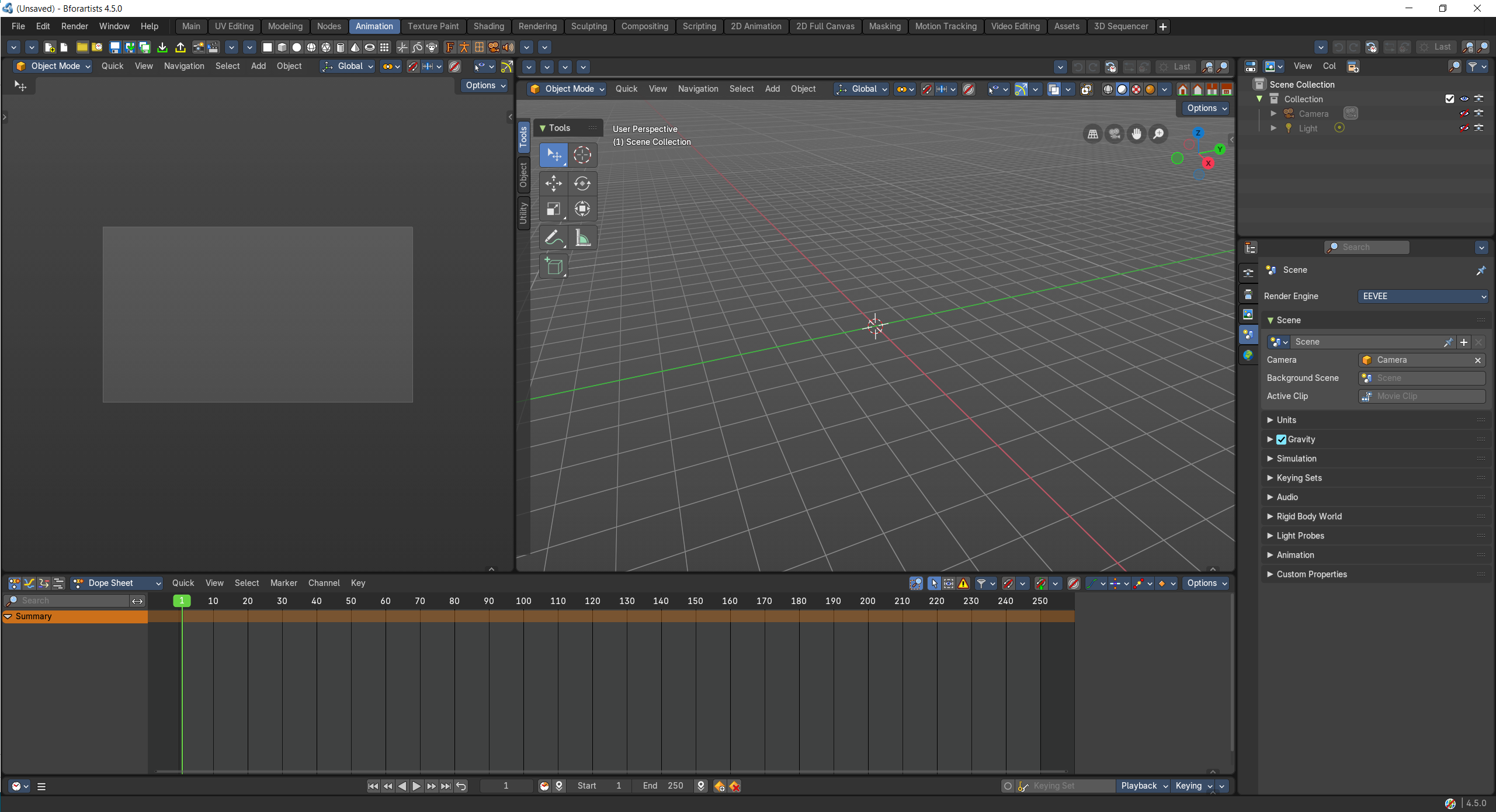 |
| The texture painting workspace is made to do texture painting work. It contains an Info Editor, a Image Editor and a 3D View editor. The 3D View starts in Edit mode. | 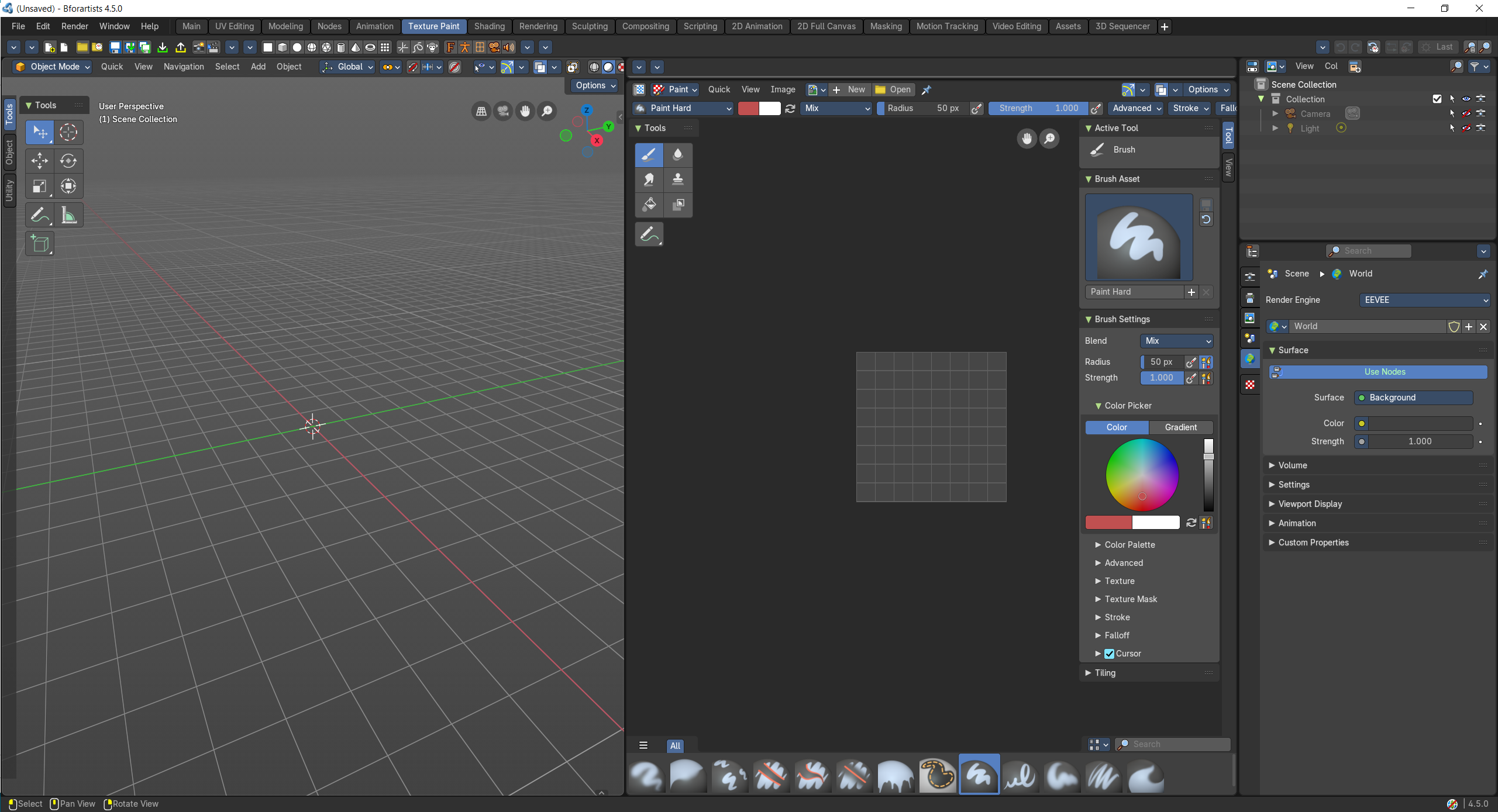 |
| The workspace to do all the shader and material work. It comes with a file browser, an image editor, the 3D view in a special view look setup, the shader editor, outliner and properties editor. | 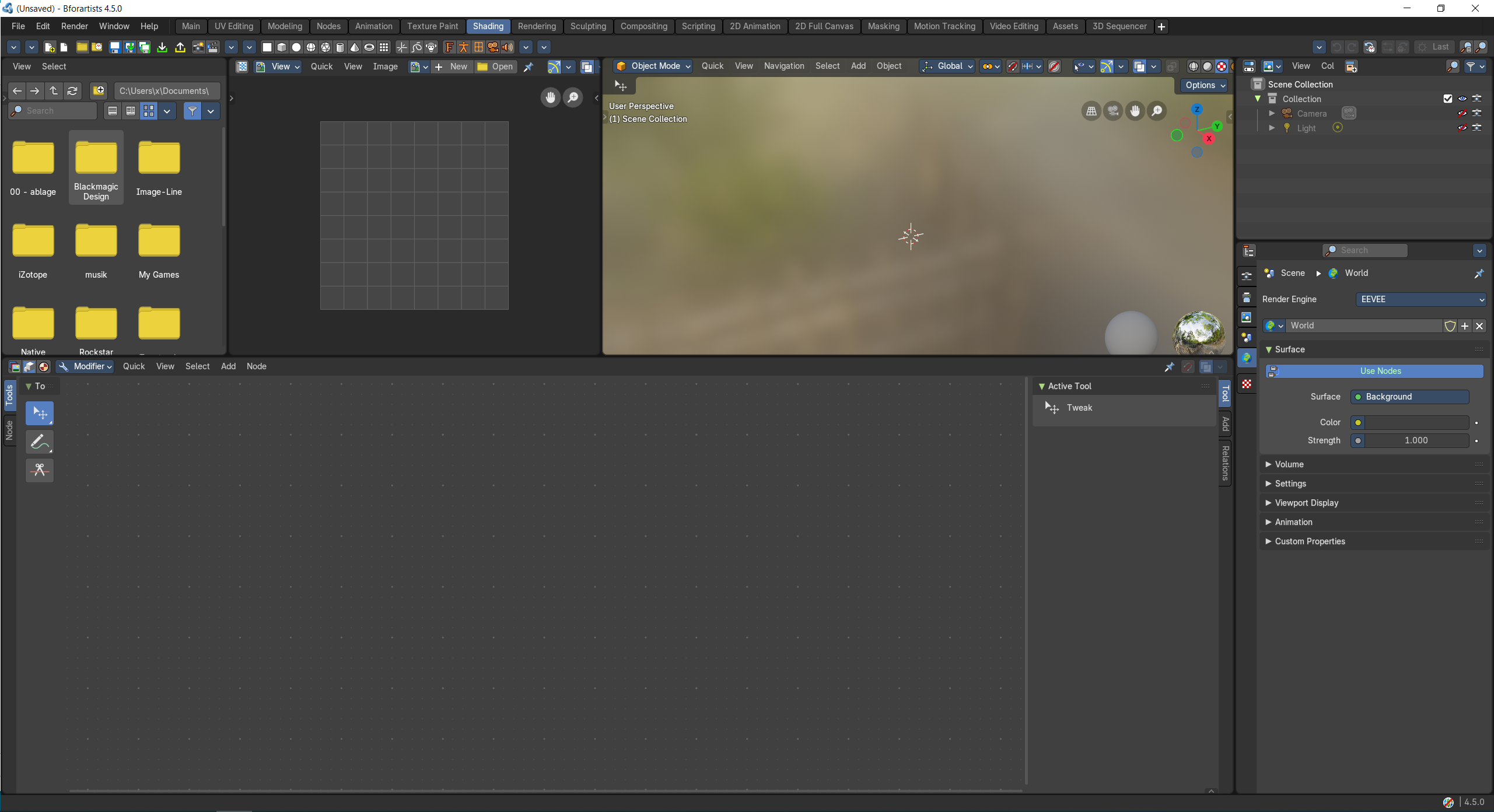 |
| A workspace for the rendering. | 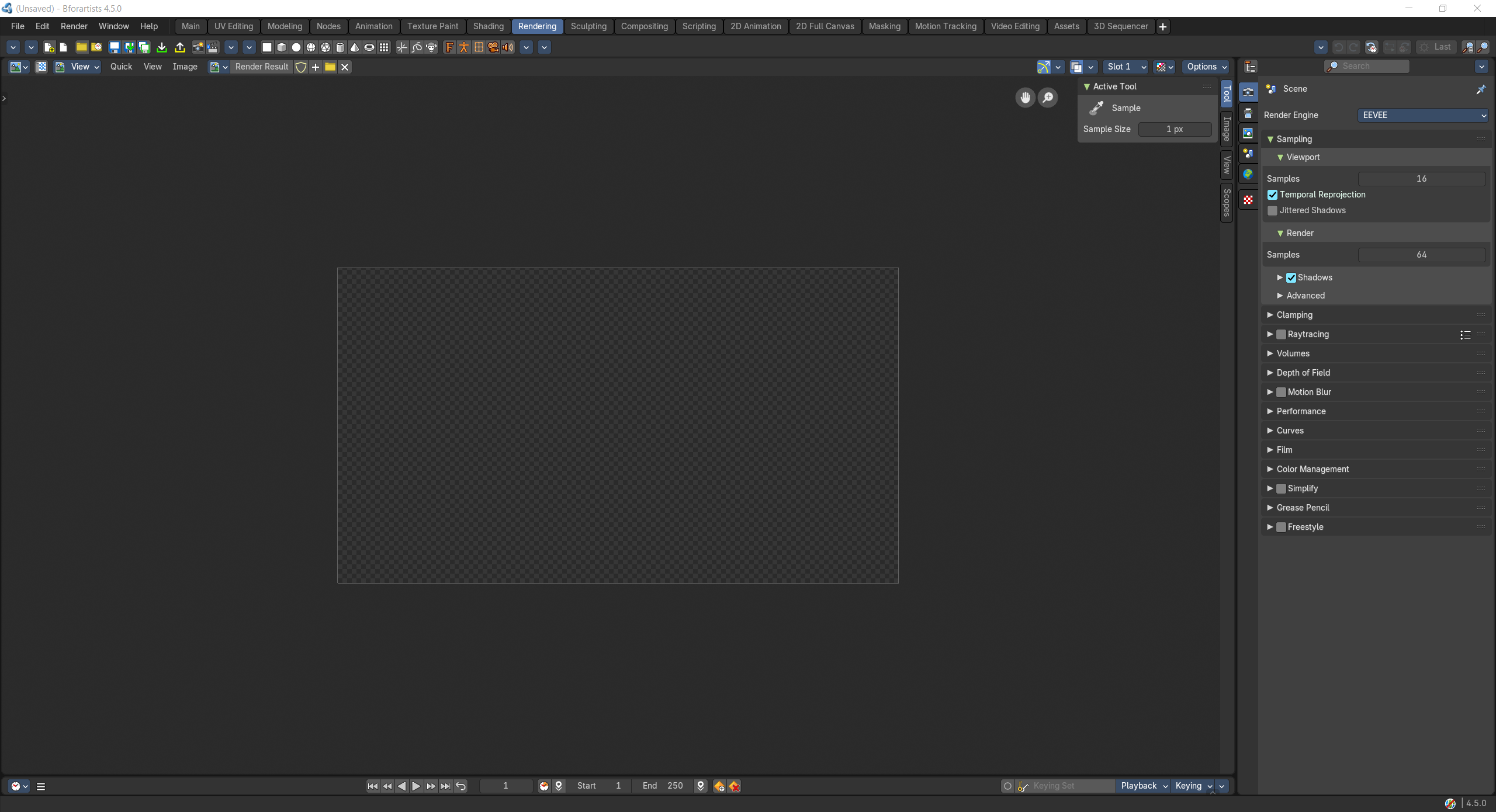 |
| This workspace is dedicated to sculpting. It starts in Sculpt Mode in case you have an object in the scene. | 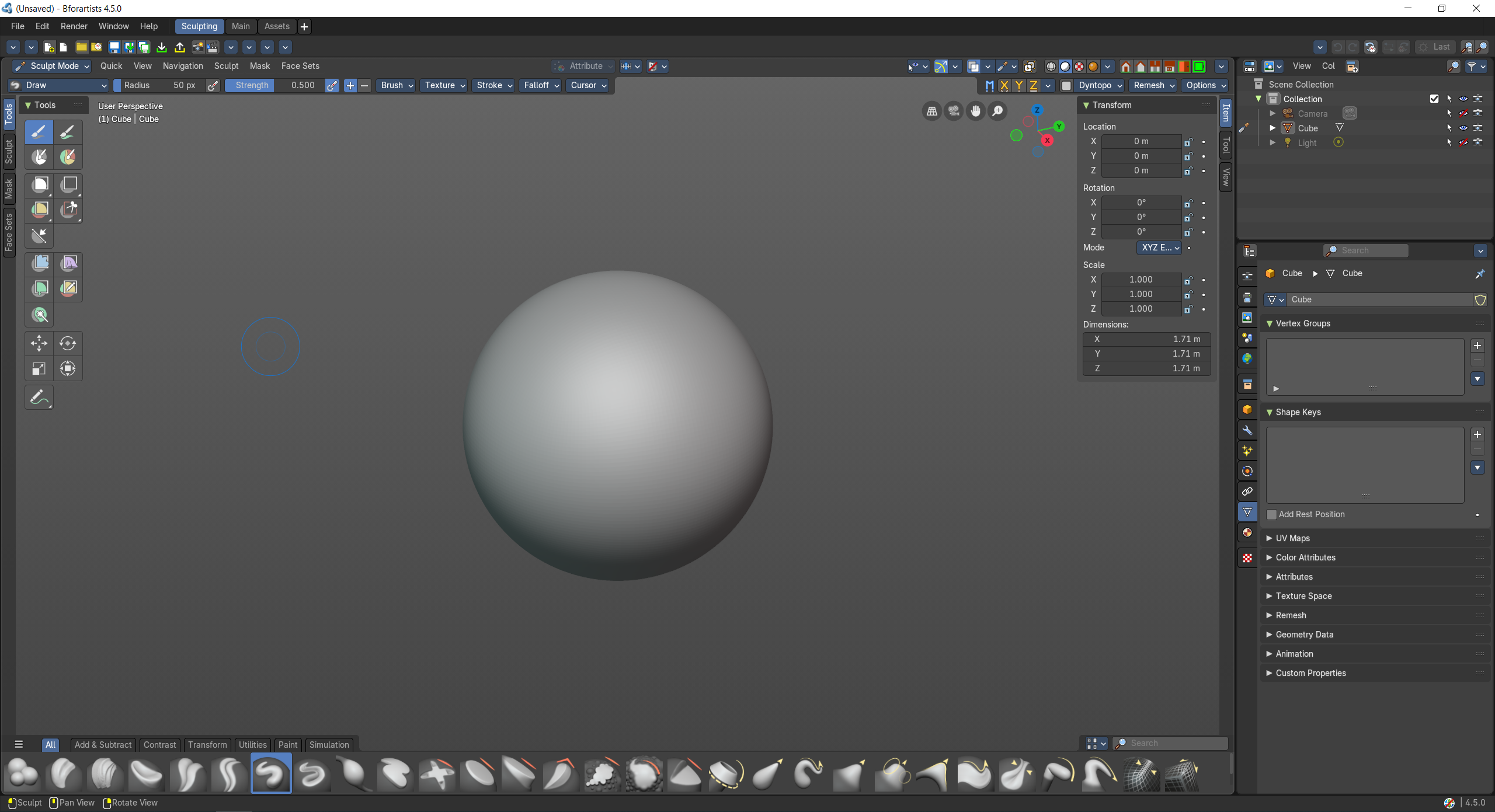 |
| The workspace to do compositing and post processing. | 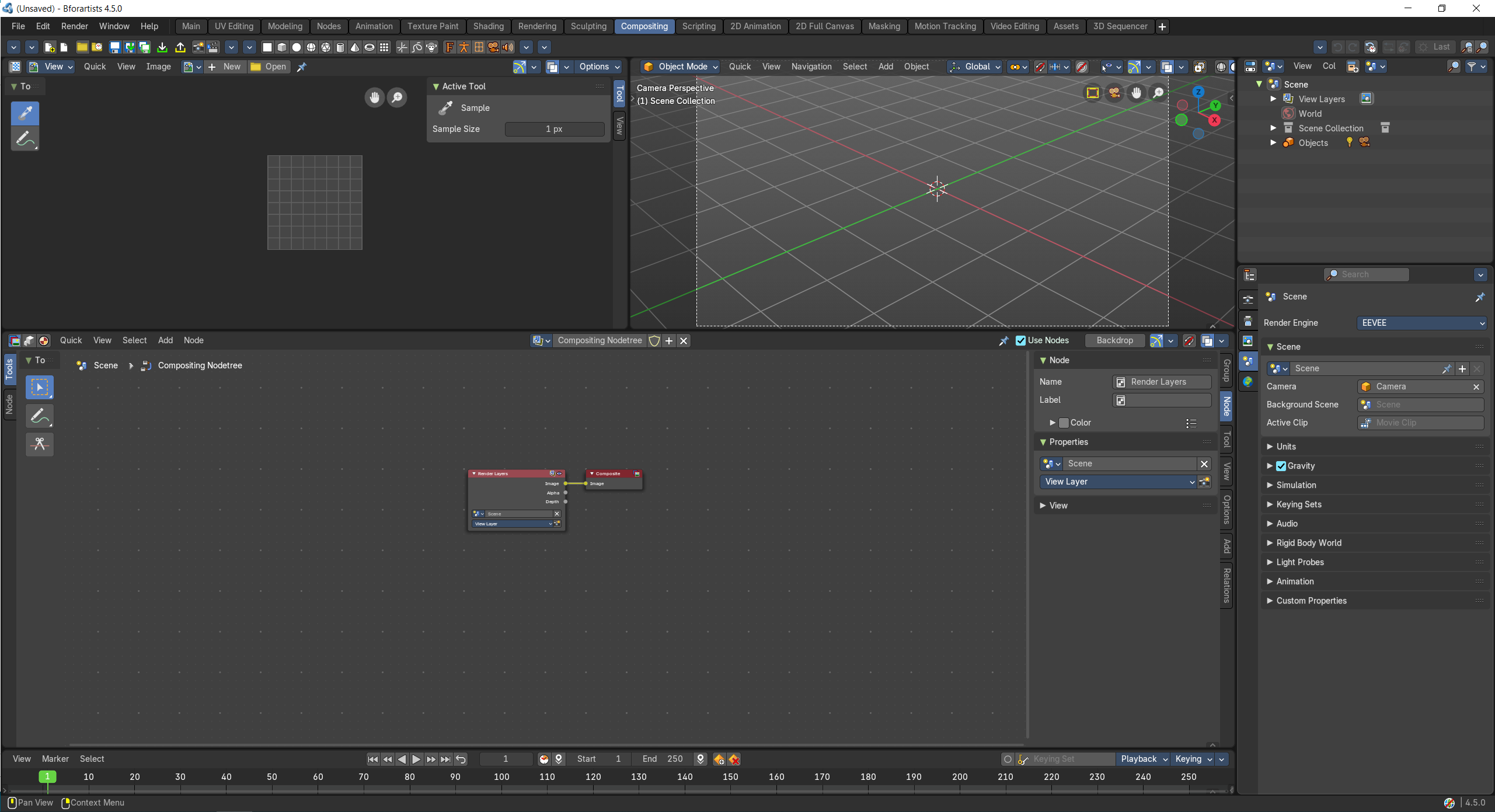 |
| The scripting workspace gives you a layout where you can write Python code. It contains an Info editor, a 3D View editor, a Console editor, a Text editor, a Outliner Editor and a Properties Editor. | 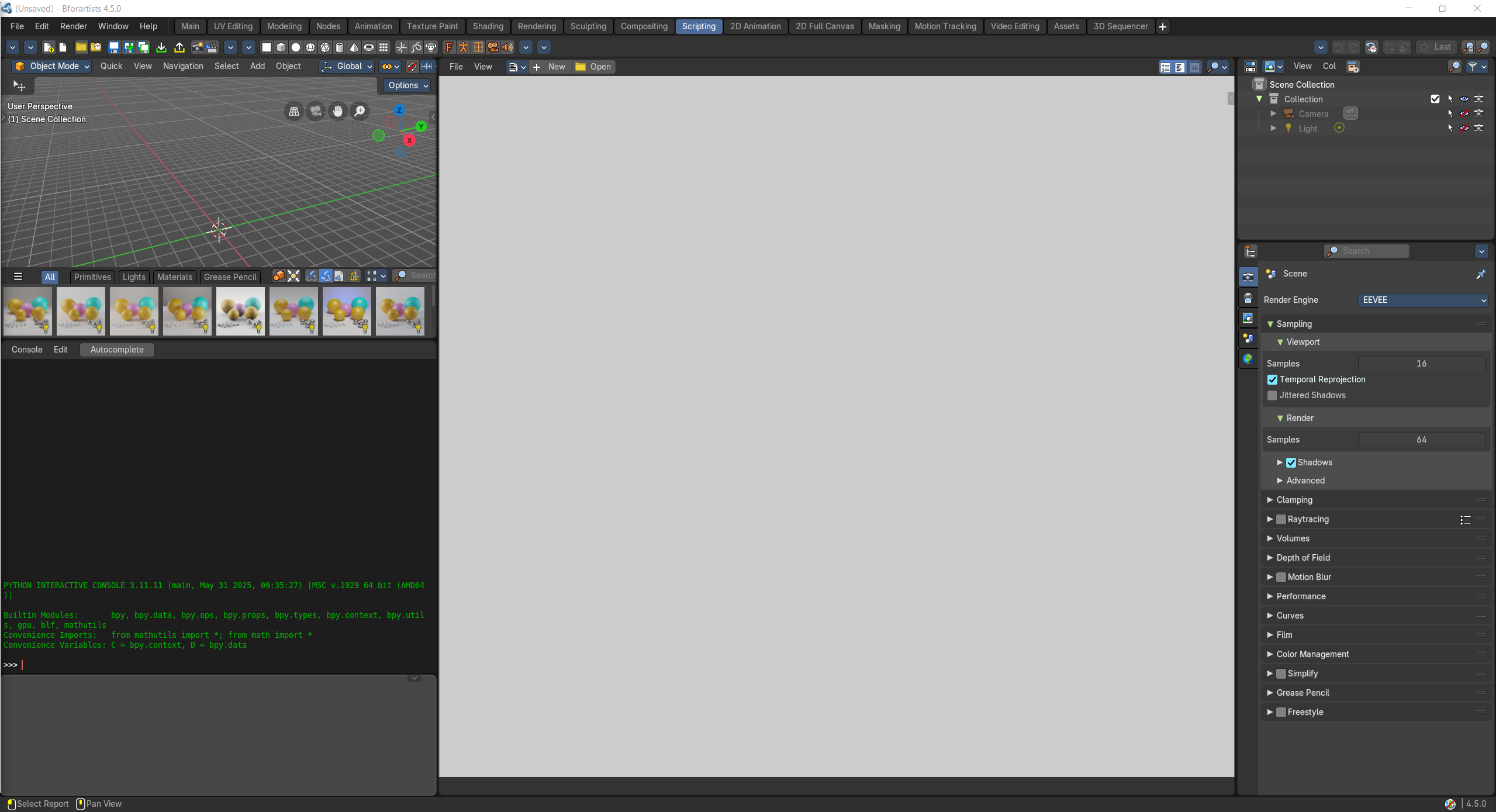 |
| A workspace to work with the grease pencil and to create 2D animation. | 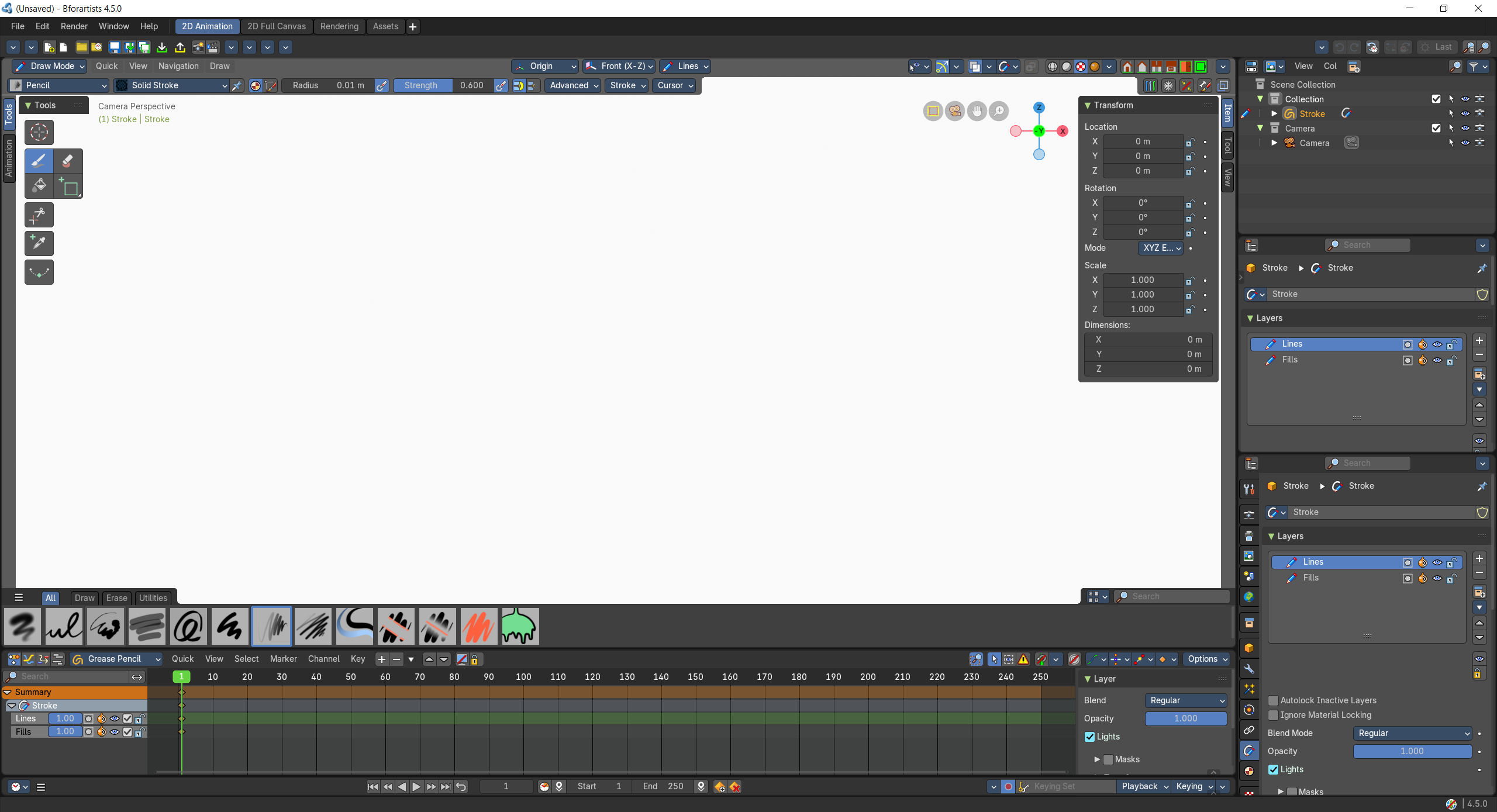 |
| A workspace to work with the grease pencil and to create 2D animation. The 3D view is maximized. | 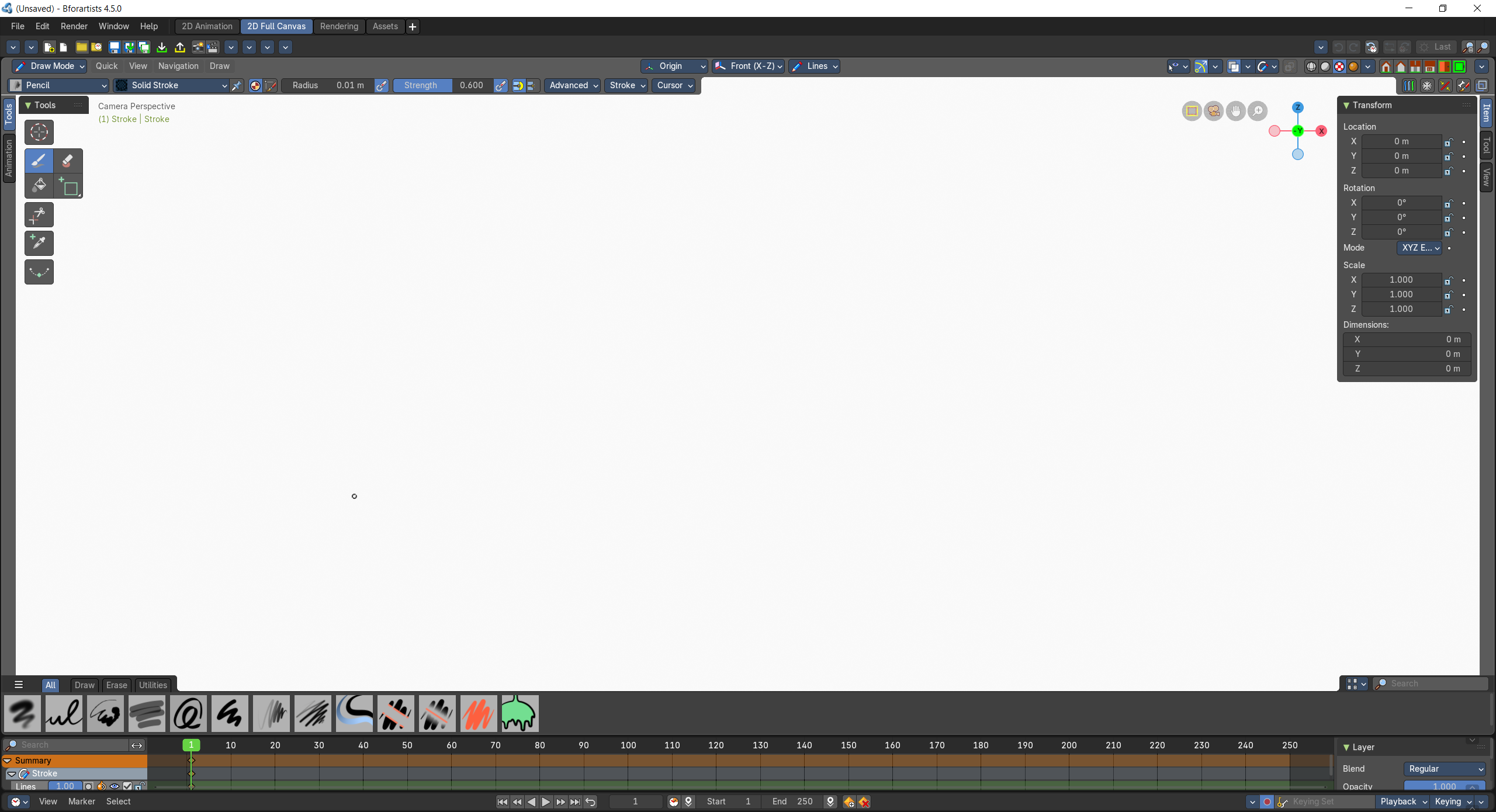 |
| A workspace for the VFX workflow, to mask content. | 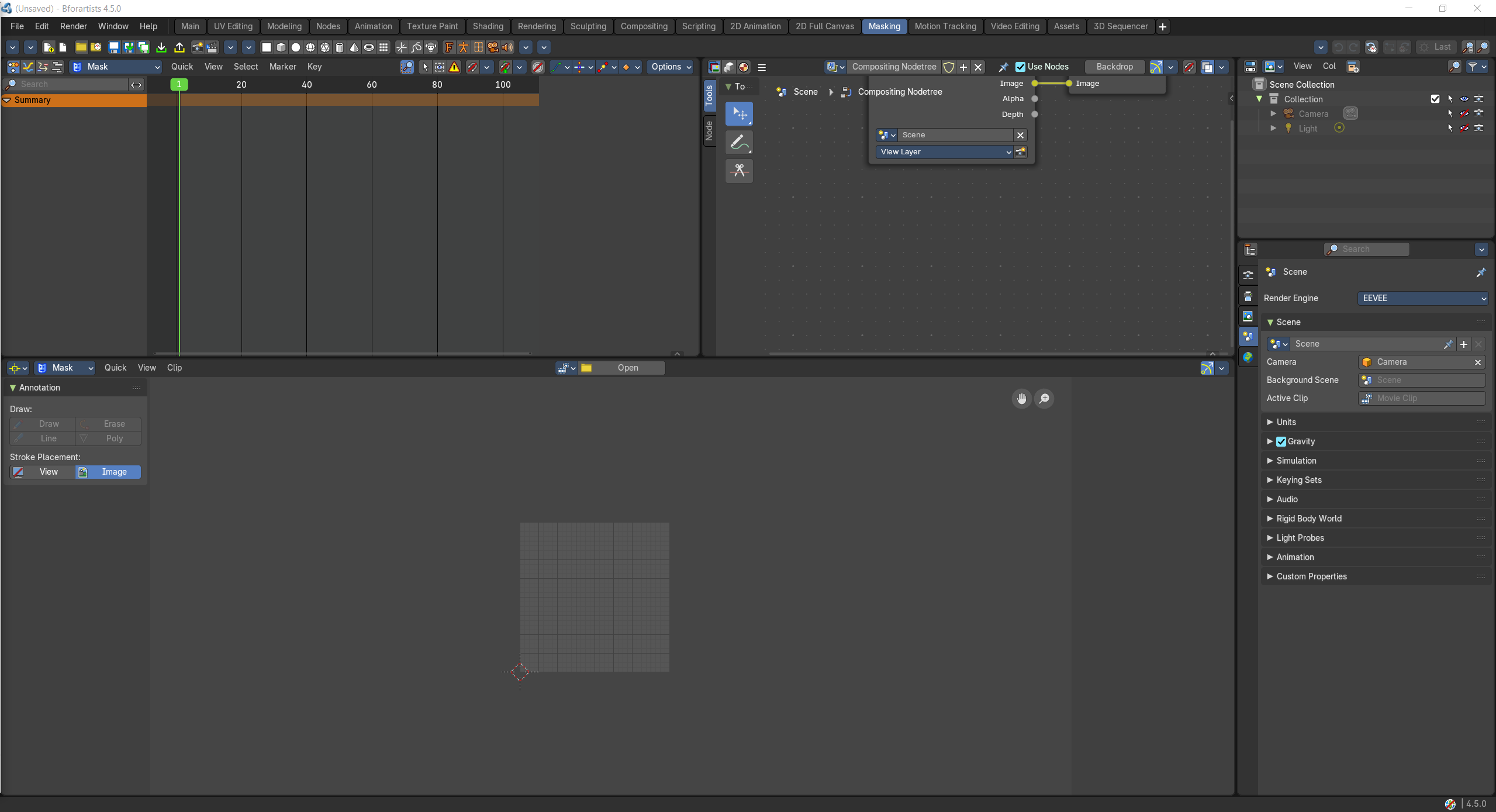 |
| A workspace for the VFX workflow. The Motion tracking layout. | 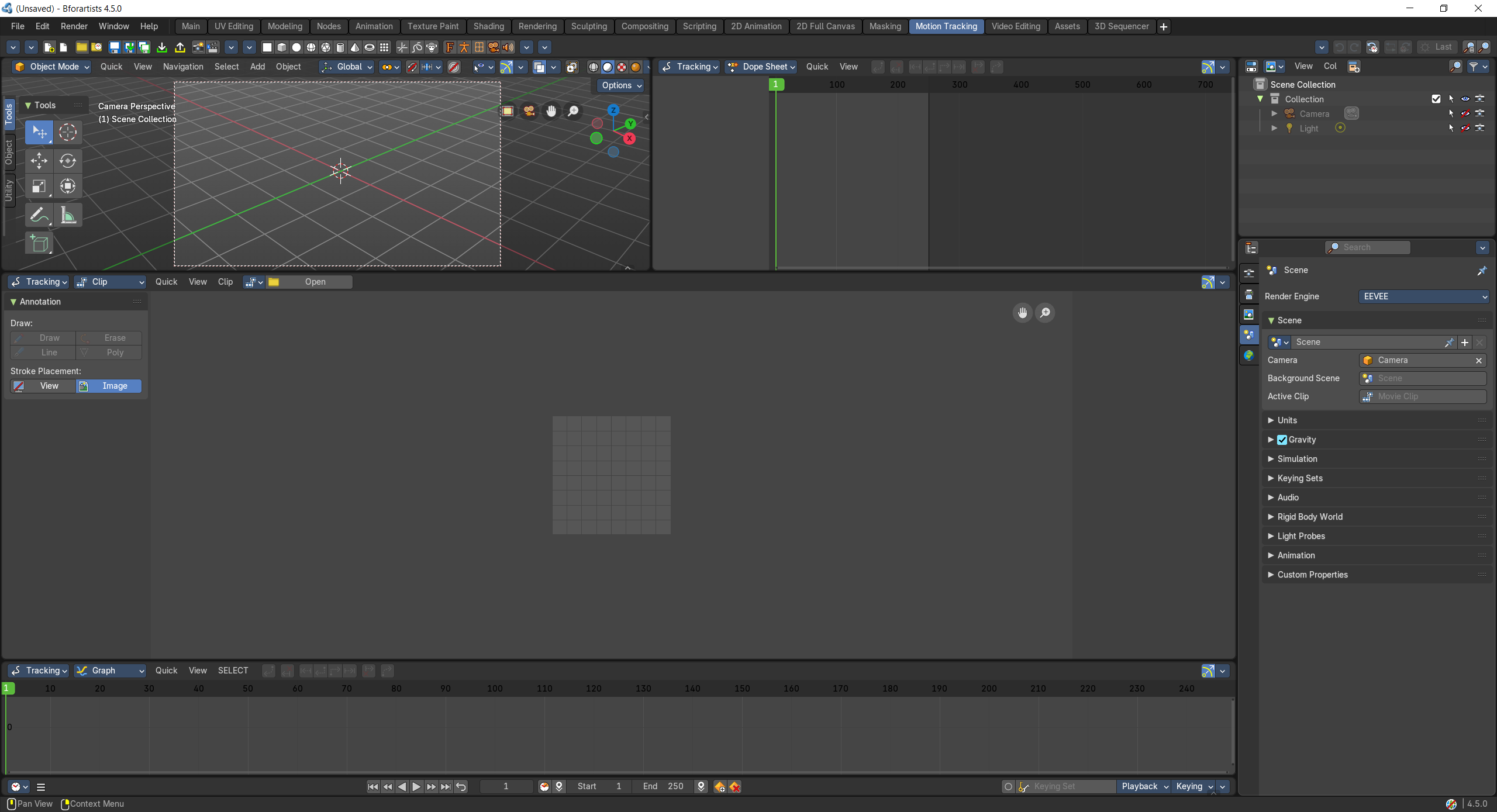 |
| A workspace to edit videos. | 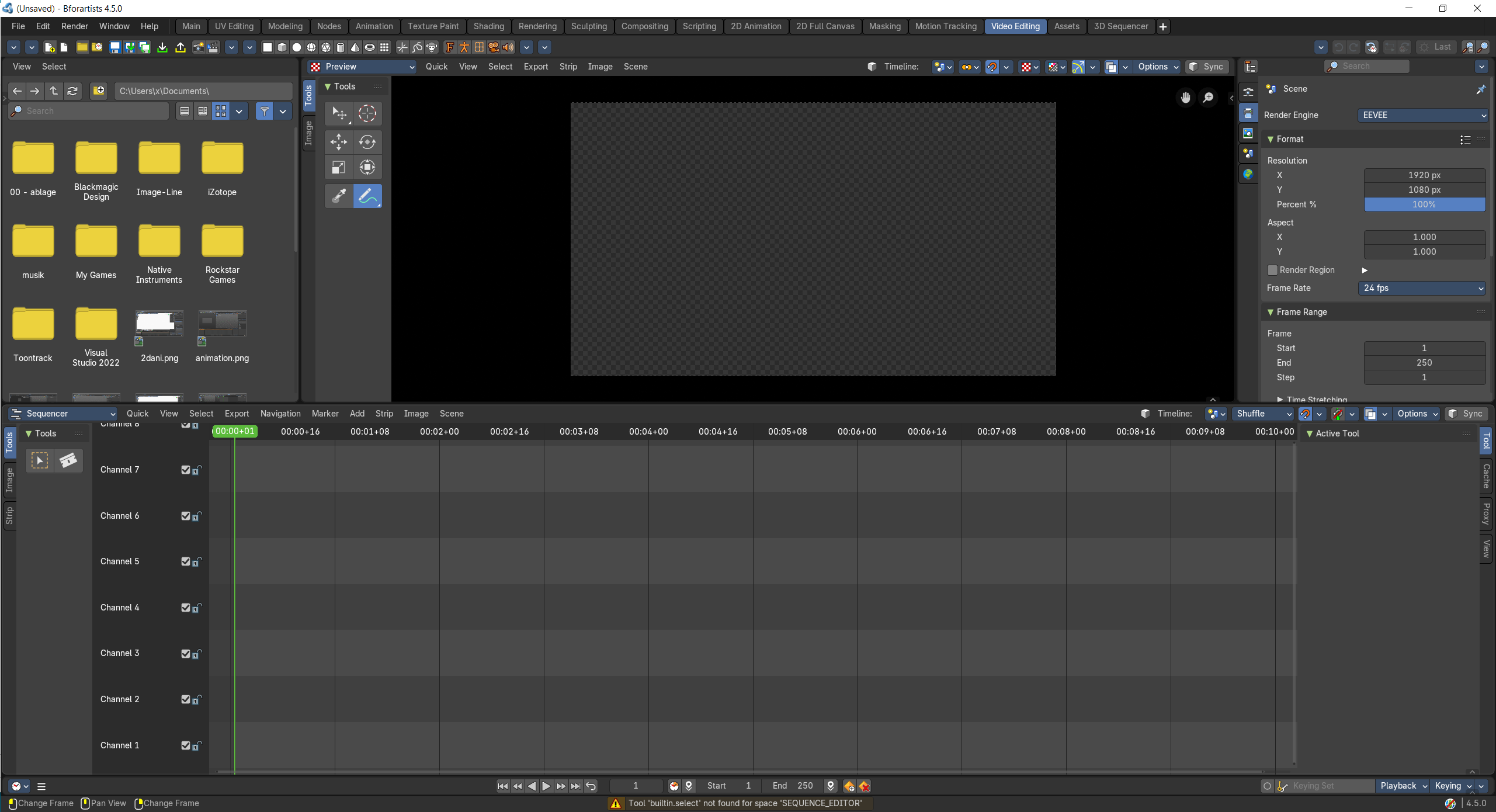 |
| A workspace that provides you the asset browser. | 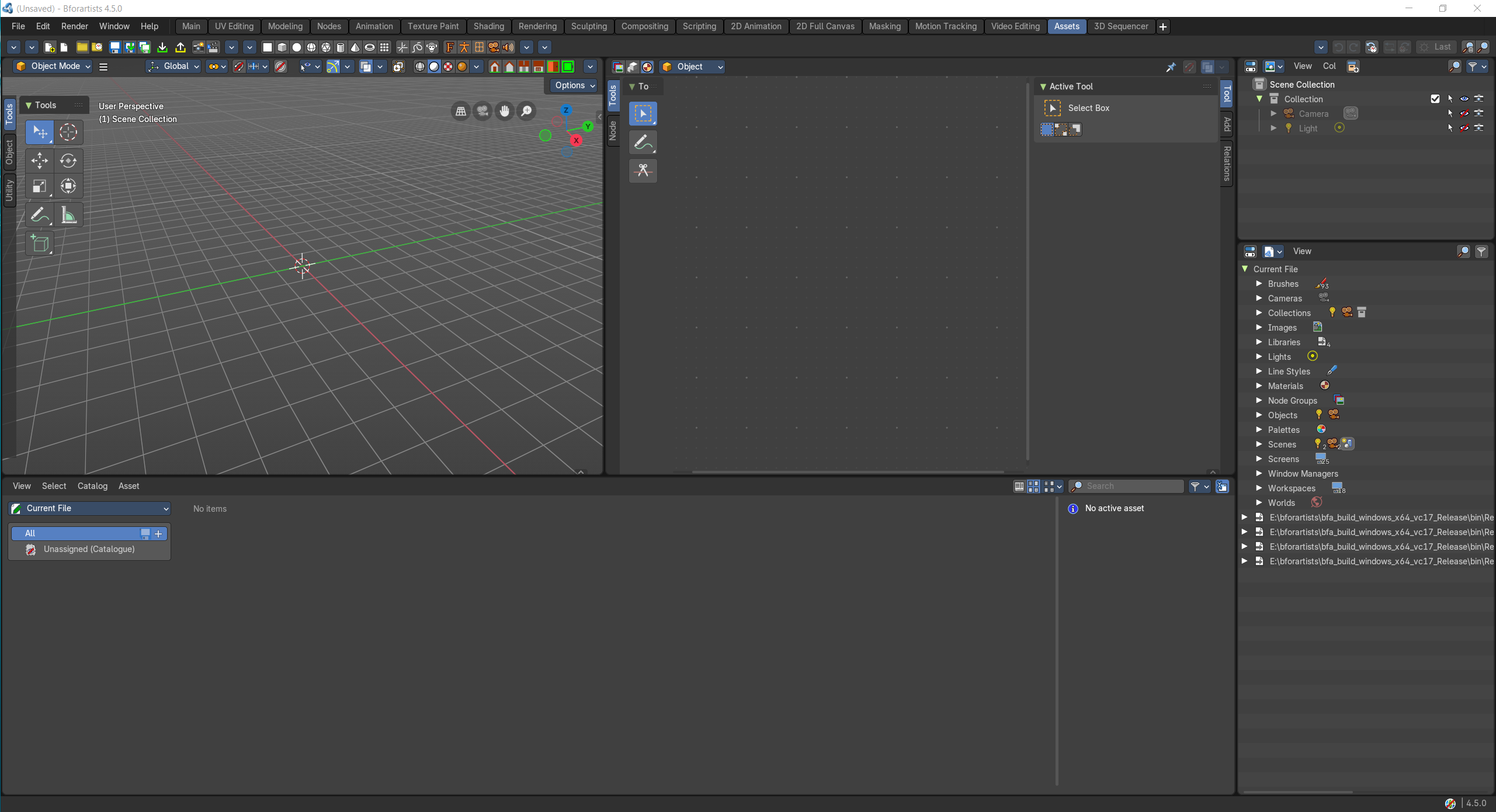 |
| A 3d sequencer workspace. | 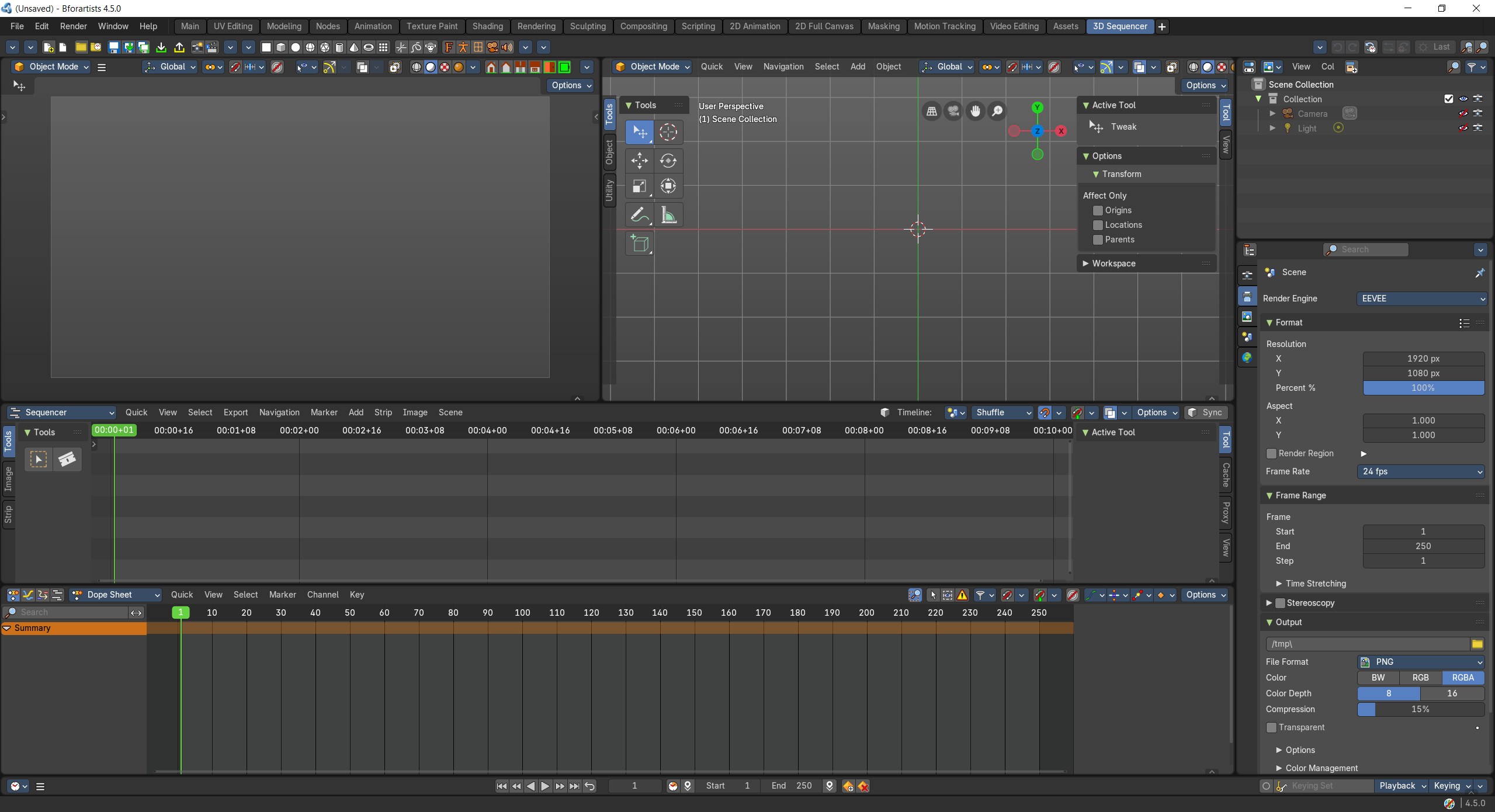 |
| A video editing workspace especially made for color balance. | |