










































3D art power, familiar from day one.
Bforartists lays out everything Blender can do the way artists expect: icons you can see, tools in top level shelves, sensible defaults and assets. Less to memorize, more time making.
Same task. Fewer clicks.
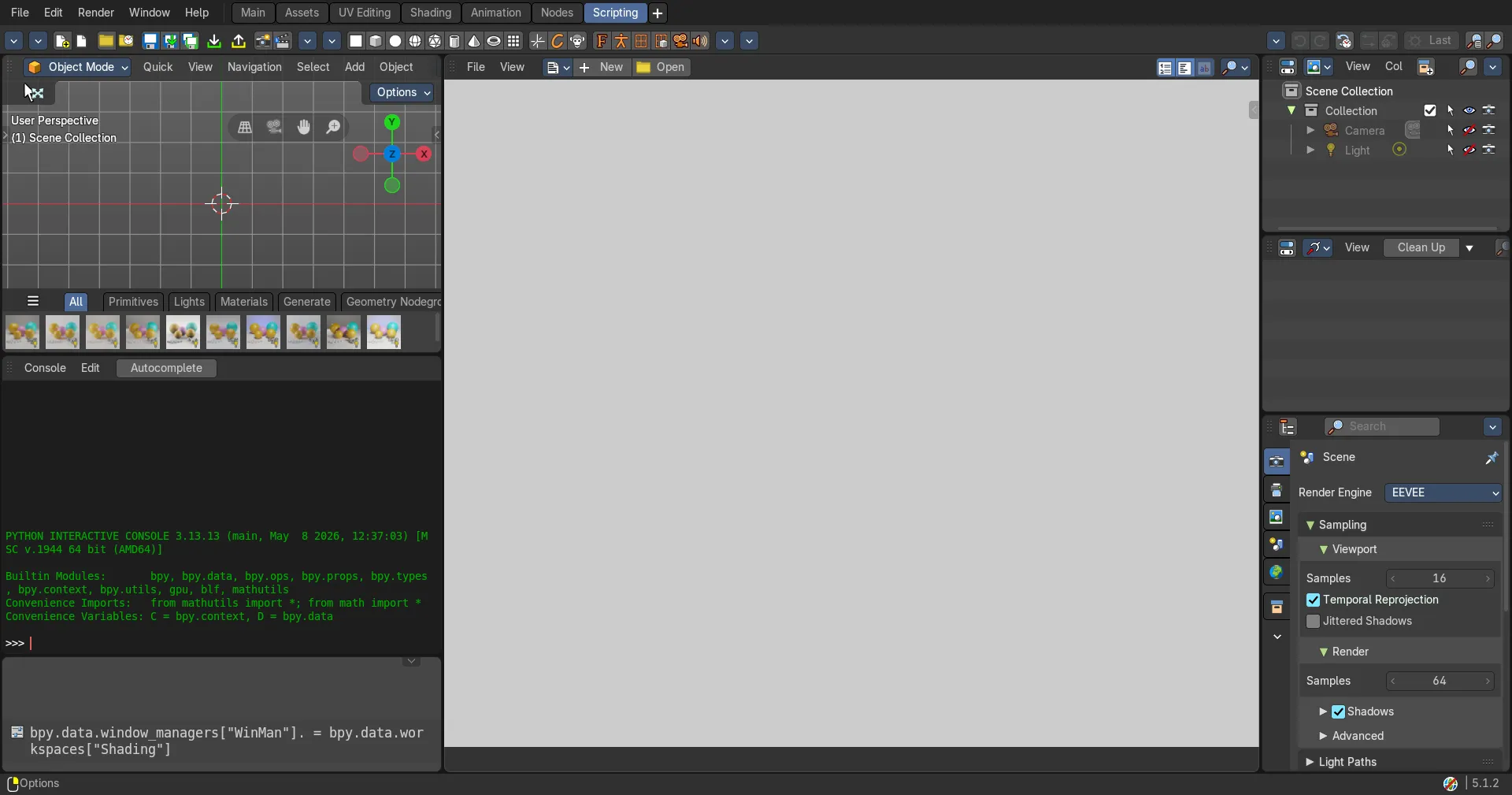
Drag the line on each panel. Scroll or use Next for the next one.
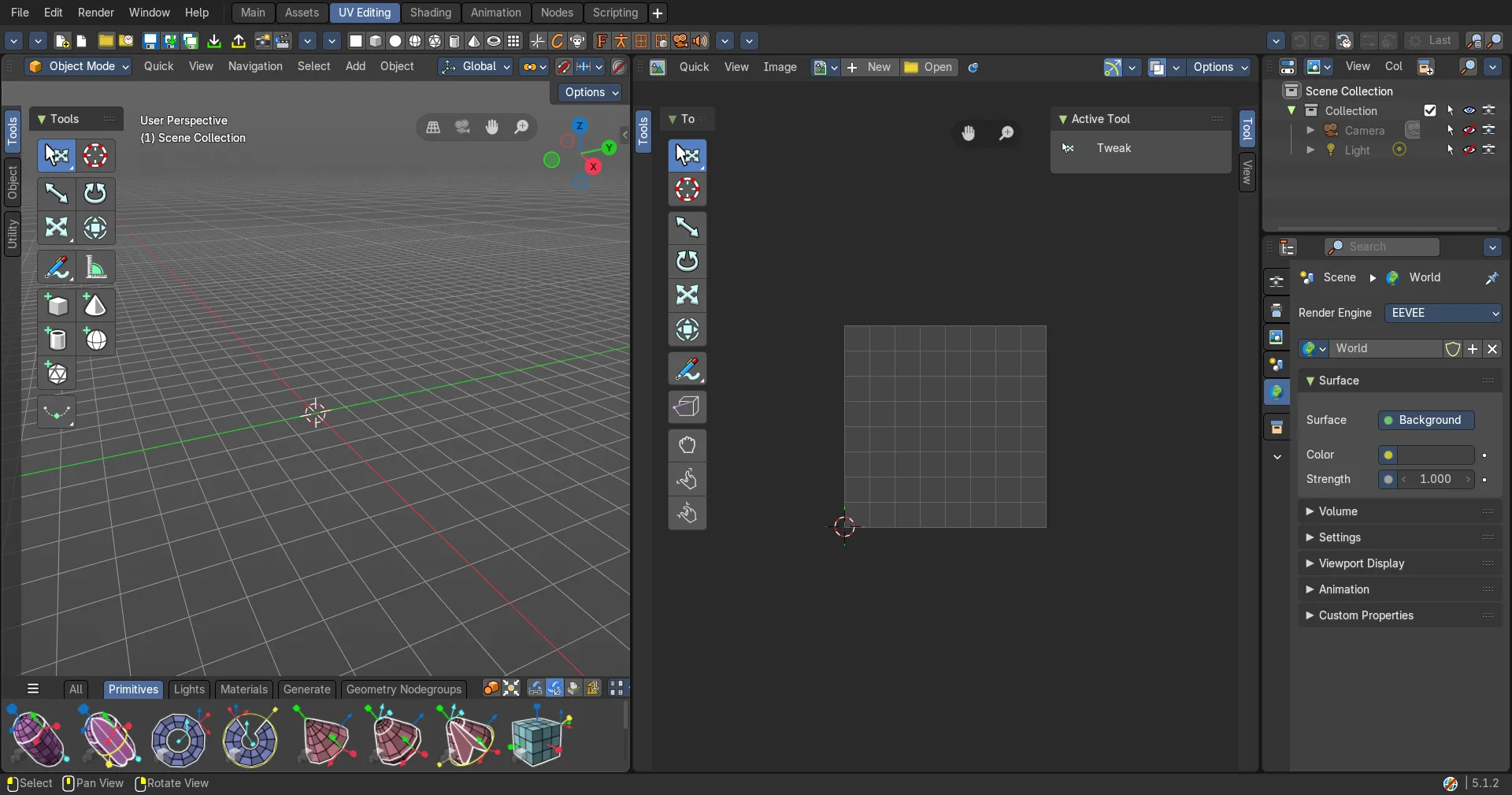
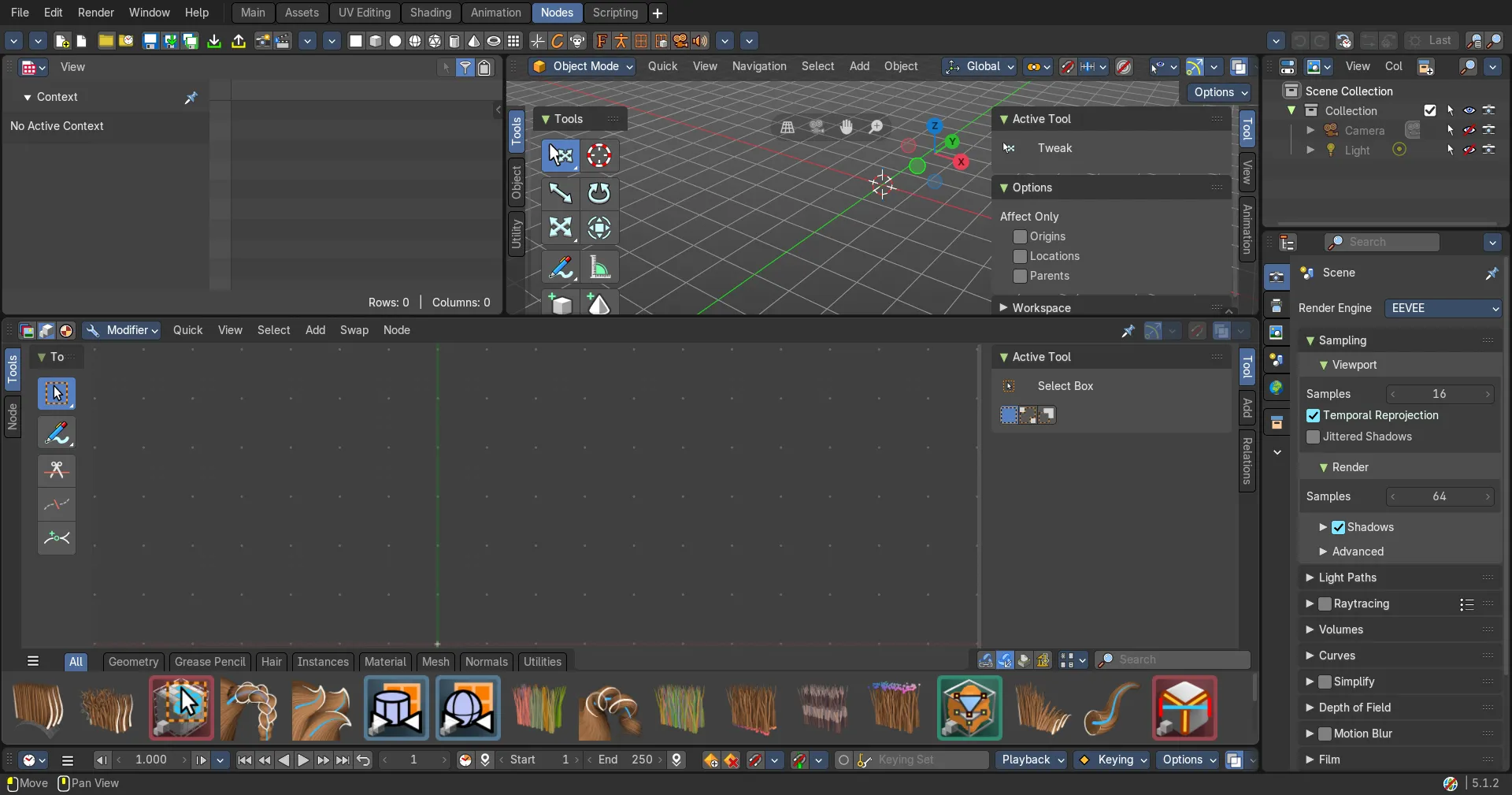
[Temp art. Final captures: Blender and Bforartists side by side, same screen resolution, same UI scale, same editor and scene: the 3D View, then the Outliner, then the Node editor.]
Three things you will use every day.
Each one is yours to arrange.
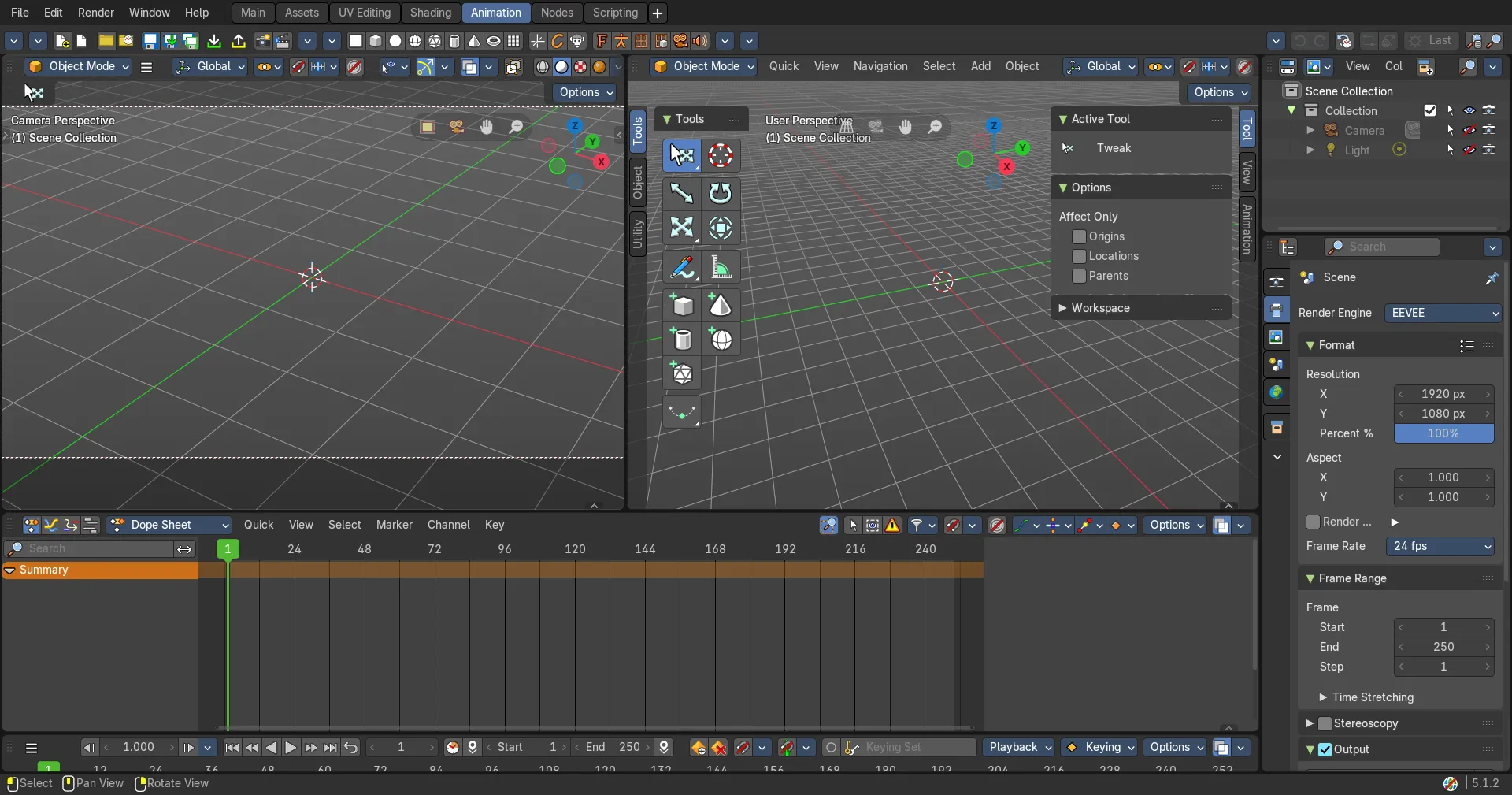
Your tools as buttons, along the top.
Save, undo, render, add objects: the actions you use most sit as icon buttons in the top bar, one click away in every workspace.

Switch whole button groups on or off in the Preferences.
Files, editing, history, render and more, as icons you recognise.

Asset shelves: drag, drop, done.
Materials, lights, shapes and node groups wait in a shelf under the viewport, and in all the node editors. Drag one in and keep working.
Lights, materials, primitives and more, one tab each.

Mark anything as an asset and it appears on your shelf directly in the editor.
Every tool, one tab away.
The tool shelf on the left groups every tool in tabs by job. No hunting through menus, no hotkeys to remember.

Turn header menus into panels that stay open.
Switch tabs on and off from the View menu.
Every tool has an icon.
Read the interface by shape and colour, the way artists read a picture.

Recognise a tool before you read its name.
Every tool one click away, grouped by job.

What a tool does, and where to find it.
Fewer hotkeys. Fewer clicks.
Less to memorise, more to see. The tools you used to summon with a shortcut now sit where you can find them.
Navigate with W, E and R. F to focus.

Find them by looking, not memorising.

Fewer confirmation dialogs, and no startup cube.
Hundreds of assets, ready to drag in.
All on the Asset Shelf from the first launch. Hover to pause.




Materials, lights, skies, shapes, brushes and node groups.

Looks and fixes for your renders.
Primitives to shape further, and faster unwrapping.

Your Blender world comes with you.
Worried about switching? Bforartists is Blender underneath, so your files, add-ons and know-how all carry over.
Save in one, open in the other.

Bring the tools you already use.

Every release follows the future.

Your files still render in Blender, any time.
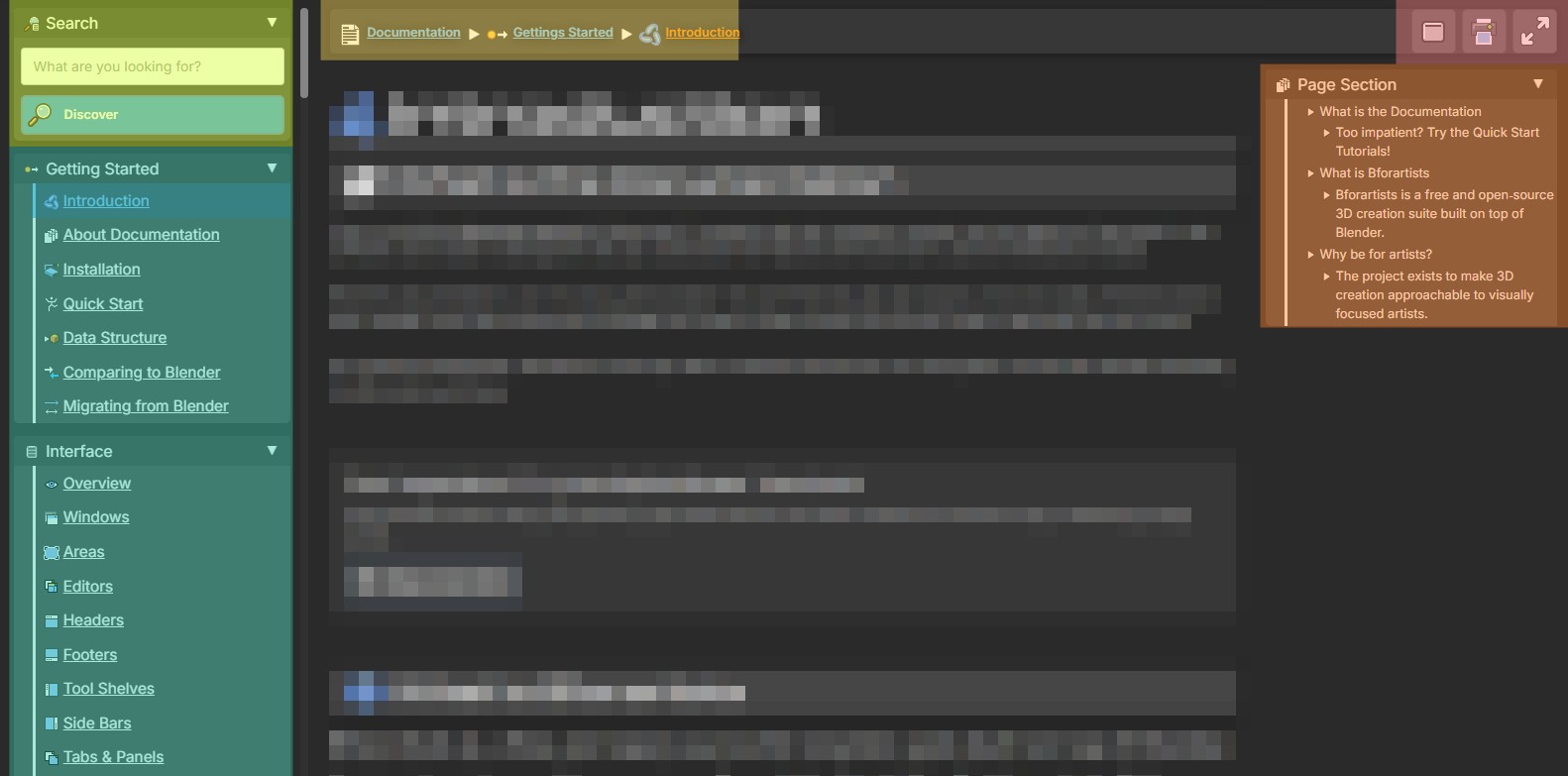
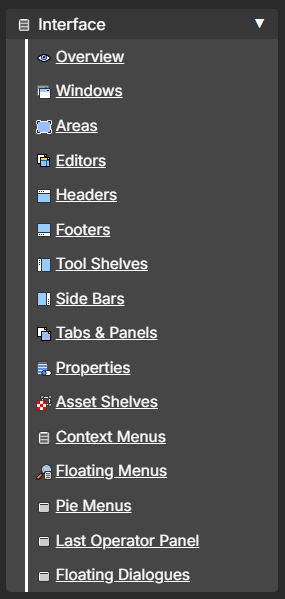
A manual written for this interface.
About 3,000 pages, organised by what you see on screen. Discoverable, interactive and also offline.

Find a page the way you find the tool.
Like in the app, anywhere on this site.

GPL v3. Every change is on GitHub.
Seven rules behind every change.
Every change in Bforartists answers to the same seven rules. Together they make Blender easier to see, find and learn.

Top level access
Deep tools surfaced, so you can point and click instead of digging through menus.
Iconography
Recognise tools by shape and colour, silhoette, form and line.
Customisable
Toolbars, top bar, gizmo overlays, and tabbed tool shelf you can customize and turn on and off.

Discoverable
3D View and Node Editor Asset Shelves and hotkey-only tools added to menus.
Consistent
The same menu order and locations in every mode.
Documented
A manual written for this interface.

Less hits
Sensible customizable defaults and assets that save clicks.
Interface perks: 21 small wins.
Little changes you feel every day, from menus to tooltips.

Double, triple and more identical menu entries combined, removed or exposed.
In Object mode and in the node editors.
Better starting values, from the first launch.
With icon buttons you choose.
Tools grouped by job, one click apart.

Better layouts for every task.
Properties read as clear groups.
Reduced to the hotkeys you need. Navigate 3D with the mouse alone.
Reset 3D View, Brush Panels, and Set Dimensions to scale in world coordinates in Edit mode.

Coloured Outliner rows and node backgrounds.
And you choose their order.

Many tools that were hotkey-only now have a menu entry.

Common things are easier to reach; rare operators are out of the way.
Silhouette, colour coding, form and detail, placed consistently everywhere.
The header tools, exposed at the top level in panels.

Quick point and click to add nodes.

Checkboxes and text line up wherever possible.
What a tool does, in plain words.

A readable standard theme.
Fewer delete confirmations, quick editor toggles, scene management in the Outliner, and more.
Find your way around big node trees.

…and all the latest from the Blender main trunk, every week.

Made for artists coming from other software.
Bforartists is Blender with a front door for artists arriving from other apps. Blender's own interface keeps serving studios and seasoned users brilliantly.
Hobbyists and indie artists

You make 3D for the fun of it, on evenings and weekends.
You work alone or in a small team, and need results fast.

You know another 3D, 2D or game app, and want tools you can see, not hotkeys to learn.
Professionals and Blender veterans

Pipelines, custom keymaps and deep training: Blender's interface is built around them.
A compact, hotkey-driven interface, tuned for speed by people who know it by heart.
Same engine. Same .blend files. A different starting point.
Bring your hotkeys, theme and add-ons over to Bforartists, if you wish. Your habits come with you.
See it for yourself.
Get Bforartists
For Windows, macOS and Linux. Your Blender files come with you.