Built on Blender. Reworked for artists.
Bforartists is a fork of Blender. Every tool, render engine and file format stays. What changes is how you reach them: coloured icons, tabbed shelves and fewer hotkeys.
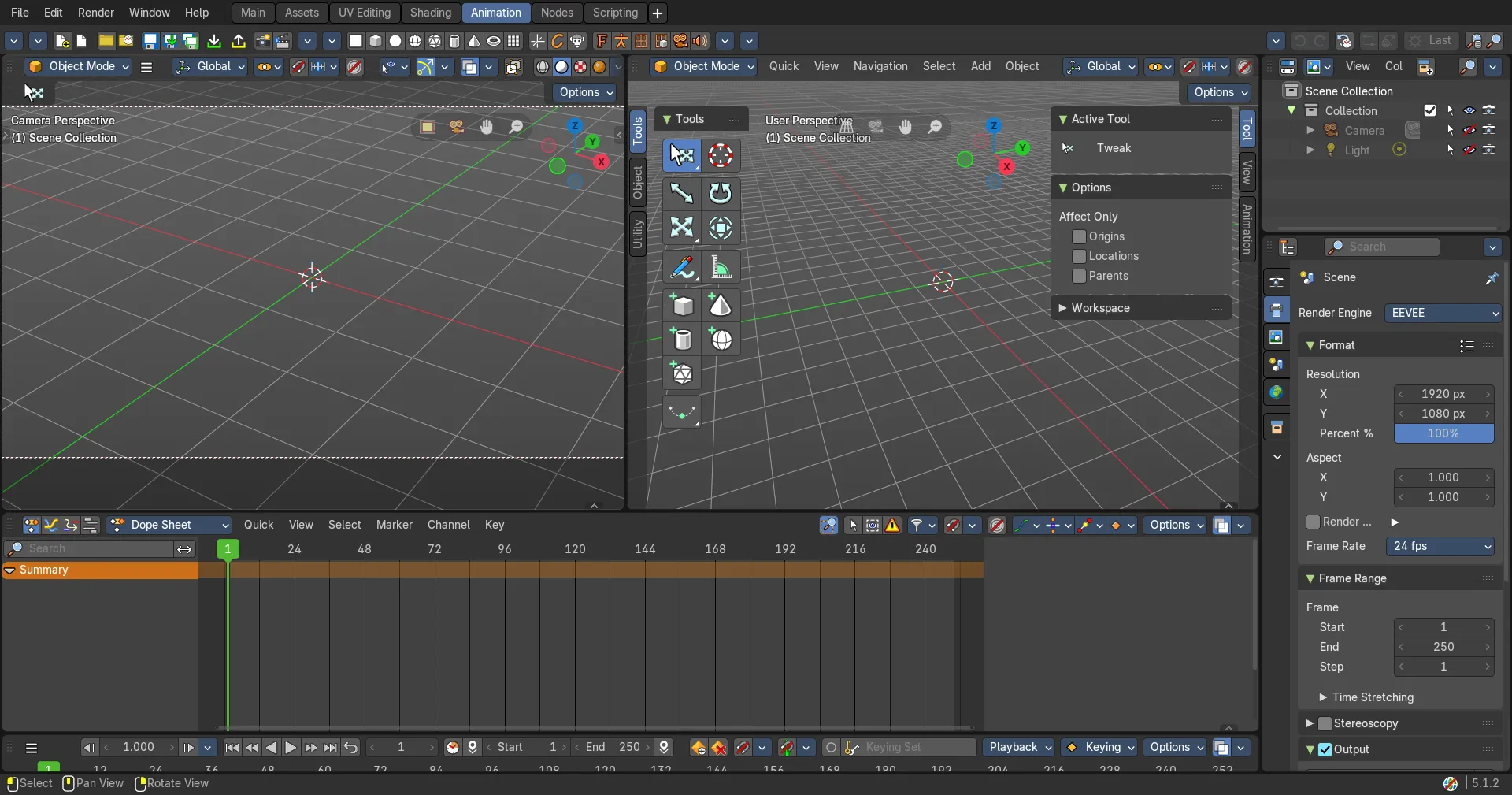
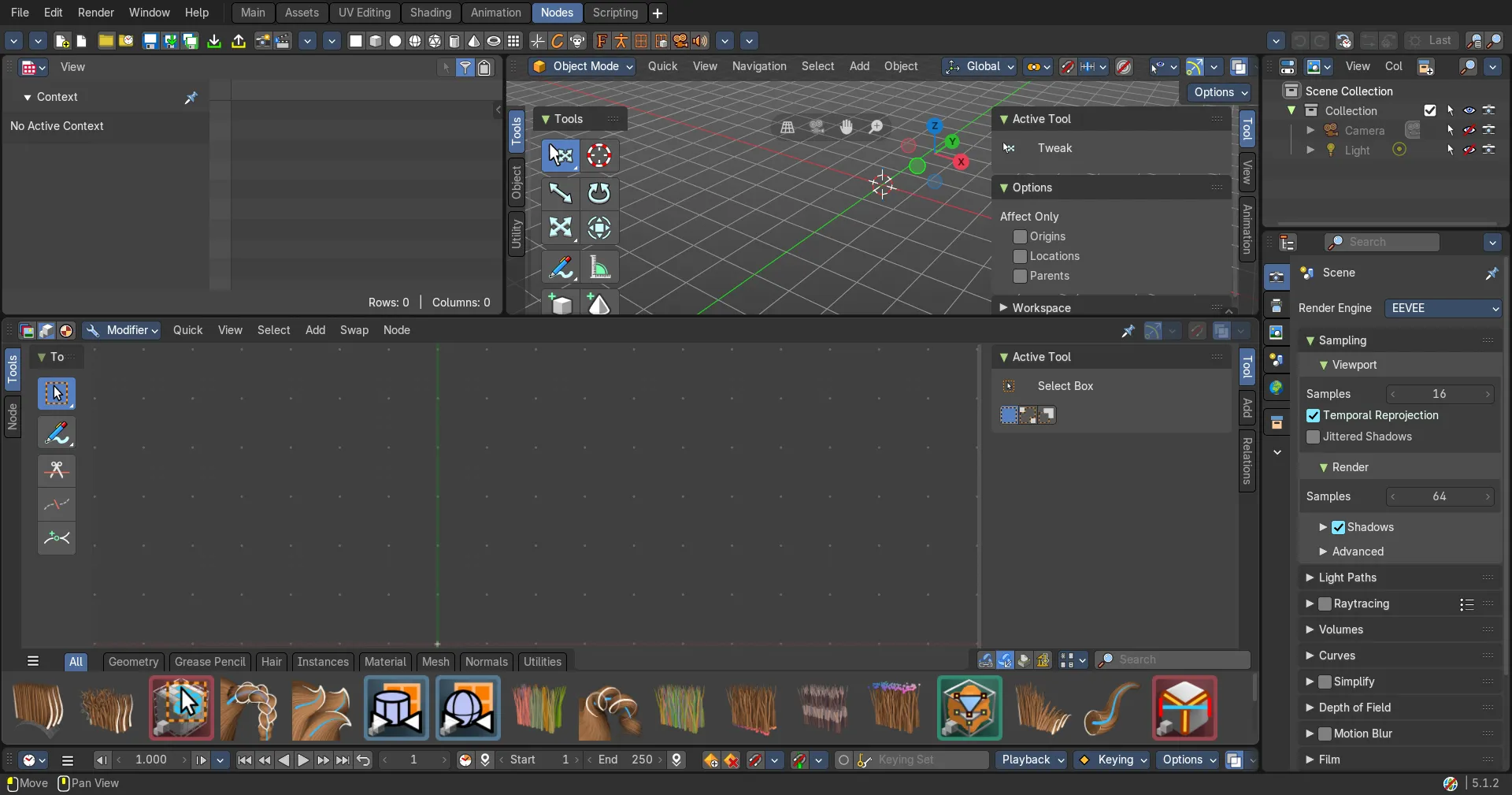
Blender underneath. All of it.
Bforartists changes the interface, never the engine. Files, renders and scripts behave the same in both.

Cycles, EEVEE, Geometry Nodes, sculpting and the rest, straight from Blender.
Save in one, open in the other. No export, no conversion.

Most add-ons and scripts work as they are.

A scene renders the same pixels in either app.

FBX, OBJ, glTF, USD, Alembic and more, in and out.
Fork, sync, release
Bforartists forks Blender's main branch, syncs it every week, and releases when Blender releases.
Bforartists builds on Blender's main development branch, not a finished release. Main keeps moving, so building on it keeps Bforartists future-proof.
Each week Blender's latest work comes in, then the interface is reworked on top of it.
Bforartists ships when Blender ships, so it stays close to every Blender release.

Because Bforartists builds from Blender's main branch, some add-ons and assets need to be forward compatible to be stable. Not sure? Use the earlier release: versions sit one point apart, so Bforartists 5.3 lines up with Blender 5.2.
The whole of Blender, in every release.
Bforartists ships the full Blender toolset. Here are the big ones, each with its own workspace, then the rest of the toolbox.

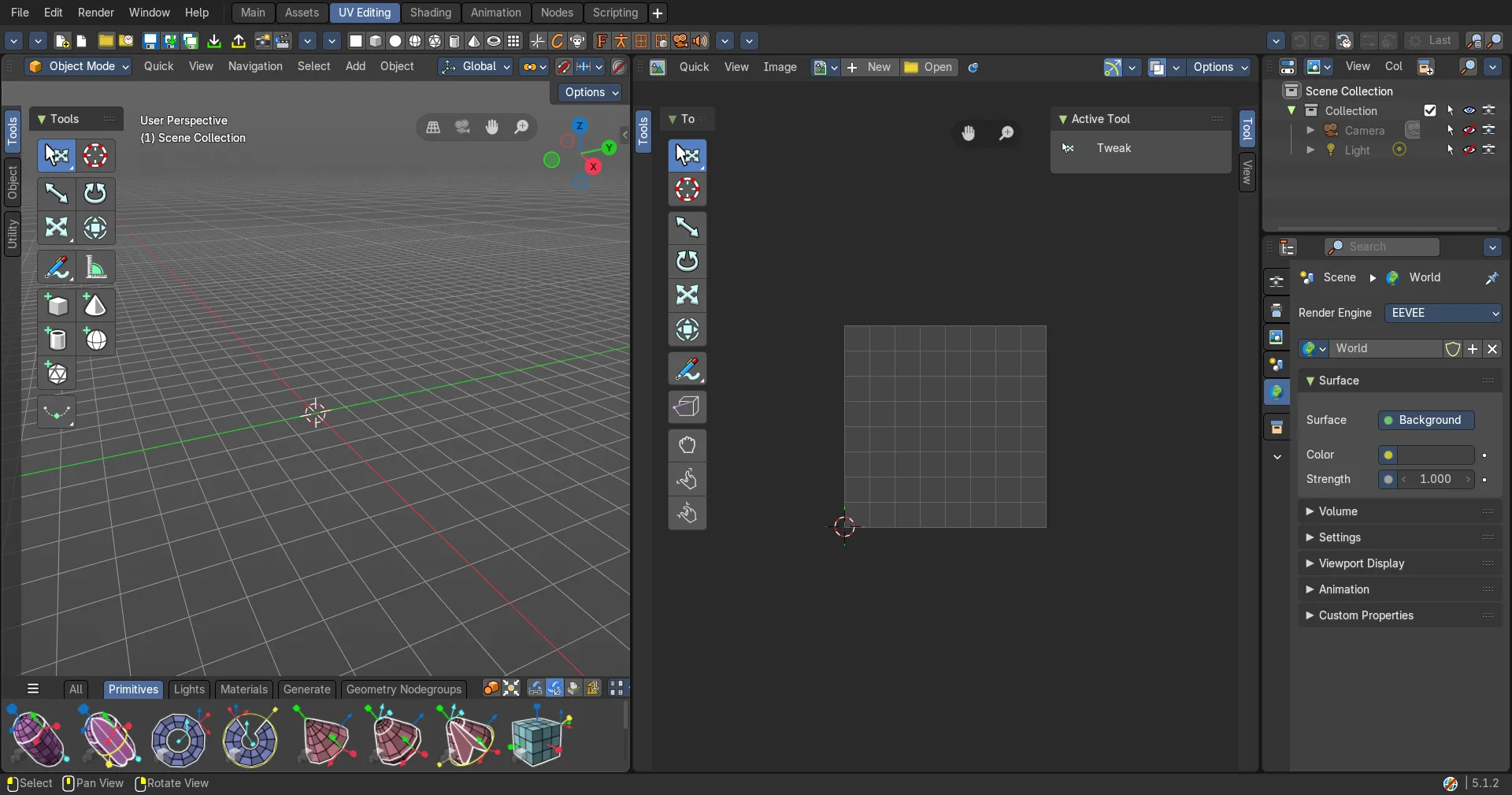
Model, sculpt and retopologize.
Polygon modeling with a full modifier stack, multiresolution and dynamic-topology sculpting, remeshing and retopology, all in one file.

Bevel, mirror, subdivide and dozens more, stacked and editable.

Multires, Dyntopo and remeshing, with masks and face sets.
Render with Cycles and EEVEE.
A production path tracer and a real-time engine share one node-based material system, so you can switch engines without rebuilding materials.

Principled shaders, volumes, hair and toon, built from nodes.

Area, sun, spot and point lights, light probes and light linking.
Animate characters, rigs and 2D drawings.
Armatures with constraints and IK, shape keys, drivers and the NLA. Grease Pencil draws in 3D space, so 2D animation sits right beside your 3D scene.

Bones, constraints, IK and weight painting.

Draw, ink and animate 2D inside a 3D viewport.
Build and simulate procedurally.
Geometry Nodes generates and scatters geometry, and simulation zones drive custom effects. Rigid bodies, cloth, fluids and smoke come built in.
Procedural modeling, scattering and simulation zones.
Rigid body, cloth, soft body, fluid and smoke.
Eight more things Blender does well.
All of it ships in Bforartists, with an icon on every tool.

UV and texturing
Unwrap, pack and paint textures right on the model.

Compositing
Grade, key and layer renders with compositor nodes.

VFX and tracking
Track cameras and objects, then match CG to footage.
Video editing
Cut, mix and grade video and sound in the Sequencer.

Assets and file formats
Asset libraries, plus USD, FBX, glTF, OBJ and Alembic.

Python and extensions
Script anything with the Python API, or add extensions.

Cameras and lighting
Depth of field, lens and stereo cameras, light probes and HDRI worlds.

Particles and hair
Hair curves, grooming and particle systems for fur, grass and crowds.

Every difference, editor by editor.
106 differences in 18 groups. Blender on the left, Bforartists on the right. Added: Bforartists brings something new. Polished: it reworks something Blender already has. Each group shows where its tools sit in the tool shelf or sidebar, with a link to that area in the manual.
Bforartists and Blender, compared
Same engine, same files. Picked from more than 5,200 closed tracker items and checked against the source of both apps.
of menu and button entries carry an icon. Blender: 24%.
operators as buttons in the 3D View tool shelf alone.
left-aligned layouts for clearer panels. Blender: 67.
Legacy submenus that keep duplicate operators out of the way.
 General
 Hotkeys
 Tool shelf
 3D View
 ModelingSculpting
 PaintingGrease Pencil
 Outliner
 PropertiesAssets
 AnimationSequencer
 NodesCompositorUV
 Text
Text PreferencesBlender
 Bforartists
General and philosophy
8 differences · 2 added, 6 polished
 Operators as buttons in the tool shelf and sidebar, not only behind hotkeys
 Open the manual
Many operators are reached by hotkey, search or nested menus.
Operators sit as buttons in the tabbed tool shelf and as menu entries, so most work is a click instead of a memorized key.
Mostly monochrome icons, set on about a quarter of Python menu and button entries.
A coloured icon set, extended many times, on three quarters of all menu and button entries.
A split layout puts labels in a centre column and checkboxes to the right of it.
Checkboxes sit left beside their label instead of in a far column, and modifier and constraint panels read top to bottom.
The split layout right-aligns labels in a centre column, so in a wide editor they drift toward the middle.
Properties float left beside their labels, so they stay easy to read and keep their shape when an editor is stretched wide or squeezed narrow.
Labels in a panel share one alignment, so related properties are told apart mostly by headings and spacing.
Sub-labels are indented under the property they belong to, so a long column of properties reads as clear groups.
Options that do not apply are greyed out but still take space.
Options that do not apply are hidden until they do, often behind a disclosure arrow, so panels stay short.
Tooltips on most controls; Python tooltips are off by default.
Menu entries that share an operator get their own tooltip, tooltips name the tool and its hotkey, and Python tooltips are on by default.
Ships a small set of core add-ons and the Essentials assets; most add-ons are downloaded as online extensions.
Ships about 70 legacy add-ons and 80 pre-downloaded extensions to install offline, plus a Default Library of materials, models, brushes and Geometry, Shader and Compositor node groups.
Hotkeys and navigation
6 differences · 2 added, 4 polished
Hotkey-only tools also sit in menus and the tool shelfOpen the manualThe default keymap binds most tools to a key, often with several modifier variants.
Its own Bforartists keymap (with a macOS variant) keeps about a third fewer bindings and leaves the rest to menus and buttons.
G, R and S start a modal move, rotate or scale, and W cycles the select tools.
W, E and R switch to the Move, Rotate and Scale gizmo tools, and Ctrl+W, E, R start the modal transform right away.
Numpad period frames the selection; F fills faces in Edit Mode.
F frames the selection, Ctrl+F frames it in all views, Alt+F centres on the mouse.
Tab toggles Edit Mode and Ctrl+Tab opens a mode pie; 1, 2, 3 pick vertex, edge or face in Edit Mode.
1 to 6 jump straight to Object, Edit, Sculpt, Vertex, Weight and Texture Paint (also for Grease Pencil and Curves), and Tab toggles overlays.
Middle mouse orbits, Shift+middle mouse pans.
Right-drag orbits and a right click still opens the context menu, so a mouse without a usable middle button can navigate; middle mouse pans.
Some operators exist only as a hotkey, with no menu entry.
Hotkey-only operators get menu entries, so they can be found by clicking and the menu shows their key.
Top bar, tool shelf and sidebar
6 differences · 4 added, 2 polished
Tool shelf tabs in the 3D View, UV Editor, Sequencer and node editorsOpen the manualThe top bar holds the main menus and workspace tabs.
A row of icon buttons in eight groups (File, Mesh Edit, Primitives, Image, Tools, Animation, Edit, Misc), each switched on or off with its sub-groups from the Topbar Manager.
No such editor.
A Toolbar editor type with the same button groups, to place extra rows of buttons in any area of a layout.
The left toolbar holds the active tools only.
A View menu toggle turns the tool shelf into tabs (Object, Mesh, Sculpt, Paint, Pose, Utility and more) of operator buttons that switch between icon grids and labelled buttons as the shelf widens; the UV Editor, Sequencer and node editors get their own tabs.
Quick Favorites opens with Q; items are added or removed by right-click and cannot be reordered.
A Quick menu sits in the header of the 3D View, Image, node, Graph, Dope Sheet, NLA, Sequencer and Movie Clip editors, and its editor lets you reorder, remove and set icons for each item.
Change editors from the editor-type menu.
Icon tabs in the header jump between related editors: Outliner and Properties, Dope Sheet, Timeline, Graph, Drivers and NLA, Shader, Geometry Nodes and Compositor, Image and UV.
Menus list operators that duplicate a tool or a modal operator next to each other.
Modal operators lead; duplicates of tools and modal operators move into a Legacy submenu, keeping headers and menus short while nothing is lost.
The left toolbar holds active tools only; operators live in header menus and search.
A tabbed tool shelf adds an Object tab with button panels for Transform, Set Origin, Mirror, Mirror Local, Clear, Apply, Apply Deltas, Snap and Shading, switched on from the View menu.
Parenting, linking, asset marking, constraints, collections and conversion sit in separate Object menu submenus.
A Utility tab in the tool shelf gathers them as buttons: Parents, Object Data (Make Single User, Link/Transfer Data, Make Local, Library Override), Assets, Constraints, Collection and Convert.
Asset shelves appear for brushes in paint and sculpt modes, and for poses through the Pose Library add-on.
An Object mode asset shelf offers materials, objects, collections, worlds and Geometry Nodes groups tagged "3D View" to drag in, with thumbnail size presets.
Orbit, pan, zoom, fly and walk sit in a Navigation submenu inside the View menu.
Navigation is its own menu in the 3D View header, with icons on every orbit, roll, pan, zoom, fly and walk entry.
Pie menus open from hotkeys only.
View > Pie Menus lists every 3D View pie (modes, view, shading, pivot, snap, orientations, falloff, sculpt mask and face sets, keyframe insert and more), so you can find them without the key.
Menus list operators that duplicate toolbar tools, such as Box Select, Knife, Bisect and Loop Cut and Slide, next to everything else.
Those duplicates move into Legacy submenus (View, Navigation, Select, Mesh, Vertex, Edge, Face and paint menus), so the main menus favour the modal tools and stay short.
No on-screen hotkey reference.
The Important Hotkeys add-on draws the key shortcuts for the current mode in the corner of the viewport, toggled from the sidebar View tab with its own colour and text size.
Modeling and Edit Mode
6 differences · 5 added, 1 polished
Tool shelf: Mesh, Vertex, Edge, Face and UV tabsOpen the manualMesh editing operators live in the Mesh, Vertex, Edge, Face and UV header menus.
Mesh, Vertex, Edge, Face and UV tabs in the tool shelf show them as icon buttons, with Mesh panels for Merge, Split, Separate, Tools, Normals, Shading, Clean Up and Dissolve.
To Circle, Flatten, Space Edge Loops Evenly and Relax Edge Loops sit in Mesh > Transform without icons.
They also get icons and buttons in the tool shelf Transform panel, next to Shear, Bend and Push/Pull.
Delete or X opens a menu to choose vertices, edges, faces or a dissolve type.
Delete runs Smart Delete, which dissolves or deletes according to the selection mode and what is selected, then removes stray vertices.
Edit mode shows the median of selected vertices, not their size.
Set Dimensions reads the width, depth and height of the selected vertices and scales them to the values you type, from Mesh > Transform or the tool shelf Transform panel.
Subdivision levels change with Ctrl+0 to Ctrl+5 only, and only the viewport level moves.
A Subdivide menu (Level 0 to 5) sits in the Object and Mesh menus; with the bundled Power User Tools add-on, the render level follows too.
Curve, surface and hair curve operators live in header menus.
Curve, Control Points, Segments and Surface tabs appear for curve and surface edit, and Curves, Control Points and Segments tabs for hair curves.
Sculpting
5 differences · 2 added, 3 polished
Tool shelf: Sculpt, Mask and Face Sets tabsOpen the manualSculpt operators live in the Sculpt, Mask and Face Sets header menus.
Tool shelf tabs show them as buttons: Sculpt (Transform, Sculpt, Filter, Set Pivot), Mask (Mask, Random Mask) and Face Sets (Face Sets, Initialize Face Sets), plus a Curves tab for hair sculpting.
The Remesh popover in the Sculpt header offers voxel remeshing only.
The same popover switches between Voxel and QuadriFlow, with a QuadriFlow Remesh button for quad topology.
Multires levels change with Ctrl+0 to Ctrl+5 or in the modifier panel.
The Sculpt menu has a Subdivide submenu that sets the level from 0 to 5 in one click.
The Sculpt and Mask menus list Box, Lasso, Line and Polyline Hide/Show and Box/Lasso Mask, which the toolbar tools also do.
Those entries move into Legacy submenus of the Sculpt and Mask menus, so the menus lead with the tools and filters.
Sculpt, Mask and Face Sets menu entries are text only.
Almost every entry in those menus has an icon, including new ones for mask, face set and gesture operators.
Vertex colour and vertex group operators live in the Paint and Weights header menus.
A Paint tab (Set Vertex Color, Smooth, Dirty, From Weight, Invert, Levels, Hue Saturation Value, Bright/Contrast, Color Picker) and a Weights tab (Assign from Bones or Envelopes, Normalize, Mirror, Invert, Clean, Quantize, Levels, Smooth, Transfer Weights, Limit Total, Set Weight) show them as buttons.
Stencil move, rotate and scale are hotkey-only right-drag actions.
A Brush menu in the Vertex and Texture Paint headers lists Move, Rotate, Scale and Reset for the stencil and stencil mask, face or vertex mask show/hide, and the Color Picker.
The tool header shows the primary and secondary colour; the swap button is in the sidebar colour panel (or X).
The Vertex and Texture Paint tool headers add the swap button next to the two colours.
The tool header leaves out the use-for-all-brushes toggle, and pressure curves are edited in the sidebar.
The header shows the unified toggle too, and a dropdown next to Size or Strength opens the pressure curve once pressure is on, in paint and sculpt modes.
Painting through the mesh means turning off Front-Face Only and changing Falloff Shape by hand.
An X-ray button in the Weight Paint tool header switches both at once and back, with a popover to set the on and off states.
Grease Pencil
5 differences · 2 added, 3 polished
Tool shelf: Grease Pencil, Stroke, Point and Draw tabsOpen the manualGrease Pencil operators live in header menus.
Tabs show them as buttons: Grease Pencil, Stroke and Point tabs in Edit Mode (Dissolve, Clean Up, Separate, Simplify, Set Caps, corner types), Draw, Animation and Clean Up tabs in Draw mode, and Weights and Paint tabs.
Surface placement uses a fixed offset you set apart from the brush.
A link toggle ties the surface offset to the brush radius and pen pressure, with an Extra Offset on top, so thick strokes do not sink into the surface.
The Draw and Vertex Paint headers show one vertex colour.
Both headers show the primary and secondary colour with a swap button.
Size and strength pressure curves sit in the sidebar brush settings.
A dropdown next to Size and Strength in the Draw header opens the curve, and the sidebar folds the curves into collapsible rows.
The Stabilize Stroke radius starts at 10 pixels.
The radius goes down to 1 pixel, for light smoothing on small strokes.
The Scenes mode header has no scene tools, and a scene's right-click menu only offers Delete.
The Scenes mode header has a New Scene popover (New, Copy Settings, Linked Copy, Full Copy), and right-clicking a scene adds Copy Settings, Linked Copy and Full Copy.
The header has no menus outside Data API mode; Show Active, Show/Hide One Level and similar sit in a View submenu of the right-click menu.
A View menu in every mode holds Show Active, Show/Hide One Level, Expand/Collapse, Show Hierarchy, Box Select, Select All/None/Invert, Manage Unused Data and the View pie.
Move to Collection and Link to Collection live in the 3D View Object menu; the Outliner header only has a New Collection button in View Layer mode.
A Col menu in the header (Scenes and View Layer modes) holds Move to Collection, Link to Collection, Remove from Collections and Add/Remove Active, next to a New Collection button.
Make, Reset, Clear and Troubleshoot Library Override sit in a Library Override submenu of the right-click menu.
Make, Reset, Clear and Troubleshoot Library Override sit directly in the right-click menu, with icons.
The object right-click menu offers Copy and Paste, but no Duplicate.
The object right-click menu has Duplicate and Duplicate Linked, with matching hotkeys.
A collection's colour tag tints only its icon.
The colour tag also tints the whole collection row, with nested collections drawn as stacked blocks; a toggle sits in Preferences > Editing > Outliner.
Properties editor
7 differences · 2 added, 5 polished
Apply and Pin in every modifier headerOpen the manualPanels use a centred split, with labels right-aligned against their fields.
Modifier and constraint panels put checkboxes and labels on the left, indent dependent settings and keep fields aligned, so panels read top to bottom and resize cleanly.
Properties that do not apply stay visible but greyed out.
Settings controlled by a checkbox collapse away, behind a small arrow, until the checkbox is on (for example Limit Location, Render Region, Motion Blur, Units).
Apply sits inside each modifier's dropdown menu.
Each modifier header shows Apply (checkmark) and Pin to Last buttons beside Remove, with the dropdown kept for the rest.
Add, Remove and Apply act on the active object; holding Alt includes the other selected objects.
Add, Remove and Apply act on all selected objects by default; holding Alt limits them to the active object.
One Add Modifier menu mixes built-in categories with node-group asset catalogs in submenus.
Two buttons: Add Modifier opens the built-in modifiers as side-by-side columns, Add Asset Modifier opens the node-group assets, and a dropdown holds Copy Modifiers to Selected and Clear.
Transparent sits in Render Properties > Film.
For EEVEE and Workbench, Transparent sits in Output Properties > Output, next to the file format it depends on.
Node trees are edited by switching an area to the Shader Editor.
Material, World and Texture properties have an Open Shader Editor button that opens a node editor window on that node tree.
No menu entry opens or clears the cache of downloaded online assets.
The Asset Browser Library menu has Open Remote Assets Cache and Clear Remote Assets Cache, covering Online Essentials and third-party remote libraries.
Import methods are Link, Append, Append (Reuse Data) and Pack; an override is made afterwards.
An extra Link (Override) import method links the asset and makes a library override of its hierarchy as it is dropped.
Import method and collection-instance options sit in an Import Settings popover.
The header shows the import methods as a row of icon buttons, plus an Instance toggle that is active when a collection asset is selected.
Dropped collection assets are placed where the mouse releases them.
A Drop Instances to Origin toggle in the header and Import Settings places dropped collections at the world origin.
Ships the Essentials library; more assets come from online libraries and extensions.
A bundled Default Asset Library add-on adds materials, brushes, smart-primitive collections and Geometry Nodes, Shader and Compositor node groups (98 catalogs), with asset wizards and Visual Geometry and Join, Boolean or Remesh in the tool shelf Object tab > Apply panel.
Not built in.
The Asset Browser Tags panel has Asset Shelf buttons that tag a node group for the Geometry Nodes, 3D View, Shader or Compositor asset shelf.
Animation editors
7 differences · 2 added, 5 polished
Tool shelf: Animation tab in the 3D ViewOpen the manualThe Timeline header has Start and End fields, while Set Start Frame and Set End Frame sit inside the Playback popover.
Set Start Frame and Set End Frame buttons flank the Start and End fields in the Timeline header, and the time jump delta sits between the jump buttons.
The keying set selector and the insert and delete key buttons sit inside the Keyframing popover.
Insert Keyframe, Delete Keyframe, Auto Keying and the keying set selector sit directly in the Timeline header, with one consolidated Keyframing Settings popover.
View toggles such as seconds, markers, sliders and cache display live in each editor's View menu.
The Timeline, Dope Sheet, Graph Editor and NLA headers each end with an Options popover that gathers these view toggles, leaving the View menu for navigation.
Keyframe Type, Handle Type, Interpolation and Easing are set from the Key menu, the context menu or hotkeys.
Easing, Handle Type, Interpolation and Keyframe Type dropdowns sit in the Dope Sheet header, and Easing, Handle Type and Interpolation in the Graph Editor header.
Not built in: making room for a new frame means moving keys by hand.
The bundled Power User Tools add-on adds Insert and Remove Frame (left or right of the playhead), shifting all keys at once, in the Timeline header, the Dope Sheet and Graph Editor Key menus and the 3D View tool shelf Animation tab.
New animation data and pushed-down strips blend with Replace.
Blending defaults to Combine, the mode suited to layered animation, and its tooltip says so.
Tweak mode is entered with Tab or from the Edit menu.
A Tweak button in the NLA header enters and leaves tweak mode, with an Isolate toggle beside it.
Sequencer
5 differences · 4 added, 1 polished
Tool shelf: Strip and Image tabs, full Strip sidebarOpen the manualSync Scene Time switches the active scene to follow the scene strip under the Sequencer playhead.
The bundled 3D Sequencer add-on adds a Bidirectional option, so scrubbing inside a shot also moves the master Sequencer playhead, plus a Sync toggle in the Sequencer header and a 3D View Sync panel (Sidebar > View).
The Dope Sheet can show the scene strip range as a display-only overlay.
Scene Strip Gizmos in the Dope Sheet and Timeline let artists drag a shot's start and end, move it or slip its content, and optionally update the preview and frame range.
Not built in: each shot scene's frame range is set by hand.
Sync Scene Strip Frame Ranges (Sequencer Scene menu) fits every shot scene to its strip with lead-in and lead-out, and a Timeline header button fits the active strip to its scene range.
The toolbar holds tools only.
Tool shelf tabs add Strip (Transform, Split, Retiming, Connect) and Image (Clear, Fit) panels with one-click operators beside the Tools tab.
Strip settings live in the Properties editor Strip tab, and the Sequencer sidebar Strip tab holds only custom properties.
The Sequencer sidebar keeps a full Strip tab (Effect, Source, Time, Sound, Compositing, Transform, Crop, Video, Color) as well, so strips are edited without leaving the Sequencer.
Node editors
7 differences · 5 added, 2 polished
Tool shelf: Node tab. Sidebar: Add and Relations tabsOpen the manualNo minimap in the node editors.
A minimap overlay, set from the header Gizmos popover, with scale, aspect ratio, auto hide, draw on top and node or frame colours, to find your way in big node trees.
No marker for the canvas centre; the grid has no origin.
An Overlays option, Canvas Center, marks the canvas centre with adjustable alpha and shows sticky edge indicators when the centre is off screen.
Nodes are added from the Add menu or search; the sidebar has no add panels.
A sidebar Add tab lists every node in categorised panels (about 95 panels for Shader, Compositor, Geometry and Texture nodes, 52 of them for Geometry Nodes), with a text or icon-grid switch, plus a Relations tab for Group Input/Output, all node groups, Frame and Reroute.
Node operators live in the Node menu, the right-click menu and hotkeys.
A Node tab in the left tool shelf holds Transform, Links, Separate, Frame Tools and Group panels as one-click buttons with icons.
The node editor asset shelf exists only in the Compositor.
Geometry Nodes and Shader editors also get an asset shelf, filtered by node tree type and tags, with quick buttons to tag a node group for a shelf.
Add menu entries and node title bars are text only, apart from a few zones.
Each node type has its own icon, shown in its title bar (also when collapsed), in the Add menu and in the Add tab; zones and node groups get icons too.
Add menu Search shows only when the menu is opened by hotkey; Link to Output is Shift+Alt or Ctrl+Shift click only.
Every Add menu starts with Search..., the View menu has Link to Output (Shader and Geometry Nodes) and Link to Viewer, and non-modal Box and Circle select sit in Select > Legacy.
The header has the Backdrop toggle and a channels dropdown; move, zoom and fit sit in the View menu and hotkeys.
With Backdrop on, the header shows Move, Zoom In, Zoom Out and Fit buttons plus the channel buttons expanded in a row.
Viewer slots are reached with Ctrl+1-9 and 1-9 hotkeys only.
View > Viewer lists Link to Viewer, Unassign Viewer, Viewer 1-6 and Set Viewer 1-6 for fast previews.
Compositor nodes come from the Add menu or search.
The sidebar Add tab has 16 compositor panels (Input, Output, Color, Creative, Filter, Keying, Mask, Tracking, Texture, Transform, Utilities, Math, Matrix, Rotation, Vector, Text) with sub-panels such as Blur and Adjust.
UV operators are in the UV menu and hotkeys; the toolbar holds only tools.
A UV tab in the left tool shelf has Transform, Mirror, Snap, Unwrap, Merge, UV Tools, Move and Align panels: about 56 one-click buttons, including Straighten X/Y and Align Rotation.
Mask operators are in the Mask menu and hotkeys.
In Mask mode a Mask tab offers Add, Transform, Mask, Set Handle Type and Animation panels (22 buttons), from Add Vertex and Slide to Insert Shape Key.
UV > Move on Axis picks a step type; direction and axis come from numpad hotkeys.
UV > Move and a Move panel list +X, -X, +Y and -Y, each by Dynamic Grid, Pixel or UDIM, with their own tooltips.
Rotate 90 degrees exists only for the image itself; UVs are rotated with R and a typed value.
UV > Transform and the Transform panel have Rotate Clockwise 90 and Rotate Counter-Clockwise 90 for UVs.
Lock Bounds, Live Unwrap, Update Automatically and Show Metadata are spread over the View and UV menus.
One Options popover at the right of the header gathers these settings, plus Custom Region, so the menus hold only actions.
Box and Circle select, Rip Move and Set 2D Cursor sit beside the modern tools.
Non-modal duplicates move to Legacy submenus: Select > Legacy (Box, Circle), UV > Legacy (Rip Move) and View > Legacy (Set 2D Cursor).
Text Editor and Console
5 differences · 2 added, 3 polished
Header: Find and Replace popoverOpen the manualFind & Replace is a panel in the sidebar Text tab, opened with Ctrl+F.
A Find and Replace popover sits in the header and opens under the mouse with Shift+Right-click, with the text options one click away.
Deleting by character or word is keyboard only; cursor moves sit in View > Navigation and selection in a Select menu.
Edit has Delete (next or previous character or word), Move Cursor and Select Text submenus next to Cut, Copy, Paste and Move Line(s).
Format has one Toggle Comment and a Convert Whitespace submenu.
Format lists Comment, Un-Comment and Toggle Comment, plus Whitespace to Spaces and Whitespace to Tabs as direct entries.
Console and View menus, with editing done mostly by hotkeys.
One Edit menu like the Text Editor's, with Select Text, Move Cursor and Delete submenus, Execute, history and zoom, plus an Autocomplete button in the header.
Text Editor and Console menus are mostly text.
Menus carry icons throughout: icon assignments go from 16 to 80 in the Text Editor and from 4 to 43 in the Console.
Preferences, menus and files
6 differences · 5 added, 1 polished
Edit menu and PreferencesOpen the manualNo menu entry opens the preferences folder; startup file commands sit in File > Defaults.
Edit menu gets Open Preferences Folder, plus Save Startup File, Load Factory Settings and Install Application Template.
Back, Forward and Parent live in the header and context menu; walking the selection is hotkey only.
A Navigation menu (Back, Forward, Parent, Refresh, To Top, To Bottom on Home and Ctrl+Home), walk entries in the Select menu, and Delete in the context menu.
Typing in Add menus starts a search, which blocks the underlined accelerator keys.
A Disable Search on Key Press preference brings accelerator keys back in every menu.
No separate setting for viewport line thickness.
A Viewport Line Width preference sets how thick wires and overlays draw, apart from the interface.
Material preview icons always render.
An option turns off material icon rendering to save resources in heavy files.
Walk navigation has gravity and speed settings only.
A Horizontal Lock option keeps walk movement level, like in games.

Made possible by Blender.
Bforartists exists because Blender is free and open. Get the artist-first take on it today, and if you can, support the Blender Foundation as well.