

































































Editors introduction
The Bforartists Interface is made of several workspaces. And every workspace layout is made of several editors.
Introduction
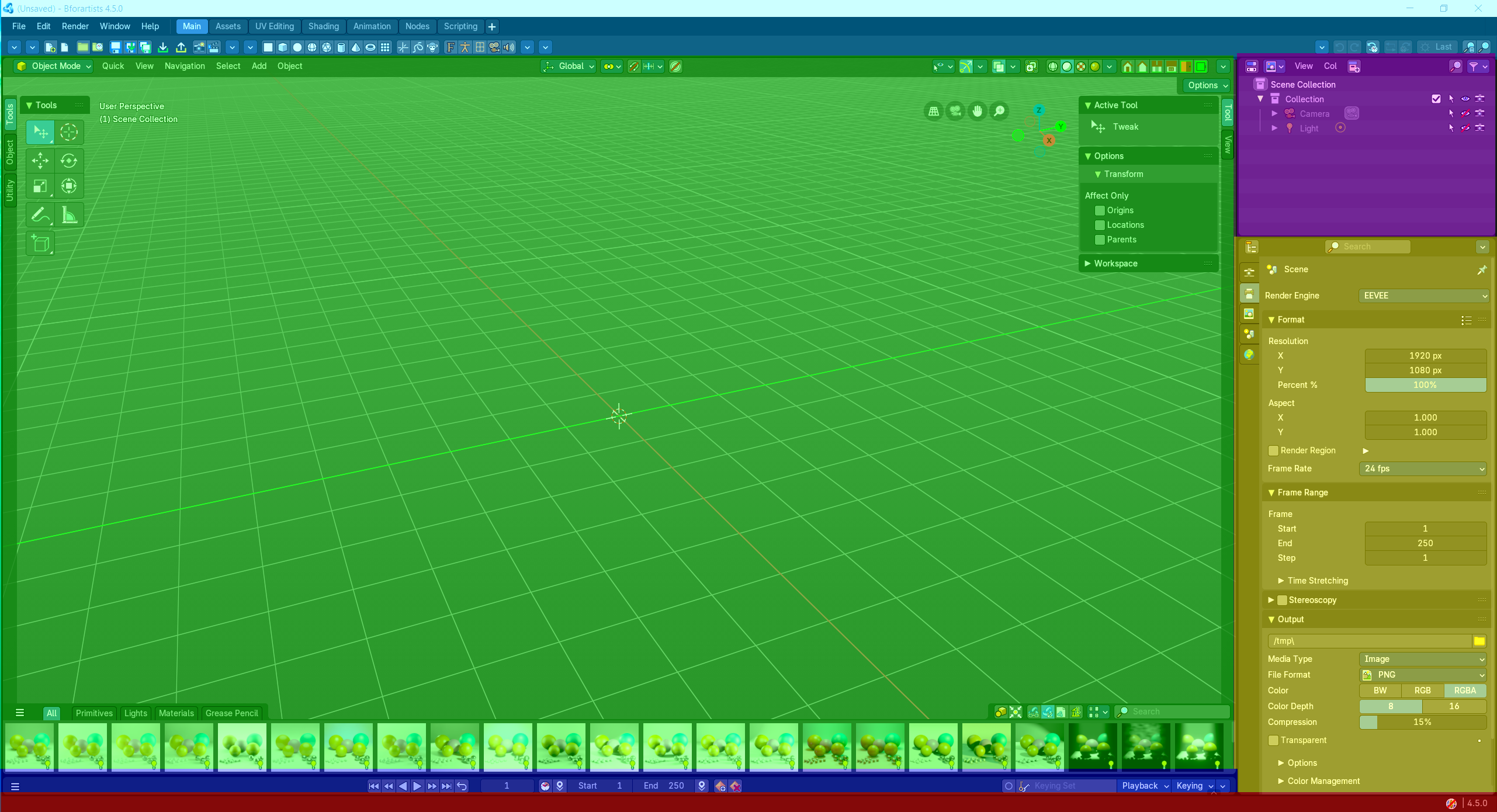
The Bforartists Interface is made of several workspaces. And every workspace layout is made of several editors.
The editors brings the functionality to the layout. Every editor type has another purpose. The 3D View for example is made to modify 3D data such as meshes or curves.
In this chapter we will talk about the general aspects of the editors. And give an overview over the available editor types and their purpose.
The detailed description happens for every editor one by one then.
Header right click menu
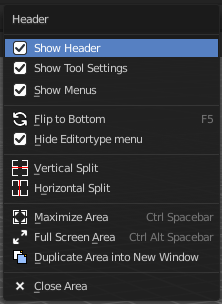
Each header has a header menu that appears when you right click at it.
| Entry | What it does |
|---|---|
| Toggle Header | Hides the header. To reveal it you have to click at the small triangle at the right side then. |
| Flip to Bottom / Top | Displays the header at the top or the bottom of the editor. |
| Collapse Menus | Displays the text menus as one collapsed icon. |
Hide Editortype Menu
Hides the editortype menu where you can switch to other editor types.
Horizontal Split
Splits the current view horizontally into two independent editor windows.
Vertical Split
Splits the current view vertically into two independent editor windows.
Duplicate Area into New Window
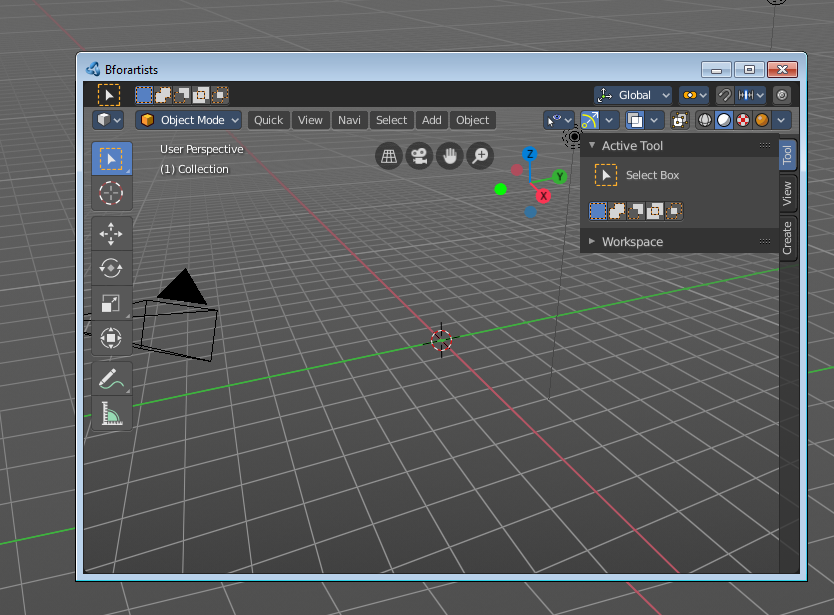
Duplicate Area into New Window makes the selected editor window floating. You can then drag it around at the monitor. It is not connected with the rest of the UI anymore.
A separated window cannot be merged into the main window again. You have to close it when not longer needed.
| Entry | What it does |
|---|---|
| Toggle Maximize Area | Displays the editor maximized with menus. To return from the maximized view press hotkey Ctrl + Space. Or reuse the menu item in the area menu. |
| Toggle Full screen Area | Displays the editor maximized without menus. To return from the full screen view press hotkey Ctrl + Alt + Space. |
| Close Area | Closes the editor. |
Area Options
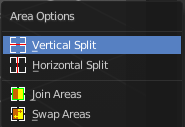
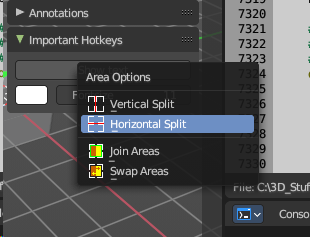
When you right click at a border of an editor, then you will call the Area options menu.
| Entry | What it does |
|---|---|
| Horizontal Split | Splits the current view horizontally into two independent editor windows. |
| Vertical Split | Splits the current view vertically into two independent editor windows. |
| Join Areas | Joins the two editors that shares the border. |
| Swap Areas | Swaps the content of the editors that shares the border. |
Editor Type menu
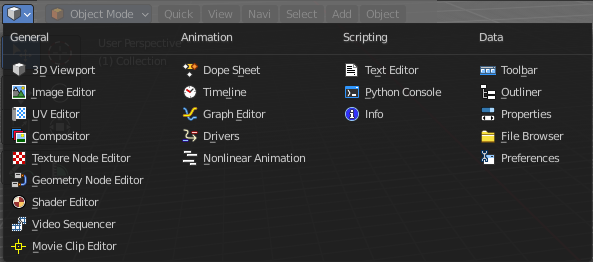
The Editor Type menu gives you an overview of all available editor types. And here you can switch to another editortype.
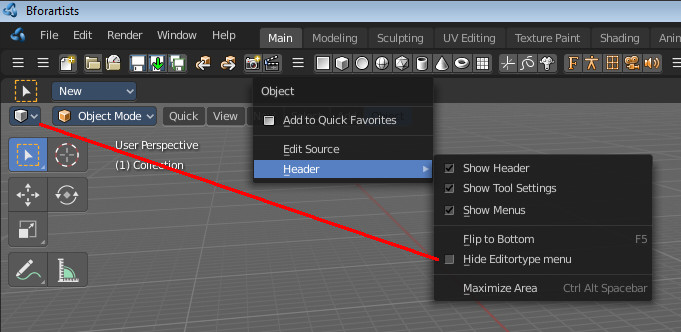
This menu is hidden in the standard workspaces. See Header Menu, Hide Editortype menu.
General Right Click menus
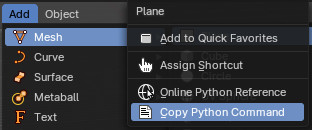
Not every functionality has a menu entry. Some is even a right click at an existing menu. Like clicking at an operator or a property in the UI to add it to the quick favourites menu or to add a shortcut.
Note that not all right click menu functionality might be documented. This chapter here covers the general right click functionality that can be found in all editors.
Header menu
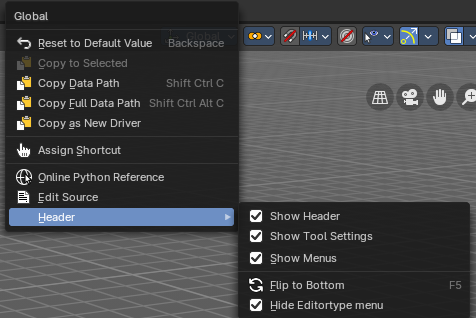
This menu appears when you right click in the header. Note that in the header of the 3d view you need to click between menu items or operators to reveal this menu. Or right click at a item and choose Header.
Show header
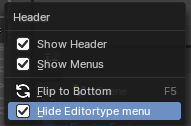
Hides the header. Obviously you can't reveal the header this way, since now the header is hidden, and the "toggle" is not to reach anymore. But there is another way.

Hidden headers shows a little triangle button at the right side. You can reveal the header by clicking at it.
Show Menus

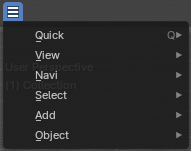
Collapses or expands the text menus.
In collapsed state the menus is reduced to one button. When you click it then you can access the whole menu.
Flip Header to top or bottom
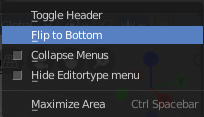
The header can either be displayed at the top or at the bottom.
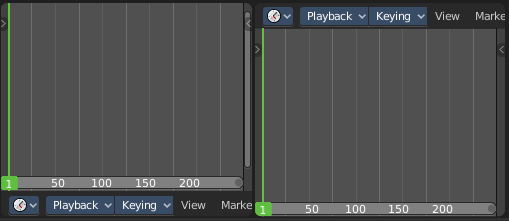
Right click at an empty space somewhere at the menu bar of an editor. You will see a menu now. This allows you to choose if you want to display the menu bar at the top of the editor, or at the bottom. The menu item is either called Flip to Top, or Flip to Bottom, dependent of the current status.
General right click menu at Toolshelf and Sidebar panel headers
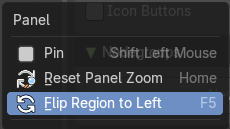
| Entry | What it does |
|---|---|
| Pin | Show the pinned panel on all tabs. |
| Reset Panel Zoom | You can zoom the panels with holding down control and move the mouse. Reset Panel Zoom resets this zoom to 100% |
| Flip Region to Left / Right | Flips the positions of sidebar and toolshelf. You can also display the tools at the right, and the sidebar at the left. |
General right click menus at menu operators
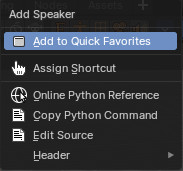
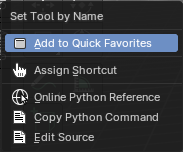
This menu appears for example when you right click at an operator in a text menu
Add to Quick Favourites

Adds the operator to the quick favourites menu.
Assign Shortcut
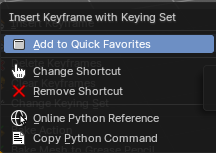
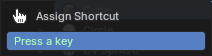
Allows you to assign a shortcut or edit the existing shortcut.
Online Python Reference
Opens the Blender Python Reference. Note that this link goes to the Blender page.
Copy Python Command
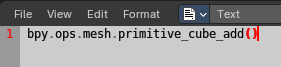
Copies the python command of the operator. Which you then can paste into a text editor.
Edit Source
This is mainly of use for addon developers, but also works for the UI code. It opens the python source code of the selected element in the text editor. When you have the text editor open then the source code opens directly in the text editor. If not then you have to use the dropdown box to choose the python file. Note that some elements in the UI does not have python source code, but C source code. You will get a warning then.
Header
See Header menu above.
Right click menus at tools and properties

Every tool or UI element has usually a RMB menu where you can find various things.
The content is varying, dependent of the tool where you right click at. Value edit boxes have for example a Reset to Default Value menu item. For other tools you might be able to add or change the shortcut here. They all have the last three menu items, Online Python Reference, Edit source and Edit translation.
A few examples below. But we will cover important right click functionality also at the specific tool if necessary. The outliner has for example quite a few right click menus that are not documented in the outliner chapter.

Note that there are also right click menus that are pure double entries that exists in the regular UI. Like this Library Override example here.
   |  |  | |
 |  |
Assign Shortcut / Change Shortcut / Non Keyboard Shortcut / Remove Shortcut
These buttons allows you to assign or to remove a new shortcut to the tool or to change an existing shortcut for the tool. Note that this may or may not work proper. For some tools you might need to change the shortcut in the User preferences. Non Keyboard shortcut is such a case.
| Entry | What it does |
|---|---|
| Online Python Reference | The Online Python Reference button opens the Bforartists Online Python reference page in your browser. |
| Edit Source | The Edit Source button opens the corresponding Python file for this element. Note that you need to be in the Scripting layout. The file loads in the Text editor there. |
| Reset to Default Value | Reset to Default Value is usually a RMB menu entry when you right click at an edit box. It resets the value to the default value. |
| Reset All to Default Value | Reset All to Default Value is usually a RMB menu entry when you right click at an edit box combo made of two, three or more edit boxes together. It resets the value for all the edit boxes in the combo to the default value. |
| Reset Single to Default Value | Reset Single to Default Value is usually a RMB menu entry when you right click at an edit box combo made of two, three or more edit boxes together. It resets the value for the single edit box under the mouse to the default value. |
| Unset | Unset is usually a RMB menu entry when you right click at an edit box. It is somehow similar to Reset to Default Value. But it clears the property instead of resetting it to the default value. Which can end in another value. |
| Insert Keyframes | Inserts keyframes at the current position. |
| Insert Single Keyframes | Inserts a single keyframe at the current position. |
| Add Driver | In Bforartists lots of things can be animated. Also buttons. Add Driver does exactly what it tells. It adds a driver for animation needs to the element. The driver can be edited in the drivers editor. |
| Copy Driver | Copies the driver. |
| Copy Driver to Selected | Copies the driver from the active to the selected object. You need to have more than one object selected. Select first object, hold shift, select second object. |
| Copy all Drivers to Selected | Copies all driver from the active to the selected object. You need to have more than one object selected. Select first object, hold shift, select second object. |
Edit Driver
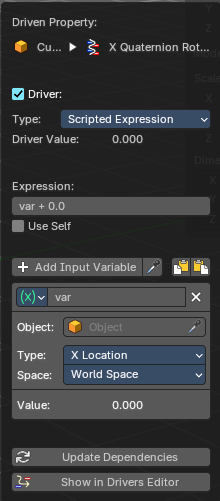
Opens the driver settings where you can edit the driver. It is the same settings that are covered in the driver editor. So we won't cover it here.
| Entry | What it does |
|---|---|
| Open Drivers Editor | Opens the Drivers editor as a floating window. |
| Add Single Driver | In Bforartists lots of things can be animated. Also buttons. Add Driver does exactly what it tells. It adds a driver for animation needs to the single element under the mouse. |
| Add to Keying Set | Add to Keying Set adds the information of the element to the current key frame. |
| Add All to Keying Set | Add All to Keying Set adds the information of the element to the current key frame. |
| Add single to Keying Set | Add to Keying Set adds the information of the element to the current key frame. |
| Remove from Keying Set | Remove from Keying Set removes the information of the element from the current key frame |
| Copy All to Selected | Copy to Selected copies the property of this element to all selected objects or bones. |
| Copy Single to Selected | Copy to Selected copies the property of this element to selected active objects or bones. |
| Copy Data Path | Copy Data Path copies the last element of the RNA data path for this property. |
| Copy Full Data Path | Copy Data Path copies the full RNA data path for this property. |
| Copy as new Driver | Create a new driver with this property as input, and copy it. It can then be pasted to the target property. Or pasted as a driver variable to extend an existing driver. |
| Mark as Asset | Marks the current property as an asset. It will be added to the active asset library then. |
| Clear Asset | Removes the asset from the asset library. |
Resize Tool Shelf and Properties content
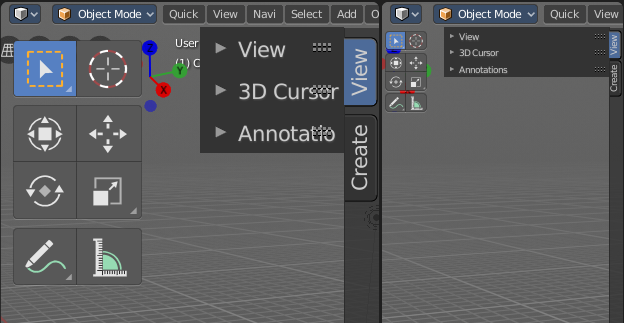
You can resize the Tool Shelf content and the Properties Sidebar content. This means that you can zoom in or out. This trick also works in the Properties Editor.
Move the mouse over the upper region of the Tool Shelf.
Hold down Ctrl key
Click with Middle Mouse button. The mouse pointer will turn into two white triangles.
Now drag up or down to resize the area content
OR
Move the mouse over the upper region of the Tool Shelf.
Simply press Numpad + or Numpad -
To reset the area content to default scale move the mouse over the area and press Home key ( german keyboard layout Pos 1)
Hotkey recognition
What hotkey set works is dependent of the mouse position, over which editor the mouse is. Means when your mouse is over the 3d View, then the hotkeys from the 3D View gets recognized. This means when your mouse is not over the 3D View but the Outliner, and you press the hotkey for let's say move, then this hotkey will not be recognized.
A special behavior shows the sidebars here. They are part of the editors. But to have the mouse over the toolbars at the side can already prevent a hotkey from being triggered. Your mouse needs to stay in the active part of the editor.
The editor types
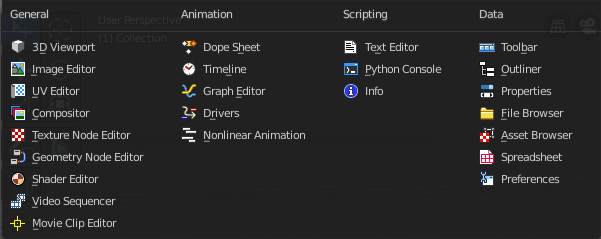
Bforartists provides a number of different Editor types for different purposes. For example, the 3D view is made to modify the 3D data, such as meshes or curves. You can have more than one editor window open at the same time.
| The 3D View is the editor where you do your 3D work. The 3D view is the editor to model meshes, etc. . It's the core editor for everything where you work at your 3D data. You will find it in every layout where you need to display your 3d data. | 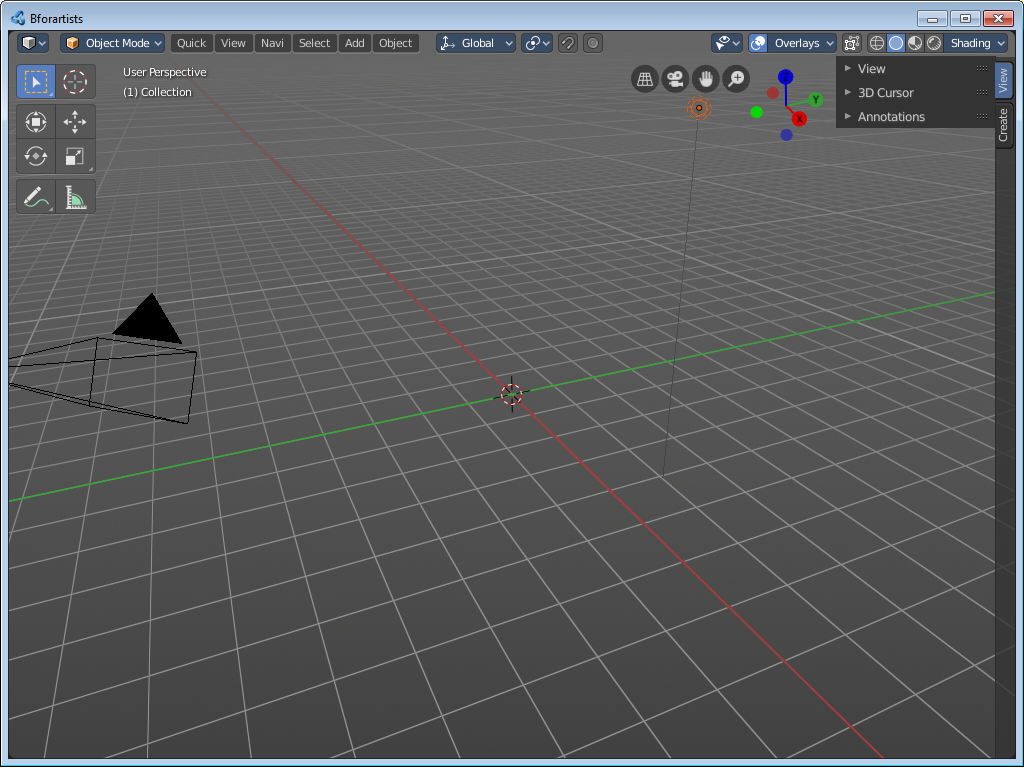 |
| The Image Editor is the place where you work with textures. | 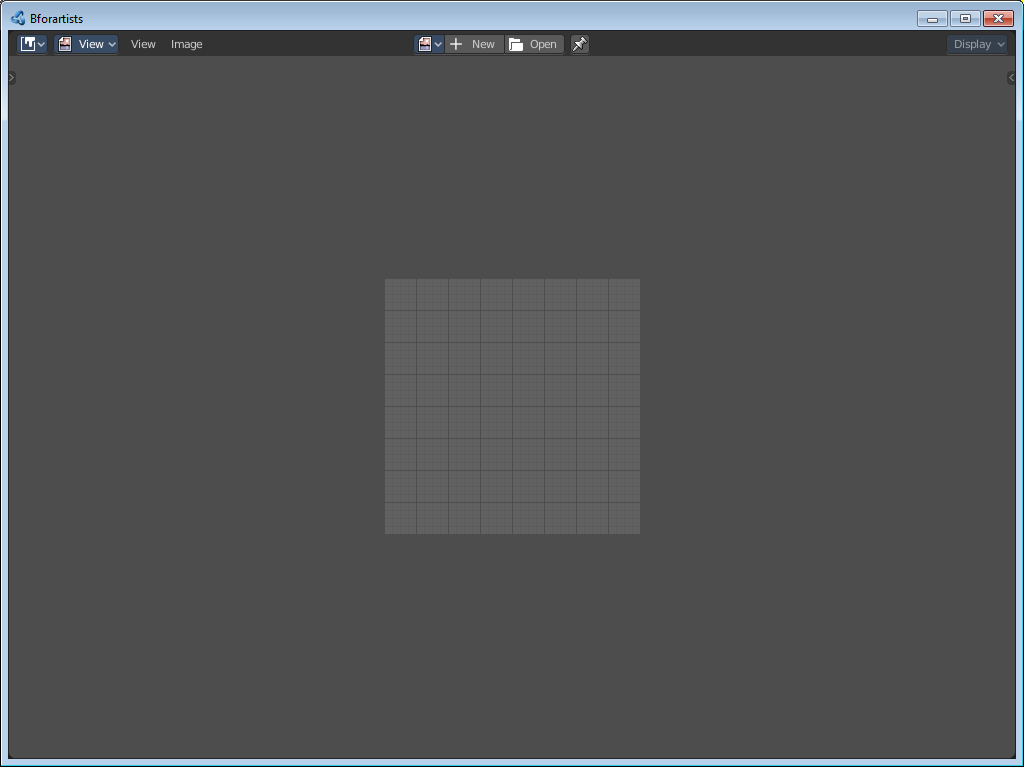 |
| The UV Editor is the place where you work with UV mapping. It starts pretty similar to the Image editor. But contains the UV tools. | 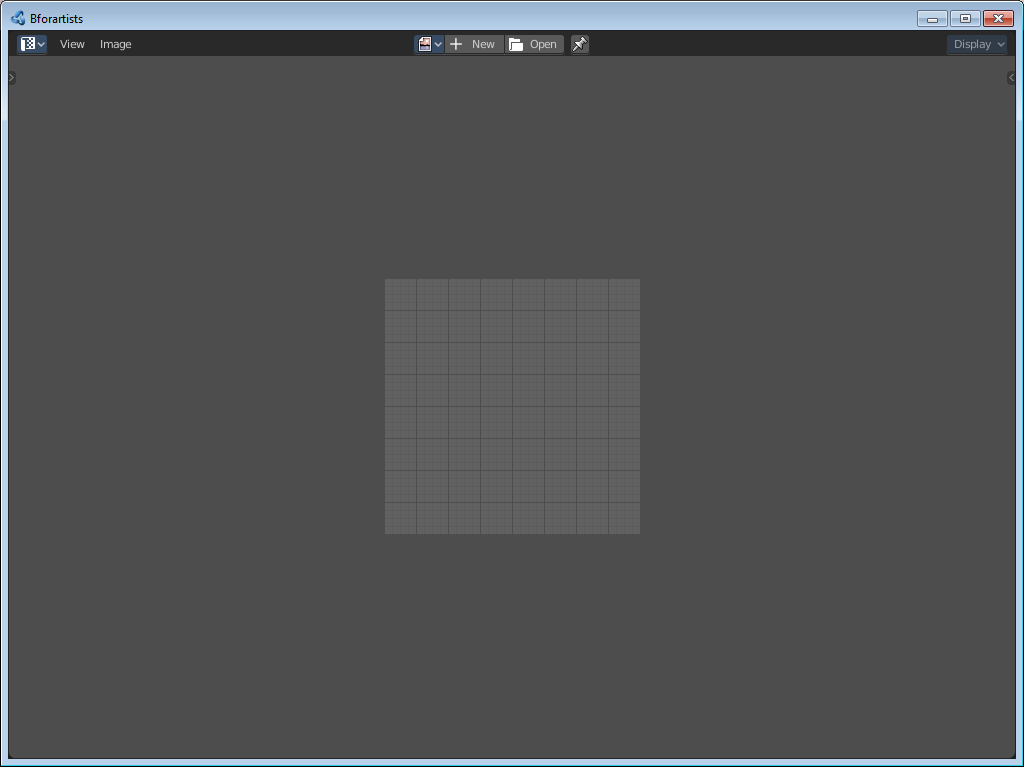 |
| The editor to do post processing. It is node based. | 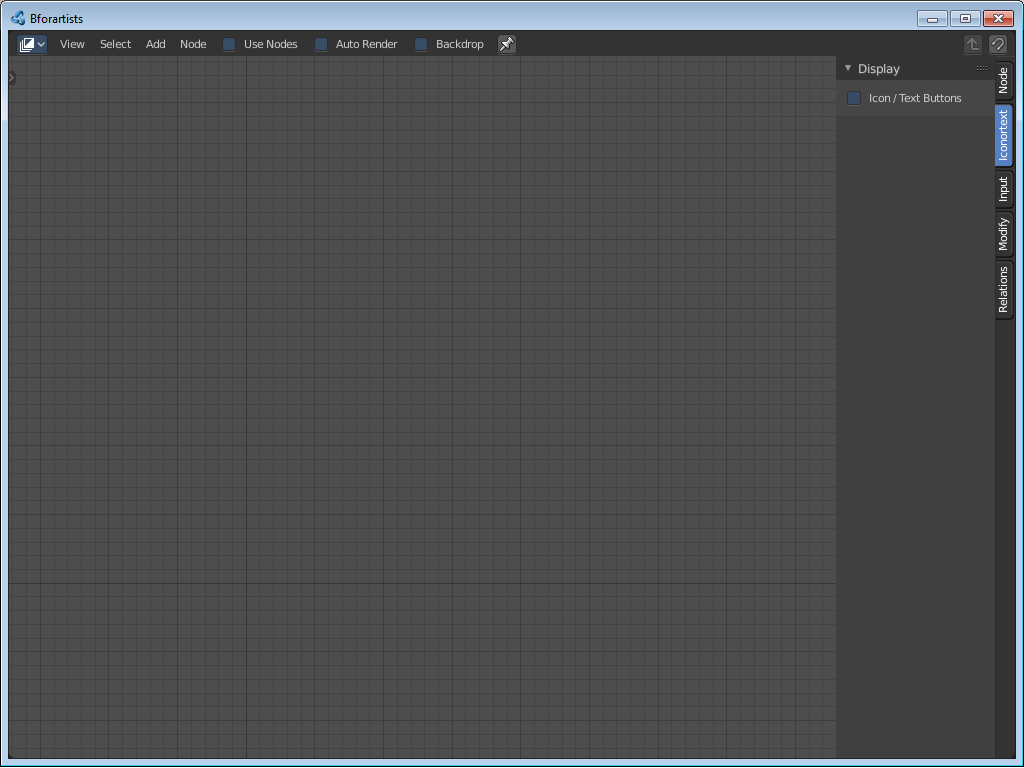 |
| The editor to do texture work. It is node based. | |
| This editor allows you to manipulate geometry. It is node based. | 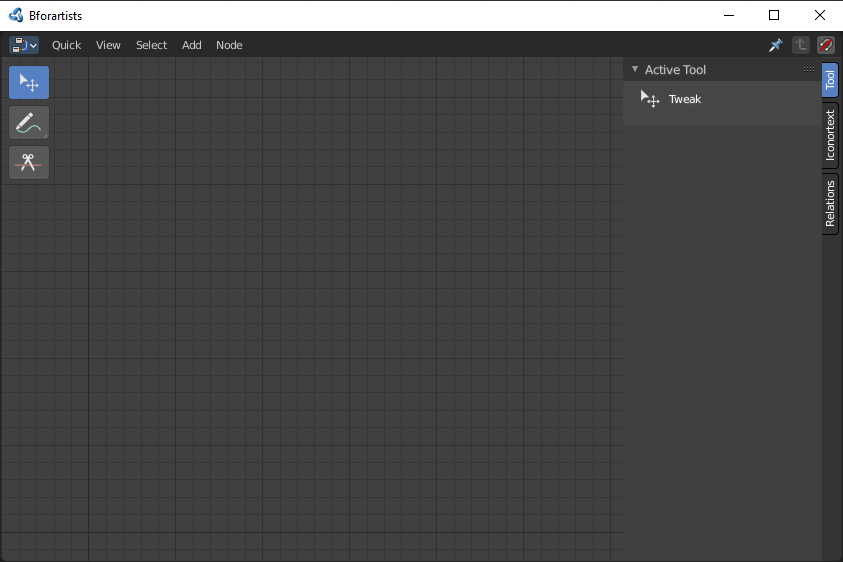 |
| The shader Node editor is to create the materials for your objects. It is node based. | 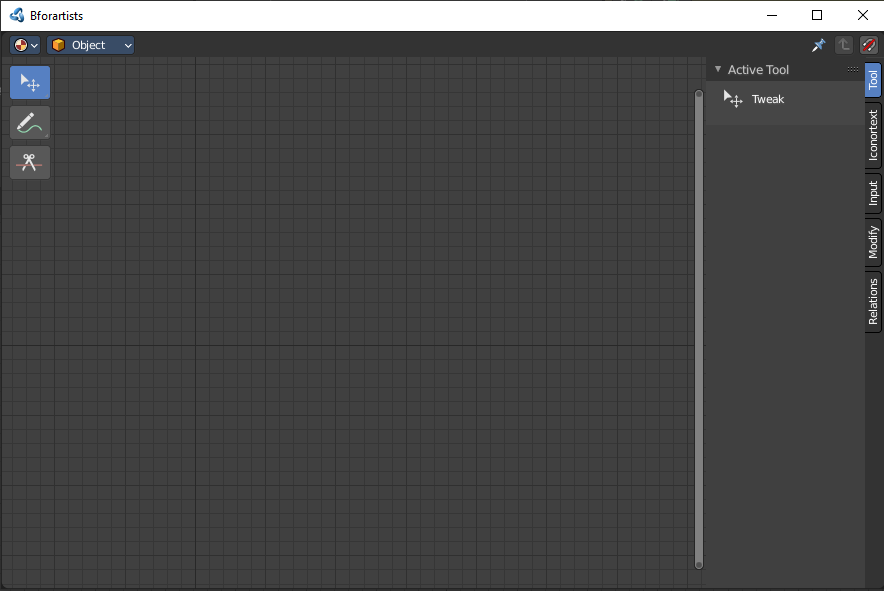 |
| The video sequence editor allows you to work with video and audio clips. Here you can cut videos. This editor can be found in the video editing layout. | 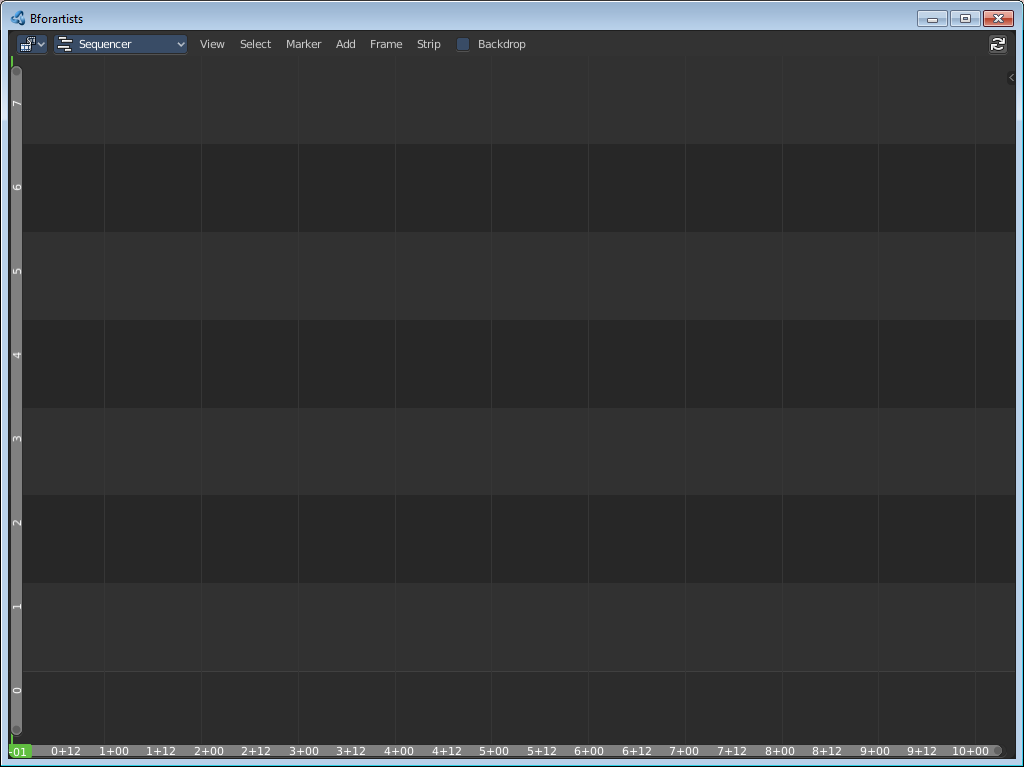 |
| The movie clip editor is for tracking purposes. You will find it in the Motion Tracking layout. | 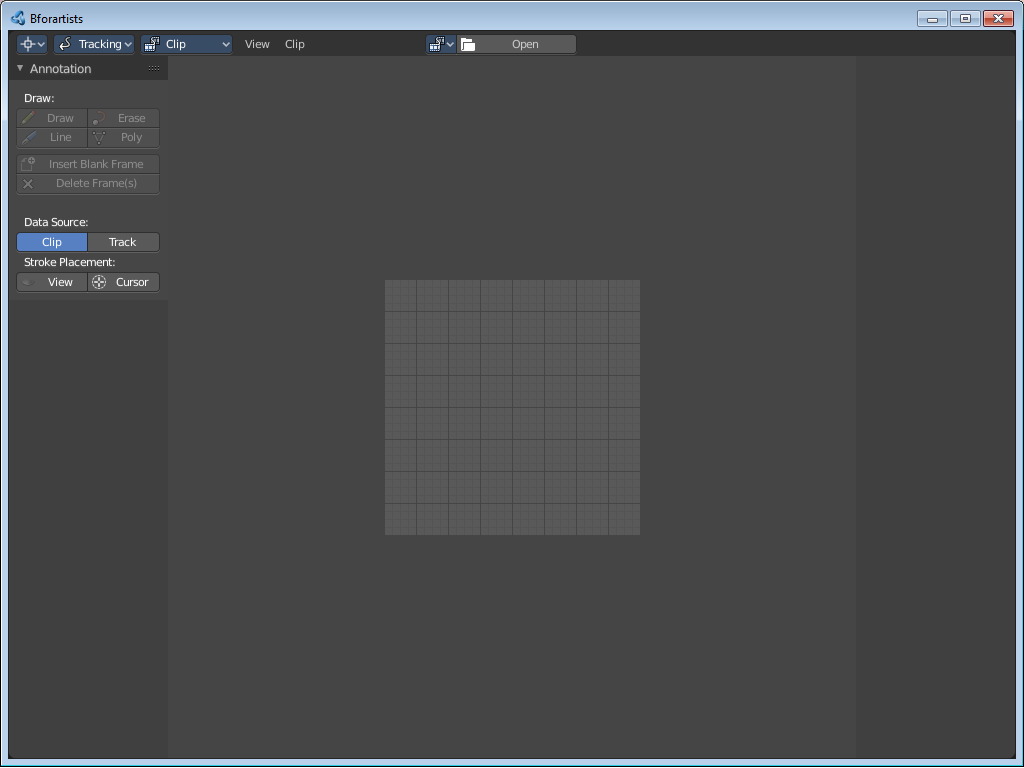 |
| The Dope Sheet Editor is the place where you deal with key frames. The Dope Sheet Editor is one of five special editors for animation needs. You will find it in the animation layout. | |
| The timeline editor provides you with a toolbar for all animation needs. Start, stop, record, set keying set, etc. The Timeline Editor is one of five special editors for animation needs. You will find it in the animation layout. | 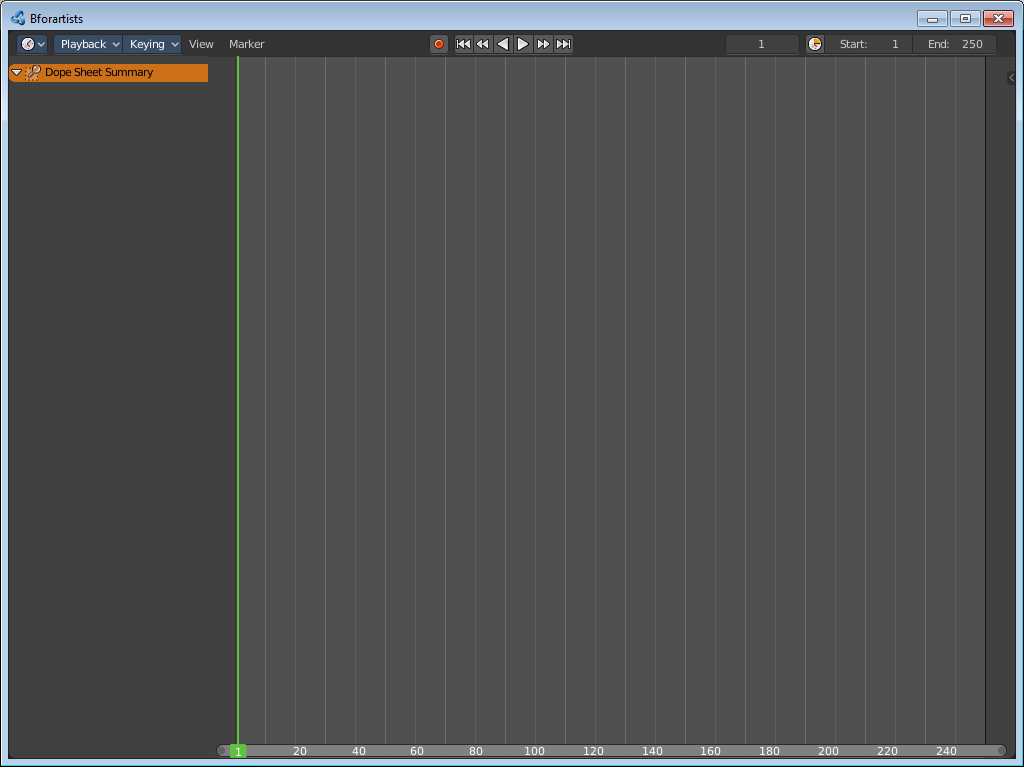 |
| The Graph Editor is the place where you work with function curves. The Graph Editor is one of five special editors for animation needs. | 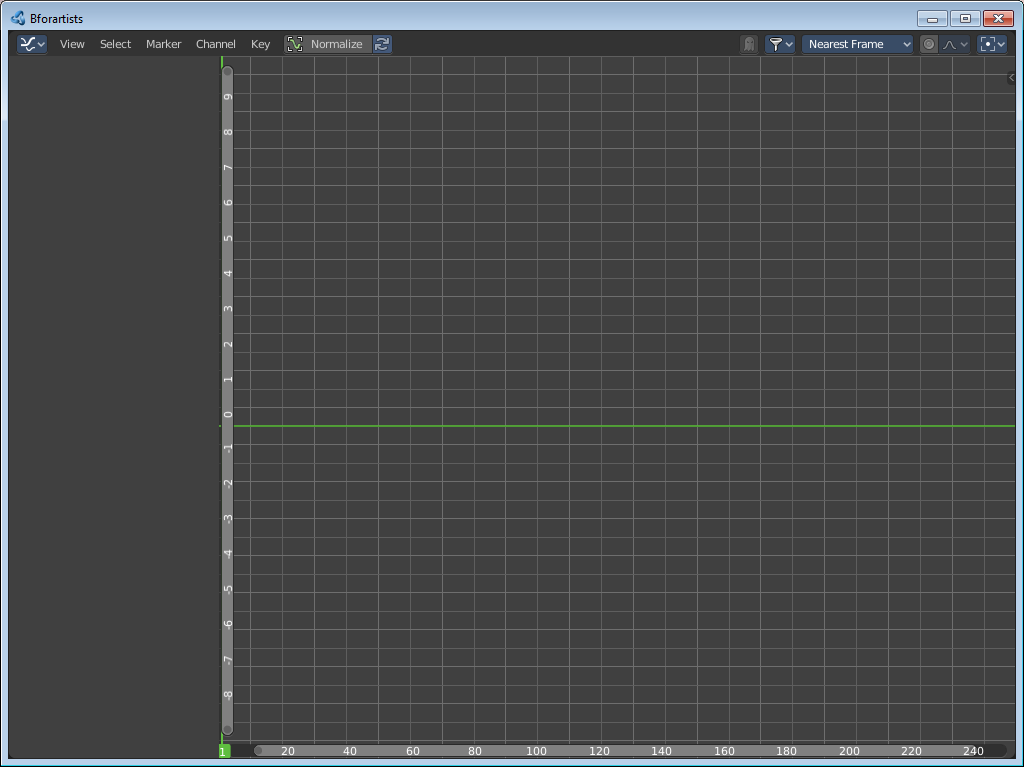 |
| See and edit drivers. The Drivers Editor is one of five special editors for animation needs. | 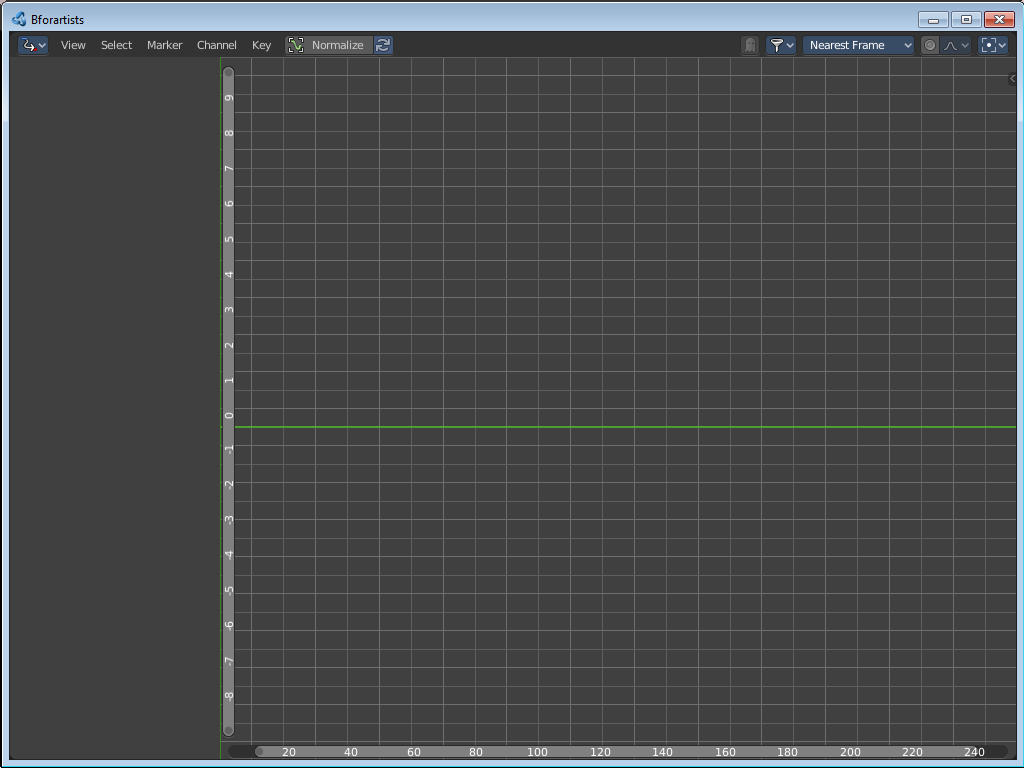 |
| The Nonlinear Animation Editor, in short NLA Editor, is the place where you work with Clips and Actions. The Nonlinear Animation Editor is one of five special editors for animation needs. | |
| The Text Editor is the place where you write code. The scripts for addons for example. You will find it in the Scripting layout. | |
| The Python console gives you access to the Python API. You will find it in the Scripting layout. | 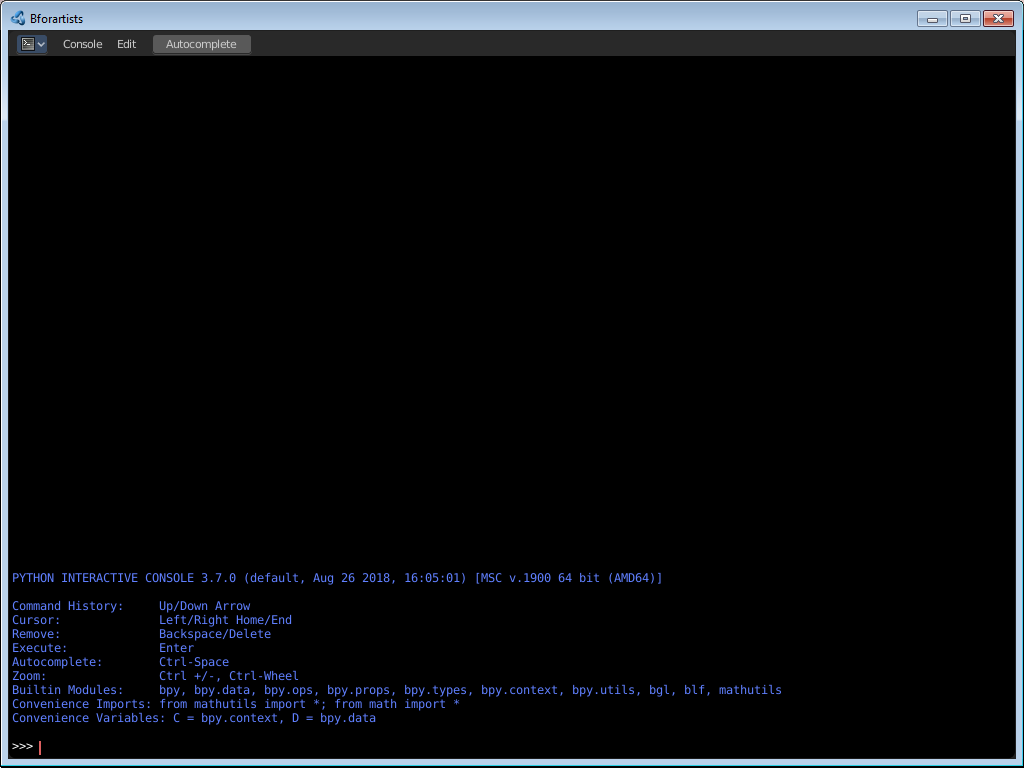 |
| The Info Editor provides you with a list of the last performed operations. Including error messages. You will find it in the Scripting layout. | |
| It is as the name says a toolbar. Usually just the header area is visible. The rest of the editor has no purpose. |  |
| The Outliner is the place that gives you an overview of what is in the scene and in the file. | 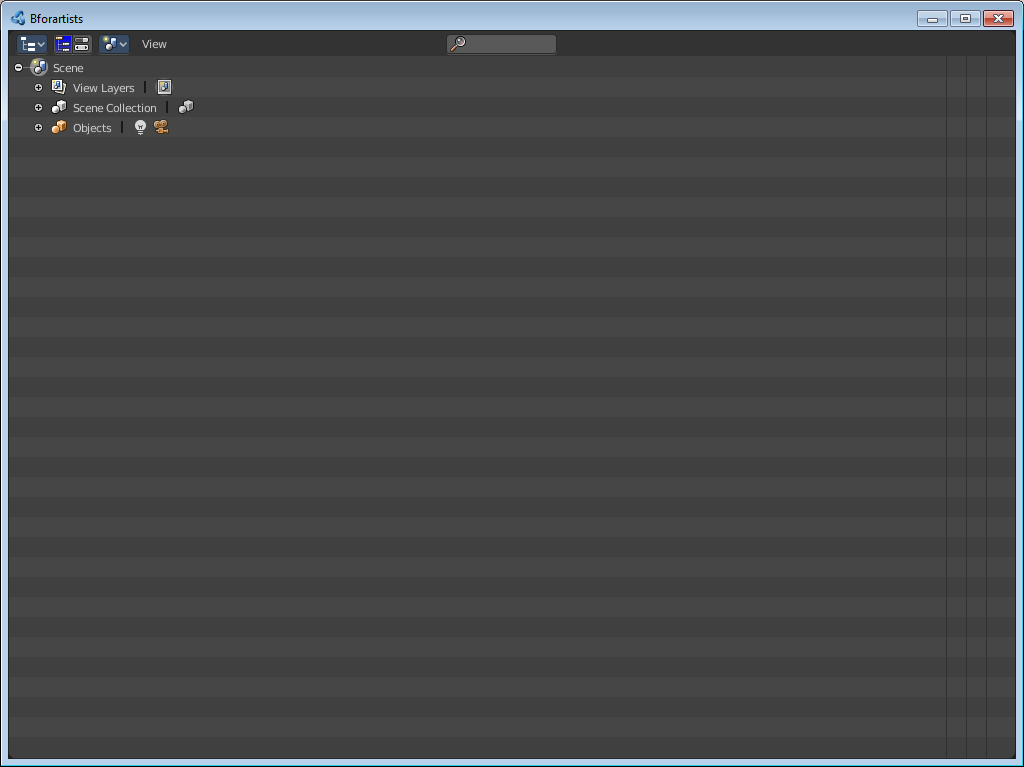 |
| The Properties editor is the place where you can see and tweak all properties for the 3D scene. The range goes from render settings across object settings up to particle settings. It is the data heart. | 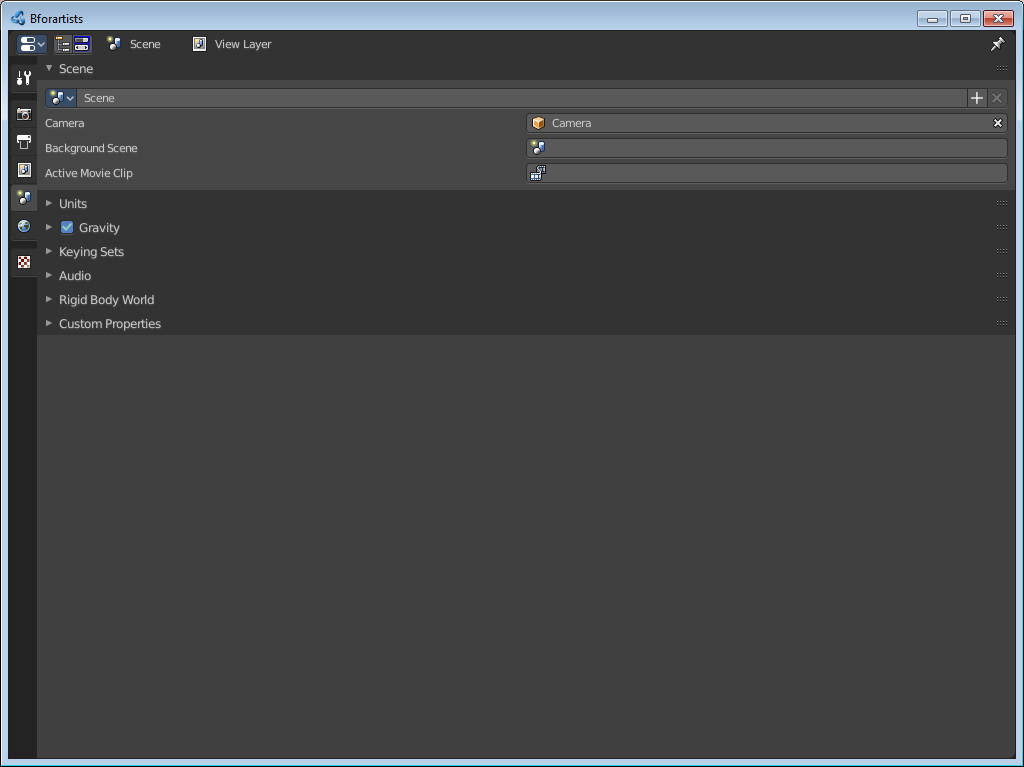 |
<table> <tbody> <tr class="odd"> <td>The File Browser is the editor in which you can load and save data. Your last blend file for example.<br /> <br /> This editor is not part of the standard workspaces. It usually gets called when you load or save a data.</td> <td><img src="/images/editors/introduction/the-editor-types-17.png" class="thumb" alt="The editor types" /> </td> </tr> </tbody> </table>
| The spreadsheet editor provides you with mesh informations. This information can then for example be used in the geometry nodes editor. | 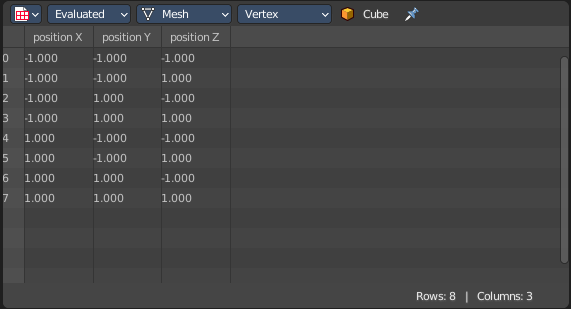 |
<table> <tbody> <tr class="odd"> <td>The Preferences is the place where you manage all the settings of the software. Theme, Key map, etc.<br /> <br /> This editor is not present in the standard workspaces. This editor can be called from the edit menu in the top bar.</td> <td><img src="/images/editors/introduction/the-editor-types-19.png" class="thumb" alt="The editor types" /> </td> </tr> </tbody> </table>