

































































Troubleshooting
There are some common problems in Bforartists. Before you proceed make sure your computer meets the minimum requirements. And make sure your drivers are up to date and your graphics card is supported.
Troubleshooting
There are some common problems in Bforartists. Before you proceed make sure your computer meets the minimum requirements. And make sure your drivers are up to date and your graphics card is supported.
Troubleshooting the 3D View
Objects Invisible in Camera View
If you have a large scene, viewing it through Camera View may not display all of the Objects in the scene. One possibility may be that the clipping distance of the camera is too low. The camera will only show objects that fall within the clipping range.
Performance
Slow Selection
Bforartists uses OpenGL drawing for selection, some graphics card drivers are slow at performing this operation.
This becomes especially problematic on dense geometry.
Possible Solutions:
OpenGL Occlusion Queries (User Preference)
See
This option defaults Automatic, try setting this to OpenGL Occlusion Queries, since there is a significant performance difference under some configurations.
Upgrade OpenGL Driver
In some cases slow selection is resolved by using updated drivers. It’s generally good to use recent drivers when using 3D software.
Select Centers (Workaround)
In Object Mode, holding Ctrl while selecting uses the object center point. While this can be useful on its own, its has the side-effect of not relying on OpenGL selection.
Change Draw Modes (Workaround)
Using Wireframe or even Bounding Box draw modes can used to more quickly select different objects.
Note: Obviously the workarounds listed here aren’t long term solutions, but its handy to know if you’re stuck using a system with poor OpenGL support.
Ultimately, if none of these options work out it may be worth upgrading your hardware.
Navigation
Lost in Space
When navigating your scene, you may accidentally navigate away from your scene and find yourself with a blank view-port.
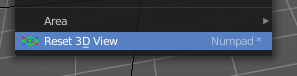
The solution is to use the Reset 3D View operator in the View menu. This resets the 3D view to the initial state.
Invisible Limit Zooming In
This problem lies in the nature of the default zooming method. It zooms towards a point in the scene. And when it reaches this point, then it cannot zoom any further.
One solution is to zoom out and move towards the object instead of zooming.
You can also try some other zoom methods. Dolly or Border Zoom doesn't have this problems.
Tools
Invalid Selection
There are times when selection fails under some configurations, often this is noticeable in mesh Edit Mode, selecting vertices/edges/faces where random elements are selected.
Internally Bforartists uses OpenGL for selection, so the graphics card driver is relied on giving correct results.
Possible Solutions:
Disable Anti-Aliasing (FSAA, Multi-Sampling)
This is by far the most common cause of selection issues.
There are known problems with some graphics cards when using FSAA/multi-sampling.
You can disable this option by:
- Turning FSAA/multi-sampling off in your graphics card driver options.
- Turning Multi-Sampling off in the system preferences.
Change Anti-Aliasing Sample Settings
Depending on your OpenGL configuration, some specific sample settings may work, while others fail.
Unfortunately finding working configuration involves trial & error testing.
Upgrade OpenGL Driver
As with any OpenGL related issues, using recent drivers can resolve problems.
However it should be noted that this is a fairly common problem and remains unresolved with many drivers.
Troubleshooting Graphics Hardware
Bforartists makes use of OpenGL, which is typically hardware accelerated.
This means issues with the graphics card hardware and drivers can impact on Bforartists’s behavior. This page lists some known issues using Bforartists on different graphics hardware and how to trouble-shoot them.
Performance
When the entire interface very slow and unresponsive (even with the default startup scene). This is likely a problem with the OpenGL configuration.
Unfortunately in this situation you may have to do some of your own tests to find the cause, here are some common causes and possible solutions.
Upgrade your OpenGL Driver
If you’re experiencing any strange graphics problems with Bforartists, its always good to double check you’re using the latest drivers.
Disable Anti-Aliasing (FSAA, Multi-Sampling)
See Invalid Selection, Disable Anti-Aliasing.
Change theWindow Draw Method
This is set in the system preferences. Its selected automatically, however when experiencing problems its worth checking if changing this resolves interface drawing problems.
Troubleshooting Crashes
Like every other software, Bforartists can crash. The most common causes of Bforartists crashes are.
- Running out of memory.
- Issues with graphics hardware/drivers.
- Bugs in Bforartists.
Firstly, you may be able to recover your work with .
To prevent the problem from happening again, you can check that the graphics drivers are up to date, upgrade your machine’s hardware (the RAM or graphics card), and disable some options that are more memory intensive:
- Disable Region Overlap and Triple buffering at .
- Using multi sample, anti-aliasing also increase the memory usage and make display slower.
- On Linux, the Window Manager (KDE, Gnome, Unity) may be using hardware accelerated effects (eg. window shadows and transparency) that are using up the memory that Bforartists needs. Try disabling the desktop effects or switch to a light-weight Window Manager.
Recovering from mistakes or problems
Bforartists provides a number of ways for the user to recover from mistakes, and reduce the chance of losing their work in the event of operation errors, computer failures, or power outages. There are two ways for you to recover from mistakes or problems:
At the User Level (Relating toActions**)**
- For your actions, there are options like Undo, Redo and an Undo History, used to roll back from mistakes under normal operation, or return back to a specific action.
- Bforartists also has new features like Repeat and Repeat History, and the new Redo Last which you can use in conjunction with the options listed.
At the System Level (Relating toFiles**)**
- There are options to save your files like Auto Save that saves your file automatically over time, and Save on Quit, which saves your Bforartists file automatically when you exit Bforartists.
Note: In addition to these functions being enabled by default, the Save on Quit functionality cannot be disabled.
As a general rule for every software usage: save often, save very often, and don't forget to save often!
Options for Files (System Level)
Save and Auto Save
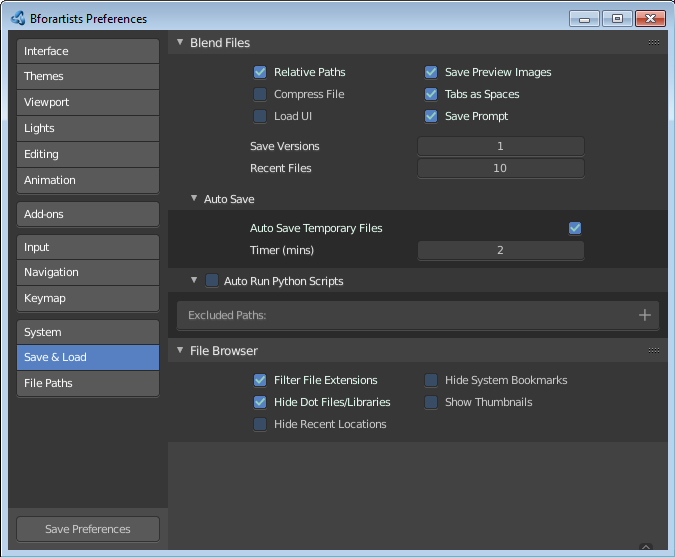
Computer crashes, power outages or simply forgetting to save can result in the loss or corruption of your work. To reduce the chance of losing files when those events occur, Bforartists can use an Autosave function. The Save and Load tab of the User Preferences window allows you to configure the two ways that Bforartists provides for you to regress to a previous version of your work.
Save on Quit
The function Save on Quit is enabled by default in Bforartists. Bforartists will always save your files when you quit the application under normal operation.
Save Versions
This option tells Bforartists to keep the indicated number of saved versions of your file in your current working directory when you manually save a file. These files will have the extension: .blend1, .blend2, etc., with the number increasing to the number of versions you specify. Older files will be named with a higher number. e.g. With the default setting of 2, you will have three versions of your file: *.blend (your last save), *.blend1 (your second last save) and *.blend2 (your third last save).
Auto Save Temporary Files
Checking this box tells Bforartists to automatically save a backup copy of your work-in-progress to the Temp directory (refer to the File panel in the User Preferences window for its location). This will also enable the Timer (mins) control which specifies the number of minutes between each Auto Save. The default value of the Bforartists installation is 5 (5 minutes). The minimum is 1, and the Maximum is 60 (Save at every one hour).The Auto Saved files are named using a random number and have a .blend extension.
Tip: Compress Files
The option to Compress files will try to compact your files whenever Bforartists is saving them. Large Scenes, dense Meshes, big Textures or lots of elements in your Scene will result in a big .blend being created. This option could slow down Bforartists when you quit, or under normal operation when Bforartists is saving your backup files. In fact, using this option you will trade processor time for file space.
Recovering Auto Saves

Recover Last Session
will open the quit.blend that is saved into the Temp directory when you exit Bforartists. Note that files in your Temp directory are deleted when you reboot.
Recover Auto Save
... allows you to open the Auto Saved file. After loading the Auto Saved version, you may save it over the current file in your working directory as a normal .blend file.
Recover Autosave will open the file browser.
Important: When recovering an Auto Saved file, you will lose any changes made since the last Auto Save was performed. Only one Auto Saved file exists for each project (i.e. Bforartists does not keep older versions - hence you won’t be able to go back more than a few minutes with this tool).
Compatibility (OSX)
Mouse Motion Jitters (SmoothMouse)
Problem
When grabbing an object or orbiting the view, cursor motion is jittery.
Solutions
- Uninstall SmoothMouse.
- Disable Continuous Grab
Compatibility (Windows)
Bforartists Hangs on Window Duplication (Nahimic for MSI)
Problem
, hangs Bforartists, using 100% of one core.
Solution
Uninstall Nahimic·for·MSI