

































































Windows
The Bforartists window, extra main windows, and editors that float in a window of their own.
Bforartists runs in one main window. The window holds the Top Bar with its menus and workspace tabs at the top, the Status Bar at the bottom, and the workspace in between. The workspace is divided into areas, and every area shows one editor.
The main window
The main window opens with the workspace saved in your startup file. You can switch workspaces with the tabs in the Top Bar; each workspace remembers its own layout of areas and editors.
New main windows
Use to open a second full window with its own Top Bar and workspace tabs. This is handy on a second monitor: one window for the 3D Viewport, another for the node editors or the timeline.
Floating editor windows
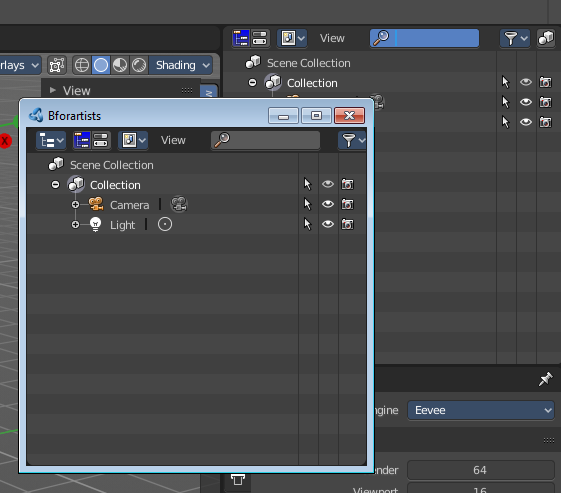
When you move the mouse over the upper corner of an editor window, then the mouse pointer turns into a white cross.
Hold down Shift, and drag the mouse. The editor will detach from the Blender surface. This is useful for a multi monitor setup for example. Now you can place this editor at Monitor 2.
Note that there is no way to reintegrate this floating editor window back into the Blender UI once it is detached. You have to close it.
Full screen
fills the screen with the Bforartists window. To give one area all the space of the window instead, use (Ctrl Space) in that area's header.