

































































Editors
Every area shows an editor: change its type and show or hide the editor type menu.
An editor is what an area shows: the 3D Viewport, the Outliner, the Properties editor, a node editor and so on. Any area can show any editor, and you can change it at any time. Every editor is explained in its own chapter in the Editors section of this manual.
Most editors are built the same way: a header with menus and tools at the top, an optional footer, a tool shelf on the left, a sidebar on the right, and the main region in the middle. Learn these once and every editor reads the same.
Change Editor Type
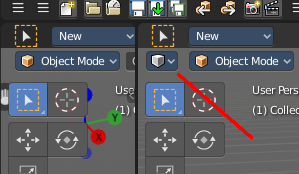
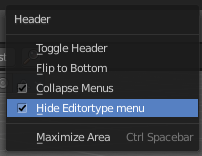
There is a Editor Type menu in every header. This menu is usually hidden in the default layouts. It can be revealed by either splitting the editor window. Or in the right click menu in the header. Hide editortype menu. See next point.
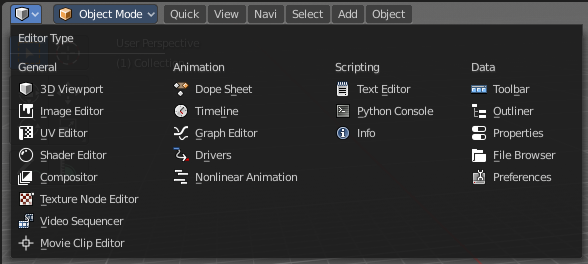
When you click at this button then a menu with all available editor types opens up. And you can change the current editor to another editor type.
Show / Hide the editor type menu
You might have noticed that the editor type menu is not available in the editors of the standard layouts. This is to reduce visual noise and to free some UI space.
You can show and hide this editor type menu. To do so right click at an empty space somewhere at the menu bar of an editor. You will see a menu now. Check or uncheck the menu item Hide Editortype Menu to show or hide the Editor Type menu.