Core Extension - Presentation Slider
This addon is optional and deactivated by default.
Presentation Slides
This addon is optional and deactivated by default.
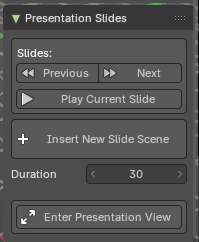
This adds a Presentations Slides panel to the View tab in the sidebar of 3D View Editor. This then allows to use buttons to go to next scene or previous scene as if they were presentation slides.
Note: To activate/deactivate an addon, go to Edit – Preferences – Addons tab – and untick any activated addons.
If you’d like to keep your addons for future use, you can either save the preferences, or activate them on demand per workspace in the workspace settings in the property shelf.
Operators
This addon adds a hook (app handler) when using the slides buttons which then allows the animation timeline to stop when it reaches the end frame - to get default looping timeline animation, press the Loop Animation button in the Addon panel.
Note: Works best when playback is on Play Every Frame in the Option panel of the Timeline Editor. This will help the hook to stop at the end of the playback with heavier scenes.
Slides
This group of buttons controls the slides operations.
Note: These buttons switch to the Scene defined by alphabetical order of the Scene names.
| Entry | What it does |
|---|---|
| Previous / Next | Switch to the previous / next scene, then playback the animation timeline then stop on the last frame. When at the first scene, it will then go to the last scene. This will playback the next or previous scene then stops at the end of the animation timeline frame range. Note: This will add a playback hook that will stop the animation when you change the slide. |
| Play Current Slide | This will playback the current scene then stops at the end of the animation timeline frame range. |
Insert New Slide Scene
Sets up a new slide as a scene/collection/camera combination, or inserts a new slide scene after current select slide scene. Each slide will start with the name S000 and increase by +1.
A slide scene has the following setup:
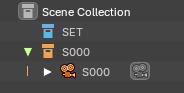 Collection “SET”: This blue collection contains a common collection for all slides. This will show in all slide scenes.
- Collection “S000”: This orange collection contains a camera. This is meant to be a unique collection per slide scene.
- Camera “S000”: This camera is a unique camera for the slide, set to world center.
| Entry | What it does |
|---|---|
| Duration | This will adjust what happens when you create a new slide – creating a scene with this frame duration. Default is 30 frames. |
| Hide Interface | This adds an additional operator to hide all toolshelves if the header is showing. This will also maximize the 3D View and hide all overlays. Ideal for having a fullscreen without overriding the operating system desktop nor going full screen and allowing a quick switch to show/hide the interface for tutorial presentations. |
Use
Scenes as “Slides”
To use the addon, you can create and use “Slide Scenes” to organize and present your presentation content directly in the viewport.
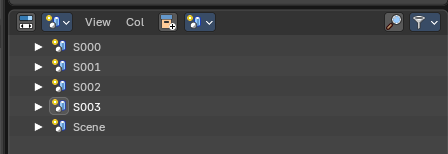
Each Slide Scene containers can be managed in the Outliner Editor under the Scene mode – to create and insert new Slide Scenes, use the operator button “Insert New Slide Scene”. This will create either a new or Linked Copy of the selected Slide Scene.
Every “Slide Scene” is a Scene container with a linked blue collection called “SET” for common presentation elements, and a unique collection with the same Scene Slide name that contains a unique camera. This is for your presentation content.
From there you can add presentation content either globally in the SET collection or uniquely in the Slide collection (eg, the collection called S000). The camera can also animate in or out.
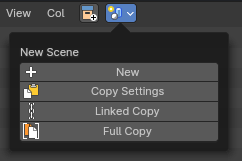
Any scene can be a slide. Name the Scenes in alphabetical or numerical order of your “slides” in an order would like to present.
Note: For best slides user experience, switch the Outliner Editor to Scene mode to manage your “slides”.
Animated Transitions
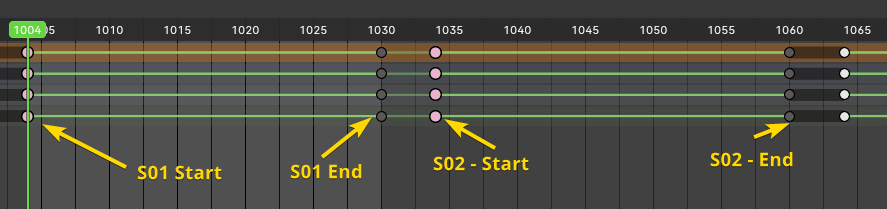
For animated transitions: animate the camera and scene content within the timeline start and end frames. When the first Scene is ready, Link Copy or create a New Scene from the first Scene, then change the second Scene’s timeline to start from the previous Scene’s end frame, camera position, and/or linked collections.
Example:
Scene 01 – set timeline from 0-30 frames: animate camera from position A to B
Scene 02 – set timeline from 30-60 frames: animate camera from position B to C
Scene 03 – set timeline from 60-90 frames: animate camera from position C to D