

































































Core Extension - Power User Tools
This addon is optional and deactivated by default.
Power User Tools
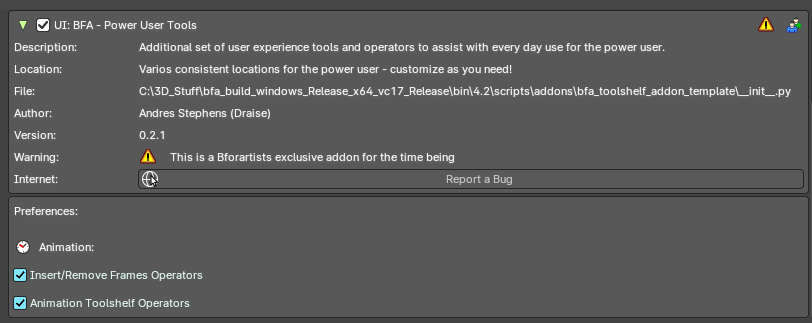
This addon is optional and deactivated by default.
This is an addon with an additional set of user experience tools and operators to assist every day use.
This addon is thanks to Andres Stephens (Draise).
Note: To activate/deactivate an addon, go to Edit – Preferences – Addons tab – and untick any activated addons.
If you’d like to keep your addons for future use, you can either save the preferences, or activate them on demand per workspace in the workspace settings in the property shelf.
Preferences
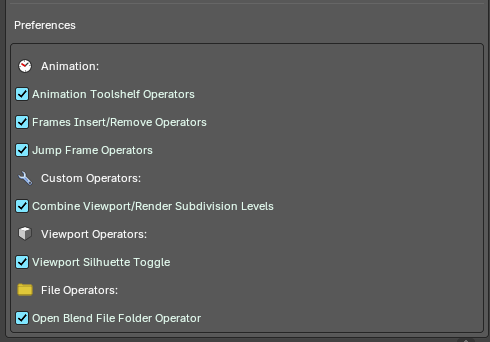
In the addon preferences, you can toggle which group of operators or user experience customization to help assist your needs.
Animation
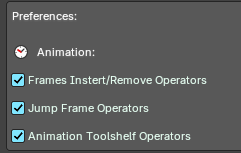
These are operators to assist and improve the animation user experience.
Frames Insert/Remove Operators Toggle
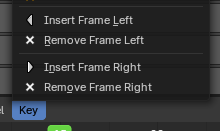
Toggle to add operators to insert/remove a frame to the left or right of the timeline cursor. Useful for grease pencil and stop motion animation.
Operators
- Insert Frame Left
- Remove Frame Left
- Insert Frame Right
- Remove Frame Right
Location of operators
3D View Editor – Object Header Menu – Animation Sub-Menu
3D View Editor – Toolshelf – Animation Tab – Animation Panel
Timeline Editor – Header Buttons on the right
Dopesheet Editor – Key Header Menu
Graph Editor – Key Header Menu
3D View Header – Grease Pencil – Edit mode - Grease Pencil Header menu – Animation sub-menu.
3D View Header – Grease Pencil – Draw mode - Draw Header menu – Animation sub-menu.
3D View Header – Grease Pencil – Edit mode - Animation Panel
3D View Header – Grease Pencil – Draw mode - Animation Panel
3D View Header – Grease Pencil – Sculpt mode - Animation Panel
3D View Header – Grease Pencil – Vertex mode - Animation Panel
Frames Jump Operators Toggle
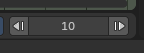
Toggle to add the Frame Jump operators from the header of the Timeline Editor.
Location of operators
Timeline Editor – Header Buttons on the right
Animation Toolshelf Operators Toggle
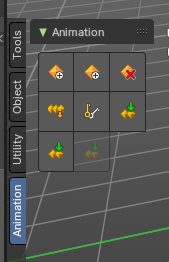
Toggle to add the animation operators from the header to the toolshelf. Useful for general animation keyframe use from the 3D View.
| Entry | What it does |
|---|---|
| Operators | For more information of these operators, please visit the chapter Editors - 3D Viewport - Header - Object menu You can alternatively view these operators in the 3D View Header – Object/Pose Header menu – Animation sub-menu. |
| Location of operators | 3D View Editor – Toolshelf – Animation Tab – Animation Panel 3D View Header – Object/Pose Header menu – Animation sub-menu. 3D View Header – Object/Pose Header menu – Animation sub-menu. |
Custom
Combine Viewport/Render Subdivision Levels
Toggle the ability to use hotkeys to toggle both render and viewport subdivision levels.
Location of operators
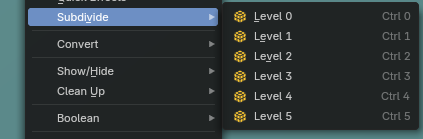
Properties Editor – Subdivision Modifier
3D View Editor – Object Mode – Object – Subdivide operators
Viewport
Combine Viewport/Render Subdivision Levels
Toggles a new overlay button in the header of the 3D view
Location of operators
3D View Editor – Header to the top right
Operators
Animation Operators
Insert Frame Left
Inserts an empty frame and nudges all frames to the left of the time cursor. Useful for grease pencil and stop motion animation.
| Entry | What it does |
|---|---|
| Remove Frame Left | Removes a frame on the right of the timeline cursor and nudges all frames towards the timeline cursor. Note: Current frame on timeline cursor will be removed. |
| Insert Frame Right | Inserts an empty frame and nudges all frames to the right of the time cursor Useful for grease pencil and stop motion animation. |
| Remove Frame Right | Removes a frame on the right of the timeline cursor and nudges all frames towards the timeline cursor. Note: Current frame on timeline cursor will be removed. |
Jump Frame Left
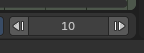
Move the timeline cursor to the left and jump by the number of frames defined in the center property.
Jump Frame Right
Move the timeline cursor to the right and jump by the number of frames defined in the center property.
Custom Operators
Combine Viewport/Render Subdivision Levels
When applying modifier levels using hotkeys in the 3D View to adjust the Subdivision Modifier levels, this will set the render levels to match the viewport subdivision levels.
Note: Use the Bforartists hotkeys CTR+1, 2, 3,... to toggle the subdivision levels directly from the 3D View editor.
Viewport Operators
Viewport Silhuette Toggle
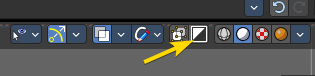
Adds the viewport overlay silhuette toggle to the header of the 3D View editors. Located in the header overlays row to the top right.
File Operators
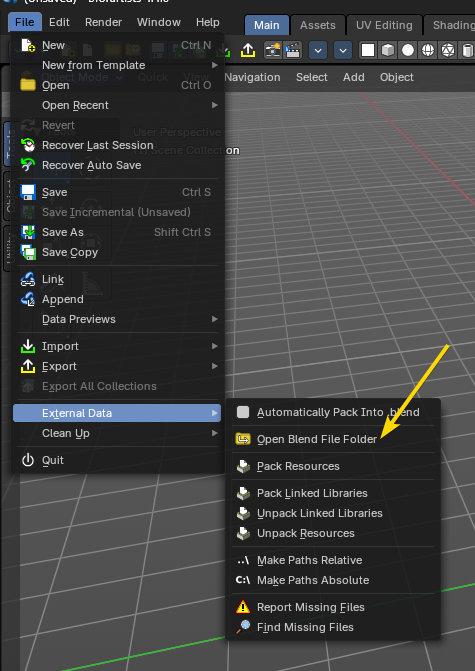
Open Blend File Folder
Adds an operator to open the current blend file folder in the File Explorer of your operating system. Located in the File header menu under the External Data sub-menu.
Use
1. Activate the addon
In the user preferences Addons tab, search for “Power User” and activate the addon.
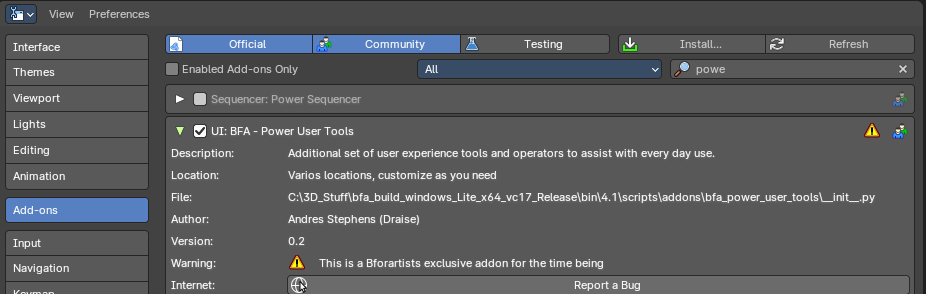
2. Customize which operators you would need in the preferences
Here you will find categories and groups of operators. Mouse over which group of operators to see the tooltip to learn more.