

































































Core Extension- 3D Sequencer
This addon is activated by default.
This addon is activated by default.
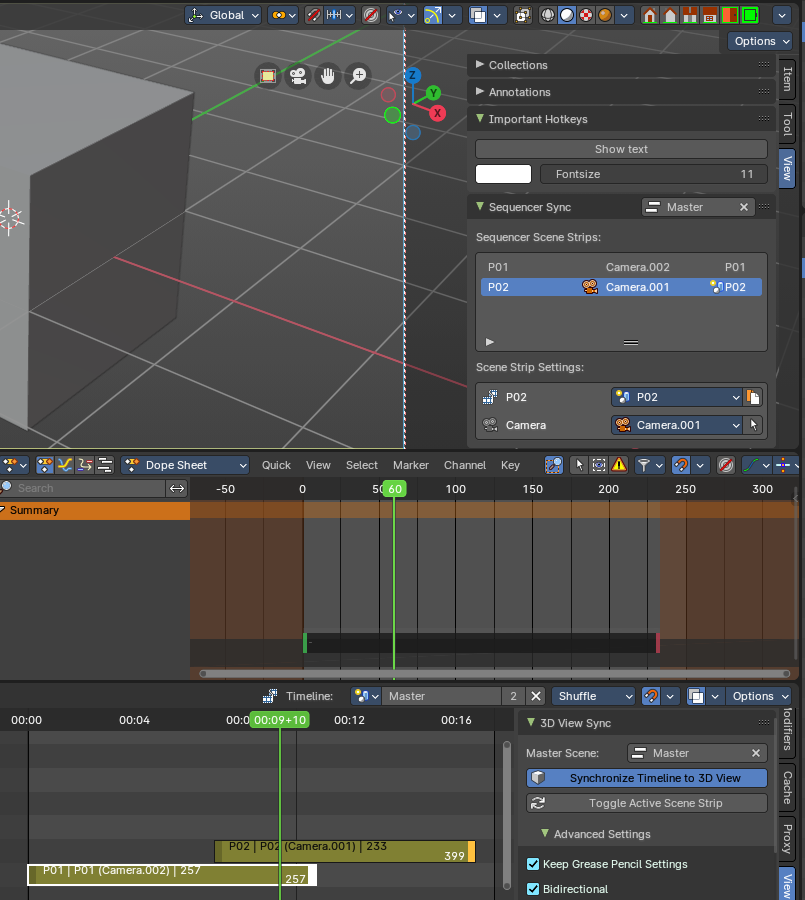
This adds the ability to use the sequencer with the 3D View with a timeline. Using Scene Strips, you can switch the 3D View scenes with a master sequencer scene, like in a video editor.
This addon is thanks to Spa Studios, Znight, and Draise.
Note: To activate/deactivate an addon, go to Edit – Preferences – Addons tab – and untick any activated addons.
If you’d like to keep your addons for future use, you can either save the preferences, or activate them on demand per workspace in the workspace settings in the property shelf.
Header Tools

Sync Header Button
Toggles Synchronization Timeline to 3D View.
To use, set the sequencer timeline to the master scene then toggle to synchronize the 3D with the Sequencer.
Header
Sequencer – Scene
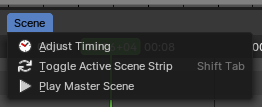
An additional header menu for Scene Strip operators in the Sequencer Editor.
| Entry | What it does |
|---|---|
| Adjust Timing | Adjusts the timing of the active Scene Strip by extending or compressing the Scene Strip length directly from the Sequencer timeline. |
| Toggle Active Scene Strip | Updates the current scene to the active scene strip. If the timeline in sequencer header is not set, this toggles the current scene to active Scene Strip in the sequencer. |
| Play Master Scene | Toggle playback of the master scene from the sequencer timeline. |
Panels and Operators
Sequencer – 3D View Sync panel
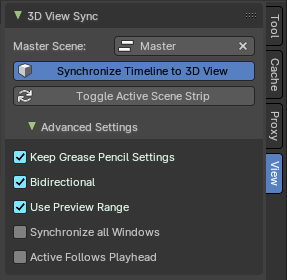
This panel located in the Sequencer sidebar View tab has the group of operators, properties and buttons define how the Sequencer synchronizes the Timeline to 3D View.
Master Scene Selector
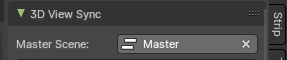
The master scene selector is where you define which the scene should contain all the children Scene Strips in the Sequencer timeline. The selected scene with the containing children Scene Strips in the Sequencer will be your Master Scene.
Each Scene Strip in the timeline will change the active 3D View camera and active scene when the Synchronize Timeline to 3D View operator is on.

Note: The Master Scene should also be selected in the sequencer header to be “pinned” before syncing the 3D View, as the synchronization only work on the selected Sequencer timeline.
Advanced Settings Sub-Panel
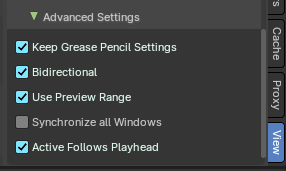
These define the advanced settings for Sequencer synchronizes the Timeline to the 3D View.
| Entry | What it does |
|---|---|
| Keep Grease Pencil Settings | Keep active Grease Pencil tool settings while switching and navigating Scene Strips from the timeline. |
| Bidirectional | Whether changing the Active Scene’s time should update the Master Scene’s current frame. |
| Use Preview Range | Update the preview range of current strip’s scenes to match the useful range of the strip. |
| Synchronize all Windows | Whether the 3D View Sync impacts all the Main Windows. |
| Active Follows Playhead | Update the active strip while scrubbing the sequencer. |
3D View - Sequencer Sync Panel
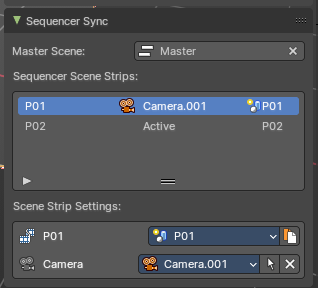
This panel displays information from the Sequencer in the 3D View, including the active Scene Strip with assigned scene and camera. This panel is located in the View tab of the 3D View sidebar.
Master Scene Selector
The master scene selector is where you define which the scene should contain all the children Scene Strips in the Sequencer timeline to influence the 3D View. The selected scene with the containing children Scene Strips in the Sequencer will be your Master Scene.
Each Scene Strip in the timeline will change the active 3D View camera and active scene when the Synchronize Timeline to 3D View operator is on in the Sequencer View tab.
Sequencer Scene Strips List
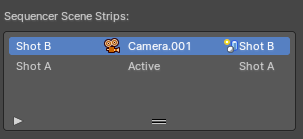
This shows the list of scene strips from the Master Scene timeline from the Sequencer. On the left is the Scene Strip name, center is the active camera, and to right is the assigned scene to the Scene Strip.
Scene Strip Settings
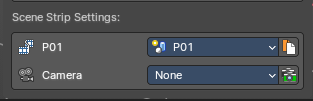
This box shows the active Scene Strip in the 3D View with properties to select the assigned scene, the active camera selector and other operators.
| Entry | What it does |
|---|---|
| Scene Selector | Select the active scene for the active Scene Strip. |
| Create Child Scene Setup | Duplicate Linked the active scene as a new scene then update the active Scene Strip to the new scene. |
| Active Camera Selector | Overrides the scene active camera and camera markers to a fixed camera. |
Set Active Camera
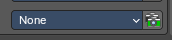
If None is set, the Scene Strip camera behavior defaults to no active camera or last active Scene camera.
Set Active Scene Camera

Sets the camera for the Scene Strip to the Active Camera. If Active is set, the Scene Strip camera behavior defaults to the bound cameras to timeline marker or to the active Scene camera.
Set Active Camera to None

If the Scene Strip has an active camera override, you can set it to None to revert the Scene Strip camera behavior defaults to no active camera or last active Scene camera.
Select the Active Camera
Selects the Active Camera in the scene.
Overlays
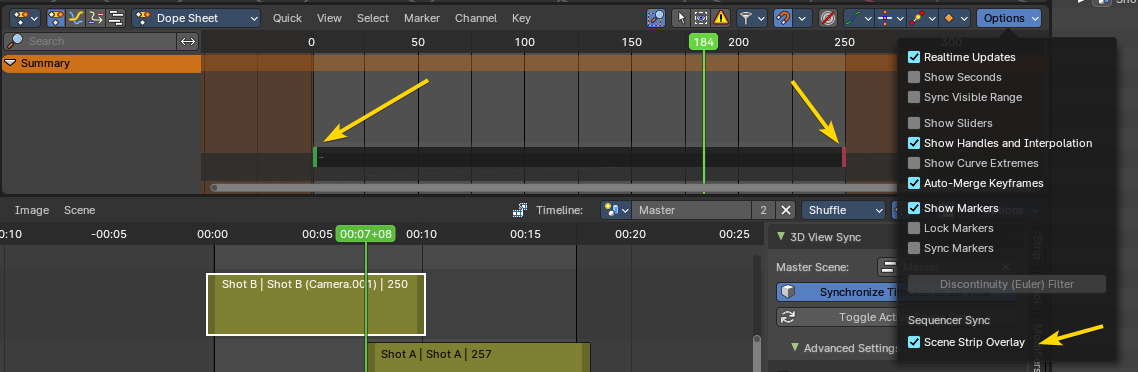
Dopesheet - Options
Sequencer Sync – Scene Strip Overlay Property
Toggles the retiming widget of the active Scene Strip in the Dopesheet. Changing the preview start and end of the strip will also change the Scene Strip length in the Sequencer.
The green handle retimes the start of the Scene Strip.
The red handle retimes the end of the Scene Strip.
Use
1. Create Scenes
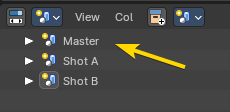
To set a timeline in the sequencer, first create a master scene and concurrent scenes for your shots. Each scene can have their individual cameras, collections, animation and render settings. You can also link collections and data between scenes.
2. Set the Master Scene
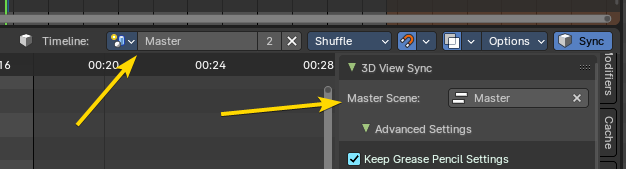
The Master Scene is where the Scene Strip cameras and animation strips are defined. This timeline information will synchronize with the 3D view and vice versa.
In the view tab of the 3D View in the Sequencer Sync panel, you can set the Master Scene in the panel, or set the Master Scene in the view tab of the Sequencer in the 3D View Sync panel. This master scene will define how the Scene Strips control the 3D View.
3. Set the Master Scene to the sequencer Timeline
After you have defined the Master Scene, you must define the Timeline to the Master Scene. Once you have this set, you can now playback amd synchronize the 3D View to the sequencer Timeline.
Note: You can also “pin” the any scene to the sequencer timeline.
4. Add Scene Strips to the sequencer Timeline.

You can add Scene Strip to the sequencer Timeline from from the add menu.
Now you can use the Dopesheet overlay to retime your scenes, and the Sequencer to change the sequence, cut, and re-order your scenes.
You can also retime your Scene Strips in the sequencer.
5. Synchronize Timeline to 3D View
This button in the header will start the realtime sequencer timeline synchronization to the 3D View.
Note: If you are in the master scene in the 3D View, toggle or switch to one of the Scene Strip scenes and then it will update from the sequencer timeline.