

































































Tool Shelf
The strip menu contains strip related functionality.
Tool shelf in Preview view
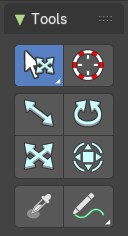
The strip menu contains strip related functionality.
Select Tools Group
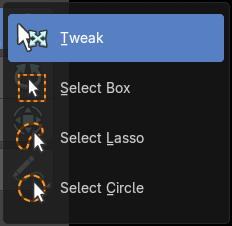
Tools with a triangle down right are a group of tools. Click and hold to reveal the content. Then choose the tool that you need.
Tweak
Allows you to select single elements by clicking at it.
Select Box
Draws a box to select several elements at once. Click at the start point, then drag.
Tool Settings
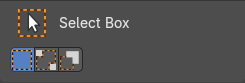
Mode
The available selection modes. The mode titles are pretty self explaining. So i won't go into detail here.
| Entry | What it does |
|---|---|
| Set a new selection | — |
| Extend existing selection | — |
| Subtract existing selection | — |
Select Lasso
Draws a lasso to select several elements at once. Click at the start point, then drag.
Tool Settings
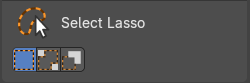
Mode
The available selection modes. The mode titles are pretty self explaining. So i won't go into detail here.
| Entry | What it does |
|---|---|
| Set a new selection | — |
| Extend existing selection | — |
| Subtract existing selection | — |
Select Circle
Circle select several elements at once. Click at the start point, then drag.
Tool Settings
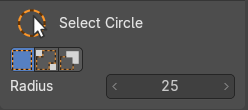
| Entry | What it does |
|---|---|
| Mode | The available selection modes. The mode titles are pretty self explaining. So i won't go into detail here. · Set a new selection · Extend existing selection · Subtract existing selection |
| Radius | The circle radius |
Move
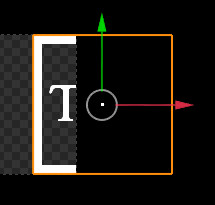
Activates the move tool. Activating the move tool also reveals a move widget at the object. This widget allows you to move the object around, by using the corresponding axis.
Clicking and dragging at one of the axis moves the object along this axis. By clicking into the white square in the middle you can move the object freely.
Snapping
Holding down Ctrl activates temporary global snapping.
Precision movement
When you hold down shift, then you will have a much slower but also much preciser movement.
Header Values

When you move your object then you will see some values in the header, which defines the current position of the object.
The value m stands for the default metric system. Meters. You can change the units in the Properties editor in the Scene properties in the Units panel. When you choose kilometers here then you will see a km instead m.

The value D stands for the distance of the current selected axis. This can also be two axis. Then you have two d values. The value in the brackets is then the direct distance to the starting point.
These values are always relative to the starting point. You always start with zero, regardless of the real world position.
Numerical Input
When you move the object, and hold down the mouse and type in a value, like 20, then the movement will be performed by the value that you have typed in. In this case by 20 units in direction of the selected axis.
Limit Axis
When you have accidentally grabbed the middle of the widget, and want to move along a specific axis, then press X or Y to limit to this axis. The widget orientation remains at global orientation.
Tool Settings
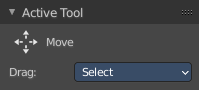
Drag
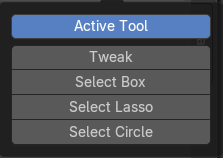
What to do when you click in the off.
| Entry | What it does |
|---|---|
| Active Tool | Use the transform tool. |
| Tweak | Deselect the current element and/or select another element. |
| Select Box | Deselect the current element and/or box select another element. |
| Select mode | The select mode for the select methods. |
Rotate
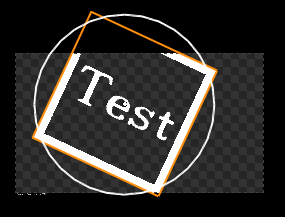
Activating the rotate tool reveals a rotate widget at the object. This widget allows you to rotate the object.
Snapping
Snapping while rotation is by default on. It snaps in 5 degree steps.
Holding down Ctrl deactivates temporary global snapping.
Precision movement
When you hold down shift, then you will have a much slower but also much preciser movement.
Header Values
When you move your object then you will see some values in the header, which defines the current position of the object.
The value m stands for the default metric system. Meters. You can change the units in the Properties editor in the Scene properties in the Units panel. When you choose kilometers here then you will see a km instead m.
The value D stands for the distance of the current selected axis. This can also be two axis. Then you have two d values. The value in the brackets is then the direct distance to the starting point.
These values are always relative to the starting point. You always start with zero, regardless of the real world position.
Numerical Input
When you rotate the object, and hold down the mouse and type in a value, like 20, then the rotation will be performed by the value that you have typed in. In this case by 20 degrees clockwise.
Tool Settings
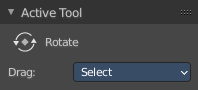
Drag
What to do when you click in the off.
| Entry | What it does |
|---|---|
| Active Tool | Use the transform tool. |
| Tweak | Deselect the current element and/or select another element. |
| Select Box | Deselect the current element and/or box select another element. |
| Select mode | The select mode for the select methods. |
Scale
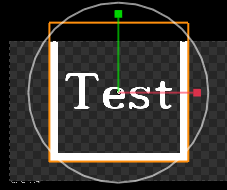
Activates the Scale tool. Activating the scale tool also reveals a traditional scale widget at the object. This widget allows you to scale the object, by using the corresponding axis. When you click at the outer white circle and drag, then you can scale the object uniformly.
Snapping
Snapping while rotation is by default on. It snaps in 0.1 unit steps.
Holding down Ctrl deactivates temporary global snapping.
Precision movement
When you hold down shift, then you will have a much slower but also much preciser transformation.
Header Values
When you move your object then you will see some values in the header, which defines the current position of the object.
The value m stands for the default metric system. Meters. You can change the units in the Properties editor in the Scene properties in the Units panel. When you choose kilometers here then you will see a km instead m.
The value D stands for the distance of the current selected axis. This can also be two axis. Then you have two d values. The value in the brackets is then the direct distance to the starting point.
These values are always relative to the starting point. You always start with zero, regardless of the real world position.
Numerical Input
When you rotate the object, and hold down the mouse and type in a value, like 20, then the rotation will be performed by the value that you have typed in. In this case by 20 degrees clockwise.
Limit Axis
When you have accidentally grabbed the middle of the widget, and want to move along a specific axis, then press X or Y to limit to this axis. The widget orientation remains at global orientation.
Tool Settings
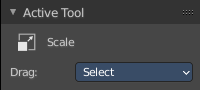
Drag
What to do when you click in the off.
| Entry | What it does |
|---|---|
| Active Tool | Use the transform tool. |
| Tweak | Deselect the current element and/or select another element. |
| Select Box | Deselect the current element and/or box select another element. |
| Select mode | The select mode for the select methods. |
Transform
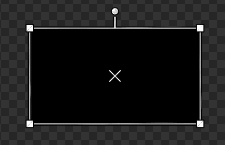
Activates the Transform tool. The transform tool allows you to move, rotate and scale the object. You can also select more than one object and move it. To rotate or to scale more than one object simultaneously is currently not possible.
Snapping
Snapping while rotation is by default on. It snaps in 0.1 unit steps.
Holding down Ctrl deactivates temporary global snapping.
Precision movement
When you hold down shift, then you will have a much slower but also much preciser transformation.
Header Values
When you move your object then you will see some values in the header, which defines the current position of the object.
The value m stands for the default metric system. Meters. You can change the units in the Properties editor in the Scene properties in the Units panel. When you choose kilometers here then you will see a km instead m.
The value D stands for the distance of the current selected axis. This can also be two axis. Then you have two d values. The value in the brackets is then the direct distance to the starting point.
These values are always relative to the starting point. You always start with zero, regardless of the real world position.
Numerical Input
When you rotate the object, and hold down the mouse and type in a value, like 20, then the rotation will be performed by the value that you have typed in. In this case by 20 degrees clockwise.
Limit Axis
When you have accidentally grabbed the middle of the widget, and want to move along a specific axis, then press X or Y to limit to this axis. The widget orientation remains at global orientation.
Tool Settings
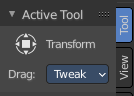
Drag
What to do when you click in the off.
| Entry | What it does |
|---|---|
| Active Tool | Use the transform tool. |
| Tweak | Deselect the current element and/or select another element. |
| Select Box | Deselect the current element and/or box select another element. |
| Select mode | The select mode for the select methods. |
Sample
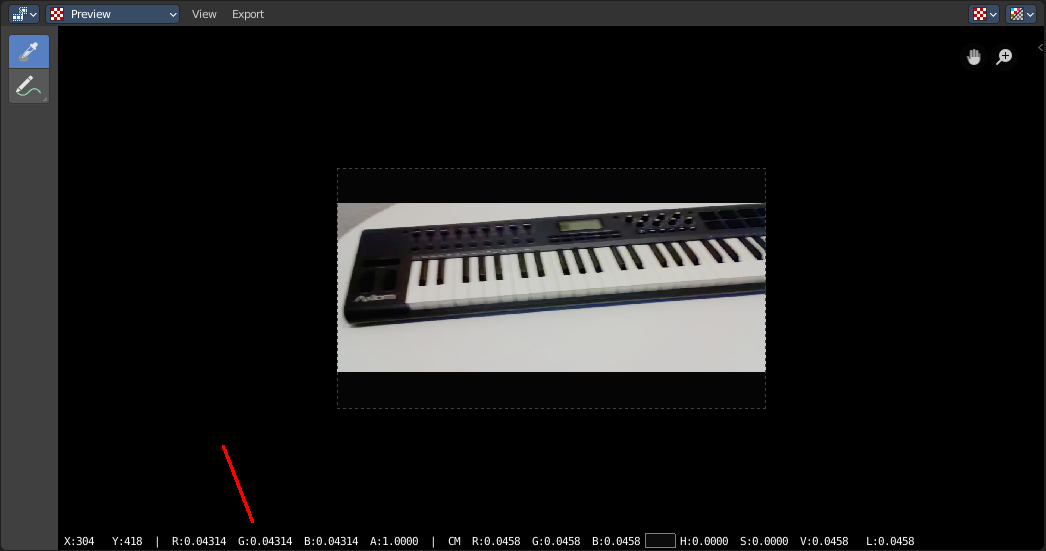
Samples colors under the mouse position when you left click at the position. The result is displayed at the bottom of the view.
Annotate Tools group
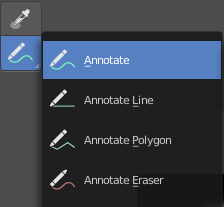
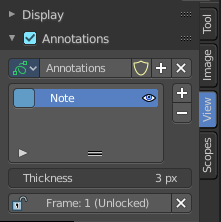
The annotation tool is available in multiple editors. With this tool you can write notes at the screen. The annotate tools is the little brother of the grease pencil objects.
Further settings for annotate can be found in the sidebar. Here you can also remove an annotation when you don't longer need it. And here you can also adjust the size of the stroke.
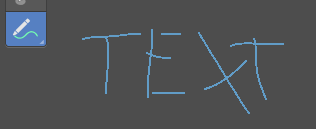
Annotate
Draw free-hand strokes in the main window.
Tool Settings
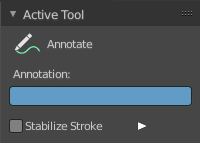
The tool settings for Annotate.
Color
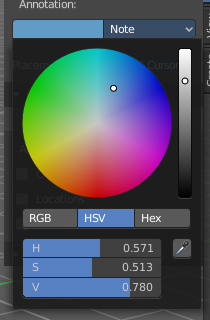
Clicking at the color field reveals a color picker. Define the color for the annotation stroke.
Stabilize Stroke
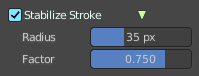
Helper to draw smooth and clean lines. Pressing shift inverts the effect.
| Entry | What it does |
|---|---|
| Radius | The radius for the stroke stabilization. |
| Factor | Stabilizer stroke factor. Higher values gives a smoother stroke. |
Annotate Line
Click and drag to create a line.
Tool Settings
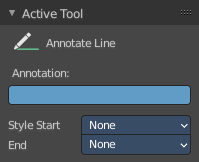
The tool settings for the Annotate tool.
Color
Clicking at the color field reveals a color picker. Define the color for the annotation stroke.
Style Start
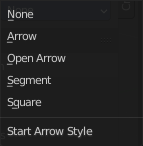
The stroke start style. With an arrow for example you place an arrow at the start of the stroke.
End
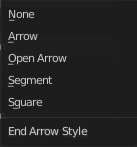
The stroke end style. With an arrow for example you place an arrow at the end of the stroke.
Annotate Polygon
Click multiple times to create multiple connected lines. The current polygon is finished when Esc or RMB is pressed.
Tool Settings
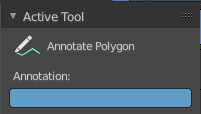
The tool settings for Annotate.
Color
Clicking at the color field reveals a color picker where you can define the color for the annotation stroke.
Annotate Eraser
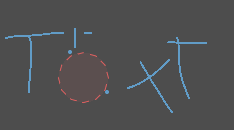
Click and drag to remove annotate lines.
Tool Settings
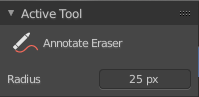
Radius
The radius of the eraser pencil.
Tool shelf in Sequencer view
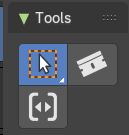
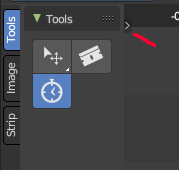
Select Tools Group
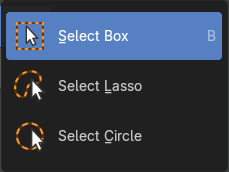
Tools with a triangle down right are a group of tools. Click and hold to reveal the content. Then choose the tool that you need.
Tweak
Allows you to select single elements by clicking at it.
Select Box
Draws a box to select several elements at once. Click at the start point, then drag.
Tool Settings
Mode
The available selection modes. The mode titles are pretty self explaining. So i won't go into detail here.
| Entry | What it does |
|---|---|
| Set a new selection | — |
| Extend existing selection | — |
| Subtract existing selection | — |
Select Lasso
Draws a lasso to select several elements at once. Click at the start point, then drag.
Tool Settings
Mode
The available selection modes. The mode titles are pretty self explaining. So i won't go into detail here.
| Entry | What it does |
|---|---|
| Set a new selection | — |
| Extend existing selection | — |
| Subtract existing selection | — |
Select Circle
Circle select several elements at once. Click at the start point, then drag.
Tool Settings
| Entry | What it does |
|---|---|
| Mode | The available selection modes. The mode titles are pretty self explaining. So i won't go into detail here. · Set a new selection · Extend existing selection · Subtract existing selection |
| Radius | The circle radius |
Blade
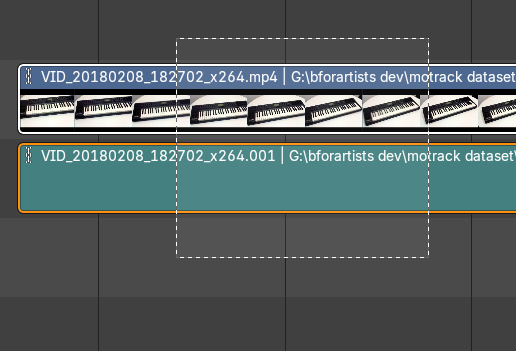
Cut the selected strips at mouse position.
Clicking at the clip will cut the strip at the mouse position. When you drag this tool then you can box select a portion of the clip to cut out.
Active Tool settings
Split Type
Create a soft split or a hard split.
Remove Gaps
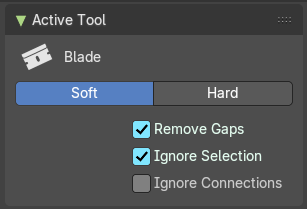
Close gaps between cut strips.
| Entry | What it does |
|---|---|
| Ignore Selection | Make cuts to all strips. Even if they are not connected. |
| Ignore Connections | Don’t propagate split to connected strips. |
Retime
The retime toll lets you trim the playback speed of your clip by dragging around retime markers. The markers gets added at the clip. And just shows when the retime tool is activated.
Adding Marker
When you activate the Retime tool then you will notice a plus sign besides the playhead cursor. Clicking at it will add a retime marker. Which is a handle that can be moved around. And by draggin around the handler you will stretch or compress the clip towards the handler position.
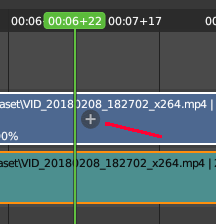
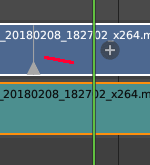
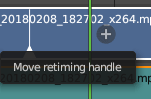
The retiming happens from marker to marker per section. The new playspeed of the marker section can be seen at the clip then.

Remove Retime Marker
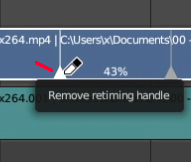
Markers can be removed by moving the mouse over the triangle area of the handler and a left click.
Channel header
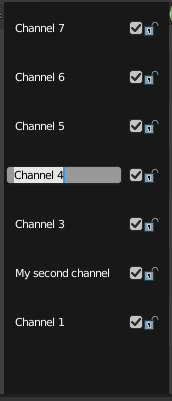
The channel headers allows you to activate and to lock the current channel. The channel names can be renamed by double clicking at it.
This header can be hidden away by dragging at the border. To reveal it, click at the little triangle button up left.