

































































Preview - View tab
Syncing options with the 3d view.
Syncing options with the 3d view.
View Settings Tab
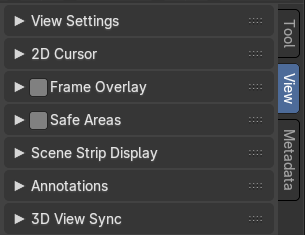
In the View Settings tab you will find the display related settings.
Note that not all content is available in all submodes. The Preview submode shows other content thant he Sequencer submode.
View Settings Panel
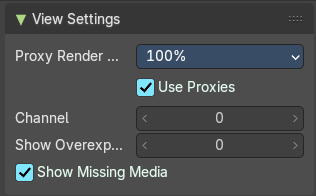
Proxy Render Size
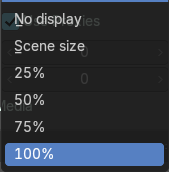
Size to display proxies at in the preview region. Using a smaller preview size will increase speed.
Proxies is a simplified data set to speed up workflow.
| Entry | What it does |
|---|---|
| Use Proxies | Use proxy images instead of the real material to speed up workflow. |
| Channel | Which channel number to show in the image preview. The value 0 is the result of all strips combined. |
| Show Overexposed | Shows overexposed (bright white) areas using a zebra pattern. The threshold can be adjust with the slider. |
| Show Missing Media | Render missing images or movies with a solit magenta color. |
Location X / Y
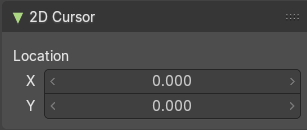
The position of the 3d cursor.
Frame Overlay Panel
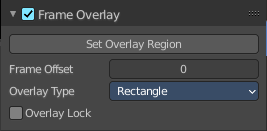
Display an overlay on top of the sequencer with a frame offset of the content.
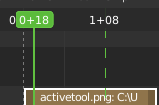
When the feature is active then you will see a green dashed line in the sequencer timeline.
| Entry | What it does |
|---|---|
| Set Overlay Region | Box select a portion of the viewport to display the overlay content. |
| Frame offset | What offset frame to use, relative to the current frame position. |
Overlay Type
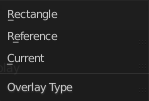
The overlay draw type.
Overlay Lock
Locks the overlay frame to the current frame. It will not go ahead when you play the video.
Save Areas panel
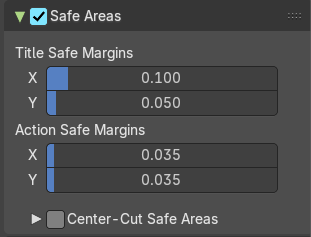
Modern LCD or plasma monitors usually doesn't have over scan areas anymore. But especially older TV screens still may have varying amounts of over scan. And cuts quite a bit content away at the border. And so not all content is shown at all monitors. Safe areas is the area that is always visible at all hardware.
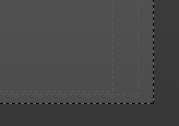
Safe areas are guides to ensure that the most important parts of the content can be seen across all screens. The lines are unfortunately a bit hard to see when you are in camera view. They mark the safe areas.
Safe areas can be set from the Camera and Sequencer views.
Tip: Each country sets a legal standard for broadcasting. These include also specific values for safe areas. Bforartists defaults for safe areas follow the EBU (European Union) standard. Make sure you are using the correct values when working for broadcast to avoid any trouble.
| Entry | What it does |
|---|---|
| Title Safe Margins X/Y | Also known as Graphics Safe. Information (graphics or text) inside this area can be seen by the majority of viewers. |
| Action Safe Margins X/Y | An extra “margin” for the screen, which can be used to keep elements from piling up against the edges. |
Center-Cut Safe Areas
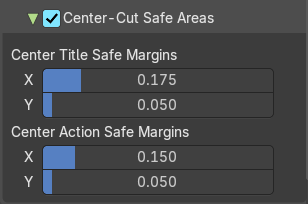
Center-cuts are a second set of safe areas to ensure content is seen correctly on screens with a different aspect ratio. Old TV sets receiving 16:9 or 21:9 video will cut off the sides. Position content inside the center-cut areas to make sure the most important elements of your composition can still be visible in these screens.
| Entry | What it does |
|---|---|
| Center Title Safe Margins X/Y | Information (graphics or text) inside this area can be seen by the majority of viewers. |
| Center Action Safe Margins X/Y | Safe area for general elements in a different aspect ratio. |
Scene Strip Display panel
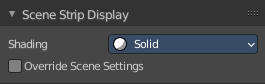
Settings for the strip type Scene Strip.
Shading
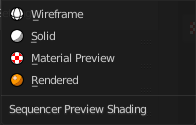
How to display the scene content in the preview window.
Override scene settings
Use the workbench render settings from the sequencer scene instead of the settings instead of each individual scene used in the strip.
Annotations panel
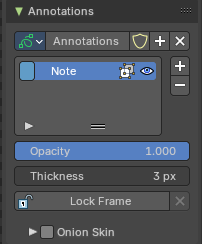
Manage the Annotation layers and materials.
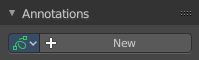
When you don't have drawn an annotation yet then the panel just contains a New button.
Annotations prop
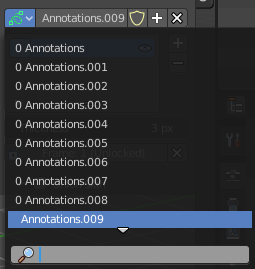
Add, remove and rename new annotations.
Drop down box
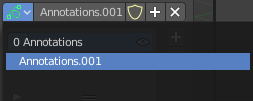
A list of the available annotation layers.
| Entry | What it does |
|---|---|
| Edit Box | The name of the current annotation. You can rename the annotation to your needs here. |
| Fake User | Assign a fake user to this annotation. Fake users is an odd concept to keep data in the scene even if it has no user somewhere. The fake user is then a dummy user so that the object is not deleted when saving the scene. |
| Add Annotation | Add a new annotation. |
| Delete Annotation | Delete the annotation. |
List of Annotation Strokes

Here you see your Annotation layers for the current Annotation. Every layer can have an own color.
At the right side you find buttons to sort them and to add and remove new Annotation layers.
You can change the color by clicking at the color field. A color dialog will pop up. You can rename annotation layers by double clicking at it.
The eye icon allows you to make it invisible And it has a search field.
| Entry | What it does |
|---|---|
| Thickness | The thickness of the annotation stroke. |
| Frame Locked/Unlocked | Lock frame displayed by current layer. This toggles whether the active layer is the only one that can be edited. |
Onion Skin subpanel
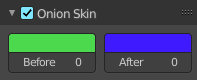
Enable Onion Skinning
Onion Skinning allows to show ghosts of the keyframes before and after the current frame. In this sub panel you can adjust the color of the onion skin frames. With the numbers below the colors you can define how many frames before or after are displayed that way.
Sync Mode
The sync method.
Built-In
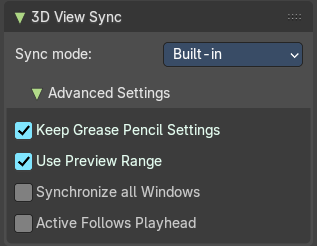
Advanced Settings
| Entry | What it does |
|---|---|
| Keep Grease Pencil Settings | Keep active Grease Pencil tool settings while navigating scene strips. |
| Use Preview Range | Update the current scene strip to match the range. |
| Synchronize all Windows | If the 3d View sync impacts all main windows. |
| Active follows Playhead | Update the active scene strip while scrubbing the playhead. |
Legacy
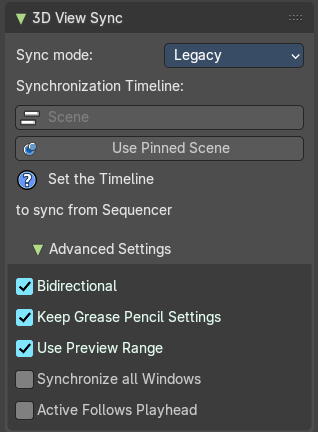
Synchronization Timeline
Scene
The scene to synchronize.
Use Pinned Scene
Mak the pinned scene the active scene. The button and the “Set the Timeline” hint will vanish then.
Advanced Settings
| Entry | What it does |
|---|---|
| Bidirectional | Changing the active scene should also update the timeline scene’s current frame in the sequencer. |
| Keep Grease Pencil Settings | Keep active Grease Pencil tool settings while navigating scene strips. |
| Use Preview Range | Update the current scene strip to match the range. |
| Synchronize all Windows | If the 3d View sync impacts all main windows. |
| Active follows Playhead | Update the active scene strip while scrubbing the playhead. |