

































































Tools and Options
The Pivot Point is the center of your object or your selection. The names should be self explaining.
Header tools and options - Preview view

Pivot Point
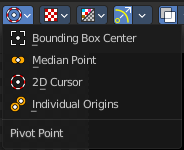
The Pivot Point is the center of your object or your selection. The names should be self explaining.
Snapping
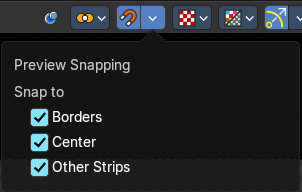
Snap strips during transform.
Preview Snapping
Snap to
| Entry | What it does |
|---|---|
| Borders | Snap to preview borders. |
| Center | Snap to preview center. |
| Other Strips | Snap to borders and origins of deselected, visible strips. |
Display Mode
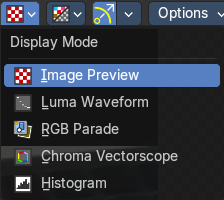
How to display the preview video.
Image Preview
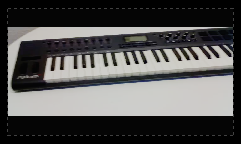
Displays the image material.
Luma Waveform
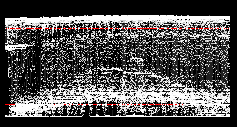
Displays the luma waveform of the image.
RGB Parade
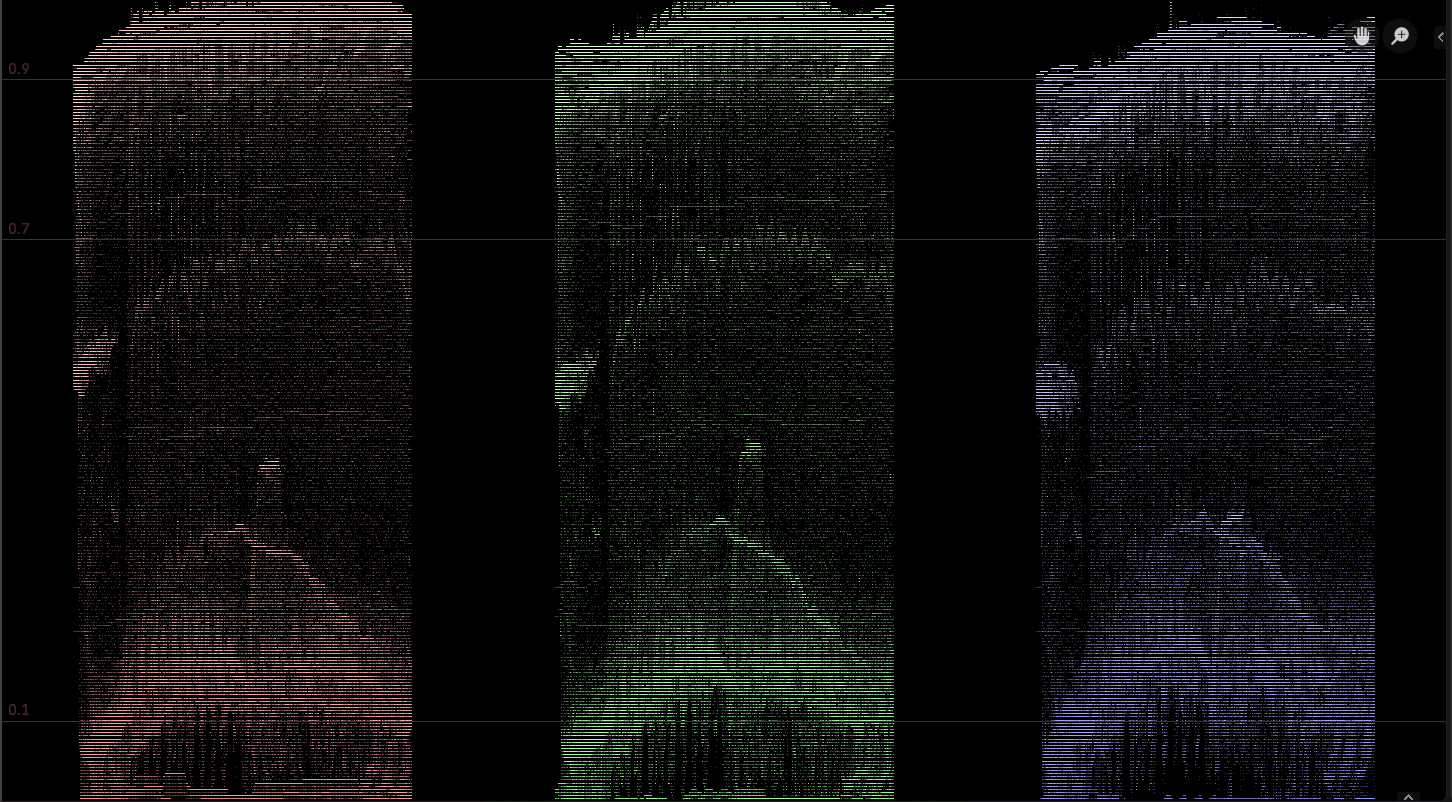
Displays the rgb channels
Chroma Vectorscope
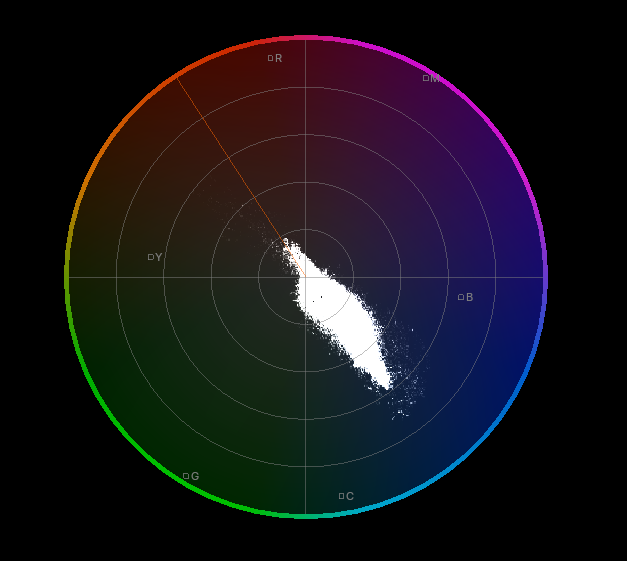
Displays the chroma vectorscope of the image.
Histogram
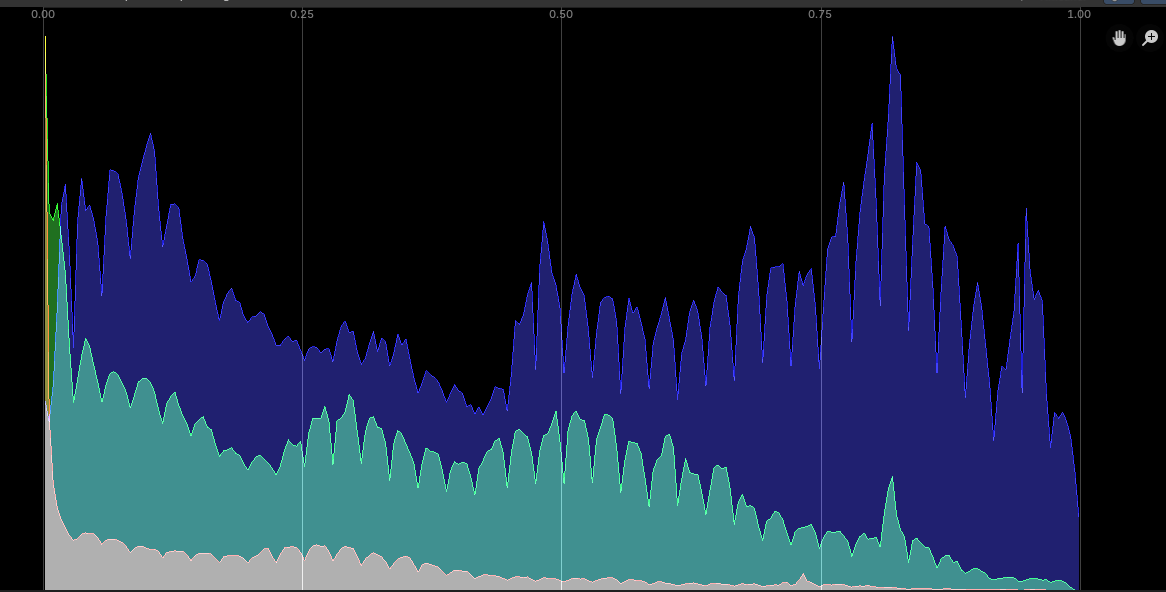
Displays a histogram of the image.
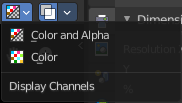
Display Channels
What channels of the video to display.
| Entry | What it does |
|---|---|
| Color and Alpha | Display the color channels and alpha channel. |
| Color | Display just the color channels. |
Show Gizmo
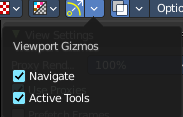
Show or hide the viewport gizmos.
Viewport Gizmos
What kind of gizmos to show.
| Entry | What it does |
|---|---|
| Active Tools | Toggles the navigation gizmos. |
| Active Tools | Toggles the active tool gizmos. |
Options
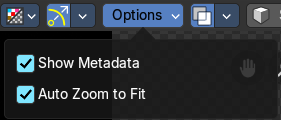
| Entry | What it does |
|---|---|
| Show Metadata | Show metadata of first visible strip in the viewport. |
| Zoom to Fit | Automatically zoom preview image to fully fit into the preview window. Note: Zooming in or out turns off the feature automatically. |
Show Overlay
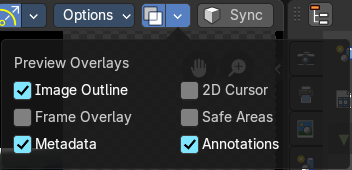
Turn on or off all overlays.
Preview Overlays
| Entry | What it does |
|---|---|
| Image Outline | Outline the selected image element. |
| Frame Overlay | Show the frame overlays. |
| Metadata | Show the Metadata overlay. |
2D Cursor

Show the 2d cursor.
| Entry | What it does |
|---|---|
| Safe Areas | Show the safe area overlays. |
| Annotations | Show the annotations. |
Sync
This will toggle the 3D Sequencer synchronization with scene strips and scene switching. Refer to the 3D Sequencer addon chapter for more information.
Header Tools and Options - Sequencer View

Scene
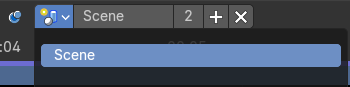
The timeline scene that you use for the video.
Overlap Mode
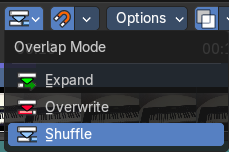
How to resolve overlap after transformation.
| Entry | What it does |
|---|---|
| Expand | Move strips until there is no overlap anymore. |
| Overwrite | Trim or split strips to resolve overlap. |
| Shuffle | Move transformed strip to nearest free space to resolve overlap. |
Snap
Snap to strip edges or current frame.
Snapping Settings
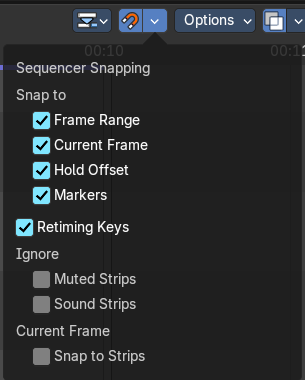
Sequencer Snapping
| Entry | What it does |
|---|---|
| Snap to | Frame Range: Snap to the current frame range · Current Frame: Snap to the current frame · Hold Offset: Snap to strip Hold offsets. · Markers: Snap to Markers. |
| Retiming Keys | Toggles the visibility of retiming keyframes when retiming strips. |
| Ignore | Muted Strips: Ignores muted strips. · Sound Strips: Ignores sound strips. |
| Current Frame | Snap to Strips: Sets the current frame to the start or end point of the selected clip. |
Options
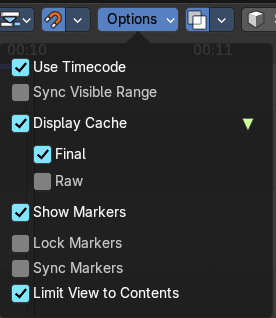
| Entry | What it does |
|---|---|
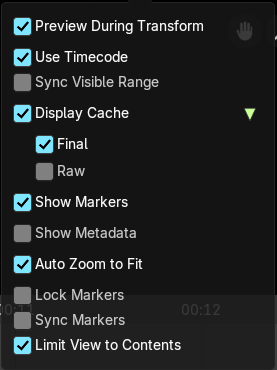
| Use Timecode | Cache settings. Toggle to visualize cached images in the timeline. |
| Sync Visible Range | Keep the visible timeline range synchronized across time-based editors. Synchronize the visible timeline range with other visible time based editors. To enable syncing, each editor must have 'Sync Visible Range' turned on. |
| Display Cache | Turns on displaying the cache overlay and shows cache settings. Toggle to visualize cached images in the timeline. · Final: Show the final images. · Raw: Show the raw images. This is a Developers extra. |
| Show Markers | Display the markers menu and the markers at the bottom in the timeline. |
| Lock Markers | Prevent marker editing. |
| Sync Markers | Transform markers with the strips. |
| Limit View to Content | Limit timeline height to maximum used channel slots. |
Show Overlays
Turn on or off all overlays.
Sequencer Overlays
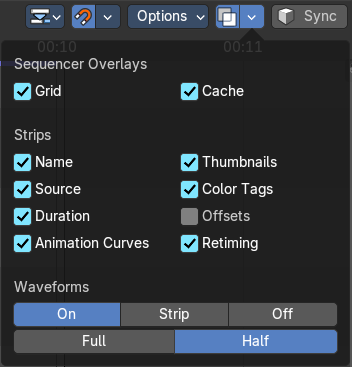
| Entry | What it does |
|---|---|
| Grid | Show the grid in the sequencer timeline. |
| Cache | Visualize cached images on the timelines. |
Strips
| Entry | What it does |
|---|---|
| Name | Show the name of the clip. |
| Source | Show the source of the clip. |
| Duration | Display the duration of the clip. |
Animation Curves
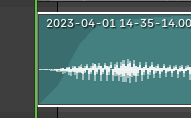
Display the strip opacity/volume curves.
| Entry | What it does |
|---|---|
| Thumbnails | Draw thumbnails as strip overlay. This works for movie and image strips. To draw thumbnails, this overlay has to be enabled and strips must be tall enough. |
| Color Tags | Display the strip color tags in the sequencer. |
| Offset | What offset frame to use, relative to the current frame position. |
| Retiming | Display the retiming keys on top of the strips. |
Waveforms
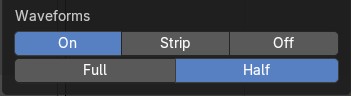
How waveforms are displayed.
On
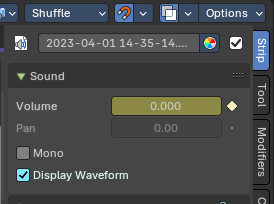
Shows waveforms
| Entry | What it does |
|---|---|
| Strip | Shows strip settings per strip in the Sound panel Display Waveform settings. |
| Off | Hides all waveforms. |
Waveform Style
What waveform style to use.
| Entry | What it does |
|---|---|
| Full | Shows a bidirectional wave form. |
| Half | Shows a one-sided wave form. |
Sync
This will toggle the 3D Sequencer synchronization with scene strips and scene switching. Refer to the 3D Sequencer addon chapter for more information.
Header Tools and Options - Sequencer & Preview view

The tools in the Sequencer & Preview view mode are most likely a combination of single modes. Both showing at the same time.
There is one exception in the options panel. Preview as backdrop is not shown in this mode.