

































































Add Menu
The sequencer does not only display video and audio strips. There are several strip types available. You can in the Add menu load image sequences, single images, masks, and even whole scenes.
Add menu
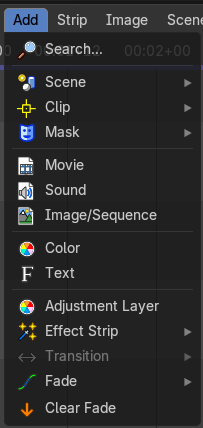
The sequencer does not only display video and audio strips. There are several strip types available. You can in the Add menu load image sequences, single images, masks, and even whole scenes.
Different strip types have different colors. You can customize them further in the sidebar in the strip tab.
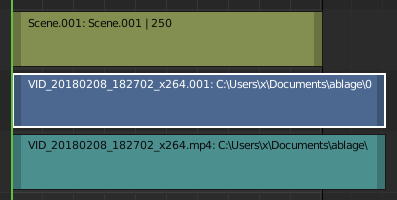
Note that some strip types can also be loaded by drag n drop. When you load the strips by the file selector then you will see some import options there. These import settings are mentioned here.
Search
A way to search the menu by typing. Press spacebar to also start searching.
Scene submenu
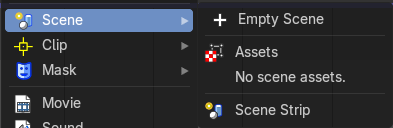
Scene strips are a way to insert the render output of another scene into your sequence. Instead of rendering out a video, then inserting the video file, you can insert the scene directly.
The strip length will be determined based on the animation settings in that scene.
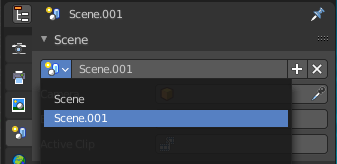
Note: You can't use the same scene than the one where you have the Video Sequence Editor open. You need to have a second scene with the content. Scenes can be managed in the Scene tab in the Properties Editor.
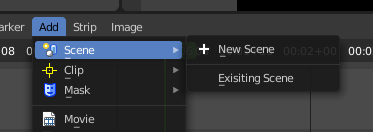
Scenes must exist in the current file. Available scenes appears in the Scene menu.
You can also create a strip directly from this Add Scene Strips operator using the New Scene entry.
Clip submenu
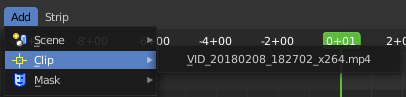
Clips comes from the Movie Clip Editor. The Movie Clip Editor is part of the motion tracking workspace, and primarily used for motion tracking.
Clips must exist in the current file. Available clips appears in the Clip menu.
Mask submenu

The Mask strip generates a mask image from the selected mask data-block generated in the Movie Clip Editor. This works similar to the Mask Node but without the options available for finer control. The mask image is always generated at the render resolution, scaling along with different proxy levels.
Masks must exist in the current file. Available masks appears in the Mask menu.
Movie
Import a video.
Import settings
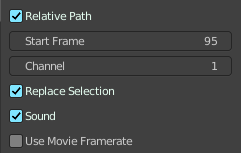
| Entry | What it does |
|---|---|
| Relative Path | Use a relative path to the blend file. |
| Start Frame | Start frame of the strip. |
| Channel | In which channel to insert. |
| Replace Selection | Replace selected strips at import. |
| Sound | Import sound. A video is usually made of an image part and an audio part. |
| Use Movie Frame rate | Use the frame rate of the video to keep video and audio in sync. |
Sound
Import an audio file.
Import settings
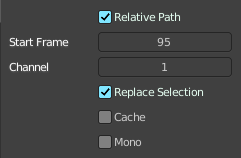
| Entry | What it does |
|---|---|
| Relative Path | Use a relative path to the blend file. |
| Start Frame | Start frame of the strip. |
| Channel | In which channel to insert. |
| Replace Selection | Replace selected strips at import. |
| Cache | Cache the sound in memory. |
| Mono | Import the audio file as mono. |
Image/Sequence
Adds a single image or a sequence of images.
When you add a single image then a strip with the length of one second gets created.
When you want to import an image sequence you have to select all the images of the sequence.
Import settings
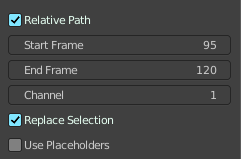
| Entry | What it does |
|---|---|
| Relative Path | Use a relative path to the blend file. |
| Start Frame | Start frame of the strip. |
| End Frame | End frame of the strip. |
| Replace Selection | Replace selected strips at import. |
Use Placeholders
Use placeholder images in an image sequence with missing images.
Image sequences can use placeholder files. This works by enabling Use placeholders checkbox when adding an image strip. The option detects the frame range of opened images using Blender’s frame naming scheme (filename + frame number +.. .extension) and makes an image sequence with all files in between even if they are missing. This allows you to render an image sequence with a few frames missing and still the image strip will have the correct range to account for the missing frames displayed as black. When the missing frames are rendered or placed in the same folder, you can refresh the Sequencer and get the missing frames in the strip. The option is also available when using the Change Data/File operator and allows you to add more images to the range.
| Entry | What it does |
|---|---|
| Color | Adds a strip with a plain color. Color is one of many effect strips. |
| Text Strip | A Text strip allows you to display text in the Sequence. |
Adjustment Layer
The Adjustment Layer strip works like a regular input file strip except for the fact, that it considers all strips below it as its input.
Real-world use cases, you want to add some last finishing color correction on top of parts of your final sequence, timeline without messing with meta strips around. Just add an adjustment layer on top and activate the color balance.
Or you can stack a primary color correction and several secondary color corrections on top of each other (probably using the new mask input for area selection).
Effect Strip submenu
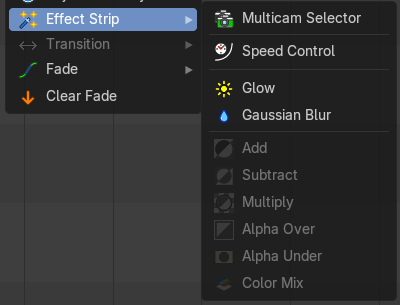
Effect strips that adds effects to the image part of the strips.
The color related strips that are greyed out here requires to have two strips selected. The one controls the other strip then.
The last operator panel is mostly similar for all types.
Multicam Selector
The Multicam Selector strip is used for multi-camera editing. Multi-camera editing is when a scene is recorded using multiple cameras from different angles and then edited together afterwards. This process can be rather easy in the VSE if you properly setup every to improve your workflow.
Workflow
Add your video strips.
Sync all your cameras by either using Audio Wave forms or by the movement of objects.
Tip: To make syncing strips easier you can group cameras, their audio, and their effects together using Meta Strips.
Add a viewer region for every input channel and to improve the performance use proxies.
Add a Multicam Selector strip above all the channel tracks.
After completing these steps you should get something similar to the image below:
Select the Multicam strip.
When you select the Multicam strip, the keys 1 to 9 are mapped to the cut buttons. So, select the Multicam strip and start playback and press the keys for the correct input while watching the individual cameras.
You will now have a small Multicam Selector strip for every cut.
Transform
Moves, rotates or scales the images within a strip.
Speed Control
Speed Control time-warps the strip, making it play faster or slower than it normally would. A Global Speed less than 1.0 makes the strip play slower; greater than 1.0 makes it play faster.
Playing faster means that some frames are skipped, and the strip will run out of frames before the end frame. When the strip runs out of frames to display, it will just keep repeating the last one; action will appear to freeze. To avoid this, position the next strip under the original at a point where you want the motion to continue.
| Entry | What it does |
|---|---|
| Glow | This effect makes parts of an image glow brighter. To “animate” the glow effect, mix it with the base image using the Gamma Cross effect, crossing from the base image to the glowing one. |
| Gaussian Blur | Blurs the input strip in a defined direction. |
Add
The Add Effect adds the colors of two strips together. Use this effect with a base image strip, and a modifier strip. The modifier strip can be either a solid color or a black-and-white mask, or another image.
You can use this effect to increase the brightness of an image, or if you use a BW mask, selectively increase the brightness of certain areas of the image. The Mix node, in Add mode, does exactly the same thing as the Add SFX strip here, and is controlled the same way by feeding the Factor input.
Subtract Effect
This effect takes away one strip’s color from the second.
Make a negative of an image using this effect, or switch the order of the strips and just darken the strip. Subtracting a hue of blue from a white image will make it yellow, since red and green make yellow.
Multiply
The Multiply effect multiplies two colors. Blender uses values between (0.0 to 1.0) for the colors. This operation does not have to be normalized, the multiplication of two terms between (0.0 to 1.0) always gives a result between (0.0 to 1.0).
With the “traditional” representation of three bytes, like RGB(124, 255, 56), the multiplications give far too high results, like RGB(7316, 46410, 1848), that have to be normalized (brought back) by dividing them by 256 to fit in the range of (0 to 255)…
Multiply can be used with a Mask. Or with Uniform Colors.
Multiplying a color with a “normal” image allows you to soften some hues of this one (and so – symmetrically – to enhance the others).
For example, if you have a brown pixel RGB(0.50, 0.29, 0.05), and you multiply it with a cyan filter (uniform color RGB(0.0, 1.0, 1.0)), you will get a color RGB(0.0, 0.29, 0.5). Visually, the result is to zero the reds and bring up (by “symmetry” – the real values remain unchanged!) the blues and greens. Physically, it is the same effect as shining a cyan light onto a chocolate bar. Emotionally, vegetation becomes more lush, water becomes more Caribbean and inviting, skies become friendlier.
Note: This effect reduces the global luminosity of the picture (the result will always be smaller than the smallest operand). If one of the images is all white, the result is the other picture; if one of the images is all black, the result is all black!
| Entry | What it does |
|---|---|
| Over Drop | Alpha channel effect. With Over Drop the first strip selected is the foreground. But as with Alpha Over, the Opacity controls the transparency of this foreground. Warning! By clicking the Premultiply Alpha button in the Sidebar of the foreground strip, the alpha values of the two strips are not multiplied or added together. |
| Alpha Over | Alpha channel effect. With Alpha Over the first strip selected is the background, and the second one goes over the first one selected. The Opacity controls the transparency of the foreground. |
| Alpha Under | Alpha channel effect. With Alpha Under the first strip selected is the foreground, and the second one, the background. The Opacity controls the transparency of the background. |
| Color Mix | The Color Mix effect strip mixes two strips by working on the individual and corresponding pixels of the two input strips. This effect can do the exact same operation as the Add, Subtract, or Multiply effect strips but also other color blending modes. |
Transition submenu
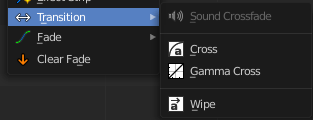
Adds transitions between two selected strips.
These strips are effect strips. And will have similar adjust last operation panels therefore.
| Entry | What it does |
|---|---|
| Sound Crossfade | Adds a cross fade between two selected audio strips. |
| Cross | The Cross transition adds a cross fade transition. Strips can be overlapping or have a gap between them, But when strips contain a gap the last and first frame of each strip is extend which can cause a pause if any of the strips are a sequence. |
| Gamma Cross | Similar to the Cross transition. It adds a cross fade transition. But uses color correction while transitioning between the two strips. This results in a smoother transition. |
| Wipe | Adds a transition from one strip to the next strip. The duration of the wipe is the intersection of the two source strips and cannot be adjusted. To adjust the start and end of the wipe you must adjust the temporal bounds of the source strips in a way that alters their intersection. |
Fade submenu
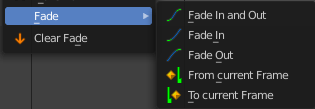
Adds a fade effect to the selected strip(s). The menu items should be self explaining.
Clear Fade
Removes all fade effects from the selected strips.