

































































Footer tools and options
This chapter here is about the tools and options elements in the footer. It contains various elements and tools. This footer is shared across the animation editors. Dope Sheet, Graph Editor, Driver Editor and NLA Editor
Introduction
This chapter here is about the tools and options elements in the footer. It contains various elements and tools. This footer is shared across the animation editors. Dope Sheet, Graph Editor, Driver Editor and NLA Editor
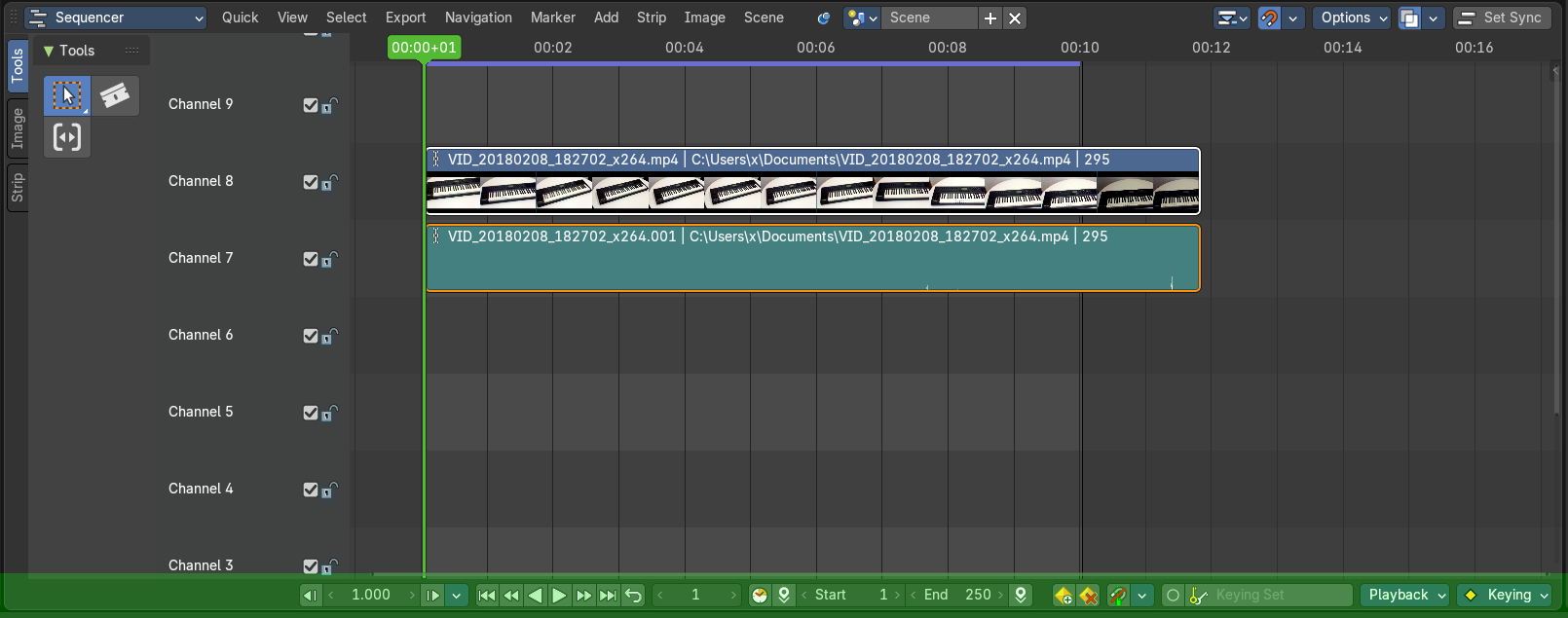
Playback Elements

The playback elements allows you to play your animation, and set the animation range.
Jump Time by Delta
Jump forward or backward by a given number of frames or seconds.
Time Jump Delta
The amount to step forward or backward.
Jump Unit
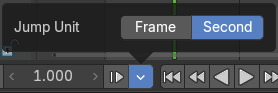
The frame jump unit. Seconds or Frames.
| Entry | What it does |
|---|---|
| Jump to Endpoint - start | Jumps to the first frame. |
| Jump to Keyframe - previous | Jumps to the keyframe before the current position. |
| Play Animation - backward | Plays the animation in reverse direction. |
| Play Animation - forward | Plays the animation. |
| Jump to Keyframe - next | Jumps to the keyframe after the current position. |
| Jump to Endpoint - end | Jumps to the last frame. |
| Cancel animation | Cancels the animation and returns to the original frame. |
| Current Frame | The edit box with the position of the current frame. Click at the value and type in another value to jump to another frame. |
Use Preview Range
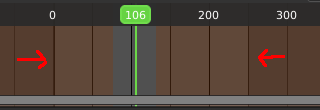
Toggle an alternative range used to preview animations. The Preview range works for the UI playback, but will not work for rendering an animation.
The preview range is displayed in orange color. The original playback range that is used for rendering is still displayed in grey underneath. When Use Preview Range is on, then the animation will loop between the Preview range.
Set Start Frame

Sets the current frame position as the start frame.
| Entry | What it does |
|---|---|
| Start | The start frame for the animation in current mode. |
| End | The end frame for the animation in current mode. |
| Set End Frame | Sets the current frame position as the end frame. |
| Insert Keyframe | Inserts a keyframe. If you do not have a keying set assigned, this will default to the default keying set defined in the Preferences. |
| Delete Keyframe | Removes the keyframe at the current position in the current active keying set. |
Playhead Snapping
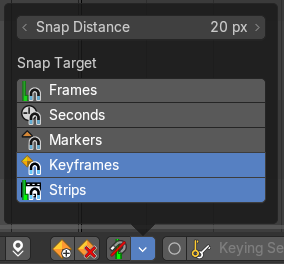
Playhead controls in animation editors help position the current frame indicator with precision, improving navigation and editing across the Timeline, Dope Sheet, Graph Editor, NLA, and Video Sequencer.
| Entry | What it does |
|---|---|
| Snap Distance | Sets the snapping threshold in pixels. Determines how close the playhead must be to a target for snapping to occur. |
| Snap Target | Frames: Snaps to whole frame numbers. Ideal for frame-accurate editing instead of sub-frame cursor placement. · Seconds: Snaps to time intervals measured in seconds. Useful for audio syncing or time-based pacing. · Markers: Snaps to the closest timeline marker. Great for aligning actions to scene events or beats. · Keyframes: Snaps to keyframe positions. Ensures precise alignment for editing and playback. · Strips: Snaps to the start or end of video/audio strips. Useful in the Video Sequencer and NLA editor. |
Frame Step
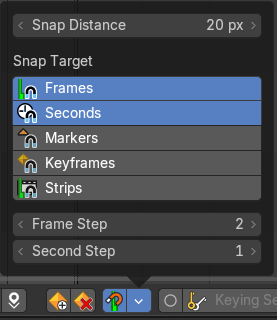
Defines the step size for frame-by-frame navigation. Controls how far the playhead moves when stepping through frames manually.
Note: Only available with Frames Snap Target
Second Step
Defines the step size for second-by-second navigation. Controls how far the playhead moves when stepping through the timeline manually.
Note: Only available with Second Snap Target
Active Keying Set

Objects needs a so called keying set so that you can record animation for it. It is a container for the animation, a set of keyframe channels. When you try to record an animation without an existing keying set, then you will get a warning since the channels for the keyframes are missing.
In this property you can choose a method from the builtin keying sets.
Auto Keying
With auto keying on every manipulation in the 3d view will automatically create a keyframe, or update the existing keyframe at the current position.
Note that Auto Keying just works with transform properties ( Objects and Bones) in the 3d View. It will not work to animate colors in the Properties Editor for example.
Auto Keyframing Popover
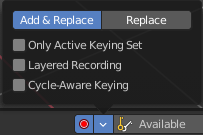
Auto keying settings. These settings shows when you have auto keying activated.
| Entry | What it does |
|---|---|
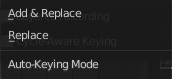
| Auto keying mode | Add & Replace: Replace existing keyframes and add new ones where no keyframes exists. · Replace: Just replace existing keyframes. |
| Only Active Keying Set | Automatic keyframe insertion using active keying set only. |
| Layered Recording | Add a new nla track and strip for every loop or pass made over the animation. This allows non destructive tweaking. |
| Cycle aware keying | For channels with cyclic extrapolation, the keyframe insertion is automatically remapped inside the cycle time range, and keeps the ends in sync. |
Active Keying Set
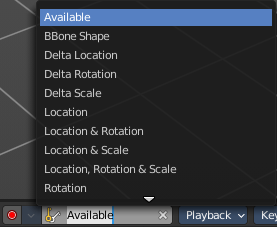
Choose your keying set.
Playback Panel
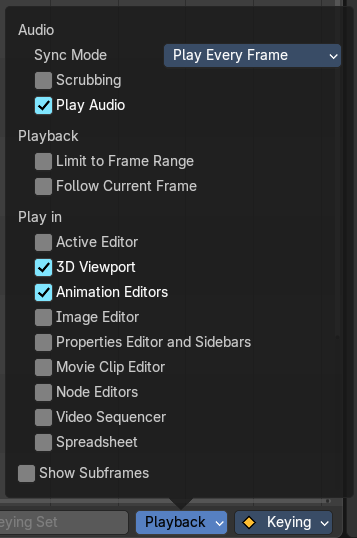
Here you can find various options for playback.
Audio
Sync Mode
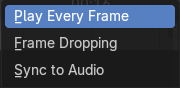
How to synchronize playback.
| Entry | What it does |
|---|---|
| No Sync | Don't synchronize. Play every frame. |
| Frame Dropping | Drop frames if playback is too slow. |
| AV Sync | Drop frames to synchronize to Audio Playback. |
| Entry | What it does |
|---|---|
| Scrubbing | Play existing audio from sequence editor when scrubbing. |
| Play Audio | Play back existing audio from sequence editor, otherwise mute the audio when deactivated. Use the Sequence Editor to add audio. |
Playback
| Entry | What it does |
|---|---|
| Limit Playback to Frame Range | Don't allow frame selection with the mouse outside of the play range. |
| Follow Current Frame | Follow current frame in editors. |
Play in
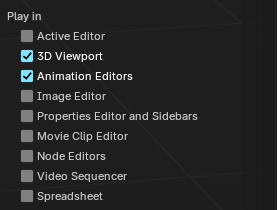
Plays the animation in the chosen editor types.
- Active Editor
- 3D Viewport
- Animation Editors
- Image Editor
- Properties Editor and Sidebars
- Movie Clip Editor
- Node Editors
- Video Sequencer
- Spreadsheet
Show Subframes
Display and allow setting fractional frame values for the current frame.
Keying Panel
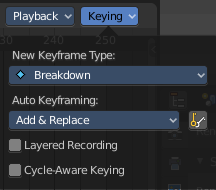
Some more keying options.
New Keyframe Type
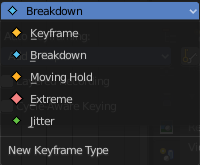
Recolor the currently selected keyframes. Or create the next keyframe with this chosen keyframe color.
Auto Keyframing
| Entry | What it does |
|---|---|
| Auto Keying Mode | Just replace existing keyframes, or add keyframes too. |
| Auto Keyframe Insert Keying Set | Automatic Keyframe Insertion using the active keying set only. |
| Entry | What it does |
|---|---|
| Layered Recording | Add a new NLA Track and Strip for every loop/ pass made over the animation to allow non destructive tweaking. |
| Cycle Aware Keying | For channels with cyclic extrapolation, keyframe insertion is automatically remapped inside the cycle time range, and keeps the ends in sync. |