

































































Video Sequence Editor
The Video Sequence Editor is a complete video editing system. It allows you to cut videos and add effects and audio.
Video Sequence Editor
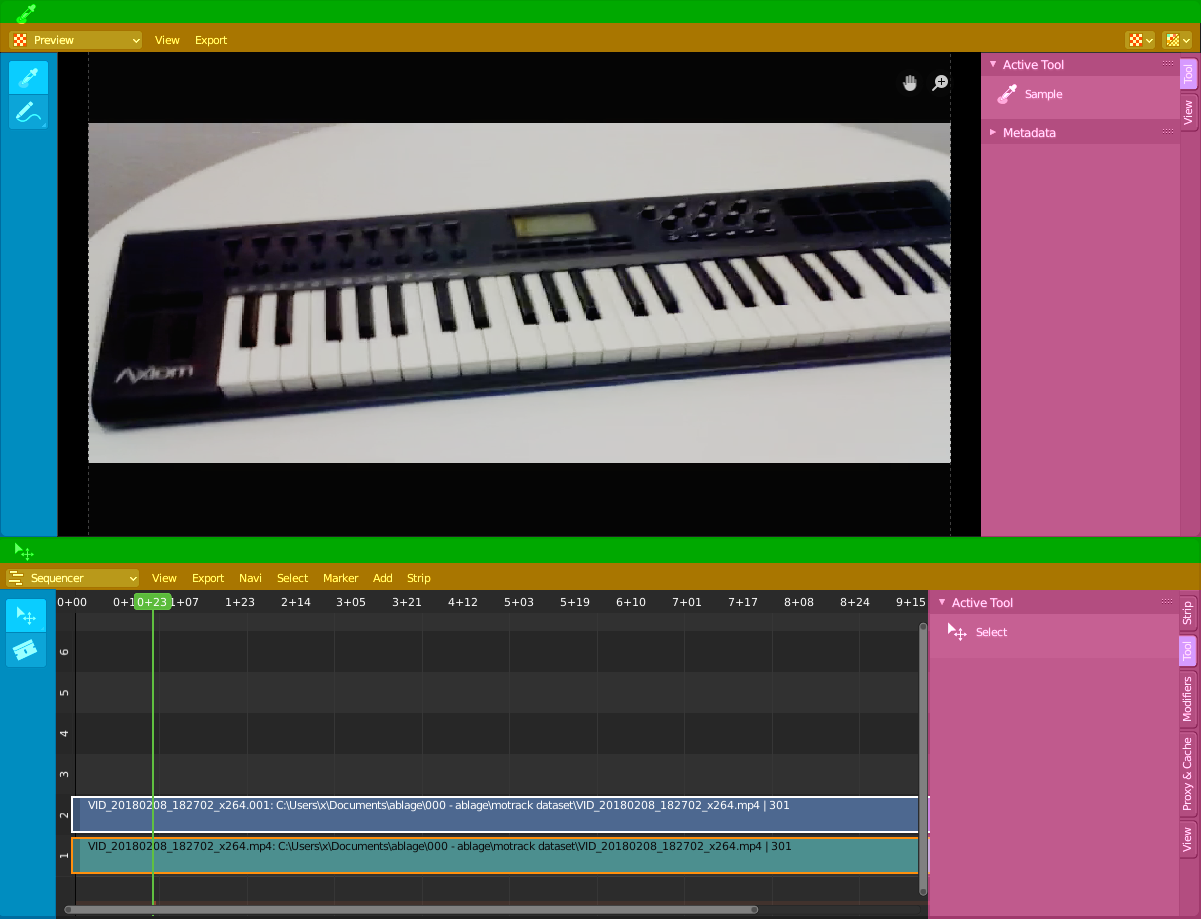
The Video Sequence Editor is a complete video editing system. It allows you to cut videos and add effects and audio.
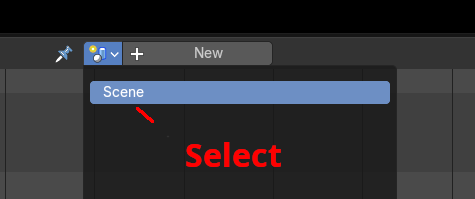
Note that you need to set a scene active before you can make use of the video sequence editor.
Type of Sequencer View
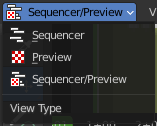
The Video Sequence Editor is two editors in one. The Preview sequencer view is a preview window. Here plays the video. The Sequencer sequencer view is the view that contains the the video and audio strips. The third method is both editor view types in one editor.
Both editor view types are divided into several areas.
Green - Tool area. Note that, different from the 3D view, the tool area cannot be hidden away.
Yellow – Header
Blue - Tool Shelf
Pink - Sidebar
Drag n Drop
You can drag n drop several elements like movie and audio clips into the Sequencer timeline. In this case you get the import options from the file browser displayed in the adjust last operator panel. The settings are pretty similar.
Navigating in the viewport
Hotkeys
Pan the view - MMB
Zoom - Mouse Wheel, MMB + Ctrl, Numpad + / -
View All - Home
Deselect - left click into the off.
Select - left click
Add to selection - Shift + left click
Strips
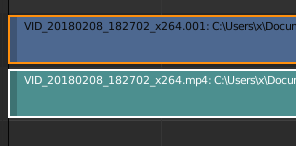
An element in the sequencer timeline is called strip. Strips are represented as bars.
Every strip displays the name of the strip up left.
Strip Types
Videos can also contain audio. When you import a video with audio, then you will have two strips in the timeline. A video strip that contains the image material. And an audio strip that contains the sound.
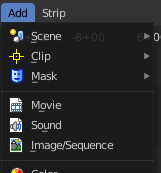
But the sequencer does not only display video and audio strips. There are several more strip types available. You can in the Add menu load image sequences, single images, masks, and even whole scenes.
Move Strips
To move strips in the sequencer timeline select the strip and drag it. Upwards will put it into another channel. Sidewards will move it in the timeline.
Resizing strips
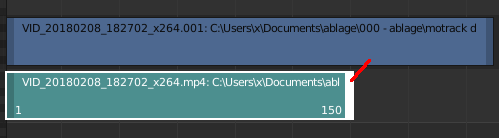
A strip has a drag handler at the left and a drag handler at the right. This handler allows you to resize the strip.
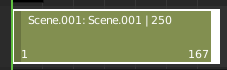
When the handlers are active you will see the frame numbers at the start and/or end of the clip. You can't move the strip as a whole while one of the handlers is active. Click in the off to deactivate the handlers. Then you can move the whole clip again.
Last operator Sequence Slide
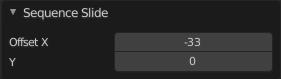
This adjust last operator shows for both, move strips and resize strips.
| Entry | What it does |
|---|---|
| Offset X | The modified frame position, relative to the start position of the strip. |
| Y | The modified channel position, relative to the start position of the strip. |
Strip States
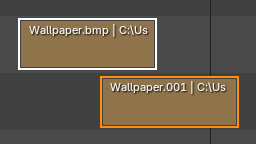
Active Strip
Highlighted in White. When you copy properties and modifiers copy to selected
Selected Strip
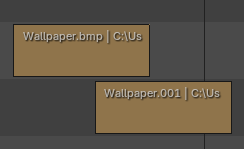
Highlighted in Orange
Unselected Strip
Un highlighted with a thin black border.
Muted Strip
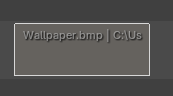
Highlighted by a faded effect to show that strip that has been muted, no-longer influencing the timeline.
Locked strip
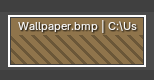
Highlighted with diagonal lines to show that the strip is locked and can no-longer be edited in the timeline.
Missing Data
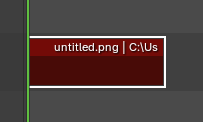
Highlighted in Dark red
Preview - Sequencer Preview context menu
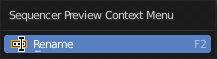
When you right click into the preview window then you will call a menu.
Allows you to rename the active sequence strip.
Sequencer - Sequencer context menu
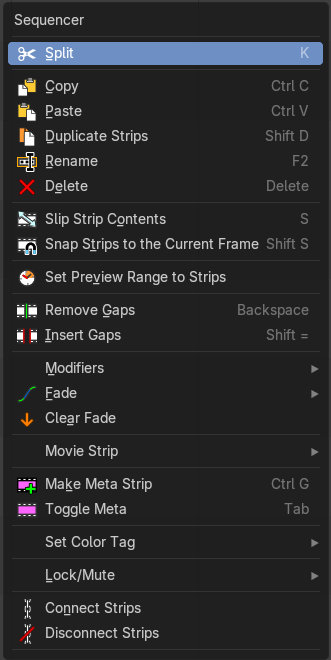
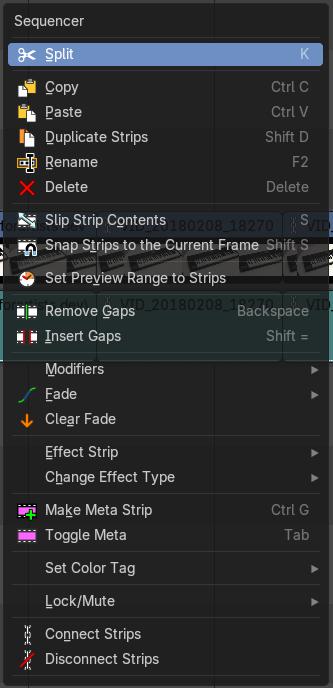
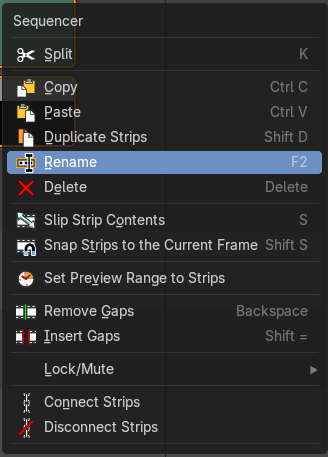
When you double right click into the Sequencer view, then you will open a menu. The Sequencer Context menu. Its content is to 100% double content to already existing menu entries. And it is despite the name not contextual.
The menu content differs, dependant of which sort of strip is selected.
| Entry | What it does |
|---|---|
| Split | Splits the selected strips at the chosen playhead position. |
| Copy | Copies the selected strips. |
| Paste | Pastes the copied strips. The strip will be pasted to the next free channel. |
| Duplicate Strips | Duplicates the selected strips. The duplicate will stick to the mouse. Move the duplicate with the mouse, then click to release. In case of overlapping strips the duplicate will snap behind the strip under the mouse. |
Rename
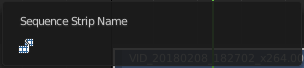
Allows you to rename the current active strip. A popup opens up where you can type in another name.
| Entry | What it does |
|---|---|
| Delete | Deletes the selected nodes. All Connections gets removed. |
| Slip Strip Contents | The Slip tool allows you to change the position of the contents of a strip without moving the strip itself. |
| Snap Strips to the current frame | Snaps the selected strips to the current frame. |
| Set Preview Range to Strips | Sets the preview range to the selected strips. The playback will then happen in this range. |
| Remove Gaps | Snaps the selected strip to the end of the strip before the selected one. |
| Insert Gaps | Insert a gap of frames before the selected strip. |
Cross fade Sounds

Audio Strips only. And you need to have two strips selected. Cross fade two selected audio strips.
Modifier submenu
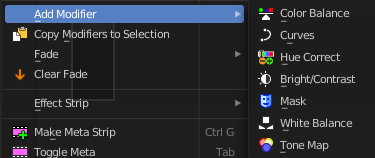
All strip types but Sound. Adds a strip modifier. Strip modifiers are explained in the sidebar chapters.
Fade submenu
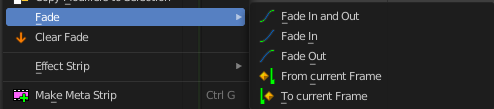
Fade effects for strips. The names should be self explaining.
Clear Fade
Clears the fade effects at the selected strips.
Movie Strip

| Entry | What it does |
|---|---|
| Set Render Size | Sets the render resolution and aspect to match the strip’s resolution. |
| Deinterlace Movies | Converts interlaced video into progressive video. |
Effect Strip

Strip type Effects.
| Entry | What it does |
|---|---|
| Reassign Inputs | Reassigns the input of the strips. Unfortunately not to find out how this works. |
| Swap Inputs | Swaps the inputs of the selected strips. Unfortunately not to find out how this works. |
Change Effect Type
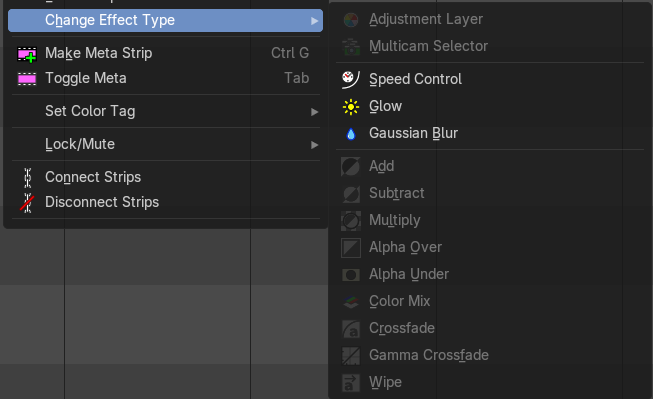
Sets the effect type to a new chosen type.
Make Meta Strip
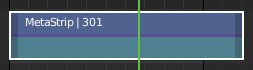
Creates a meta strip out of the selected strips. A Meta Strip is a strip which contain multiple strips treated as if it was one strip. It allows you to reduce the vertical space used in the Sequencer. You can edit it the same way as any other strips.
Note: The default blend mode for a Meta strip is Replace. There are many cases where this alters the results of the animation so be sure to check the results and adjust the blend mode if necessary.
UnMeta Strip
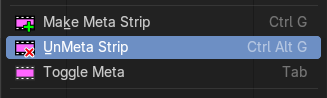
Shows when you select a meta strip. Separating (ungrouping) the Meta strip restores the strips to their relative positions and channels.
Toggle Meta
Toggles between the meta and unmeta state. You need to have a meta strip in the sequencer timeline already.
Set Color Tag

Changes the header or the body color of the selected strip. This depends of the strip type.
Lock/Mute submenu
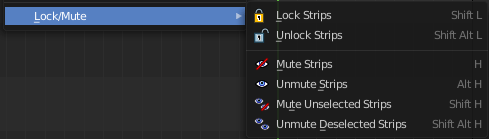
Lock Strips
Locks the strip from editing. They can't be moved or edited anymore.
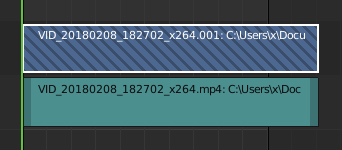
Locked strips appears hatched.
Unlock Strips
Unlock locked strips.
Mute Strips
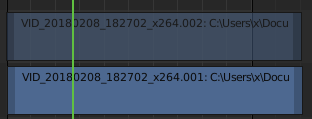
Mutes the selected strips. They do not play anymore, and they appear greyed out.
| Entry | What it does |
|---|---|
| Unmute Strips | Unmutes selected muted strip. |
| Mute unselected strips | Mute the unselected strips. |
| Unmute deselected Strips | Unmute all deselected strips. |
| Connect Strips | Link selected strips together. |
| Disconnect Strips | Unlink linked strips. |
Quick Favorites menu

When you right click at a menu or a button, then a right click menu will open. Tools have usually a Add to Quick Favorites menu entry.
The Quick Favorites Menu is empty by default. With Add to Quick favorites you can add this menu to the Quick menu.
Slider snapping

Snapping also works at sliders. Hover with the mouse over the slider, start to slide, and holding down Ctrl will snap the sliders in incremental steps.
When it's a default value between 0 and 1 then it usually snaps in 0.1 steps. When it's a default value over 1 then it usually snaps in steps of 10.
Hotkey only functionality
Important: These hotkeys works with the default Bforartists key map And they do not list the Ndof hotkeys. Ndof is a 3d connexion mouse device that is also used for tablets.
Most of the tools can be found in the graphical UI. But there are still some tools that are hotkey only. Some have a UI brother with equal functionality. For example, Pick shortest path is the hotkey sister of Select shortest path. Some are hotkey only since they cannot be integrated in the graphical UI. Like calling the File menu under the mouse. Or mouse position dependent functionality like selecting an edge loop.
The navigation hotkeys and the context menus are excluded here since they are already covered.
Context Set - O
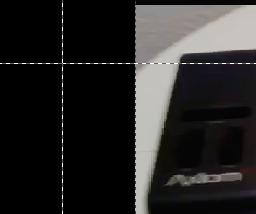
Preview view. Context Set for overlay frame. Calls a box select tool.