

































































View Tab
See and edit the position of the 2D cursor.
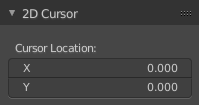
See and edit the position of the 2D cursor.
View Tab
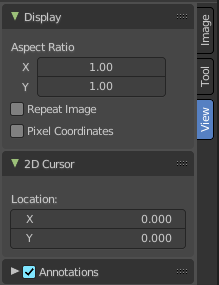
The view tab contains some view related settings.
Display Panel
Aspect Ratio
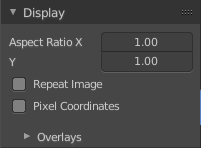
Set the aspect ratio of the image.
Repeat Image
Shows the image not only in the UV range of 0 to 1, but repeats it across the whole canvas. It tiles.
Pixel Coordinates
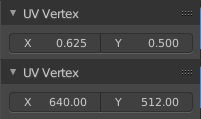
Shows the coordinates in the image tab in the UV Vertex panel in pixel coordinates instead of the UV range of o to 1.
Annotations Panel
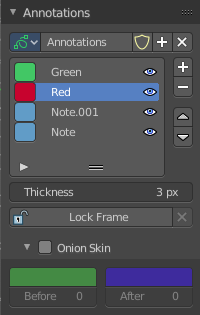
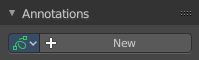
Manage the Annotation layers and materials.
When you don't have drawn an annotation yet then the panel just contains a New button.
Annotations prop
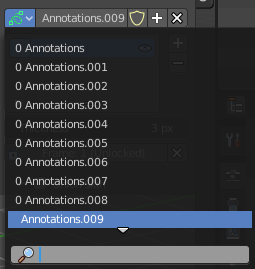
Add, remove and rename new annotations.
Drop down box
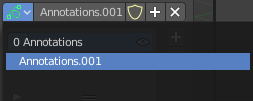
A list of the available annotation layers.
| Entry | What it does |
|---|---|
| Edit Box | The name of the current annotation. You can rename the annotation to your needs here. |
| Fake User | Assign a fake user to this annotation. Fake users is an odd concept to keep data in the scene even if it has no user somewhere. The fake user is then a dummy user so that the object is not deleted when saving the scene. |
| Add Annotation | Add a new annotation. |
| Delete Annotation | Delete the annotation. |
List of Annotation Strokes

Here you see your Annotation layers for the current Annotation. Every layer can have an own color.
At the right side you find buttons to sort them and to add and remove new Annotation layers.
You can change the color by clicking at the color field. A color dialog will pop up. You can rename annotation layers by double clicking at it.
The eye icon allows you to make it invisible And it has a search field.
| Entry | What it does |
|---|---|
| Thickness | The thickness of the annotation stroke. |
| Frame Locked/Unlocked | Lock frame displayed by current layer. This toggles whether the active layer is the only one that can be edited. |
Onion Skin
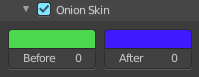
Enable Onion Skinning.
Onion Skinning allows to show ghosts of the keyframes before and after the current frame. In this sub panel you can adjust the color of the onion skin frames.
With the numbers below the colors you can define how many frames before or after are displayed that way.