

































































UV menu
The UV header menu contains all the UV related operators in the UV Editor.
UV menu
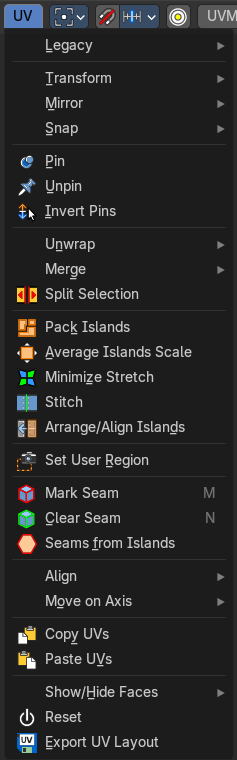
The UV header menu contains all the UV related operators in the UV Editor.
Legacy

UV Rip Move
This “cuts” the selection from the island so you can then move it. This can also be accessed by the modal operator in the tool shelf.
Transform
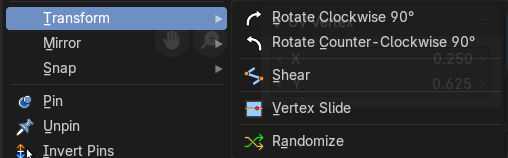
Rotate Clockwise 90°
Rotates the selection by 90 degree clockwise.
Rotate Counter Clockwise 90°
Rotates the selection by 90 degree counter clockwise.
Last Operator Rotate
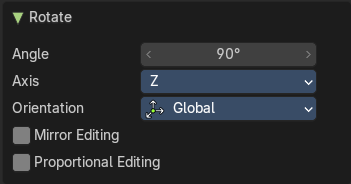
| Entry | What it does |
|---|---|
| Angle | The rotation angle. |
| Axis | Defines one axis of the imaginary shear axis plane. |
Orientation
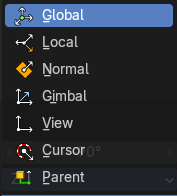
Choose the orientation for the shear action.
| Entry | What it does |
|---|---|
| Mirror Editing | Enable mirror editing. |
| Proportional editing | Enables proportional editing. Activating proportional editing reveals further settings. · Proportional Falloff: Adjust the falloff methods. · Proportional Size: See and adjust the falloff radius. · Connected: The proportional falloff gets calculated for connected parts only. · Projected(2D): The proportional falloff gets calculated in the screen space. Depth doesn't play a role. When it's in the radius, then it gets calculated. |
Shear
Shear shears the selection.
Last Operator Shear
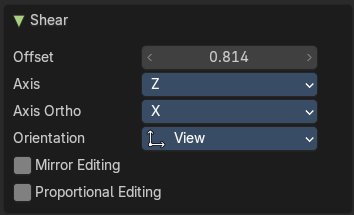
| Entry | What it does |
|---|---|
| Offset | Adjust an offset. |
| Axis | Defines one axis of the imaginary shear axis plane. |
Axis Ortho
Defines the other axis of the imaginary shear axis plane.
| Entry | What it does |
|---|---|
| Orientation | Choose the orientation for the shear action. |
| Mirror Editing | Enable mirror editing. |
| Proportional editing | Enables proportional editing. Activating proportional editing reveals further settings. · Proportional Falloff: Adjust the falloff methods. · Proportional Size: See and adjust the falloff radius. · Connected: The proportional falloff gets calculated for connected parts only. · Projected(2D): The proportional falloff gets calculated in the screen space. Depth doesn't play a role. When it's in the radius, then it gets calculated. |
Vertex Slide
Slide a vertex along the parent edge of the mesh UV.
Note: This is exclusively a vertex selection mode operator.
Last Operator Vertex Slide
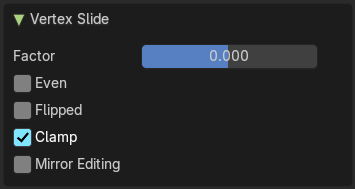
| Entry | What it does |
|---|---|
| Factor | The factor of the slide, moving the selection in a positive or negative direction from starting position. |
| Even | Make the edge loop match the shape of the adjacent edge loop. |
| Flipped | When Even mode is active, this will flip between the two adjacent edge loops |
| Clamp | Clamp within the edge constraints. |
| Mirror Editing | Edit it in mirror mode. |
Edge Slide
Slide an edge along the adjacent edges of the mesh UV.
Note: This is exclusively an edge selection mode operator.
Last Operator Edge Slide
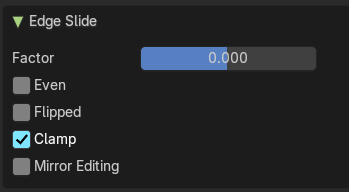
| Entry | What it does |
|---|---|
| Factor | The factor of the slide, moving the selection in a positive or negative direction from starting position. |
| Even | Make the edge loop match the shape of the adjacent edge loop. |
| Flipped | When Even mode is active, this will flip between the two adjacent edge loops |
| Clamp | Clamp within the edge constraints. |
| Mirror Editing | Edit it in mirror mode. |
Randomize
Last Operator Randomize
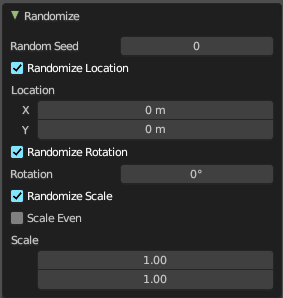
| Entry | What it does |
|---|---|
| Random Seed | The seed for the randomization. |
| Randomize Location | Randomize the location values. |
| Location | The maximum distance the objects can spread over each axis. |
| Randomize Rotation | Randomize the rotation values. |
| Rotation | The maximum allowed rotation |
| Randomize Scale | Randomize the scale values. |
| Scale Even | Randomize the scale values. |
| Scale | The maximum scale the objects can scale over each axis. |
Mirror
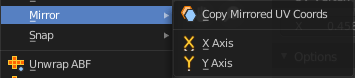
Copy Mirrored UV coords
Copies and pastes the selected UV geometry on the X axis based on a mirrored mesh.
Use UV Select Sync must be off. The tool does not work with Use UV Select Sync on. And it is not fully reliable as our example shows.
Last Operator Copy Mirrored UV Coords
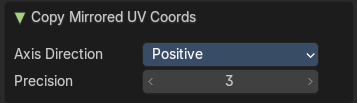
Axis Direction
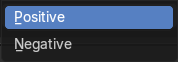
The axis direction.
Precision
Tolerance for finding vertex duplicates.
X
Mirrors the selection in X axis. The mirror point is the pivot of the selection.
Y
Mirrors the selection in Y axis. The mirror point is the pivot of the selection.
Last Operator Mirror X Y Z Global

The Last Operator Mirror panel gives you tools to adjust the mirror action.
Orientation
Orientation is a drop-down box to choose the type of orientation for the mirroring action.
Constraint Axis
Constraint Axis gives you the possibility to define the mirror axis. You can choose more than one axis here.
Snap
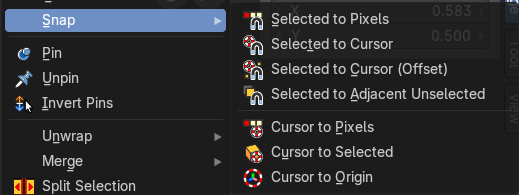
Snap is a sub menu with some snapping tools. The menu items should be pretty self explaining. Selected to Pixels snaps the selected geometry to the pixels of the image, and so on.
Last Operator Snap Selection and Snap Cursor
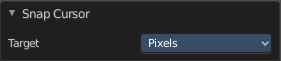
Target
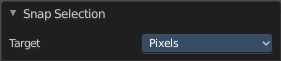
Set the snap target method again.
Pin
Pins the selected vertices . This vertices are now nailed for the unwrap algorithms Angle based and Conformal. Their positions will not change when you repeat the unwrapping. And the algorithms will try to fit the rest of the geometry to this pinned vertices.
Pinned vertices are marked red.
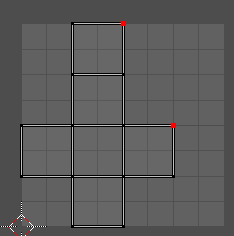
A use case is for example when you have a distorted result for symmetric geometry like a face with the Conformal method. Then you can try to align two center vertices, pin them, and repeat the conformal method. It may be more symmetrical afterwards.
Unpin
Unpins pinned geometry.
Invert Pins
This operator inverts the pins to all selected pins, and unpins the set pins. This will only work if you have geometry selected.
Last operator Pin
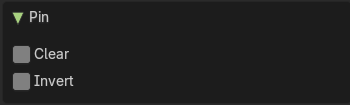
This last operator appears in the 3D view to the bottom left of the editor. Pin, Unpin and Invert Pins shares the same last operator.
| Entry | What it does |
|---|---|
| Clear | Unpins pinned geometry. |
| Invert | Inverts the pinned geometry to selected geometry, and unpins the set pins. |
Unwrap
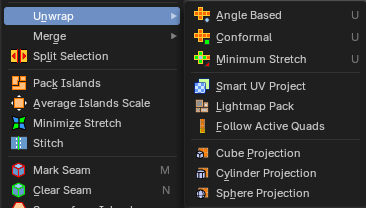
| Entry | What it does |
|---|---|
| Angle Based | Unwraps the selected geometry with the method Angle based. ABF stands for Angle Based Flattening. ABF can give a bit better result than LSCM when unwrapping organic shapes. |
| Conformal | Unwraps the selected geometry with the method LSCM, which is the short for Least Square Conformal Mapping. LSCM can give a bit better results than ABF with geometric shapes. |
| Minimum Stretch | Unwraps the selected geometry with the method SLIM, which is a “state-of-the-art” iterative UV unwrapping algorithm. |
Last Operator Unwrap
Method
Method is a drop down box where you can choose the unwrap method.
Method Angle based + Conformal
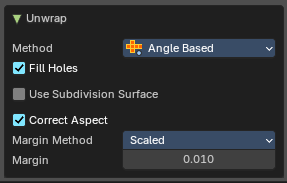
Unwrap ABF and Unwrap LSCM shares the same Last Operator.
Method
Method is a drop down box where you can choose between Unwrap method Angle Based and Conformal.
Fill Holes
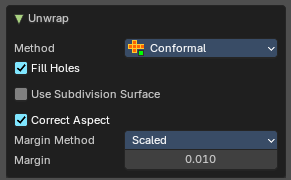
Fill holes in the mesh before unwrapping.
| Entry | What it does |
|---|---|
| Use Subdivision Surface | Unwraps an existing Subdivision Modifier. You need to add a Subdivision Modifier first. |
| Correct Aspect | Take the Image Aspect Ratio into account. |
Margin Method
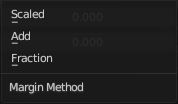
| Entry | What it does |
|---|---|
| Scaled | Use the scale of existing UV to multiply margin. |
| Add | Just add the margin and ignore any existing UV. |
| Fraction | Specify a precise fraction of specific UV. |
Margin
The distance between the single UV patches.
Method Minimum Stretch
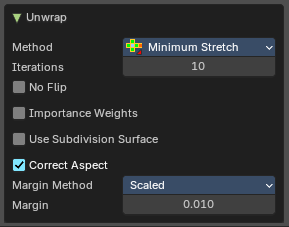
Iterations
Number of iterations.
| Entry | What it does |
|---|---|
| No Flip | Prevent flipping UV's |
| Importance Weight | Take per vertex importance weights into account. |
| Use Subdivision Surface | Unwraps an existing Subdivision Modifier. You need to add a Subdivision Modifier first. |
| Correct Aspect | Take the Image Aspect Ratio into account. |
Margin Method
| Entry | What it does |
|---|---|
| Scaled | Use the scale of existing UV to multiply margin. |
| Add | Just add the margin and ignore any existing UV. |
| Fraction | Specify a precise fraction of specific UV. |
Margin
The distance between the single UV patches.
Smart UV Project
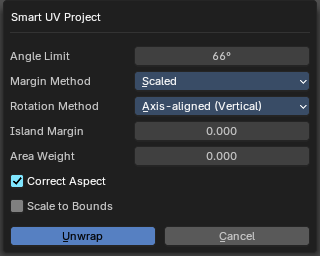
Smart UV Project projects the UV mapping from different angles.
Smart UV Project Settings dialogue
Angle Limit
The Angle Limit defines after which angle the mapping happens from the next side. With an angle of 66 you have around six sides to map from. The calculation is 360/66.
Margin Method
| Entry | What it does |
|---|---|
| Scaled | Use the scale of existing UV to multiply margin. |
| Add | Just add the margin and ignore any existing UV. |
| Fraction | Specify a precise fraction of specific UV. |
Rotation Method
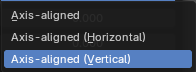
How to rotate islands.
| Entry | What it does |
|---|---|
| Island Margin | Island Margin defines the distance between the UV patches. |
| Area Weight | Weight Projection Vector by faces with larger areas. |
| Correct Aspect | Take the Image Aspect Ratio into account. |
Last Operator Smart UV Project
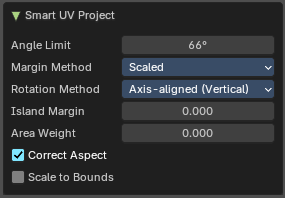
The Last Operator for Smart UV Project contains the same settings than the Smart UV Project Settings dialogue.
Lightmap Pack
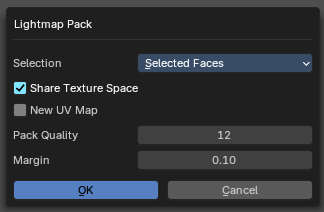
Lightmap Pack maps each face individually, and puts the result into the UV space. Without margin.
Lightmap Pack has no Last Operator.
Settings
| Entry | What it does |
|---|---|
| Selection | Selection is a drop-down box where you can choose what will be packed. |
| Share Tex Space | Map all objects into one lightmap. |
| New UV Map | Create a new UV map for every new mesh. |
| Pack Quality | The pack quality. |
| Margin | The distance between the single UV patches. |
Follow Active Quads
Follow Active quads maps UV coordinates starting from an active face, and maps all adjacent faces in quad shape then. This way you can for example unwrap a pipe or a road. You first need to have a face selected. Then select everything. And then click at Follow Active Quads.
Settings
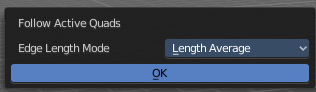
Edge Length Mode
Edge Length Mode is a drop-down box where you can choose the Length method.
Last Operator Follow Active Quads
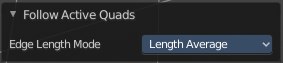
The Last Operator contains the same settings than the Settings dialogue.
Cube Projection
Cube Projection maps the mesh from six sides, means cubic.
Last Operator Cube Projection
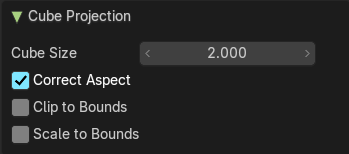
| Entry | What it does |
|---|---|
| Cube Size | Cube Size defines the size of the UV mesh in the UV space. |
| Correct Aspect | Take Image Aspect ratio into account. |
| Clip to Bounds | Clip UV Coordinates to bounds after unwrapping. |
| Scale to Bounds | Scale UV Coordinates to bounds after unwrapping. |
Cylinder Projection
Cylinder Projection tries to map the geometry cylindric.
Last Operator Cylinder Projection
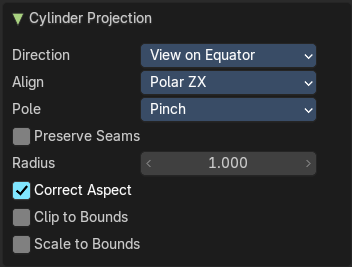
| Entry | What it does |
|---|---|
| Direction | Direction is a drop-down box where you can choose in which direction the cylindric projection will be mapped. |
| Align | Align is a drop-down box where you can choose the Align method. |
| Pole | How to handle the faces at the poles. |
| Preserve Seams | Separate Projections by islands isolated by seams. |
| Radius | Radius defines the Polar size of the UV mesh in the UV space. |
| Correct Aspect | Take Image Aspect ratio into account. |
| Clip to Bounds | Clip UV Coordinates to bounds after unwrapping. |
| Scale to Bounds | Scale UV Coordinates to bounds after unwrapping. |
Sphere Projection
Sphere Projection tries to map the geometry spherical.
Last Operator Sphere Projection
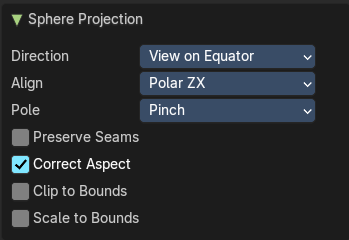
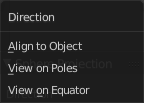
Direction
Direction is a drop-down box where you can choose in which direction the spherical projection will be mapped.
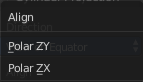
Align
Align is a drop-down box where you can choose the Align method.
| Entry | What it does |
|---|---|
| Pole | How to handle the faces at the poles. |
| Preserve Seams | Separate Projections by islands isolated by seams. |
| Correct Aspect | Take Image Aspect ratio into account. |
Clip to Bounds
Clip UV Coordinates to bounds after unwrapping.
Scale to Bounds
Scale UV Coordinates to bounds after unwrapping.
Merge
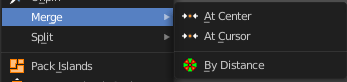
At Center
Merges the selected vertices at the center point.
At Cursor
Merges the selected vertices not only at the cursor. The last operator provides you with four methods.
Last Operator Snap Selection
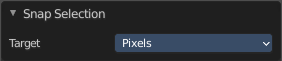
Target
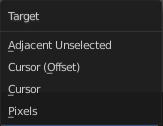
The snapping target. Snap and merge at the following locations.
Adjacent unselected
Cursor ( Offset)
Cursor
Pixels
By Distance
Merge UV vertices when they are below a merge distance.
Last Operator Merge UV's by Distance

| Entry | What it does |
|---|---|
| Merge Distance | The merge distance below the vertices gets merged. |
| Unselected | Merge selected vertices to unselected vertices. |
| Shared Vertex | Weld UV’s based on shared vertices. |
Split Selection
Splits the selected geometry. UV Sync Selection needs to be off.
Pack Islands
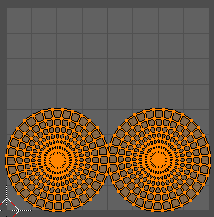
Pack Islands tries to pack the selected UV geometry as close together as possible. Without to waste too much empty space.
Note that the algorithm fails at round geometry. It calculates with rectangle shapes.
Pack Islands Popup
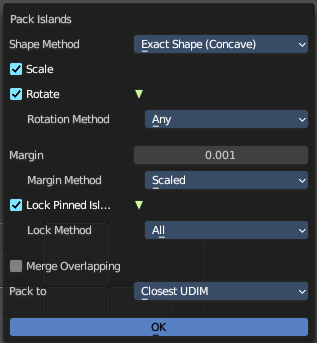
When you click the operator then you will see a popup panel where you can adjust the further settings.
Shape Method
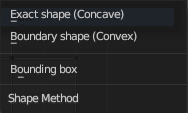
How the islands are packed.
| Entry | What it does |
|---|---|
| Exact Shape (Concave) | Use exact geometry. |
| Boundary Shape (Convex) | Use a convex hull. |
| Bounding Box | Use a bounding box. |
Scale
Scale islands to fill the unit square.
Rotate
Rotate islands to improve layout.
Rotation Method
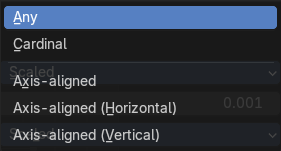
The rotation method.
| Entry | What it does |
|---|---|
| Any | Any angle is allowed for rotation. |
| Cardinal | Only 90 degrees rotation are allowed |
| Axis - aligned | Rotate to a minimal rectangle. Either horizontal or vertical towards the shortest distance. |
| Axis - aligned ( Horizontal ) | Rotate to a minimal rectangle. Horizontal. |
| Axis - aligned ( Vertical ) | Rotate to a minimal rectangle. Vertical. |
Margin
Adjust the margin amound.
Margin Method
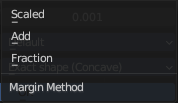
What method to use for the margin. UV patches needs a margin between the single patches. So that the pixels of the texture doesn't bleed into other areas.
Scaled
Use scale of existing UV's to multiply margin.
Add
Just add the margin. And don't use the UV scale for calculation too.
Fraction
Specify a precise fraction of final UV output.
Lock Pinned Islands
Constrain islands that contains any pinned UV's
Lock Method
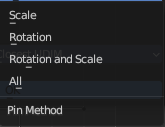
How to deal with pinned UV islands.
| Entry | What it does |
|---|---|
| Scale | Pinned islands won't scale. |
| Rotation | Pinned islands won't rotate. |
| Rotation and Scale | Pinned islands won't scale and rotate |
| All | Pinned islands will remain at their initial position and are locked in place. |
Merge Overlapping
Overlapping islands stick together.
Pack To
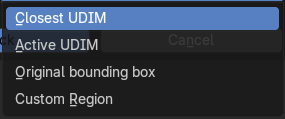
| Entry | What it does |
|---|---|
| Closest Udim | Pack islands to closest UDIM image tile |
| Active Udim | Pack islands to active UDIM image tile, or to the UDIM grid tile where the 2d cursor is located. |
| Original Bounding Box | Pack to the starting bounding box of islands. |
| Custom Region | Pack to custom region. |
Average Island Scale
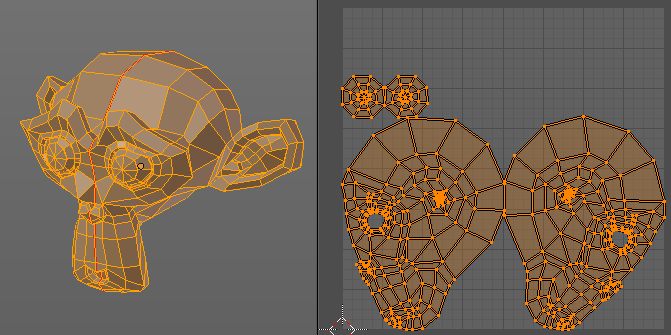
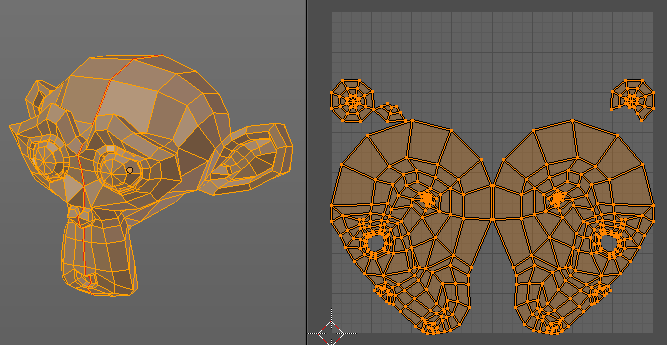
Scales the selected UV geometry to have the same relative size than the rest of the mesh. So that the texels at the mesh have roughly the same size everywhere.
Minimize Stretch
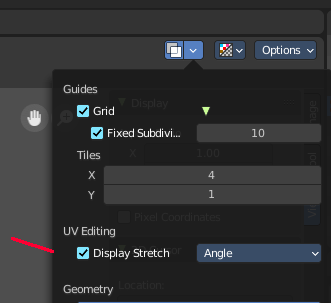
You might end in a UV mapping result that still shows unwanted distortions here and there. For example when you UV map a human face. Minimize Stretch tries to minimize this stretching effects in the UV patches.
To view stretched areas at your UV patches, tick Display Stretch in the Overlays panel, and switch from Angle to Area. Then a stretch mask gets displayed. The color range goes from blue to green to red, where blue is minimal stretch and red is maximal stretch.
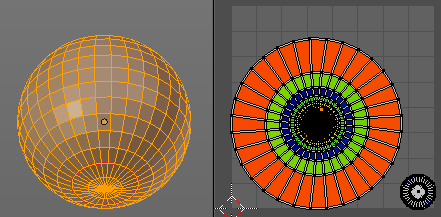
Let's explain it with an example. A sphere where the cut is nearly at the pole. And UV mapped with Angle Based. The result will of course show heavy stretched areas.
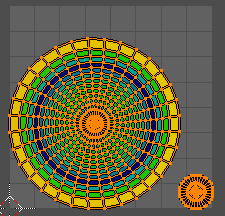
Note that the UV geometry must be selected in the UV Image editor. Now let's use the Minimize stretch tool. The algorithm now first tries its best to find the best fitting result that shows fewest stretching across the overall UV geometry.

The header shows a help text while the algorithm works. The Blend factor is the value between the original unwrapped UV mesh, and the maximum minimized stretch. You can set this value manually by using the scroll wheel at your mouse, or with the + and - keys.
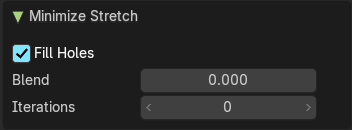
Last Operator Minimize Stretch
| Entry | What it does |
|---|---|
| Fill Holes | Fill holes virtually fills holes before unwrapping to avoid overlapping and to preserve the geometry. |
| Blend | The Blend factor is the value between the original and the maximum minimized stretch. |
| Iterations | Number of iterations for the Minimize stretch algorithm. |
Stitch
Stitch tries to union UV patches along the selected edges or vertices.
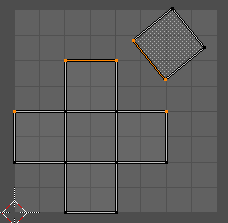
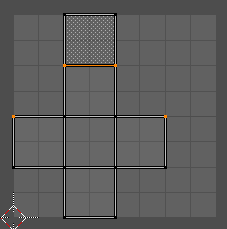
Last Operator Stitch
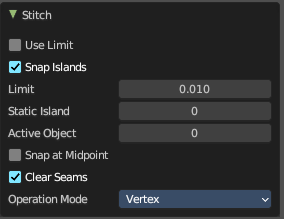
This last operator appears in the 3D view.
| Entry | What it does |
|---|---|
| Use Limit | Just snap when the elements are below a given distance. · Snap Island: Snap the whole UV patch, or just the selected edge(s)/vertices |
| Limit | The limit distance for Use Limit. |
| Static Island | Adjust which island stays in place when stitching. |
| Active Object | Index of the active object. |
| Snap at Midpoint | Snap at the center point of the two elements instead the first to the last. |
| Clear Seams | Unmarks seams when stitching. |
Operation Mode
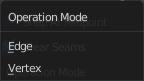
The operation mode. Calculate with Edges or Vertices.
Mark Seam
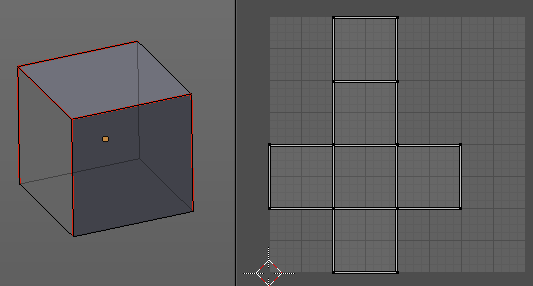
The unwrap algorithms Angle based and Conformal requires to have edges marked as seams. Think of it as a cutting pattern for a trouser for example. Such a trouser is also made of fabric patterns.
Same goes for the UV patches when you use Angle based or conformal unwrapping. You need to cut your mesh into parts and mark edges as seams, so that the algorithm knows where the seams are.
Mark seam marks the currently selected edge(s) as a seam. Seam edges will be displayed as red in the 3D viewport. But not in the UV Image Editor. The UV patches represents the seams.
You need to unwrap the mesh again when you want to apply changes by the new marked seams.
Last Operator Mark Seam
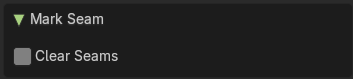
Clear
Clears the seam instead of marking it.
Clear Seam
Clear seam removes the seam from the currently selected edge(s) in the 3D view.
Seams from Islands
Unwrapping creates the UV geometry from the 3D object. You mark the seams, then you click at unwrap, and the UV mesh gets created.
Mark Seams from islands goes the other way around for marking seams. It creates the seams at the mesh object in the 3D view from the UV geometry in the UV Image Editor.
A use case is when you import meshes. Then you usually just have the UV patches in the UV Image editor. And when you want to modify the UV's further, then you need the seams at the mesh.
Align/Arrange Islands
Provides a unified interface for aligning, distributing, and organizing UV islands based on axis, order, and spacing. Ideal for texture atlases, modular layouts, and precision packing.
Aligns selected UV islands along a chosen axis.
Last Operator Arrange/Align Islands
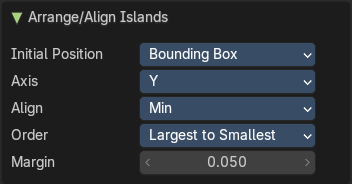
Initial Position
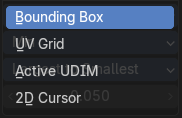
Defines how the alignment reference is calculated for each island. This determines where each island "snaps" during alignment—e.g., top edge, center, or bottom edge.
| Entry | What it does |
|---|---|
| Bounding Box | Uses the outer bounds of each island. |
| UV Grid | Aligns islands relative to the overall UV grid (typically 0–1 space). |
| Active UDIM | Uses the currently active UDIM tile as the reference. |
| 2D Cursor | Aligns islands based on the position of the UV Editor’s 2D cursor. |
Axis
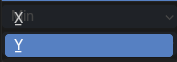
Specifies the direction along which islands will be aligned. X or Y. Useful for stacking islands top-to-bottom or side-by-side.
Align
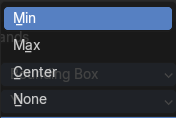
Controls which part of the island is aligned to the axis. This affects how islands are visually positioned relative to each other.
| Entry | What it does |
|---|---|
| Min | Aligns the minimum bound (e.g., bottom or left edge) |
| Center | Aligns the center of the island |
| Max | Aligns the maximum bound (e.g., top or right edge) |
| None | Preserves the island alignment. |
Order
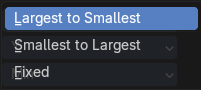
Determines the sequence in which islands are arranged.
Margin
Sets the spacing between islands after alignment. Adds consistent padding between islands to avoid texture bleeding or overlap.
Value
Float input (e.g., 0.050)
Set User Region
Defines a custom region within the UV Editor viewport, allowing you to isolate, focus, or constrain operations to a specific area of the UV space.
Use
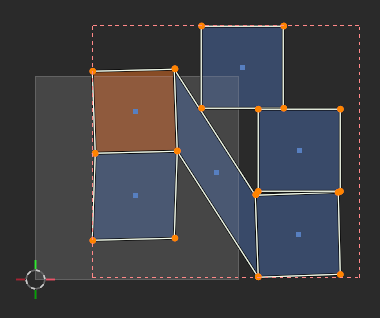
An example is for Packing Islands: Limit packing to a specific region (e.g. top-right quadrant of the UV space). This can be used to constrain packing or alignment operations.
This can also serve as a reference zone for manual editing or snapping.
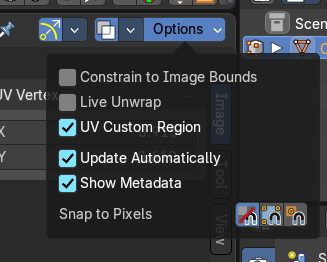
To toggle visibility after defining it manually, use the Options drop down to the top right of the header.
Align submenu
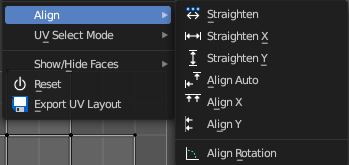
Align the selected geometry. Affected are the vertices.
| Entry | What it does |
|---|---|
| Straighten | Straightens the selected geometry in both directions, X and Y axis. |
| Straighten X | Straightens the selected geometry along the X axis. |
| Straighten Y | Straightens the selected geometry along the Y axis. |
| Align Auto | Aligns the selection. The align axis gets chosen from the selection itself. When it's higher than tall, then it aligns along the Y axis. When it's taller than high, then it aligns along the X axis. The align point is the pivot of the selection. |
| Align X | Aligns the selection along the X axis. The align point is the pivot of the selection. |
Align Y
Aligns the selection along the Y axis. The align point is the pivot of the selection.
Last operator Align
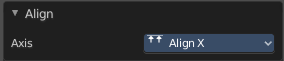
The Last operator Align unions all the single straighten and align actions in one operator.
Axis
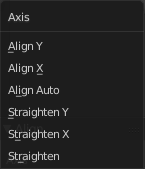
Lists the straighten and align methods again.
Align Rotation
Aligns the selected geometry horizontally or vertically. It aligns to the closest angle.
Last operator Align Rotation
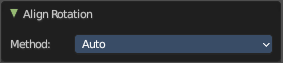
Method
Geometry
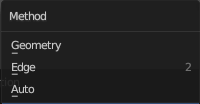
Aligns the whole geometry.
Edge
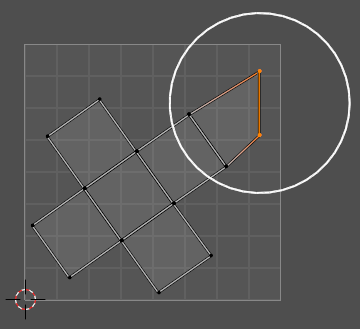
Aligns the geometry along the selected edge.
Auto
Checks for selection, and aligns then either the whole geometry or by the selected edge.
Move on Axis submenu

| Entry | What it does |
|---|---|
| Dynamic | Move UV’s on an axis dynamically |
| Pixel | Move UV’s on an axis by pixel |
| UDIM | Move UV’s on an axis by UDIM tile. |
| Entry | What it does |
|---|---|
| Copy UV | Copy selected UV vertices. |
| Paste UV | Pastes copied UV vertices. |
Show / Hide Faces submenu

Show or hide faces. This happens in both, the 3D View and the UV editor.
| Entry | What it does |
|---|---|
| Reveal Hidden | Makes all geometry visible again. |
| Hide Selected | Hides the selected geometry. |
| Hide Unselected | Hides the not selected geometry. The selected geometry stays visible. |
Last Operator Reveal Hidden / Hide Selected
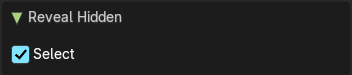
Select
Define if the selected or the unselected elements gets hidden or revealed.
Reset
Resets the UV projection. Every single face gets fit into the UV space range of 0/1
Export UV Layout
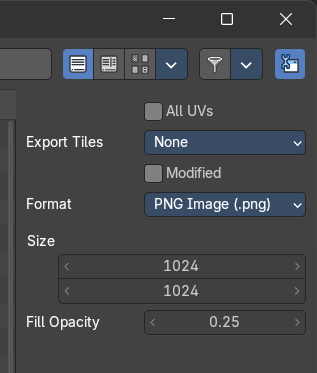
Export the UV layout to an image, so that you can use it as a mask to build your texture in your favorite image editing software like Photoshop. It will open a file dialog, where you can define further export settings down left.
In the export dialog you will see export settings at the right side
All UV's
Export all UV's, not just the visible ones.
Export Tiles
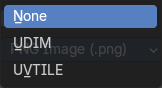
If to export UDIM tiles.
Modified
Export UV's from the modified mesh.
Format
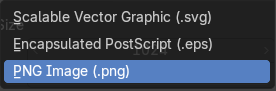
Choose the export format.
| Entry | What it does |
|---|---|
| Size | Define the size of the image. |
| Fill Opacity | How opaque the wire frame lines are. |