

































































Select Menu
This menu just appears when you are in Mask mode. And you need to create a new mask layer to set all items active. The select functionality in this menu covers the mask geometry. The splines.
Select menu
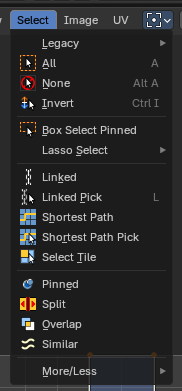
This menu just appears when you are in Mask mode. And you need to create a new mask layer to set all items active. The select functionality in this menu covers the mask geometry. The splines.
Legacy

The legacy sub menu contains tools that exists in the tool shelf already. It's the old way to do things. Different to the tools in the tool shelf, these tools are usually modal. And performs once. You have to call them again in case you want to repeat the tool.
| Entry | What it does |
|---|---|
| Box select | Draw a rectangle to select everything inside of the rectangle. It automatically adds to the current selection. Holding down shift subtracts from the selection. |
| Circle select | Brush select content. The radius of the brush can be adjusted by holding down left mouse button and using the scroll wheel or the + or - button at the numpad. It automatically adds to the current selection. Holding down shift subtracts from the selection. To exit the circle select tool click with the right mouse button. |
| Entry | What it does |
|---|---|
| All | Select everything. |
| None | Select nothing. |
| Inverse | Invert the current selection. |
Box Select Pinned
Box select enters the Border Select mode. This is a special select mode where you can select elements by dragging a rectangle. And what's inside of the rectangle gets selected then. It adds to selection by default. Box Select Pinned just selects pinned UV vertices. The other box select method can be found in the tool shelf.
To subtract from selection hold down Shift key.
The selection gets applied when you release the mouse. You leave the mode automatically when you release the mouse.
Lasso Select Submenu

The legacy lasso select tool. You can choose between three modes. Lasso select is also available in the tool shelf.
Linked
Select all UV vertices linked to the active UV map. The previous selection gets cleared.
Linked Pick
Note: Hotkey Only Tool!
Select all UV vertices linked to the active UV map. The previous selection gets cleared.
Last Operator Select Linked Pick
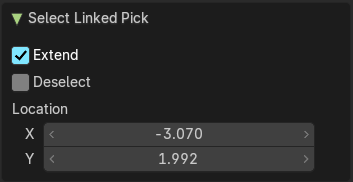
| Entry | What it does |
|---|---|
| Extend | The previous selection gets kept, the selection gets extended. |
| Deselect | Deselect instead of select |
| Location X / Y | The mouse position in the UV space, normalized to the 0.0 to 1.0 range of the UV space. |
Shortest Path
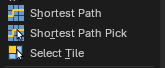
Selects a continuous path of UV elements (vertices, edges, or faces) between two points using the shortest route. Useful for isolating edge loops, seams, or structured selections across UV islands.
Last Operator Shortest Path
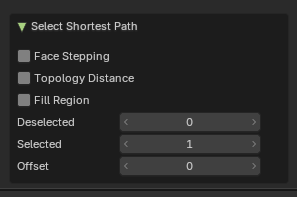
| Entry | What it does |
|---|---|
| Face Stepping | When enabled, selection prefers paths that follow face adjacency. Useful for maintaining logical flow across quads or structured meshes. |
| Topology Distance | Uses mesh topology rather than UV layout to determine the shortest path. Ideal for selections that mirror 3D geometry rather than UV spacing. |
| Fill Region | Expands the selection to include all elements of the UVs enclosed by the path. This will make a “patch” of the selection between the shortest bath. Useful for selecting entire UV islands or enclosed zones. |
| Deselected / Selected | Define how many elements are selected or deselected. An example is it will select 10 faces between face A and B, but it will deselect every second group of faces, and then select 2 faces as that group of faces. So it will select the first two, skip one, select another 2, skip one, and so forth. |
| Offset | Pushes the selected and unselected faces that have been interpolated between element A and B. Useful for nudging the path toward a specific direction or avoiding overlaps. |
Shortest Path Pick
Note: Best used as a Hotkey Only Tool!
Like the Shortest Path operator, this will select the shortest path under the mouse location between two selected elements.
Last Operator Shortest Path
| Entry | What it does |
|---|---|
| Face Stepping | When enabled, selection prefers paths that follow face adjacency. Useful for maintaining logical flow across quads or structured meshes. |
| Topology Distance | Uses mesh topology rather than UV layout to determine the shortest path. Ideal for selections that mirror 3D geometry rather than UV spacing. |
| Fill Region | Expands the selection to include all elements of the UVs enclosed by the path. This will make a “patch” of the selection between the shortest bath. Useful for selecting entire UV islands or enclosed zones. |
| Deselected / Selected | Define how many elements are selected or deselected. An example is it will select 10 faces between face A and B, but it will deselect every second group of faces, and then select 2 faces as that group of faces. So it will select the first two, skip one, select another 2, skip one, and so forth. |
| Offset | Pushes the selected and unselected faces that have been interpolated between element A and B. Useful for nudging the path toward a specific direction or avoiding overlaps. |
Select Tile
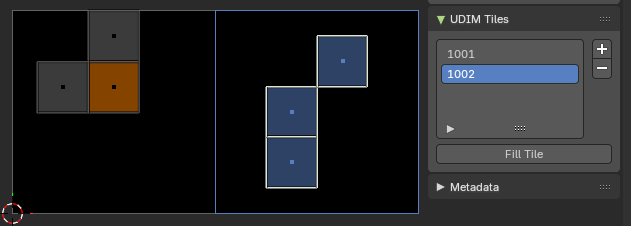
Selects all UV elements (vertices, edges, or faces) that belong to a specific UDIM tile.
Useful for isolating texture regions, organizing UV layouts, or applying operations to targeted tiles in multi-tile workflows
Note: You need more than one UDIM tile to use this conveniently. To define UDIM tiles, add a new image with UDM tiles activated then use the Sidebar Image tab with the UDIM Tiles panel to add new tiles.
Last Operator Select Tile
Extend
Checkbox that determines whether the selection adds to the current selection or replaces it.
- Enabled: selected tile UVs are added to the existing selection.
- Disabled: current selection is cleared before selecting the tile.
Tile
Two numeric fields representing the UDIM tile coordinates:
- U (horizontal): selects the tile column.
- V (vertical): selects the tile row.
| Entry | What it does |
|---|---|
| Pinned | Select pinned UV vertices. |
| Split | Select only entirely selected faces. |
Overlap
Select all UV faces that overlaps each other.
Last Operator Select Overlap
Extend
Extend the current selection.
Similar

Similar selects similar elements to the already selected parts. It is mode dependant. When you are in Vertex mode, then it shows just a Vertex related menu. When you are in edge select mode, then a edge related menu. And when you are in face select mode, then a face related menu. And this for both, the UV sync selection off and on.
Pinned
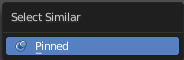
Select UV patches with pinned vertices.
Length
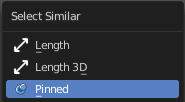
Select UV edges that has the same length in the UV Space.
Length 3D
Select UV edges that has the same length in the 3D View.
Area
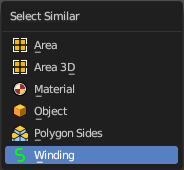
Select UV edges that has the same area in the UV Space.
| Entry | What it does |
|---|---|
| Area 3D | Select UV edges that has the same area in the 3D View. |
| Material | Select UV faces with the same material. |
| Object | Select UV faces at the same object. |
| Polygon Sides | Select UV faces that points into the same side in the 3D view. |
| Winding | Select UV faces in winding order. |
Amount of Faces
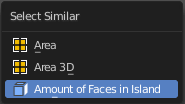
With UV Select Mode Islands. Selects all UV Islands with the same amount of faces.
Last Operator Select Similar
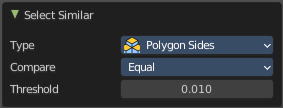
| Entry | What it does |
|---|---|
| Type | The select similar method. |
| Compare | Compare if the element to select should be greater, equal or less big than the current selection. |
| Threshold | A tolerance setting. |
Shortest Path
Select the shortest path between two selected elements.
Note that shortest path is a hotkey tool. Select the first element, hold down ctrl, select the second element.
Last Operator Pick Shortest Path
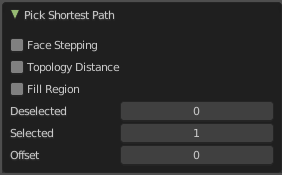
Face Stepping
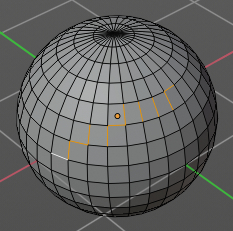
Traverse connected faces.
Topology Distance

Find the minimum number of steps instead of the shortest distance.
Fill Region
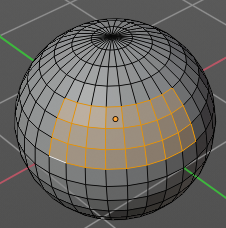
Select the region faces too.
Nth Element
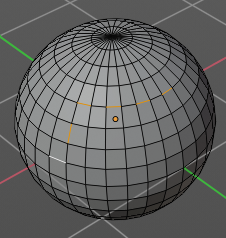
Don't select the whole path, but just every nth element of it.
| Entry | What it does |
|---|---|
| Skip | This is connected to nth element. Number of elements to skip at once. |
| Offset | This is connected to nth element. Start with an offset. |
More / Less submenu
| Entry | What it does |
|---|---|
| More | Grow the selection. |
| Less | Shrink the selection. |