

































































Image Menu
The Image menu contains the load and save functionality.
UV Editor - Image Menu
The Image menu contains the load and save functionality.
Not all content shows with all image types. A Render Result shows a different menu content.
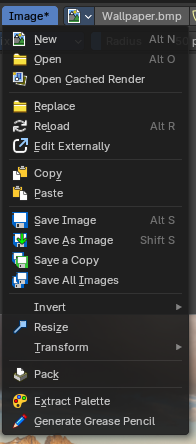
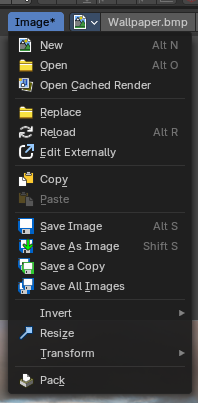
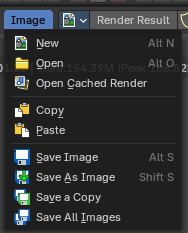
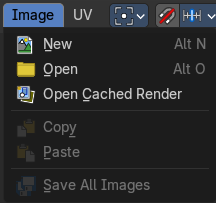
New
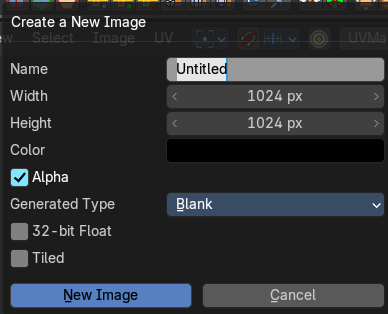
Creates a new image. You will get a dialog where you can define settings for the new image.
| Entry | What it does |
|---|---|
| Name | The name of the new image |
| Width | The width of the new image. |
| Height | The height of the new image. |
Color
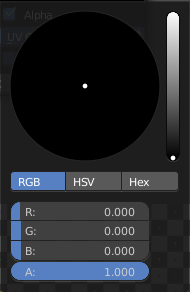
Adjust the color of the new image. A click will call a color picker.
Alpha
Check this checkbox if the new image should have an alpha channel.
Generated Type
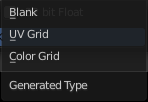
Define what kind of texture you want to create.
Blank is one plain color.
UV Grid is a checker texture in black and white.
Color Grid is a colored checker texture.
| Entry | What it does |
|---|---|
| 32 Bit Float | Check this checkbox if the image should be in 32 Bit floating point bit depth per channel. Else it is in 8 bit per channel. |
| Tiled | Create a tiled image. |
Open
Opens the file browser to load an image.
Open Cached Render
To get it to work you need to have Cycles as the renderer selected. This feature does not work with Eevee or Workbench renderer.
Read all the current scene's render layers from cache, as needed.
This feature can be be used to save RAM while rendering because the render layers do not have to be saved in RAM. It can also be used to recover some information from a fail render.
| Entry | What it does |
|---|---|
| Replace | Replaces the currently active image by an image that you load. |
| Reload | Reloads the currently selected image. Note that the images must already exist somewhere at your hard disk. When you create a new image in Bforartists, then this image isn't saved yet, and so you cannot reload it. |
| Edit Externally | Open the image in a defined external image editor like The Gimp or Photoshop. The image must be saved. And the image editor must be defined in the User Preferences. |
| Save Image | Saves the currently selected image without any further questions. Note that the images must already exist somewhere at your hard disk. |
| Save As Image | Saves the currently selected image. |
| Save a Copy | Saves a copy of the currently selected image. This will save the file to a specified name, but will keep the old one open in the Image editor. |
| Save all Images | Saves all images. Note that the images must already exist somewhere at your hard disk so that they can be saved. The item is greyed out as long as the image is not saved to disk. |
Invert submenu
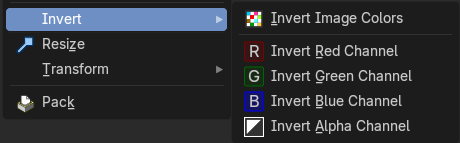
Invert is a sub menu where you can invert the colors of the whole image, or just specific colors.
Note: This only shows when in the when not viewing the Viewer or Render Result.
Resize
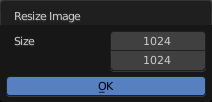
Allows you to change the dimensions of the image. The tool calls a resize panel.
Note: This only shows when in the when not viewing the Viewer or Render Result.
Transform submenu
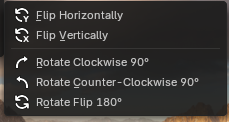
Note: These only shows when in the when not viewing the Viewer or Render Result.
| Entry | What it does |
|---|---|
| Flip Horizontally | Flip the image horizontally around it’s central axis. |
| Flip Vertically | Flip the image vertically around it’s central axis. |
| Rotate Clockwise 90° | Rotate the image to the right by 90 degrees. |
| Rotate Counter-Clockwise 90° | Rotate the image to the left by 90 degrees. |
| Rotate Flip 180° | Rotate the image to the right by 180 degrees and flip the image upside down. |
Pack

Packs the currently active image into the blend file. When you save the blend file the next time, then this image will be embedded. The Pack menu item turns into an Unpack menu item with packed textures.

Packed images are marked with a pack icon. A click at this icon will unpack the texture, and try to save it to file. Usually to the last existing location before it was packed.
Warning: You cannot modify packed images. Changes at the image will not be saved. You need to unpack the image when you want to modify it. And repack it after you have done the changes.