

































































Header Tools and Options
The header contains several tools, dependent of what you do and what tool set is selected.
UV Editor - Header Tools
The header contains several tools, dependent of what you do and what tool set is selected.

Pivot
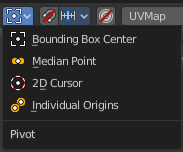
What pivot point to use for selected elements.
When you rotate or scale an UV patch, or a group of vertices/edges/faces, you may want to set the pivot point to a specific location of the selection. The names should be self explaining.
Snapping
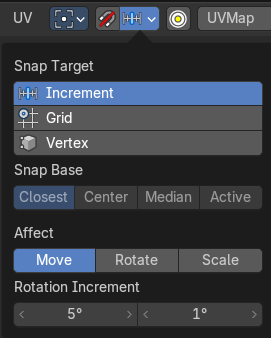
Activate snapping when transforming an element.
Snapping can be temporarily activated by holding Ctrl key. So no need to turn snapping on and off all the time.
| Entry | What it does |
|---|---|
| Snap Target | You can snap to various scene elements. This menu allows you to define to which other elements the current active element should snap to. The names should be self explaining. Increment snaps by a grid unit. · Snap Base: Just with method Vertex. To which element to snap. |
| Affect | Adjust what transform methods should be affected by snapping. |
| Rotation Increment | Snap in adjustable incremental steps. |
Proportional Editing
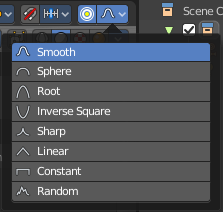
Enables proportional editing.
Proportional Editing is a way of transforming selected elements (such as vertices) while having that transformation affect other nearby elements with a falloff. For example, moving a single vertex will move unselected vertices within a given range. And the falloff means that selected vertices that are closer to the selected vertex will move more than those farther from it.
Settings
The settings appears when you activate Proportional Editing. Choose between different falloff methods for the proportional editing. The settings hides when proportional editing is off.
Proportional Size

When proportional editing is on then you will see a black circle around the selection that defines the influence area of the proportional editing.
This value can be adjusted with the scroll wheel, the page up and page down hotkeys, and in the last operator panel of the transform tools.
UV Map Property
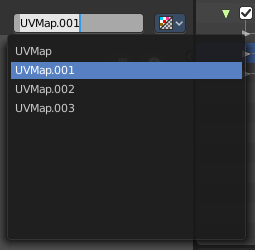
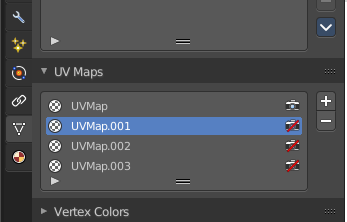
A mesh can have more than one UV map. You create them in the Properties editor in the Object Data Properties tab in the UV Map Panel.
The property in the header allows you to switch to another UV map, and to rename the UV map.
Image Prop

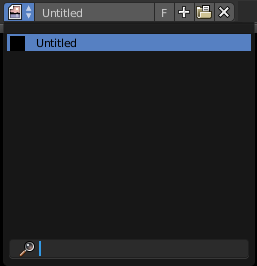
This property contains the list of loaded images. When no image is loaded then it displays the New and Open Buttons. When an image exists then it displays the name of the currently selected image.
From left to right ...

| Entry | What it does |
|---|---|
| List of images in the scene | This is a list of the images in the scene. This list allows you to switch to other images. · Search form: Search for specific images. |
| Image Edit Box | Read the name of the currently selected image. And you can rename the image here too. |
| Fake User | Wit this button you assign a fake user to this selected image. Data, like images, that is not longer linked to anything else gets removed when you save and reload a scene. Bforartists has the concept of fake users to go around this behavior. An image with a fake user is in fact linked to something. And so it is not lost when you save and reload the scene. |
| Open | Open a new image. |
Remove
Removes the image.
New Image
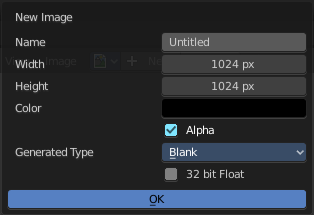
Create a new image.
Creates a new image. You will get a dialog where you can define settings for the new image.
| Entry | What it does |
|---|---|
| Name | The name of the new image |
| Width | The width of the new image. |
| Height | The height of the new image. |
Color
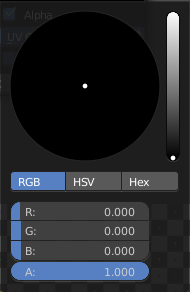
Adjust the color of the new image. A click will call a color picker.
Alpha
Check this checkbox if the new image should have an alpha channel.
Generated Type
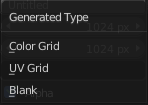
Here you can define what kind of texture you want to create.
Blank is one plain color.
UV Grid is a checker texture in black and white.
Color Grid is a colored checker texture.
32 Bit Float
Check this checkbox if the image should be in 32 Bit floating point bit depth per channel. Else it is in 8 bit per channel.
Duplicate
Not supported here.
Unlink Datablock
This deletes the selected image. Unfortunately not immediately. You need to save the scene and to reload it.
And you need to make sure that it is not linked to anything else. A mesh or a fake user for example. Have a look if there is a number besides the F button. When this is the case then the image has still a user, and so still loads with loading the scene.
| Entry | What it does |
|---|---|
| Fake User | Wit this button you assign a fake user to this selected image. Data, like images, that is not longer linked to anything else gets removed when you save and reload a scene. Bforartists has the concept of fake users to go around this behavior. An image with a fake user is in fact linked to something. And so it is not lost when you save and reload the scene. |
| Open Image | Opens the file browser to load an image. |
| Unpack | Unpack packed files to a directory. |
| User | The number of users that uses this data. Data with a user number of 0 will be removed with closing Bforartists. |
Use Image Pin

When you select another object. for UV mapping for example, then usually the connected images for this object gets displayed. Use image pin nails the currently selected image so that it stays displayed.
Show Gizmo
Show or hide the gizmos in the viewport
Show Overlays
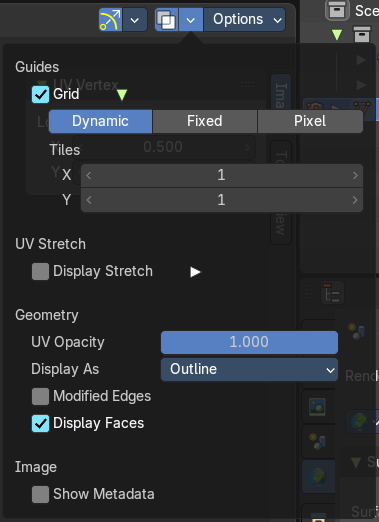
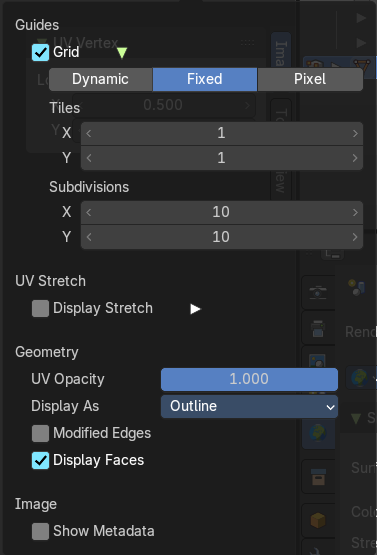

Guides
Grid
Display the ground grid.
Dynamic / Fixed / Pixel
Display the ground grid in defined resolution.
Dynamic adapts to the image size.
Fixed uses a fixed grid resolution. The method Fixed reveals x y edit boxes to set up the fixed resolution.
Pixel orients the grid size at the pixel resolution.
Grid over Image

Display the grid over the image. This prop just shows when an image is loaded.
Tiles
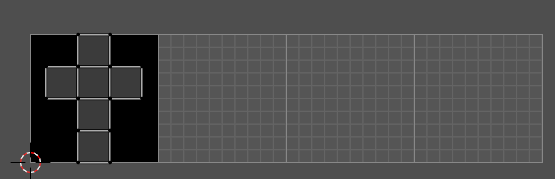
Display more tiles in the viewport than just the one in the 0-1 range. This is needed in conjunction with UDIM tiles.
Subdivisions
With method Fixed. Number of grid units in the UV space for one UV unit.
UV Stretch
Display Stretch
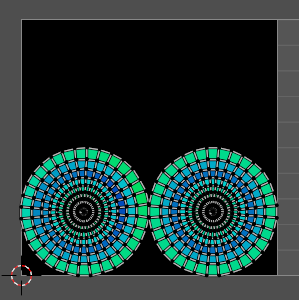
Display the uv mapping with different colors, dependant of the stretchiness of the uv mapped mesh. The different colors shows you how distorted the texture at the mesh is displayed. Blue is no stretching. Red is highly distorted stretching.
Display Stretch Type
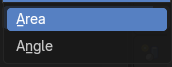
| Entry | What it does |
|---|---|
| Area | Calculates the stretch between UV and 3D faces. |
| Angle | Calculates the angular distortion between UV and 3D faces. |
Opacity
Opacity of the UV stretch overlay.
Geometry
UV Opacity
The opacity of faces in UV layer.
UV Opacity (in edit mode)
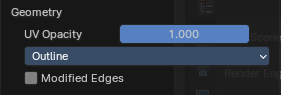
The opacity of the UV wireframe.
Display as
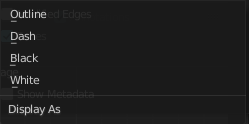
How to display the UV wireframe.
Modified Edges
Display the edges after the modifiers is applied. Else it shows the edges before the influence of the modifiers.
Image
Show Metadata
Display existing metadata in the viewport.
Display Channels
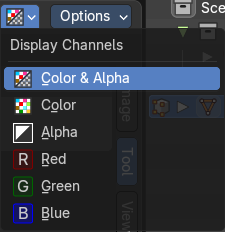
Adjust what channels of the image gets displayed. It just shows when an image is loaded and active.
| Entry | What it does |
|---|---|
| Color and Alpha | Displays the whole image, including alpha channel. |
| Color | Displays the whole image, but without alpha channel. |
| Alpha | Displays the alpha channel of the image. |
| Red | Displays the red channel of the image. |
| Green | Displays the green channel of the image. |
| Blue | Displays the blue channel of the image. |
Options Panel
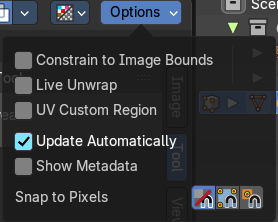
| Entry | What it does |
|---|---|
| Constrain to Image Bounds | Forces the UV geometry to stay within the image bounds when editing. Prevents UVs from being moved outside the image area (0–1 UV space). Useful for texture atlases and avoiding sampling errors. |
| Live Unwrap | Continuously unwrap the selected UV island while transforming pinned vertices. Automatically updates the UV layout when you transform geometry. Great for interactive editing, but can be performance-heavy on complex meshes. |
| Update Automatically | Update other editor windows simultaneously with the changes in the Image Editor. Refreshes the UV layout in real-time when changes occur. Keeps your view synced with modeling or shading edits. |
| UV Custom Region | This enables user-defined regions in the UV space (e.g. for packing or alignment). Pairs well with the Set User Region operator. |
| Show Metadata | Displays image metadata (resolution, color space, etc.) in the UV/Image Editor. Helpful for debugging texture issues or verifying file properties. |
Snap to Pixels
Snaps UV vertices to pixel boundaries of the image. Ideal for pixel art, low-res textures, or precise texel alignment.
- **Disabled: **Don’t snap to the nearest pixel.
- Corner: UV vertices snap to the nearest pixel corner.
- Center: UV vertices snap to the center of each pixel.