

































































Header
The Header contains various menus, navigation elements, settings and tools for the viewport. This content differs, dependent of the sub mode.
UV Editor - Header
The Header contains various menus, navigation elements, settings and tools for the viewport. This content differs, dependent of the sub mode.
The header is divided into two areas. Left mode and menus. Right settings.

Switch to UV / Image editor
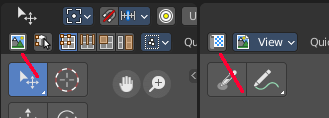
Sometimes you want to switch from the UV Editor to the Image Editor. Or vice versa. To continue at the unwrap or to paint a texture.
This two editors are connected by a menu that allows exactly that. A button in each header that switches to the other editor.
Header right click menus
The general right click menu functionality is explained in chapter 6 Editors introduction.
Editortype Menu
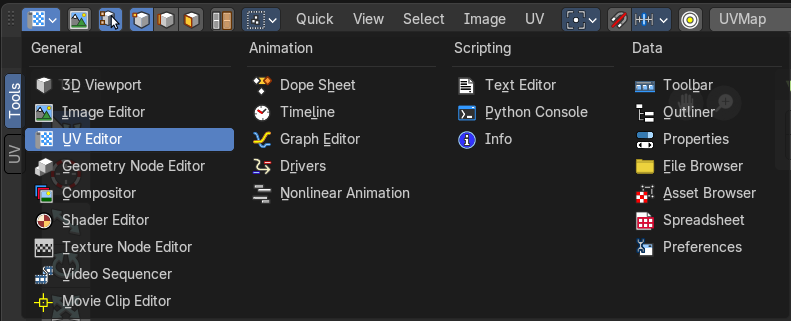
Bforartists is made of several editor types. Headers can display a menu where you can switch to other editor types.
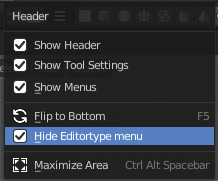
This menu is hidden by default. It is meant to edit the layouts, and should not be necessary for regular work. You can reveal it in the header right click menu.
Sub Modes
The UV Editor has two sub modes. Sync Off and Sync On.
UV Select Sync off
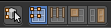
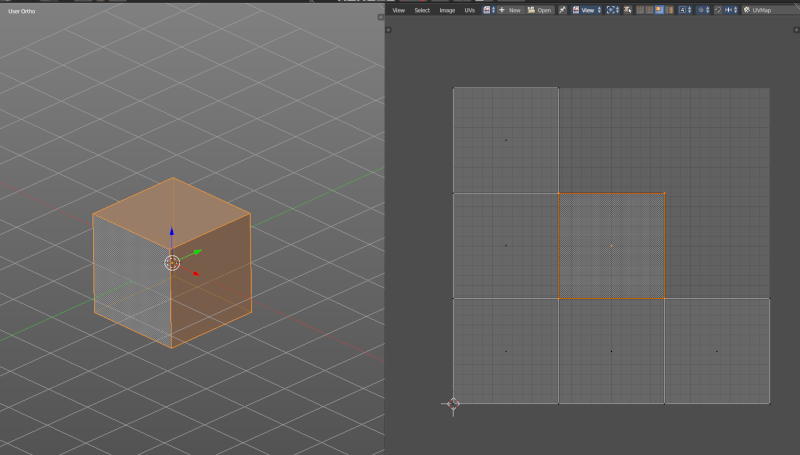
With UV Select Sync off you will be able to modify single UV elements, like whole UV patches. And the 3D view will not change its selection.
When you have some geometry in the 3D view not selected, then it will not show up in the UV image editor neither.
You can switch between the selection modes with hotkeys 1, 2, 3, 4
Vertex selection mode
Select vertices in the UV geometry.
| Entry | What it does |
|---|---|
| Edge selection mode | Select edges in the UV geometry. |
| Face selection mode | Select single faces in the UV geometry |
| Island selection mode | Select whole UV patches in the UV geometry. |
Sticky Selection mode

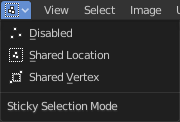
Disabled
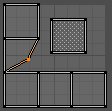
No sticky selection. You can just move one UV vertice at time. In case you have two vertices above each other, like with a UV patch with two faces, then just one vertice gets selected. Even when it's the same UV patch.
Shared Location
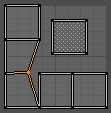
Selects all UV vertices under the mouse in case it's part of the same UV patch. Vertices of other UV patches gets ignored.
In this shot the two down left faces are one UV patch.
Shared Vertex
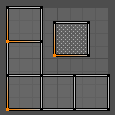
Selects all UV vertices that shares the same vertice at the 3D mesh. Regardless if it's the same UV patch or not.
UV Select Sync on

With UV Select Sync on you will keep selections of UV space and 3D view in sync. But you cannot modify single UV elements anymore. In this mode you work with Vertices, Edges and Faces.
All UV geometry of the object will show up, no matter what's selected in the 3D view.
You can switch between the selection modes with hotkeys 1, 2, 3. Note that this selection mode is in sync with the selection modes in the 3D view. When you change it in the one editor, then it changes in the other editor too.
Vertex selection mode
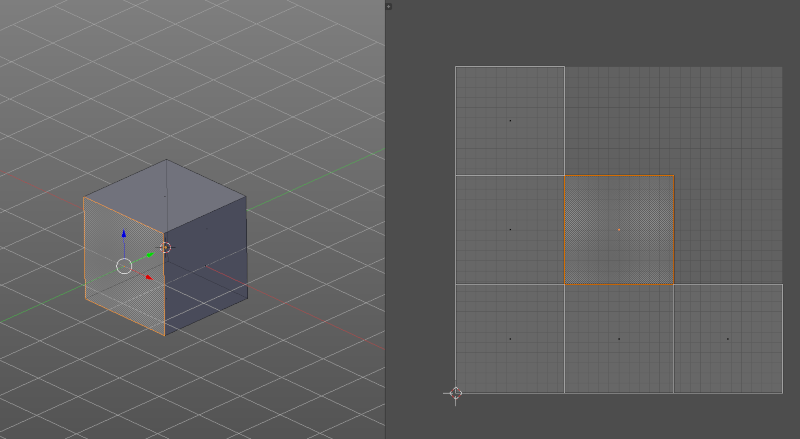
Select vertices in the UV geometry and at the 3D mesh object.
| Entry | What it does |
|---|---|
| Edge selection mode | Select edges in the UV geometry and at the 3D mesh object. |
| Face selection mode | Select single faces in the UV geometry and at the 3D mesh object. |