

































































UV Editor
The UV Image Editor is the place where you can display and edit the UV mapping, which doesn't necessarily require to have an image to be loaded.
UV Editor
The UV Image Editor is the place where you can display and edit the UV mapping, which doesn't necessarily require to have an image to be loaded.
The functionality of the UV Editor is connected to the 3D view. You need to have a mesh object selected, and you need to be in Edit mode to show the UV wire.
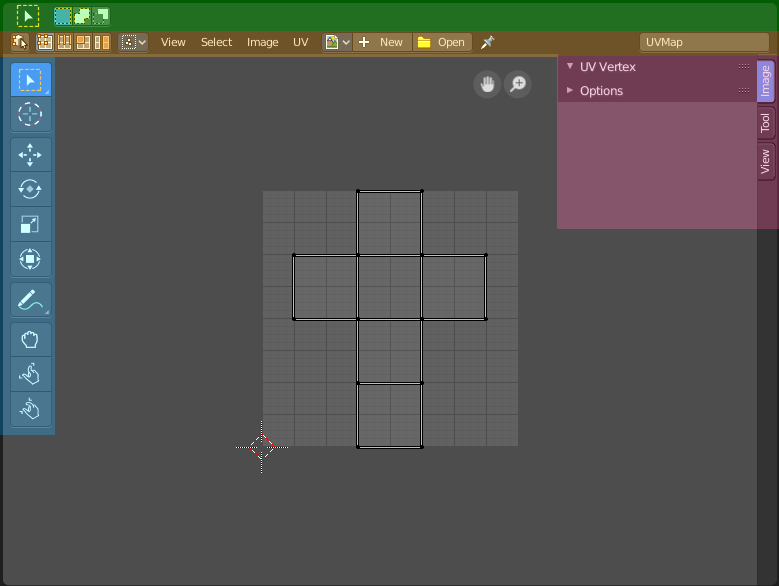
The UV editor is divided into several areas has several tool areas.
Green - Tool Settings Area
Grey - Viewport
Orange - Header
Blue - Tool Shelf
Pink - Sidebar
The Tool Settings area contains the same functionality than the Tools tab in the Sidebar. So we won't cover it.
Navigating in the UV Image Editor viewport
Hotkeys
Pan the view - MMB
Zoom - Mouse Wheel, LMB + Ctrl, Numpad + / -
Navigation Elements
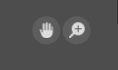
There are also two navigation elements for panning and zoom in the upper right corner. Click at them, hold the mouse button down, and move.
2D Cursor

The 2D Cursor is the center point for tool operations. It can be set to mouse position with Alt + Right Mouse click. Or with the Cursor tool in the
UV context menu
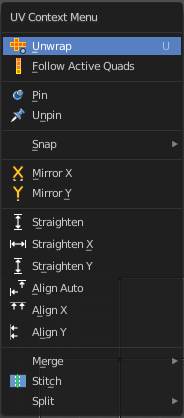
When you double right click into the viewport, then you will open a menu. The UV Context menu. Its content is to 100% double content to already existing menus. And it is despite the name not contextual.
Unwrap
Unwraps the selected geometry with the method Angle based. ABF stands for Angle Based Flattening. But can then in the adjust last operator set to the other two methods too. Conformal ( LSCM) and Minium Stretch.
Last Operator Unwrap
Method
Method is a drop down box where you can choose the unwrap method.
Method Angle based + Conformal
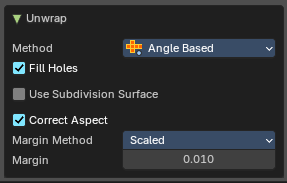
Unwrap ABF and Unwrap LSCM shares the same Last Operator.
Method
Method is a drop down box where you can choose between Unwrap method Angle Based and Conformal.
Fill Holes
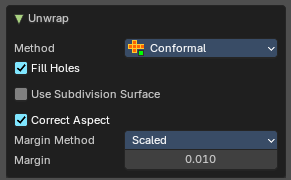
Fill holes in the mesh before unwrapping.
| Entry | What it does |
|---|---|
| Use Subdivision Surface | Unwraps an existing Subdivision Modifier. You need to add a Subdivision Modifier first. |
| Correct Aspect | Take the Image Aspect Ratio into account. |
Margin Method
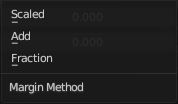
| Entry | What it does |
|---|---|
| Scaled | Use the scale of existing UV to multiply margin. |
| Add | Just add the margin and ignore any existing UV. |
| Fraction | Specify a precise fraction of specific UV. |
Margin
The distance between the single UV patches.
Method Minimum Stretch
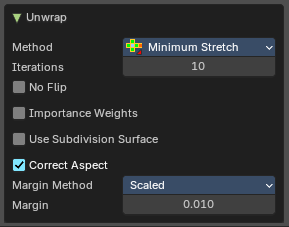
Iterations
Number of iterations.
| Entry | What it does |
|---|---|
| No Flip | Prevent flipping UV's |
| Importance Weight | Take per vertex importance weights into account. |
| Use Subdivision Surface | Unwraps an existing Subdivision Modifier. You need to add a Subdivision Modifier first. |
| Correct Aspect | Take the Image Aspect Ratio into account. |
Margin Method
| Entry | What it does |
|---|---|
| Scaled | Use the scale of existing UV to multiply margin. |
| Add | Just add the margin and ignore any existing UV. |
| Fraction | Specify a precise fraction of specific UV. |
Margin
The distance between the single UV patches.
Follow Active Quads
Follow Active quads maps UV coordinates starting from an active face, and maps all adjacent faces in quad shape then. This way you can for example unwrap a pipe or a road. You first need to have a face selected. Then select everything. And then click at Follow Active Quads.
Last Operator Follow Active Quads
The Last Operator contains the same settings than the Settings dialogue.
Edge Length Mode
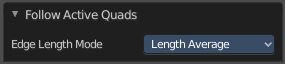
Edge Length Mode is a drop-down box where you can choose the Length method.
Pin
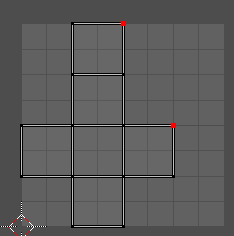
Pins the selected vertices . This vertices are now nailed for the unwrap algorithms Angle based and Conformal. Their positions will not change when you repeat the unwrapping. And the algorithms will try to fit the rest of the geometry to this pinned vertices.
Pinned vertices are marked red.
A use case is for example when you have a distorted result for symmetric geometry like a face with the Conformal method. Then you can try to align two center vertices, pin them, and repeat the conformal method. It may be more symmetrical afterwards.
Last Operator Pin
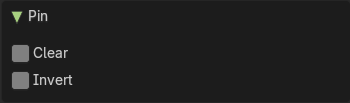
| Entry | What it does |
|---|---|
| Clear | Clear the pinning instead of setting it for the selection. |
| Invert | Invert the pinning instead of setting it for the selection. |
Unpin
Unpins pinned geometry.
Snap
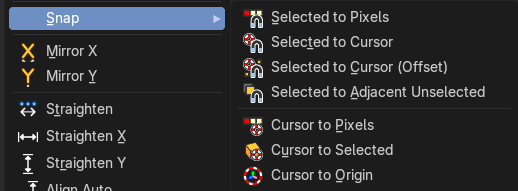
Snap is a sub menu with some snapping tools. The menu items should be pretty self explaining. Selected to Pixels snaps the selected geometry to the pixels of the image, and so on.
Last Operator Snap Selection and Snap Cursor
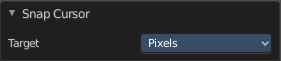
Target
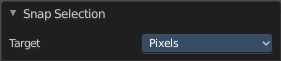
Set the snap target method again.
Mirror X
Mirrors the selection along the X axis. The mirror point is the pivot of the selection.
Mirror Y
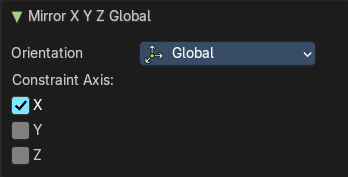
Mirrors the selection along the Y axis. The mirror point is the pivot of the selection.
Last Operator Mirror
The Last Operator Mirror panel gives you tools to adjust the mirror action.
Orientation
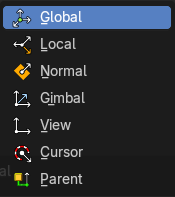
Orientation is a drop-down box where you can choose the type of orientation for the mirroring action.
Constraint Axis
Constraint Axis gives you the possibility to define the mirror axis. You can choose more than one axis here.
| Entry | What it does |
|---|---|
| Straighten | Straightens the selected geometry in both directions, X and Y axis. |
| Straighten X | Straightens the selected geometry along the X axis. |
| Straighten Y | Straightens the selected geometry along the Y axis. |
| Align Auto | Aligns the selection. The align axis gets chosen from the selection itself. When it's higher than tall, then it aligns along the Y axis. When it's taller than high, then it aligns along the X axis. The align point is the pivot of the selection. |
| Align Vertically | Aligns the selection along the X axis. The align point is the pivot of the selection. |
Align Horizontally
Aligns the selection along the Y axis. The align point is the pivot of the selection.
Last operator Align
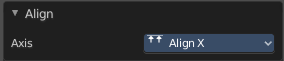
The Last operator Align unions all the single straighten and align actions in one operator.
Axis
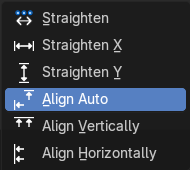
Lists the straighten and align methods again.
Merge
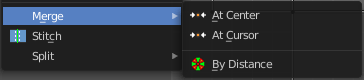
| Entry | What it does |
|---|---|
| At Center | Merges the selected vertices at the center. |
| At Cursor | Merges the selected vertices at the 2d cursor |
By Distance
Merge vertices that are below a specified distance to each other.
Last operator Merge UVs by Distance

| Entry | What it does |
|---|---|
| Merge Distance | Maximum distance for welding vertices. |
| Unselected | Merge selected vertices to other unselected vertices. |
| Shared Vertex | Weld uv’s based on shared vertices. |
Stitch
Stitch tries to union UV patches along the selected edges or vertices.
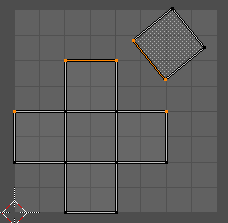
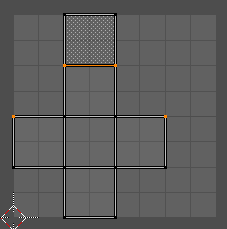
Last Operator Stitch
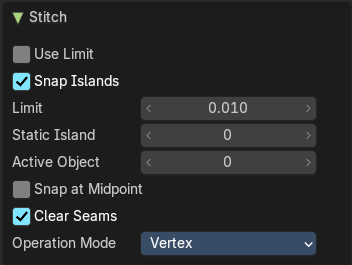
This last operator appears in the 3D view.
| Entry | What it does |
|---|---|
| Use Limit | Just snap when the elements are below a given distance. · Snap Island: Snap the whole UV patch, or just the selected edge(s)/vertices |
| Limit | The limit distance for Use Limit. |
| Static Island | Adjust which island stays in place when stitching. |
| Active Object | Index of the active object. |
| Snap at Midpoint | Snap at the center point of the two elements instead the first to the last. |
| Clear Seams | Unmarks seams when stitching. |
Operation Mode
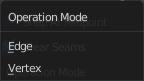
The operation mode. Calculate with Edges or Vertices.
Split

Selection
Split the selected geometry from the not selected geometry.
Quick Favorites menu

When you right click at a menu or a button, then a right click menu will open. Tools have usually an Add to Quick Favorites menu entry.
The Quick Favorites Menu is empty by default. With Add to Quick favorites you can add this menu to the Quick menu.

In the 3D view we have a menu called Quick in the header, which shows this content then. In the Image Editor you can just call it with its hotkey. Q. It has no regular menu entry here.
Slider snapping

Snapping also works at sliders. Hover with the mouse over the slider, start to slide, and holding down Ctrl will snap the sliders in incremental steps.
When it's a default value between 0 and 1 then it usually snaps in 0.1 steps. When it's a default value over 1 then it usually snaps in steps of 10.
Hotkey only functionality
Important: These hotkeys works with the default Bforartists key map. And they do not list the Ndof hotkeys. Ndof is a 3d connexion mouse device that is also used for tablets.
Most of the tools can be found in the graphical UI. But there are still some tools that are hotkey only. Some have a UI brother with equal functionality. For example, Pick shortest path is the hotkey sister of Select shortest path. Some are hotkey only since they cannot be integrated in the graphical UI. Like calling the File menu under the mouse. Or mouse position dependent functionality like selecting an edge loop.
The navigation hotkeys and the context menus are excluded here since they are already covered.
| Entry | What it does |
|---|---|
| Loop Select - Alt Left Mouse | Select an edge loop. |
| Loop Select - Shift Alt Left Mouse | Select an edge loop. Adds to selection. |
Edge Ring Select - Ctrl Alt Left Mouse
Select an edge ring.
Edge Ring Select - Shift Ctrl Alt Left Mouse
Select an edge ring. Adds to selection.
Unwrap - U
Unwraps the selected geometry. This operator starts with the method Angle based.
Last Operator Unwrap
Method
Method is a drop down box where you can choose the unwrap method.
Method Angle based + Conformal
Unwrap ABF and Unwrap LSCM shares the same Last Operator.
Method
Method is a drop down box where you can choose between Unwrap method Angle Based and Conformal.
Fill Holes
Fill holes in the mesh before unwrapping.
| Entry | What it does |
|---|---|
| Use Subdivision Surface | Unwraps an existing Subdivision Modifier. You need to add a Subdivision Modifier first. |
| Correct Aspect | Take the Image Aspect Ratio into account. |
Margin Method
| Entry | What it does |
|---|---|
| Scaled | Use the scale of existing UV to multiply margin. |
| Add | Just add the margin and ignore any existing UV. |
| Fraction | Specify a precise fraction of specific UV. |
Margin
The distance between the single UV patches.
Method Minimum Stretch
Iterations
Number of iterations.
| Entry | What it does |
|---|---|
| No Flip | Prevent flipping UV's |
| Importance Weight | Take per vertex importance weights into account. |
| Use Subdivision Surface | Unwraps an existing Subdivision Modifier. You need to add a Subdivision Modifier first. |
| Correct Aspect | Take the Image Aspect Ratio into account. |
Margin Method
| Entry | What it does |
|---|---|
| Scaled | Use the scale of existing UV to multiply margin. |
| Add | Just add the margin and ignore any existing UV. |
| Fraction | Specify a precise fraction of specific UV. |
Margin
The distance between the single UV patches.
Pick shortest path
Click at the first edge or vertice, hold down ctrl,click at the last edge or vertice.
Last operator Pick shortest path
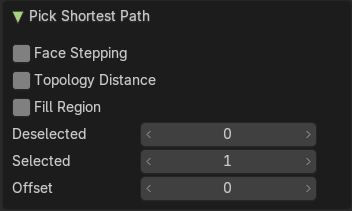
| Entry | What it does |
|---|---|
| Face stepping | Traverse connected faces. Including diagonals and edge rings. |
| Topology Distance | Find the minimum number of steps. And ignore the spatial distance. |
| Fill Region | Select all paths between the source / destination elements. |
| Deselected | Don't select the whole path, but just every nth element of it. |
| Selected | This is connected to nth element. Number of elements to skip at once. |
| Offset | This is connected to nth element. Start with an offset. |