

































































File menu
Detailed table of content
Detailed table of content
File Menu
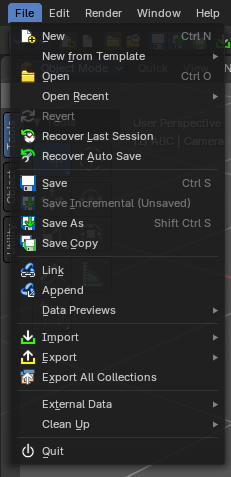
The File menu contains file related functionality.
New
Creates a new scene, using the current active template.
New from Template
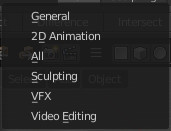
Choose to create a new file with predefined Application Templates.
Application templates is a collection of workspaces for a predefined purpose.
Standard Application Templates
General

The general application template comes with the workspaces to create 3D content.
2D Animation

The 2D Animation application template comes with the workspaces to create 2D animation.
All

The All application template contains all default workspaces.
Sculpting

The Sculpting application template comes with the workspaces for sculpting needs.
VFX

The VFX application template comes with the workspaces for motion tracking.
Video Editing

The Video Editing application template comes with the workspaces for video editing.
Open
Open a blend file.
Clear Recent Files List
Clears the recent files list.
Open Recent
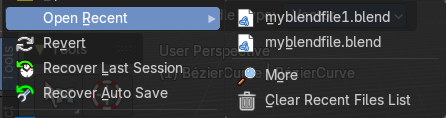
Open last recent blend files.
More
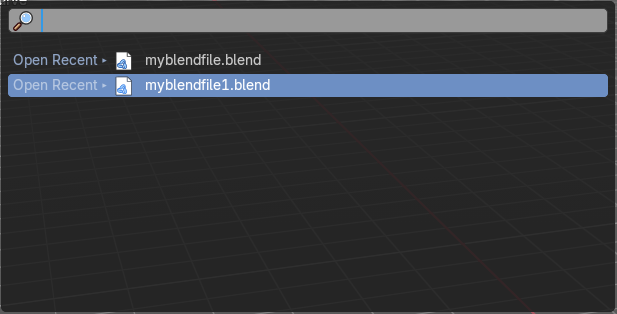
Open a search field where you can search for specific files.
Clear Recent Files List
This clears the recent files list. When you clear, you will be prompted with which items you would like to remove.
Remove
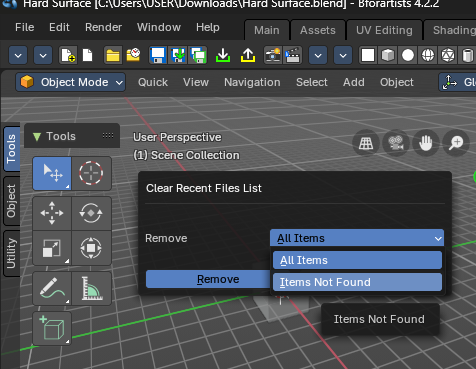
| Entry | What it does |
|---|---|
| All Items | Removes all the items in the list. |
| Items Not Found | Removes only the missing files from the list. If a file exists in the list, it won’t clear it. |
Recent Context Menu - Open File Location
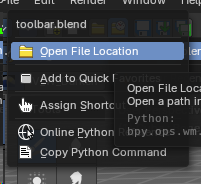
Opens the recent blend file file location in the operating system’s file explorer.
Revert
Reload the last saved file.
Recover last Session
Open the last closed blend file. (quit.blend)
Recover Autosave
Open the last autosaved blend file.
Save
Save blend file.
Incremental Save
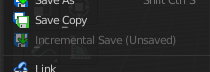
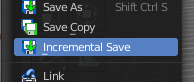
Saves an already saved blend file with incremental file name. myfile.blend gets saved as myfile1.blend, myfile2.blend, myfile3.blend, and so on.
You need to have the blend file saved once to set this save method active.
Save As
Save blend file as.
Save Copy
Saves a copy of the current file.
Link
Link allows you to link content from another blend file. The content remains in the other blend file. The linked blend file will be required to work with the linked content.
When you click at Link then a file browser will open. Down left you will see some further options.
Advanced Filter
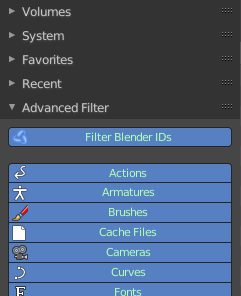
This filter allows you to filter the content of the blend file for specific object types.
Import Settings
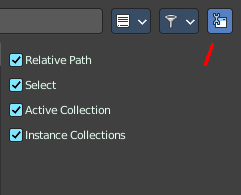
At the right you can reveal the import settings.
| Entry | What it does |
|---|---|
| Relative Path | Available only when linking, see relative paths. |
| Select | Makes the object Active after it is loaded. |
| Active Layer | Enabled by default, the object is assigned to the visible layers in your scene. Otherwise, it is assigned to the same layers it resides on in the source file. |
| Instance Collections | This option links the collection to an object, adding it to the active scene. |
Please Note:
When you select an Object type, it will be placed in your scene at the cursor. Many other data types - cameras, curves, and materials for example - must be linked to an object before they become visible.
You cannot move a linked object. Its position is defined in its source file. If you want to modify the object locally you can either use Dupli Groups or make the object local, in the 3D View, Object / Relations menu.
Appending data you already have linked, will add objects / groups to the scene, but will keep them linked (and un-editable).
Known Limitations
In general dependencies shouldn’t go in both directions. Attempting to link or append data which links back to the current file will likely result in missing links.
When linking objects directly into a .blend file, the Rigid Body settings won’t be linked in since they’re associated with their scenes world. As an alternative you could link in the entire scene and set it as a Background Set Scene.
Append
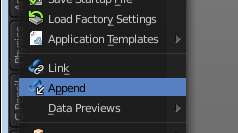
Append allows you to append content from another blend file. The content will be copied over, and become part of the current blend file.
When you click at Link then a file browser will open. Down left you will see some further options.
The difference to Link is that with Append the object becomes part of the current blend file. And it is editable.
Advanced Filter
This filter allows you to filter the content of the blend file for specific object types.
Import Settings
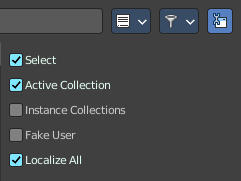
At the right you can reveal the import settings.
| Entry | What it does |
|---|---|
| Select | Makes the object Active after it is loaded. |
| Active Collection | Put the new objects into the active collection. |
| Instance Collection | Create instances for collections rather than adding them directly to the scene. |
| Fake User | Set Fake User for appended objects, except Objects and Groups |
| Localize All | Localize all appended data, including indirectly linked from other libraries. |
Data Previews
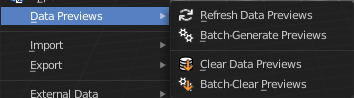
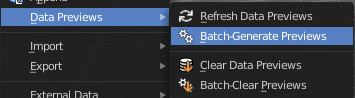
Data Previews is a sub menu with functionality around the Data Preview in the Bforartists file browser. The functionality in this menu creates and handles previews of the objects in a blend file.
Data Previews are displayed in the file browser when you link or append something from this file and when you use thumbnails as display method. It is meant for the case when you want to turn a blend file into an asset library. Materials, ready textured objects, etc. .
Workflow:
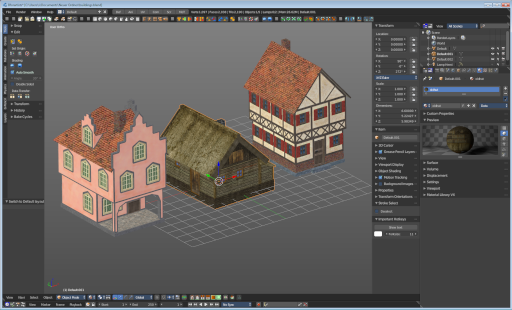
First create a scene with your assets. Make sure to remove the camera from the scene. It can work, but it can also make trouble, and prevent the batch generation to work at the blend file. And an asset library doesn't need a camera anyways. Not so important is lights, it does not make trouble like the camera. But you won't get a data preview icon for lights.
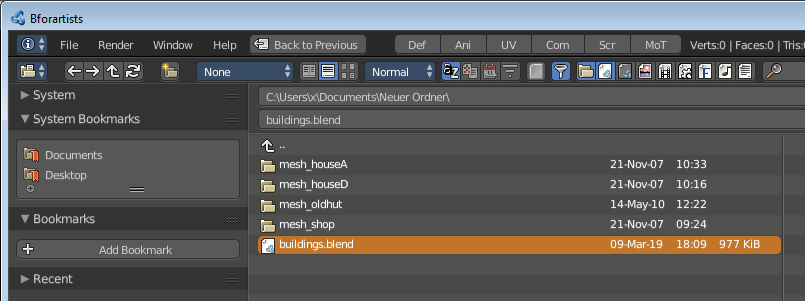
Save the scene. Restart Bforartists or create at least a new scene. We want to have a look what we currently get as preview when we want to link or append from this blend file. Make sure to turn the view in the file browser to thumbnails. It's always just the default icon for the assets. Left Materials, right the Objects.
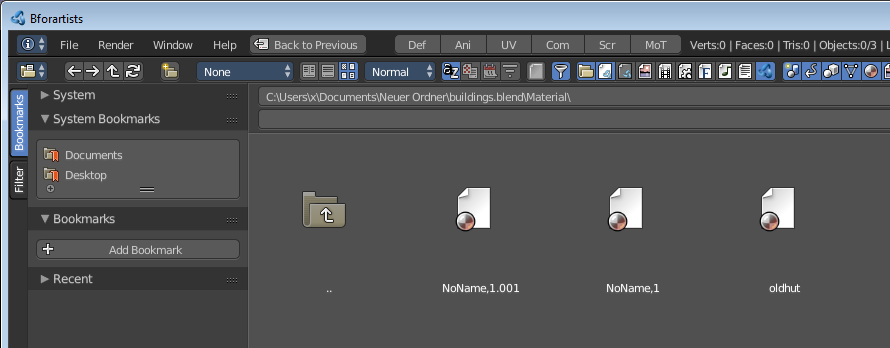
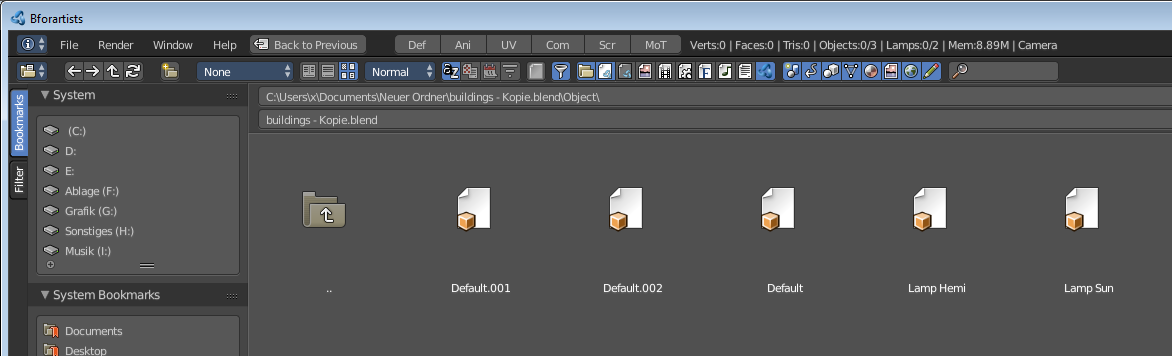
Now let's run Batch Generate Previews at this blend file.
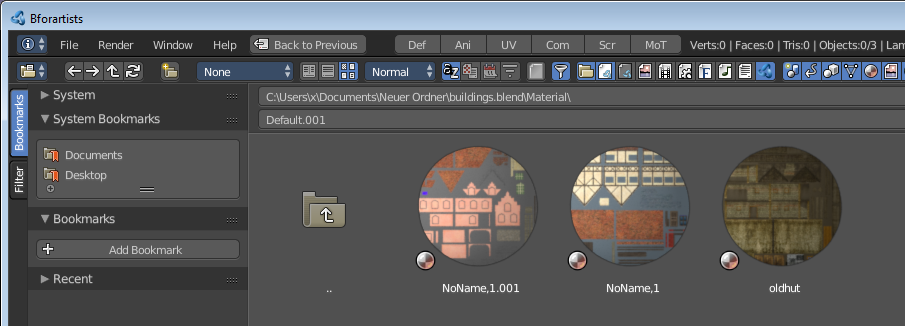
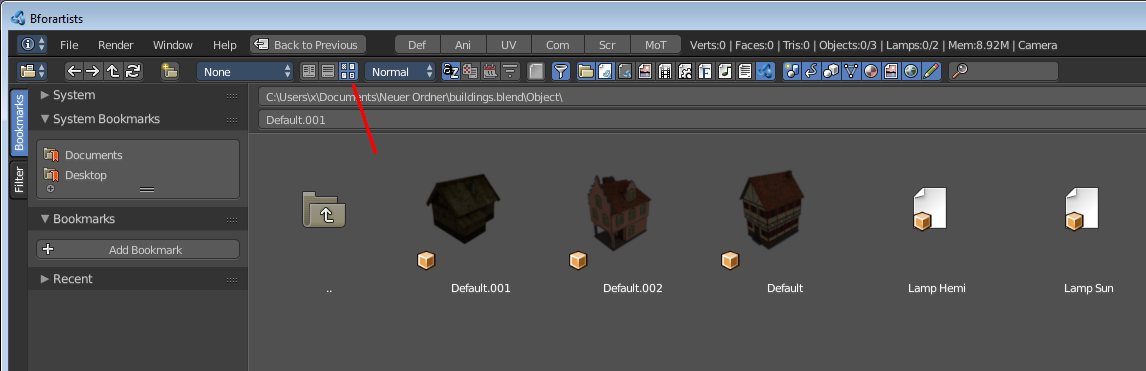
This process takes a while. Now let's try to append from the same file again. You will get proper preview thumbnails now. Left Materials, right the objects. Here you will see again that lamps have no preview icon.
| Entry | What it does |
|---|---|
| Refresh Data Set Previews | Refreshes the existing data set previews. |
| Batch Generate Previews | Generates the previews for the data objects in the selected blend file(s). The scene that you want to work at should not be loaded. |
| Clear Data Set Previews | Removes existing previews for some types in the target blend file. |
| Batch Clear Previews | Removes all existing previews in the target blend file. |
Import
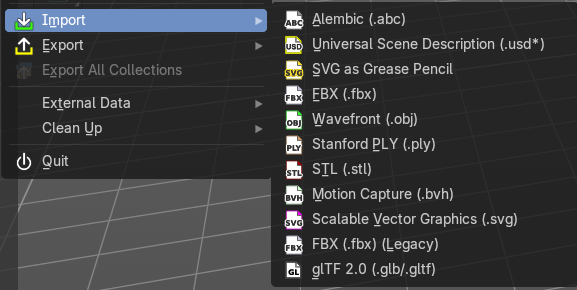
Import is a sub menu with the available 3D import file formats. You will be prompted to the load dialog which provides some further import options down left in the file browser tool shelf.
Note that im- and exporters are partially addons that can be disabled. So some content might miss.
Operator Presets
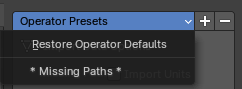
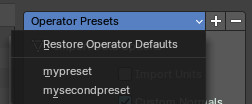
The operator presets exists on nearly all importers and exporters. Exceptions are for example the *.stl importer. They allow you to reset the importer settings to the defaults. And allow you to store your own presets. The presets are just valid for the importer or exporter with which you have saved the presets.
Operator Presets dropdown
| Entry | What it does |
|---|---|
| Restore Operator Defaults | Restores the importer or exporter settings to their default values |
| List of available presets | The list of available presets. The string *Missing Paths* indicates that no custom preset exists yet. |
Add Operator Preset
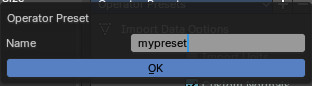
Adds a new operator preset. A popup dialog will appear where you can give the new preset a name.
Remove Operator Preset
Removes the active preset. Note that you cannot display the current active preset. So choose it from the list, and then click at the remove operator.
Import Drag and Drop
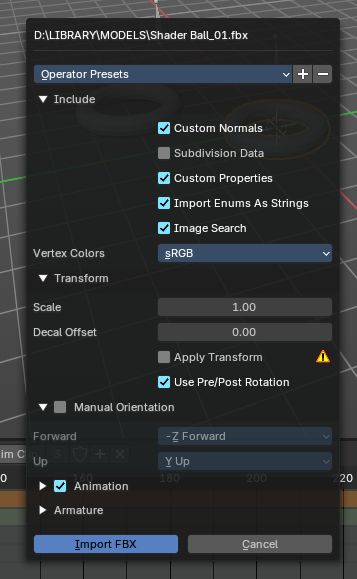
You can optionally drag and drop multiple files into the 3D Viewport to directly import different file types. This will batch import the selection from the explorer with a floating dialogue from the importer settings.
Note: You can only drag in a group of multiple files if they are the same file format. If you have multiple selected, it will prompt you if you should import one or the other file type.
Alembic
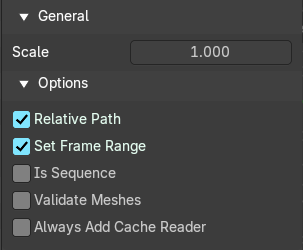
The alembic file format is for static geometry. It does not support armatures, hair or particles.
| Entry | What it does |
|---|---|
| General | Scale: Set the import scale factor. |
| Options | Relative Path: Select the file relative to the blend file. · Set Frame Range: Sets the Frame range start and end point in Bforartists to match the one in the alembic file. · Is Sequence: Import sequenced files that are split in cache parts. · Validate Meshes: Check for invalid mesh data in the file. Note that this operation may take some time. · Always add Cache Reader: Add cache modifiers and constraints to imported objects even when they are not animated. This allows updating the alembic archive when reloading. |
USD
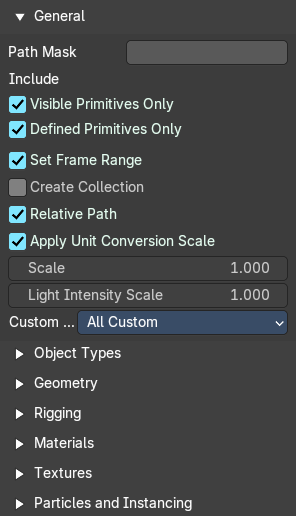
Imports a Universal Scene Description (USD) file. It reads *.usd, *.usdc and *.usda files.
General
| Entry | What it does |
|---|---|
| Path Mask | Import only the subset of the USD scene rooted at the given primitive. |
| Include | What to include · Visible Primitives Only: Do not import invisible USD primitives. Only applies to primitives with a non-animated visibility attribute. Primitives with animated visibility will always be imported. · Defined Primitives Only: Import only defined USD primities. When this is disabled, this allows importing USD primitives which are not defined, such as those with an override specifier. · Set Frame Range: Update the scene’s start and end frame to match those of the USD stage. · Create Collection: Add all imported objects to a new collection. · Relative Path: Select the file relative to the blend file. |
| Scale | The scale size at import. |
| Light Intensity Scale | Scale for the intensity of imported lights. |
| Custom Properties | Behaviour when importing USD attributes as custom properties. · All Custom: Import all USD custom attributes as custom properties. Namespaces will be retained in the property names. · User: Import all USD user defined attributes as custom properties. Namespaces will be retained in the property names. · User: Import not custom attributes as custom properties. |
Object Types
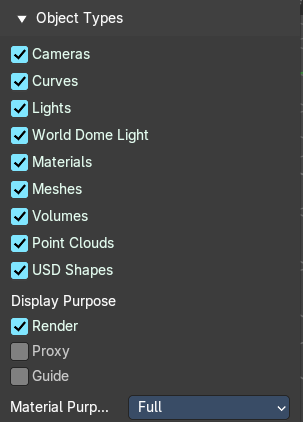
| Entry | What it does |
|---|---|
| Cameras | Import cameras (perspective and orthographic). |
| Curves | Import curve primitives, including USD basis and NURBS curves. (Note that support for Bézier basis is not yet fully implemented.) |
| Lights | Import lights. Does not currently include USD dome, cylinder or geometry lights. |
| Materials | Import materials. See also the experimental Import USD Preview option. |
| Meshes | Import meshes. |
| Volumes | Import USD OpenVDB field assets. |
| Point Clouds | Import pointcloud data. |
| USD Shapes | Import USD Shapes. |
| Display Purpose | Proxy: Include primitives with purpose proxy. · Render: Include primitives with purpose render. · Guide: Include primitives with purpose guide. |
Material Purpose
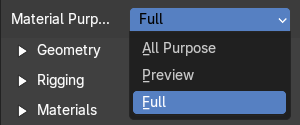
| Entry | What it does |
|---|---|
| All Purpose | Attempt to import all purpose materials. |
| Preview | Attempt to import preview purpose materials. |
| Full | Attempt to import full materials. |
Geometry
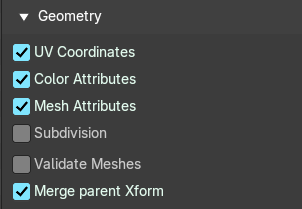
| Entry | What it does |
|---|---|
| UV Coordinates | Load mesh UV coordinates. |
| Color Attributes | Import the USD mesh display Color values as Blender mesh vertex colors. |
| Mesh Attributes | Read USD PrimVars as mesh attributes. |
| Subdivision | Import Subdivision. |
| Validate Meshes | Ensure the data is valid on import (when disabled, data may be imported which causes crashes displaying or editing) |
| Merge parent XForm | Allow USD primitives to merge with t heir XForm parent if they are the only child in the hierarchy. |
Rigging
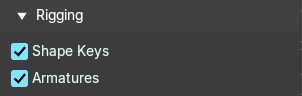
| Entry | What it does |
|---|---|
| Shape Keys | Import all shape keys. |
| Animation | Import all animation keyframes. |
Materials
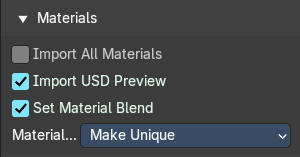
| Entry | What it does |
|---|---|
| Import all Materials | Import all materials. Also materials that are not used by the geometry. |
| Import USD Preview | Convert USD Preview Surface shaders to Principled BSDF shader networks. |
| Set Material Blend | If the Import USD Preview is enabled , the material blend method will atomatically be set based on the shader's opacit and poacity threshold inputs. |
Material Name Collision
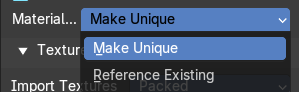
How to import the material name when it conflicts with an existing material in the scene.
| Entry | What it does |
|---|---|
| Make Unique | Import each USD material as a unique material. |
| Reference Existing | If the material with the same name exists, replace the USD material with existing material. |
Set Material Blend
If the Import USD Preview option is enabled, the material blend method will automatically be set based on the opacity and opacityThreshold shader inputs, allowing for visualization of transparent objects.
Textures
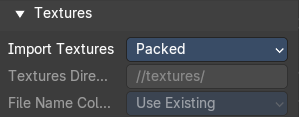
Import Textures
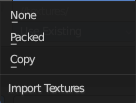
How to import textures.
| Entry | What it does |
|---|---|
| None | Don't import textures. |
| Packed | Import Texture as packed data. |
Copy
Copy files to texture directory.
Textures Directory
The textures directory.
File Name Collision
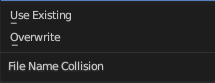
What to do if a texture name already exists.
Particles and Instancing
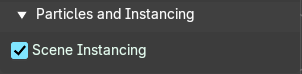
Scene Instancing
Import USD scene graph instances as collection instances.
SVG as Grease Pencil

Imports a svg file as a grease pencil object.
| Entry | What it does |
|---|---|
| Resolution | The resolution of the svg import. |
| Scale | The scale of the svg import. |
FBX
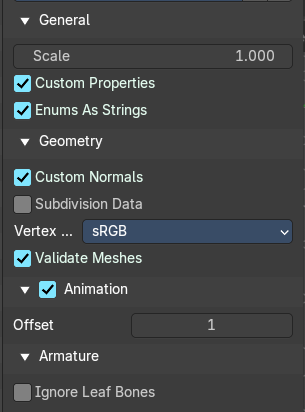
FBX is a proprietary file format from Autodesk. FBX is a general file format that is able to store and load animation.
General
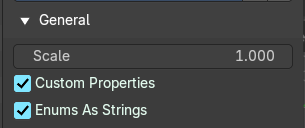
| Entry | What it does |
|---|---|
| Scale | Scale factor at import. |
| Custom Properties | Import User properties as Custom properties |
| Enums as Strings | Store enumeration values as strings. |
Geometry
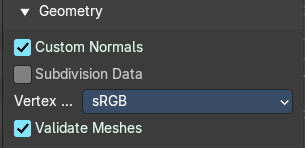
| Entry | What it does |
|---|---|
| Custom Normals | Import custom normals. |
| Subdivision Data | Import Subdivision. |
Vertex Colors
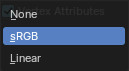
Import vertex colors if they exist. These are Color attributes.
| Entry | What it does |
|---|---|
| sRGB | 8bit colors |
| Linear | 32bit float colors |
Validate Meshes
Ensure the data is valid.
Animation
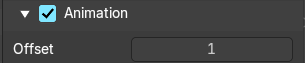
Import Animation.
Animation Offset
Adjust an offset in frames for the imported animation.
Armature
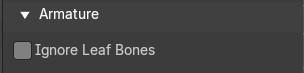
Ignore Leaf Bones
Ignore the last bone at the end of the chain.
Wavefront(OBJ)
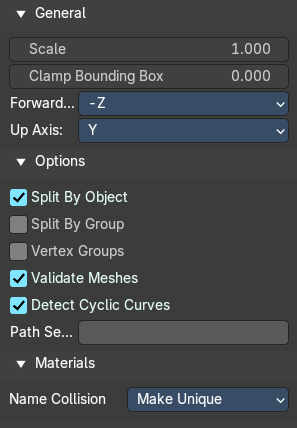
Imports a wavefront obj file.
General
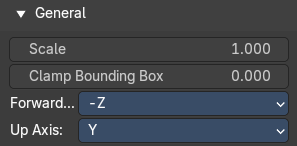
Scale
Scale factor for the obj import.
Clamp Bounding Box
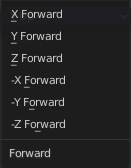
Clamp bounds under this value. A value of zero disables this feature.
Forward Axis
The Forward orientation at import.
Up Axis
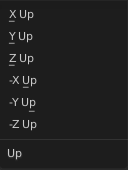
The Up orientation at import.
Options
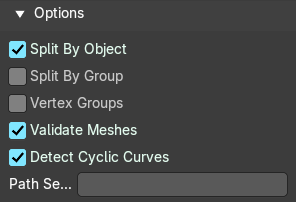
| Entry | What it does |
|---|---|
| Split by Object | Import loose mesh parts as single objects. |
| Split by Group | Import Obj Groups as meshes. |
| Vertex Groups | Import Obj groups as vertex groups. |
| Validate Meshes | Check at import for invalid data. |
| Detect Cyclic Curves | Join Curve Endpoints if overlapping control points are detected. |
| Path Separator | Import option to create collection hierarchy by splitting names with a separator. Names found in the OBJ file are split by that, and a Collection hierarchy is made, so you can have e.g. "o House/Roof/Tile" in the OBJ file. |
Materials
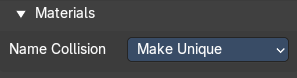
Name Collision
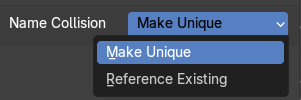
How to import the material name when it conflicts with an existing material in the scene.
Stanford (PLY)
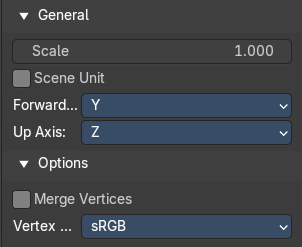
The Stanford Triangle Format was designed to store three-dimensional data from 3D scanners. It is a static file format for mesh data, and cannot carry animation data.
General
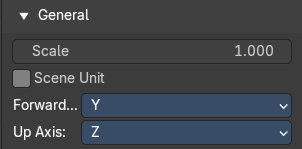
| Entry | What it does |
|---|---|
| Scale | The scale factor for the imported geometry. |
| Scene Unit | Apply current scene units at importing the geometry. |
| Forward Axis | The forward axis for the imported geometry. |
| Up Axis | The up axis for the imported geometry. |
Options
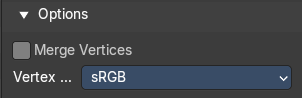
Merge Vertices
Merges vertices by distance.
Vertex Colors
Import vertex colors if they exist. These are Color attributes.
| Entry | What it does |
|---|---|
| sRGB | 8bit colors |
| Linear | 32bit float colors |
STL
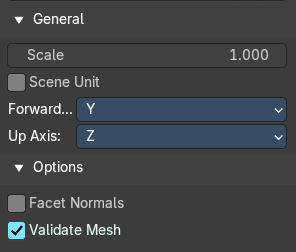
STL (Standard Triangulation/Tessellation Language ) is a standard format for many cad software. It is a format for static geometry, it cannot handle animation. The format is popular for 3d printing purposes.
General
| Entry | What it does |
|---|---|
| Scale | The import scale. |
| Scene Unit | Apply the scene unit at the geometry at import. |
Forward
The Forward orientation at import.
Up
The Up orientation at import.
Options
| Entry | What it does |
|---|---|
| Facet Normals | Import the geometry with faceted faces. |
| Validate Meshes | Check at import for invalid data. |
Motion Capture (BVH)
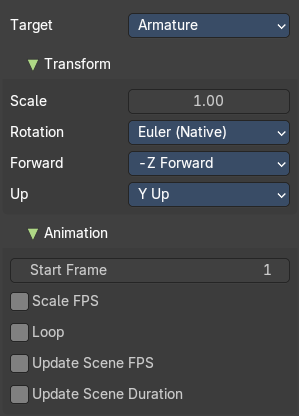
The Biovision Hierarchy (BVH) character animation file format is a file format to carry motion capture data.
| Entry | What it does |
|---|---|
| Target | You can either target an armature or an object. |
| Transform | Scale: The import scale. · Rotation: The rotation type. · Forward: The forward orientation. · Up: The Up orientation. |
| Animation | Start Frame: The start frame for the animation. · Scale FPS: Scale the frame rate of the BVH file to the current scenes. With off every frame of the BVH is one frame in Bforartists. · Loop: Loop the animation playback. · Update Scene FPS: Sets the scene frame rate to that of the BVH file. Note that this nullifies the Scale FPS feature since the scale will be 1:1. · Update Scene Duration: Extend the scene duration to be the one of the BVH file duration. |
Scalable Vector Graphics (SVG)
Scalable Vector Graphics is usually a 2D file format to describe vector graphics. But Vector graphics are also curves. Which can be used in a 3 dimensional space.
SVG has no import properties.
FBX
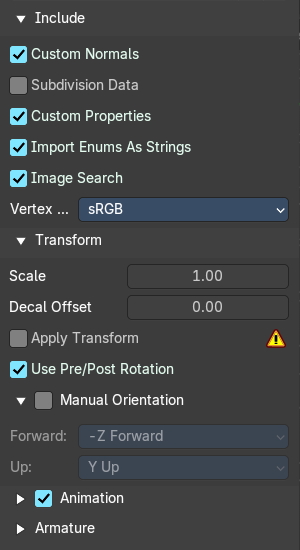
FBX is a proprietary file format from Autodesk. FBX is a general file format that is able to store and load animation.
Include
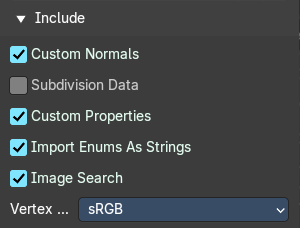
What data to import.
| Entry | What it does |
|---|---|
| Custom Normals | Import custom normals. |
| Subdivision Data | Import Subdivision. |
| Custom Properties | Import User properties as Custom properties |
| Import Enums as Strings | Store enumeration values as strings. |
| Image Search | Search the sub directions for associated images. |
Vertex Colors
Import vertex colors if they exist. These are Color attributes.
| Entry | What it does |
|---|---|
| sRGB | 8bit colors |
| Linear | 32bit float colors |
Transform
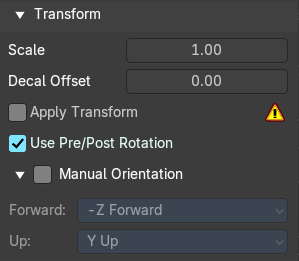
| Entry | What it does |
|---|---|
| Scale | Adjust the scale factor at import. |
| Decal Offset | Displace geometry of alpha meshes. |
| !Experimental! Apply Transform | Bake space transform into object data. This avoids unwanted rotations when the target space is not aligned with the Bforartists space. Warning! This feature is experimental. Use at own risk. |
| Use Pre/ Post Rotation | Use Pre or Post Rotation from FBX transform. This feature may not work in all cases. |
Manual Orientation
Enables custom orientation instead of using the orientation from the fbx file.
Forward
The Forward orientation at import.
Up
The Up orientation at import.
Animation
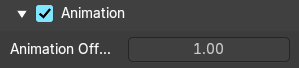
Animation Offset
Adjust an offset in frames for the imported animation.
Armature
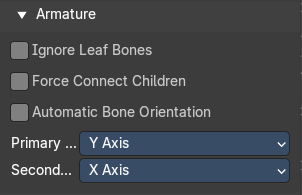
| Entry | What it does |
|---|---|
| Ignore Leaf Bones | Ignore the last bone at the end of the chain. |
| Force Connect Children | Force connection of the children bones to their parent. |
| Automatic Bone Orientation | Try to align the mayor bone axis with the bone children. |
Primary and secondary Bone Axis
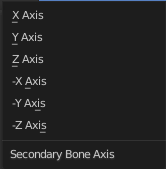
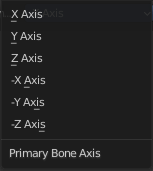
Manually adjust the bone orientation per axis. Note that this features are greyed out when Automatic Bone Orientation is ticked.
glTF 2.0 (glb, gltf )
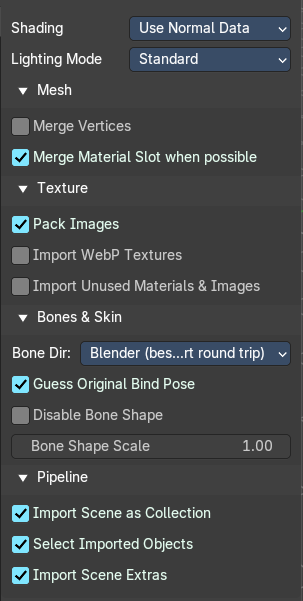
The GL Transmission Format from the Khronos Group is a file format for 3D scenes and models, and is based at the JSON standard.
Shading
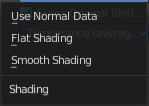
Define the shading of the imported geometry.
| Entry | What it does |
|---|---|
| Use Normal Data | Use the existing Normals. |
| Flat shading | Shades the whole mesh flat and faceted. |
| Smooth shading | Shades the whole mesh smooth. |
Lighting Mode
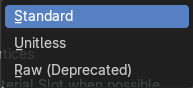
| Entry | What it does |
|---|---|
| Standard | Physically based glTF units (cd, lx, nt) |
| Unitless | Non physical unitless lighting. Useful when exposure controls are not available |
| Raw (Deprecated) | Blender lighting strength without conversion. |
Mesh
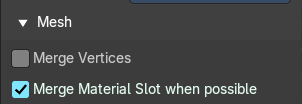
| Entry | What it does |
|---|---|
| Merge Vertices | glTF stores every vertice of faces as an extra vertice. There is no shared vertice between two faces. Merge vertices merges the vertices of neighbor faces together. Attiention! It currently cannot combine vertices with different normals. |
| Merge Material slot when possible | As title says. Merge Material slot when possible. |
Texture
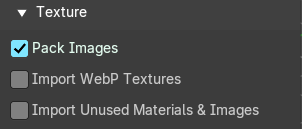
| Entry | What it does |
|---|---|
| Pack Images | Pack all images into the Blend file at loading the glTF file. |
| Import WebP textures | If a texture exists in WebP format, loads the WebP texture instead of the fallback PNG/JPEG one. |
| Import Unused Materials & Images | As the title says. Import Unused Materials and Images. |
Bones & Skin
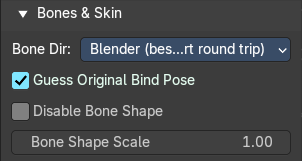
Bone Direction
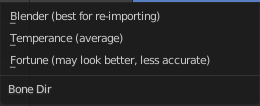
Heuristic method for placing bones.
| Entry | What it does |
|---|---|
| Disable Bone Shapes | Do not create bone shapes. |
| Bone Shape Scale | The scale factor of the bone shapes for viewport display. |
| Guess original bind pose | Tries to guess the original bind pose for skinned meshes. Off means the rest pose is used as the bind pose. |
| Disable Bone Shape | Do not create bone shapes. |
| Bone Shape Scale | Scale factor for bone shapes. |
Pipeline
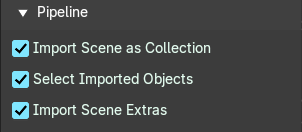
| Entry | What it does |
|---|---|
| Import Scene as collection | Import the Scene as a collection. |
| Select imported Objects | Select the imported objects once the import has finished. |
| Import Scene Extras | Import Scene Extras as custom properties. Existing custom properties will be overwritten. |
Export
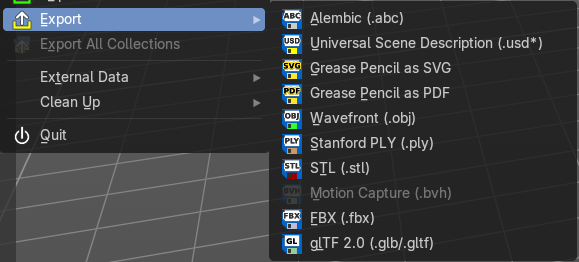
Export is a sub menu with the available export formats.
Note that im- and exporters are partially addons that can be disabled. So some content might miss.
Operator Presets
The operator presets exists on nearly all im- and exporters. Exceptions are for example the stl importer. They allow you to reset the importer settings to the defaults. And allow you to store your own presets. The presets are just valid for the im- or exporter with which you have saved the presets.
Operator Presets dropdown
| Entry | What it does |
|---|---|
| Restore Operator Defaults | Restores the im or exporter settings to their default values |
| List of available presets | The list of available presets. The string *Missing Paths* indicates that no custom preset exists yet. |
Add Operator Preset
Adds a new operator preset. A popup dialog will appear where you can give the new preset a name.
Remove Operator Preset
Removes the active preset. Note that you cannot display the current active preset. So choose it from the list, and then click at the remove operator.
Alembic
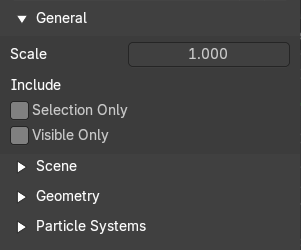
The alembic file format is for static geometry. It does not support armatures, hair or particles. However, there are some options to export at least some data of it.
The alembic export options are divided into four sections.
General
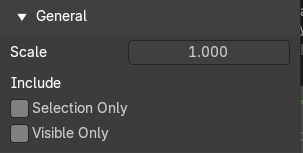
| Entry | What it does |
|---|---|
| Scale | The export scale factor. |
| Include | — |
| Selection Only | Export just the selected object(s), and not the whole scene. |
| Visible Only | Export visible geometry only. |
Scene
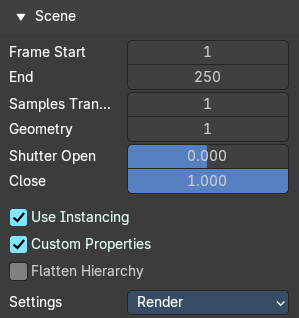
| Entry | What it does |
|---|---|
| Frame Start | The start frame of the export. |
| End | The end frame of the export. |
| Samples Transform | Number of times per frame at which animated transformations are sampled. |
| Geometry Samples | Number of times per frame at which geometry transformations are sampled. |
| Shutter Open | The start frame to sample transform and geometry samples. Valid range is -1 to 1. -1 indicates the previous frame, 0 indicates the current frame, and 1 indicates the next frame. |
| Close | The end frame to sample transform and geometry samples. Valid range is -1 to 1. -1 indicates the previous frame, 0 indicates the current frame, and 1 indicates the next frame. |
| Use Instancing | Export data duplicated objects as alembic instances. |
| Custom Properties | Export custom properties to Alembic . userProperties |
| Flatten Hierarchy | Remove parent / children relationship. |
Settings
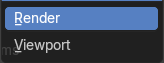
Determines visibility of objects, modifier settings, and other areas where there are different settings for viewport and rendering.
| Entry | What it does |
|---|---|
| Render | User render settings for object visibility, modifier settings, etc |
| Viewport | User visibility settings for object visibility, modifier settings, etc |
Geometry
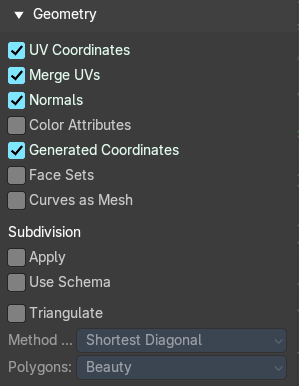
| Entry | What it does |
|---|---|
| UV's | Export UV's. Note that Alembic just supports a single UV map. |
| Pack UV Islands | Export UV's with packed islands. |
| Normals | Export Normals. |
| Vertex Colors | Export Vertex Colors. These are Color attributes. |
| Generate Coordinates | Export undeformed mesh vertex coordinates. |
| Face Sets | Export per Face shading group assignments. |
| Curves as Mesh | Export Curves and Nurbs surfaces as meshes. |
| Subdivisions | Apply: Export subdivision surfaces as meshes. Means apply subdivision modifier before export. · Use Schema: Export meshes using Alembic's subdivision schema. |
Triangulate
Triangulate meshes before export.
Method Quad
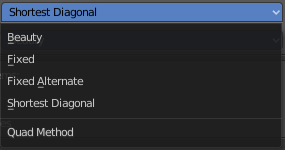
The quad method that gets used to triangulate the meshes. You need to activate Triangulate.
Polygons
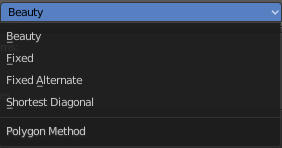
The polygon method that gets used to triangulate the meshes. You need to activate Triangulate.
Particle Systems
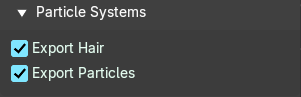
Alembic does not support hair or particles. However, here you can find some options to export at least some data of it.
| Entry | What it does |
|---|---|
| Export Hair | Export hair particle systems as animated curves. |
| Export Particles | Export non-hair particles. |
Universal Scene Description ( USD )
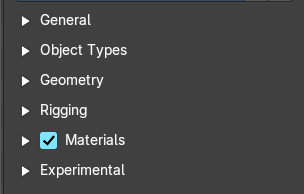
USD is a system for authoring, composing and reading hierarchically organized scene description. It is developed by Pixar.
General
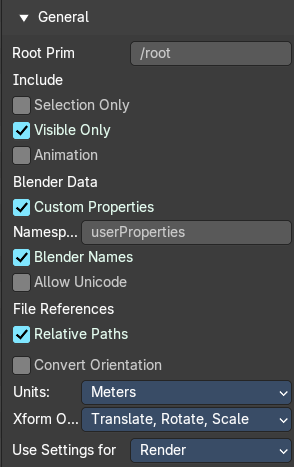
| Entry | What it does |
|---|---|
| Root Prim | If set, add a transform primitive as the parent of exported rig with the given path name for all exported data. Default is “/root” |
| Include | Selection Only: Export just the selected object(s), and not the whole scene. · Visible Only: Export visible geometry only. · Animation: Export animation. |
| Blender Data | Custom Properties: Export custom properties if available. · Namespace: Add the given name as a prefix to exported custom property names. · Blender Names: Author USD custom attributes containing the original Blender object and object data names. Uses the Bforartists standard of naming conventions and nomeclature. · Allow Unicode: Preserve UF-8 characters. |
File References
| Entry | What it does |
|---|---|
| Relative Paths | The path will be shortened to just the file name. For example, C:\myfolder\mysubfolder\mytexture.jpg turns into texture.jpg . Relative paths allows you to move the whole project folder to another location. The file paths will still be valid. |
| Convert Orientation | Convert orientation axis to different conventions to match other applications. |
Units
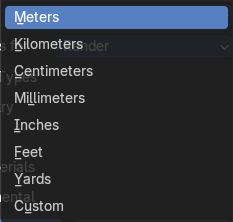
Set the USD units.
Xform Ops
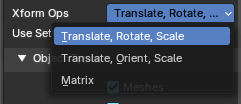
The type of transform operarators to write.
User Settings for
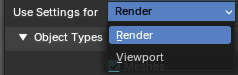
Use Render settings for object visibility, modifier settings, etc
Object Types
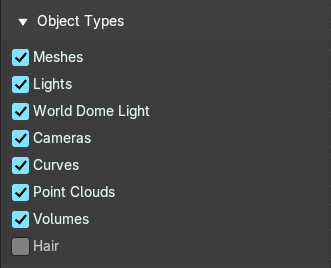
| Entry | What it does |
|---|---|
| Meshes | Import meshes. |
| Lights | Export lights. |
| World Dome Light | Export World Dome Light. |
| Cameras | Export cameras (perspective and orthographic). |
| Curves | Export curve primitives, including USD basis and NURBS curves. |
| Volumes | Export USD OpenVDB field assets. |
| Point Clouds | Export Point Clouds. |
| Hair | Export hair/fur curves. |
Geometry
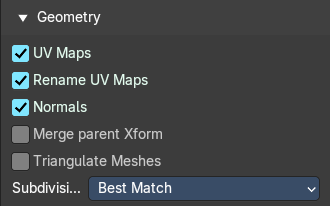
| Entry | What it does |
|---|---|
| UV Maps | Export UV Maps. |
| Rename UV Maps | Rename UV Maps. |
| Normals | Export Normals. |
| Merge Parent XForm | Merge USD primitives with their Xform parents if possible. |
| Triangulated Mesh | Export the geometry triangulated. |
Subdivision
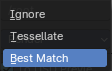
How Subdivision will be mapped to USD.
Rigging
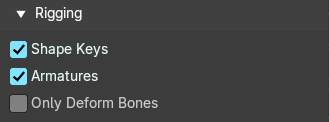
| Entry | What it does |
|---|---|
| Shape Keys | Export Shape Keys. |
| Armatures | Export Armatures |
| Only Deform Bones | Only export deform bones and their parents. |
Materials
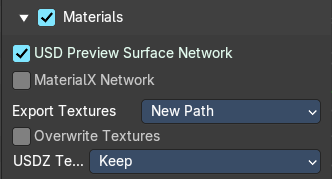
| Entry | What it does |
|---|---|
| USD Preview Surface Network | Generate an approxcimate USD Preview Surface shader representation of a Principled BSDF. |
| MaterialX Network | Generate a MaterailX network representation of the material. |
Export Textures
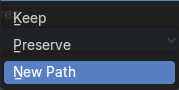
To which path to export referenced textures.
Overwrite Textures
Overwrite existing textures.
USDZ Texture Downsample
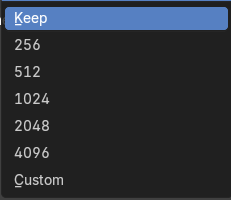
Choose a maximum size for all exported textures.
Experimental
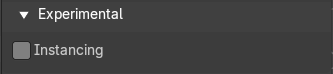
Instancing
Istanced objects are exported as references in USD. Else they are exported as real objects.
Grease Pencil as SVG
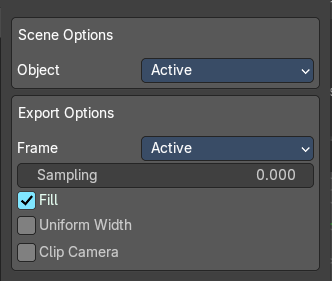
Exports the grease pencil object as a svg file.
Scene Options
Object
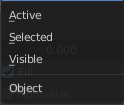
What kind of objects to export from the scene.
Export Options
Frame
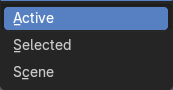
Which frame to include to export.
| Entry | What it does |
|---|---|
| Sampling | Precision of Stroke sampling. Low values gives high precision. Zero disables the feature. |
| Fill | Export strokes with fill enabled. |
| Uniform Width | Export strokes with Uniform Width. |
| Clip Camera | Clip drawings to camera size when exporting. |
Grease Pencil as PDF
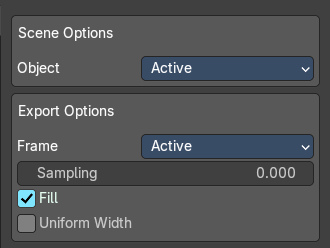
Exports the grease pencil object as a pdf file.
Scene Options
Object
What kind of objects to export from the scene.
Export Options
Frame
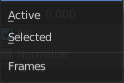
Which frames to include in the export. The active frame or the selected frames. The active frame must not be the selected frames since you can select more than one.
| Entry | What it does |
|---|---|
| Sampling | Precision of Stroke sampling. Low values gives high precision. Zero disables the feature. |
| Fill | Export strokes with fill enabled. |
| Uniform Width | Export strokes with Uniform Width. |
Wavefront(OBJ)
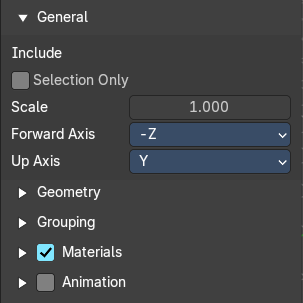
Wavefront Obj is a file format for static geometry. And while you can still create a sequence of meshes for animation with it (some software stores shape keys that way for example), you cannot store animation in the file. It is also unique since it is usually made of two files. A OBJ part that contains the mesh data. And a MTL part that contains the material including the connected textures.
General
| Entry | What it does |
|---|---|
| Include | Selection Only: Just export the selected geometry. |
| Scale | The export scale factor. |
Forward Axis
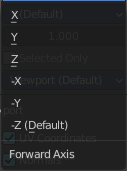
Which axis points foward.
Up Axis
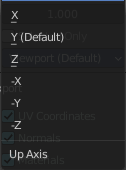
Which axis points upwards.
Geometry
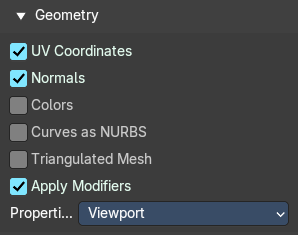
What kind of data to export. The labels should be self explaining.
Note that the OBJ file format cannot carry the Blender material settings. The Obj file format uses a primitive Phong shader.
| Entry | What it does |
|---|---|
| UV Coordinates | Export UV's. |
| Normals | Export Normals. |
| Vertex Colors | Export Vertex Colors. These are Color attributes. |
| Curves as NURBS | Export Curves and Nurbs surfaces as meshes. |
| Triangulated Mesh | Triangulate meshes before export. |
| Apply Modifiers | Apply modifiers before exporting the geometry. |
Properties
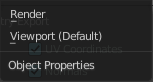
Where to grab the object properties from. They can differ between viewport settings and render settings.
Grouping
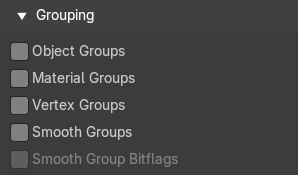
What kind of relationship data to export. The labels should be self explaining.
Note that the OBJ file format cannot carry the Blender material settings. The Obj file format uses a primitive Phong shader.
| Entry | What it does |
|---|---|
| Object Groups | Append mesh name to object name by a ‘_’ |
| Material Groups | Generate an OBJ group for each part of a geometry user a different material. |
| Vertex Groups | Export the name of the vertex group of a face. It is approximated by choosing the vertex group with the most members among the vertices of a face. |
| Smooth Groups | Every smooth-shaded face is assigned group “1” and every flat-shaded face “off” |
| Smooth Groups Bitflags | Only available when Smooth Groups is enabled. Generate bitflag values for the imported groups. |
Materials
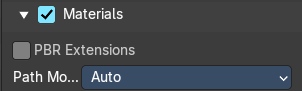
Export Materials Checkbox
Export MTL Library. You need a Principled Node with a texture node connected.
PBR Extensions
Export MTL Library using PBR extensions. Roughness, Metallic, Sheen, Clearcoat, Anisotropic and Transmission.
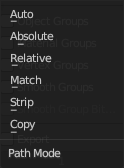
Path Mode
The method to use reference paths.
Animation
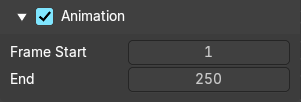
| Entry | What it does |
|---|---|
| Export Animation Checkbox | Export the animation. Note that Obj is no file format that can store animations. What gets exported is a sequence of single meshes. |
| Frame Start / End | The frame start and frame end of the animation. |
Stanford (PLY)
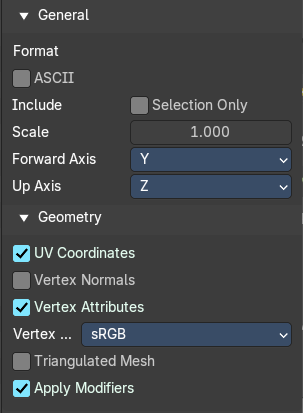
The Stanford Triangle Format was designed to store three-dimensional data from 3D scanners. It is a static file format for mesh data, and cannot carry animation data.
General
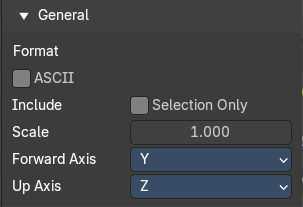
| Entry | What it does |
|---|---|
| Format | Ascii: Ascii format when ticked, else binary format. |
| Include | Selected only: Limit the export to the selected geometry only. Else it exports the whole scene. |
| Scale | The scale factor for the export. |
| Forward Axis | The forward orientation of the geometry. |
| Up Axis | The up orientation of the geometry. |
Geometry
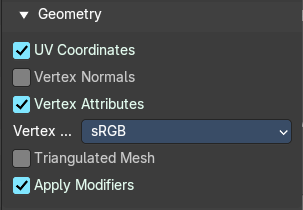
| Entry | What it does |
|---|---|
| UV Coordinates | Export UV Coordinates |
| Vertex Normals | Export Normals. |
| Vertex Attributes | Export vertex attributes. |
Vertex Colors
Vertex Color settings if available. These are Color attributes.
| Entry | What it does |
|---|---|
| Triangulated Meshes | Export the geometry triangulated. |
| Apply Modifiers | Apply modifiers before exporting. |
STL
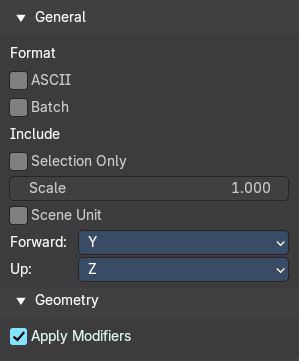
STL (Standard Triangulation/Tessellation Language ) is a standard format for many cad software. It is a format for static geometry, it cannot handle animation. The format is popular for 3d printing purposes.
General
Format
ASCII
You can either export the file as binary format or as ASCII format.
Batch
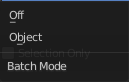
Export all geometry to one file or create a file for every object.
| Entry | What it does |
|---|---|
| Include | Selection Only: Export only the selected object(s). |
| Scale | The import scale. |
| Scene Unit | Apply the scene unit at the geometry at export. |
Forward
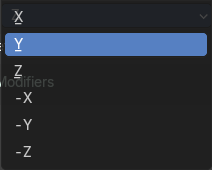
The Forward orientation at export.
Up
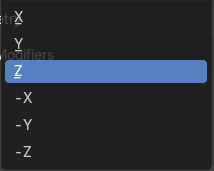
The Up orientation at export.
Geometry
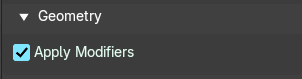
Apply Modifiers
Apply all modifiers before export.
Motion Capture BVH
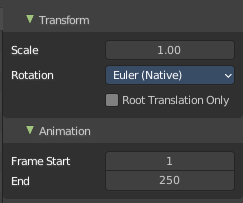
The Biovision Hierarchy (BVH) character animation file format is a file format to carry motion capture data.
Note: To export BVH you need to have an armature with animation selected.
Transform
Scale
The scale factor for the export.
Rotation
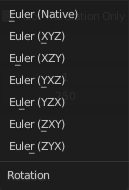
The rotation order that is defined in the BVH file.
Root Translation Only
Only write out translation values for the root bone.
Animation
| Entry | What it does |
|---|---|
| Start Frame | The start frame of the animation. |
| End Frame | The end frame of the animation. |
FBX
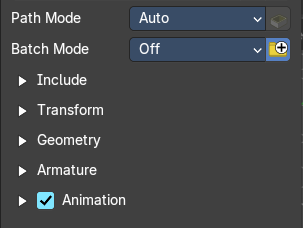
FBX is a proprietary file format from Autodesk. FBX is a general file format that is able to store and load animation.
The FBX exporter is divided into several panels since it would be too much to display all settings at once.
Path Mode
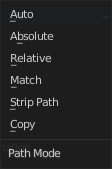
Method used to reference paths. Methods are Auto, Absolute, Relative, Match, Strip Path and Copy.
Embed Textures
Embed textures in the FBX Binary. Enabled only with the method Copy.
Batch Mode
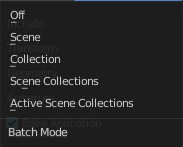
Gives the opportunity to batch export independent parts. Like one file for each scene. Or one file for each collection. Methods are Scene, Collection, Scene Collections and Active Scene Collections.
Batch Own Dir
Setup the export directory for batch export.
Include
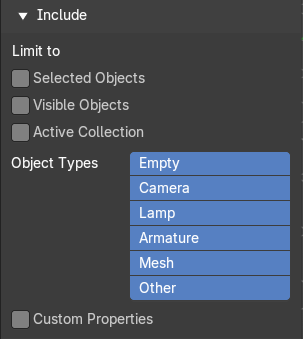
Limit to
| Entry | What it does |
|---|---|
| Selected Objects | Export just selected objects. |
| Visible Objects | Export just visible objects. |
| Active Collection | Export just the active collection. |
| Object Types | What object types in the scene to export. Holding shift key adds to the current selection. |
Custom Properties
Export custom properties if available.
Transform
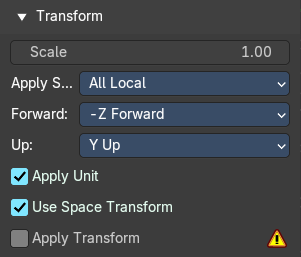
Scale
The scale factor for export.
Apply Scaling
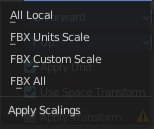
How to apply custom and unit scaling in the generated FBX file.
Forward
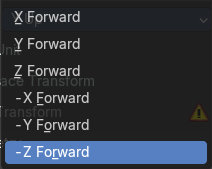
The forward orientation.
Up
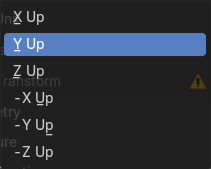
The up orientation.
| Entry | What it does |
|---|---|
| Apply Unit | Take the current Blender Units into account. |
| Use Space Transform | Apply global space transforms to the object rotations. |
| !Experimental! Apply Transform | Bake space transform into object data. |
Geometry
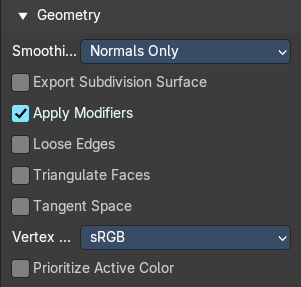
Smoothing
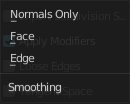
Define what smoothing information gets exported.
| Entry | What it does |
|---|---|
| Export Subdivision Surface | Export the last catmull rom subdivision modifier as FBX subdivision. This does not apply the modifier, even if apply modifiers is enabled. |
| Apply Modifiers | Apply existing modifiers before exporting. |
| Loose Edges | Export loose edges. Loose edges are polygons with just two vertices. |
| Triangulated Meshes | Export the geometry triangulated. |
| Tangent Space | Add binormal and tangent vectors together with the tangent space information. This feature just works with tris or quads. |
Vertex Color
Export vertex color attribute if available. You can export as sRGB 8bit and Linear 32 bit float color bit depths.
Prioritize Active Color
Make sure active color will be exported first. Could be important since some other software can discard other color attributes other than the first one.
Armature
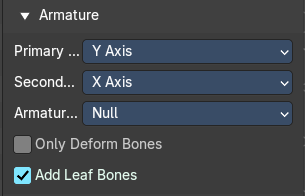
Primary Bone Axis
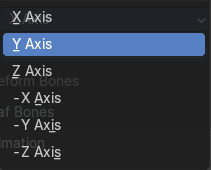
The primary bone axis orientation.
Secondary Bone Axis
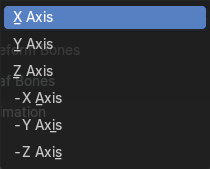
The secondary bone axis orientation.
Armature FBX Node Type
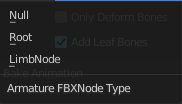
FBX type of node used to represent a Blender Bone.
| Entry | What it does |
|---|---|
| Only Deform Bones | Only export deforming bones, and none deforming ones when they have children. |
| Add Leaf Bones | Add a final bone at the end of every bone chain. |
Animation
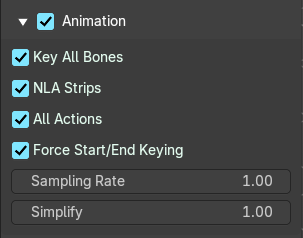
Export baked keyframe animation.
| Entry | What it does |
|---|---|
| Key all Bones | Force export at least one key of animation for all bones. |
| NLA Strips | Export each non muted NLA strip. |
| All Actions | Export each action as a separated FBX anim stack. |
| Force Start/ End Keying | Always add a key frame at start and end of actions for animation channels. |
| Sampling Rate | How often to evaluate animated values, in frames. |
| Simplify | Simplify the animation. 0.0 to disable. 1.0 does not simplify at all. Higher values simplifies the animation then. |
glTF 2.0 (glb, gltf )
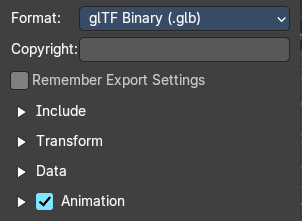
The GL Transmission Format from the Khronos Group is a file format for 3D scenes and models, and is based at the JSON standard.
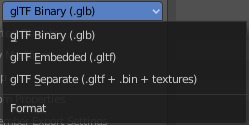
| Entry | What it does |
|---|---|
| Format | Choose between three export formats. Binary, Embedded and Separate. |
| Copyright | Enter a custom copyright string. |
| Remember Export Settings | Store glTF settings in the blender project. You need to save the project then. |
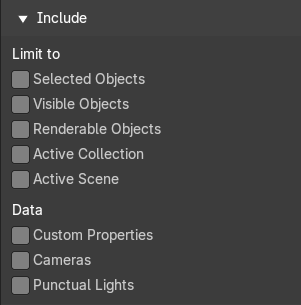
Include
| Entry | What it does |
|---|---|
| Limit to | Limit the export to the chosen selection. · Selected Objects: Export just selected objects. · Visible Objects: Export just visible objects. · Renderable Objects: Export just renderable objects. · Active Collection: Export just selected objects from the active collection. · Active Scene: Export everything in the active scene |
| Data | Custom Properties: Include custom properties in the export. · Cameras: Include cameras in the export. · Punctual Lights: Include punctual lights in the export. |
Transform
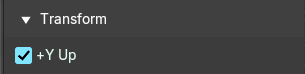
Y+ Up
Export all objects with the Y up orientation.
Data
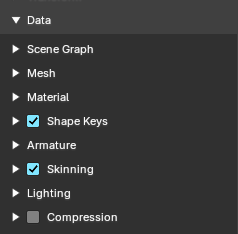
What data to export. The menu items should be self explaining.
Scene Graph sub panel
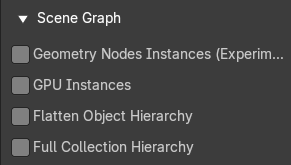
| Entry | What it does |
|---|---|
| Geometry Node Instances !experimental! | — |
| GPU Instances | — |
| Flatten Object Hierarchy | — |
| Full Collection Hierarchy | — |
Mesh sub panel
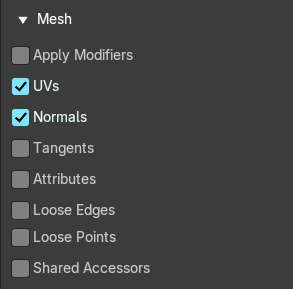
| Entry | What it does |
|---|---|
| Apply Modifiers | Apply all modifiers before export. |
| UV's | Export UV's |
| Normals | Export Normals. |
| Tangents | Export Tangents. |
| Attributes | Export attributes when the names start with an underscore ‘_’ |
| Loose Edges | Export loose edges. |
| Loose Points | Export loose points. |
Vertex Colors
These are Color attributes.
Use Vertex Color
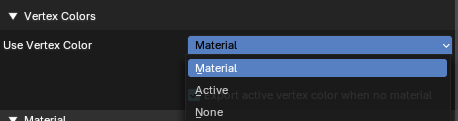
How to export the vertex colors. You can export them from the Material, Active vertex color selected in the mesh data or None.
| Entry | What it does |
|---|---|
| Export all vertex colors | Export all vertex colors, even if not used by any material. If not vertex color is used in the mesh materials, a face COLOR_0 will be created, in order to keep material unchanged. |
| Export active vertex color when no materials | When there is no material on an object, export the active vertex color (color attribute) |
Material sub panel
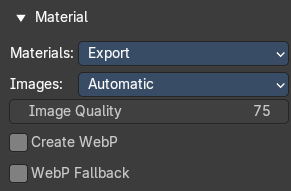
Materials
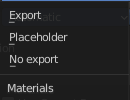
How to deal with materials at export. Export them, export with placeholders, or don't export.
Images
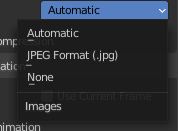
How to deal with images at export.
| Entry | What it does |
|---|---|
| Automatic | exports PNG images as Png Images, and Jpg Images as Jpg images. |
| Jpeg Format (jpg) | Exports all images as jpg. |
| None | Exports no images. |
| Entry | What it does |
|---|---|
| Image Quality | Quality of the image compression. |
| Create WebP | Creates a WebP texture image for every texture image. For images that are already a WebP texture, nothing happens. |
| WebP Fallback | For all WebP textures, create a PNG fallback texture. |
Shape Keys sub panel
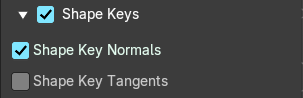
Export Shape Keys. Also called Morph Targets.
| Entry | What it does |
|---|---|
| Export Shape Keys | Toggle to export the shape keys. |
| Shape Key Normals | Export vertex normals with shape keys (morph targets) |
| Shape Key Tangents | Export vertex tangents with shape keys (morph targets) |
| Optimize Shape Keys sub panel | Use Sparse Accessor if better: Try use Sparse Accessor if it saves file size space on disk. · Omitting Sparse Accessor if data is empty: Omits Sparse Accessor if data is empty. |
Armature sub panel
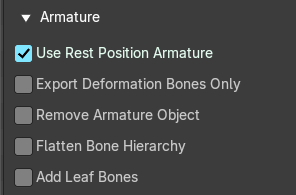
| Entry | What it does |
|---|---|
| Use Rest Position Armatures | Export armatures using the default rest position as joints’ rest pose. When off, current frame pose is used as the rest pose. |
| Export Deformation Bones Only | Export only the bones that have deform influence assigned. |
| Remove Armature Object | Remove Armature object if possible. If Armature has multiple root bones, object will not be removed. |
| Flatten Bone Hierarchy | Flattens bone hierarchy. Useful in cases of non-decomposable transformation matrices. |
Skinning sub panel
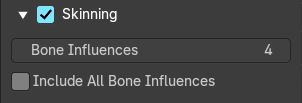
| Entry | What it does |
|---|---|
| Bone Influences | Choose how many Bone influences to export. |
| Include All one Influences | Allow export of all joint vertex influences. Models may appear incorrectly in many viewers. Allow vertex influences greater 4. |
Lighting sub panel
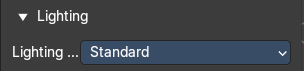
Lighting Mode
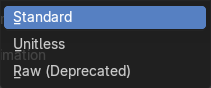
Optional backwards compatibility for non-standard render engines. Applies to lights. Standard is the Physically- based glTF lighting unitcs (cd, lx, nt) and Raw is the standard Blender lighting units, now deprecated.
Compression sub panel
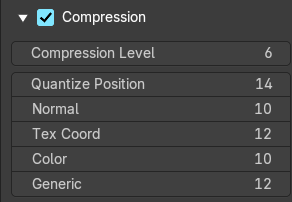
Compress the mesh data using the Draco algorithm.
The settings should be self explaining.
Animation
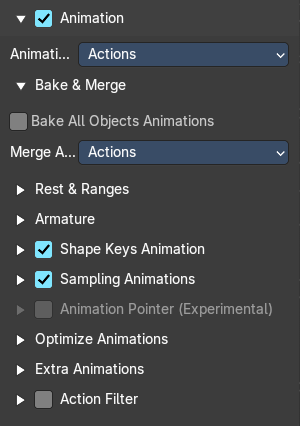
Export active actions and NLA tracks from the animation data.
Animation Mode
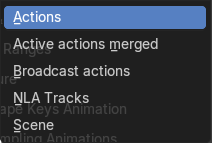
Export actions, active merged actions, NLA tracks or the Scene animation data.
Bake & Merge sub panel
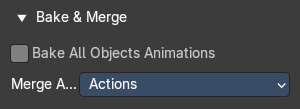
Bake All Objects Animations
Force exporting animation on every object. Can be useful when using constraints or drivers. Also useful when exporting only selection.
Merge Animations
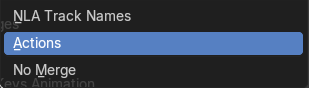
How to merge animations. Not at all, by actions or by NLA track name.
Rest & Ranges sub panel
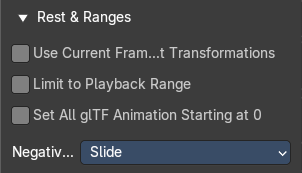
General timeline rules for the animation export.
| Entry | What it does |
|---|---|
| Use Current Frame as Object Rest Transformations | Export the scene in the current animation frame. When off, frame 0 is used as rest transformations for objects. |
| Limit to Playback Range | Clips animations to selected playback range. |
| Set all glTG Animation starting at 0 | Set all glTF animation starting at 0.0s. Can be useful for looping animations. |
Negative Frames
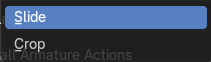
Negative frames are slid or cropped to frame 0.
Armature sub panel
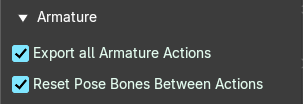
Armature animation export settings.
| Entry | What it does |
|---|---|
| Export all armature Actions | Export all actions bound to a single armature. Note: Option does not support exporting multiple armatures and their actions. |
| Reset pose bones between actions | Reset pose bones between each exported action. This is needed when some bones are not keyed on some animations. |
Shape Keys Animation sub panel
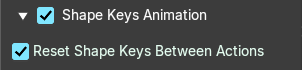
Shape Key animation export settings.
| Entry | What it does |
|---|---|
| Shape Keys Animations Toggle | Toggle to export Shape Key animations. |
| Reset Shape Keys Between Actions | Reset shape keys between each exported action. This is needed when some shape key channels are not keyed on some animations. |
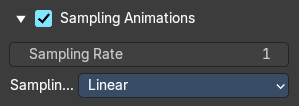
Sampling Animations
| Entry | What it does |
|---|---|
| Sampling Animations Toggle | Toggle to re-sample animations. |
| Sampling Rate | How often to evaluate animated values in frames. |
Sampling Interpolation Fallback
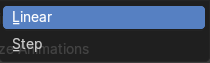
The fallback method for Sampling Interpolation.
| Entry | What it does |
|---|---|
| Linear | Linear interpolation between keyframes. |
| Step | No interpolation between keyframes. |
Animation Pointer !experimental! sub panel
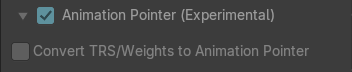
Export material, Light & Camera animation as Animation Pointer.
| Entry | What it does |
|---|---|
| Animation Pointer Toggle | Toggle to set Animation Pointers. |
| Convert TRS/weights to Animation Pointer | Export translations, rotations and scale and weights as Animation Pointers. Uses the KHR_animation_pointer extension. |
Optimize Animations sub panel
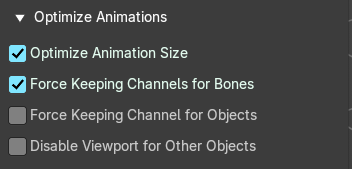
These options help to optimize the file size.
| Entry | What it does |
|---|---|
| Optimize Animation Size | Reduce exported file size by removing duplicate keyframes. |
| Force keeping channels for bones | If all keyframes are identical in a rig, force keeping the minimal animation. When off, all possible channels for the bones will be exported, even if empty (minimum animation: 2 keyframes) |
| Force keeping channel for objects | If all keyframes are identical for object transformations, force keeping the minimal animation. |
| Disable viewport for other objects | When exporting animations, disable viewport for other objects, for performance. |
Extra Animations sub panel
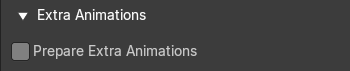
The are considered somewhat experimental and require third-party extensions.
Prepare extra animations
Export additional animations. This feature is not standard and needs and external extension to be included in the glTF file.
Action Filter
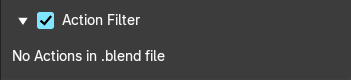
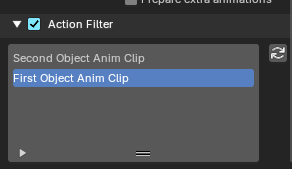
This is a filter that will detect and list all the action clips of a scene. Here you can select one specific action clip.
| Entry | What it does |
|---|---|
| Action Filter Toggle | Turn on the action filter. |
| Action Filter List | Shows all the action clips of the file. |
| Action Filter Refresh | Refreshes the action clip list. |
Export All Collections
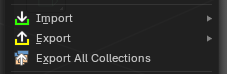
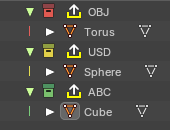
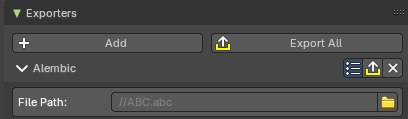
Export all collections that have been assigned Exporter Operators in the Properties Editor Collections Tab. When an Exporter Operator is assigned to a collection, it will export with the Exporter Operator properties and assigned file paths.
Note: To assign Exporter Operators to a collection, use the Exporters panel in the Collections Tab in the Properties Editor.
External Data
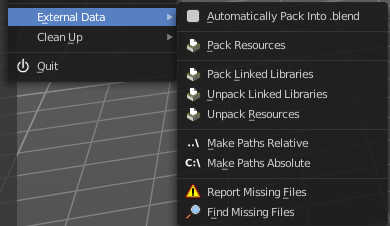
A Blend file may work with external data. Textures for example. Or text files. Or other Blend files, used as libraries.
In this menu you can adjust some settings for external data.
External data like textures or text files can also be packed directly into the blend file. This has some advantages, like that now all data is in one file. But also some drawbacks. Texture editing is for example not longer possible. You would have to export the texture first to be able to save the modifications.
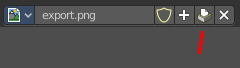
Packed data displays a packed icon in the drop down box. This example is from the header of the UV editor. But you can see this icon also in the material editor at the texture node then.
Library Blend files cannot be packed. Use append instead of link to have the data of another blend file in the blend file.
Automatically Pack into .blend
Automatically pack all files into the blend file. Don't forget to save the blend file. Note that this greys out the two menu items Pack all into Blend and Unpack packed Files.
Pack Resources
Packs all external data into the blend file. Note that the paths must fit, and the external data must be available. A common pitfall here is that the textures uses absolute paths, and are moved to another location meanwhile. See Make all Paths Relative or Find missing Files. Or that you have a not longer existing file linked that shouldn't be in the blend file at all. See Outliner, Orphan Data.

You will get a warning when something is missing.
| Entry | What it does |
|---|---|
| Pack linked libraries | Pack all linked library files into the current .blend file |
| Unpack linked libraries | Unpack all linked library files from the current .blend file to their original locations. |
Unpack Resources
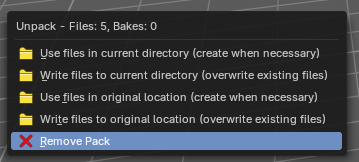
Unpack packed files exports all packed data. You will get an options menu choose between several different unpack methods.
Use Files in current Directory (create when necessary)
Extracts all files to the current directory of the blend file. If the files in the current directory exists, reuse it. Else extract the ones from the blend file.
Note: The title is misleading, it does NOT write the files to the current directory. But into a sub folder, textures for example, in the current directory. Which gets created if necessary. And this option is not to change.
Write files to current directory (overwrite existing files)
Extracts all files to the current directory of the blend file, and writes it to the current directory. Existing content will be overwritten.
Note: The title is misleading, it does NOT write the files to the current directory. But into a sub folder, textures for example, in the current directory. Which gets created if necessary. And this option is not to change.
Use files in original location (create when necessary)
Extracts all files into their original directories where they were before packing them into the blend file. If the files in the original directory exists, reuse it. Else extract the ones from the blend file. This feature uses absolute paths.
| Entry | What it does |
|---|---|
| Write files to original location(overwrite existing files) | Extracts all files into their original directories where they were before packing them into the blend file. If the files in the original directory exists, reuse it. Else extract the ones from the blend file. This feature uses absolute paths. |
| Remove Pack | Removes the internal data. And uses the file in the original directory from where the data was once packed. It does not export anything. It assumes the old folder still exists. |
| Entry | What it does |
|---|---|
| Make Paths Relative | The path will be shortened to just the file name. For example, C:\myfolder\mysubfolder\mytexture.jpg turns into texture.jpg . Relative paths allows you to move the whole project folder to another location. The file paths will still be valid. |
| Make Paths Absolute | Makes all paths absolute. For example, texture.jpg turns into C:\myfolder\mysubfolder\mytexture.jpg. Absolute paths requires the full valid path for all files. |
| Report Missing Files | Scans through the blend file and tries to find missing files. You will get a warning when a missing file is found. |
| Find Missing Files | Browse for the new location of moved files. |
Clean Up
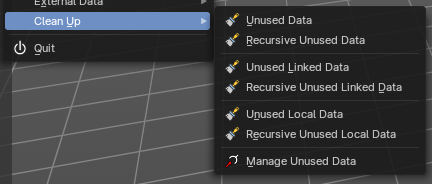
Here you can remove unused data. It removes all data from the scene that is not longer in use and has no fake user assigned to keep it in the scene.

It is similar functionality to the Clean Up feature in the outliner. But more granular. Unused Data does the same than the Clean Up button in the outliner.
| Entry | What it does |
|---|---|
| Unused Data | Removes unused data blocks. |
| Recursive Unused Data | Recursively removes unused data blocks. Means the child objects gets removed too. |
| Unused Linked Data | Removes unused data that is linked to this file. |
| Recursive Unused Linked Data | Recursively removes unused data that is linked to this file. Means the child objects gets removed too. |
| Unused Local Data | Removes unused local data. |
| Recursive Unused Local Data | Recursively removes unused local data. Means the child objects gets removed too. |
Manage Unused Data
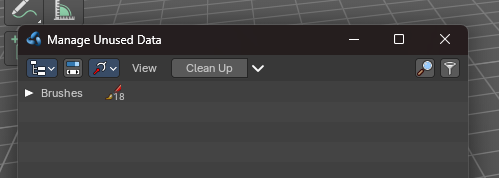
This opens a pop-out floating Outliner Editor in the Unused Data mode, so you can view and manage the unused data.
Quit
Quit Bforartists.