

































































Topbar and Statusbar
Introduction
Introduction
The interface of Bforartists is made of several UI elements and layouts. Topbar and status bar are the two UI elements that are visible in all layouts. They contain some general functionality.
Top bar

The Topbar is the area at the top that is visible in all workspaces. The top bar contains some general menus like File and Edit. And it contains tabs to switch between workspaces.
Header Right Click menu
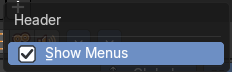
The header has, like all headers, some right click menu functionality.
Collapse Menus
Make the menus in the header appear collapsed.
Navigation Tabs

With the tabs you can switch between different workspaces of an application template.
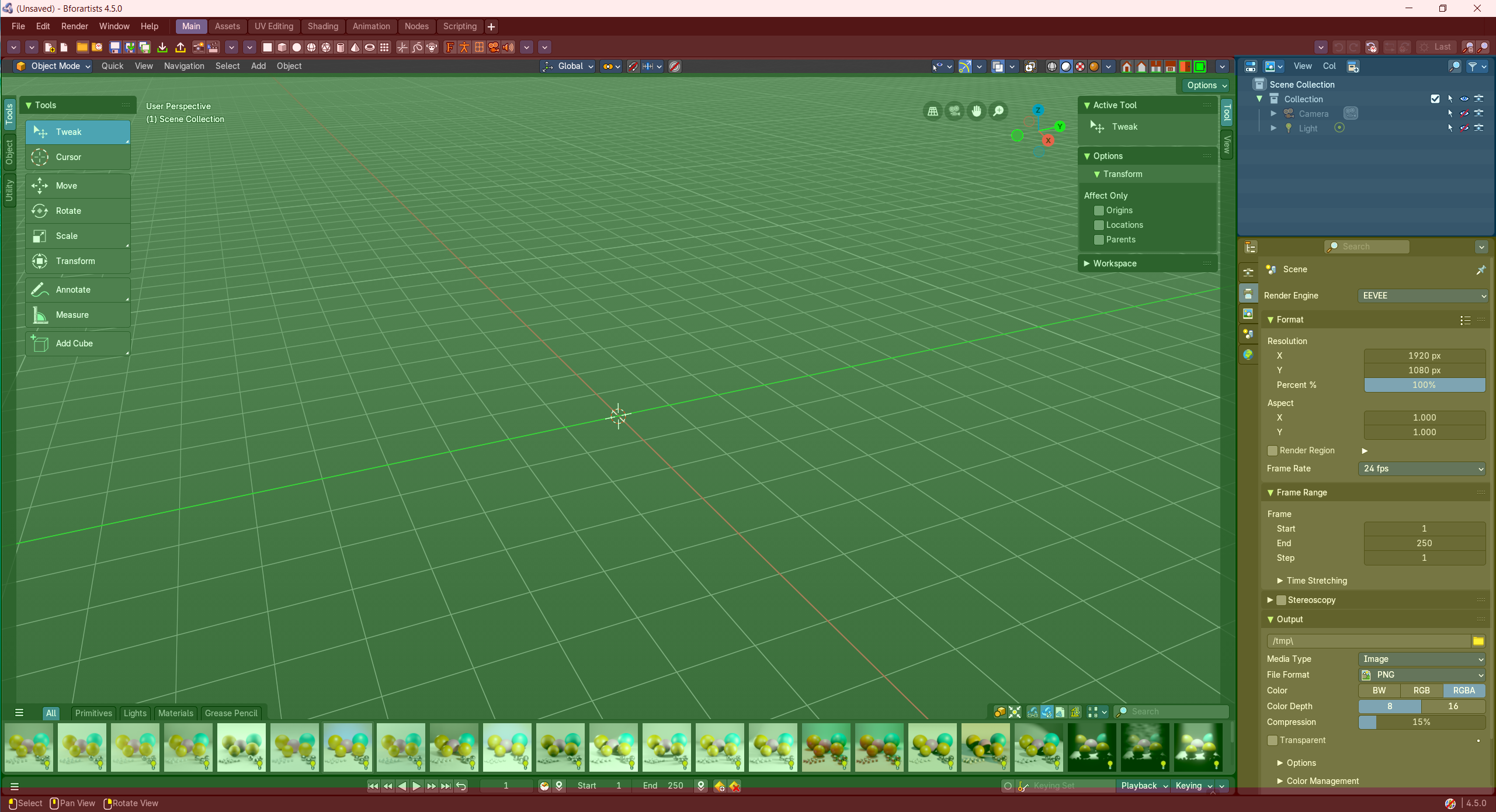
Application templates are a collection of Workspaces. A Workspace is a layout of screens and special setups. Like in what mode the workspace starts, how the windows are arranged and so on.
Every layout is made of several editors. The 3D View, a Properties Editor, the header and footer, the Toolbar at the top, and so on.
Adding a new tab
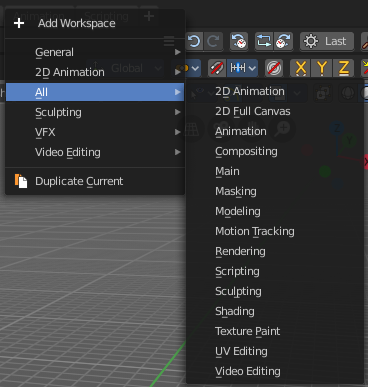
You can also add a new workspace to the existing ones. For this you can either add one of the existing workspaces from the Add Workspace menu that hides under the + button at the right. The greyed out menu items are already added to the Tabs.
The other way is by duplicating the current workspace, tweak it to your needs, and rename it then. This can also be done in the Add Workspace menu. Duplicate Current.
When done, save the startup file to make the change permanent. Be careful here, this overwrites the current startup.blend file with all its settings.
Rename a tab
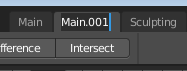
To rename a tab double click at it. The name turns into an edit box. And you can edit the name of the tab.
Workspace Context Menu
Duplicate
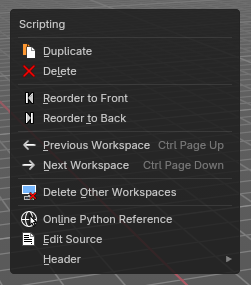
Creates a copy of the current workspace, including its editor layout and active tools.
Useful for experimenting with variations without losing the original setup.
| Entry | What it does |
|---|---|
| Delete | Workspace can also be deleted. To do so right click at the tab that you want to delete, and choose delete in the menu. Note that you can remove your own created workspaces this way. But the default workspaces will remain in the menus. They will just vanish from the tabs. These workspaces are protected so that you cannot remove them completely. |
| Reorder to Front | Moves the selected workspace tab to the beginning of the workspace list (far left). Ideal for prioritizing frequently used layouts. |
| Reorder to Back | Moves the selected workspace tab to the end of the list (far right). Useful for archiving less-used layouts. |
| Previous Workspace | Switches to the workspace tab immediately to the left of the current one. Shortcut-friendly navigation for rapid layout switching. |
| Next Workspace | Switches to the workspace tab immediately to the right. Complements the previous operator for fluid tab cycling. |
| Delete Other Workspaces | Deletes all workspaces except the currently selected one. Great for cleaning up clutter or preparing a minimal layout for export or sharing |
| Online Python Reference | This button opens the Blender python API in your browser. |
| Edit Source | Open the Python script that contains this button in the text editor. Note that you need to have a text editor open. |
Header

Same menu than the right click menu in the header area.
Show Menus
Make the menus in the header appear collapsed.
Topbar Toolbar
The Topbar Toolbar is similar to the Toolbar editor found in the chapter Editors – Toolbar . This is a bunch of double menu entries in a fixed header that you can customize and/or toggle. It is made by lots of tools that already exists elsewhere.
But the value of this double menu here is that it is configurable, making it possible to have the most needed tools at top UI level. This can save a ton of clicks, tabbing, scrolling, and digging in sub menus and you can display what you need for your personal workflow. And hide away the rest.
The toolbar editor uses pure Icon buttons.
Note: Parts of the toolbars are just visible when you are in the right mode. The full Primitives toolbar for example in just visible in Object mode. Parts of it are visible in Edit mode, dependent of what type of object you modify. And in the other modes the toolbars are hidden. Parts of the toolbars are just visible when the right object type in the scene exists / is selected.
As mentioned, the toolbars are double menu entries. For more information of the operators, please refer to the chapter Editors – Toolbar.
Limits
The toolbar does not contain all possible tools. More the opposite, the selection is very limited. Lots of tools depends to be performed in the editor type where you want to do the change. They just work there. And not in other editors. This affects for example most tools in edit mode. And the toolbar is another editor. This limits the available tools in the toolbar dramatically.
The toolbars have a fixed order. The content is not sortable. The sorting is defined by the order of the toolbar type. And inside the toolbar type by the order in the toolbars menu. You would need to have to edit the python file to change this order.
Menus
Topbar Manager menu
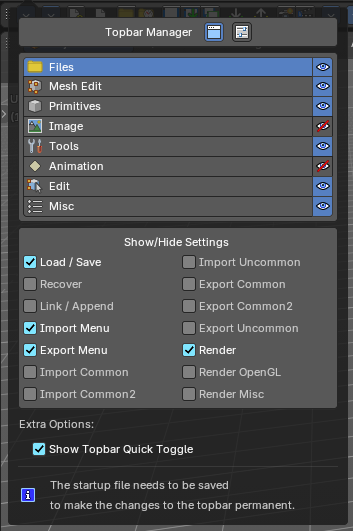
The first entry of a toolbar is the Toolbar Type menu.
Choose what kind of Toolbar Type you want to show. You can show multiple types of toolbars at once.
The toolbar types are independent from each other. You can set up every toolbar to display different content.
Toolbars Menus
Every toolbar type has several toolbars to display.
In the toolbar menu at the front of a toolbar type you can choose what toolbars you want to display.
The toolbars are not independent. This setup is global. When you for example tick the Toolbar File in this toolbar, then it will be displayed in all other toolbars too. Including in other layouts.
These check boxes are also available in the Toolbar Settings Bforartists add-on
Options
Show Topbar

Toggles the visibility of the Topbar Toolbar
BFA Defaults
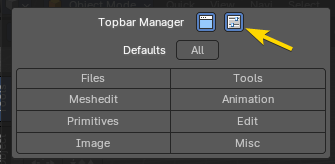
Sets the topbar toolbar to Bforartists defaults, either by all tool types or individual tool types.
Types
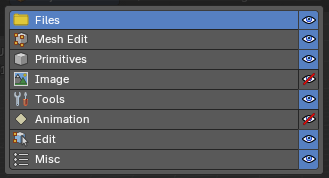
The single toolbar types. Each one of these toggle the type of toolbar groups of operators divided into separate categories.
Clicking on the eye symbol, will show or hide that row from the toolbar.
File - Contains some file menu related tools. Like load save. But also the render menu.
Meshedit - Contains tools for Meshes in Edit Mode.
Primitives - Contains the primitives from the Create tab in the Tool Shelf.
Image - Contains some tools for editing UV
Tools - Contains the content of the Relations panel in Object mode.
Animation - Contains Animation tools
Edit - Contains some tools from Object and Edit Mode
Misc - Contains Undo, and an empty menu as a place holder.

Options
Toggle the sub-group of operatores per type. This is a quick hand method to customize the toolbar sub-groups of operators per type of groups, so you can Hide / Show tool groups of all tool types in one go.
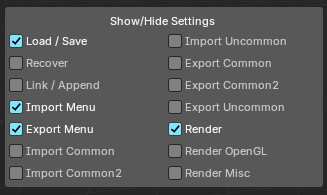
Example: you can toggle the sub-group of operators of the Files type from the check boxes below.
Note: You can only configure the options of one type at a time.
Show Quick Toggles
By default you need to turn on or off the toolbar types in the toolbar type menu. With quick toggles turned on you will reveal small buttons besides the single toolbar types that allows you to expand or collapse the toolbar types from within the toolbar.
Each quick toggle represents a toolbar type.


Status Bar
The statusbar is, besides the Topbar, the second UI element that will display in all workspaces. At least when you don't hide it away. Which is not recommended. Since here you can find the scene information. In this area you will also see informations and warnings about the current operation. For example, you can see the progress bar for rendering in this area. Besides that, the footer also displays some infos about navigation.



The Navigation content changes, dependent of where you have the mouse over, and what tool or functionality you want to use.

In the middle to the right you will see things like the render status bar, when you have a render job running. But in this area you can also see some warnings occur.
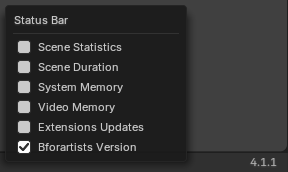
When you right click at the status bar then you will reveal a context menu where you can choose what information you want to display in the right area of the footer. By default the Bforartists version number is shown.
Status Bar Context Menu
| Entry | What it does |
|---|---|
| Scene Statistics | This shows scene statistics like the active collection, object, faces, tris and total objects in the scene. |
| Scene Duration | This shows the scene frame information including total duration and current frame of total frames. |
| System Memory | This shows system memory usage. |
| Video Memory | This shows GPU memory usage. |
Extension Updates
Shows a status icon for the extensions and available updates. Extension are hosted externally in the internet by the Blender foundation.
A click at the icon will open the preferences, where you can adjust the extension settings, and manually update to new versions.
Please beware, some extensions are doubles to the Bforartists ones. So it can happen that you pull the newest functionality, but loose all icons for example. We do our best to keep the addons updated.
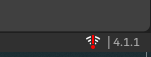
First you will see a warning icon. You have to allow the online access.
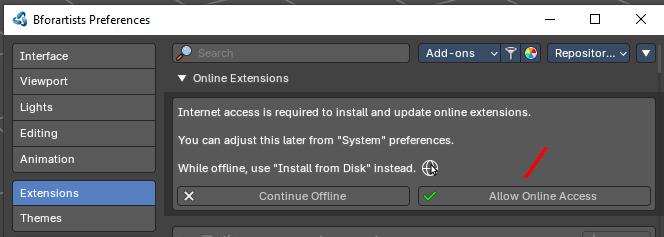
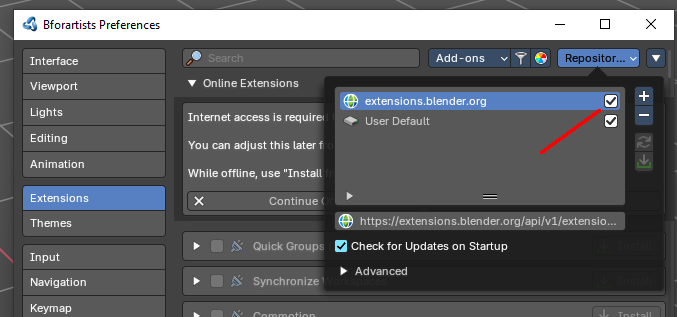
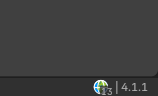
You will see the online status once the online access is granted and the extensions.blender.org webpage is activated. And the icon will now show the number of available updates.
| Entry | What it does |
|---|---|
| Base Blender Version | This displays the version number of the relevant Blender version with subversion. |
| Bforartists Version | This displays the version number of Bforartists. |