

































































Toolbar
The Toolbar editor is what you normally have to avoid in UI design. It's a bunch of double menu entries. It is made by lots of tools that already exists elsewhere.
Introduction

The Toolbar editor is what you normally have to avoid in UI design. It's a bunch of double menu entries. It is made by lots of tools that already exists elsewhere.
But the value of this double menu here is that it is configurable. This customizable toolbar makes it possible to have the most needed tools at top UI level. This can save a ton of clicks, tabbing, scrolling, and digging in sub menus. And you can display what you need for your personal workflow. And hide away the rest.
The toolbar editor uses pure Icon buttons.
Parts of the toolbars are just visible when you are in the right mode. The full Primitives toolbar for example in just visible in Object mode. Parts of it are visible in Edit mode, dependent of what type of object you modify. And in the other modes the toolbars are hidden.
Parts of the toolbars are just visible when the right object type in the scene exists / is selected.
As told, the toolbars are double menu entries. This means the description of the tools in this chapter will be as short as possible. Closer descriptions, like how to use the tools, can be found in the other chapters where the tools comes from. The Tool Shelf in the 3D View for example.
Limits
The toolbar does not contain all possible tools. More the opposite, the selection is very limited. Lots of tools depends to be performed in the editor type where you want to do the change. They just work there. And not in other editors. This affects for example most tools in edit mode. And the toolbar is another editor. This limits the available tools in the toolbar dramatically.
The toolbars have a fixed order. The content is not sortable. The sorting is defined by the order of the toolbar type. And inside the toolbar type by the order in the toolbars menu. You would need to have to edit the python file to change this order.
Just the toolbar types are independent. The check boxes to display the toolbars themselves are global. Means when you set one toolbar type to Primitives, and activate all the primitives types there, then other toolbars with this toolbar type will have the same primitives types displayed.
Menus
Toolbar Manager
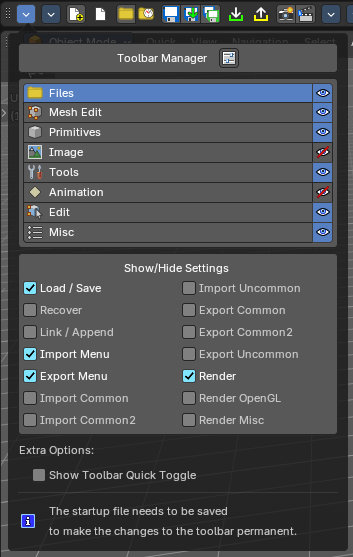
The first entry of a toolbar is the Toolbar Manager.
Choose what kind of Toolbar Type you want to show. You can show multiple types of toolbars at once.
The toolbar types are independent from each other. You can set up every toolbar to display different content.

Toolbars Menus
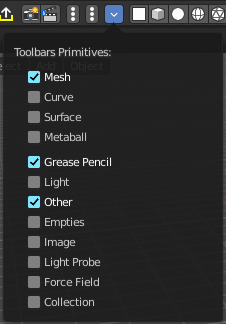
Every toolbar type has several toolbars to display.
In the toolbar menu at the front of a toolbar type you can choose what toolbars you want to display.
The toolbars are not independent. This setup is global. When you for example tick the Toolbar File in this toolbar, then it will be displayed in all other toolbars too. Including in other layouts.
These check boxes are also available in the Toolbar Settings Bforartists add-on
Bforartists Settings add-on
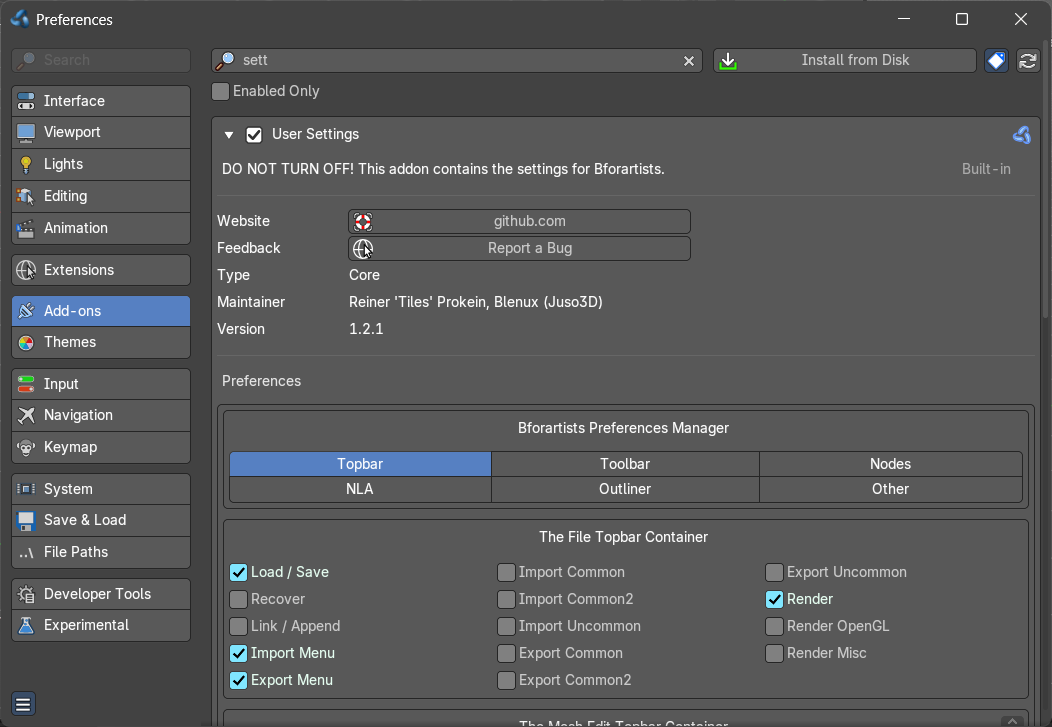
The settings for the toolbar needs to be stored somewhere. This is done in an add-on called Bforartists Settings.
This add-on contains the same check boxes than the single toolbars menus in the toolbar. But all of them at once.
Changing a setting here will automatically save the user preferences.
| Warning! |
| Do not deactivate this add-on. The toolbar will not work then. It depends of the settings in the add-on! |
Create new toolbar
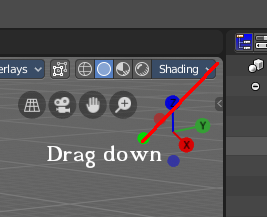
You might want to create your own toolbar for a new layout. Let's explain the needed steps.
First create a new editor type. This can be done by dragging the triangle area of an existing editor. And will create a new editor.
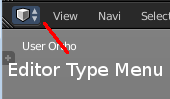
Look at the right of this new created editor type. You will now see a small button. This is the Editor type menu. Open it by clicking at it. And choose Toolbar.
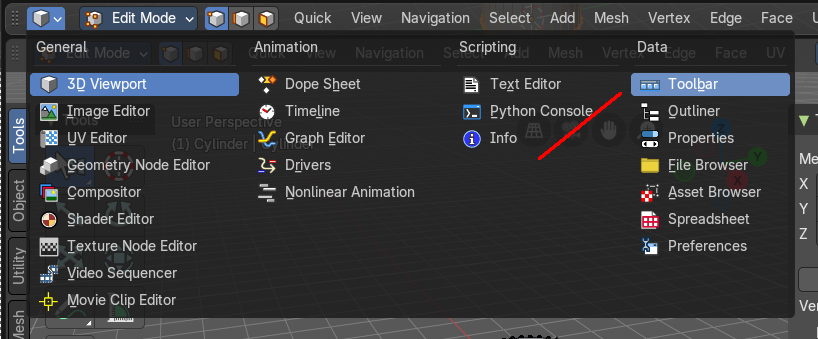
Now set up your new created Toolbar editor. Choose the toolbar types you want to display here. Then choose the toolbars to display.
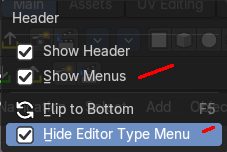
The last step is to hide the Editor Type menu and to untick Show menus. Right click at the toolbar, and tick Collapse Menus and Hide Editortype menu.
Save Toolbar state
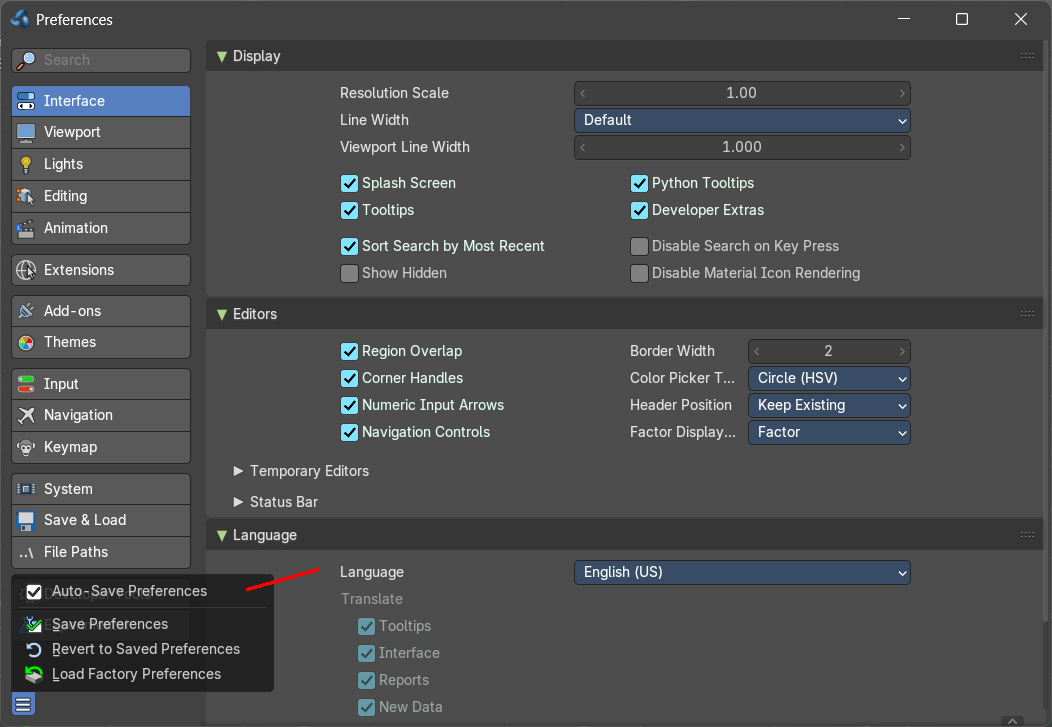
Because of the autosave Preferences feature changes in the menus of the single toolbars are stored automatically.
When you activate for example the Curve toolbar in the Primitives, then the curve toolbar will stay activated when you close and open Bforartists.
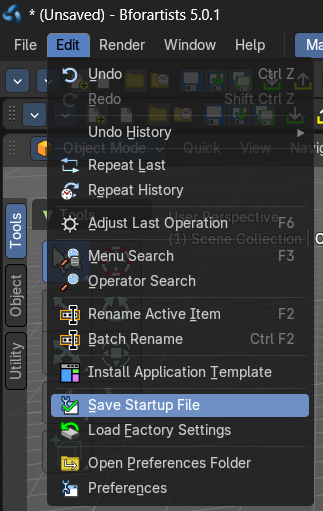
But the general setup of the toolbar type is layout. And so you have to save the startup file to make this changes permanent.
Be careful here. Saving the startup file saves every change at the layout. Including things like having a mesh in the scene.
Toolbar Manager
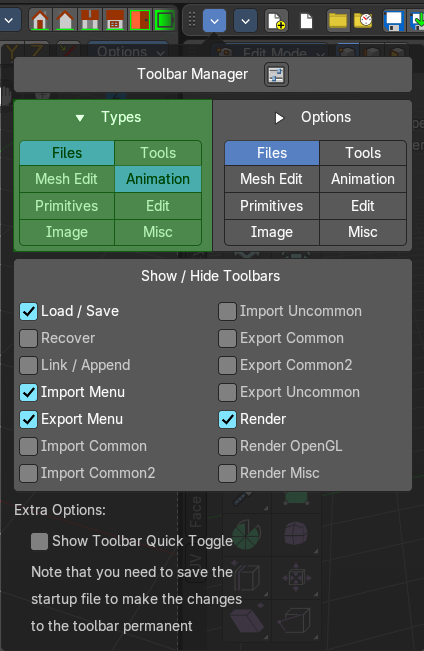
Currently the Toolbar editor contains eight toolbar types.
Toolbar Types
The single toolbar types.
Note that you need to save the startup file to make changes at the toolbar types permanent. They are part of the layout. Which was the only way to allow them to act independent from each other.
File - Contains some file menu related tools. Like load save. But also the render menu.
Mesh Edit - Contains tools for Meshes in Edit Mode.
Primitives - Contains the primitives from the Create tab in the Tool Shelf.
Image - Contains some tools for editing UV
Tools - Contains the content of the Relations panel in Object mode.
Animation - Contains Animation tools
Edit - Contains some tools from Object and Edit Mode
Misc - Contains Undo, and an empty menu as a place holder.
Options
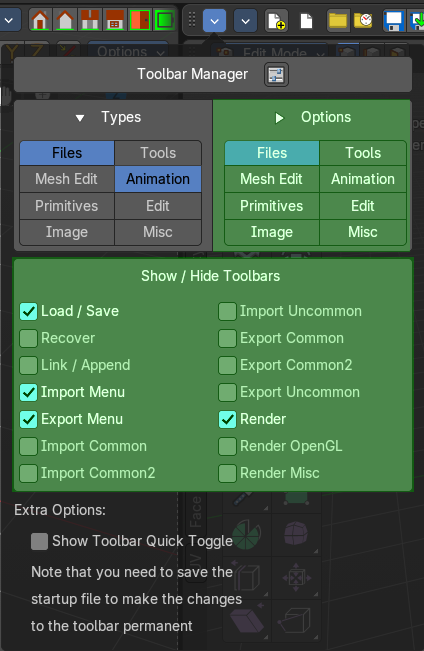
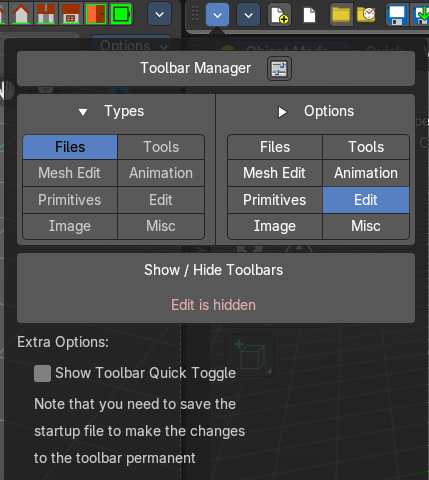
Manage which part of the toolbar types is visible. This is the same content than the Toolbars menus.
Note that not active types will not show the toolbars menus content.
Show Quick Toggle
By default you need to turn on or off the toolbar types in the toolbar type menu. With quick toggles turned on you will reveal small buttons besides the single toolbar types that allows you to expand or collapse the toolbar types from within the toolbar. Each quick toggle represents a toolbar type.


Toolbars File
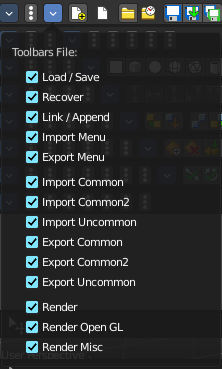
The Toolbars File contains some file menu related tools. Like load save. But also the render menu.
These toolbars are available in all modes.


Available Toolbars
The description of the single buttons goes from left to right.
Load / Save

The original menu items are in the File menu of the Info editor.
File New
Creates a new scene, using the current template.
New from Template
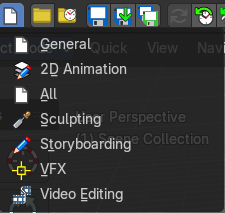
Creates a new scene in one of the templates.
Open
Load a Blend file.
Open Recent
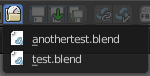
The recent files menu.
| Entry | What it does |
|---|---|
| Save Blend File | Save a Blend file. |
| Save As Blend File | Save a Blend file as. |
| Save Copy | Saves a copy of the Blend file. |
Recover

| Entry | What it does |
|---|---|
| Revert | Reload the saved file. |
| Recover Last Session | Open the last closed file, which is stored in the quit.blend. |
| Recover Autosave | Open an automatically saved file to recover it. Like after a crash. See Preferences , Save & Load , Autosave |
Link Append

The original menu items are in the File menu of the Info editor.
| Entry | What it does |
|---|---|
| Link from Library | Link contend from a Blend file. |
| Append from Library | Append content. |
Import Menu
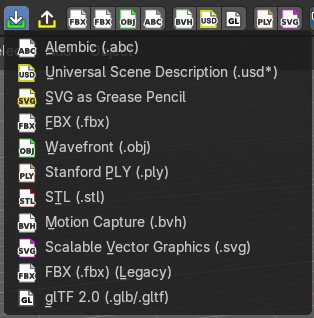
The Import menu is the same menu that you can find in the File menu of the Info editor. It contains all available file import types.
Note that im- and exporters are partially addons that can be disabled. So some content might miss.
Export Menu
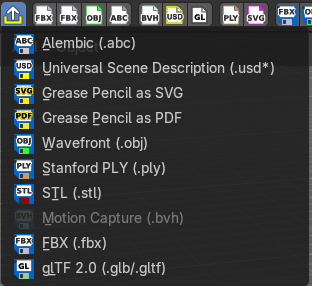
The Export menu is the same menu that you can find in the File menu of the Info editor.
It contains all available file export types.
Note that im- and exporters are partially addons that can be disabled. So some content might miss.
Import Common

The original menu items are in the File menu of the Info editor.
| Entry | What it does |
|---|---|
| Import FBX | Import FBX files. Default version. wm.fbx_import. |
| Import FBX | Import FBX files. Legacy version. import_scene.fbx. |
| Import Obj | Import Object files. |
| Import ABC | Import Alembic files. |
Import Common 2

The original menu items are in the File menu of the Info editor.
| Entry | What it does |
|---|---|
| Import BVH | Import Biovision Motion Capture files. |
| Import USD | Import a USD file. |
| Import glTF2 | Import glTF2 files. |
Import Uncommon

The original menu items are in the File menu of the Info editor.
| Entry | What it does |
|---|---|
| Import PLY | Import PLY files. |
| Import SVG | Import SVG Files. |
Export Common

The original menu items are in the File menu of the Info editor.
| Entry | What it does |
|---|---|
| Export FBX | Export as FBX file. |
| Export Obj | Export as Obj file. |
| Export ABC | Export as Alembic file. |
Export Common 2

The original menu items are in the File menu of the Info editor.
| Entry | What it does |
|---|---|
| Export BVH | Export as BVH Motion Capture file. |
| Export USD | Export as USD file. |
| Export gITF2 | Export as gITF2 file. |
Export Uncommon

The original menu items are in the File menu of the Info editor.
Export PLY
Export as PLY file.
Render

The original menu items are in the Render menu of the Info editor.
| Entry | What it does |
|---|---|
| Render Image | Renders the current scene as an image by using the current offline renderer. Either Blender Internal or Cycles. |
| Render Animation | Renders the current scene as an animation. Either Blender Internal or Cycles. |
Viewport Render

| Entry | What it does |
|---|---|
| Viewport Render Image | Renders the current scene as an image by using the Viewport and Open GL. |
| Viewport Render Animation | Renders the current scene as an animation by using the Viewport and Open GL. |
Render Misc

The original menu items are in the Render menu of the Info editor.
| Entry | What it does |
|---|---|
| Mixdown Audio | Mixdown and export the scene's audio to an audio file. |
| Show/ Hide Render view | Toggles display of Render view. |
| Play rendered animation | Play rendered Animation sequence. |
Toolbars Mesh Edit
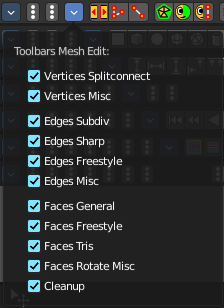
The Toolbars Mesh Edit contains tools for Mesh Objects in Edit Mode. The original menu items are mainly in the Mesh menu in Edit Mode. In the Vertices, Edges and Faces sub menus.
This toolbars shows its content Edit mode.

Available Toolbars
The description of the single buttons goes from left to right.
Vertices Split connect

| Entry | What it does |
|---|---|
| Split | Splits two connected Vertices. |
| Vertex Connect Path | Connect Vertices by their selection order, creating edges, splitting faces |
| Vertex Connect | Connect selected vertices of faces, splitting the face. |
Vertices Misc

| Entry | What it does |
|---|---|
| Convex Hull | Enclose selected vertices in a convex polyhedron. |
| Blend from Shape | Blend in shape from a shape key. |
| Shape Propagate | Apply selected vertex locations to all other shape keys. |
Edges Subdiv

| Entry | What it does |
|---|---|
| Subdivide | Subdivides selected edges. |
| Subdivide Edge Ring | Subdivides an Edge Ring. |
| Un-Subdivide | Unsubdivides selected edges and faces. |
Edges Sharp

| Entry | What it does |
|---|---|
| Mark Sharp | Mark selected edges as sharp. |
| Unmark Sharp | Unmark selected edges as sharp. |
| Set Sharpness by Angle | Set edge sharpness based on the angle between neighbouring angles. |
Edges Freestyle

| Entry | What it does |
|---|---|
| Mark Freestyle Edge | Mark selected edges as Freestyle feature edges. |
| Unmark Freestyle Edge | Unmark selected edges as Freestyle feature edges. |
Edges Rotate

Rotate
Rotate selected edges or adjoining faces.
Edges Misc

| Entry | What it does |
|---|---|
| Edge Split | Split selected edges so that each neighbor face gets its own copy. |
| Bridge Edge loops | Create faces between selected edge loops. |
Faces general

| Entry | What it does |
|---|---|
| Fill | Fill a selected edge loop with faces. |
| Grid Fill | Fill grid from two loops. |
| Beautify Faces | Rearrange some faces to minimize degeneration. |
| Solidify | Create a solid skin by extruding. Compensating for sharp angles. |
| Intersect | Cut an intersection into faces. |
| Boolean Intersect | Cut solid geometry from selected to unselected. |
| Wire Frame | Create a solid wire frame from faces. |
Faces Freestyle

| Entry | What it does |
|---|---|
| Mark Freestyle Face | Mark selected faces for exclusion from freestyle feature edge detection. |
| Unmark Freestyle Face | Unmark selected faces for exclusion from freestyle feature edge detection. |
Faces Tris

| Entry | What it does |
|---|---|
| Poke Faces | Split a face into a fan. |
| Triangulate Faces | Triangulates selected faces. |
| Tris to Quads | Join triangle faces into quads. |
| Split by Edges | Split faces by loose edges. |
Faces Rotate Misc

| Entry | What it does |
|---|---|
| Rotate UV's | Rotate UV coordinates inside faces. |
| Reverse UV's | Flip direction of UV coordinates inside faces. |
| Rotate Colors | Rotate Vertex Colors inside faces. |
| Reverse Colors | Flip direction of Vertex Colors inside faces. |
Cleanup

| Entry | What it does |
|---|---|
| Delete Loose | Delete loose vertices, edges or faces. |
| Decimate Geometry | Simplify geometry by collapsing edges. |
| Degenerate Dissolve | Dissolve zero area faces and zero length edges. |
| Make Planar Faces | Flatten selected faces. |
| Split Non Planar Faces | Split non planar faces that exceeds the angle threshold. |
| Split Concave Faces | Make all faces convex. |
| Fill Holes | Fill in holes (boundary edge loops). |
Toolbars Primitives
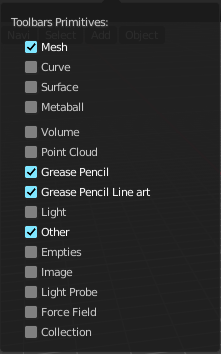

The toolbars Primitives contains the Add items from the Create tab.
The full toolbar with all its content is just available in Object mode. In other modes it hides away. Single types are also visible in Edit mode. When you work at a mesh type, then the Mesh primitives toolbar is visible for example.
Available Toolbars
The description of the single buttons goes from left to right.
Mesh

The Mesh toolbar contains the Mesh primitives.
| Entry | What it does |
|---|---|
| Add Plane | Add a Plane primitive. |
| Add Cube | Add a Cube primitive. |
| Add Circle | Add a Circle primitive. |
| Add UV Sphere | Add a UV Sphere primitive. |
| Add Cylinder | Add a Cylinder primitive. |
| Add Cone | Add a Cone primitive. |
| Add Torus | Add a Torus primitive. |
| Add Grid | Add a Grid primitive. |
Curve
The Curve toolbar contains the Curve primitives.
| Entry | What it does |
|---|---|
| Add Bezier | Add a Bezier curve primitive. |
| Add Circle | Add a Circle curve primitive. |
| Add Nurbs Curve | Add a Nurbs Curve primitive. |
| Add Nurbs Circle | Add a Nurbs Circle curve primitive. |
| Add Nurbs Path | Add a Nurbs Path curve primitive. |
Surface
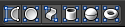
The Surface toolbar contains the Surface primitives.
| Entry | What it does |
|---|---|
| Add Surface Curve | Add a Nurbs Surface curve primitive. |
| Add Surface Circle | Add a Nurbs Surface Circle primitive. |
| Add Surface Patch | Add a Nurbs Surface Patch primitive. |
| Add Surface Cylinder | Add a Nurbs Surface Cylinder primitive. |
| Add Surface Sphere | Add a Nurbs Surface Sphere primitive. |
| Add Surface Torus | Add a Nurbs Surface Torus primitive. |
Metaball
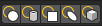
The metaball toolbar contains the Metaball primitives.
| Entry | What it does |
|---|---|
| Add Metaball of type Ball | Add Metaball of type Ball primitive. |
| Add Metaball of type Capsule | Add Metaball of type Capsule primitive. |
| Add Metaball of type Plane | Add Metaball of type Plane primitive. |
| Add Metaball of type Ellipsoid | Add Metaball of type Ellipsoid primitive. |
| Add Metaball of type Cube | Add Metaball of type Cube primitive. |
Point Cloud

The Point Cloud toolbar contains the Point Cloud primitive.
Add Point Cloud
Add a point cloud primitive.
Volume

The Volume toolbar contains the Volume primitives.
| Entry | What it does |
|---|---|
| Import OpenVDB Volume | Imports a OpenVDP volume object. |
| Add Volume | Adds a volume object. |
Grease Pencil

| Entry | What it does |
|---|---|
| Blank | Inserts a blank Grease Pencil Object. A blank Grease Pencil Object has just one color |
| Stroke | Inserts a Stroke Grease Pencil Object. A Stroke Grease Pencil Object has a few standard colors already. |
| Monkey | Inserts a Monkey Grease Pencil Object. This is a grease pencil object which contains the shape of a monkey already. This monkey is an example object. |
Scene Line Art
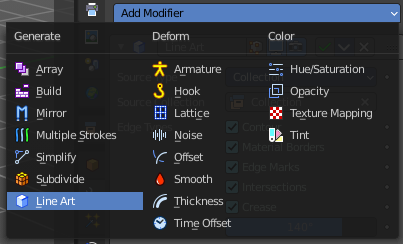
Line Art is a modifier for the grease pencil object. Scene Line Art adds a grease pencil object with the Line Art Modifer set up for the whole scene.
Collection Line Art
Line Art is a modifier for the grease pencil object. Scene Line Art adds a grease pencil object with the Line Art Modifer set up for a collection.
| Entry | What it does |
|---|---|
| Lamp | The Lamp toolbar contains the different lamp types. · Add Lamp of type Point: Add Lamp of type Point. · Add Lamp of type Sun: Add Lamp of type Sun. · Add Lamp of type Spot: Add Lamp of type Spot. · Add Lamp of type Area: Add Lamp of type Area. |
| Other | The Other toolbar contains some other ground types like bones and text. · Add Text: Add a Text object. · Add Armature: Add an Armature object. · Add Lattice Deformer: Add a Lattice deformer object. · Add Lattice: Add a Lattice object. · Add Camera: Add a Camera object. · Add Speaker: Add a Speaker object. |
| Empties | The Empties toolbar contains the available empty types. · Add Empty of type Plain Axes: Add Empty of type Plain Axes. · Add Empty of type Sphere: Add Empty of type Sphere. · Add Empty of type Circle: Add Empty of type Circle. · Add Empty of type Cone: Add Empty of type Cone. · Add Empty of type Cube: Add Empty of type Cube. · Add Empty of type Single Arrow: Add Empty of type Single Arrow. · Add Empty of type Arrows: Add Empty of type Arrows. · Add Empty of type Image: Add Empty of type Image. |
Image

Images as Planes
Creates a mesh plane with an image.
Light Probe

| Entry | What it does |
|---|---|
| Sphere | Adds a reflective light probe in sphere shape. |
| Plane | Adds a reflective light probe in plane shape. |
| Volume | Adds a volumetric array light probe. |
Force Field

The Force Field toolbar contains the available Force field types.
| Entry | What it does |
|---|---|
| Add Physics Effector of Type Boid | Add Physics Effector of Type Boid. |
| Add Physics Effector of Type Charge | Add Physics Effector of Type Charge. |
| Add Physics Effector of Type Curve Guide | Add Physics Effector of Type Curve Guide. |
| Add Physics Effector of Type Drag | Add Physics Effector of Type Drag. |
| Add Physics Effector of Type Force | Add Physics Effector of Type Force. |
| Add Physics Effector of Type Harmonic | Add Physics Effector of Type Harmonic. |
| Add Physics Effector of Type Lenard-Jones | Add Physics Effector of Type Lenard-Jones. |
| Add Physics Effector of Type Magnetic | Add Physics Effector of Type Magnetic. |
| Add Physics Effector of Type Fluid Flow | Add Physics Effector of Type Fluid Flow. |
| Add Physics Effector of Type Texture | Add Physics Effector of Type Texture. |
| Add Physics Effector of Type Turbulence | Add Physics Effector of Type Turbulence. |
| Add Physics Effector of Type Vortex | Add Physics Effector of Type Vortex. |
| Add Physics Effector of Type Wind | Add Physics Effector of Type Wind. |
Collection
Add Collection Instance
Add a collection instance.
Toolbars Image

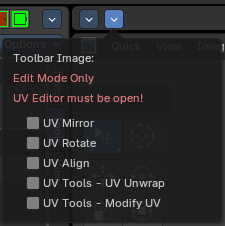
The toolbars Image contains some image related tools. At the moment this toolbar contains just tools to edit UV meshes. This means that you have to be in Edit mode with an UV mapped mesh to make the tools active.
The original menu items are in the Image menu of the UV Image Editor.
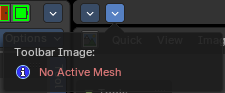
Note that the tools does not show when you are not in edit mode. And the tools just works for the UV Editor. And of course you need a mesh object.
Available Toolbars
The description of the single buttons goes from left to right.
UV Mirror

Mirror along X or Y axis.
UV Rotate

Rotate by 90 degrees clockwise or counter clockwise.
| Entry | What it does |
|---|---|
| UV Align | The UV Align toolbar contains tools to clean up and align the selected UV geometry. · Align Straighten: Align UV's along the line defined by the end points of the selection. · Align Straighten X: Align UV's along the line defined by the end points along the X axis. · Align Straighten Y: Align UV's along the line defined by the end points along the Y axis. · Align Auto: Automatically choose the axis on which there is most alignment already. · Align X: Align UV's at X axis. · Align Y: Align UV's at Y axis. |
| Align Rotation | Aligns the rotation of the selected geometry. |
UV Unwrap

The UV Common toolbar contains tools for unwrapping.
| Entry | What it does |
|---|---|
| Mark Seam | Mark selected UV Edges as Seam. |
| Clear Seam | Remove Seam from selected UV Edges. |
| Seams from Islands | Marks the border edges of the UV patches as Seam. |
| Unwrap Angle Based | Unwraps the selected geometry with the Angle based ( ABF ) method. |
| Unwrap Conformal | Unwraps the selected geometry with the Conformal ( LSCM ) method. |
| Unwrap Minimize Stretch | Unwraps the selected geometry with the SLIM method. |
| Cube Projection | Maps the selected geometry with a cube projection. |
| Cylinder Projection | Maps the selected geometry with a cylinder projection. |
| Sphere Projection | Maps the selected geometry with a sphere projection. |
UV Modify UV

The UV Modify toolbar contains tools to clean up the UV mapping.
| Entry | What it does |
|---|---|
| Pin | Pins the selected vertices. |
| Unpin | Unpins the selected vertices. |
| Weld | Weld the selected UV vertices together. |
| Remove Doubles UV | Removes double vertices |
| Average Island Scale | Average the size of separated UV patches, based at their size in 3D space. |
| Pack Island | Packs the UV patches so that they fit best into the UV space, and as few texture space as possible is wasted. |
| Copy mirrored UV Coordinates | Copy mirrored UV Coordinates at X axis based on a mirrored mesh. |
Toolbars Tools
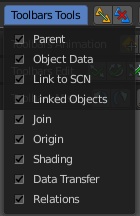
The Toolbars Tools contains some tools in object mode. The content from the relations panel and the edit panel in the tool shelf. And one tool in Edit mode. Make Vertex Parent. Since this is also part of the relations panel.


Available Toolbars
The description of the single buttons goes from left to right.
Parent

| Entry | What it does |
|---|---|
| Make Parent | Parents the selected object to the active object. |
| Clear Parent | Removes the parenting. |
Object to Data

Make Single User
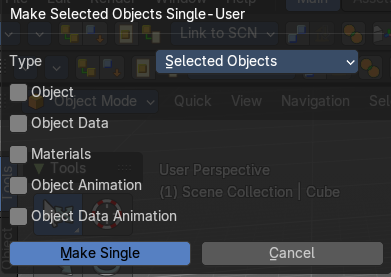
Make linked data local to each object. This operator opens a popup to adjust further settings.
Link Data
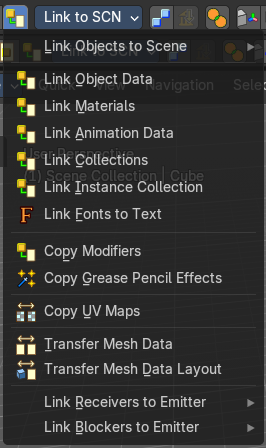
Apply active object links to other selected objects.
This button is a menu to choose the link method.
Link to SCN
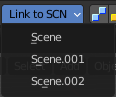
Link to SCN
Link selection to another scene. This other scene has of course to exist.
Linked Objects

| Entry | What it does |
|---|---|
| Make Local | Make library linked data blocks local to this file. |
| Make Library Override | Add empty object to become local replacement data of a library linked object. |
Join

Join
Join selected objects into active objects.
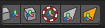
Origin
| Entry | What it does |
|---|---|
| Set Geometry to Origin | Sets the geometry to origin. |
| Set Origin to Geometry | Sets the origin to geometry. |
| Set Origin to 3D cursor | Sets the origin to the 3D cursor. |
| Set Origin to Center of Mass | Sets the origin to the center of mass. |
| Set Origin to Center of Volume | Sets the origin to the center of volume. |
Shading

Shade Smooth
Shades the geometry smooth.
Shade Smooth by Angle

Activate auto smooth, and define the angle. Note that you need to call the adjust last operator here to set the angle. Either with the Last button. Or with the hotkey F6.
Shade Flat
Shades the geometry flat.
Data Transfer

| Entry | What it does |
|---|---|
| Transfer Mesh Data | Transfers mesh data. |
| Transfer Mesh Data Layout | Transfers the mesh data layout. |
| Join UV's | Transfer UV Maps. |
| Entry | What it does |
|---|---|
| Relations |  The Relations toolbar contains one tool in Edit mode. Make Vertex Parent. The Relations toolbar contains one tool in Edit mode. Make Vertex Parent. |
| Make Vertex Parent | Parents an object to the selected vertice(s). |
Toolbars Animation
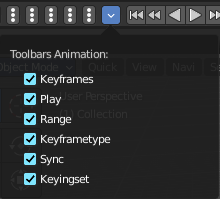
The Toolbars Animation contains tools around animation. The Toolbars Range, Play, Sync and Keying set are the toolbars from the Timeline. But separated into four independent parts.

Available Toolbars
The description of the single buttons goes from left to right.
Keyframes
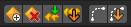
The Keyframes toolbar contains some keyframe tools. The original menu items can be found in the Tool Shelf in the Animation tab in the Animation panel.
The original menu items are in the Tool Shelf in the 3D View, in the Animation tab in the Animation panel.
| Entry | What it does |
|---|---|
| Insert Keyframe Menu | When there is no keying set assigned to the currently selected object, then this button is a menu to choose a keying set. When there is already a keying set assigned, then you can record a keyframe with this button |
| Delete Keyframe | Deletes the current Keyframe |
| Bake Action | Bakes the animation to a new action |
| Remove Animation | Remove all keyframe animation for selected objects |
| Calculate Object Paths | Calculate motion paths for the selected objects. |
| Clear Object Paths | Clears motion paths for the selected objects. |
Play

| Entry | What it does |
|---|---|
| Jump to Endpoint | Jumps to beginning of animation. |
| Jump to Keyframe | Jumps to the previous keyframe Play Animation. |
| Play Animation | Plays animation reversed. |
| Play Animation | Plays animation forward. |
| Jump to Keyframe | Jumps to next keyframe. |
| Jump to Endpoint | Jumps to end of animation. |
| Current Frame | The current frame number. |
Range

| Entry | What it does |
|---|---|
| Use Preview Range | Use an alternative start/end frame grange for animation playback and OpenGL renders instead of the Render Properties start/end frame range. |
| Lock Frame Selection to Range | Don't allow frame to be selected with mouse outside of frame range. |
| Frame Start | The frame start point. |
| Frame End | The frame end point. |
Keying set

Insert Keyframe
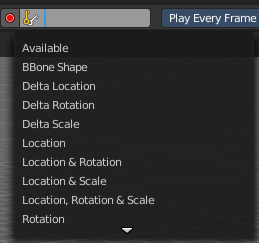
Insert a keyframe.
| Entry | What it does |
|---|---|
| Delete Keying set Keyframe | Delete Keyframe. |
| Use Keyframe Insert Auto | Auto insert keyframes at manipulation. |
| Keying set Drop down box | This is a drop down box to choose the keying set method. |
Sync
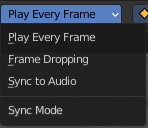
Sync is a drop down box where you can adjust the syncing method.
Keyframe Type
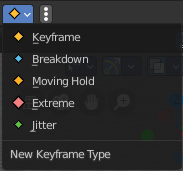
Keyframe Type is a drop down box to choose in what color the keyframe gets displayed in the Dope Sheet Editor.
Toolbars Edit
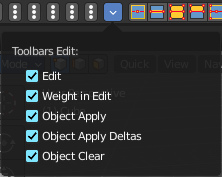
The Toolbars Edit contains various toolbars around editing. Some content just shows when an object exists in the scene. Some content is visible in Object mode. Some content is visible in Edit mode.


Available Toolbars
The description of the single buttons goes from left to right.
Edit

The Edit toolbar is just visible in Edit Mode. The original menu items are in the Tool Shelf in the 3D View in the Tools tab in the Mesh Tools panel.
| Entry | What it does |
|---|---|
| Dissolve Vertices | Dissolve Vertices. |
| Dissolve Edges | Dissolve Edges. |
| Dissolve Faces | Dissolve Faces. |
| Remove Doubles | Removes double vertices. |
| Limited Dissolve | Dissolve Edges and Vertices limited by the surrounding angle. |
| Dissolve Selection | Dissolve Geometry dependent of selection mode. |
| Edge Collapse | Collapse selected edges. |
Merge
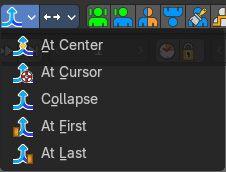
Merges selected geometry. This is a drop down box to choose where to merge.
Separate
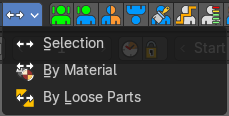
Separate the selection, and create a new object from it. This is a drop down box to choose the separate method.
Weight in Edit

The Weight in Edit toolbar is just visible in Edit Mode for normal meshes, and Pose mode when you have a rigged character selected. The original menu items are in the Tool Shelf in the 3D View in the Tools tab in the Weight Tools panel. You need to have a Vertex Group applied.
| Entry | What it does |
|---|---|
| Normalize all | Normalizes the whole mesh. |
| Normalize | Normalizes the selection |
| Mirror | Mirrors the selection. |
| Invert | Inverts the weighting. |
| Clean | Remove Vertex Assignments that are not required. |
| Quantize | Set Weights to a fixed number of steps. |
| Levels | Add some offset and multiply with some gain the weights of the active vertex group. |
| Smooth | Smooth weights for selected vertices. |
| Limit Total | Limit deform weights. |
Object Apply

The Object Apply toolbar is just visible in Object Mode. The original menu items are in the Object menu in the 3D View. The Apply menu.
| Entry | What it does |
|---|---|
| Apply Location | Apply location. |
| Apply Rotation | Apply Rotation. |
| Apply Scale | Apply Scale. |
| Apply All | Apply Location, Rotation, Scale. |
| Apply Rotation & Scale | Apply Rotation, Scale. |
| Apply Visual Transform | Apply Visual Transform. |
| Make Instances real | Make Duplicates attached to this object real. |
| Apply Parent Inverse | Apply the object’s parent inverse to its data |
| Visual Geometry to Objects | Convert geometry and instances into editable objects and collections. |
Object Apply Deltas
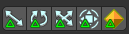
Object Apply deltas converts normal object transforms to delta transforms. Any existing delta transform will also be included.
| Entry | What it does |
|---|---|
| Location | Apply location. |
| Rotation | Apply Rotation. |
| Scale | Apply Scale. |
| All | Apply Location, Rotation, Scale. |
| Transforms to Delta Anims | Convert object animation for normal transforms to delta transforms. |
Object Clear
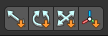
The Object Clear toolbar is just visible in Object Mode. The original menu items are in the Object menu in the 3D View. The Clear menu.
| Entry | What it does |
|---|---|
| Location | Resets the position of the object to zero. |
| Rotation | Resets the object's rotation to zero. |
| Scale | Resets the object's scale to 1. |
| Origin | Resets the Origin Position. |
Toolbars Misc
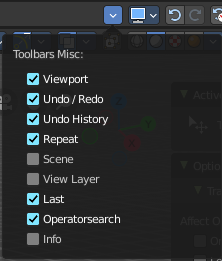
The Toolbars Misc contains some miscellaneous tools. Undo, the Scene drop down box, Last Operator, Operator Search and scene informations.

Available Toolbars
The description of the single buttons goes from left to right.
Viewport
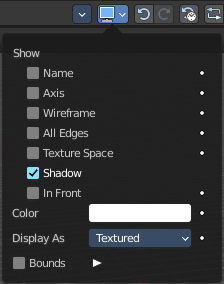
Displays the viewport panel from the object properties tab in the properties editor.
This panel allows you to adjust the display of the selected object.
Note that you need to have an object selected to show this dropdown panel.
Undo / Redo

| Entry | What it does |
|---|---|
| Undo | Undo the last step |
| Redo | Redo the last undone step |
Undo History

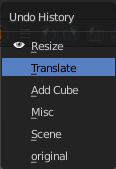
Undo History
A click at at the button reveals a list of the last operations where you can undo more than one step.
Repeat

Repeat
Repeats the last action
Repeat History
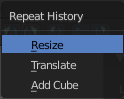
A click at at the button reveals a list of the last operations to choose from which undo step to repeat.
Scene

The Scene drop down box to choose and create a new scene data block. The original drop down box is in the Properties editor in the Scene Properties tab in the Scene panel.
View Layer

Show the active view layer and switch between available view layers.
The original drop down box is in the Properties editor in the View Layer Properties in the View Layer panel.
Adjust last Operation

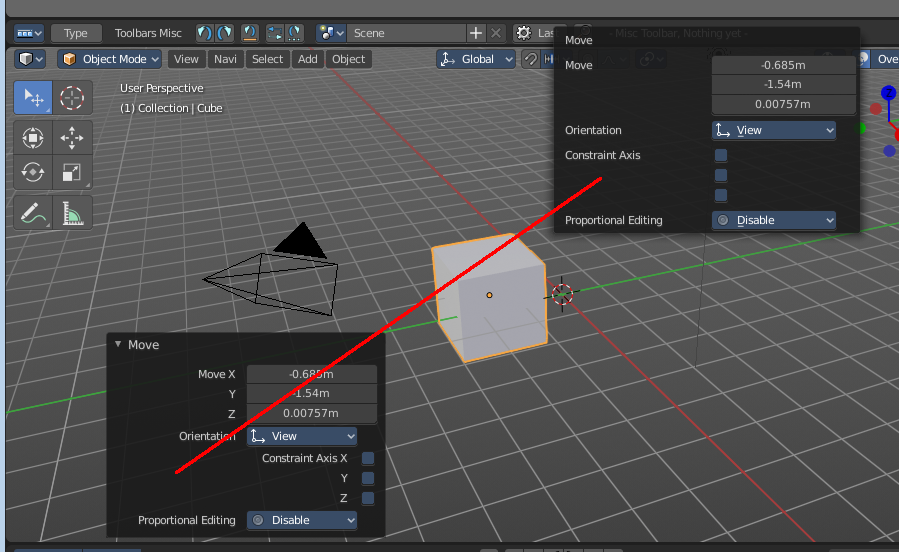
Adjust the latest operation. This is the same panel than the one in the 3D view down left. At least when it comes to content.
Operatorsearch

This toolbar contains two search options. The search menu allows you to search for menus. The operator search menu allows you to search for single operators.
Search Menu
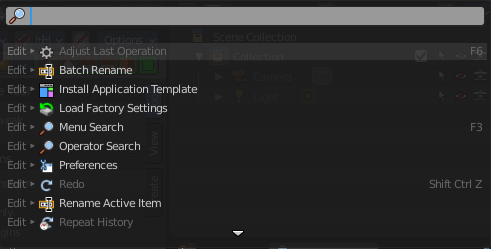
The original menu item is in the header in the Edit menu. It lists the available menus, and allows searching.
This button calls the menu search menu.
Search Operator
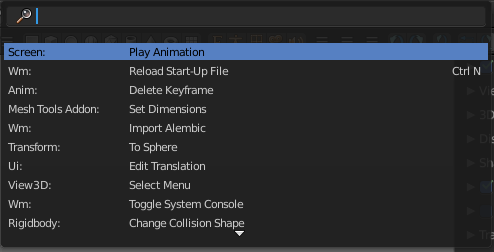
The original menu item is in the header in the Edit menu.
This button calls the Operator search menu. It lists the available operators, and allows searching.
Info

The Info toolbar displays the scene statistics.