

































































Spreadsheet
The Spreadsheet Editor allows you to inspect geometry attributes.
Spreadsheet
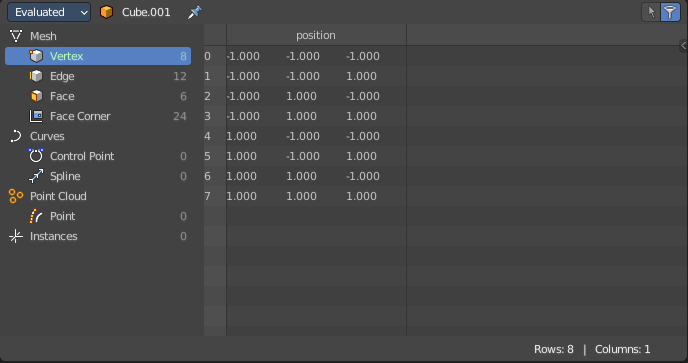
The Spreadsheet Editor allows you to inspect geometry attributes.
The geometry nodes editor allows you to especially inspect specific nodes and their output.
Geometry nodes have a switch for that in the header, which can be turned on or off.
Editortype Menu
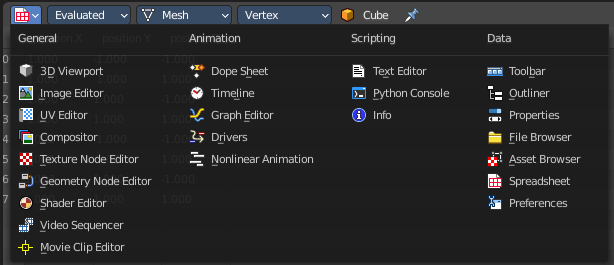
Bforartists is made of several editor types. Headers can display a menu where you can switch to other editor types.
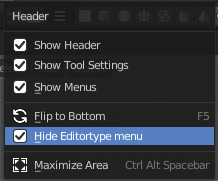
This menu is hidden by default. It is meant to edit the layouts, and should not be necessary for regular work. You can reveal it in the header right click menu.
Header tools and options

Selected Only
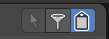
This option is only available if the object is in Edit Mode. When checked, only data for the selected mesh elements is shown.
| Entry | What it does |
|---|---|
| Row Filter | Turn on or off the row filters defined in the sidebar. |
| Internal Attributes | Display attributes with names starting with a period that are meant for internal use. |
View menu
Toolbar
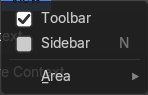
Shows or hides the toolbar at the left.
Sidebar
Shows or hides the sidebar at the right.
Area
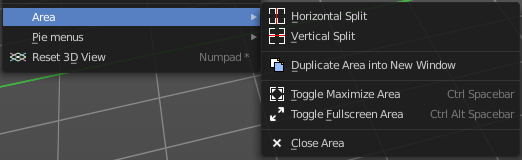
This menu contains general view functionality. And exists in most other editor types too.
| Entry | What it does |
|---|---|
| Horizontal Split | Splits the current view horizontally into two independent editor windows. |
| Vertical Split | Splits the current view vertically into two independent editor windows. |
Duplicate Area into New Window
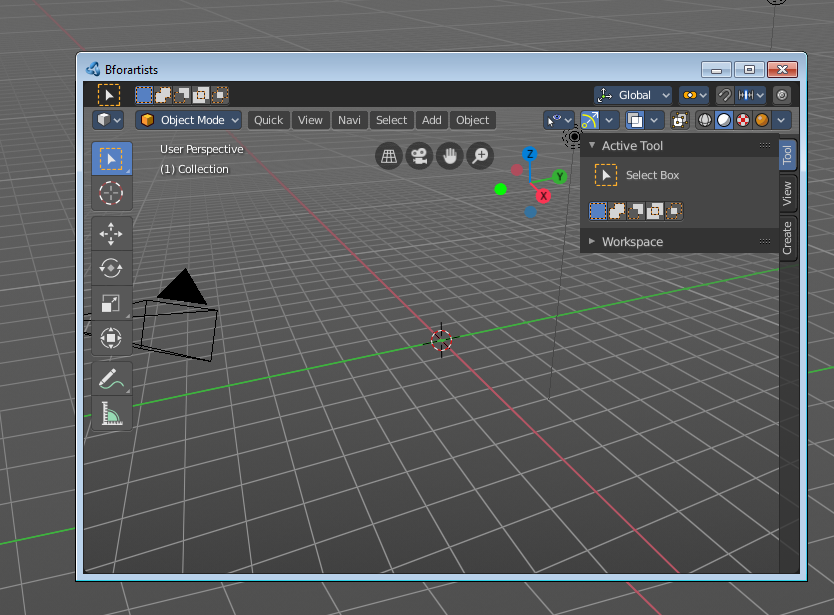
Duplicate Area into New Window makes the selected editor window floating. You can then drag it around at the monitor. It is not connected with the rest of the UI anymore.
A separated window cannot be merged into the main window again. You have to close it when not longer needed.
| Entry | What it does |
|---|---|
| Toggle Maximize Area | Displays the editor maximized with menus. To return from the maximized view press hotkey Ctrl + Space bar. Or reuse the menu item in the area menu. |
| Toggle Full screen Area | Displays the editor maximized without menus. To return from the full screen view press hotkey Ctrl + Alt + Space bar. |
| Close Area | Closes the area window. |
Toolbar
The toolbar allows you to filter out the data that you want to look at.
Each object type has its own possible list of items.
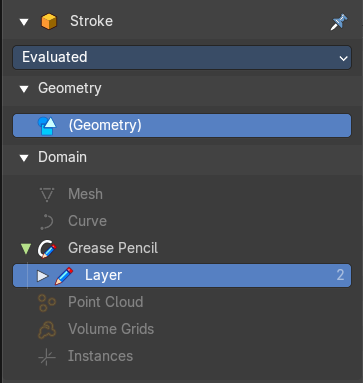
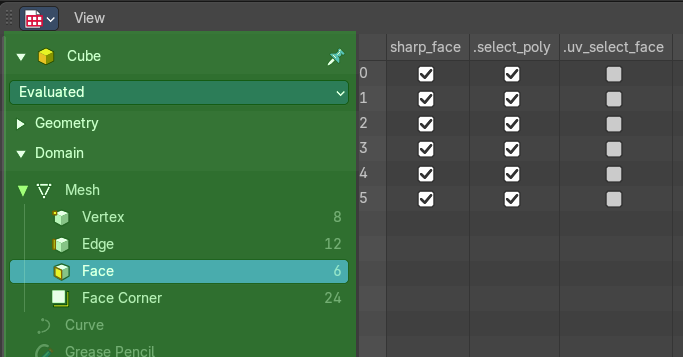
Name of the object

The name of the selected object. This is a breadcrumb menu. It can be collapsed.
Toggle Pin
Keep the data from the pinned object visible, even when another object becomes the active one.
Object Evaluation State
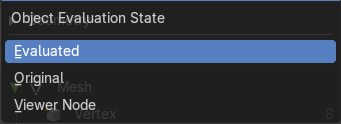
Display the data of an object at different states of its evaluation.
| Entry | What it does |
|---|---|
| Evaluated | Display the data from object with all modifiers applied. |
| Original | Display the data from original object without any modifiers applied. |
Node
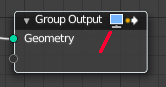
Display the data from the currently active node in the geometry node editor. The active node has the Geometry node output icon in the header on.
Main region
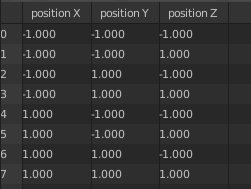
Displays the list of the actual content. This content is dependant of the chosen data types.
Sidebar
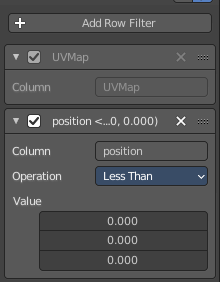
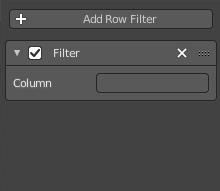
Here you can define row filters to filter out values in the corresponding columns and rows that you don't want to display.
The filter can then be turned off and on with the filter button in the header.
Note that the sidebar is closed by default. Click at the little triangle button to open it.
To create a filter, press the Add Row Filter button, then write the column type you would like to filter.
Row filter panel
Header

The header allows you to close and open the filter panel by clicking at the triangle button at the front.
| Entry | What it does |
|---|---|
| Enabled | Enable or disable this filter |
| Title string | Some rows provides you with further informations in the header. In this case the position of the original geometry. |
| Remove Row Filter | Removes the filter. |
| Drag handler | This handler allows you to reorder the panel above or below other panels. |
Panel content
Column
To filter out a row you need to type in the name of the row. Attention, this name is case senstitive.
Operation
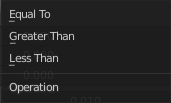
The filter method to filter out values.
Value
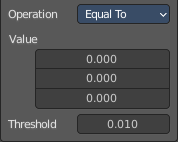
The vector values allows you to set a base value for the single vectors. A position has for example 3 values. A UV map is 2d, and so you just have two values.
Threshold
Just with operation method Equal to.
Allows you to define a threshold in which the "equal to" operation is evaluated. So that a value of 10.001 is still considered as in range for a value of 10 for example.
Footer

The status bar in the footer shows how many rows and columns there are and how many have been filtered out.