

































































Tool Shelf
Tools with a triangle down right are a group of tools. Click and hold to reveal the content. Then choose the tool that you need.
Tool Shelf
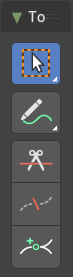
Select Tools Group
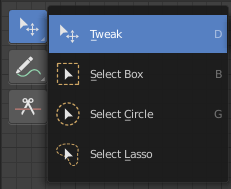
Tools with a triangle down right are a group of tools. Click and hold to reveal the content. Then choose the tool that you need.
Tweak
Allows you to select or tweak single elements by clicking at it.
Select Box
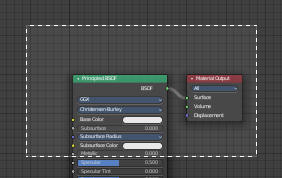
Draws a box to select several elements at once. Click at the start point, then drag.
Tool Settings
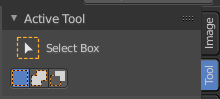
Mode
The available selection modes. The mode titles are pretty self explaining. So i won't go into detail here.
| Entry | What it does |
|---|---|
| Set a new selection | — |
| Extend existing selection | — |
| Subtract existing selection | — |
Select Circle
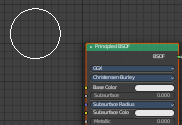
Draws a box to select several elements at once. Click at the start point, then drag.
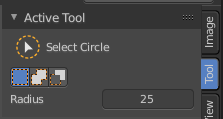
Tool Settings
| Entry | What it does |
|---|---|
| Mode | The available selection modes. The mode titles are pretty self explaining. So i won't go into detail here. · Set a new selection · Extend existing selection · Subtract existing selection |
| Radius | The brush radius. |
Select Lasso
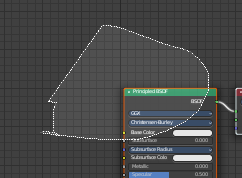
Draws a box to select several elements at once. Click at the start point, then drag.
Tool Settings
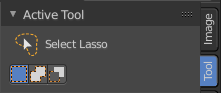
Mode
The available selection modes. The mode titles are pretty self explaining. So i won't go into detail here.
| Entry | What it does |
|---|---|
| Set a new selection | — |
| Extend existing selection | — |
| Subtract existing selection | — |
Annotate Tools group
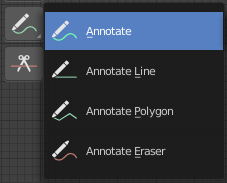
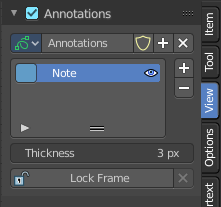
The annotation tool is available in multiple editors. With this tool you can write notes at the screen. The annotate tools is the little brother of the grease pencil objects.
Further settings for annotate can be found in the sidebar. Here you can also remove an annotation when you don't longer need it. And here you can also adjust the size of the stroke.
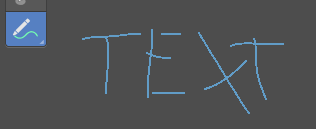
Annotate
Draw free-hand strokes in the main window.
Tool Settings
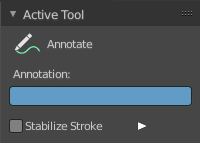
The tool settings for Annotate.
Color
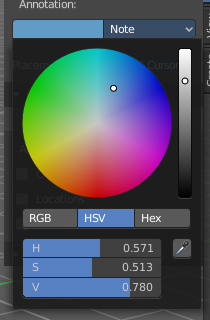
Clicking at the left color field reveals a color picker. Define the color for the annotation stroke.
Stabilize Stroke
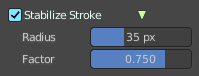
Helper to draw smooth and clean lines. Pressing shift inverts the effect.
| Entry | What it does |
|---|---|
| Radius | The radius for the stroke stabilization. |
| Factor | Stabilizer stroke factor. Higher values gives a smoother stroke. |
Annotate Line
Click and drag to create a line.
Tool Settings
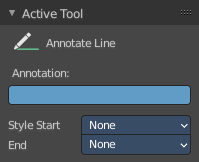
The tool settings for the Annotate tool.
Color
Clicking at the left color field reveals a color picker. Define the color for the annotation stroke.
Style Start
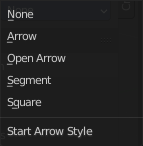
The stroke start style. With an arrow for example you place an arrow at the start of the stroke.
End
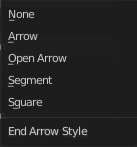
The stroke end style. With an arrow for example you place an arrow at the end of the stroke.
Annotate Polygon
Click multiple times to create multiple connected lines. The current polygon is finished when Esc or RMB is pressed.
Tool Settings
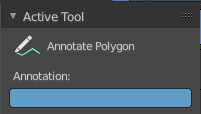
The tool settings for Annotate.
Color
Clicking at the left color field reveals a color picker where you can define the color for the annotation stroke.
Annotate Eraser
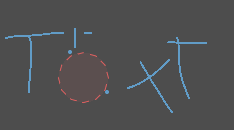
Click and drag to remove annotate lines.
Tool Settings
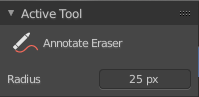
Radius
The radius of the eraser pencil.
Links Cut
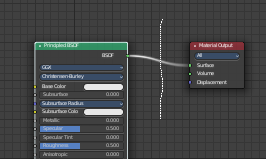
This tools allows you to cut connections.
Tool Settings
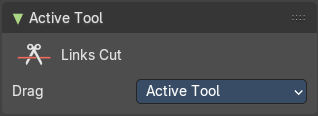
Drag
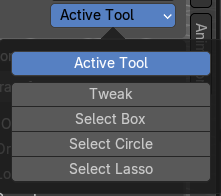
Define what kind of transform should happen when you click not at the widget but besides, and drag the mouse.
Mute Links
This tools allows you to mute connections.
Tool Settings
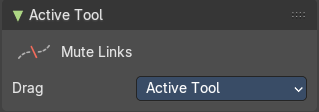
Drag
Define what kind of transform should happen when you click not at the widget but besides, and drag the mouse.
Add Reroute
This tools allows you to add a reroute point by drawing over a connection line
Tool Settings
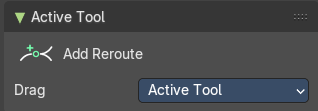
Drag
Define what kind of transform should happen when you click not at the widget but besides, and drag the mouse.