

































































Relations tab
You can display the nodes in the panels either as text buttons or as pure icon buttons.
Relations tab - Display Panel
Icon Buttons
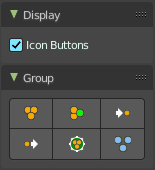
You can display the nodes in the panels either as text buttons or as pure icon buttons.
Relations tab - Group Panel
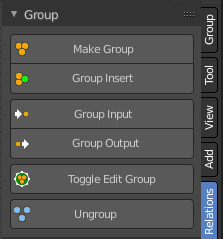
Node groups allows you to group different nodes of the material together to reduce the visual complexity. A node group acts like any other node.
Material node groups should not include Input nodes, like Image nodes, or Output nodes.
If you include a source node in your group, you will end up having the source node appearing twice: once inside the group, and once outside the group in the new material node tree.
If you include an output node in the group, there will not be an output socket available from the group!
Make Group
Groups the selected nodes together.
Select the nodes that you want to group together. Choose Make Group. You will now see a green background. This indicates that the group is created, and that you are in edit mode for the group now.
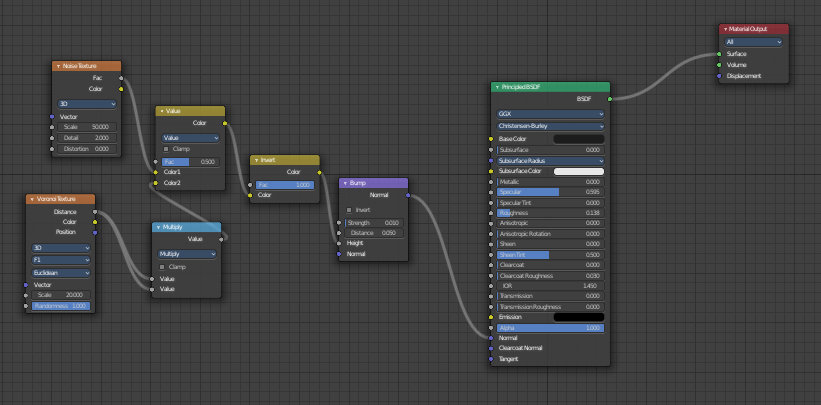
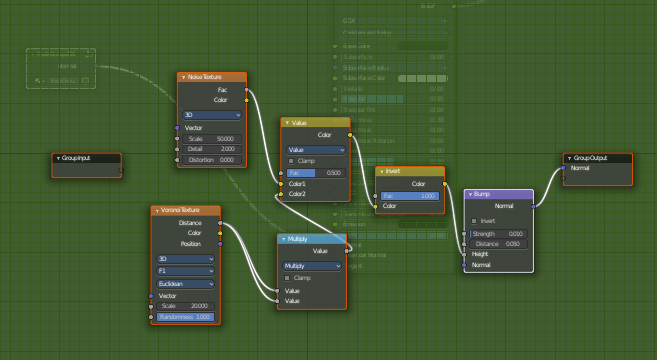
To exit the group edit mode press Tab key, or choose Toggle Edit Group menu item . That way you can also enter the Group Edit mode again.
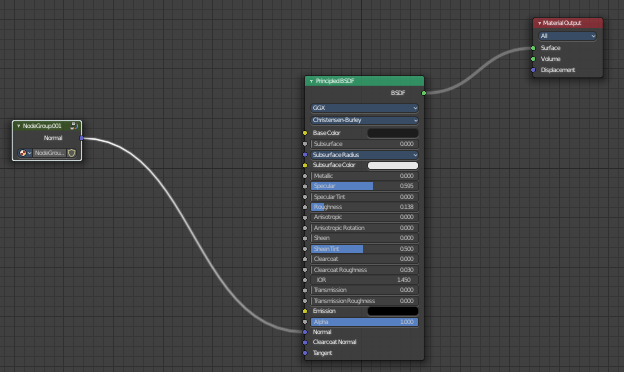
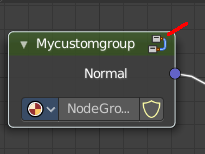
There is a third way to enter the group edit mode. Click at the right upper icon of the group node.
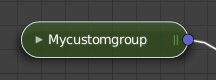
A group can be further collapsed by clicking at the triangle button in the upper left corner.
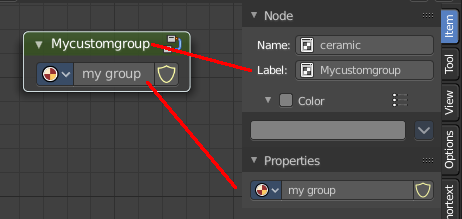
The group can be renamed in the sidebar in the Item tab and in the Properties tab in the Node panel.
Group Insert
Inserts the selected node into the selected group.
Usage
Select the node.
Hold down shift, and select the group.
Click the Group Insert button. The node will now be part of the group, and you will land in group edit mode. Press tab to exit the group edit mode.
Group Input
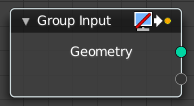
Adds a group input node.
Note: When at a top level, this node is unavailable. These are only available when inside a node group.
Group Output
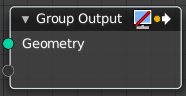
Adds a group output node.
Note: When at a top level, this node is unavailable. These are only available when inside a node group.
| Entry | What it does |
|---|---|
| Toggle Edit Group | Enter or exit the edit group mode. |
| Ungroup | Ungroups an existing group. You need to be outside of the group edit mode. |
Relations tab - Node Group Panel
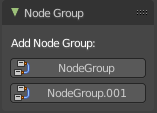
When you create a node group, then this node group is listed here. And can be dragged from there for reuse too.
Relations tab - Layout Panel
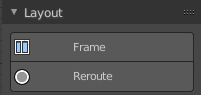
These nodes helps organizing the node layout.
Frame
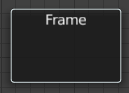
The Frame node allows you to drop nodes into a frame. This frame can be dragged around as a whole.
Adding and Removing Nodes
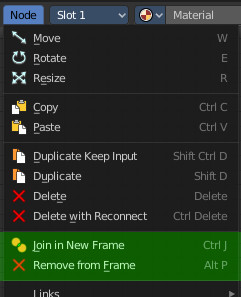
Nodes can be added by simply dropping them onto the frame. Or with the Join in New Frame menu item in the Node menu.
To remove a node from the frame use Remove from Frame.
Resizing Frame
When the Frame node is first placed in the node editor workspace you can resize it by dragging one of the edges.
Once a node is placed in the Frame, the Frame shrinks around the nodes. You cannot resize it anymore with handlers. Just by dragging around the nodes inside of the frame.
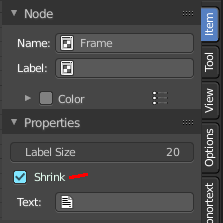
This behavior can be changed by disabling the Shrink option in the Item tab in the Properties panel. Then you can resize the frame again by dragging the edges.
Label and Color
You can change the name of a frame in the Node panel. And you can give it a custom color by checking the Color checkbox and adjusting the color then.
Reroute
Adds a reroute point that can be used to reroute connections. It allows just one input, but allows multiple output connections.
To quickly add a Reroute node into an existing connection, hold Shift and Right Mouse and drag the mouse to cut through the link. A new reroute node will be added.
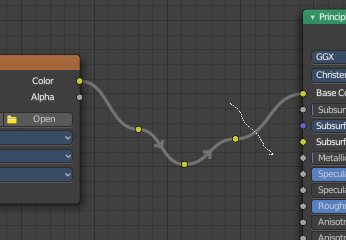
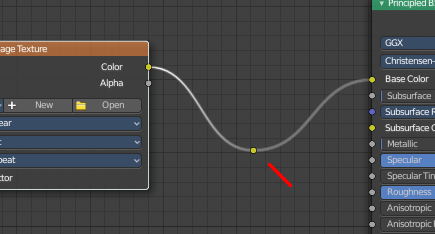
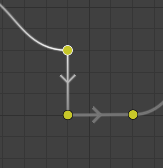
When you exceed a specific angle amount between the reroute nodes, then the node connection becomes a sharp corner, and not longer a Bezier like soft curve.
Move, Rotate, Scale
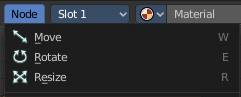
A normal node has a handler. The reroute dot not. You can't simply move it around with the mouse by clicking at the top area. It has none. You have to use the move, rotate and scale commands. They can be found in the View menu.