

































































Node Tab
In this panel you can give nodes and node groups a name and a label, and change its color.
Node Tab - Node Panel
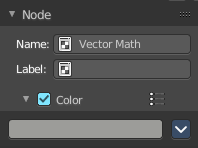
In this panel you can give nodes and node groups a name and a label, and change its color.
Name
The type of the node.
Label
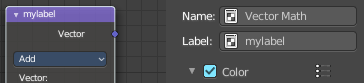
The label name of the node.
Color sub menu
Color checkbox
The Color checkbox turns custom color on or off.
Presets
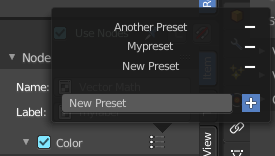
Store some color presets and reuse them. They are stored globally, and transfers to other blend files.
Color
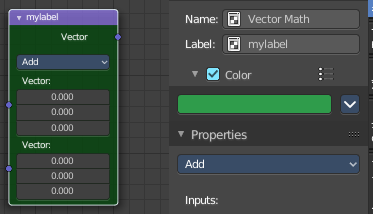
Choose a custom color. A click at the color field will open a color picker.
Node color specials

Copy Color
Allows you to copy the color.
Node Tab - Properties Panel
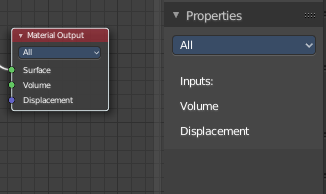
This panel shows usually the same properties than the properties at the node. These properties are already explained in the Add menu chapters. So we won't repeat them here.
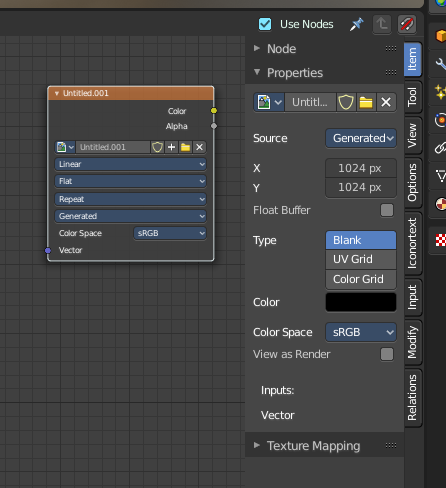
But there are exceptions like the Image node. Here the Properties panel shows much more options than at the node. It shows all the possible image settings. We will explain the extra options here.
Node Tab - Properties Panel with Image node
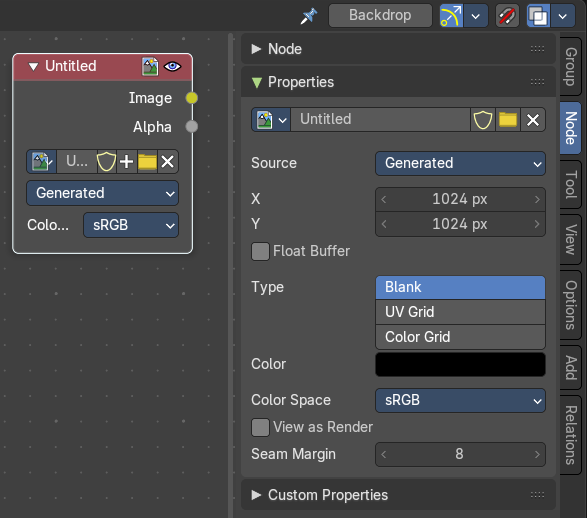
Contains image related settings. Size, type, and so on.
Image Property
Load an image and / or switch to other images.
From left to right ...


| Entry | What it does |
|---|---|
| Image Browser | This is a list of the images in the scene. Allows you to switch to other images. |
| New / Open | When nothing is loaded then you will see the New / Open buttons to load a new image, or to create a new one. |
| Image Edit Box | The name of the currently selected image. And you can rename the image here too. |
| Fake User | Wit this button you assign a fake user to this selected image. Data, like images, that is not longer linked to anything else gets removed when you save and reload a scene. Bforartists has the concept of fake users to go around this behavior. An image with a fake user is in fact linked to something. And so it is not lost when you save and reload the scene. |
| Open Image | Load an image |
| Remove | Delete the image. |
Source
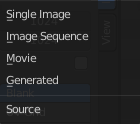
Choose the image type. This type gets usually automatically set. When you create a new image, then this image is generated. When you load an image then the Source switches to Single Image.
Generated images does not have a path.
Source Type Single Image
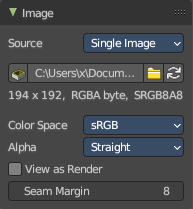
Path edit box

| Entry | What it does |
|---|---|
| Pack | With this button you can pack the movie or the image sequence into the blend file. It gets packed when you save the blend file the next time. |
| Path edit box | See and edit the path to your movie or image sequence files. |
| Open | Open a new movie or image sequence files. A file dialog will appear. |
| Refresh | Reread the movie or image sequence files. |
Color Space
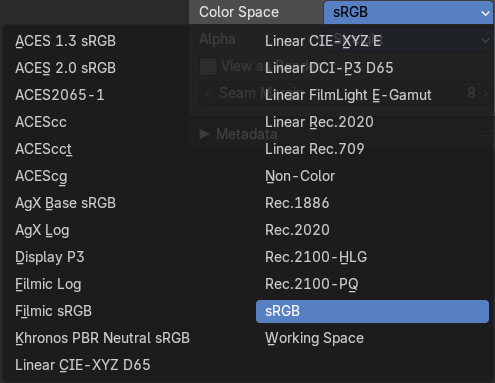
The color space for the image.
Alpha
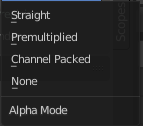
How to calculate the alpha channel.
Half Float Precision
Just with image material that uses 32 bit float. Use just 16 Bit per channel instead of the full 32 bit. This lowers the memory usage while rendering.
View as Render
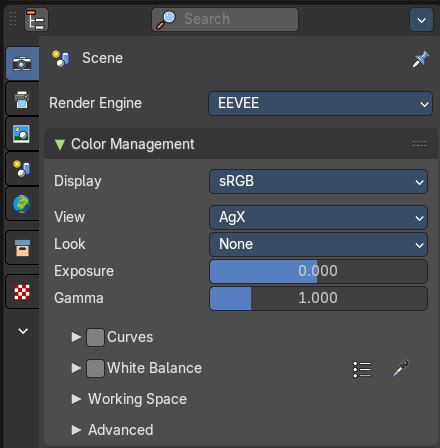
Display the image with using the color management settings. The color management can be adjusted in the properties editor in the Render tab.
Seam Margin
This option belongs to the UV Editor, and has no effect in the Image editor. Take a margin into account when fixing UV seams during painting.
Source Type Movie + Image Sequence
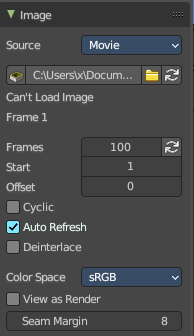
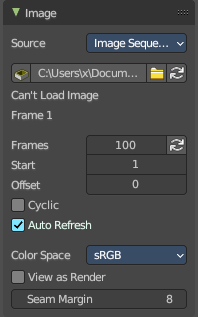
Path edit box

| Entry | What it does |
|---|---|
| Pack | With this button you can pack the movie or the image sequence into the blend file. It gets packed when you save the blend file the next time. |
| Path edit box | See and edit the path to your movie or image sequence files. |
| Open | Open a new movie or image sequence files. A file dialog will appear. |
| Refresh | Reread the movie or image sequence files. |
| Entry | What it does |
|---|---|
| Info string | Some information about the currently loaded movie. Frames, resolution and color space. |
| Frames | The number of frames of the movie or image sequence. · Match Movie Length: Set Users Image Length to the one of this video. |
| Start | The start frame of the movie or image sequence |
| Offset | Offset the number of the frame to use in the animation. -1 means off. |
| Cyclic | Cycle the images in the movie. |
| Auto Refresh | Always refresh image on frame changes. |
| Deinterlace | Deinterlace the movie file on load. |
Color Space
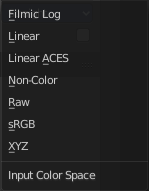
Choose the color space type for the movie or image sequence files.
Alpha
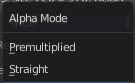
Choose the alpha channel mode. Straight or Premultiplied.
Half Float Precision
Just with image material that uses 32 bit float. Use just 16 Bit per channel instead of the full 32 bit. This lowers the memory usage while rendering.
View as Render
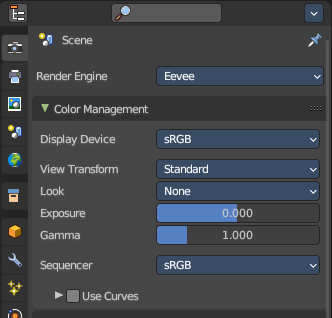
Display the image with using the color management settings. The color management can be adjusted in the properties editor in the Render tab.
Seam Margin
This option belongs to the UV Editor, and has no effect in the Image editor. Take a margin into account when fixing UV seams during painting.
Source Type Generated
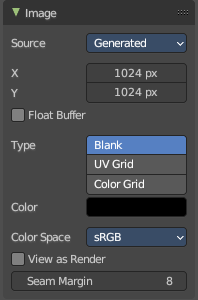
X / Y
The image width and height.
Float Buffer
Use a floating point buffer. 8 Bit images uses integers. 32 Bit works with floats.
Generated Type Blank

This type displays an image with one blank color
Color
The color of the blank image.
Generated Type UV Grid
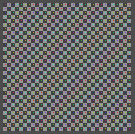
This type displays a with a black and white checker texture but colored dots.
Generated Type Color Grid
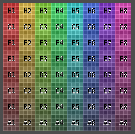
This type displays a with a colored checker texture with numbers.
Color Space
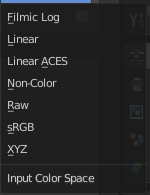
Choose the color space type for the image.
Half Float Precision
Just with image material that uses 32 bit float. Use just 16 Bit per channel instead of the full 32 bit. This lowers the memory usage while rendering.
View as Render
Display the image with using the color management settings. The color management can be adjusted in the properties editor in the Render tab.
Seam Margin
This option belongs to the UV Editor, and has no effect in the Image editor. Take a margin into account when fixing UV seams during painting.
Source Type Udim
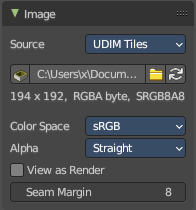
UDIM is an enhancement to the UV mapping and texturing workflow. And does not belong here. But in the UV Editor. It is just in the list because it shares the same menus with the UV Editor.
Info string
Some information about the currently loaded image. Resolution and color space.
Color Space
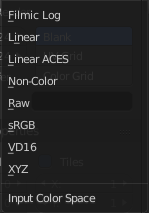
Choose the color space type for the movie or image sequence files.
Alpha
Choose the alpha channel mode. Straight or Premultiplied.
Half Float Precision
Just with color space sRGB. Use just 16 Bit per channel instead of the full 32 bit. This lowers the memory usage while rendering.
View as Render
Display the image with using the color management settings. The color management can be adjusted in the properties editor in the Render tab.
Seam Margin
This option belongs to the UV Editor, and has no effect in the Image editor. Take a margin into account when fixing UV seams during painting.