

































































Tools and Options
The header in the Shader editor contains various menus and tools. This chapter here is about the tools, modes and options elements in the header.
Introduction
The header in the Shader editor contains various menus and tools. This chapter here is about the tools, modes and options elements in the header.
The text menus are covered in a own chapter each. They vary too much, dependent of mode and object type.
Shader Type Drop-down Box
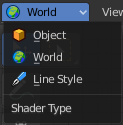
The Mode drop-down box allows you to switch between the different shader type modes. An object has a different set of available shaders than the world or a line style shading.
| Entry | What it does |
|---|---|
| Object | In this mode you work with the scene objects and its materials. |
| World | In this mode you work with the world settings. HDRI's for example. |
| Line Style | In this mode you work with Freestyle renderer materials. |
Object Context menu
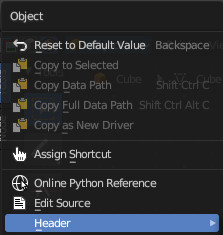
When you right click at the dropdown box then you will reveal the Object context menu.
Slot
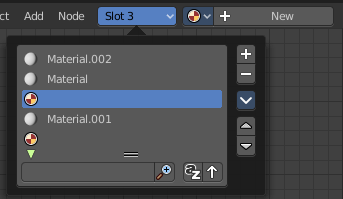
This element just exists in Object mode.
The Slot menu displays the assigned material(s) at the current active mesh. It can be used to select the active material on the active object. And to select or assign materials to different mesh parts of the same object.
When you add a material by clicking at the new button in the material prop, or by choosing another material from the materials browser, then it is usually also added or changed in the slot system in the current position.
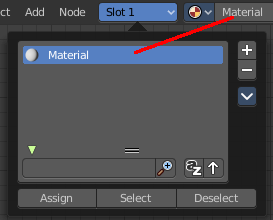
| Entry | What it does |
|---|---|
| List of materials | The list of materials in the slot list. |
| Add Material Slot | Adds a new material slot. When you do this manually then this slot will be empty. |
| Remove Material Slot | Remove the selected material slot. The removed material will not longer be part of the currently active mesh. |
Copy and Paste menu
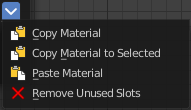
Copy and paste materials. But just at the current active mesh. Means in Edit Mode.
| Entry | What it does |
|---|---|
| Copy Material | Copies the currently selected material |
| Copy Material to Selected | Copies the currently selected material, and pastes it to the selection |
| Paste Material | Pastes the material. |
| Remove unused Slots | Clean up unused slots. |
| Entry | What it does |
|---|---|
| Move Material Up / Down | Moves the selected material up or down in the list. |
| Assign | This button appears when you are in Edit mode in the 3D view. Assign the selected material to the selected geometry. |
| Select | This button appears when you are in Edit mode in the 3D view. Select the geometry where this material is assigned to. |
| Deselect | This button appears when you are in Edit mode in the 3D view. Deselects the geometry where this material is assigned to. |
Search Field

When you click at the little triangle button below the list then you can reveal a search element. The buttons should be self explaining. So we won't go into detail here.
Material Prop

Create a new material, and see a list of the available materials in the scene.
Material Browser
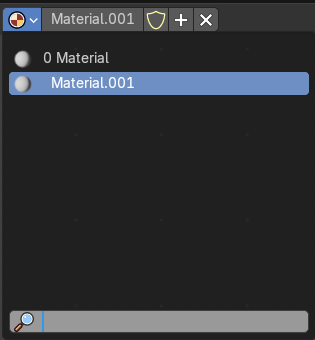
The list of available materials in the scene.
New
Creates a new material.
Material edit box
The name of the current active material. Here you can also rename the material.



Note that the name and available materials differs, dependent in which mode you are. In Object mode you will see the object materials. In World mode the world materials. And in Line Style mode the materials for Freestyle rendering.
| Entry | What it does |
|---|---|
| Fake User | Wit this button you assign a fake user to this selected image. Data, like images, that is not longer linked to anything else gets removed when you save and reload a scene. Bforartists has the concept of fake users to go around this behavior. An image with a fake user is in fact linked to something. And so it is not lost when you save and reload the scene. |
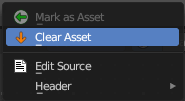
| Clear Asset | When you have marked the material as asset, then the fake user button is replaced by a Clear Asset button. It allows you to clear the asset. |
| New | Creates a new material. |
| Remove | Removes the material. To delete it completely you need to purge it. See Fake user. |
Right Click menus
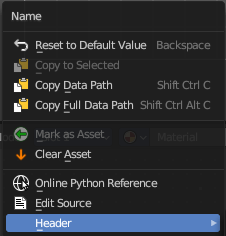
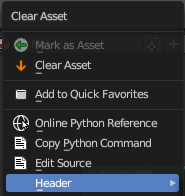
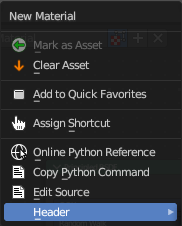
When you right click at the material property then you will reveal context menus with different content, dependant of where you click. Most of the content is explained in chapter 6, the general right click menu functionality. The rest should be self explaining.
Options
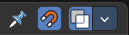
At the right side you will see some options.
Use Nodes

The Use Nodes setting is mostly a legacy setting. And displays just in Line Style mode.
| Entry | What it does |
|---|---|
| Pin (pin icon) | The pin button will keep the current material selection fixed. When a material is pinned, it will remain visible in the shader editor even when another object or material is selected elsewhere. |
| Snap | Activates snapping. |
Node Editor Overlays
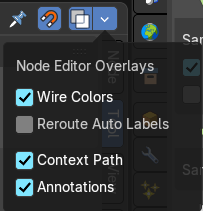
Activates the node editor overlays. When the tool is activated, then you will also overlays settings in the editor. The drop down arrow to the right shows different overlay types.
Show Overlays
Show or hide the overlays.
Wire Colors
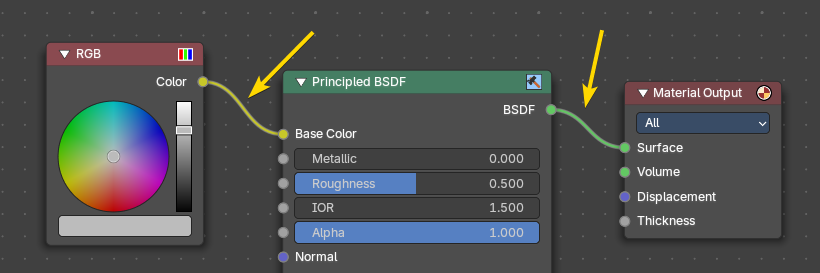
Color node links based on their connected sockets.
Example: The color RGB socket is yellow that makes a yellow line, and the Shader BSDF socket is green that makes a green line.
Reroute Auto Labels
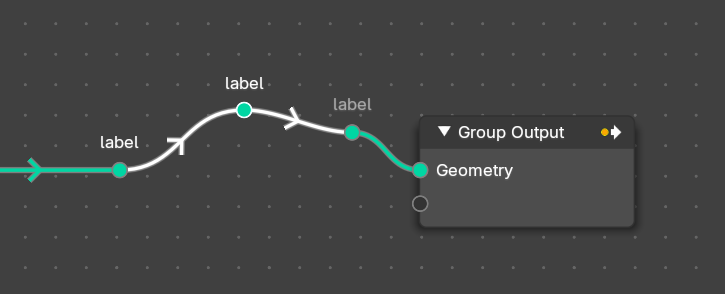
Label reroute nodes based on the label of connected reroute nodes.
Example: The first reroute label to the right has concurring reroute labels down the line. If you toggle this off, the concurring reroute labels down the line won’t contain labels.
Context Path
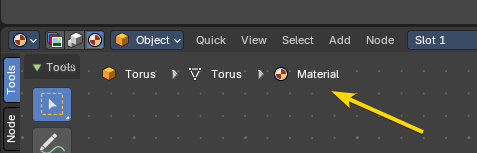
Display breadcrumbs for the editor’s context.
Annotations
Shows annotations for this editor view that have been drawn by the annotation tool.