

































































Add Menu - Utilities - Vector
This menu contains nodes that deals with vector data.
Add menu - Utilities - Vector
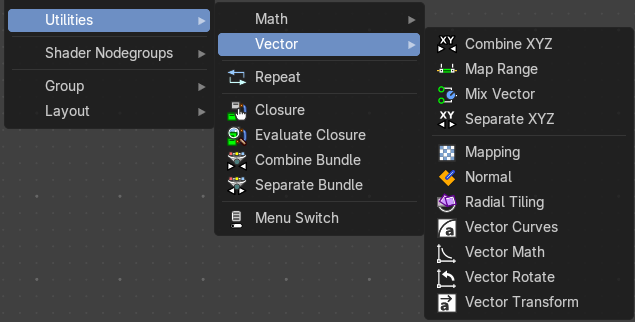
This menu contains nodes that deals with vector data.
Combine XYZ
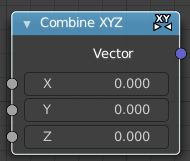
Same as with Combine RGB node. It combines color values. But instead combining rgb values, which are in the range of 0 to 255, it uses values in the range from 0 to 1.
| Entry | What it does |
|---|---|
| Input | X Y and Z: X, Y and Z values. |
| Output | Color: Color output. |
Map Range
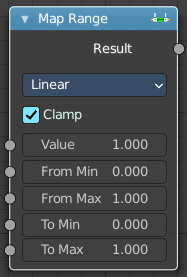
The Map Range node remaps a value from a range to a target range.
Inputs
| Entry | What it does |
|---|---|
| Value | The input value to be remapped. |
| From Min | The lower bound of the range to remap from. |
| From Max | The higher bound of the range to remap from. |
| To Min | The lower bound of the target range. |
| To Max | The higher bound of the target range. |
Properties
Interpolation Type
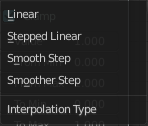
| Entry | What it does |
|---|---|
| Linear | Linear interpolation between From Min and From Max values. |
| Stepped Linear | Stepped linear interpolation between From Min and From Max values. |
| Smooth Step | Smooth Hermite edge interpolation between From Min and From Max values. |
| Smoother Step | Smoother Hermite edge interpolation between From Min and From Max values. |
Clamp
If enabled, the output is clamped to the target range.
Outputs
Result
The input value after remapping.
Mix Vector
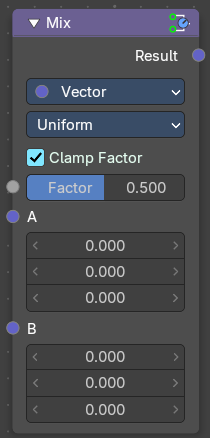
A mix node with vector preselected.
Input
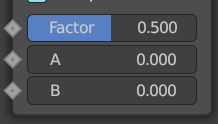
Float
| Entry | What it does |
|---|---|
| Factor | The mix factor. |
| A | Float value A input. |
| B | Float value B input. |
Vector
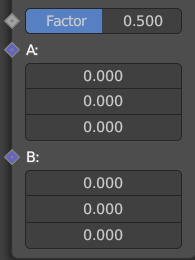
Factor mode Uniform
| Entry | What it does |
|---|---|
| Factor | The mix factor. |
| A | Vector A input. |
| B | Vector B input. |
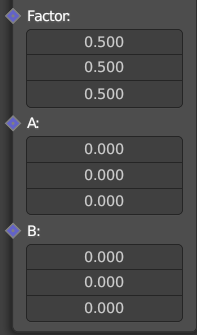
Factor mode Non Uniform
| Entry | What it does |
|---|---|
| Factor | The vector mix factor. |
| A | Vector A input. |
| B | Vector B input. |
Color
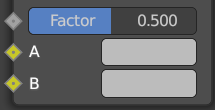
| Entry | What it does |
|---|---|
| Factor | The mix factor. |
| A | Color A input. |
| B | Color B input. |
Properties
Data Type
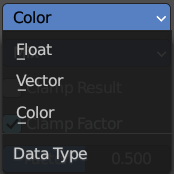
Which mode to use.
Float mode
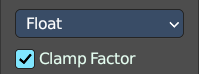
Clamp Factor
Clamp the factor to 0-1 range.
Vector mode
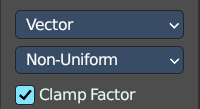
Factor mode
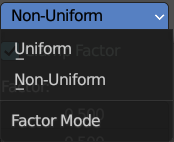
Uniform or non uniform factor.
Clamp Factor
Clamp the factor to 0-1 range.
Color mode
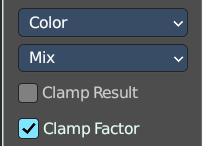
| Entry | What it does |
|---|---|
| Blending mode | What blending mode to use for the color. |
| Clamp Result | Clamp the result to 0-1 range. |
| Clamp Factor | Clamp the input factor to 0-1 range. |
Output
Result
The output value or vector.
Separate XYZ
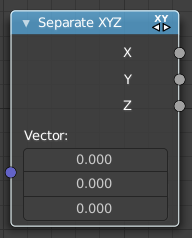
Same as with Separate RGB node. It separates color values. But instead separating rgb values, which are in the range of 0 to 255, it uses a vector with the values in the range from 0 to 1.
| Entry | What it does |
|---|---|
| Input | Vector: The Input vector. |
| Output | X, Y and Z: The output vectors for X, Y and Z |
Mapping
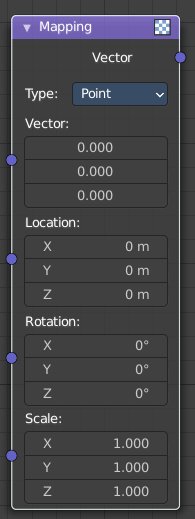
The Mapping node transforms the input vector by applying translation, rotation, and scaling.
Inputs
The inputs of the node are dynamic. In particular, the Location input is only available in the Texture and Point vector types.
| Entry | What it does |
|---|---|
| Vector | The vector to be transformed. |
| Location | The amount of translation along each axis. |
| Rotation | The amount of rotation along each axis. XYZ order. |
| Scale | The amount of scaling along each axis. |
Properties
Vector type
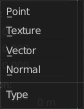
The node applies the transformation differently depending on the semantic type of the input vector.
Point
For this vector type, the node performs a straightforward transformation.
Transforming a texture coordinates is analogous to transforming a UV map. For instance, translating the texture coordinates along the positive X axis would result in the evaluated texture to move in the negative X axis, much like if one translated a UV map. Similarly, scaling the texture coordinates up would result in the evaluated texture to scale down. So transforming the texture coordinates would appear to have the opposite effect on the evaluated texture.
The order of transformation is: Scale –> Rotate –> Translate, which means:
Translation moves the input along the local rotation axis.
Rotation rotates the input around the origin of the space.
Scaling scales the input along the global axis.
Texture
For this vector type, the node performs an inverse transformation.
Inverse transforming a texture coordinates would, as opposed to the Point type, transform the evaluated texture itself. For instance, translating the texture coordinates along the positive X axis would result in the evaluated texture to move in the positive X axis, as one would expected. Similarly, scaling the texture coordinates up would result in the evaluated texture to scale up, as one would expect.
The order of transformation is: Translate –> Rotate –> Scale, which means:
Translation moves the input along the global axis.
Rotation rotates the input around the translation vector.
Scaling scales the input along the local rotation axis.
| Entry | What it does |
|---|---|
| Vector | For this vector type, a Point transformation is performed, but with zero translation. |
| Normal | For this vector type, the node performs the inverse transpose of the transformation and normalize the result. Such transformation ensures correct normals after non-uniform scaling. So this type should be used when transforming normals. |
Outputs
Vector
The input vector after transformation.
Normal
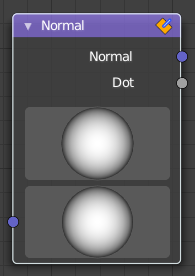
The Normal node generates a normal vector and a dot product.
| Entry | What it does |
|---|---|
| Inputs | Normal: Normal vector input. |
| Properties | Normal Direction: To manually set a fixed normal direction vector. LMB click and drag on the sphere to set the direction of the normal. Holding Ctrl while dragging snaps to 45 degree rotation increments. |
Outputs
| Entry | What it does |
|---|---|
| Normal | Normal vector output. |
| Dot | Dot product output. The dot product is a scalar value. If two normals are pointing in the same direction the dot product is 1. If they are perpendicular the dot product is zero (0). If they are anti parallel (facing directly away from each other) the dot product is -1. |
Radial Tiling
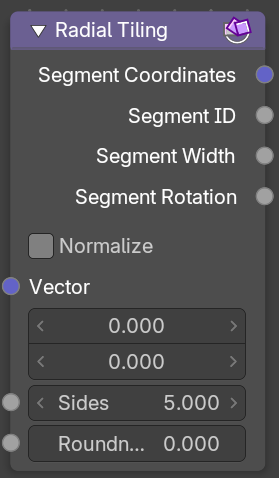
| Entry | What it does |
|---|---|
| Inputs | Vector: Input vector. · Sides: Number of angular elements for tiling. · Roundness: Roundness of the segment coordinate system. |
| Properties | Normalize: Normalize the output to a 0/1 range. |
Outputs
| Entry | What it does |
|---|---|
| Segment Coordinates | Segment coordinates for texture mapping. |
| Segment ID | Unique ID for every segment. |
| Segment Width | The width of each segment. |
| Segment Rotation | The rotation of each segment. |
Vector Curves
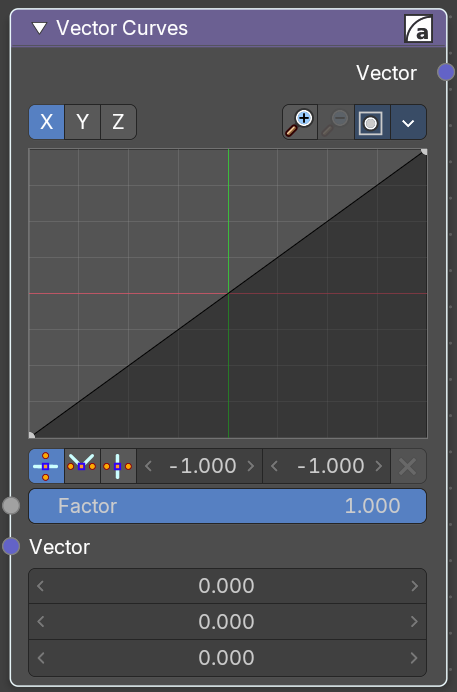
The Vector Curves node maps an input vector components to a curve.
Inputs
In the shader context the node also has an additional Factor property.
| Entry | What it does |
|---|---|
| Factor | Controls the amount of influence the node exerts on the output vector. |
| Vector | Standard vector input. Properties Channel |
Channel buttons

X, Y, Z. Clicking on one of the channels displays the curve for each.
Curve edit field
Create and tweak a Bezier curve that varies the input levels (X axis) to produce an output level (Y axis).
Selecting Points
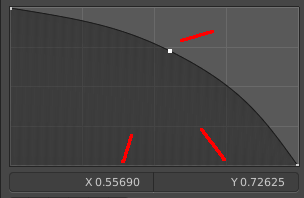
You can select curve points. This reveals two edit boxes for the x and y coordinate of this point.
Selected points can be moved around. Left click at them, hold the mouse button down and move them to a new location.
Adding Points
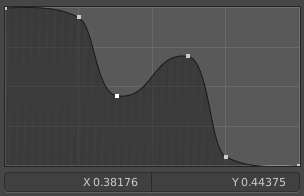
You can add new curve points by simply left clicking at the curve. Move the mouse to position them where you need it.
Navigation elements
The navigation elements at the top are described from left to right.
Zoom in and out
The two buttons with the magnifying glass at it zooms in and out in the curve window.
Clipping
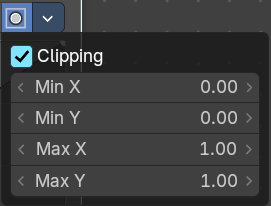
Clipping options.
Tools
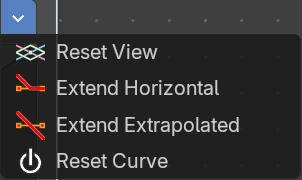
Tools is a menu where you can find some curve related tools.
Reset View
Resets the curve windows zoom.
Vector Handle

Set handle type to Vector.
| Entry | What it does |
|---|---|
| Auto Handle | Set handle type to Auto. |
| Auto Clamped Handle | Set handle type to Auto Clamped. |
| X / Y | The x and y position of the currently selected curve point. |
| Delete Points | Delete the currently selected curve point. |
Outputs
Vector
Standard vector output.
Vector Math
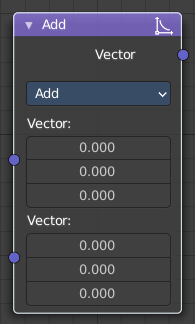
The Vector Math node performs the selected math operation on the input vectors.
Inputs
The inputs of the node are dynamic. Some inputs are only available in certain operations. For instance, the Scale input is only available in the Scale operator.
| Entry | What it does |
|---|---|
| Vector | Input vector A. |
| Vector | Input vector B. |
| Scale | Input Scale. |
Properties
Operation
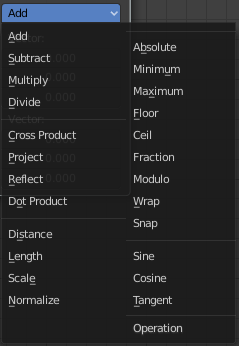
The vector math operator to be applied on the input vectors.
Outputs
The output of the node is dynamic. It is either a vector or a scalar depending on the operator. For instance, the Length operator have a scalar output while the Add operator have a vector output.
| Entry | What it does |
|---|---|
| Vector | Output vector. |
| Value | Output value. |
Vector Rotate
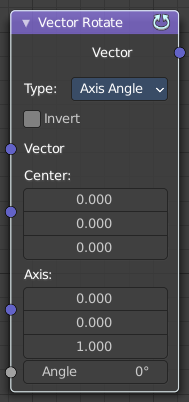
This node provides the ability to rotate a vector around a center point using either Axis Angle, Single Axis or Euler methods.
Inputs
| Entry | What it does |
|---|---|
| Vector | The input vector. |
| Center | The center for the rotation. |
| Axis | The axis angles. |
| Angle | The rotation angle. |
Properties
Type
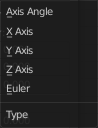
The rotation type.
Invert
Invert the angle
Outputs
Vector
The output vector
Vector Transform
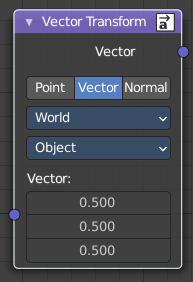
The Vector Transform node allows converting a vector, point, or normal between world and camera and object coordinate space.
Inputs
Vector Input
Standard vector input.
Properties
Type
Specifies the input/output type.
Vector, Point, Normal.
Convert From
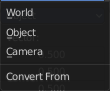
Coordinate Space to convert from World, Object or Camera.
Convert To
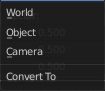
Coordinate Space to convert to World, Object or Camera.
Outputs
Vector Output
The transformed output vector.