

































































Add Menu - Utilities
This menu contains nodes that deals with vector data.
Add menu - Utilities - Vector
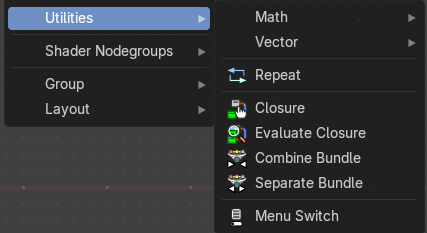
This menu contains nodes that deals with vector data.
Repeat
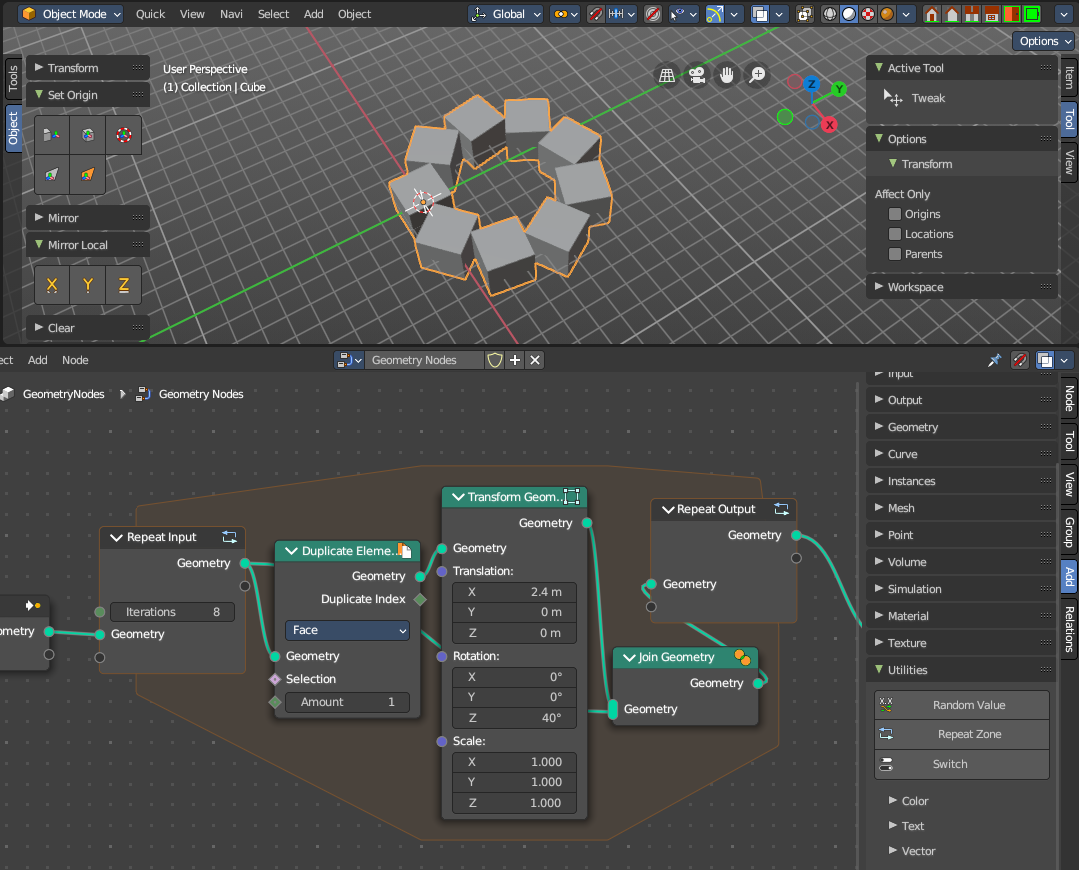
When adding a repeat zone, two nodes are added with a “zone” set between them. The inputs connected to the Repeat Input node reads and gets data at the beginning of the loop before starting the looping - then the data is processed within the zone, here you can set any changes to the data to then repeat the execution again at the beginning of the chain for the next iteration of the loop. This chain of operations is repeated the specified number of times in the Repeat Input node.
In the example in the image above, we duplicate the cube, transform it with a rotation, then join it together again. We do this 8 times in a loop, creating a circular array.
Note: It is not possible to set data outside the Repeat Zone, you can only get data from outside the Repeat Zone. Any data connected from the outside of the zone are constant throughout every iteration based on their value at the current frame. The result of the looping can only be accessed via the Repeat Output node.
Repeat Zone Input
The beginning of the iteration or loop.
Input
Iterations
Number of repetitions or loops.
Geometry
Standard geometry input.
Output
Geometry
Standard geometry output.
Repeat Zone Output
The result and output of the iteration or loop. You can define custom attributes outputs here from the
| Entry | What it does |
|---|---|
| Input | Geometry: Standard geometry output. |
| Output | Geometry: Standard geometry output. |
Closure
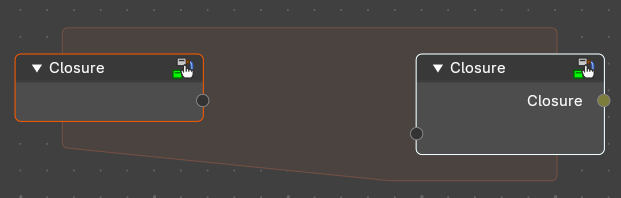
Wrap nodes inside a closure that can be executed at a different part of the node-tree
Evaluate Closure
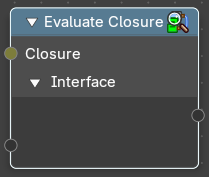
Execute a given closure.
Combine Bundle
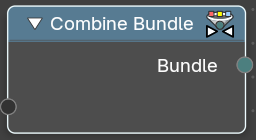
Combine multiple socket values into one.
Separate Bundle
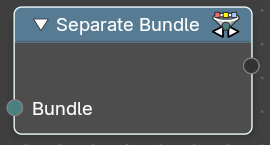
Decompose a bundle of values into the single values.
Menu Switch
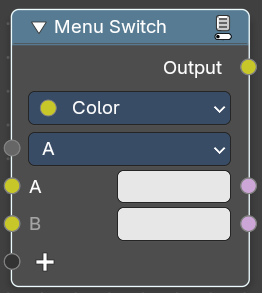
The Menu Switch node selects and computes one input based on a user-defined menu. Only the selected input is computed.
Menu entries can be added, removed, renamed, and reordered. Renaming keeps existing input links.
The menu can be used in node groups and the nodes modifier UI. Connecting the menu to a Group Input node exposes it as a group input. A menu needs to be connected to a Menu Switch node to work. An unconnected menu is empty.
Connecting multiple Menu Switch nodes to the same output creates a conflict. To avoid this, a menu switch can be grouped. Multiple groups of the same type can connect to the same menu.
Note: You cannot plug in the same value socket into the Menu selector. If you’d like to use the same value for various Menu Switches, group the Menu Switch into a Node Group and use the top-level switch override.
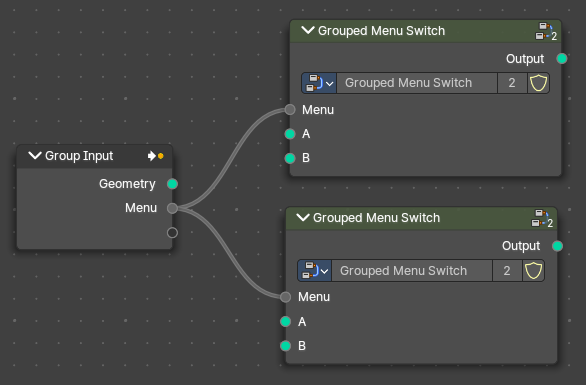 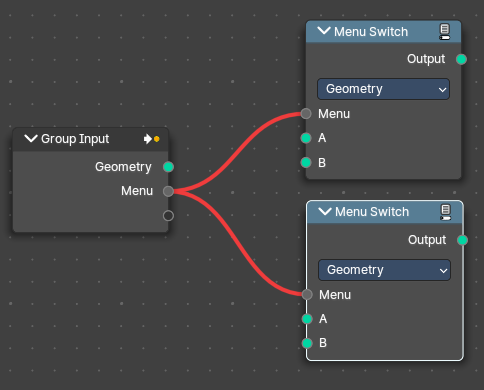 Top Level Grouped Menu Switches with same inputs: Top Level Grouped Menu Switches with same inputs: | Conflict caused by Same Level menu Switch inputs: |
Inputs
A / B
Becomes the output if the value is chosen.
Menu
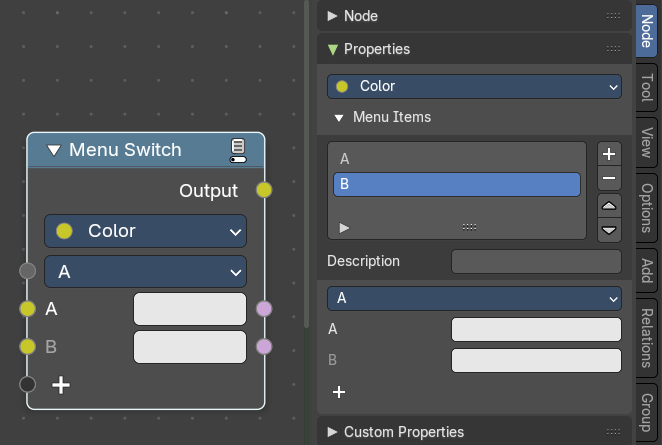
Determines which of the input options will be selected and passed through as the default.
A , B ...
The available input index types that you want to switch between. You can define more input sockets in the sidebar Menu Switch panel.
Note: You can add more menu switch options to the empty socket.
Properties
Data Type
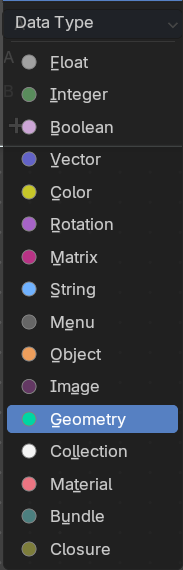
Determines the type of the data that is handled by the node.
Outputs
Output
The output index.