

































































Add Menu - Texture
Here are the texture nodes. They allow you to add different texture types to the scene. The content is the same for the sub modes and the different renderers. However, a environment texture just makes sense for the…
Add menu - Texture
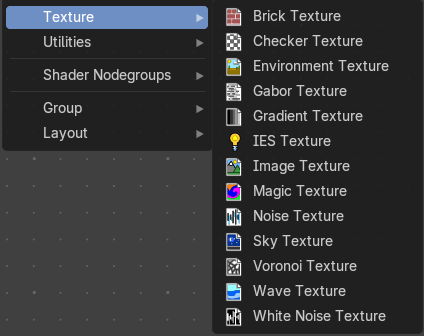
Here are the texture nodes. They allow you to add different texture types to the scene. The content is the same for the sub modes and the different renderers. However, a environment texture just makes sense for the world sub mode.
Brick Texture
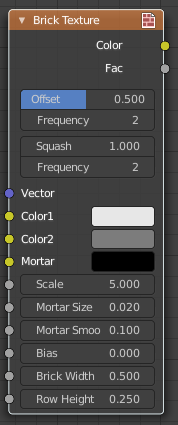
The Brick Texture node is used to add a procedural brick texture.
| Entry | What it does |
|---|---|
| Inputs | Color 1, Color 2 and Mortar: Color of the bricks and mortar. · Scale: Overall texture scale. · Mortar Size: The size of the filling between the bricks known as “mortar”; 0 means no mortar. · Mortar Smooth: Blurs/softens the edge between the mortar and the bricks. This can be useful with a texture and displacement textures. · Bias: The color variation between Color 1/2. Values of -1 and 1 only use one of the two colors; values in between mix the colors. · Brick Width: The width of the bricks. · Row Height: The height of the brick rows. |
| Properties | Offset: Determines the brick offset of the various rows. · Frequency: Determines the offset frequency. A value of 2 gives an even/uneven pattern of rows. · Squash: Amount of brick squashing. · Frequency: Brick squashing frequency. |
| Outputs | Color: Texture color output. · Factor: Mortar mask (1 = mortar). |
Checker Texture
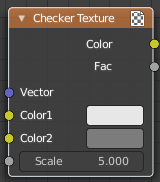
The Checker Texture node adds a procedural checkerboard texture.
Inputs
| Entry | What it does |
|---|---|
| Vector | Texture coordinate to sample texture at; defaults to Generated texture coordinates if the socket is left unconnected. |
| Color1, Color 2 | Color of the checkers. |
| Scale | Overall texture scale. The scale is a factor of the bounding box of the face divided by the scale. For example, a scale of 15 will result in 15 alternate patterns over the overall UV bounding box. Different patterns could be achieved using other nodes to give different input patterns to this socket. For example, using the Math Node. |
Outputs
| Entry | What it does |
|---|---|
| Color | Texture color output. |
| Factor | Checker 1 mask (1 = Checker 1). |
Environment Texture
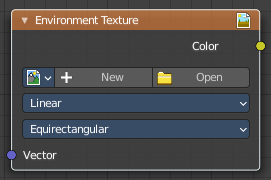
Load an environment texture to light your scene.
Inputs
Vector
Texture coordinate for texture look-up. If this socket is left unconnected, the image is mapped as environment with the Z axis as up.
Properties
| Entry | What it does |
|---|---|
| Image | Image data-block used as the image source. Additional settings can be found in Sidebar > Item > Properties: These include options to control the alpha channel along with addition options for the color space. These addition options are documented with the rest of Common Image Settings. |
| Color Space | Type of data that the image contains, either Color or Non-Color Data. For most color textures the default of Color should be used, but in case of e.g. a bump or alpha map, the pixel values should be interpreted as Non-Color Data, to avoid doing any unwanted color space conversions. |
Texture Interpolation
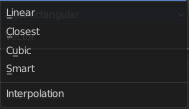
Interpolation method used for the environment texture.
| Entry | What it does |
|---|---|
| Linear | Regular quality interpolation. |
| Closest | No interpolation, use closest pixel. |
| Cubic | Smoother, better quality interpolation. |
| Smart | Bicubic when magnifying, otherwise Bilinear is used. This is only available for OSL. |
Projection Method
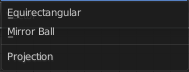
Allows you to use different types of environmental maps.
| Entry | What it does |
|---|---|
| Equirectangular | Projection from an Equirectangular photo. |
| Mirror Ball | Projection from an orthographic photo or mirror ball. |
Outputs
Color
RGB color from the image.
Gabor Texture
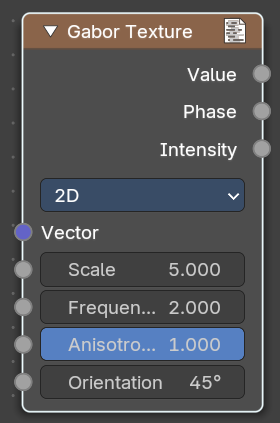
The Gabor Texture is a special directional noise texture from the OSL Shading language.
Inputs
| Entry | What it does |
|---|---|
| Vector | Texture coordinate to sample texture at defaults to Generated texture coordinates if the socket is left unconnected. |
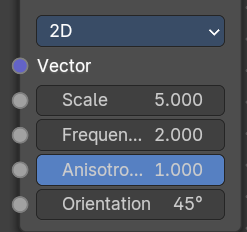
| Scale | The scale of the Gabor noise. |
| Frequency | The rate at which the Gabor noise changes across space. It differs from the input scale in that it only scales perpendicular to the gabor noise direction. |
| Anisotropic | The directionality of the Gabor noise. 1 means the noise is completely directional. With a value of 0 the noise goes in all directions. |
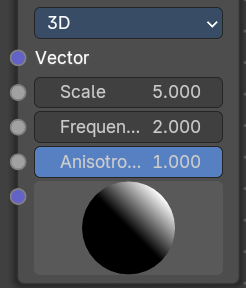
| Orientation | The direction of the anisotropic Gabor noise. With the 2ds method you have a orientation value. With the 3d method you will have a trackball to adjust the orientation. |
Properties
| Entry | What it does |
|---|---|
| Type | 2D ignores the Z input. 3D goes in all 3 directions. |
| Outputs | Value: The Gabor noise value with both, random phase and random intensity. · Phase: The phase of the Gabor noise, without random intensity. · Intensity: The intensity of the Gabor noise, withbout random phase. |
Gradient Texture
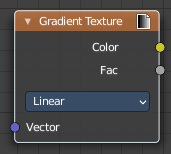
The Gradient Texture node generates interpolated color and intensity values based on the input vector.
Inputs
Vector
Texture coordinate to sample texture at; defaults to Generated texture coordinates if the socket is left unconnected.
Properties
Gradient Type
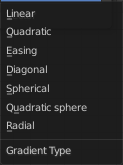
Controls the type of gradient generated.
| Entry | What it does |
|---|---|
| Linear | Directly returns the input X coordinate. |
| Quadratic | Interpolates the input X coordinate quadratically. |
| Easing | Uses a combination of quadratic and linear interpolation to return a smooth gradient from the input X coordinate. |
| Diagonal | Averages the input X and Y coordinates. |
| Spherical | Creates an inverse gradient using the length of the input vector; the maximum value is at (0, 0, 0). |
| Quadratic Sphere | The same as Spherical, except interpolated quadratically. |
| Radial | Returns a value based on the angle of the input around the Z axis. |
Outputs
| Entry | What it does |
|---|---|
| Color | Texture color output. |
| Factor | Texture intensity output. |
IES Texture
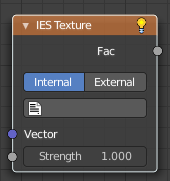
The IES Texture is used to match real world lights based on IES files. IES files store the directional intensity distribution of light sources.
Inputs
| Entry | What it does |
|---|---|
| Vector | Texture coordinate for lookup in the light distribution. Defaults to the normal. |
| Strength | Light strength multiplier. |
Properties
Mode
| Entry | What it does |
|---|---|
| Internal | Use IES profile from a file embedded in a text data-block in the blend-file, for easy distribution. |
| External | Load IES profile from a file on the drive. |
Outputs
Factor
Light intensity, typically plugged into the Strength input of an Emission node.
Image Texture
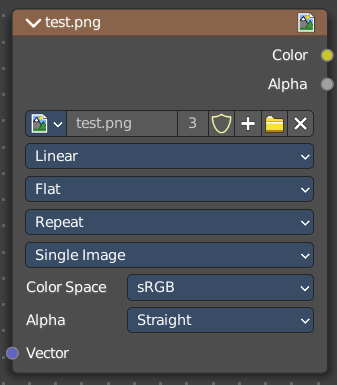
The Image Texture is used to add an image file as a texture.
Inputs
Vector
Texture coordinate for texture look-up. If this socket is left unconnected, UV coordinates from the active UV render layer are used.
Properties
Image
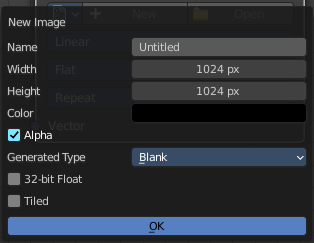
Open an image, choose an existing image, or generate a new image.
When you click at Open then a file browser opens up. When you click at New then a popup dialog opens. up where you can create a new image.
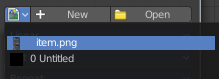
The image browser at the left allows you to pick an already existing texture from the scene.
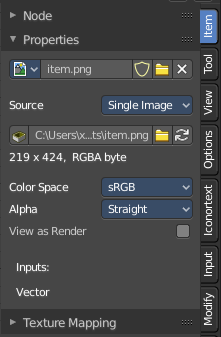
More image settings can be found in the Sidebar in the Items tab. Usually you find in the Item tab the very same settings like in the selected node. But the Image texture node is an exception. It shows here the usual image related settings too. This will be explained in the sidebar chapter.
Interpolation
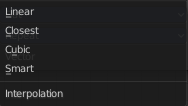
Method to scale images up or down for rendering.
| Entry | What it does |
|---|---|
| Linear | Regular quality interpolation. |
| Cubic | Smoother, better quality interpolation. For bump maps this should be used to get best results. |
| Closest | No interpolation, use only closest pixel for rendering pixel art. |
| Smart | Cycles Only Only for Open Shading Language. Use cubic interpolation when scaling up and linear when scaling down, for a better performance and sharpness. |
Projection
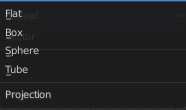
Projection to use for mapping the textures.
| Entry | What it does |
|---|---|
| Flat | Uses the XY coordinates for mapping. |
| Box | Maps the image to the six sides of a virtual box, based on the normal, using XY, YZ and XYZ coordinates depending on the side. |
| Blend | For Box mapping, the amount to blend between sides of the box, to get rid of sharp transitions between the different sides. Blending is useful to map a procedural-like image texture pattern seamlessly on a model. 0.0 gives no blending; higher values give a smoother transition. |
| Sphere | Sphere mapping is the best type for mapping a sphere, and it is perfect for making planets and similar objects. It is often very useful for creating organic objects. |
| Tube | Maps the texture around an object like a label on a bottle. The texture is therefore more stretched on the cylinder. This mapping is of course very good for making the label on a bottle, or assigning stickers to rounded objects. However, this is not a cylindrical mapping so the ends of the cylinder are undefined. |
Extension
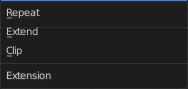
Extension defines how the image is extrapolated past the original bounds:
| Entry | What it does |
|---|---|
| Repeat | Will repeat the image horizontally and vertically giving tiled-looking result. |
| Extend | Will extend the image by repeating pixels on its edges. |
| Clip | Clip to the original image size and set all the exterior pixels values to transparent black. |
Source
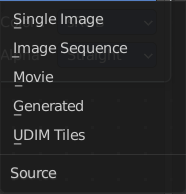
What kind of image it is. The terms should be self explaining.
Color Space
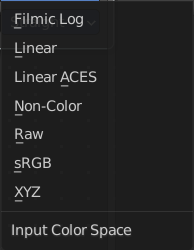
What color space is used for the image.
Alpha
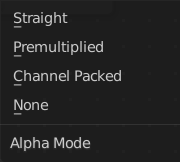
What alpha mode is used for the image.
Outputs
| Entry | What it does |
|---|---|
| Color | RGB color from image. If the image has alpha, the color is premultiplied with alpha if the Alpha output is used, and unpremultiplied or straight if the Alpha output is not used. |
| Alpha | Alpha channel from image. |
Magic Texture
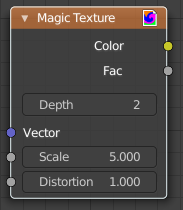
The Magic Texture node is used to add a procedural psychedelic color texture.
| Entry | What it does |
|---|---|
| Inputs | Vector: Texture coordinate to sample texture at; defaults to Generated texture coordinates if the socket is left unconnected. · Scale: Scale of the texture. · Distortion: Amount of distortion. |
| Properties | Depth: Number of iterations. |
| Outputs | Color: Texture color output. · Factor: Texture intensity output. |
Noise Texture
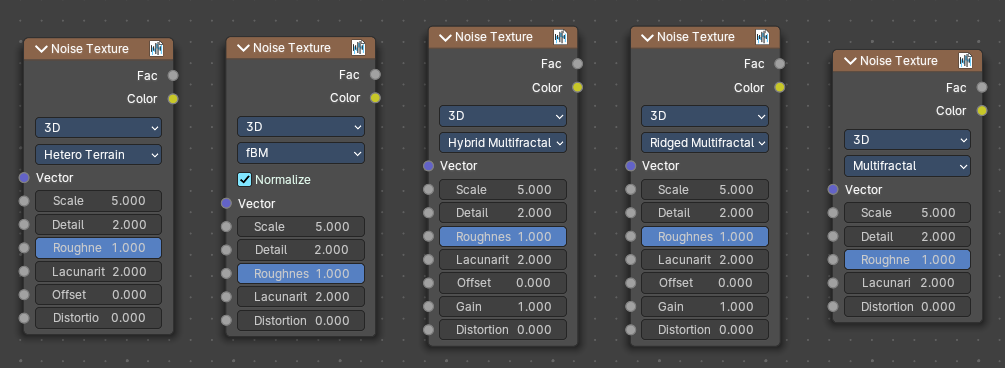
The Noise Texture node evaluates a fractal Perlin noise at the input texture coordinates. This nodes allows great control over how noise octaves are combined.
Inputs
The inputs are dynamic, they become available if needed depending on the node properties.
| Entry | What it does |
|---|---|
| Vector | Texture coordinate to evaluate the noise at; defaults to Generated texture coordinates if the socket is left unconnected. |
| Normalize | Normalize the output to the 0 - 1 range. · W: Texture coordinate to evaluate the noise at. Appears with 4 dimensions. · Scale: Scale of the base noise octave. · Detail: Number of noise octaves. The fractional part of the input is multiplied by the magnitude of the highest octave. Higher number of octaves corresponds to a higher render time. · Roughness: Adds a roughness noise. · Lacunarity: The scale of a perlin noise octave relative to the perlin noise octave from the previous octave. · Offset: An added offset to each octave, determines the level where the highest octave will appear. · Gain: An extra multiplier to tune the magnitude of octaves. · Distortion: Amount of distortion. |
Properties
Dimensions
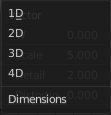
The dimensions of the space to evaluate the noise in.
| Entry | What it does |
|---|---|
| 1D | Evaluate the noise in 1D space at the input W. |
| 2D | Evaluate the noise in 2D space at the input Vector. The Z component is ignored. |
| 3D | Evaluate the noise in 3D space at the input Vector. |
| 4D | Evaluate the noise in 4D space at the input Vector and the input W as the fourth dimension. |
Type
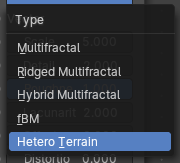
Type of the perlin noise texture.
| Entry | What it does |
|---|---|
| Multifractal | The result is more uneven (varies with location), more similar to a real terrain. Uses a multiplicative cascade. |
| Ridged Multifractal | Creates sharp peaks. Calculates the absolute value of the noise, creating “canyons”, and then flips the surface upside down. |
| Hybrid Multifractal | Creates peaks and valleys with different roughness values, like real mountains rise out of flat plains. Combines the additive cascade with a multiplicative cascade. |
| fBM (fractal Brownian Motion) | Produces an unnatural homogeneous and isotropic result. Uses an additive cascade, the values are simply added together. |
| Hetero Terrain (Heterogeneous Terrain) | Similar to Hybrid Multifractal creates a heterogeneous terrain, but with the likeness of river channels. |
Outputs
| Entry | What it does |
|---|---|
| Factor | Value of fractal noise. |
| Color | Color with different fractal noise in each component. |
Sky Texture
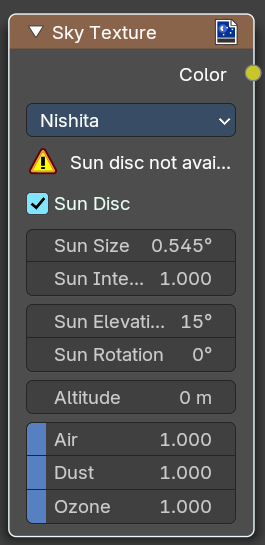
The Sky Texture node adds a procedural Sky texture.
| Entry | What it does |
|---|---|
| Inputs | — |
| Vector | Texture coordinate to sample texture at; defaults to Generated texture coordinates if the socket is left unconnected. |
Properties
Sky Type

Sky model to use. There is currently just Nishita left as a choice.
| Entry | What it does |
|---|---|
| Sun disc | Include the sun disc itself into the outpup. Note that the sun disc is just available with the Cycles renderer. Not with the workbench or Eevee. |
| Sun Size | The sun size. |
| Sun Intensity | The sun intensity. |
| Sun Elevation | The sun elevation. |
| Sun Rotation | The sun rotation. |
| Sun Altitude | The sun altitude. |
| Air | Air influence. |
| Dust | Dust strength. |
| Ozone | Ozone influence. |
Outputs
Color
Texture output.
Voronoi Texture
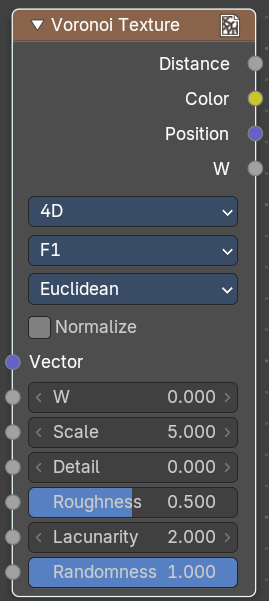
The Voronoi Texture node evaluates a Worley Noise at the input texture coordinates.
Inputs
The inputs are dynamic, they become available if needed depending on the node properties.
| Entry | What it does |
|---|---|
| Vector | Texture coordinate to evaluate the noise at; defaults to Generated texture coordinates if the socket is left unconnected. |
| W | The W Texture coordinate to evaluate the noise at (4D) |
| Scale | Scale of the noise. |
| Detail | The number of voronoi layers. |
| Roughness | The influence of a voronoi layer relative to the previous layer. |
| Lacunarity | The scale of a voronoi layer relative to the previous layer. |
| Randomness | The randomness of the noise. |
Properties
Dimensions
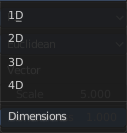
The dimensions of the space to evaluate the noise in.
| Entry | What it does |
|---|---|
| 1D | Evaluate the noise in 1D space at the input W. |
| 2D | Evaluate the noise in 2D space at the input Vector. The Z component is ignored. |
| 3D | Evaluate the noise in 3D space at the input Vector. |
| 4D | Evaluate the noise in 4D space at the input Vector and the input W as the fourth dimension. |
Feature
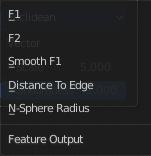
The Voronoi feature that the node will compute and return.
| Entry | What it does |
|---|---|
| F1 | Compute and return the distance to the closest feature point as well as its position and color. |
| Smooth F1 | Compute and return a smooth version of F1. |
| Distance To Edge | Compute and return the distance to the edges of the Voronoi cells. |
| N-Sphere Radius | Compute and return the radius of the n-sphere inscribed in the Voronoi cells. In other words, it is half the distance between the closest feature point and the feature point closest to it. |
Distance Metric

The distance metric used to compute the texture.
| Entry | What it does |
|---|---|
| Euclidean | Use the Euclidean distance metric. |
| Manhattan | Use the Manhattan distance metric. |
| Chebychev | Use the Chebychev distance metric. |
| Minkowski | Use the Minkowski distance metric. The Minkowski distance is a generalization of the aforementioned metrics with an Exponent as a parameter. Minkowski with an exponent of one is equivalent to the Manhattan distance metric. Minkowski with an exponent of two is equivalent to the Euclidean distance metric. Minkowski with an infinite exponent is equivalent to the Chebychev distance metric. |
Outputs
| Entry | What it does |
|---|---|
| Distance | The Distance. |
| Color | Cell color. The color is arbitrary. |
| Position | Position of feature point. |
| W | Position of feature point. Note. In some configurations of the node, especially for low values of Randomness, rendering artifacts may occur. This happens due to the same reasons described in the Notes section in the White Noise Texture page and can be fixed in a similar manner as described there. |
Wave Texture
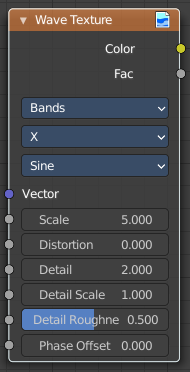
The Wave Texture node adds procedural bands or rings with noise distortion.
Inputs
| Entry | What it does |
|---|---|
| Vector | Texture coordinate to sample texture at; defaults to Generated texture coordinates if the socket is left unconnected. |
| Scale | Overall texture scale. |
| Distortion | Amount of distortion of the wave (similar to the Marble texture in Blender Internal). |
| Detail | Amount of distortion noise detail. |
| Detail Scale | Scale of distortion noise. |
| Detail Roughness | Adds a roughness noise. |
| Phase Offset | Set an offset for the phase. |
Properties
Wave Type

Bands or Rings shaped waves.
Bands direction
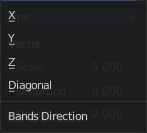
In which direction the bands should point.
Wave Profile
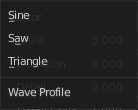
Controls the shape and look of the wave type.
| Entry | What it does |
|---|---|
| Saw | Uses a saw tooth profile. |
| Sine | Uses the standard sine profile. |
| Triangle | Uses a triangle shape. |
Outputs
| Entry | What it does |
|---|---|
| Color | Texture color output. |
| Factor | Texture intensity output. |
White Noise Texture
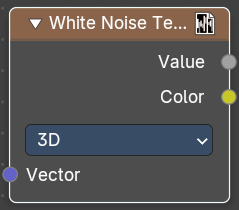
This node adds noise.
Inputs
The inputs are dynamic, they become available if needed depending on the node properties.
| Entry | What it does |
|---|---|
| Vector | Vector used as seed in 2D, 3D, and 4D dimensions. |
| W | Value used as seed in 1D and 4D dimensions. |
Properties
Dimensions
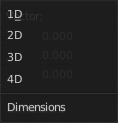
The dimensions of the space to evaluate the noise in.
| Entry | What it does |
|---|---|
| 1D | The W input is used as seed. |
| 2D | The X and Y components of the Vector input are used as seed. |
| 3D | The Vector input is used as seed. |
| 4D | Both the Vector input and the W input are used as seed. |
Outputs
Value
Output random value.
Note: The slightest difference in seed values would result in completely different outputs. Consequently, bad precision may have significant impact on the output. Usually, we can mitigate this issue by:
Eliminating the problematic seed value. If the problematic seed value is constant, it should be eliminated by choosing a lower dimension or multiplying it by zero.
Adding an arbitrary value to the seed. The issue might only happen at certain boundaries, like unit boundaries, so simply adding an arbitrary value might solve the issue.
Taking the absolute value of the seed. In computing, zero may be positive or negative, so taking the absolute values unifies the zero into a single value.