

































































Add Menu - Input
The Input menu contains Input node types.
Add menu - Input
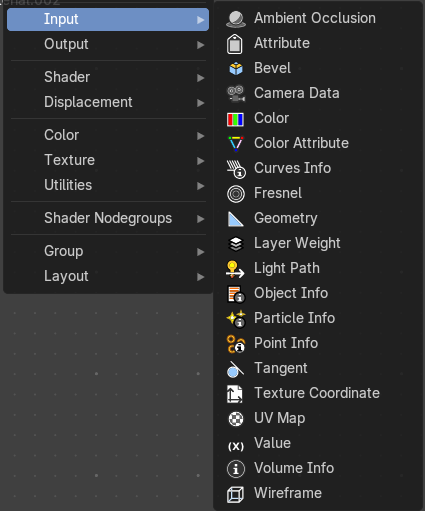
The Input menu contains Input node types.
The content is the same for all three sub modes. Note that you need to tick Use Nodes to activate the menu items when you are in Line Style sub mode.
Ambient Occlusion

Ambient Occlusion is a technique to self shadow the geometry of objects. Corners are usually darker than flat areas.
Hint, you should either use Ambient Occlusion or Global Illumination, since GI includes AO techniques.
| Entry | What it does |
|---|---|
| Inputs | Color: Tint for AO output color. · Distance Cycles Only: Distance up to which other objects are considered to occlude the shading point. · Normal: Normal used for ambient occlusion. If nothing is connected the default shading normal is used. |
| Properties | Samples Cycles Only: Number of samples to use for ray traced ambient occlusion sampling. Keep as low as possible for an optimal performance. · Inside Cycles Only: Detect convex rather than concave shapes, by computing occlusion inside mesh. · Only Local Cycles Only: Only detect occlusion from the object itself, and not others. |
| Outputs | Color: Ambient occlusion with color tint. · AO: Ambient occlusion factor without color tint. |
Attribute
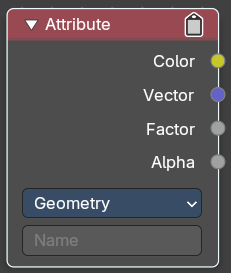
The Attribute node allows you to retrieve attributes attached to an object or mesh.
Properties
Name
Name of the attribute that you want to use.
Most attributes are easily available. Some not. Examples of not so obvious ones:
Vertex Color Layers can be retrieved this by their names.
Density gives a scalar defining the density of any smoke inside the Fluid Domain.
Color gives the color of the smoke inside the Fluid Domain. The color and vector outputs are the same. The Factor output is an average of the channels.
Temperature gives a scalar defining the temperature of the volume. Values in the range 0 - 1 map to 0 - 1000 kelvin. This may be used to render physically-based fire with the Blackbody or Principled Volume shaders. All three outputs are the same.
Flame gives a scalar defining the density of any fire inside the Fluid Domain. All three outputs are the same.
Ocean Foam gives a scalar defining where foam might appear when using an Ocean Modifier. This depends on the name you give this property.
Outputs
| Entry | What it does |
|---|---|
| Color | RGB color interpolated from the attribute. |
| Vector | XYZ vector interpolated from the attribute. |
| Factor | Scalar value interpolated from the attribute. |
Bevel
Cycles Only
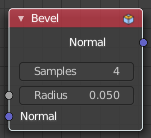
The Bevel shader node can be used for rendering rounded corners to capture specular highlights. The geometry is not modified. The modification happens at shader level.
| Entry | What it does |
|---|---|
| Inputs | Radius: Width of the bevel effect on edges. · Normal: Normal to apply bevel on top of, to be combined with a Bump node for example. |
| Properties | Samples: Number of samples to take for each shader evaluation. More samples give more accurate results, but are also slower to render. The default value of 4 works well for most cases, with any noise resolved by using more AA samples. |
| Outputs | Normal: Standard normal output. |
Camera Data
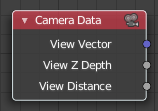
With the Camera Data node you can get get information about the position of the object relative to the camera. This could be used for example to change the shading of objects further away from the camera, or make custom fog effects.
| Entry | What it does |
|---|---|
| Inputs | This node has no inputs. |
| Properties | This node has no properties. |
| Outputs | View Vector: A camera space vector from the camera to the shading point. · View Z Depth: The distance each pixel is away from the camera. · View Distance: Distance from the camera to the shading point. |
Color
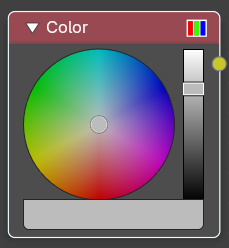
A color wheel to define a color.
Outputs
Color
The output color.
Color Attribute
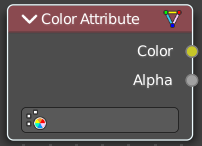
Provides vertex colors as well as their alpha value.
Properties
Vertex Color
The target vertex color. The listed vertex colors are those of the mesh of the active object.
If the active object has no mesh, a warning will be displayed. If the property is marked in red, it means the vertex color is not available in the mesh of the active object, but it may be available in other meshes of objects that share this material.
Outputs
| Entry | What it does |
|---|---|
| Color | The vertex color. |
| Alpha | The alpha value. |
Curves Info
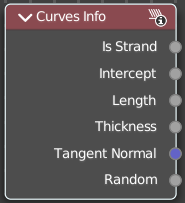
The Hair Info node gives access to Hair information.
Outputs
| Entry | What it does |
|---|---|
| Is Strand | Returns 1 when the shader is acting on a strand, otherwise 0. |
| Intercept | The point along the strand where the ray hits the strand (1 at the tip and 0 at the root). |
| Length | Returns the length of the hair curve. |
| Thickness | The thickness of the strand at the point where the ray hits the strand. |
| Tangent Normal | Tangent normal of the strand. |
| Random | A random per-hair value in the range from 0 to 1. It can for example be used in combination with a color ramp, to randomize the hair color. |
Fresnel
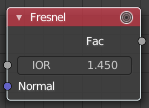
The Fresnel effect says that the more a face goes towards 180 degrees, the more it is reflecting. With 180 degrees every object in real life is 100% reflective, no matter how the material is.
| Entry | What it does |
|---|---|
| Inputs | IOR: Index of refraction (IOR) of the material being entered. · Normal: Input meant for plugging in bump or normal maps which will affect the output. |
| Outputs | Factor: Fresnel weight, indicating the probability with which light will reflect off the layer rather than passing through. |
Geometry
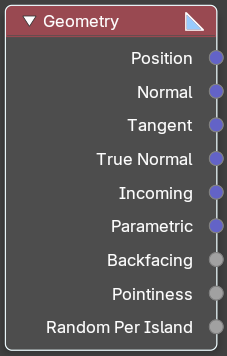
The Geometry node gives geometric information about the current shading point. All vector coordinates are in World Space. For volume shaders, only the position and incoming vector are available.
Outputs
| Entry | What it does |
|---|---|
| Position | Position of the shading point. |
| Normal | Shading normal at the surface (includes smooth normals and bump mapping). |
| Tangent | Tangent at the surface. |
| True Normal | Geometry or flat normal of the surface. |
| Incoming | Vector pointing towards the point the shading point is being viewed from. |
| Parametric | Parametric coordinates of the shading point on the surface. To area lights it outputs its UV coordinates in planar mapping and in spherical coordinates to point lights. |
| Backfacing | 1.0 if the face is being viewed from the back side, 0.0 for the front side. |
| Pointiness Cycles Only | An approximation of the curvature of the mesh per vertex. Lighter values indicate convex angles, darker values indicate concave angles. It allows you to do effects like dirt maps and wear-off effects. |
| Random Per Island Cycles Only | A random value for each connected component (island) of the mesh. It is useful to add variations to meshes composed of separated units like tree leaves, wood planks, or curves of multiple splines. |
Layer Weight
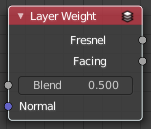
The Layer Weight node outputs a weight typically used for layering shaders with the Mix Shader node.
Inputs
| Entry | What it does |
|---|---|
| Blend | Bias the output towards all 0 or all 1. Useful for uneven mixing of shaders. |
| Normal | Input meant for plugging in bump or normal maps which will affect the output. |
Outputs
| Entry | What it does |
|---|---|
| Fresnel | Dielectric Fresnel weight, useful for example for layering diffuse and glossy shaders to create a plastic material. This is like the Fresnel node, except that the input of this node is in the often more convenient 0.0 to 1.0 range. |
| Facing | Weight that blends from the first to the second shader as the surface goes from facing the viewer to viewing it at a grazing angle. |
Light Path
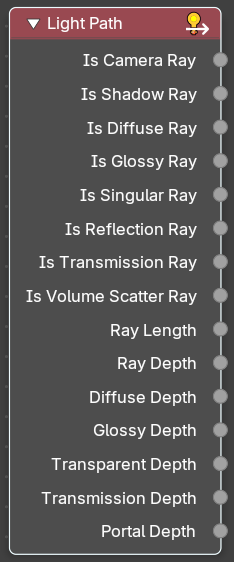
The Light Path node is used to find out for which kind of incoming ray the shader is being executed. This is useful for non-physically-based tricks.
Outputs
| Entry | What it does |
|---|---|
| Is Camera Ray | 1.0 if shading is executed for a camera ray, 0.0 otherwise. |
| Is Shadow Ray | 1.0 if shading is executed for a shadow ray, 0.0 otherwise. |
| Is Diffuse Ray | 1.0 if shading is executed for a diffuse ray, 0.0 otherwise. |
| Is Glossy Ray | 1.0 if shading is executed for a glossy ray, 0.0 otherwise. |
| Is Singular Ray Cycles Only | 1.0 if shading is executed for a singular ray, 0.0 otherwise. |
| Is Reflection Ray Cycles Only | 1.0 if shading is executed for a reflection ray, 0.0 otherwise. |
| Is Transmission Ray Cycles Only | 1.0 if shading is executed for a transmission ray, 0.0 otherwise. |
| Ray Length Cycles Only | Distance traveled by the light ray from the last bounce or camera. |
| Ray Depth | Number of times the ray been reflected or transmitted on interaction with a surface. Note. Passing through a transparent shader does not count as a normal “bounce”. |
| Diffuse Depth Cycles Only | Number of times the ray has gone through diffuse reflection or transmission. |
| Glossy Depth Cycles Only | Number of times the ray has gone through glossy reflection or transmission. |
| Transparent Depth Cycles Only | Returns the number of transparent surfaces passed through. |
| Transmission Depth Cycles Only | Replace a Transmission light path after X bounces with another shader, e.g. a Diffuse one. This can be used to avoid black surfaces, due to low amount of max bounces. |
| Portal Depth | The light portal depth. |
Object Info
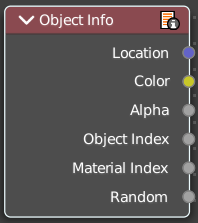
The Object Info node gives information about the object instance.
Note that this node only works for material shading nodes; it does nothing for light and world shading nodes.
Outputs
| Entry | What it does |
|---|---|
| Location | Location of the object in world space. |
| Color | Object color, same as Color in the Properties Editor > Object > Viewport Display. |
| Alpha | Alpha color for the Object Color, if existing. |
| Object Index | Object pass index, same as Pass Index in the Properties Editor > Object > Relations. |
| Material Index | Material pass index, same as Pass Index in the Properties Editor > Material > Settings. |
| Random | Random number unique to a single object instance. |
Particle Info
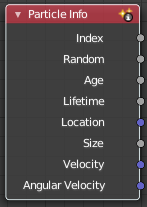
Cycles Only
This node gives access to the data of the particle that spawned the object instance.
Note that this node currently only supports parent particles. Info from child particles is not available.
Outputs
| Entry | What it does |
|---|---|
| Index | Index number of the particle (from 0 to number of particles). |
| Random | A random per-particle value in the range from 0 to 1. It can for example be used in combination with a color ramp, to randomize the particle color. |
| Age | Age of the particle in frames. |
| Lifetime | Total lifespan of the particle in frames. |
| Location | Location of the particle. |
| Size | Size of the particle. |
| Velocity | Velocity of the particle. |
| Angular Velocity | Angular velocity of the particle. |
Point Info
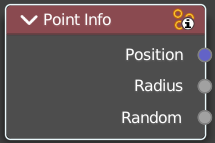
Retreive info from a point cloud. Just cycles. Eevee is not yet supported.
Outputs
| Entry | What it does |
|---|---|
| Position | The position of the point cloud. |
| Radius | The radius of the point cloud. |
| Random | A random point in the point cloud. |
Tangent
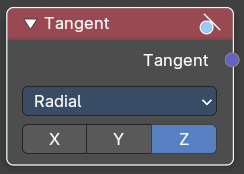
The Tangent node generates a tangent direction for the Anisotropic BSDF.
Properties
Direction Type

The tangent direction can be derived from a cylindrical projection around the X, Y, or Z axis (radial), or from a manually created UV Map for full control.
Outputs
Tangent
The tangent direction vector.
Texture Coordinate
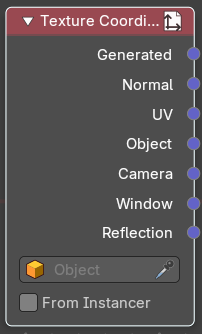
Define some texture coordinate types. The types are pretty self explaining.
| Entry | What it does |
|---|---|
| Properties | Object: Specific object to use for object space coordinates. This only affects the Object output. · From Instancer: Cycles Only! If the object is generated by instancing from vertices or faces, use texture coordinates from instancer. This only affects the Generated and UV outputs. |
| Output | Generated: Uses automatically generated texture coordinates, calculated from the bounding box. · Normal: Uses the normals for the texture coordinates. · UV: Uses the UV mapping for the texture coordinates. · Object: Uses the Object for the texture coordinates. · Camera: Uses the position coordinate in camera space for texture coordinates. · Window: Uses the location of shading point on the screen. · Reflection: Uses the direction of the reflection vector as texture coordinates. |
UV Along Stroke
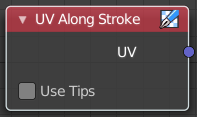
Line Style Mode Only
The UV Along Stroke input node maps textures along the stroke length, making it possible to mimic pencil, paintbrush, and other art medium marks.
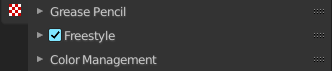
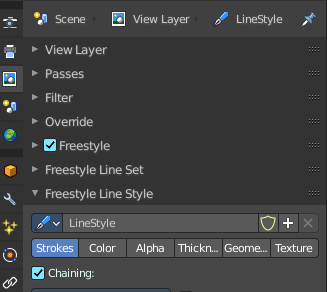
The pattern type can be set up in the properties editor in the Freestlye Line Style panel in the View Layer Properties tab. Don't forget to turn on Line Style in the Render Properties first. Or the Freestlye panels will not show.
Note: These UV maps become available only during the Freestyle rendering process. This means that the UV Along Stroke node cannot be replaced by the conventional UV Map input node. Since it takes an existing UV map already defined as part of mesh data.
| Entry | What it does |
|---|---|
| Properties | Use Tips: Allows to use lower quarters of a texture image for the head and tail tips of a stroke, while the upper half for the stroke body. |
| Outputs | UV: UV maps defined along strokes. |
UV Map
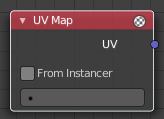
The UV Map node is used to retrieve specific UV maps. This node can retrieve any UV map that belongs to the object with this material.
| Entry | What it does |
|---|---|
| Properties | From Instancer Cycles Only: See the From Instancer option of the Texture Coordinate Node. · UV Map edit box: UV map to use. |
| Outputs | UV: UV mapping coordinates from the specified UV map. |
Value
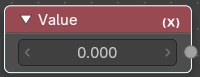
The Value Node is a simple node to input numerical values to other nodes in the tree.
| Entry | What it does |
|---|---|
| Properties | Default Value: Type in a single numerical value (floating point). |
| Outputs | Value: The value set in the options. |
Volume Info
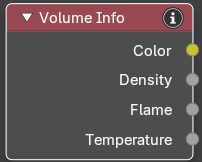
The Volume Info node provides information about Smoke Domains.
Outputs
| Entry | What it does |
|---|---|
| Color | Smoke color. |
| Density | Smoke density. |
| Flame | Fire density. |
| Temperature | Temperature of the fire. Values in the range [0, 1] linearly maps to temperatures in the range [0, 1000] in Kelvin. |
Wireframe
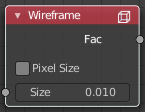
The Wireframe node is used to retrieve and render the wireframe of the object. This happens as the edges of the object appears to Cycles.
Meshes are triangulated before being processed by Cycles. So the topology will always appear triangulated when viewed with the Wire frame node.
| Entry | What it does |
|---|---|
| Inputs | Size: The input value used for unconnected socked. |
| Properties | Pixel Size: When enabled, the size of edge lines is set in screen space. |
| Outputs | Factor: Black-and-white mask showing white lines representing edges according to the object’s topology. |