

































































Add Menu - Color
This sub menu contains color related nodes.
Add menu - Color
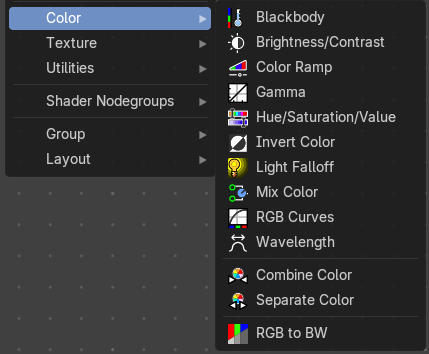
This sub menu contains color related nodes.
Blackbody
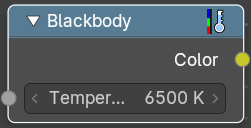
Convert a blackbody temperature to an RGB value.
| Entry | What it does |
|---|---|
| Inputs | Temperature: Standard input. |
| Outputs | Color: Standard output. |
Brightness/Contrast
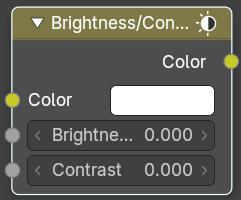
Inputs
| Entry | What it does |
|---|---|
| Color | Standard input. |
| Brightness | An additive-type factor by which to increase the overall brightness of the image. Use a negative number to darken an image. |
| Contrast | A scaling type factor by which to make brighter pixels brighter, but keeping the darker pixels dark. Higher values make details stand out. Use a negative number to decrease the overall contrast in the image. |
Outputs
Color
Standard output.
Note. It is possible that this node will put out a value set that has values beyond the normal range, i.e. values greater than one and less than zero. If you will be using the output to mix with other images in the normal range, you should clamp the values using the Map Value node (with the Min and Max enabled), or put through a Color Ramp node (with all normal defaults).
Color Ramp
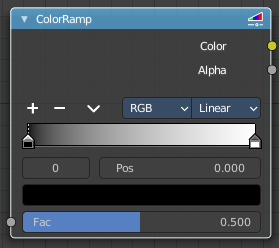
The Color Ramp Node is used for mapping values to colors with the use of a gradient.
Inputs
Factor
The Factor input is used as an index for the color ramp.
Properties
Color Ramp
Color Ramps enables the user to specify a range of colors based on color stops. The color between the color stops gets interpolated.
Controls
| Entry | What it does |
|---|---|
| + | Add a stop to your color ramp. The stop will be added after the selected one, in the middle to the next one. |
| - | Deletes the selected color stop from the list. |
Tools menu
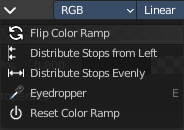
| Entry | What it does |
|---|---|
| Flip Color Ramp | Flips the gradient, inverting the values of the color ramp. |
| Distribute Stops from Left | Rearrange the stops so that every step has the same space to the right. |
| Distribute Stops Evenly | Space between all neighboring stops becomes equal. |
| Eyedropper (pipette icon) E | An Eyedropper to sample a color or gradient from the interface to be used in the color ramp. |
Reset Color Ramp
Resets the color ramp to its default state.
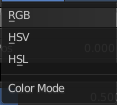
Color Mode
| Entry | What it does |
|---|---|
| RGB | Blends color by mixing each color channel and combining. |
| HSV/HSL | Blends colors by first converting to HSV or HSL, mixing, then combining again. This has the advantage of maintaining saturation between different hues, where RGB would de-saturate, this allows for a richer gradient. |
Interpolation
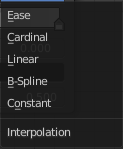
| Entry | What it does |
|---|---|
| Ease | Uses an Ease Interpolation for the color stops. |
| Cardinal | Uses a Cardinal Interpolation for the color stops. |
| Linear | Uses a Linear Interpolation for the color stops. |
| B-Spline | Uses a B-Spline Interpolation for the color stops. |
| Constant | Uses a Constant Interpolation for the color stops. |
Color Ramp

The color band. A click at one of the color stops makes it the active one. You can move the color stops by clicking at them and dragging them around.
Active Color Stop elements
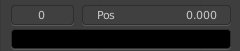
Adjust the active color stop.
| Entry | What it does |
|---|---|
| Choose active color stop | Choose the color stop by index. |
| Pos | The position of the active color stop. The range goes from 0.000 to 1.000 |
Outputs
| Entry | What it does |
|---|---|
| Image | Standard image output. |
| Alpha | Standard Alpha Output. |
Gamma
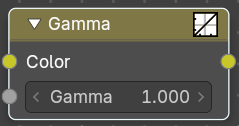
Use this node to apply a gamma correction.
| Entry | What it does |
|---|---|
| Inputs | Color: Standard image input. · Gamma: An exponential brightness factor. |
| Outputs | Color: Standard output. |
Hue Saturation Value
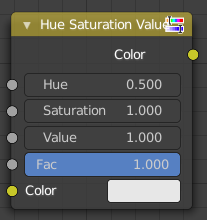
The Hue Saturation Node applies a color transformation in the HSV color space. Called “Hue Saturation Value” in shader and texture context.
Inputs / Properties
The inputs also works as properties when nothing is connected.
| Entry | What it does |
|---|---|
| Hue | Specifies the hue rotation of the image. 360° are mapped to (0 to 1). The hue shifts of 0 (-180°) and 1 (+180°) have the same result. |
| Saturation | A saturation of 0 removes hues from the image, resulting in a greyscale image. A shift greater than 1.0 increases saturation. |
| Value | Value is the overall brightness of the image. De/Increasing values shift an image darker/lighter. |
| Factor | Controls the amount of influence the node exerts on the output image. |
| Color | Standard input. |
Outputs
Color
Standard output.
Hue/Saturation Tips
Some things to keep in mind that might help you use this node better:
Hues are vice versa
A blue image, with a Hue setting at either end of the spectrum (0 or 1), is output as yellow (recall that white, minus blue, equals yellow). A yellow image, with a Hue setting at 0 or 1, is blue.
Hue and Saturation work together.
So, a Hue of 0.5 keeps the blues the same shade of blue, but Saturation can deepen or lighten the intensity of that color.
Gray & White are neutral hues
A gray image, where the RGB values are equal, has no hue. Therefore, this node can only affect it with Value. This applies to all shades of gray, from black to white; wherever the values are equal.
Changing the effect over time
The Hue and Saturation values can be animated with a Time Node or by animating the property.
Invert Color
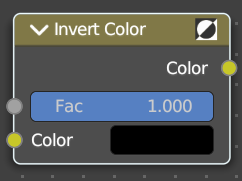
The Invert Node inverts the colors in the input image, producing a negative.
| Entry | What it does |
|---|---|
| Inputs | Factor: Controls the amount of influence the node exerts on the output image. · Color: Standard input. |
| Outputs | Color: Standard image output. |
Light Falloff
Cycles Only
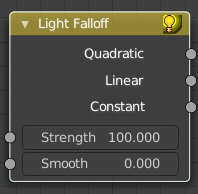
The Light Falloff node allows you to manipulate how light intensity decreases over distance. In reality light will always fall off quadratically; however, it can be useful to manipulate as a non-physically-based lighting trick. Note that using Linear or Constant falloff may cause more light to be introduced with every global illumination bounce, making the resulting image extremely bright if many bounces are used.
| Entry | What it does |
|---|---|
| Inputs | Strength: Light strength before applying falloff modification. · Smooth: Smooth intensity of light near light sources. This can avoid harsh highlights, and reduce global illumination noise. 0.0 corresponds to no smoothing; higher values smooth more. The maximum light strength will be strength/smooth. |
| Outputs | Quadratic: Quadratic light falloff; this will leave strength unmodified if smooth is 0.0 and corresponds to reality. · Linear: Linear light falloff, giving a slower decrease in intensity over distance. · Constant: Constant light falloff, where the distance to the light has no influence on its intensity. |
Mix Color
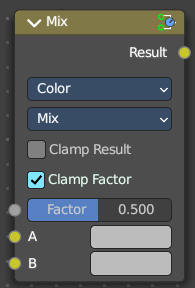
The mix Color node is in real the Mix node in Color mode. It is shared across editors.
The Mix node is meant to mix values. This can be colors, or also a vector or a single value.
Note that the Mix Color node does not start in Color mode when you insert it from the sidebar due a techical limitation in the Blender Python api. Here you have to manually switch to the color mode.
Data Type
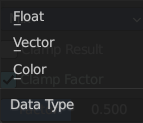
The mode in which the node works.
Color
The Mix Node in color mode mixes images by working on the individual and corresponding pixels of the two input images. Called “MixRGB” in the shader and texture context.
Inputs
| Entry | What it does |
|---|---|
| Factor | Controls the amount of influence the node exerts on the output image. |
| Color 1 | Usually the background image. The image size and resolution sets the dimensions of the output image. |
| Color 2 | Usually he foreground image. |
Properties
Mix
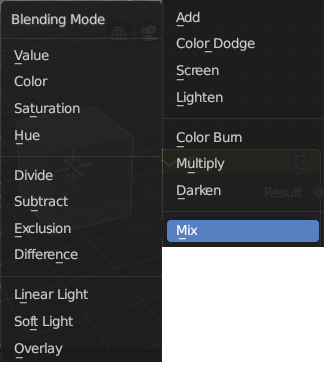
Choose the different blending modes.
Add, Subtract, Multiply, Screen, Divide, Difference, Darken, Lighten, Overlay, Color Dodge, Color Burn, Hue, Saturation, Value, Color, Soft Light, Linear Light.
| Entry | What it does |
|---|---|
| Clamp Result | Clamp the result to 0, 1 range. |
| Clamp Factor | Clamp the factor to 0, 1 range. |
Outputs
Result
Standard output.
Vector
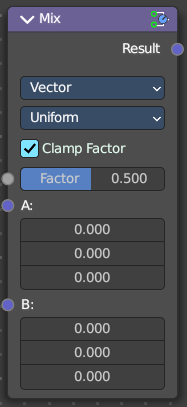
The vector mode allows you to mix vectors.
Inputs
| Entry | What it does |
|---|---|
| Factor | Controls the amount of influence. |
| A | The input vector. |
| B | The output vector. |
Properties
Factor Mode
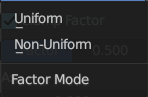
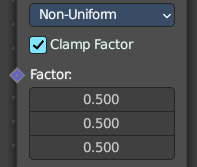
Use a single factor for all values, or a factor per value.
Clamp Factor
Clamp the factor to 0, 1 range.
Outputs
Result
Standard output.
Float
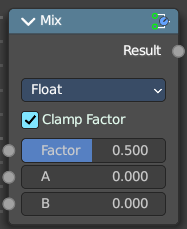
The vector mode allows you to mix vectors.
| Entry | What it does |
|---|---|
| Inputs | Factor: Controls the amount of influence. · A: The input value. · B: The output value. |
| Properties | Clamp Factor: Clamp the factor to 0, 1 range. |
| Outputs | Result: Standard output. |
RGB Curves
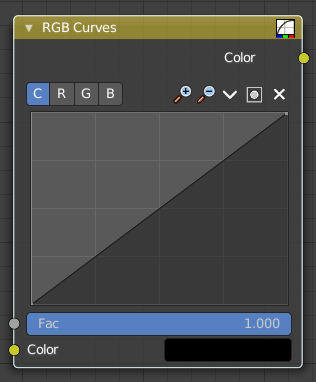
The RGB Curves Node allows color corrections for each color channel and levels adjustments in the compositing context.
Inputs
| Entry | What it does |
|---|---|
| Factor | Controls the amount of influence the node exerts on the output image. |
| Color | Standard image input. |
Properties
Curve Field
Channel buttons

Clicking on one of the channels displays the curve for each.
C (Combined RGB), R (Red), G (Green), B (Blue).
Navigation elements
They are described from left to right.
Zoom in and out
The two buttons with the magnifying glass at it zooms in and out in the curve window.
Use Clipping
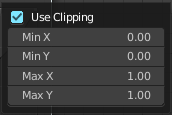
Clipping options. Set up clipping for the stroke.
Tools
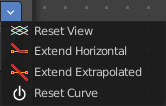
Tools is a menu where you can find some curve related tools.
| Entry | What it does |
|---|---|
| Reset View | Resets the curve windows zoom. |
| Extend horizontal | Extends the curve before the first curve point and behind the last curve point horizontally. |
| Extend extrapolated | Extends the curve before the first curve point and behind the last curve point extrapolated. |
| Reset Curve | Resets the curve to the initial shape. |
Curve edit field
Create and tweak a Bezier curve that varies the input levels (X axis) to produce an output level (Y axis).
Selecting Points
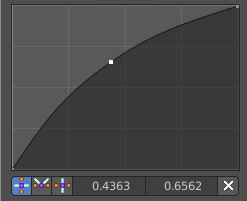
You can select curve points. This reveals two edit boxes for the x and y coordinate of this point.
Selected points can be moved around. Left click at them, hold the mouse button down and move them to a new location.
Adding Points
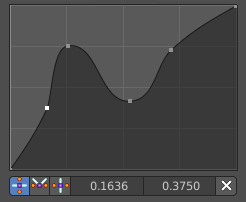
You can add new curve points by simply left clicking at the curve. Move the mouse to position them where you need it.
Curve point settings

When you have a point selected then you will reveal further settings at the bottom.
| Entry | What it does |
|---|---|
| Vector Handle | Set handle type to Vector. |
| Auto Handle | Set handle type to Auto. |
| Auto Clamped Handle | Set handle type to Auto Clamped. |
Outputs
Color
Standard output.
Wavelength
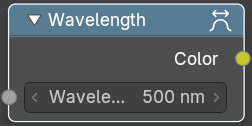
Convert a Wavelength value to a RGB value.
| Entry | What it does |
|---|---|
| Inputs | Wavelength: The wavelength input. |
| Outputs | Color: Standard output. |
Combine Color
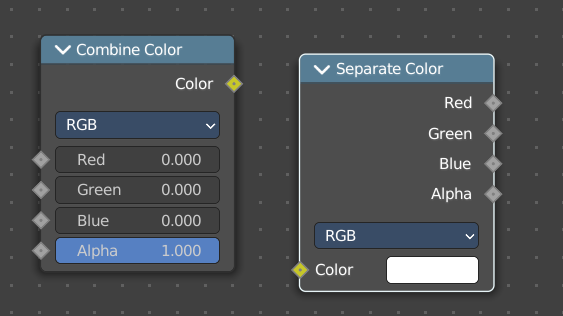
Combine the single RGBA channels into a single image.
Input
Mode
- RGB colour processing
- HSV colour processing
- HSL colour processing
| Entry | What it does |
|---|---|
| Input – RGB mode | R, G and B: The red, green and blue channels of an image. |
| Input – HSV mode | H , S and V: The Hue, Saturation and Value channels of an image. |
| Input – HSL mode | H , S and L: The Hue, Saturation and Luminescence channels of an image. |
Outputs
Color
The rgba output color.
Separate Color
Combine the single RGBA channels into a single image.
Input
Mode
- RGB colour processing
- HSV colour processing
- HSL colour processing
Image
The image input.
Output
| Entry | What it does |
|---|---|
| Red, Green, Blue and Alpha | The red, green, blue and alpha channels of an image in RGB mode. |
| Hue Saturation Value Alpha | The Hue Saturation Value Alpha channels in HSV mode. |
| Hue Saturation Lightness Alpha | The Hue Saturation Lightness Alpha channels in HSL mode. |
RGB to BW
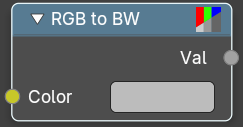
Convert a 24 bit RGB value to a 8 bit black and white value.
| Entry | What it does |
|---|---|
| Inputs | Color: Standard output. |
| Outputs | Val: Standard output. |
Shader to RGB
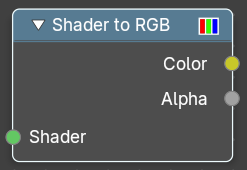
Convert rendering effects to RGB value. Eevee only.
| Entry | What it does |
|---|---|
| Inputs | Shader: Standard output. |
| Outputs | Color: Color output. · Alpha: Alphachannel output. |