

































































Shader Editor
The shader editor is the editor where you can create and edit your materials for your objects in the scene. It is a node editor. The materials are made of nodes. And you connect them to achieve the desired result.
Shader Editor
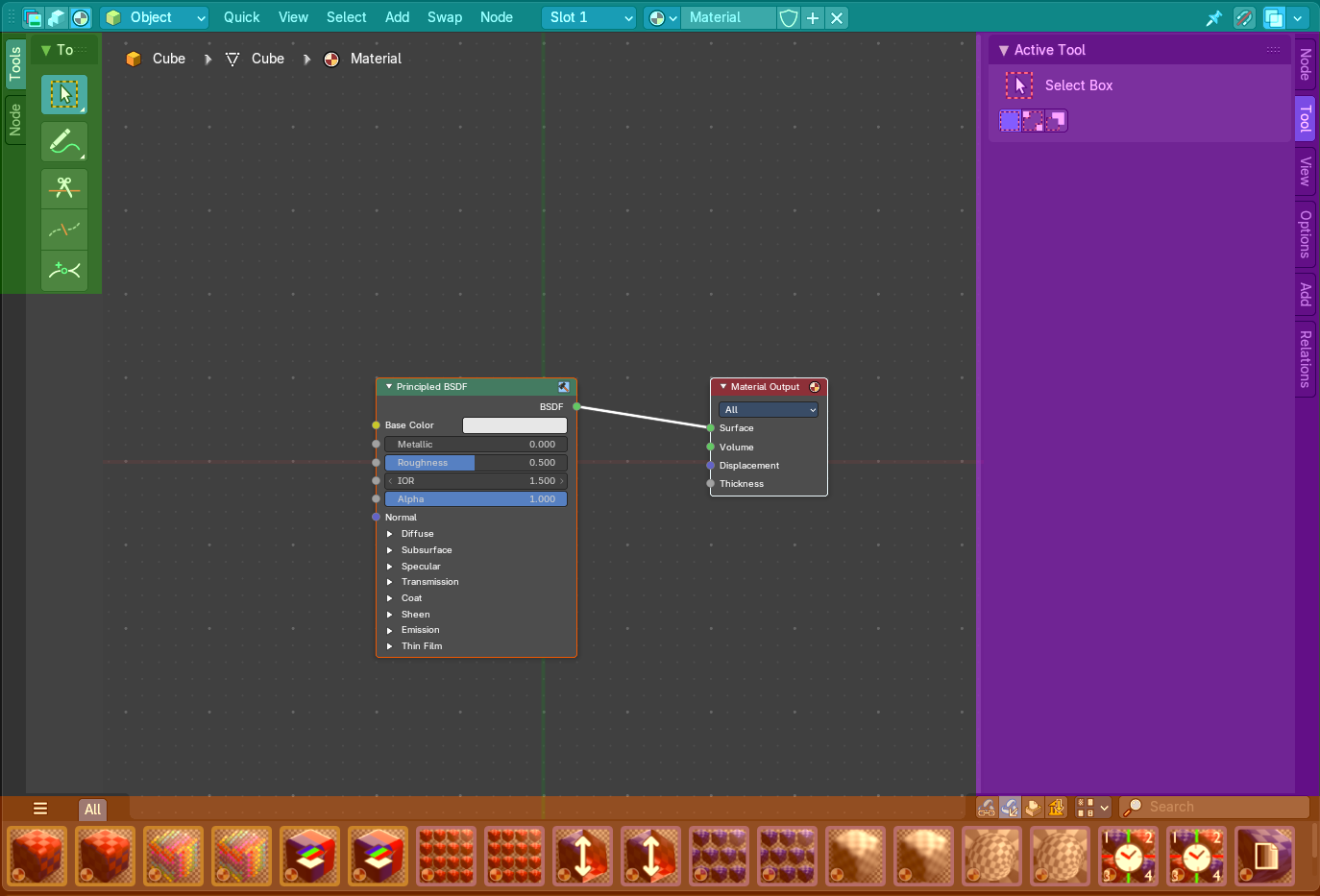
The shader editor is the editor where you can create and edit your materials for your objects in the scene. It is a node editor. The materials are made of nodes. And you connect them to achieve the desired result.
The editor is divided into several areas has several tool areas.
Blue – Header
Green - Tool Shelf
Pink - Sidebar
Orange - Asset shelf
Note that the shader editor does not have a tool area above the header. All tool settings are in the sidebar in the Tool tab.
Navigating in the Shader Editor viewport
Hotkeys
Pan the view - MMB
Zoom - Mouse Wheel, MMB + Ctrl, Numpad + / -
View All - Home
Collapsing Nodes
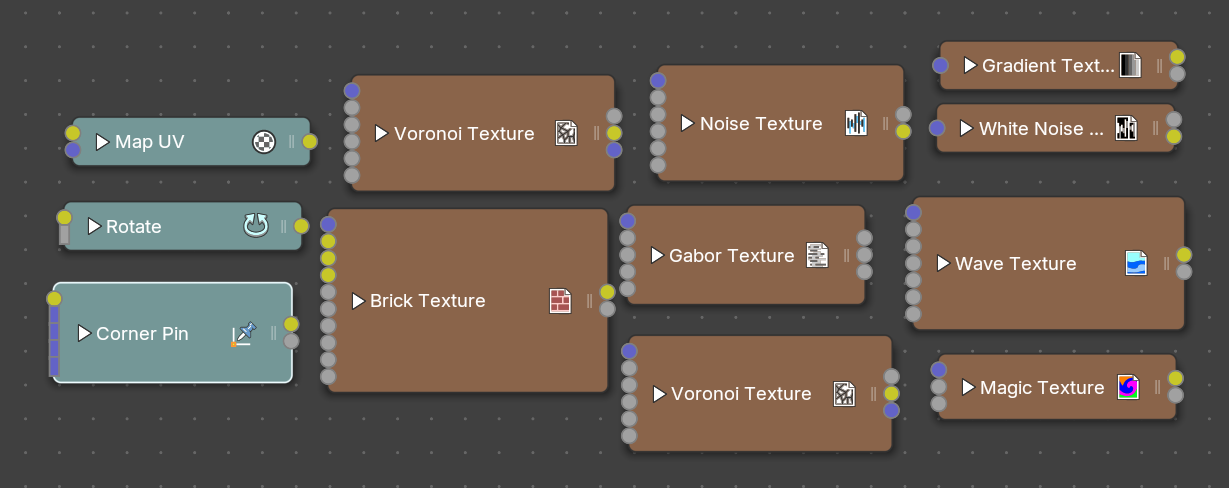
When clicking on the arrow of the header on a node, you can collapse the node to show only the name and icon.
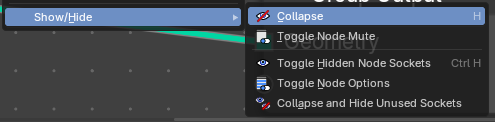
You can either collapse using the context menu, header menu or hotkey with the Show/Hide – Collapse operator.
Rename Socket names
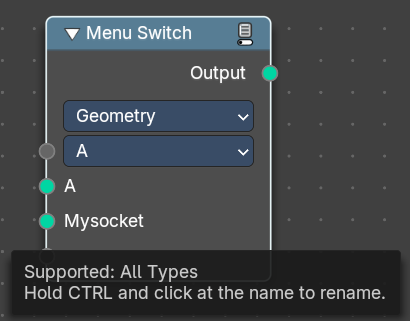
In some nodes you can rename the socket names by holding down Ctrl and click at the name.
Node drag search
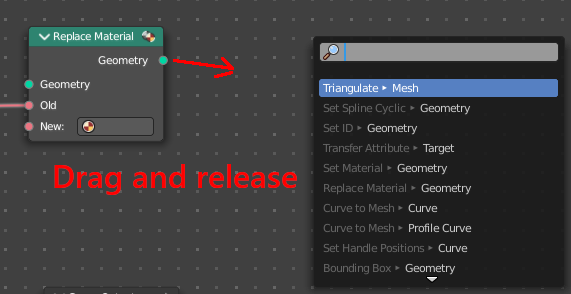
When you grab a node input or output, drag it around, and release it in the empty space, then you will get a search menu with the available nodes that fits to this input or output.
Node context menu
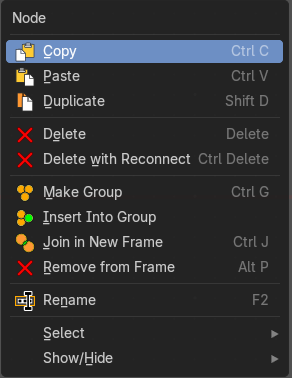
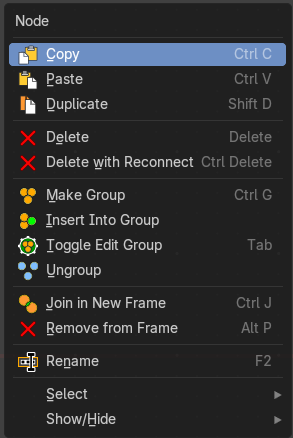
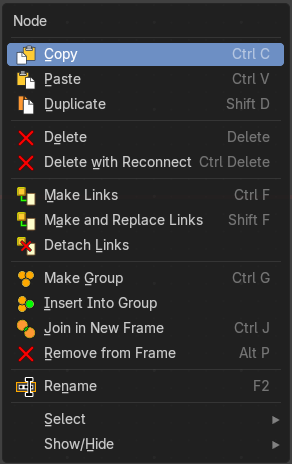
When you double right click into the viewport, then you will open a menu. The UV Context menu. Its content is to 100% double content to already existing menus. And it is despite the name not contextual. It does though show different content under different circumstances.
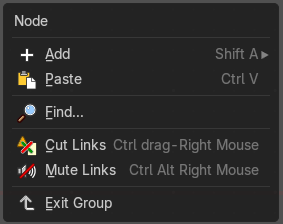
Add
The whole add menu from the header.
Find
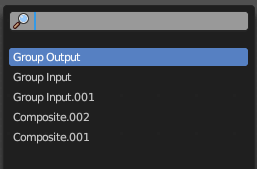
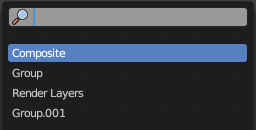
Search for nodes, and hilight them. When you are in a node group then it lists the content of the node group.
| Entry | What it does |
|---|---|
| Cut Links | Calls a cut tool with which you can cut links between nodes |
| Mute Links | Calls a cut tool with which you mute cut links between nodes. To unmute the links use the same tool again. |
| Exit Group | Same as Edit Group. When you are in a group then you can end editing with this operator. |
| Copy | Copies the selected nodes. |
| Paste | Pastes the copied nodes. |
| Duplicate | Duplicates the selected nodes. |
Rename
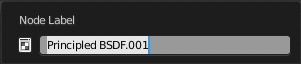
Allows you to rename the current active node. A popup opens up where you can type in another name.
| Entry | What it does |
|---|---|
| Delete | Deletes the selected nodes. All Connections gets removed. |
| Delete with Reconnect | Deletes the selected nodes. Existing connections gets bypassed as if the node would not have existed. |
| Make Links | Shows when you have at least two nodes connected. Tries to connect nodes where it makes sense. For example, the BSDF output of a Principled shader with the Surface input of the Material Output node. |
| Make and Replace Links | Shows when you have at least two nodes connected. Same as Make Links. But it will replace existing links. |
| Detach Links | Shows when you have at least two nodes connected. Removes all connections from the selected node, but tries to reconnect the remaining nodes. |
Make Group
Groups the selected nodes together.
Select the nodes that you want to group together. Choose Make Group. You will now see a green background. This indicates that the group is created, and that you are in edit mode for the group now.
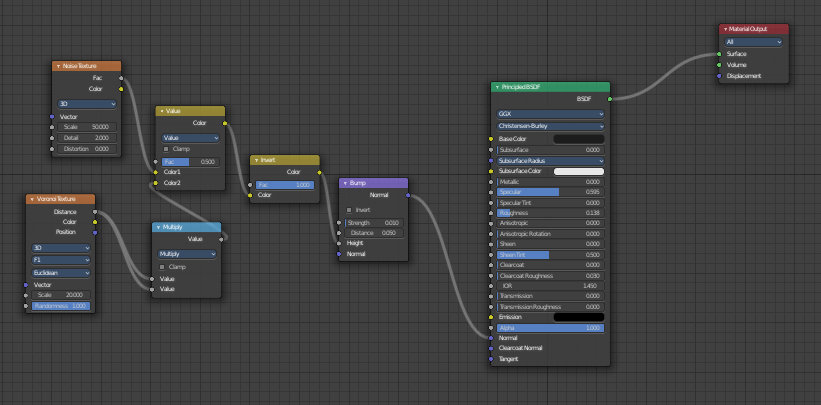
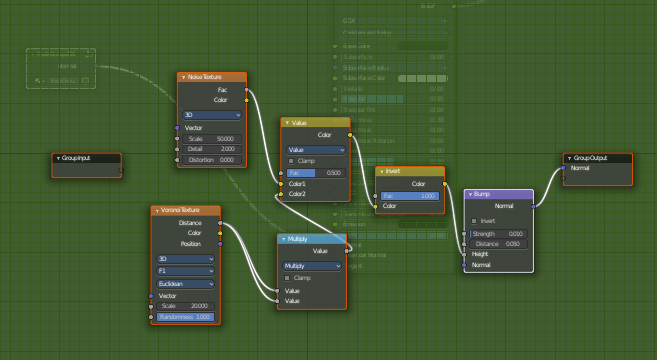
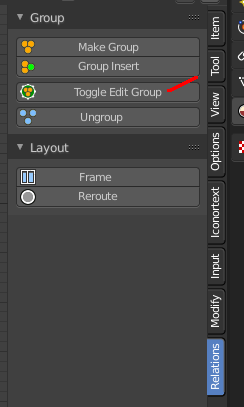
To exit the group edit mode press Tab key, or choose Toggle Edit Group menu item in the sidebar in the Relations tab in the Group panel. That way you can also enter the Group Edit mode again.
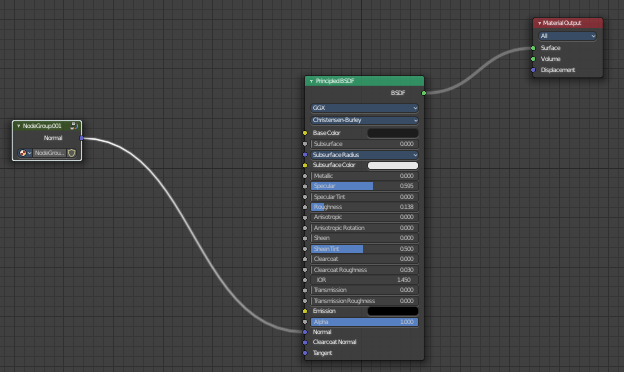
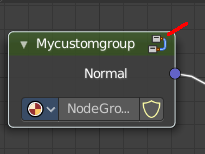
There is a third way to enter the group edit mode. Click at the right upper icon of the group node.
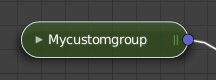
A group can be further collapsed by clicking at the triangle button in the upper left corner.
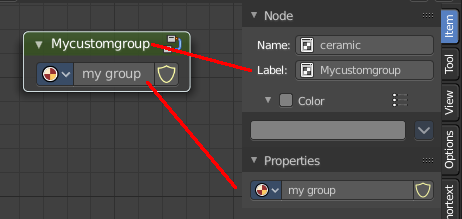
The group can be renamed in the sidebar in the Item tab and in the Properties tab in the Node panel.
Insert into Group
Allows you to insert a node into a node group.
Select the node, hold down Shift, then select the node group so that both are selected. Then perform the operator.
Toggle Edit Group
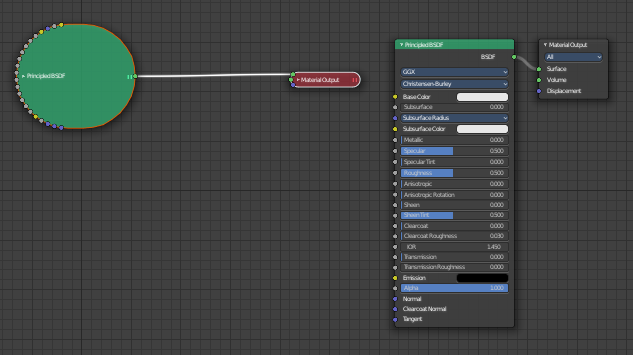
Enters a node group for editing. Or when you are in a node group, exits the node group editing.
| Entry | What it does |
|---|---|
| Ungroup | Removes the selected nodes from a group. |
| Join new Frame | Frame node functionality. Adds the selected node to a frame. |
| Remove from Frame | Frame node functionality. Removes the selected node from a frame. |
| Rename | Allows you to rename a node. |
Select submenu
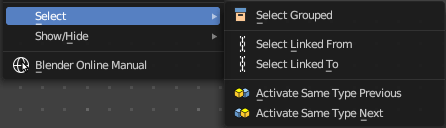
| Entry | What it does |
|---|---|
| Grouped | Select grouped nodes. |
| Linked From | Select the nodes that are linked from the currently selected nodes. The nodes before in the hierarchy. |
| Linked To | Select the nodes that are linked to the currently selected nodes. The nodes behind in the hierarchy. |
| Activate same type previous | Activate same node type before the current selection, step by step. |
| Activate same type next | Activate same node type after the current selection, step by step. |
Show/Hide submenu
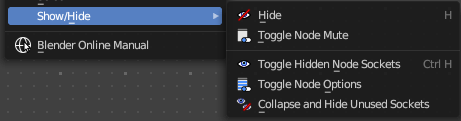
Here you find hide options to make the display of nodes more compact.
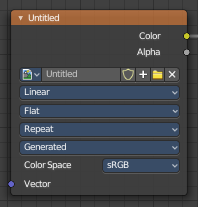
Demonstration happens at an image node.
Hide
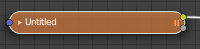
Hides everything but input and output dots. To view the full node again perform the operator again. It's a toggle. Or click at the triangle left besides the node name.
Toggle Node Mute
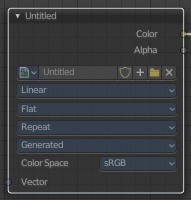
Deactivates the node.
Toggle hidden node sockets
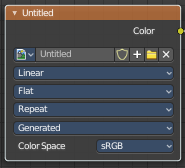
Toggles away the unused node sockets. In this case the vector input node socket and the alpha output node socket will be hidden.
Toggle Node Options
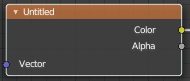
Hides away the properties.
Collapse and Hide Unused Sockets
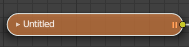
Like Hide. Hides everything but the node sockets. But it also hides the unused node sockets.
Toggle Node Options
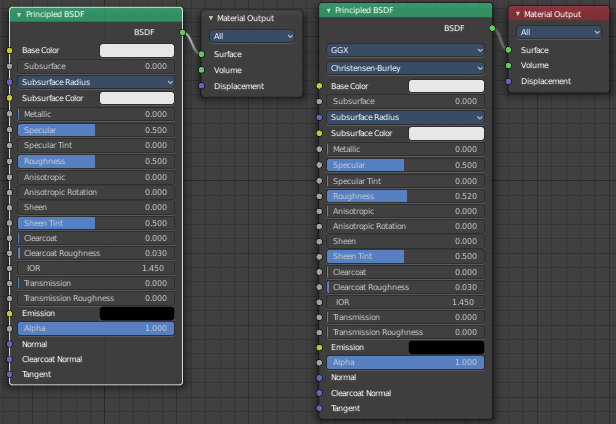
Shows or hides the node options.
Collapse and Hide Unused Sockets
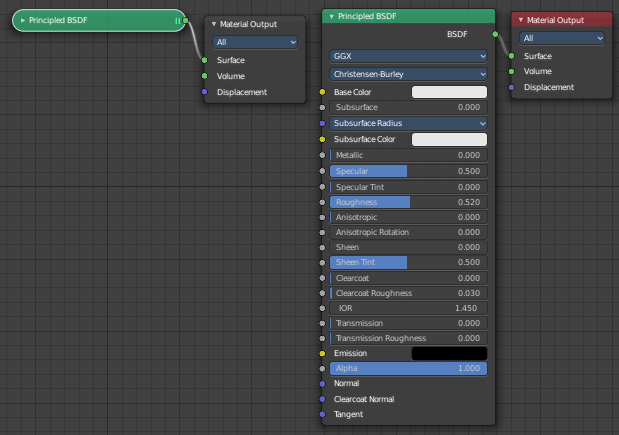
Shows or hides unused sockets.
Quick Favorites menu

When you right click at a menu or a button, then a right click menu will open. Tools have usually a Add to Quick Favorites menu entry.

The Quick Favorites Menu is empty by default. With Add to Quick favorites you can add this menu to the Quick menu.
In the 3D view we have a menu called Quick in the header, which shows this content then. In the Image Editor you can just call it with its hotkey. Q. It has no regular menu entry here.
Slider snapping

Snapping also works at sliders. Hover with the mouse over the slider, start to slide, and holding down Ctrl will snap the sliders in incremental steps.
When it's a default value between 0 and 1 then it usually snaps in 0.1 steps. When it's a default value over 1 then it usually snaps in steps of 10.