

































































World Properties Tab
The world tab provides you with world settings. Like Viewport Display color. The content vary, dependent of the chosen renderer.
World Tab
The world tab provides you with world settings. Like Viewport Display color. The content vary, dependent of the chosen renderer.
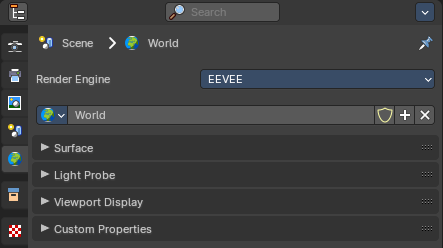
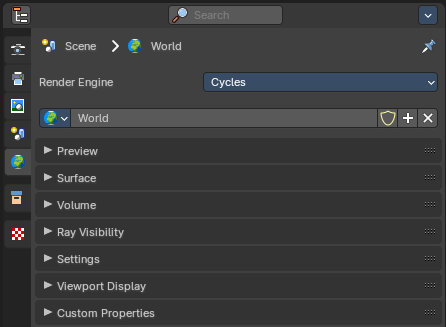
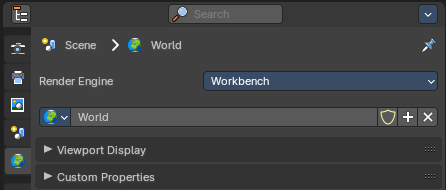
Render Engine
Shows the active render engine. Specific renderer does have other settings. And you can also switch to another renderer. But note that this is more a visual guide. It misses the Cycles render settings.
World Data Prop
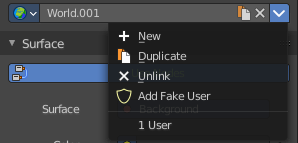

Here you can manage and change your world settings. There can be more than one World.
World Browser
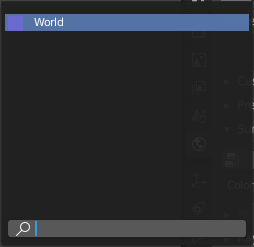
Here you can see and choose your world files.
| Entry | What it does |
|---|---|
| World Edit Box | Here you can see and change the name of the current world file. |
| Fake User | When enabled then this world file will be stored internally. And will remain in the scene. |
| New | Create a new world file. · Remove: Note that this just sets the World file inactive. It is still in the list. You can delete the world file when it has no user anymore by saving the scene, closing and reopening Bforartists. |
Viewport Display - Cycles, Workbench
Color
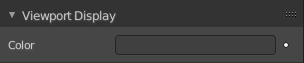
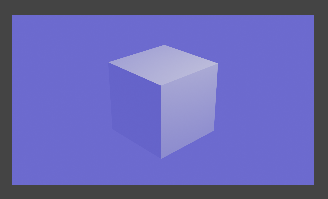
The color that you can choose here is the background color for rendering the image.
Animate Property
This property can be animated. Activating this button sets a keyframe.
Viewport Display - Eevee
Color
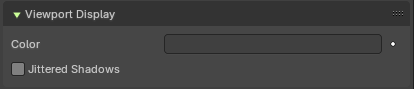
The color that you can choose here is the background color for rendering the image.
Animate Property
This property can be animated. Activating this button sets a keyframe.
Jittered Shadows
Enable jittered soft shadows to increase precision in the viewport. Note that this feature has a big perfomance impact.
Custom Properties Panel - All Renderers
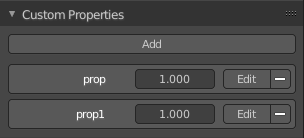
Here you can define custom properties that can be used for scripting.
Here you might also find custom properties from addons or scripts.
Add
Adds a new property.
Edit
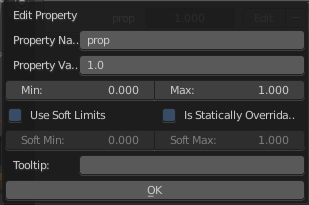
A panel where you can adjust the settings for the custom property.
Remove
Removes the property.
Surface Panel - Eevee and Cycles
Use Nodes
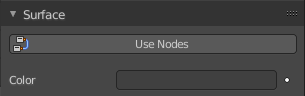
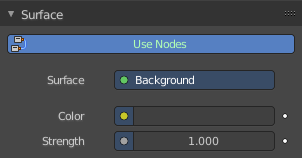
Use Nodes or simple background color.
When you use Nodes then you will reveal further options.
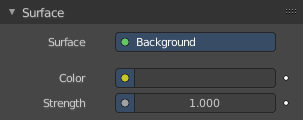
Note that Cycles misses the Use Nodes button once you have activated the nodes.
Color without nodes
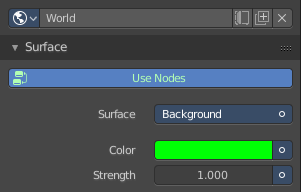
The color that you can choose here is the background color for rendering the image.
Surface
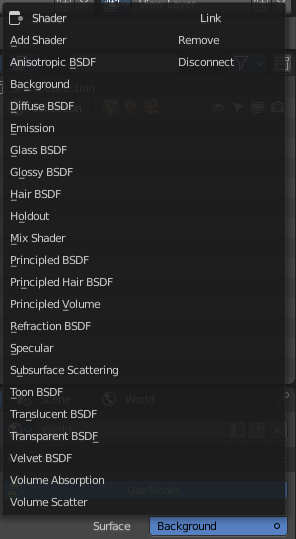
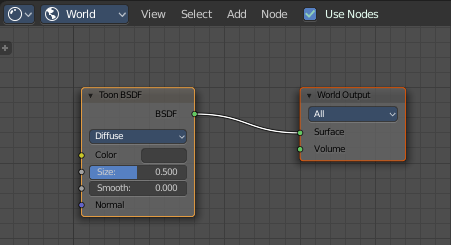
Here you can choose what shader you want to use for the background. Usually the Background shader. But you can use any shader in the list here too.
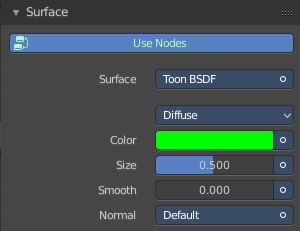
The options below changes dependent of the shader that you choose. They are explained in the shader editor chapter.
Cycles - Preview Panel
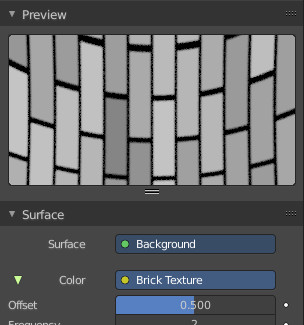
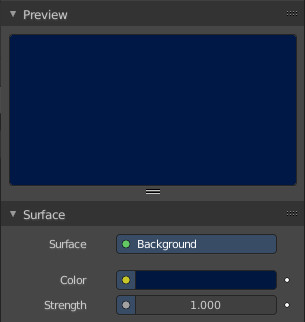
The Preview panel gives you a preview of the background color.
The color can also be an image. This depends of what you have chosen for the color method in the surface panel.
Eevee and Cycles - Volume Panel
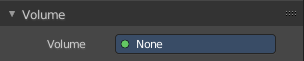
Volume rendering is a method to render light as it passes through a media within a 3D region. Here you can choose a shader for volume rendering.
Cycles - Ray Visibility Panel
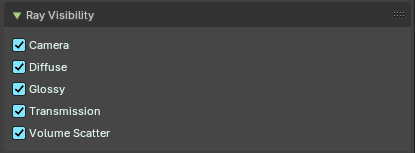
Adjust the ray visibility.
| Entry | What it does |
|---|---|
| Camera | Object Visibility for Camera rays. |
| Diffuse | Object Visibility for Diffuse Reflection rays. |
| Glossy | Object Visibility for Glossy Reflection rays. |
| Transmission | Object Visibility for Transmission rays. |
| Volume Scatter | Object Visibility for Volume Scatter rays. |
Cycles - Settings Panel
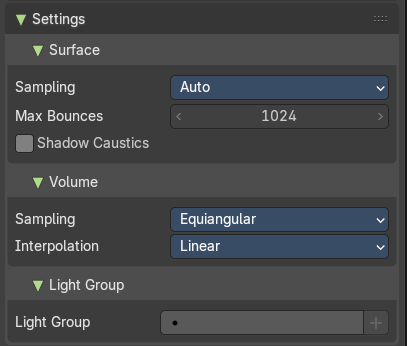
Surface subpanel
Sampling
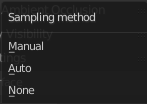
Here you can choose the method for the surface sampling.
Map Resolution
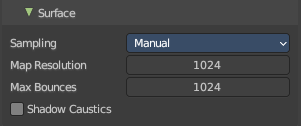
Just with method manual. Adjust the map resolution manually.
| Entry | What it does |
|---|---|
| Max Bounces | Maximum number of bounces the background light will contribute to the render. |
| Shadow Caustics | Generate caustics in the shadows of refractive surfaces. |
Volume subpanel
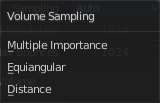
Sampling
Here you can choose the volume sampling method.
Interpolation
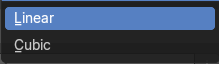
Here you can choose between cubic and linear interpolation.
| Entry | What it does |
|---|---|
| Homogeneous | When using volume rendering, assume that the volume has the same density everywhere. |
| Step Size | Distance between volume shader samples when rendering the volume. Lower values increases accuracy and render time. |
Light Group subpanel
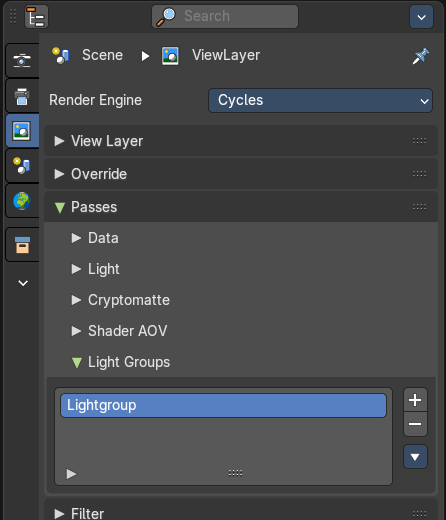
Manage the light groups that you want to use in the world settings.
Light group allows you to save light settings into layers. This enables you to adjust the lighting afterwards in compositing for example.
You need to have a lightgroup in the scene. You create them in the View Layer Properties tab in the Passes panel in the Light Grups supb panel.
Cycles - Ray Visibility Panel
Adjust the ray visibility.
| Entry | What it does |
|---|---|
| Camera | Object Visibility for Camera rays. |
| Diffuse | Object Visibility for Diffuse Reflection rays. |
| Glossy | Object Visibility for Glossy Reflection rays. |
| Transmission | Object Visibility for Transmission rays. |
| Volume Scatter | Object Visibility for Volume Scatter rays. |
Eevee - Settings Panel
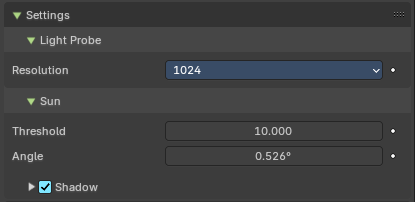
Light Probe subpanel

Resolution
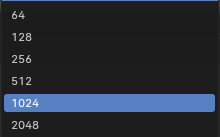
The resolution when baked to a texture.
Sun subpanel
| Entry | What it does |
|---|---|
| Threshold | The maximum value of the world contribution that will be recorded inside the light probe. The excess contribution is converted to a sunlight. A value of zero disables the feature. |
| Angle | Angular diameter of the sun as seen from the earth. |
Shadow subpanel
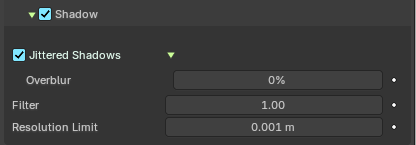
| Entry | What it does |
|---|---|
| Shadow | Enable sun shadow casting. |
| Jittered Shadows | Enable jittered soft shadows to increase precision in the final rendering. Note that this feature has a big perfomance impact. · Overblur: Apply shadow tracing to each jittered sample to reduce under-sampling artifacts. |
| Filter | Blur shadow antialiasing. |
| Resolution Limit | Maximum size of a shadow map pixel. Lower values gives higher resolution and better quality. |