

































































Visual Effects Properties Tab
Visual Effects are for the Grease Pencil object only.
Visual Effects
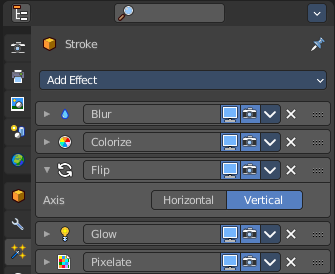
Visual Effects are for the Grease Pencil object only.
In the viewport you can apply so called visual effects to Grease pencil strokes. Like a pixelate effect.
The effect is applied to the whole image in the viewport. But just to the grease pencil object that has the effect applied. Other grease pencil objects will not be affected.
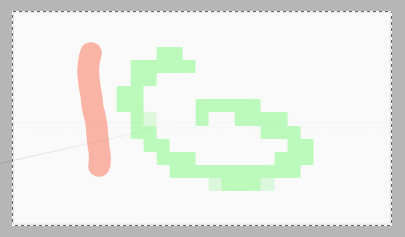
The effects renders to file. But visual effects are mainly meant for preview purposes, to judge how the result could look like after compositing. The compositing nodes are more accurate.
Visual Effects works with all renderers. Cycles, Workbench and Eevee.

You need to be in the viewport shading mode rendered. The effect does not show in material preview mode.
The effects are dependant of zoom and orientation of the viewport camera.
General functionality
Add
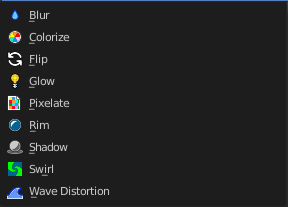
To add an effect to a grease pencil object, simply open the drop down menu, and choose the type of modifier that you want to add.
This will add the effect to the list.
Header elements

You might want to remove an effect. Or just see the effect in the final rendering. This can be adjusted in the header. The header is what you see when you collapse the effects panel.
Elements are explained from left to right.
Collapse panel
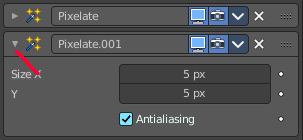
The whole modifier panel can be collapsed. Click at the arrow button up left in the header.
Effect Icon

This icon shows the type of the effect. And has no further functionality.
Effect Name

The name of the modifier. You can rename effects by clicking into the edit field and change the text.
| Entry | What it does |
|---|---|
| Realtime | Display the modifier in the viewport. |
| Render | Display the modifier in the rendered result. |
Header menu
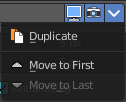
| Entry | What it does |
|---|---|
| Duplicate | Duplicates the modifier, and places the duplicate below the current modifier. |
| Move to first | Move the modifier to the first position in the stack. |
| Move to last | Move the modifier to the last position in the stack. |
| Entry | What it does |
|---|---|
| Remove | Removes the modifier from the stack. |
| Change Context | Some modifiers cannot be removed from the modifiers stack directly. Like fluid modifiers. You need to remove the fluid simulation instead, in the physics tab. With the change context button you jump to the required tab where you can now remove the simulation. |
Reorder
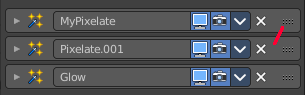
You can have more than one modifier in the list. And sometimes the order of the modifiers is very important.
Grab the handler at the right and drag the modifier to the position where you want it to have.
Animate Property
Some of the properties can be animated. Click at the animate property button at the right to add a keyframe.
Blur
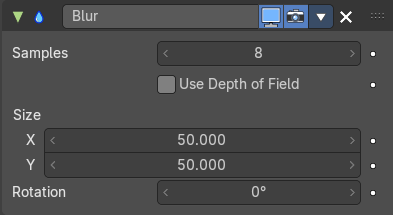
Applies a Gaussian blur to the object.
| Entry | What it does |
|---|---|
| Samples | Number of Blur samples (0 disabled the blur effect). |
| Use Depth of Field | When enabled, the blur effect uses the focal plane distance of the actual camera to simulate a depth of field effect. Only available in camera view. |
| Size X / Y | The blur factor in x and y direction |
| Rotation | Rotation of the effect. |
Colorize
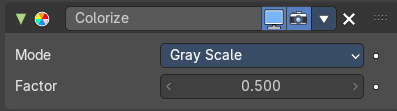
Applies colorizing effects to the object.
Mode
Grayscale
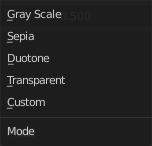
Converts to a grayscale image.
| Entry | What it does |
|---|---|
| Sepia | Converts to a sepia tone image. |
| Duotone | Converts to a black and white posterize image with high contrast and brightness. |
| Transparent | Add color transparency. |
| Factor | Controls the mix value (0 fully transparent, 1 fully opaque). |
| Custom | Allows to define a tint custom color. |
| Color | Sets the tint color. |
Factor
How strong the effect is applied.
Flip
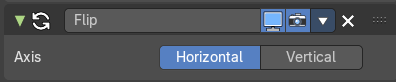
Shows the object flipped horizontally and/or vertically.
Axis
The axis to use for the flipping.
Glow
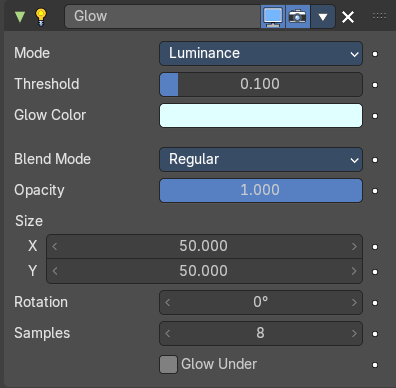
Adds a glowing rim around the object.
Mode
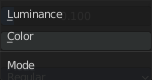
The mode of the glow effect.
| Entry | What it does |
|---|---|
| Luminance | The glow light illuminates the entire object. |
| Color | The glow light only affect a single color. |
Glow Color
Defines the glow color.
Blend Mode
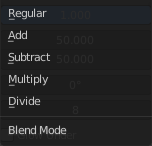
How to blend the glow with the image.
| Entry | What it does |
|---|---|
| Opacity | — |
| Size X / Y | The size of the effect. |
| Rotation | Rotation of the effect. |
| Samples | Number of blur samples. |
| Glow Under | Glow only affects alpha areas. Does not work with the blend mode Regular. |
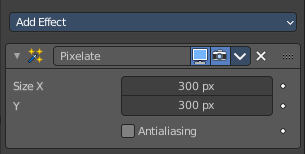
Pixelate
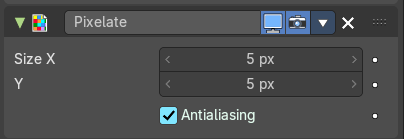
Pixelates the grease pencil stroke.
| Entry | What it does |
|---|---|
| Size X / Y | The size of the pixels. |
| Antialiasing | Use antialiasing. |
Rim
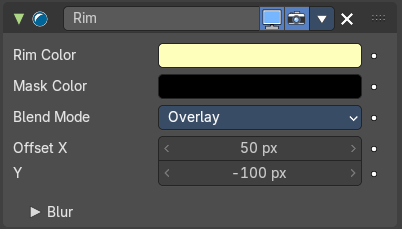
Shows a simulated rim light on the object contour.
For simulating the rim light, a masked color silhouette of the object is displaced in horizontal and/or vertical direction.
| Entry | What it does |
|---|---|
| Rim Color | The color of the rim light. |
| Mask Color | Defines a color to keep unaltered. |
Blend Mode
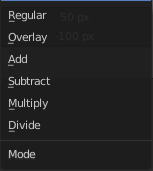
How to blend the rimlight with the image.
Offset X / Y
Color mask displacement in pixels along the X and Y axis.
Blur subpanel
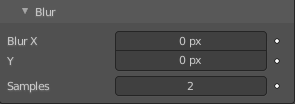
| Entry | What it does |
|---|---|
| Blur X / Y | The blur scale in pixels on the X and Y axis. |
| Samples | Number of blur samples. A value of 0 disables the blur effect. |
Shadow
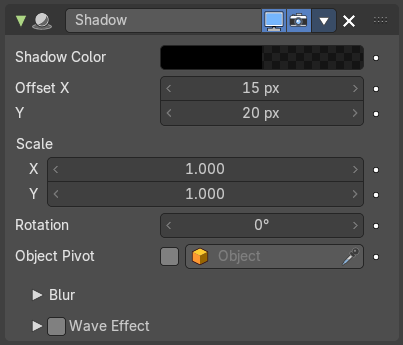
Shows a simulated shadow casted by the object.
| Entry | What it does |
|---|---|
| Shadow Color | Defines the shadow color. |
| Offset X / Y | The shadow displacement in pixels along the X and Z axis. |
| Scale X / Y | Scales the size of the shadow along the X and y axis. |
| Rotation | The shadow rotation around the Grease Pencil object. You can use the center of the grease pencil object. With Object Pivot enabled you can also choose the pivot of another object. |
| Object Pivot | Use the pivot of another object for rotation. You need to pick another object from the scene. |
Blur subpanel
| Entry | What it does |
|---|---|
| Blur X / Y | The blur scale in pixels on the X and Y axis. |
| Samples | Number of blur samples. A value of 0 disables the blur effect. |
Wave Effect subpanel
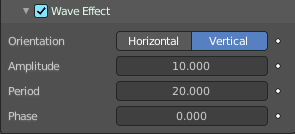
Apply a wave distortion to the shadow.
| Entry | What it does |
|---|---|
| Orientation | Sets a horizontal or vertical direction for the waves. |
| Amplitude | Controls the strength and the depth of the wave. |
| Period | Controls the wave period. The time it takes to complete one cycle. |
| Phase | Shifts the wave pattern over the shadow. |
Swirl
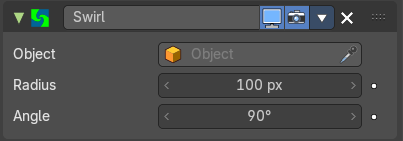
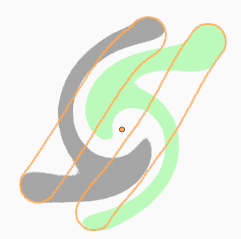
Applies a swirling pattern to the grease pencil object. The effect uses another object as the center of the swirl. An empty for example.
| Entry | What it does |
|---|---|
| Object | Pick the object that you want to use as the center of the swirl. |
| Radius | External radius size of the swirl. The needed radius depends of camera zoom. |
| Angle | Rotation angle of the swirl. A value of 0 shows no swirl. |
Wave Distortion
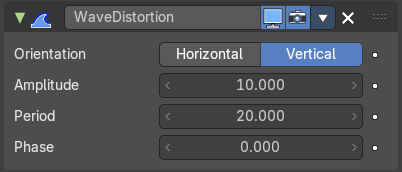
Adds a wave distortion to the grease pencil object.
| Entry | What it does |
|---|---|
| Orientation | Sets a horizontal or vertical direction for the waves. |
| Amplitude | Controls the strength and the depth of the wave. |
| Period | Controls the wave period. The time it takes to complete one cycle. |
| Phase | Shifts the wave pattern over the grease pencil object. |