

































































View Layer Properties Tab
View Layers reference to Scene collections. They allow to set their visibility, selectability and other options. Each View Layer can use any collection you wish, and multiple View Layers can use the same collections or…
View Layer
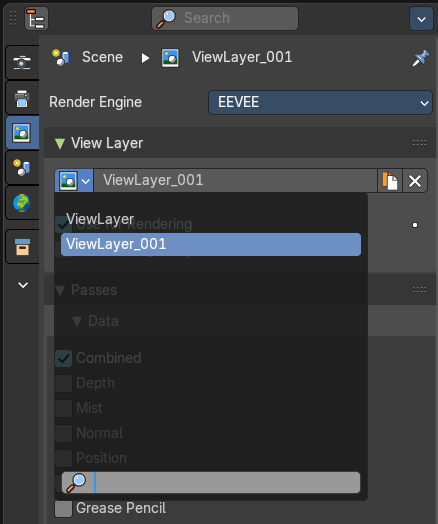
View Layers reference to Scene collections. They allow to set their visibility, selectability and other options. Each View Layer can use any collection you wish, and multiple View Layers can use the same collections or different collections.
Usually you have just one View layer for the whole scene. But you can create more View layers in the header, and rename them there.
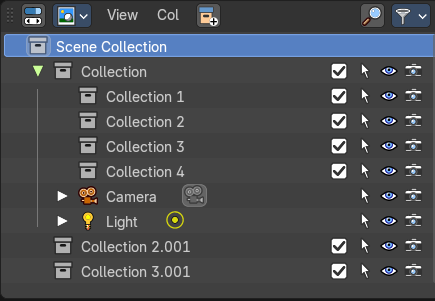
View layers are by default active for all collections. You can exclude them for specific layers in the Outliner. Select the view layer, and turn off the collections that you don't want to have active in this view layer.
Note. The different render engines uses different view layer functionality. And so the panels and available options differs.
Render Engine
Shows the active render engine. Specific renderer does have other settings. And you can also switch to another renderer. But note that this is more a visual guide. It misses the Cycles render settings.
View Layer Panel - All Renderers
View Layer Prop
| Entry | What it does |
|---|---|
| View Layer list | The list of available view layers |
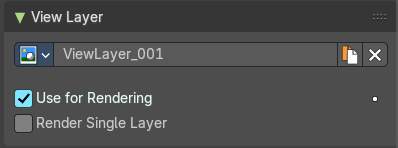
| View Layer edit box | Set the active view layer, and view and edit the name of the current active view layer. Click into the edit box to edit the name. |
Add View Layer
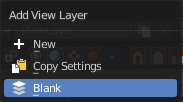
Adds a new view layer.
| Entry | What it does |
|---|---|
| New | Adds a new view layer with the default content. |
| Copy Settings | Adds a new view layer with the content of the current active layer. |
| Blank | Adds a new view layer and deactivates all collections. |
| Remove View Layer | Removes the selected view layer. |
| Entry | What it does |
|---|---|
| Use for Rendering | Disable or enable the render layer. · Animate Property: This property can be animated. Activating this button sets a keyframe at the current frame. |
| Render Single Layer | Only render the active layer. This just works for rendering from the interface. Rendering from command line ignores this setting. |
Override panel - EEVEE + Cycles
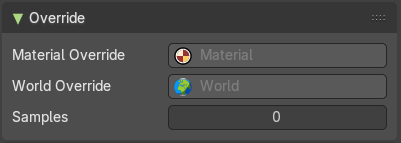
The override panel allows you to define a material that is used on all objects in the current view layer. Think of it as a clay rendering.
| Entry | What it does |
|---|---|
| Material Override | Material to override all materials in this view layers. |
| World Override | Override the world material in this view layer. |
| Samples | Override number of render samples for this view layer. A value of 0 will use the Scene settings. |
Passes panel - EEVEE
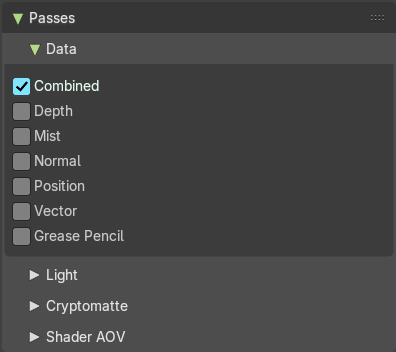
Here you enable or disable passes for single features.
Data subpanel
| Entry | What it does |
|---|---|
| Combined | Deliver full combined RGBA Buffer. |
| Depth | Deliver Z Value pass. |
| Mist | Deliver Mist factor pass. 0.0 to 1.0 |
| Normal | Deliver Normal pass. |
| Position | Deliver Position pass. |
| Vector | Deliver Vector pass. |
| Grease Pencil | Deliver Grease Pencil pass. |
Light subpanel
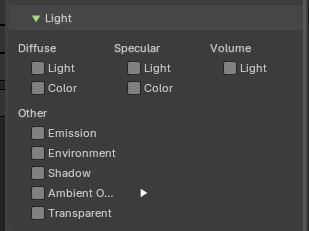
| Entry | What it does |
|---|---|
| Diffuse | Light: Deliver diffuse direct pass. · Color: Deliver diffuse color pass. |
| Specular | Light: Deliver specular direct pass. · Color: Deliver specular color pass. |
| Volume | Light: Deliver volume direct light pass. |
Other
| Entry | What it does |
|---|---|
| Emission | Deliver emission pass. |
| Environment | Deliver environment lighting pass. |
| Shadow | Deliver shadow pass. |
| Ambient Occlusion | Deliver Ambient Occlusion pass. Ambient Occlusion needs to be enabled in the Render Properties. · Occlusion Distance: Distance of object that contribute to the ambient occlusion effct. |
| Transparent | Deliver alpha blended surfaces in a separate pass. |
Cryptomatte subpanel
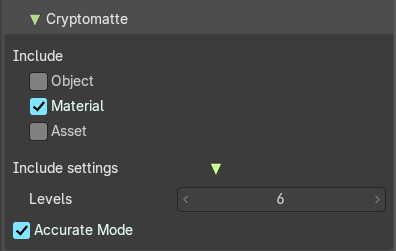
Cryptomatte passes can be used to isolate objects or materials or assets in compositing.
| Entry | What it does |
|---|---|
| Include | Object: Render Cryptomatte Object Pass. · Materials: Render Cryptomatte Materials Pass. · Asset: Render Cryptomatte Asset Pass. |
| Include Settings | These settings appears when you tick one of the above includes. · Levels: How many unique objects can be distinguished per pixel. Note: Only active when you have something to include activated. · Accurate Mode: Generate a more accurate cryptomatte pass. |
Shader AOV subpanel
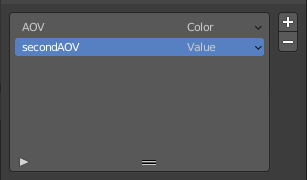
AOV stands for Arbitrary Output Variables. Here you can add custom render passes for arbitrary shader node components. These values can then be used in the post processing in the node editor.
To use Shader AOVs create the pass in the Shader AOV panel then reference this pass with the AOV Output shading node. Each AOV in the list consists of a Name and Data Type.
List of AOV
Name
The name of the render pass. This is the Name that is referenced in the AOV Output node. You can name it as you like as long as the name does not conflict with enabled built-in passes.
Data Type

Right clicking at the black triangle at the end will refveal the type menu.
Shader AOVs can either express a Color or a Value variable. The Color variable as the name suggest can be used for a color but also a normal value. A Value variable can be used for any single numerical value.
| Entry | What it does |
|---|---|
| Add AOV | Adds an AOV to the list. |
| Remove AOV | Removes the selected AOV from the list. |
Passes Panel - Cycles
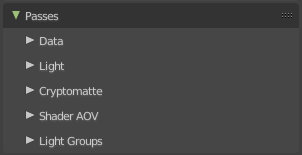
Here you enable or disable render passes for single features.
Data subpanel
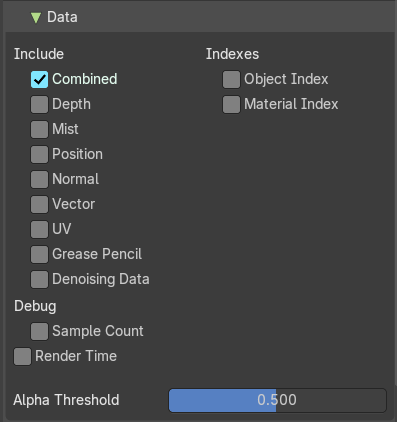
| Entry | What it does |
|---|---|
| Include | Combined: Deliver full combined RGBA Buffer. · Depth: Deliver Z Value pass. · Mist: Deliver Mist factor pass. 0.0 - 1.0. · Normal: Deliver Normal pass. · Vector: Deliver Speed Vector pass. · UV: Deliver UV pass. · Denoising Data: Store the denoising feature passes and the noisy image. |
| Indexes | Object Index: Deliver Object Index pass. · Material Index: Deliver Material Index pass. |
| Debug | Sample Count: Number of samples/camera rays per pixel. |
| Render Time | Reports time in pixel per miliseconds. |
| Alpha Threshold | Z, Index, Normal, UV and Vector passes are just affected by surfaces with alpha transparency equal or higher this threshold. |
Mist subpanel
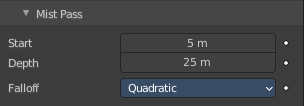
When you activate Mist pass, then the Mist Pass subpanel shows.
| Entry | What it does |
|---|---|
| Start | The starting distance of the mist, measured from the camera. |
| Depth | The distance over which the mist effect fades in. |
Falloff
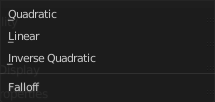
The falloff progression of the mist.
Light subpanel
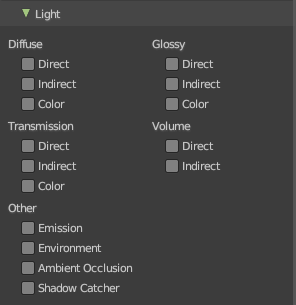
| Entry | What it does |
|---|---|
| Diffuse | Direct: Deliver direct pass. · Indirect: Deliver indirect pass. · Color: Deliver color pass. |
| Glossy | Direct: Deliver direct pass. · Indirect: Deliver indirect pass. · Color: Deliver color pass. |
| Transmission | Direct: Deliver direct pass. · Indirect: Deliver indirect pass. · Color: Deliver color pass. |
| Volume | Direct: Deliver direct pass. · Indirect: Deliver indirect pass. · Color: Deliver color pass. |
| Other | Emission: Deliver Emission pass. · Environment: Deliver Environment pass. · Ambient Occlusion: Deliver Ambient Occlusion pass. · Shadow Catcher: Pass containing light and shadows that you want to multiply into the background image. |
Cryptomatte subpanel
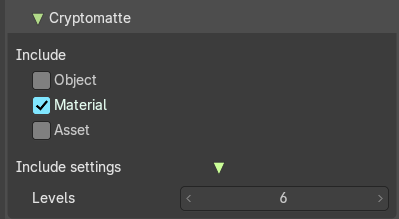
Cryptomatte passes can be used to isolate objects or materials or assets in compositing.
| Entry | What it does |
|---|---|
| Include | Object: Render Cryptomatte Object Pass. · Materials: Render Cryptomatte Materials Pass. · Asset: Render Cryptomatte Asset Pass. |
| Include Settings | These settings appears when you tick one of the above includes. · Levels: How many unique objects can be distinguished per pixel. |
Shader AOV subpanel
AOV stands for Arbitrary Output Variables. Here you can add custom render passes for arbitrary shader node components. These values can then be used in the post processing in the node editor.
To use Shader AOVs create the pass in the Shader AOV panel then reference this pass with the AOV Output shading node. Each AOV in the list consists of a Name and Data Type.
List of AOV
Name
The name of the render pass. This is the Name that is referenced in the AOV Output node. You can name it as you like as long as the name does not conflict with enabled built-in passes.
Data Type
Right clicking at the black triangle at the end will refveal the type menu.
Shader AOVs can either express a Color or a Value variable. The Color variable as the name suggest can be used for a color but also a normal value. A Value variable can be used for any single numerical value.
| Entry | What it does |
|---|---|
| Add AOV | Adds an AOV to the list. |
| Remove AOV | Removes the selected AOV from the list. |
Light Groups sub panel
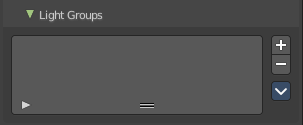
Light groups are a type of pass that only contains light render data from a subset of light sources and their influences. This is useful to set light sources to affect only specific objects in a scene.
Light Groups passes are created in the View Layer tab then light sources and influences are assigned to individual passes in the Object tab in the Light Option panel of the light source and objects.
Any light source (lamps, objects with emission materials and/or the environment) can be assigned to light groups.
To assign a light source to a Light Pass, use the Light Options panel in the Object tab of the light source.
Note: Light groups are identified by name - therefore the name of the Light Group in the View Layer and the name that in set in and Light Source Light Options must match for them to to be included in the Light Group pass.
| Entry | What it does |
|---|---|
| Add Light Group | Adds a new light group to the list. |
| Remove Light Group | Removes the selected lightgroup from the list. |
Lightgroup Sync menu
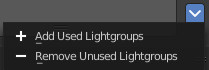
Add used Light groups
Add all assigned light sources with light groups to the list. Sometimes there are objects that are assigned to a light group which are not in the list yet – typical when appended objects from another file, as an example.
Remove unused light groups
Removes all light groups from the list that has no user.
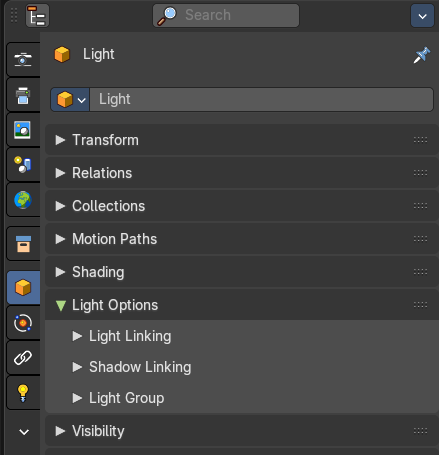
Note:
With light linking and Light Group passes, light sources can be set to affect only specific objects in the scene in the Object tab > Light Options panel.
Note: Objects must be have an emission material to have an influence in the Light Group.
Passes Panel - Workbench
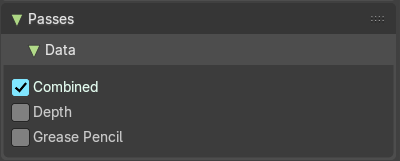
Here you enable or disable render passes for single features.
Data subpanel
| Entry | What it does |
|---|---|
| Combined | Deliver full combined RGBA Buffer. |
| Depth | Deliver Z Value pass. |
| Grease Pencil | Deliver Grease Pencil in a separated pass. |
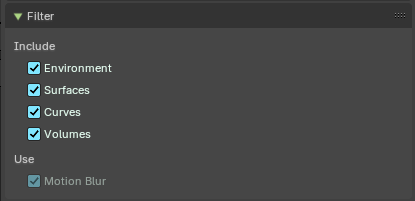
Filter Panel - EEVEE
Include
| Entry | What it does |
|---|---|
| Environment | Render Sky in this layer. |
| Surfaces | Render solid surfaces in this layer. |
| Curves | Render Hair in this layer. |
| Volume | Render volumes in this layer. |
Use
Motion Blur
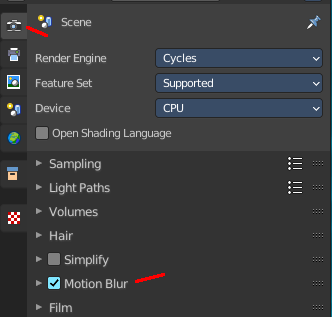
Render Motion Blur, if enabled in the scene.
Filter Panel - Cycles
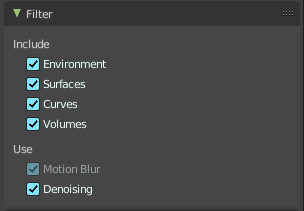
Include
| Entry | What it does |
|---|---|
| Environment | Render Sky in this layer. |
| Ambient Occlusion | Render Ambient Occlusion in this layer. |
| Surfaces | Render solid surfaces in this layer. |
| Curves | Render Hair in this layer. |
| Volume | Render volumes in this layer. |
Use
Motion Blur
Render Motion Blur, if enabled in the scene.
Denoising
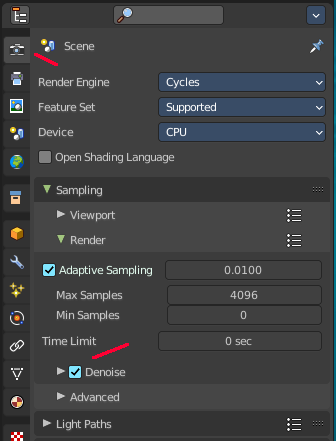
Use Denoising, if enabled in the scene.
Freestyle Panel
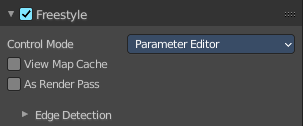
This panel and all further freestyle panels just shows when you have Freestyle activated in the Render Properties!
Enable
Enables or disables the freestyle layer in the current view layer.
Control Mode
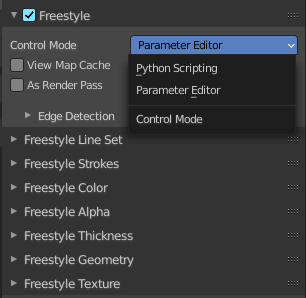
You can either control the freestyle shapes by the settings in the panels. Or you can use a python script to define all the shapes. In this case the panels vanishes, and you can add your style script below.
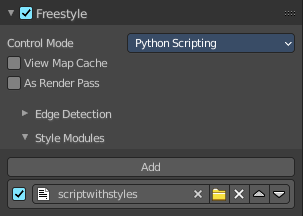
View Map Cache
Keep the computed Key Map. And avoid recalculation if mesh geometry is unchanged.
As Render Pass
Renders the freestyle pass as a separate pass instead of adding it as an overlay to the Combined pass.
Edge detection subpanel
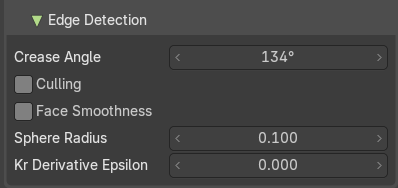
How the edge detection happens.
| Entry | What it does |
|---|---|
| Crease Angle | Angular Threshold for detecting crease angles. |
| Culling | Ignore edges that are out of view. |
| Face Smoothness | Take the face smoothness into account for the view map calculation. |
| Sphere Radius | The sphere radius for calculating curvatures |
| Kr Derivate Epsilon | The Ki Derivate Epsilon radius for calculating suggestive contours. |
Style Module subpanel
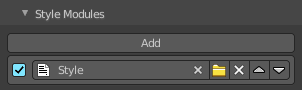
This panel appears with Control Mode Python Scripting. Add a python script that defines the style.
The structure of such a style is not defined nor described. Please ask the Blender developers.
Freestyle Line Set Panel
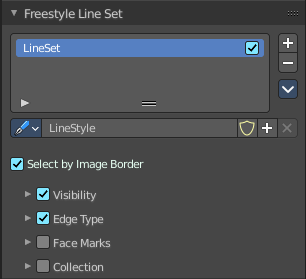
The line set settings.
List of Line Sets

A line set holds the line style. You can have more than one line set. But just one LineStyle per set.
The line sets can be activated or deactivated with the checkbox at the end.
| Entry | What it does |
|---|---|
| Drag Handler | Allows to resize the list. |
| Search field | When you click at the triangle button then you can reveal a search field. · Edit Box: Tpye in the search term and hit enter. · Invert: Inverts the search. · Sort by Name: Sorts the list by name · Reverse: Reverts the list content. |
| Add Line Set | Adds a new line set. Adding a new line set also adds a new LineStyle. |
| Remove Line Set | Removes the selected line set. |
Lineset Specials menu
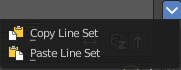
| Entry | What it does |
|---|---|
| Copy Line Set | Copies the currently selected line set and all its settings. |
| Paste Line Set | Pastes the copied line set and all its settings into the currently selected line set. |
Move Line Set up or down
Moves the selected up or down in the list.
Line style data property

Data Browser
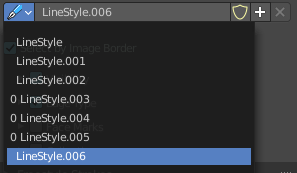
A list of available LineStyles.
| Entry | What it does |
|---|---|
| Edit Box | Displays the name of the currently active LineStyle. It also allows you to rename the LineStyle. Click into the edit box, change the name, hit enter. |
| Fake User | Save this LineStyle with the scene even when it has no user. Fake User is an old Blender concept to keep data in the scene that has no user. Data without an user gets usually deleted with saving the scene. |
| Add new LineStyle | Adds a new LineStyle. |
| Remove LineStyle | This button is dysfunctional and permanently greyed out. Once added LineStyles are permanent by Blender design since every line set needs at least one linestyle. You can only remove unused linestyles by purging unused Data in the outliner. |
Select by Image Border
Select feature edges by image border.
Visibility Subpanel
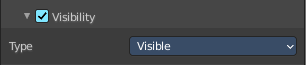
Determine how to use visibility for feature edge detection.
Type
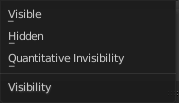
| Entry | What it does |
|---|---|
| Visible | Select visible feature edges. |
| Hidden | Select hidden feature edges. |
Quantitative invisibility
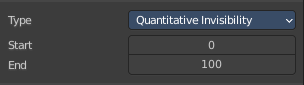
Select feature edges within a range of quantitative invisibility values. The value is called QI.
| Entry | What it does |
|---|---|
| Start | The first value. |
| End | The last value. |
Edge Type subpanel
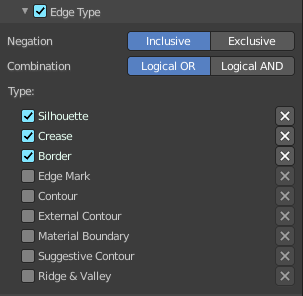
| Entry | What it does |
|---|---|
| Selection by Edge Types | The checkbox in the header activates or deactivates the feature. Select feature edges based on Edge Types. |
| Negation | Inclusive: Select edges by satisfying the selected options. · Exclusive: Select edges by satisfying the exact opposite of the selected options. |
| Combination | Logical Or: Select edges by satisfying at least of the selected options. · Logical And: Select edges by satisfying all of the selected options. · Type: What type to use. The names should be self explaining. The X Button at the end is to exclude this type instead of including it. |
Face Masks Subpanel
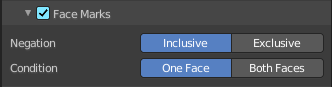
Selection by Face Marks
Select Feature Edges by Face Marks.
| Entry | What it does |
|---|---|
| Negation | Include or exclude the edges selected by face marks. |
| Condition | Select a feature edge if one face is marked. Or select a feature edge if the two adjacent faces are marked. |
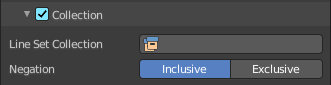
Collection Subpanel
| Entry | What it does |
|---|---|
| Selection by Collection | Select feature edges based on a collection of objects. |
| Line Set Collection | Pick the collection that you want to use. |
| Negation | Select feature edges by including or excluding the selected collection. |
Freestyle Strokes Panel
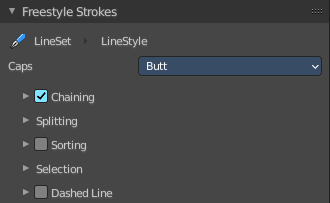
Caps
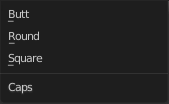
Select the shape of both ends of the stroke. Butt, Round or Square.
Chaining Subpanel
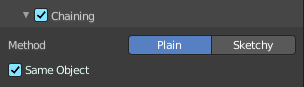
Chaining
Enable chaining of feature edges.
Method
How feature edges are jointed to form chains.
Plain
Feature edges are jointed plain.
Sketchy
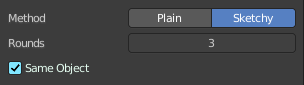
Feature edges are jointed sketchy.
Rounds
Number of rounds in a sketchy multiple touch.
Splitting subpanel
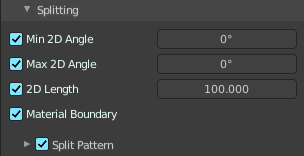
| Entry | What it does |
|---|---|
| Min 2D Angle | Minimum 2d angle for splitting chains. |
| Max 2D Angle | Maximum 2d angle for splitting chains. |
| 2D Length | Curvilinear length for 2d splitting |
| Material Boundary | Split chains of feature edges at material boundaries. |
Split Pattern sub subpanel
Use Split Pattern
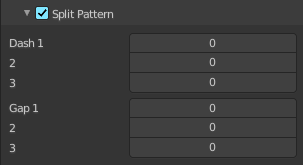
Enable chain splitting by dashed line patterns.
| Entry | What it does |
|---|---|
| Dash 1, 2, 3 | Length of the dashes for splitting. |
| Gap 1, 2, 3 | Length of the gaps for splitting. |
Sorting subpanel
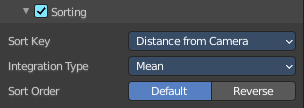
Sort Key
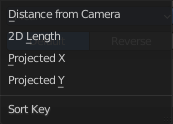
How to determine the stacking order of chains.
Integration Type
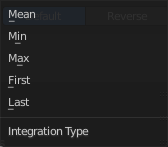
How the sort key is computed for each chain.
Sort order
Sort by default or inverse.
Selection Subpanel
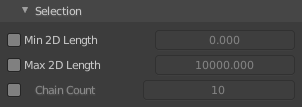
| Entry | What it does |
|---|---|
| Min 2D Length | The selection of chains by a minimum 2D length. |
| Max 2D Length | The selection of chains by a maximum 2D length. |
| Chain Count | Select first N chains. N stands for a variable, and is defined in the edit box. |
Dashed Line subpanel
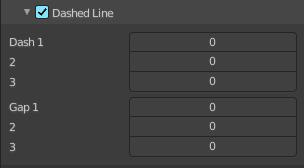
Dashed Line
Enable dashed line. A line is then displayed as dashes.
| Entry | What it does |
|---|---|
| Dash 1, 2, 3 | Length of the dash for the dashed lines. |
| Gap 1, 2, 3 | Length of the gap for the dashed lines. |
Freestyle Modifiers
The Freestyle panels Freestyle Color, Freestyle Alpha, Freestyle Thickness and Freestyle Geometry allows you to use so called modifiers. Modifiers allows you to modify these settings in several aspects.
Some modifier, like the along stroke modifier, does have the same name. But has here and there different functionality.
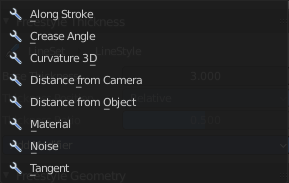
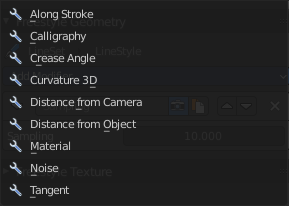
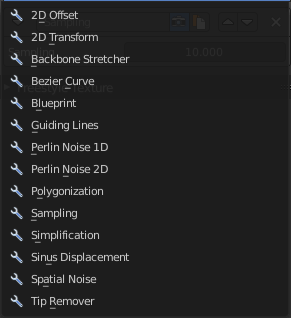
Color, Alpha and Thickness Modifier
Header

From left to right.
| Entry | What it does |
|---|---|
| Triangle button | Open or close the modifier panel. |
| Edit Box | Displays the name of the modifier. You can also rename it. Click into the edit box, change name and hit enter. |
| Use | Enable the modifier. |
| Copy Modifier | Copies the Modifier. |
| Move Modifier | Moves the modifier up or down the list. |
| Remove Modifier | Removes the modifier from the list. |
Color Ramp
The color, alpha and thickness modifiers all have a color ramp.
Controls
| Entry | What it does |
|---|---|
| + | Add a stop to your color ramp. The stop will be added after the selected one, in the middle to the next one. |
| - | Deletes the selected color stop from the list. |
Tools menu
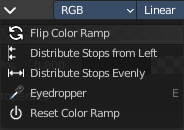
| Entry | What it does |
|---|---|
| Flip Color Ramp | Flips the gradient, inverting the values of the color ramp. |
| Distribute Stops from Left | Rearrange the stops so that every step has the same space to the right. |
| Distribute Stops Evenly | Space between all neighboring stops becomes equal. |
| Eyedropper (pipette icon) E | An Eyedropper to sample a color or gradient from the interface to be used in the color ramp. |
Reset Color Ramp
Resets the color ramp to its default state.
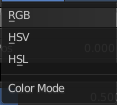
Color Mode
| Entry | What it does |
|---|---|
| RGB | Blends color by mixing each color channel and combining. |
| HSV/HSL | Blends colors by first converting to HSV or HSL, mixing, then combining again. This has the advantage of maintaining saturation between different hues, where RGB would de-saturate, this allows for a richer gradient. |
Interpolation
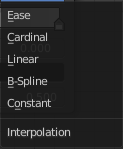
| Entry | What it does |
|---|---|
| Ease | Uses an Ease Interpolation for the color stops. |
| Cardinal | Uses a Cardinal Interpolation for the color stops. |
| Linear | Uses a Linear Interpolation for the color stops. |
| B-Spline | Uses a B-Spline Interpolation for the color stops. |
| Constant | Uses a Constant Interpolation for the color stops. |
Color Ramp

The color band. A click at one of the color stops makes it the active one. You can move the color stops by clicking at them and dragging them around.
Active Color Stop elements
Adjust the active color stop.
| Entry | What it does |
|---|---|
| Choose active color stop | Choose the color stop by index. |
| Number of Stop | The active color stop. |
Pos

The position and color of the active color stop. The range goes from 0.000 to 1.000.
Freestyle Color panel
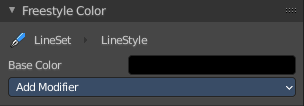
Modify the color of the stroke.
Base Color
Here you can choose the base color that needs to be modified.
Freestyle Color modifiers
Along Stroke
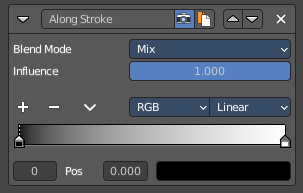
Add a colorband along the stroke.
| Entry | What it does |
|---|---|
| Blend Mode | The color blend mode. |
| Influence | The influence of the modifier. |
Crease Angle
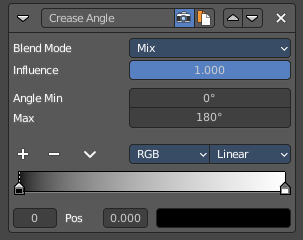
Add a color band along a crease angle. Which is the angle between two adjacent faces) If a stroke segment does not lie on a crease , then its properties are not touched by the modifier.
| Entry | What it does |
|---|---|
| Blend Mode | The color blend mode. |
| Influence | The influence of the modifier. |
| Angle Min / Max | The minimum and maximum crease angle to modify thickness. |
Curvature 3D
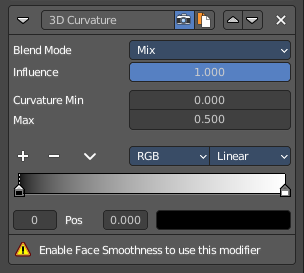
This modifier is based on the radial curvatures of the underlying 3D surface. The curvature of a 2D curve at a point is a measure of how quickly the curve turns at the point. The quicker the turn is, the larger the curvature is at the point. The curvature is zero if the curve is a straight line. Radial curvatures are those computed for a 2D curve that appears at the cross section between the 3D surface and a plane defined by the view point (camera location) and the normal direction of the surface at the point.
This modifier requires to have the Face Smoothness option on and the object needs to have Smooth Shading.
| Entry | What it does |
|---|---|
| Blend Mode | The color blend mode. |
| Influence | The influence of the modifier. |
| Curvature Min and Max | The limits of the mapping. If the current point of the stroke is at Min Curvature or less from the target, it will take the start point of the mapping. If it is at Max Curvature or more from the target, it will take the end-point value of the mapping. |
Distance from Camera
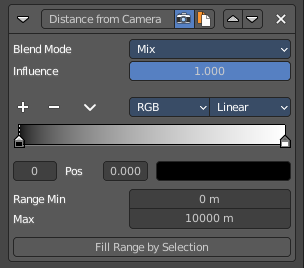
Recalculates the base property by the distance to the camera.
| Entry | What it does |
|---|---|
| Blend Mode | The color blend mode. |
| Influence | The influence of the modifier. |
| Range Min and Range Max | The minimum and maximum range. These values are in scene units. |
| Fill Range by Selection | Sets the minimum and maximum range values from the distances between the current selected mesh vertices and the camera or the target. |
Distance from Object
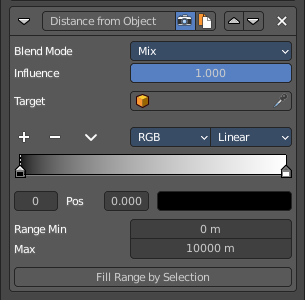
Recalculates the base property by the distance to a chosen object.
| Entry | What it does |
|---|---|
| Blend Mode | The color blend mode. |
| Influence | The influence of the modifier. |
| Target | Pick the target object. |
| Range Min and Range Max | The minimum and maximum range. These values are in scene units. |
| Fill Range by Selection | Sets the minimum and maximum range values from the distances between the current selected mesh vertices and the camera or the target. |
Material
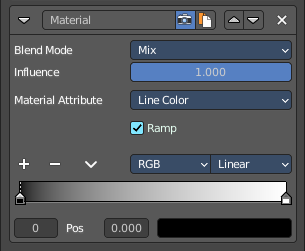
Alters the base property on the current material under the stroke.
| Entry | What it does |
|---|---|
| Blend Mode | The color blend mode. |
| Influence | The influence of the modifier. |
Material Attribute
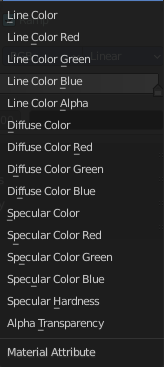
What attribute of the material under the stroke to alter.
Ramp
Shows and activates the color ramp.
Noise
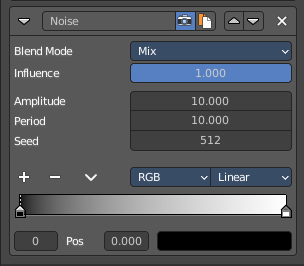
Uses a noise based pseudo random number generator to add some variation along the stroke.
| Entry | What it does |
|---|---|
| Blend Mode | The color blend mode. |
| Influence | The influence of the modifier. |
| Amplitude | The maximum value of the noise. A higher amplitude means a less transparent (more solid) stroke. |
| Period | The period of the noise. This means how quickly the property value can change. A higher value means a more smoothly changing color along the stroke. |
| Seed | Seed used by the pseudo-random number generator. |
| Asymmetric | Thickness only – Allows the thickness to be distributed unevenly at every point. |
Tangent
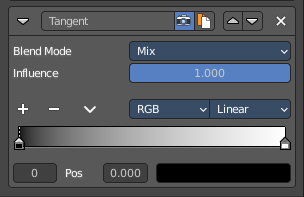
Modifies the base value on the traveling direction of the stroke, evaluated at the stroke’s vertices.
| Entry | What it does |
|---|---|
| Blend Mode | The color blend mode. |
| Influence | The influence of the modifier. |
Freestyle Alpha panel
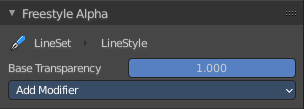
Modify the transparency of the stroke.
Base Transparency
The base transparency that you want to modify.
Freestyle Alpha modifiers
Along Stroke
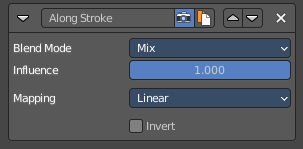
Add a gradient along the stroke.
| Entry | What it does |
|---|---|
| Blend Mode | The color blend mode. |
| Influence | The influence of the modifier. |
Mapping
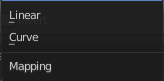
The mapping type. Linear or Curve.
Invert
Inverts the values.
Crease Angle
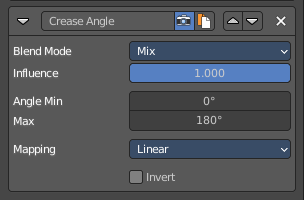
Add a gradientalong a crease angle. Which is the angle between two adjacent faces) If a stroke segment does not lie on a crease , then its properties are not touched by the modifier.
| Entry | What it does |
|---|---|
| Blend Mode | The color blend mode. |
| Influence | The influence of the modifier. |
| Angle Min / Max | The minimum and maximum crease angle to modify thickness. |
Mapping
The mapping type. Linear or Curve.
Invert
Inverts the values.
Curvature 3D
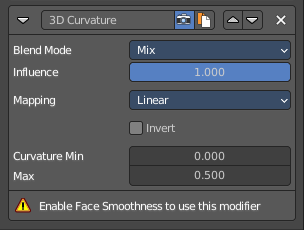
This modifier is based on the radial curvatures of the underlying 3D surface. The curvature of a 2D curve at a point is a measure of how quickly the curve turns at the point. The quicker the turn is, the larger the curvature is at the point. The curvature is zero if the curve is a straight line. Radial curvatures are those computed for a 2D curve that appears at the cross section between the 3D surface and a plane defined by the view point (camera location) and the normal direction of the surface at the point.
This modifier requires to have the Face Smoothness option on and the object needs to have Smooth Shading.
| Entry | What it does |
|---|---|
| Blend Mode | The color blend mode. |
| Influence | The influence of the modifier. |
Mapping
The mapping type. Linear or Curve.
| Entry | What it does |
|---|---|
| Invert | Inverts the values. |
| Curvature Min and Max | The limits of the mapping. If the current point of the stroke is at Min Curvature or less from the target, it will take the start point of the mapping. If it is at Max Curvature or more from the target, it will take the end-point value of the mapping. |
Distance from Camera
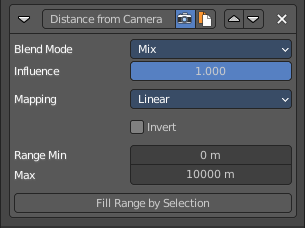
Recalculates the base property by the distance to the camera.
| Entry | What it does |
|---|---|
| Blend Mode | The color blend mode. |
| Influence | The influence of the modifier. |
Mapping
The mapping type. Linear or Curve.
| Entry | What it does |
|---|---|
| Invert | Inverts the values. |
| Range Min and Range Max | The minimum and maximum range. These values are in scene units. |
| Fill Range by Selection | Sets the minimum and maximum range values from the distances between the current selected mesh vertices and the camera or the target. |
Distance from Object
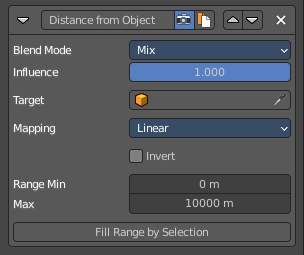
Recalculates the base property by the distance to a chosen object.
| Entry | What it does |
|---|---|
| Blend Mode | The color blend mode. |
| Influence | The influence of the modifier. |
| Target | Pick the target object. |
Mapping
The mapping type. Linear or Curve.
| Entry | What it does |
|---|---|
| Invert | Inverts the values. |
| Range Min and Range Max | The minimum and maximum range. These values are in scene units. |
| Fill Range by Selection | Sets the minimum and maximum range values from the distances between the current selected mesh vertices and the camera or the target. |
Material
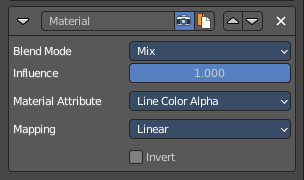
Alters the base property on the current material under the stroke.
| Entry | What it does |
|---|---|
| Blend Mode | The color blend mode. |
| Influence | The influence of the modifier. |
Material Attribute
What attribute of the material under the stroke to alter.
Mapping
The mapping type. Linear or Curve.
Invert
Inverts the values.
Noise
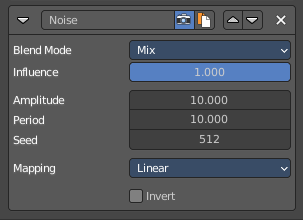
Uses a noise based pseudo random number generator to add some variation along the stroke.
| Entry | What it does |
|---|---|
| Blend Mode | The color blend mode. |
| Influence | The influence of the modifier. |
| Amplitude | The maximum value of the noise. A higher amplitude means a less transparent (more solid) stroke. |
| Period | The period of the noise. This means how quickly the property value can change. A higher value means a more smoothly changing color along the stroke. |
| Seed | Seed used by the pseudo-random number generator. |
Mapping
The mapping type. Linear or Curve.
Invert
Inverts the values.
Tangent
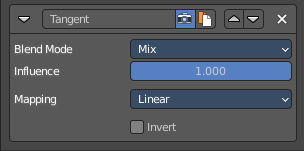
Modifies the base value on the traveling direction of the stroke, evaluated at the stroke’s vertices.
| Entry | What it does |
|---|---|
| Blend Mode | The color blend mode. |
| Influence | The influence of the modifier. |
Mapping
The mapping type. Linear or Curve.
Invert
Inverts the values.
Freestyle Thickness panel
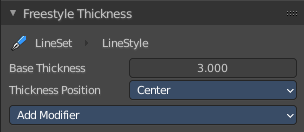
Modify the thickness of the stroke.
Base Thickness
The base thickness that you want to modify.
Thickness Position
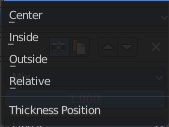
The thickness position of silhouettes and border edges.
| Entry | What it does |
|---|---|
| Center | Silhouettes and border edges are centered along the stroke. |
| Inside | Silhouettes and border edges are drawn inside of the stroke. |
| Outside | Silhouettes and border edges are drawn outside of the stroke. |
Relative

Silhouettes and border edges are shifted by a user defined thickness ratio.
Thickness Ratio
The thickness ratio to shift the silhouettes and border edges.
Freestyle Thickness modifiers
Along Stroke
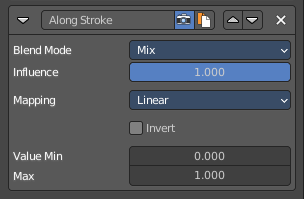
Add a gradient along the stroke.
| Entry | What it does |
|---|---|
| Blend Mode | The color blend mode. |
| Influence | The influence of the modifier. |
Mapping
The mapping type. Linear or Curve.
| Entry | What it does |
|---|---|
| Invert | Inverts the values. |
| Value Min / Max | Minimum and maximum output value. |
Calligraphy
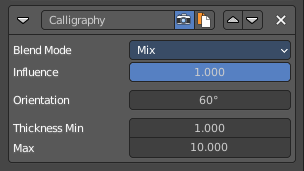
Generates different thickness, based on the orientation of the stroke. The result is a stroke thickness that orients at calligraphy.
| Entry | What it does |
|---|---|
| Blend Mode | The color blend mode. |
| Influence | The influence of the modifier. |
| Orientation | The angle of the virtual drawing tool, based at the vertical axis of the image. The thickest strokes will align with this angle. |
| Thickness Min / Max | Minimum and maximum output value. |
Crease Angle
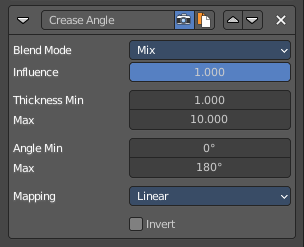
Add a gradientalong a crease angle. Which is the angle between two adjacent faces) If a stroke segment does not lie on a crease , then its properties are not touched by the modifier.
| Entry | What it does |
|---|---|
| Blend Mode | The color blend mode. |
| Influence | The influence of the modifier. |
| Thickness Min / Max | The minimum and maximum thickness. |
| Angle Min / Max | The minimum and maximum crease angle to modify thickness. |
Mapping
The mapping type. Linear or Curve.
Invert
Inverts the values.
Curvature 3D
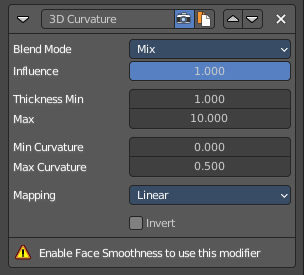
This modifier is based on the radial curvatures of the underlying 3D surface. The curvature of a 2D curve at a point is a measure of how quickly the curve turns at the point. The quicker the turn is, the larger the curvature is at the point. The curvature is zero if the curve is a straight line. Radial curvatures are those computed for a 2D curve that appears at the cross section between the 3D surface and a plane defined by the view point (camera location) and the normal direction of the surface at the point.
This modifier requires to have the Face Smoothness option on and the object needs to have Smooth Shading.
| Entry | What it does |
|---|---|
| Blend Mode | The color blend mode. |
| Influence | The influence of the modifier. |
| Thickness Min / Max | The minimum and maximum thickness. |
| Curvature Min and Max | The limits of the mapping. If the current point of the stroke is at Min Curvature or less from the target, it will take the start point of the mapping. If it is at Max Curvature or more from the target, it will take the end-point value of the mapping. |
Mapping
The mapping type. Linear or Curve.
Invert
Inverts the values.
Distance from Camera
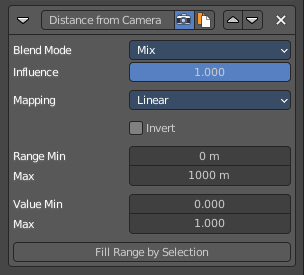
Recalculates the base property by the distance to the camera.
| Entry | What it does |
|---|---|
| Blend Mode | The color blend mode. |
| Influence | The influence of the modifier. |
Mapping
The mapping type. Linear or Curve.
| Entry | What it does |
|---|---|
| Invert | Inverts the values. |
| Range Min and Range Max | The minimum and maximum range. These values are in scene units. |
| Value Min and Value Max | The minimum and maximum output value of the mapping. These values are in scene units. |
Distance from Object
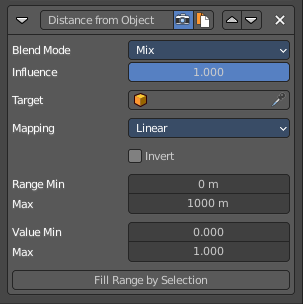
Recalculates the base property by the distance to a chosen object.
| Entry | What it does |
|---|---|
| Blend Mode | The color blend mode. |
| Influence | The influence of the modifier. |
| Target | Pick the target object. |
Mapping
The mapping type. Linear or Curve.
| Entry | What it does |
|---|---|
| Invert | Inverts the values. |
| Range Min and Range Max | The minimum and maximum range. These values are in scene units. |
| Value Min and Value Max | The minimum and maximum output value of the mapping. These values are in scene units. |
Material
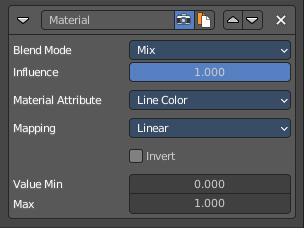
Alters the thickness of the stroke based on the current material under the stroke.
| Entry | What it does |
|---|---|
| Blend Mode | The color blend mode. |
| Influence | The influence of the modifier. |
Material Attribute
What attribute of the material under the stroke to alter.
Mapping
The mapping type. Linear or Curve.
| Entry | What it does |
|---|---|
| Invert | Inverts the values. |
| Value Min and Value Max | The minimum and maximum output value of the mapping. These values are in scene units. |
Noise
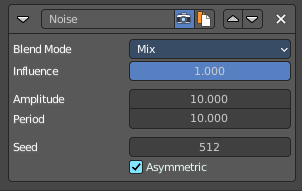
Uses a noise based pseudo random number generator to add some variation along the stroke.
| Entry | What it does |
|---|---|
| Blend Mode | The color blend mode. |
| Influence | The influence of the modifier. |
| Amplitude | The maximum value of the noise. A higher amplitude means a less transparent (more solid) stroke. |
| Period | The period of the noise. This means how quickly the property value can change. A higher value means a more smoothly changing color along the stroke. |
| Seed | Seed used by the pseudo-random number generator. |
| Asymetric | Assign the thickness asymetrical at both sides of the stroke. |
Tangent
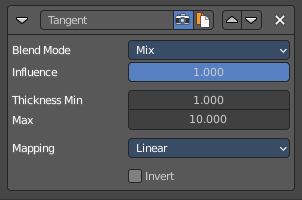
Modifies the base value on the traveling direction of the stroke, evaluated at the stroke’s vertices.
| Entry | What it does |
|---|---|
| Blend Mode | The color blend mode. |
| Influence | The influence of the modifier. |
| Thickness Min / Max | The minimum and maximum thickness. |
Mapping
The mapping type. Linear or Curve.
Invert
Inverts the values.
Freestyle Geometry
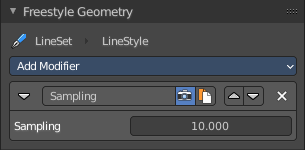
Modify the geometry of the freestyle strokes.
The modifier Sampling is on by default.
Freestyle Geometry Modifiers
2D Offset
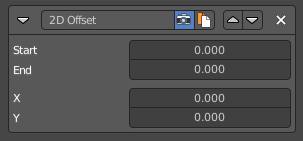
Offset the stroke vertices from its original position.
| Entry | What it does |
|---|---|
| Start / End | The start and end of the offset relative to the stroke. |
| X / Y | The offset amount along X and Y axis of the stroke vertices. |
2D Transform
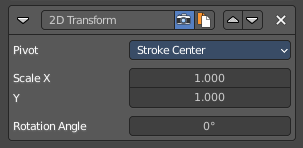
Scale the stroke.
| Entry | What it does |
|---|---|
| Pivot | What center point to use for the scaling. |
| Scale X / Y | The scale amount along X and Y. |
| Rotation Angle | Rotate the stroke |
Backbone Stretcher
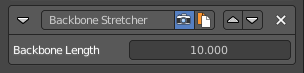
Stretch the stroke.
Backbone Length
Amount of backbone stretching.
Bezier Curve

Turn the stroke into a bezier curve.
Error
The maximal allowed distance between the new bezier curve and the original backbone geometry.
Blueprint
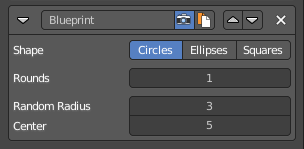
Turn the strokes into a blueprint/cad like style stroke.
| Entry | What it does |
|---|---|
| Shape | The shape of the blueprint contour strokes. |
| Rounds | Number of rounds in contour strokes. |
| Random Radius | Randomness of the radius. |
| Center | Randomness of the center. |
Guiding Lines
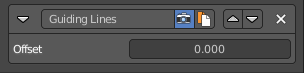
Replaces a stroke by straight lines that connects both of its ends.
Offset
Add an offset to the the start and end points along the original stroke, before generating the new straight one.
Perlin Noise 1D

Adds one-dimensional Perlin noise to the stroke. This modifier will give an identical result for two strokes with the same length and sampling interval.
| Entry | What it does |
|---|---|
| Frequency | How dense the noise is (kind of a scale factor along the stroke). |
| Amplitude | How much the noise distorts the stroke in the Angle direction. |
| Seed | The seed of the random generator (the same seed over a stroke will always give the same result). |
| Octaves | The “level of detail” of the noise. |
| Angle | In which direction the noise is applied (0.0 is fully horizontal). |
Perlin Noise 2D
Adds one-dimensional Perlin noise to the stroke. Different to the Perlin Noise 1D modifier the modifier generates noisy displacements using 2D coordinates of stroke vertices as the input of the noise generator.
| Entry | What it does |
|---|---|
| Frequency | How dense the noise is (kind of a scale factor along the stroke). |
| Amplitude | How much the noise distorts the stroke in the Angle direction. |
| Seed | The seed of the random generator (the same seed over a stroke will always give the same result). |
| Octaves | The “level of detail” of the noise. |
| Angle | In which direction the noise is applied (0.0 is fully horizontal). |
Polygonization
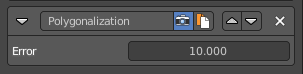
Simplify the stroke.
Error
The maximum distance allowed between the new simplified stroke and the orginal stroke.
Sampling
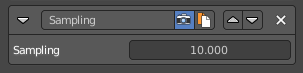
Changes the definition and precision of the stroke for hte following modifiers.
Sampling
The smaller this value, the more precise are the strokes. The computation of smaller values needs more memory and time.
Simplification
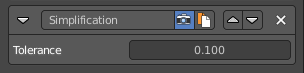
Simplify the stroke by merging stroke vertices that are close to each other.
Tolerance
How close the vertices nees to be to each other to be merged.
Sinus Displacement
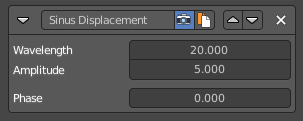
Adds a sinusoidal displacement to the stroke.
| Entry | What it does |
|---|---|
| Wavelength | How wide the undulations are along the stroke. |
| Amplitude | How high the undulations are across the stroke. |
| Phase | Allows “offsetting” (“moving”) the undulations along the stroke. Tip! With a phase of 0 the undulations this modifier produces look exactly the same at a Phase of 0. Same goes for any positive or negative multiple of the Wavelength set on the modifier. This allows you to render short video sequences with wavy lines that can then be seamlessly looped without any visual jumps in the undulations along the line. |
Spatial Noise
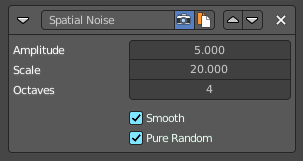
Adds some spatial noise to the stroke. Spatial noise displacements are added in the normal direction of each stroke vertex.
| Entry | What it does |
|---|---|
| Amplitude | How much the noise distorts the stroke. |
| Scale | How wide the noise is along the stroke. |
| Octaves | The level of detail of the noise. |
| Smooth | When enabled, apply some smoothing over the generated noise. |
| Pure Random | The usual noise is not really random. Each value depends of the value before. So as a result is more a series of values. Which can lead to patterns. Pure random adds much more randomness to the strokes. |
Tip remover
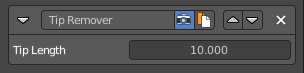
Removes a part of the stroke at the start and the end of a stroke
Tip Length
The length of the stroke that you want to remove.
Freestyle Texture
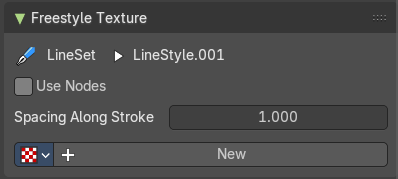
You can use a texture for the freestyle lines. The texture is created and managed in the texture tab. The material is created and managed in the Shader editor.
In this panel you just manage some settings for it
| Entry | What it does |
|---|---|
| Use Nodes | Use shader nodes for the line style. |
| Spacing along Stroke | The spacing for textures along stroke length |
| Go to Linestyle Texture Properties | Switch to the Texture Properties tab to create and manage the texture. |
Freestyle Animation
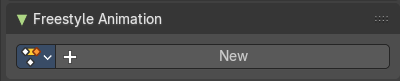
Allows you to add an animation.
Custom Properties Panel
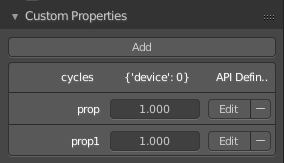
Here you can define custom properties that can be used for scripting.
Here you might also find custom properties from addons or scripts.
Add
Adds a new property.
Edit
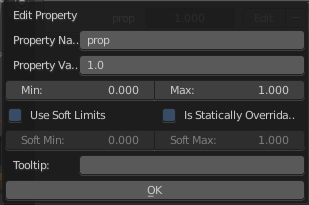
Opens a panel where you can adjust the settings for the custom property.
Remove
Removes the property.