

































































Strip Tab
The strip tab contains all the strip type related settings. For the different strip types see the Add menu.
Strip Tab
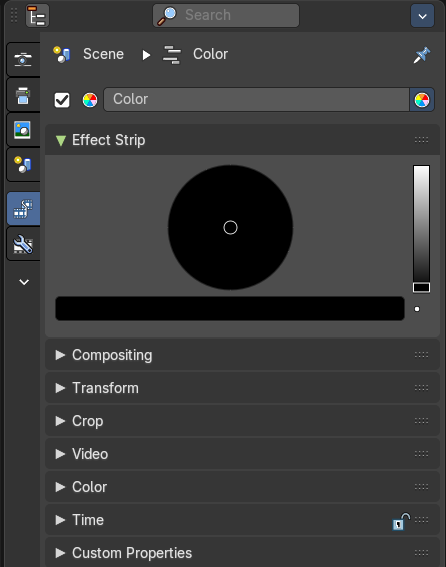
The strip tab contains all the strip type related settings. For the different strip types see the Add menu.
Some panels have the same content for all strip types. Some not. Some strip types have their own panels.
Note: Like in the 3D View, this tab is also accessible from the Sequencer sidebar.
Strip tab header
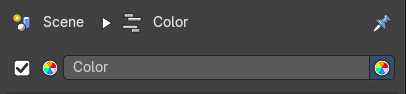
In the strip tab header you will see an icon for the current strip type. The name of the strip. And a checkbox to set this strip active.
The strip can be renamed by double clicking left into the edit box.
| Entry | What it does |
|---|---|
| Breadcrumb | This shows what scene and what strip the active selected strip tab properties are showing. |
| Pin | This pins the active selected strip so that when you select another strip, the properties won’t change and remembers the pinned strip properties. |
| Type Icon | This indicates what kind of strip is selected |
| Name | The name of the strip. |
| Color | The color of the strip in the sequencer timeline. |
| Mute | Enables/Disables the strip. |
Compositing Panel
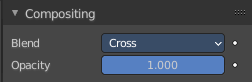
Available for Movie, Image, Adjustment and Meta strips.
Blend
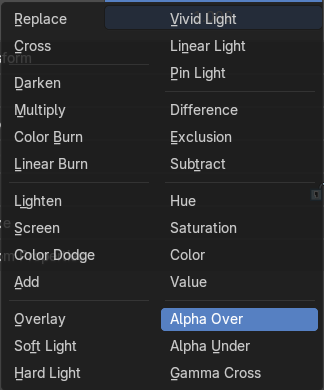
The blend method to control how the strip combines with other strips.
Opacity
How much the strip color affects other strips.
Transform Panel
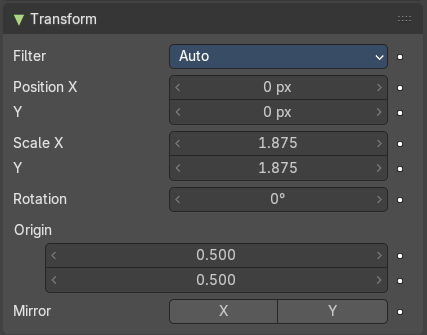
Filter
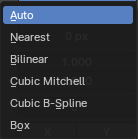
Filter type to use for transformations.
| Entry | What it does |
|---|---|
| Auto | Automatically choose filter based on scaling factor. |
| Nearest | Use nearest sample. |
| Bilinear | Interpolate between 2x2 Samples |
| Cubic Mitchell | Cubic Mitchell filter on 4x4 Samples. |
| Cubic B-Spline | Cubic B-Spline Filter on 4x4 Samples. Blurry, but not ringing. |
| Box | Averages source image samples that fall under destination pixel. |
| Entry | What it does |
|---|---|
| Position X | The X offset. |
| Y | The Y offset. |
| Scale X | The X scale. |
| Y | The Y scale. |
| Rotation | The rotation around the image center. |
| Origin | Origin of image for transformation. |
| Mirror | Flip on the X and/or Y axis. |
Crop Panel
Left, Right, Top, Bottom
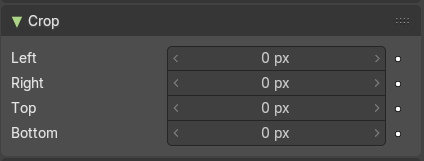
Crop the frame.
Video Panel
Strobe
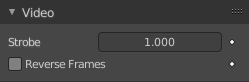
Don't display every frame, but just every nth frame.
Reverse Frames
Reverse the frame order.
Color Panel
Saturation
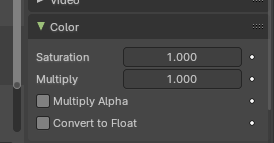
The intensity of the input color.
| Entry | What it does |
|---|---|
| Multiply | Multiply colors by this factor. |
| Multiply Alpha | Multiply Alpha along with color channels. |
| Convert to Float | Convert input to float data. |
Sound Panel
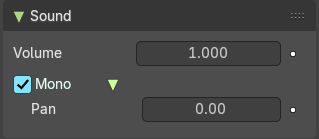
This panel shows with an audio clip selected.
| Entry | What it does |
|---|---|
| Volume | The volume of the audio clip. |
| Mono | Set the audio clip to mono. · Pan: When mono, the pan of the audio clip. |
Time Panel
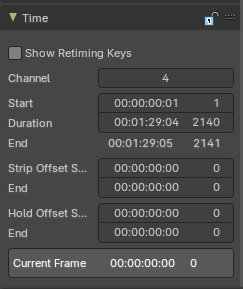
Time related settings.
| Entry | What it does |
|---|---|
| Lock | Lock strip so that it cannot be transformed. |
| Show Retiming Keys | This toggles the overlay and retiming state of a Movie or Image Sequence strip. For more information, refer to chapter Editors - Video Sequence Editor - Header - Strip Menu retiming section. Note: To retime a strip, select a Movie or Image Sequence strip. |
| Channel | The channel of the strip. |
| Start | The start frame of the strip. |
| Duration | The duration of the strip. |
| End | The end frame of the strip. · Strip Offset Start: The strip offset start. This offsets the beginning of the strip in the timeline. · End: The strip offset end. This offsets the end of the strip in the timeline. · Hold Offset Start: Animation start offset (trim start) · End: Animation end offset (trim end) · Current Frame: Info box that displays the position of the frame cursor at the current frame. |
Scene Panel
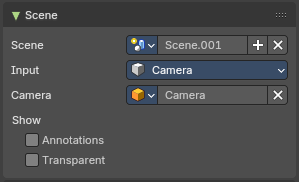
This panel just shows with strip type scene.
Scene Property
Scene Browser
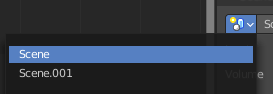
A scene browser that contains the available scenes in the file.
Scene edit box
The name of the scene. It can be renamed by double clicking into the edit box.
Add
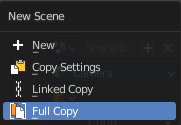
Add a new scene. This button calls a menu where you can choose with what method you want to create the new scene.
| Entry | What it does |
|---|---|
| New | Adds a new empty scene. |
| Copy Settings | Adds a new empty scene. And copies the settings from the current scene. |
| Linked Copy | Link in the collections from the current scene. (Shadow Copy) |
| Full Copy | Make a full copy of the current scene. |
Remove
Remove the scene as the active one. Note that the scene is still available in the scene browser.
Input
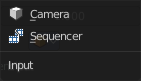
Type of input to use. The camera of the scene. Or a file from the sequencer in this scene.
Input Type Camera
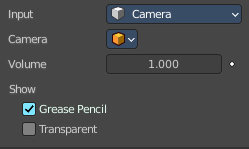
Volume
The audio volume.
Camera
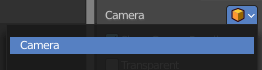
Which camera of the scene to use.
| Entry | What it does |
|---|---|
| Show Annotation | Show grease pencil strokes in workbench previews. |
| Transparent | Use a transparent background. |
Input type Sequencer
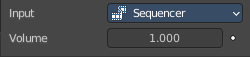
Volume
The audio volume.
Mask Panel
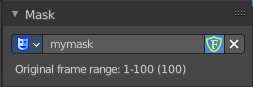
This panel just shows with strip type Mask.
Mask Property
Mask Browser
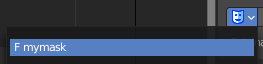
A mask browser that contains the available masks in the file.
Mask edit box
The name of the scene. It can be renamed by double clicking into the edit box.
Fake User
Assign a fake user to this mask. Fake users is a odd concept to keep data in the scene even if it has no user somewhere. The fake user is then a dummy user so that the object is not deleted when saving the scene.
Remove
Remove the scene as the active one. Note that the scene is still available in the scene browser.
Effect Strip Panel
Settings for the single effect strip types.
The content differs, dependant of the chosen type.
Effect strip type Color Mix
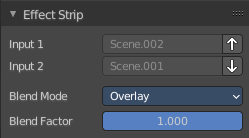
Input 1
The first strip.
Input 2
The second strip.
Swap Strips
Swap the strips.
| Entry | What it does |
|---|---|
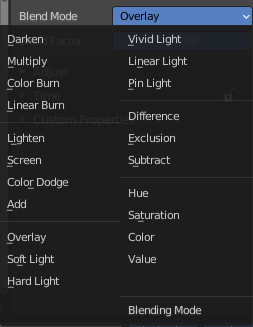
| Blend Mode | The color blend mode to use. |
| Blend Factor | The blend factor. 1.000 means 100%. |
Effect strip type Text
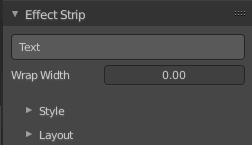
| Entry | What it does |
|---|---|
| Text | The text to displayed. |
| Wrap Width | World wrap width as factor. Zero disables the wrap. |
Style sub panel
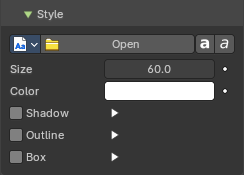
Font property


When no font is loaded then the internal font is used.
Font browser
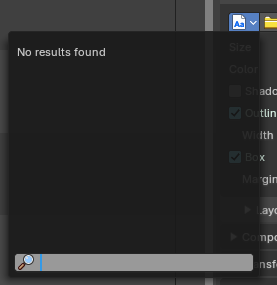
The list of loaded fonts. This list is empty by default. It displays the fonts that you load.
| Entry | What it does |
|---|---|
| Open | Load a font. |
| Font Edit Box | Display the current active font. You can rename the font by double clicking in the edit box. |
| Fake User | Assign a fake user to this font. Fake users is an odd concept to keep data in the scene even if it has no user somewhere. The fake user is then a dummy user so that the object is not deleted when saving the scene. |
| Open Font | Load a font. |
| Remove | Remove the selected font as the active one. Note that the font is still in the list then. |
| Bold | Display the font bold. |
| Italic | Display the font italic. |
| Entry | What it does |
|---|---|
| Size | Size of the text. |
| Color | The text color. |
Shadow
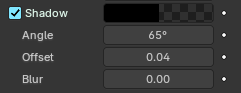
Creates a shadow of the specified color under the text.
| Entry | What it does |
|---|---|
| Shadow color | The color of the shadow. Clicking at the color field opens a color dialog. |
| Angle | The shadow angle. In which direction the shadow shall point. |
| Offset | Add an offset to the shadow in pixels |
| Blur | Blur the shadow by a pixel amount. |
Outline
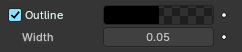
Color
The outline color.
Width
The outline width.
Box
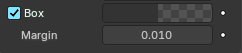
Display colored box behind text.
| Entry | What it does |
|---|---|
| Box Color | The color of the box. |
| Margin | The margin of the box. Based at the image width. |
Layout sub panel
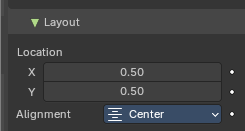
Location X/Y
Positions the text on the X, Y axis.
Alignment
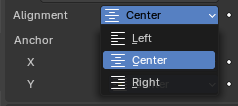
The horizontal X alignment of the text. Can be Left, Center or Right
Anchor X/Y
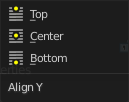
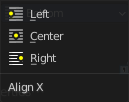
Horizontal (X) or vertical (Y) anchor point of the text relative to the location.
Effect strip type Gaussian Blur
Input 1
The strip to blur. This strip cannot be changed. You need to apply the effect with the correct strip selected.
| Entry | What it does |
|---|---|
| Size X | The size of the blur along X axis. |
| Y | The size of the blur along Y axis. |
Effect strip type Multicam
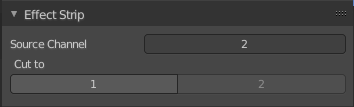
| Entry | What it does |
|---|---|
| Source Channel | The channel which the Multicam Selector gets its input from. |
| Cut to | Cuts the Multicam strip at the current frame and changes the Source Channel automatically to the selected channels. |
Effect strip type Speed Control
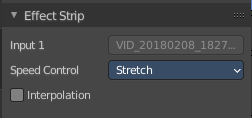
Input
The video where the speed control is applied to. This is read only.
Speed Control
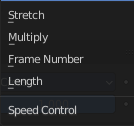
Stretch
Adjust input playback so that the input duration fits the strip length
Multiply

Multiply with the speed factor.
Multiply factor
The speed factor.
Frame Number

Frame Number of the Input strip.
Frame number
The frame number.
Length
Interpolation
Do crossfade blending between current and previous frame.
Effect strip type Color
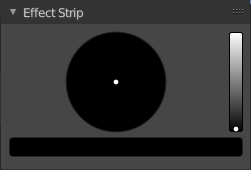
Color Picker
Adjust the color of the color strip.
Effect strip type Transform
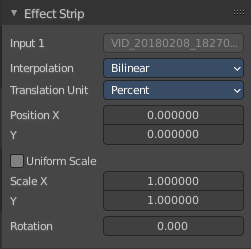
Input 1
The strip to transform. This strip cannot be changed. You need to apply the effect with the correct strip selected.
Interpolation
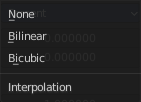
The interpolation type for the transform.
Translation Unit
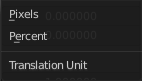
The measure unit to use for the transform.
| Entry | What it does |
|---|---|
| Position X | Amount to move the input in the X axis. |
| Y | Amount to move the input in the Y axis. |
| Uniform scale | Scale uniformly, preserve the aspect ratio. |
| Scale X | Amount to scale the input in the X axis. |
| Y | Amount to scale the input in the Y axis. |
| Rotation | Degrees to rotate the input. |
Effect strip type Glow
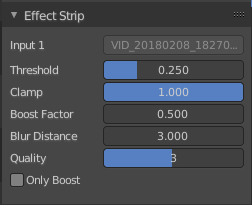
| Entry | What it does |
|---|---|
| Input 1 | The strip to use. This strip cannot be changed. You need to apply the effect with the correct strip selected. |
| Threshold | Minimum intensity to trigger a glow. |
| Clamp | The brightness limit of intensity. |
| Boost Factor | Brightness multiplier. |
| Blur Distance | The radius of the glow effect. |
| Quality | The accuracy of the blur effect. |
| Only Boost | Show the glow buffer only. |
Effect strip type Wipe
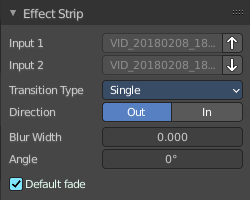
| Entry | What it does |
|---|---|
| Input 1 | The first strip. |
| Input 2 | The second strip. |
| Swap Inputs | Swap the two strips. |
Transition type
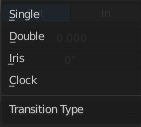
The wipe effect type.
| Entry | What it does |
|---|---|
| Direction | The direction of the wipe. |
| Blur width | The width of the blur edge, relative to the image size. |
| Angle | The edge angle. |
Default Fade
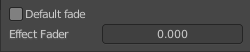
Use the builtin default effect time, which is as long as the fade clip. Or adjust the effect time.
Effect strip type Alpha over Drop
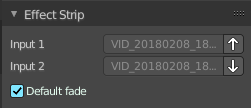
| Entry | What it does |
|---|---|
| Input 1 | The first strip. |
| Input 2 | The second strip. |
| Swap Inputs | Swap the two strips. |
Default Fade
Use the builtin default effect time, which is as long as the fade clip. Or adjust the effect time.
Effect strip type Multiply
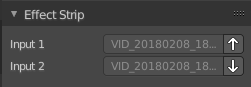
| Entry | What it does |
|---|---|
| Input 1 | The first strip. |
| Input 2 | The second strip. |
| Swap Inputs | Swap the two strips. |
Effect strip type Gamma Cross
| Entry | What it does |
|---|---|
| Input 1 | The first strip. |
| Input 2 | The second strip. |
| Swap Inputs | Swap the two strips. |
Default Fade
Use the builtin default effect time, which is as long as the fade clip. Or adjust the effect time.
Effect strip type Alpha Under
| Entry | What it does |
|---|---|
| Input 1 | The first strip. |
| Input 2 | The second strip. |
| Swap Inputs | Swap the two strips. |
Default Fade
Use the builtin default effect time, which is as long as the fade clip. Or adjust the effect time.
Effect strip type Alpha Over
| Entry | What it does |
|---|---|
| Input 1 | The first strip. |
| Input 2 | The second strip. |
| Swap Inputs | Swap the two strips. |
Default Fade
Use the builtin default effect time, which is as long as the fade clip. Or adjust the effect time.
Effect strip type Subtract
| Entry | What it does |
|---|---|
| Input 1 | The first strip. |
| Input 2 | The second strip. |
| Swap Inputs | Swap the two strips. |
Effect strip type Add
| Entry | What it does |
|---|---|
| Input 1 | The first strip. |
| Input 2 | The second strip. |
| Swap Inputs | Swap the two strips. |
Effect strip type Crossfade
| Entry | What it does |
|---|---|
| Input 1 | The first strip. |
| Input 2 | The second strip. |
| Swap Inputs | Swap the two strips. |
Default Fade
Use the builtin default effect time, which is as long as the fade clip. Or adjust the effect time.
Source Panel
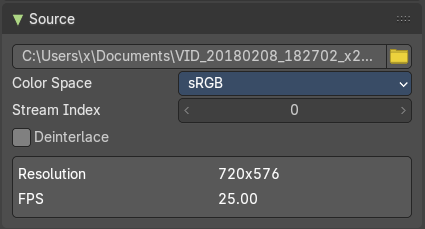
The source path and settings for a loaded video clip.
File
The source file.
Browse
Browse for another file.
Color Space
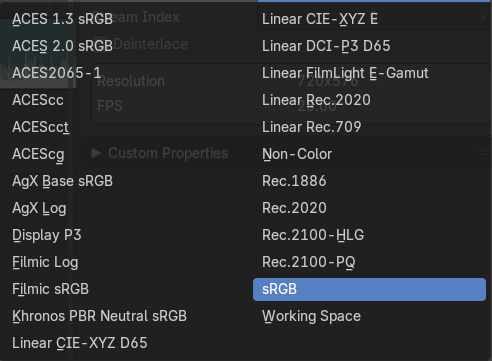
Which color space to use for the loaded video clip.
| Entry | What it does |
|---|---|
| Stream Index | For files with several movie streams, use the streamn with the given index. |
| Deinterlace | Remove fields from video movies. |
| Info Box | The resolution and frames per seconds of the video. |
Custom Properties Panel
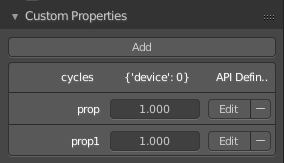
Here you can define custom properties that can be used for scripting.
Here you might also find custom properties from addons or scripts.
Add
Adds a new property.
Edit
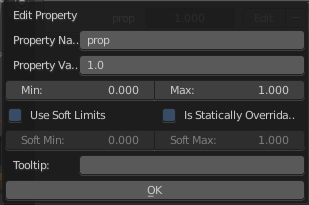
Opens a panel where you can adjust the settings for the custom property.
Remove
Removes the property.