

































































Scene Properties Tab
Scenes are a way to organize your work. Usually you work with just one scene. But each. .blend file can contain multiple scenes which share other data, such as objects and materials.
Scene Tab
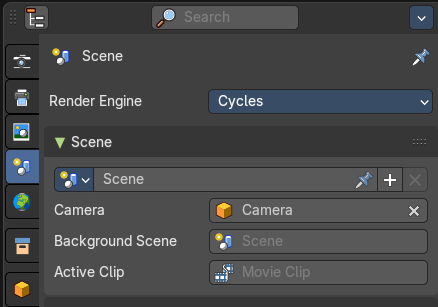
Scenes are a way to organize your work. Usually you work with just one scene. But each. .blend file can contain multiple scenes which share other data, such as objects and materials.
The scenes can be managed in the scene drop down box up right in the header.
Appending happens through the File menu / Append.
Render Engine
Shows the active render engine. Specific renderer does have other settings. And you can also switch to another renderer. But note that this is more a visual guide. It misses the Cycles render settings.
Scene Panel
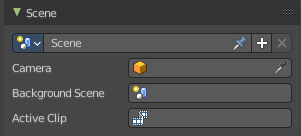
Scene Data Prop
A list of the available scenes.
Scene Browser
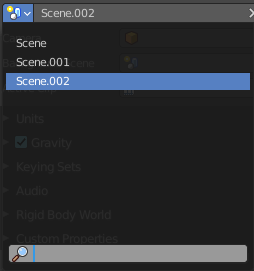
A list of the available scenes.
| Entry | What it does |
|---|---|
| Edit Box | The name of the currently active scene. |
| Pin Scene to Workspace | Allows you to pin this particular scene to a workspace. So that this scene gets loaded when you enter this workspace. |
New Scene
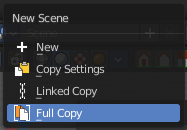
Creates a new scene. It will call a sub menu where you can choose with what settings you want to initialize the new scene.
| Entry | What it does |
|---|---|
| New | Creates an empty scene with default values. |
| Copy Settings | Creates an empty scene but also copies the settings from the active scene into the new one. |
| Linked Copy | This option creates a new scene with the same settings and contents as the active scene. However, instead of copying the objects, the new scene contains links to the objects in the old scene. Therefore, changes to objects in the new scene will result in the same changes to the original scene, because the objects used are literally the same. The reverse is also true. |
Full Copy
Using this option, nothing is shared. This option creates a fully independent scene with copies of the active scenes contents. Every object in the original scene is duplicated, and a duplicate, private copy of its object-data is made as well.
Note: To choose between these options, it’s useful to understand the difference between Objects and Object Data. See Duplication.
The choices for adding a scene, therefore determine just how much of this information will be copied from the active scene to the new one, and how much will be shared (linked).
Duplicate4
Dysfunctional in this context.
Delete Scene
Deletes the currently selected scene.
Camera

Here you can define the active camera for rendering.
| Entry | What it does |
|---|---|
| 4Background Scene | Here you can choose a background scene. |
| Active Movie Clip | Here you can choose an active movie clip for constraints and viewport drawing. |
Units Panel
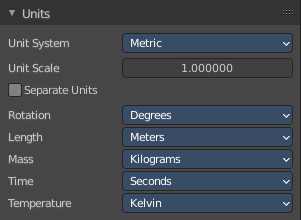
Here you define the units for the scene.
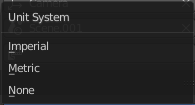
| Entry | What it does |
|---|---|
| Unit System | The overall unit system that gets used. |
| Unit Scale | The standard unit scale. |
| Separate Units | Display Units in pairs. |
Rotation
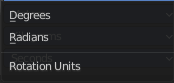
Units to display on rotation. Radians or Degree.
Length
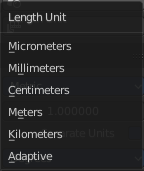
Units to display the length values.
Mass
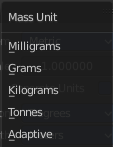
Units to display the mass values.
Time
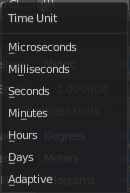
Units to display Time values.
Temperature
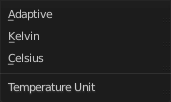
Units to display temperature.
Gravity Panel
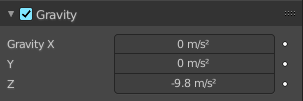
Here you can adjust the gravity settings. The default values are the standard gravity than on earth with the usual acceleration of 9.81 meters per second in Z direction.
Gravity is used for physics simulations like rigid body.
| Entry | What it does |
|---|---|
| Enable | In the header is a checkbox to enable the gravity. |
| Gravity X, Y Z | The gravity values. |
| Animate Property | These properties can be animated. Activating this button sets a keyframe. |
Simulation Panel
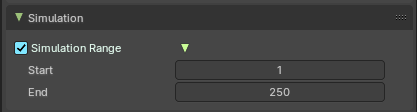
Simulation Range
Allows you to use a simulation range that is different from the scene range for simulation nodes that don't override the frame range themselves.
| Entry | What it does |
|---|---|
| Start | The start frame for the simulation. |
| End | The end frame for the simulation. |
Keying Sets Panel
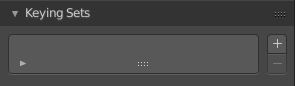
Keying Sets are a collection of properties. They are used to keyframe multiple properties at the same time.
There are some built in Keying Sets, and also custom Keying Sets called Absolute Keying Sets.
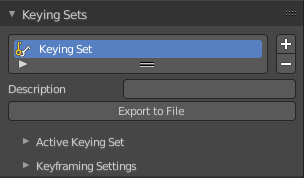
This panel here is used to add, select and manage Absolute Keying sets.
When you add a custom keying set in the list box, then you will reveal further options.
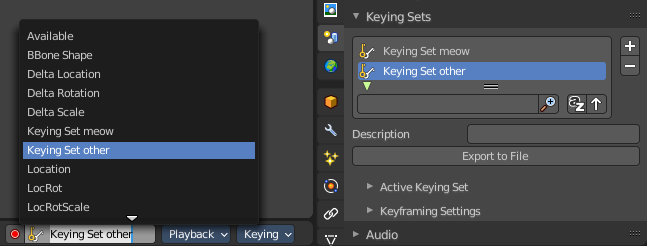
Every keying set that you add here is also available in the list of active keying sets in the header of the timeline editor.
Keying Set List
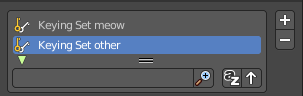
Here you can see the list of your Absolute Keying Sets. The active keying set is highlighted in blue.
It has a search form below the list. Click the arrow button down left to expand the search.
The list display can be resized by clicking at the dotted area and drag it up or down.
Add / Remove Keying Set
At the right side you can add or remove a keying set with the + and - buttons
Description
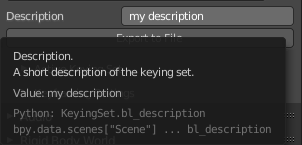
Here you can add a description to your keying set.
Export to file
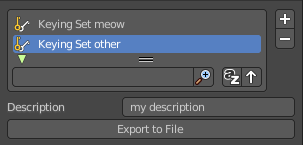
Here you can export the keying set to a Python file.
To re add the keying set from the File.py, open then run the File.py from the Text Editor.
Active Keying Set
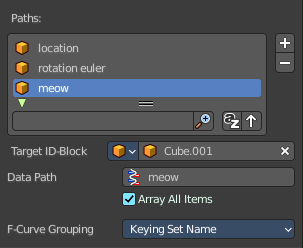
Here you can add properties to the active keying set.
Paths
A list with a collection of Paths each with a Data Path to a property to add to the active Keying Set. The active Path is highlighted in blue.
It has a search form below the list. Click the arrow button down left to expand the search.
The list display can be resized by clicking at the dotted area and drag it up or down.
Add / Remove Paths
At the right side you can add or remove a keying set with the + and - buttons
Target ID Block

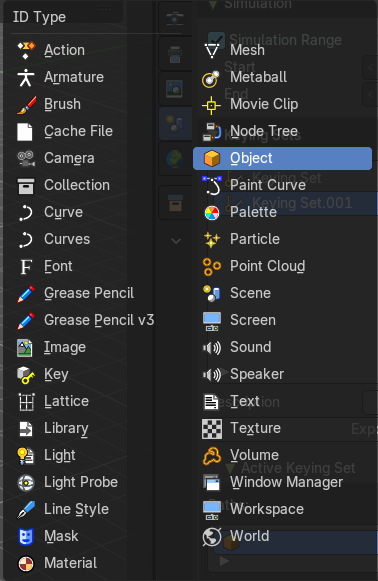
Set the ID-Type + Object IDData Path for the property. Means pick the object or data type that you want to influence here. When it is a mesh object then you should choose mesh here.

At the left you have a list of the available ID Types. At the right you have a picker as long as you haven't defined the object where you want to use this property at. Use this picker to pick up the object.
Or choose your mesh object from the list of scene objects.
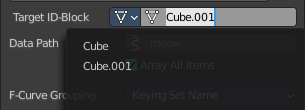
| Entry | What it does |
|---|---|
| Data Path | Here you can assign a data path variable. This variable points to a python animation property that can be used for the mesh object. Location or rotation euler are valid terms for a mesh object. meow not. It will simply not work. For the available properties for the different object types please have a look in the python API. |
| Array all Items | For an Array / Vector type, use All Items from the Data Path or select the array index for a specific property. |
FCurve Grouping
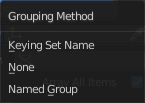
This controls what Group to add the Channels to. Keying Set Name, None, Named Group.
Keyframe Settings
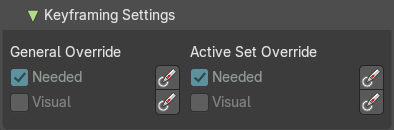
General Override and Active Set Override have the same items each. General override works for all keying sets. Active sets just overrides the current active keying set.
The check boxes activates the item to make it available. The buttons behind sets the item on or off.
| Entry | What it does |
|---|---|
| Only Needed | Only insert keyframes where they’re needed in the relevant F-Curves. |
| Visual Keying | Insert keyframes based on the visual transformation. |
Audio Panel
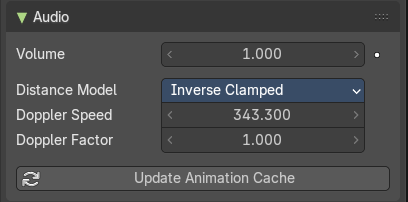
Here you can adjust the general audio settings.
Volume
The Audio Volume.
Animate Property
This property can be animated. Clicking at the button will set a keyframe at the current frame position.
Distance Model
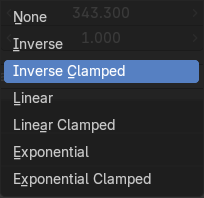
The algorithm for attenuation calculation.
| Entry | What it does |
|---|---|
| Doppler Speed | Speed of sound for Doppler effect calculation. |
| Doppler Factor | Pitch factor for Doppler effect calculation. |
| Update Animation Cache | Update the audio animation cache. Something that you might want to do after changes at the settings. |
Rigid Body World Panel

The rigid body world is a group of Rigid Body objects, which holds settings that apply to all rigid bodies in this simulation.
When you add Rigid Body physics on an object, primary there is created a group of objects with default “RigidBodyWorld” name. Rigid body objects automatically are added to this group when you add Rigid Body physics for them.
You can create several Rigid Body World groups, and allocate the Rigid Body objects with Groups panel in Object context.
Rigid body objects and constraints are only taken into account by the simulation if they are in the groups specified in Group field of the Rigid Body World panel in the Scene context.
| Entry | What it does |
|---|---|
| Activate | In the header is a checkbox where you can enable or disable the Rigid Body World. |
| Activate / Remove Rigid Body World | Activate or Remove Rigid Body simulation from the current scene. |
Settings
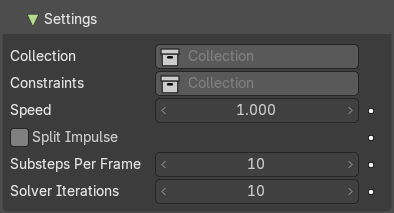
A sub menu with further settings.
| Entry | What it does |
|---|---|
| Animate Property | The properties with an animate property at the right can be animated. Clicking at the button will set a keyframe at the current frame position. |
| Collection | Containing rigid body objects participating in this simulation. |
| Constraints | Containing rigid body object constraints participating in the simulation. |
| Speed | Can be used to speed up/slow down the simulation. |
| Split Impulse | Enable/disable reducing extra velocity that can build up when objects collide (lowers simulation stability a little so use only when necessary). Limits the force with which objects are separated on collision, generally produces nicer results, but makes the simulation less stable (especially when stacking many objects). |
| Substeps Per Frame | Number of simulation steps made per frame (higher values are more accurate but slower). This only influences the accuracy and not the speed of the simulation. |
| Solver Iterations | Amount of constraint solver iterations made per simulation step (higher values are more accurate but slower). Increasing this makes constraints and object stacking more stable. |
Cache
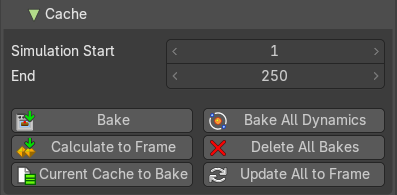
A sub menu with cache settings. The cache is getting used for animation.
| Entry | What it does |
|---|---|
| Simulation Start / End | First and last frame of the simulation. |
| Bake | Calculates the simulation and protects the cache. You need to be in Object mode to bake. |
| Calculate to Frame | Bake physics to current frame. |
| Current Cache to Bake | Bake from Cache. |
| Bake All Dynamics | Bake all physics. |
| Delete All Bakes | Free all baked caches of all objects in the current scene. |
| Update All To Frame | Update cache to current frame. If you haven’t saved the blend file, the cache is created in memory, so save your file first or the cache may be lost. |
Field Weights
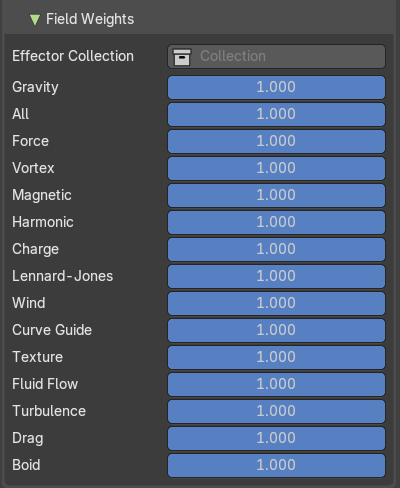
With force fields you can influence rigid body objects in physics simulations. Every force field has its own local settings, which can be adjusted in the physics panel. Here you can adjust the general field weights for those forces.
Light Probes - EEVEE
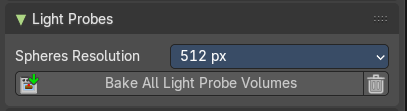
These settings control how light probes behave globally in your scene. Light probes are used to simulate indirect lighting and reflections in real-time rendering by baking lighting data ahead of time.
Spheres Resolution
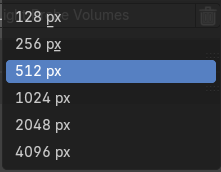
Sets the resolution (in pixels) of the light probes. Higher values produce sharper reflections but increase memory usage and bake time.
Bake All Light Probe Volumes
Initiates the baking process for all lightprobes in the scene. Computes indirect diffuse lighting based on probe placement and resolution.
Delete Light Cache
Remove cached baked indirect lighting.
Animation
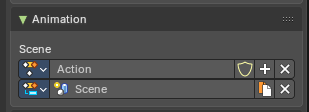
Action Slots allow a single Action to store animation data for multiple data-blocks (e.g. objects, materials, cameras). In this case this stores Scene container animation keyframes.
Each slot acts like a container for animation channels tied to a specific target Action Clip.
Action Name Selector
A unique Action Clip Contains the actual animation data: F-Curves, groups, and keyframes.
Slot Name Selector
A unique identifier for the slot within the Action. Used to match the slot with a data-block during evaluation or assignment. Can be manually named or auto-assigned based on the data-block name.
Dropdown Selector Operators
- **Dropdown Selector: **List of available slots or actions
- **Selector Name: **Name of the slot or action
- **Add Action/Slot: **Adds a new Action Clip/Slot, or select one from the drop down
- Shield icon: Stores the Data with protection (prevents deletion when reloading the file if there are no users).
- **Remove: **Removes the active Action clip or Slot
- Duplicate:Duplicates the Active slot with keyframes.
Custom Properties Panel
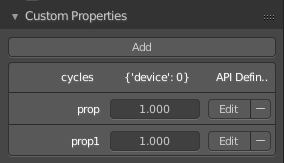
Here you can define custom properties that can be used for scripting.
Here you might also find custom properties from addons or scripts.
Add
Adds a new property.
Edit
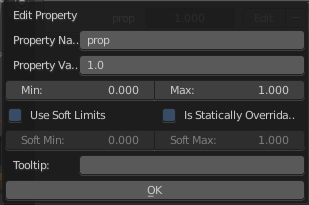
Opens a panel where you can adjust the settings for the custom property.
Remove
Removes the property.