

































































Workbench
There are three different render engines available. Workbench, EEVEE, and Cycles. This chapter has a focus on the EEVEE render engine.
Render Tab
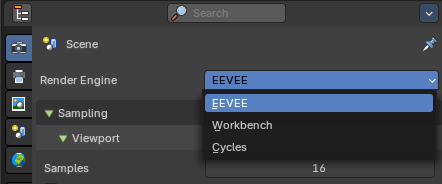
There are three different render engines available. Workbench, EEVEE, and Cycles. This chapter has a focus on the EEVEE render engine.
Curves panel
Shape
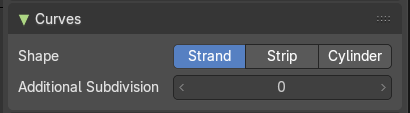
Choose if the hair is displayed as strand or as strip.
Additional Subdiv
Additional subdivision along the hair.
Simplify panel
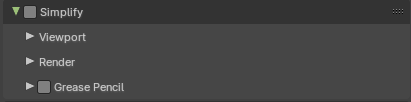
Sometimes you want to simplify the rendering without to loose the already tweaked settings and adjustments. For test renderings for example. Simplify allows you to set global limits on subdivision, shadow samples and more.
Enable
In the header is a checkbox to enable Simplify.
Viewport
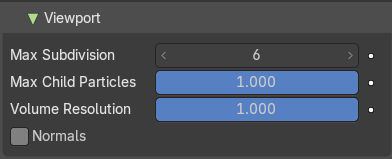
This section affects the rendering with cycles in the Viewport.
| Entry | What it does |
|---|---|
| Max Subdivisions | Limit the number of maximum subdivisions. |
| Max Child Particles | Limit the number of child particles |
| Volume Resolution | Simplify volumes by adjusting volume percentage of volume objects in viewport. |
| Normals | Skip computing custom normals and face corner normals for displaying meshes in the viewport. |
Render
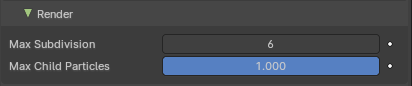
This section affects the final rendering.
| Entry | What it does |
|---|---|
| Max Subdivisions | Limit the number of maximum subdivisions. |
| Max Child Particles | Limit the number of child particles. |
Grease Pencil
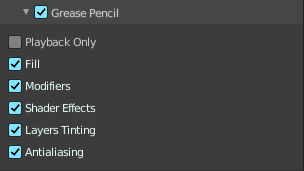
| Entry | What it does |
|---|---|
| Playback Only | Simplify the grease pencil strokes only during playback. |
| Fill | Display Fill strokes in viewport. |
| Modifiers | Display Modifiers. |
| Shader Effects | Display Shader effects. |
| Layers Tinting | Display layer tint. |
| Antialiasing | Use antialiasing to smooth stroke edges. |
Performance panel
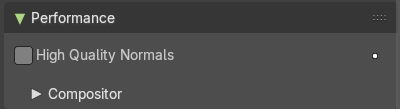
High Quality Normals
Use high quality tangent space. Slower but more accurate.
Compositor Subpanel
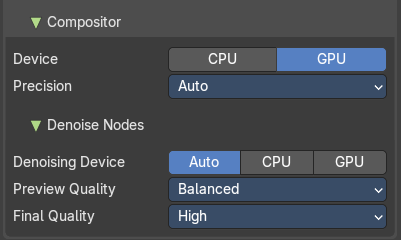
Realtime compositor settings.
Device
Which device to use for realtime compositing.
Precision
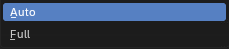
Precision menu just appears with GPU device selected.
| Entry | What it does |
|---|---|
| Auto | Full precision at rendering, half precision otherwise. |
| Full | Full precision in all cases. |
Denoise nodes subpanel
Denoising device
The device for the denoise nodes in the compositor.
Preview quality
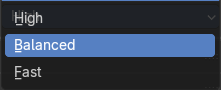
The quality for preview.
Final quality
The quality for the final.
Sampling panel
Viewport Samples
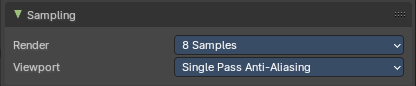
The number of samples when rendering in the viewport.
Render
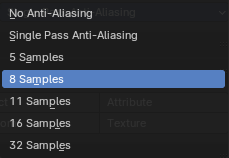
The number of antialias samples when rendering to file.
Viewport
The number of antialias samples when rendering in viewport.
Lighting panel
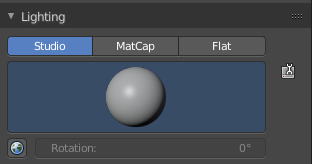
The Workbench renderer uses Open GL. OpenGL rendering is not influenced by the lights that you place in the workspace. But by a special OpenGL light setup. It can be tweaked in the Lighting panel and the User Preferences.
Flat
Use a flat lighting.
Studio
Use a Studio light setup.
Light library browser
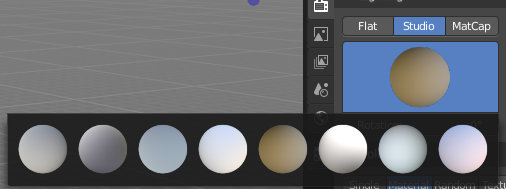
Choose a predefined studio light setup.
Rotation
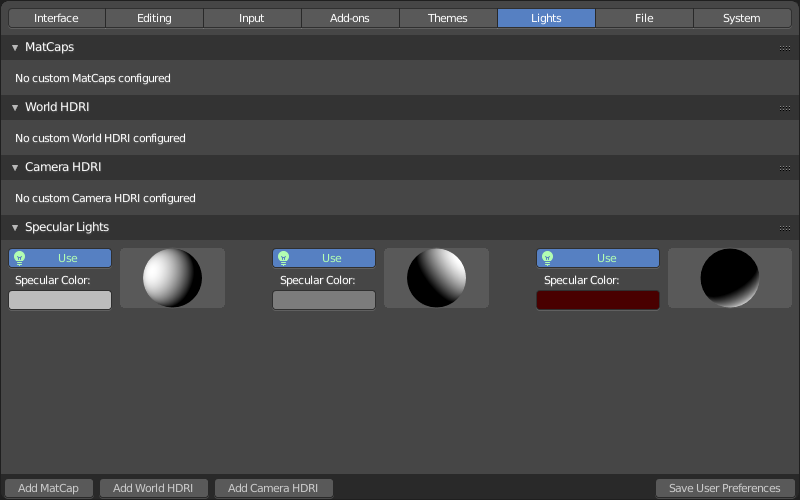
Rotate the studio light setup.
User Preferences
A click at this button opens up the user preferences where you can add and manage the OpenGL Lights.
Matcap
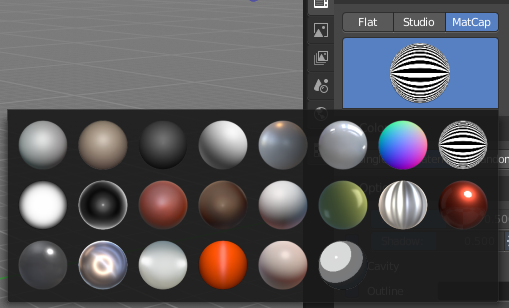
Use Matcaps to render the scene.
User Preferences
A click at this button opens up the user preferences where you can add and manage the Matcaps.
Flip Matcap
Flips the matcap.
Object Color panel
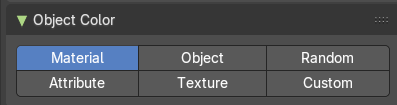
Workbench renderer is meant for fast preview display. It does not use materials like Eevee or Cycles. You choose a color instead.
This panel allows you to define the color of the surface of the object. This settings are also dependent of the chosen lighting.
| Entry | What it does |
|---|---|
| Material | Uses the material including textures for the mesh. |
| Object | Uses the Object color. |
| Vertex | Uses the Vertex color. |
Single

Uses a single color for the selected mesh.
| Entry | What it does |
|---|---|
| Random | Uses a random color for the mesh. |
| Texture | Renders the texture, and ignores the material settings. |
Options panel
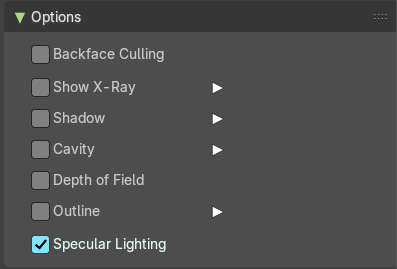
The options changes, dependant of what you have ticked.
| Entry | What it does |
|---|---|
| Backface Culling | Don't calculate back faces. |
| Show X Ray | Render the faces transparent. |
| Show X-Ray | Set X-Ray active, and adjust the amount of alpha that is used for the x-ray effect. Note that you can have either X-Ray or Shadow and Cavity active. Not both at the same time. · X-Ray Alpha: This slider shows up when you tick Show X Ray. Adjust the intensity. |
Shadow
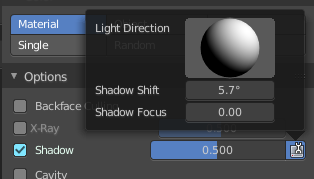
Render Shadow.
| Entry | What it does |
|---|---|
| Shadow Intensity | This slider shows up when you tick Shadow. Adjust the intensity. |
| Shading Shadow Options | Adjust a shadow shift relative to the light source. |
Cavity
Show Cavity. Cavity highlights ridges and valleys in the scene geometry. Once activated Cavity shows some further settings.
World
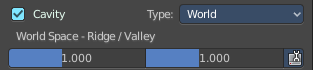
Draw the cavity shading in world space.
World Space / Ridge Valley
Factor for the cavity ridges and valleys.
Shading Options
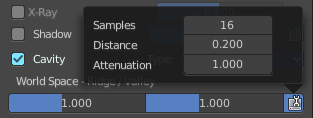
Adjust samples, distance and attenuation for the cavity ridges and valleys.
Screen
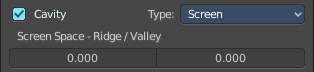
Draw the cavity shading in Screen space.
Screen Space / Ridge Valley
Factor for the curvature ridges and valleys.
Both
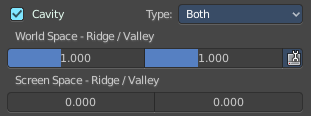
Draw the cavity shading in both, World Space and Screen space.
Settings see above.
| Entry | What it does |
|---|---|
| Depth of Field | Use depth of field on viewport using the values from the active camera. |
| Outline | Show the not selected objects with an outline. · Outline Color: Define the color of the outline for not selected objects. |
| Specular Lighting | Render specular highlights. |