

































































EEVEE
There are three different render engines available. Workbench, EEVEE, and Cycles. This chapter has a focus on the EEVEE render engine.
Render Tab
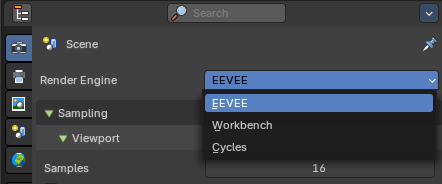
There are three different render engines available. Workbench, EEVEE, and Cycles. This chapter has a focus on the EEVEE render engine.
Sampling panel
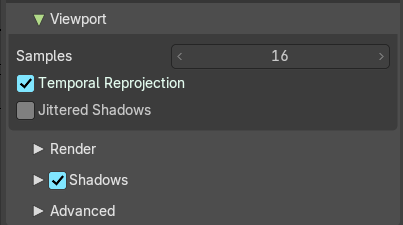
Viewport subtab
| Entry | What it does |
|---|---|
| Samples | The number of samples when rendering in the viewport. |
| Temporal Projection | Denoise image using a method called temporal reprojection. This method can leave some ghosting. |
| Jittered Shadows | Enables jittered soft shadows in the viewport, improving shadow realism by introducing subtle randomness to shadow sampling. This helps reduce banding and aliasing artifacts in dynamic lighting setups. Note: Jittered shadows are always enabled for final renders. This is an viewport override for performance. |
Render subtab

Samples
The number of samples when rendering to file.
Shadows subtab
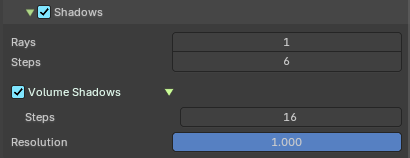
| Entry | What it does |
|---|---|
| Rays | The number of samples when rendering to file. |
| Steps | Amount of shadow ray sample per shadow ray. |
| Volume Shadows | Generate shadows from volumetric material. This is very resources hungry. · Steps: Number of samples to compute volumetric shadowing. |
| Resolution | The resolution scale of the shadow map. |
Advanced subtab
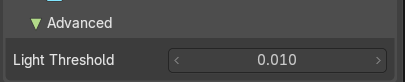
Light Threshold
Minimum light intensity for a light to contribute to the lighting.
Clamping panel
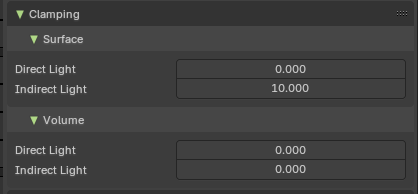
In this panel you can clamp the light values to minimum and maximum values.
| Entry | What it does |
|---|---|
| Surface subtab | Direct Light: The maximum value for lights contribution on a surface. A value of zero disables this feature. Higher values will be scaled down to avoid too much noise and slow convergence at the cost of accuracy. Used by light objects. · Indirect Light: The maximum value for indirect lighting on a surface. A value of zero disables this feature. Higher values will be scaled down to avoid too much noise and slow convergence at the cost of accuracy. Used by ray-tracing and light-probes. |
| Volume subtab | Direct Light: The maximum value for lights contribution in volumes. A value of zero disables this feature. Higher values will be scaled down to avoid too much noise and slow convergence at the cost of accuracy. Used by light objects. · Indirect Light: The maximum value for indirect lighting in volumes. A value of zero disables this feature. Higher values will be scaled down to avoid too much noise and slow convergence at the cost of accuracy. Used by light-probes. |
Raytracing panel
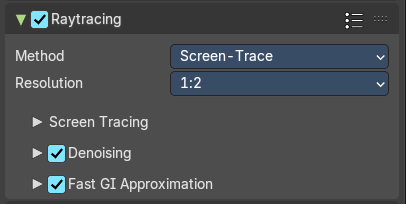
Use Ray-Tracing
Use ray-tracing.
Presets
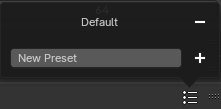
Allows you to store raytracing presets. To add a new preset type in a new preset name into the edit box at the end of the list, and click at the + sign.
To remove a preset click at the - sign behind the name.
Method
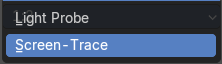
Select the tracing method to find scene-ray intersections.
| Entry | What it does |
|---|---|
| Light Probe | Raytracing using light probes. |
| Screen-Trace | Raytracing against the depth buffer. |
Resolution
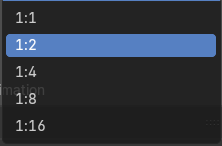
The ray-tracing resolution. 1 Ray per pixel, 1 ray per 4 pixel, 1 ray per 16 pixel.
Screen tracing subpanel
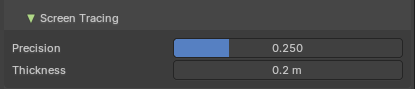
Just visible with the method Screen-Trace
| Entry | What it does |
|---|---|
| Precision | Precision of screen space ray-tracing. |
| Thickness | Surface Thickness used to detect intersection when using screen-tracing. |
Denoising Subpanel
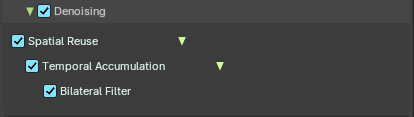
| Entry | What it does |
|---|---|
| Denoising | Enable Denoising for raytraced effects. |
| Spatial Reuse | Reuse the rays of neighbour pixe. |
| Temporal Accumulation | Accumulate samples by reprojecting last tracing results |
| Bilateral Filter | Blur the resolved radiance by reprojecting last tracing result of the temporal accumulation. |
Fast GI Approximation subpanel
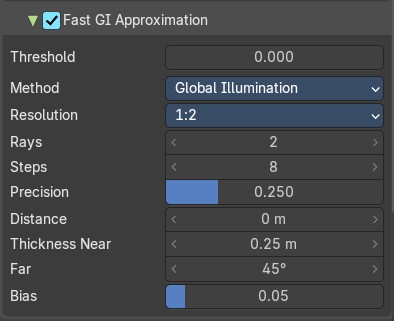
Threshold
Maximum roughness to use the tracing pipeline for. Higher roughness surfaces will use Fast GI Approximation. A value of 1 will disable Fast GI Approximation.
Method
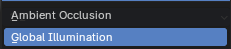
| Entry | What it does |
|---|---|
| Ambient occlusion | Uses Ambient occlusion instead of Global Illumination. Ambient Occlusion is self shadowing, and doesn't calculate colors. |
| Global Illumination | Computes global illumination. It takes light bounces off surrounding objects into account. |
Resolution
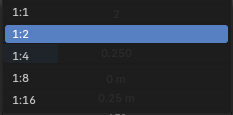
The resolution of the AO or GI map. It is relative to the render resolution. 1 is the size of the full render resolution, 1/2 is half the size of render resolution, and so on.
| Entry | What it does |
|---|---|
| Rays | Amount of GI or AO rays to trace for each pixel. |
| Steps | Amount of screen sample per GI or AO ray. |
| Precision | Precision of the Fast GI ray matching. |
| Distance | If non zero, the maximum distance at which other surfaces will contribute to the Fast GI approximation. |
| Thickness near / far | Geometric thickness of the surfaces when computing GI or AO. This feature reduces light leaking and missing contact occlusion. |
| Bias | Bias the shading normal to reduce self intersection artifacts. |
Volumes panel
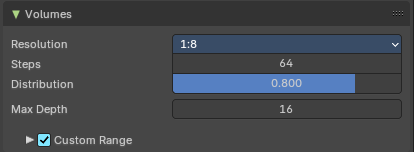
Contains volumetrics settings.
| Entry | What it does |
|---|---|
| Resolution | The resolution of the Volumes map. It is relative to the render resolution. 1 is the size of the full render resolution, 1/2 is half the size of render resolution, and so on. |
| Steps | Number of samples to compute for the volumetrics effect. |
| Distribution | Distribute more samples closer to the camera. |
| Max Depth | Maximum surface intersection count used by the accurate volume intersection method. Thise feature will create artifacts if it is exceeded. |
Custom Range subpanel
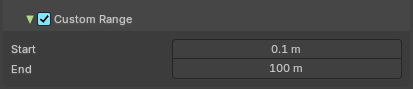
Enable custom start and end distances for volume computation.
Start / End
The start and end values for computation.
Curves panel
Shape
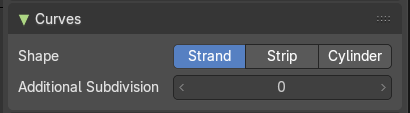
Choose if the hair is displayed as strand or as strip.
Additional Subdiv
Additional subdivision along the hair.
Simplify panel
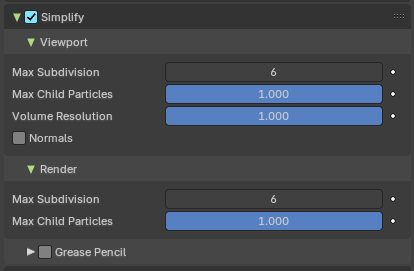
Sometimes you want to simplify the rendering without to loose the already tweaked settings and adjustments. For test renderings for example. Simplify allows you to simplify the rendering.
| Entry | What it does |
|---|---|
| Enable | In the header is a checkbox to enable Simplify. |
| Viewport subpanel | This section affects the rendering with Eevee in the Viewport. · Max Subdivisions: Limit the number of maximum subdivisions. · Max Child Particles: Limit the number of child particles. · Volume Resolution: Simplify volumes by setting the resolution percentage of volume objects in viewport. · Normals: Skip computing custom normals and face corner normals for displaying meshes in the viewport. |
Render
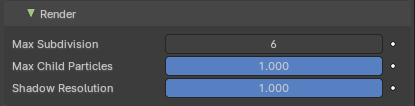
This section affects the rendering with Eevee to file.
| Entry | What it does |
|---|---|
| Max Subdivisions | Limit the number of maximum subdivisions. |
| Max Child Particles | Limit the number of child particles. |
Grease Pencil
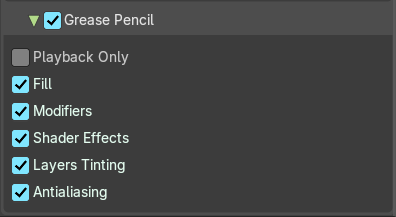
This section affects Grease Pencil drawings.
| Entry | What it does |
|---|---|
| Enable | Enables the Grease Pencil features. |
| Playback Only | Simplify Grease Pencil only during animation playback. |
| Fill | Display Fill strokes in the Viewport. |
| Modifiers | Apply modifiers in the viewport. |
| Shader Effects | display shader effects. |
| Layers Tinting | Display layers tint. |
| Antialiasing | Use antialiasing to smooth stroke edges. |
Depth of Field panel
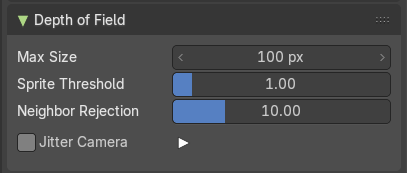
| Entry | What it does |
|---|---|
| Max Size | The maximum size of the bokeh shape for Depth of Field. Lower is faster. |
| Sprite Threshold | Brightness threshold for using sprite base depth of field. |
| Neighbor Rejection | The maximum brightness to consider when rejecting bokeh sprites based on neighborhood. Lower is faster. |
Jitter Camera

Jitter the camera to create accurate blurring by using render samples.
Overblur
Apply blur to each jittered sample to reduce undersampling artifacts.
Motion Blur panel
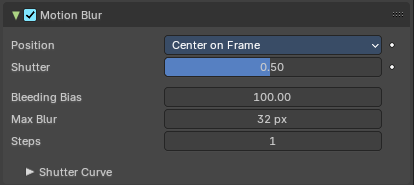
Enable Motion Blur and adjust the settings.
Each object has also its own settings to control motion blur. These options can be found in the corresponding Object tab of the Properties editor.
Enable
In the header is a checkbox to enable Simplify.
Position
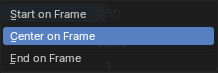
Controls at what point the shutter opens in relation to the frame.
| Entry | What it does |
|---|---|
| Shutter | Time taken in frames between shutter open and close. |
| Bleeding Bias | Reduce background bleeding onto foreground elements. Lower values = less bleeding. |
| Max Blur | The maximum blur distance that a pixel can spread over. |
| Steps | Controls the accuracy of motion blur. More steps means longer render time. |
Shutter Curve
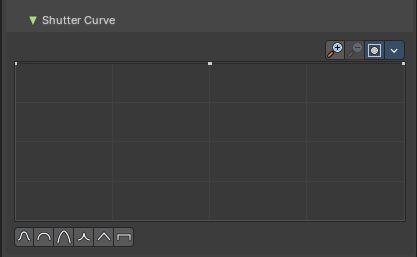
Sutter curve is a sub menu wAdjust a curve for the shutter effect.
Navigation elements

The navigation elements at the top are described from left to right.
Zoom in and out
The two buttons with the magnifying glass at it zooms in and out in the curve window.
Clipping
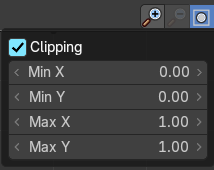
Clipping options. Set up clipping for the stroke.
Tools
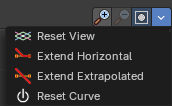
Tools is a menu that contains some curve related tools.
| Entry | What it does |
|---|---|
| Reset View | Resets the curve windows zoom. |
| Extend Horizontal | Causes the curve to stay horizontal before the first point and after the last point. |
| Extend Extrapolated | Causes the curve to extrapolate before the first point and after the last point, based on the shape of the curve. |
| Reset Curve | Resets the curve to the initial shape. |
Handles

| Entry | What it does |
|---|---|
| Vector Handle | Set handle type to Vector. |
| Auto Handle | Set handle type to Auto. |
| Auto Clamped Handle | Set handle type to Auto Clamped. |
| X and Y values | The coordinates of the currently selected curve point. |
Presets
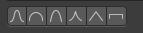
Curve presets.
Delete Points
Deletes selected curve points.
Film panel
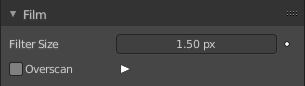
Filter Size
The width over which the reconstruction filter combines samples.
Animate Property
This property can be animated. Activating this button sets a keyframe.
Overscan

Internally render past the image borders to avoid screen space effects disappearing.
Overscan Size
How much bigger the image should be internally rendered.
Performance panel
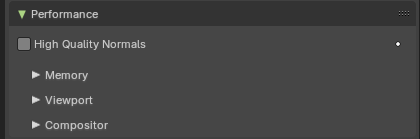
High Quality Normals
Use high quality tangent space. Slower but more accurate.
Memory Subpanel
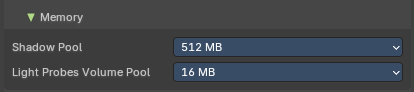
Shadow Pool
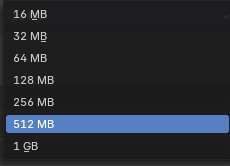
How much shadow data can be allocated for the scene. More ram usage means more possible shadows. This affects the GPU ram usage.
Light Probes Volume Pool
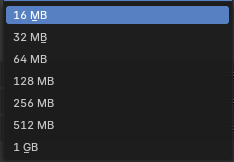
How much Light probes Volume data can be allocated for the scene. More ram usage means more possible light probes volumes. This affects the GPU ram usage.
Viewport Subpanel

Pixel Size
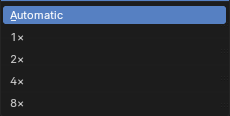
The pixel size for viewport rendering.
Automatic depends of the user interface scale. 1 renders at full resolution. 8 renders just in 12.5% of the size.
Compositor Subpanel
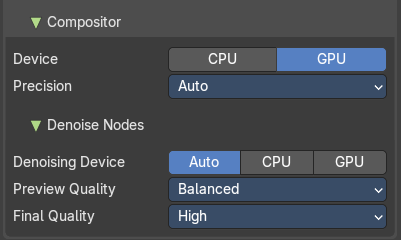
Realtime compositor settings.
Device
Which device to use for realtime compositing.
Precision
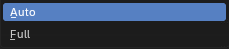
Precision menu just appears with GPU device selected.
| Entry | What it does |
|---|---|
| Auto | Full precision at rendering, half precision otherwise. |
| Full | Full precision in all cases. |
Denoise nodes subpanel
Denoising device
The device for the denoise nodes in the compositor.
Preview quality
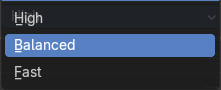
The quality for preview.
Final quality
The quality for the final.