

































































Cycles
There are three different render engines available. Workbench, EEVEE, and Cycles. This chapter has a focus on the EEVEE render engine.
Render Tab
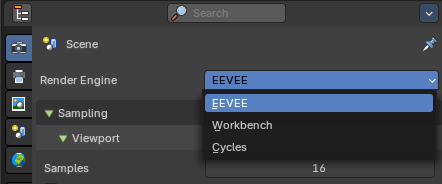
There are three different render engines available. Workbench, EEVEE, and Cycles. This chapter has a focus on the EEVEE render engine.
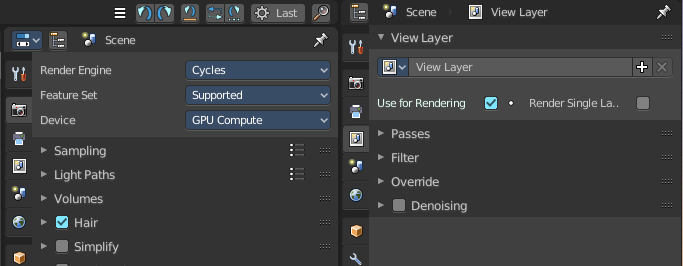
Cycles is a so called offline renderer. It is an unbiased physically correct renderer with some biased adjustments to make it usable for animations.
Cycles can render at the CPU or the GPU.
Cycles Feature Set
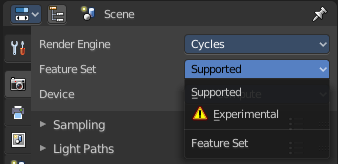
When you choose Cycles then you will see a new drop down box called Feature set. Cycles has two feature set settings. Supported and Experimental.
Supported means you have all common Cycles settings available.
Experimental means that you have access to some further experimental features of Cycles, which are somehow functional, but are still experimental features. Like Adaptive subdivision. Those features may or may not work proper. Use at own risk!
Cycles Device

When you turn on Cuda in the User Preferences then you will get a Device drop down box to choose if you want to render with the CPU or the GPU.
Open Shading Language
When you render with Cycles at the CPU, then you can choose to use the Open Shading Language.
Sampling panel
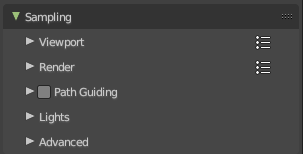
Adjust the samples for Cycles. And enable denoising.
Viewport subpanel
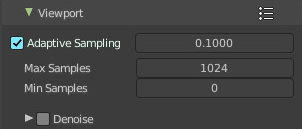
Sampling settings for the Viewport rendering.
Presets
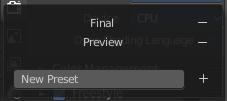
In the header you will find a Presets menu to choose between presets and define your own presets.
Adaptive Sampling
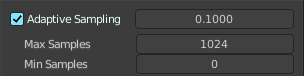
Automatically redcue the number of samples per pixel, based on estimated noise level.
| Entry | What it does |
|---|---|
| Adaptive sampling threshold | The noise level step to stop sampling at. Lower values reduces noise at the cost of render time. A value of zero means to use the automatic setting based on number of AA samples. |
| Max Samples | Maximum samples for adaptive sampling. |
| Min Samples | Minimum samples for adaptive sampling. A value of zero means to use the automatic setting based on number of AA samples. |
Samples
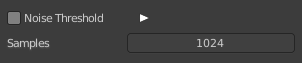
When Noise Threshold is off then you will see the Samples edit box. Number of samples to render.
Denoise Sub Subpanel
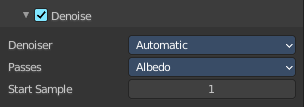
Use Denoising Checkbox
Activate Denoising.
Denoiser
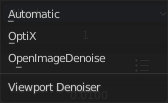
| Entry | What it does |
|---|---|
| Automatic | Use the fastest denoiser that is available. If OptiX is available then OptiX. Otherwise OpenImageDenoiser. |
| OptiX | Use the OptiX Denoiser. |
| OpenImageDenoiser | Use the OpenImageDenoiser. |
Passes
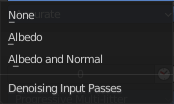
What input passes to use.
Start Sample
The sample to start denoising at.
Render subpanel
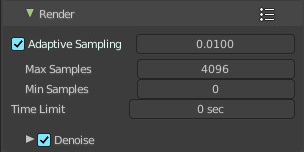
Sampling settings for the final rendering.
Presets
In the header you will find a Presets menu to choose between presets and define your own presets.
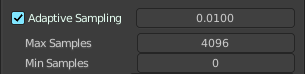
Adaptive Sampling
Automatically redcue the number of samples per pixel, based on estimated noise level.
| Entry | What it does |
|---|---|
| Adaptive sampling threshold | The noise level step to stop sampling at. Lower values reduces noise at the cost of render time. A value of zero means to use the automatic setting based on number of AA samples. |
| Max Samples | Maximum samples for adaptive sampling. |
| Min Samples | Minimum samples for adaptive sampling. A value of zero means to use the automatic setting based on number of AA samples. |
Samples

When Noise Threshold is off then you will see the Samples edit box. Number of samples to render.
Time Limit
When Noise Threshold is off then you will see the Time Limit edit box. Limit the render time. This ends the rendering process after the given time. A value of zero disables the limit.
Denoise Sub Subpanel
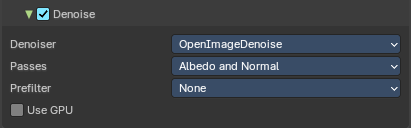
Use Denoising Checkbox
Activate Denoising.
Denoiser
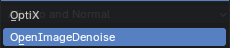
OptiX

Use the OptiX Denoiser.
Passes
What input passes to use.
OpenImageDenoiser
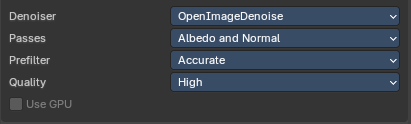
Use the OpenImageDenoiser.
Passes
What input passes to use.
Prefilter
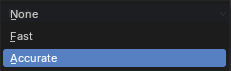
Prefilter noisy guiding to improve quality.
Quality
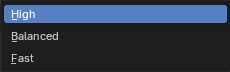
Overall denoising quality.
Use GPU
Perform Denoising on the GPU.
This property is just active when Cylces device uses GPU and the denoiser is OpenImage Denoise.
Path Guiding subpanel
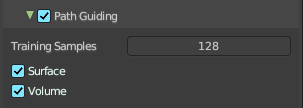
Use path guiding for sampling paths. Path guiding incrementally learns the light distribution of the scene. And guides path into directions with high direct and indirect light contributions.
| Entry | What it does |
|---|---|
| Training Samples | The maximum number of samples used for training path guiding. Higher values results in more accurate guiding at the cost of speed. A value of 0 will continue the training until the last sample. |
| Surface | Use guiding at surfaces. |
| Volume | Use guiding inside volumes. |
Lights subpanel
| Entry | What it does |
|---|---|
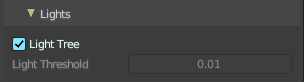
| Light Tree | When ticked use existing light tree. This will sample multiple lights more efficiently. |
| Light Threshold | When Light Tree is unticked Light Threshold becomes available. Terminate light samples below this value. This speeds up the rendering at the cost of noise. A value of zero will disable the test. Then all light value will be calculated. |
Advanced subpanel
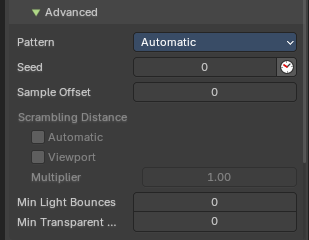
Pattern
Random sampling pattern used by the integrator. You need to turn off Noise Threshold in the Render panel to activate and use the Sampling Pattern.
Automatic
Uses a progressive Multi-Jitter pattern to decide the random sapling pattern used by the integrator. This is a type of noise that allows the renderer to automatically decide the number of samples for each pixel, based on a target amount of noise. This can be very helpful in reducing render times while still maintaining a good level of detail.
Classic
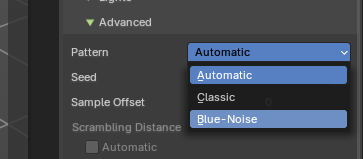
Uses a Sobol pattern to decide the random sapling pattern used by the integrator. This is a type of pattern that uses a mathematical sequence (the Sobol sequence) to decide the random sampling pattern. It’s designed to cover the most space and ensure that all areas are adequately sampled
Blue Noise
This is a type of noise that is high-frequency. In the context of rendering, it means the noise (or grain) you see in the image appears more like tiny dots scattered around, rather than clumps. This can make the image appear smoother and more pleasing to the eye.
| Entry | What it does |
|---|---|
| Seed | Seed value for integrator to get different noise patterns. · Animate Seed: The clock icon besides the Seed value. Enable it to get different seed values for animation. Without animated seed you will get visible patterns in animations. |
| Sample Offset | Number of samples to skip when starting the render. |
Scrambling Distance
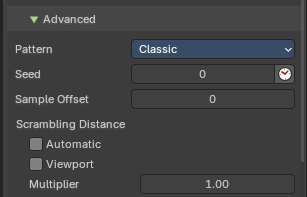
Speeds up the rendering times at the gpu at cost of possible artifacts. You need to turn off Adaptive Sampling in the Render or Viewport panel to activate and use the Scrambling Distance.
Note: This is only available with Classic Sampling.
| Entry | What it does |
|---|---|
| Adaptive | Instead of a fixed scrambling distance you can use this adaptive method. It is based on the sample count. |
| Viewport | Also use the scrambling distance in the viewport. |
| Multiplier | Speeds up the rendering at the GPU by scrambling pixels that are farer away. Lower values renders faster, with less noise – but too low values can lead to artifacts. |
| Entry | What it does |
|---|---|
| Min Light Bounces | The minimum bounces of light rays. |
| Min Transparent Bounces | The minimum number of transparent bounces. |
Light Paths panel
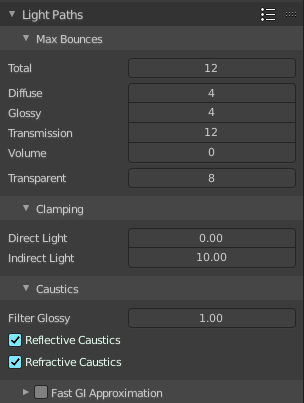
Here you will find all settings regarding light paths.
Presets
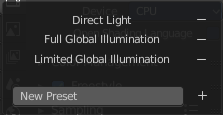
In the header you will find a Presets menu to choose between presets and define your own presets.
Max Bounces
A sub menu with the Maximum Bounces settings.
| Entry | What it does |
|---|---|
| Total | Total maximum number of bounces. |
| Diffuse | Maximum number of diffuse bounces. |
| Glossy | Maximum number of glossy bounces. |
| Transmission Bounces | Maximum number of transmission bounces. |
| Volume | Maximum number of volume scattering bounces. |
| Transparent | Maximum number of transparency bounces. |
Clamping
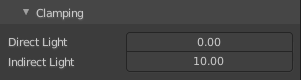
A sub menu with the Clamping settings. Clamping will reduce noise at the cost of accuracy.
| Entry | What it does |
|---|---|
| Direct Light | The maxium value for a direct sample. Zero means disabled. |
| Indirect Light | The maximum value for a indirect sample. Zero means disabled. |
Caustics
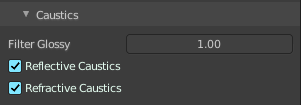
A sub menu with caustics and filter glossy settings.
Filter Glossy
When using a value higher than 0.0, this will blur glossy reflections after blurry bounces, to reduce noise at the cost of accuracy. 1.0 is a good starting value to tweak.
Some light paths have a low probability of being found while contributing much light to the pixel. As a result these light paths will be found in some pixels and not in others, causing fireflies. An example of such a difficult path might be a small light that is causing a small specular highlight on a sharp glossy material, which we are seeing through a rough glossy material. In fact in such a case we practically have a caustic.
With path tracing it is difficult to find the specular highlight, but if we increase the roughness on the material, the highlight gets bigger and softer, and so easier to find. Often this blurring will hardly be noticeable, because we are seeing it through a blurry material anyway, but there are also cases where this will lead to a loss of detail in lighting.
| Entry | What it does |
|---|---|
| Reflective Caustics | Disable reflective caustics. Path tracing supports rendering of caustics with a sufficient number of samples. But in practice it may be inefficient to the point that there is just too much noise. |
| Refractive Caustics | Disable refractive caustics. Path tracing supports rendering of caustics with a sufficient number of samples. But in practice it may be inefficient to the point that there is just too much noise. |
Fast GI approximation subpanel
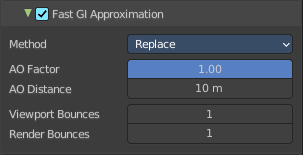
Approximate diffuse indirect light with background tinted ambient occlusion.
This method provides a fast alternative to full global illumination, for interactive viewport rendering or final renderers with lower quality.
Fast GI Approximation checkbox
The checkbox in the header activates the Fast GI Approximation.
Method
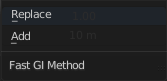
The fast gi method.
Replace
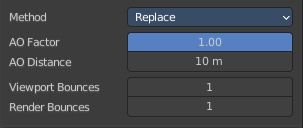
Replace global illumination with ambient occlusion after a specified number of bounces.
| Entry | What it does |
|---|---|
| AO Factor | Factor of ambient occlusion blending. |
| AO Distance | The length of the rays that are used for Ambient Occlusion. Defines how far any other faces gives the occlusion effect. |
| Viewport Bounces | Use approximate global illumination after this number of light bounces in the viewport. A value of 0 deactivates the feature. |
| Render Bounces | Use approximate global illumination after this number of light bounces in the rendering. A value of 0 deactivates the feature. |
Add
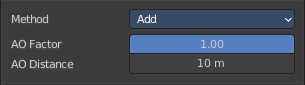
Add ambient occlusion to diffuse surfaces
| Entry | What it does |
|---|---|
| AO Factor | Factor of ambient occlusion blending. |
| AO Distance | The length of the rays that are used for Ambient Occlusion. Defines how far any other faces gives the occlusion effect. |
Volumes panel
Adjust the volume sampling.
Unbiased
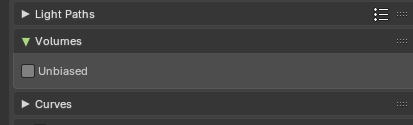
Produces physically accurate results that improve with more samples, but may appear noisy while rendering.
Curves panel
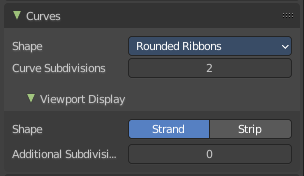
Adjust the settings for Hair particles.
Shape
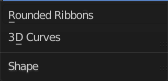
Choose between the shape 3D Curves and Rounded Ribbon.
Curve Subdivisions
Rounded Ribbons, the number of subdivisions at the curves.
Viewport Display subpanel
How to display the hairs in the viewport.
| Entry | What it does |
|---|---|
| Shape | The hair shape type. Stand or Strip. |
| Additional Subdiv | Additional subdivision along the hair. |
Simplify panel
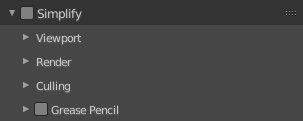
Sometimes you want to simplify the rendering without to loose the already tweaked settings and adjustments. For test renderings for example. Simplify allows you to set global limits on subdivision, shadow samples and more.
Enable
In the header is a checkbox to enable Simplify.
Viewport
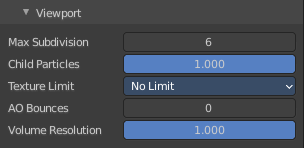
This section affects the rendering with cycles in the Viewport.
| Entry | What it does |
|---|---|
| Max Subdivisions | Limit the number of maximum subdivisions. |
| Child Particles | Limit the number of child particles. |
| Texture Limit | Automatically scales down textures to the chosen value. |
| AO Bounces | Limit the number of Ambient Occlusion Bounces. |
| Volume Resolution | Simplify volumes by adjusting volume percentage of volume objects in viewport. |
Render
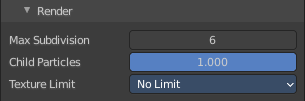
This section affects the final rendering.
| Entry | What it does |
|---|---|
| Max Subdivisions | Limit the number of maximum subdivisions. |
| Child Particles | Limit the number of child particles |
| Texture Limit | Automatically scales down textures to the chosen value. |
Culling
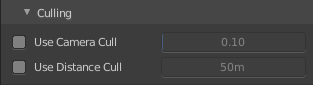
Contains Culling settings. Culling means that the affected geometry is excluded from calculation.
| Entry | What it does |
|---|---|
| Use Camera Cull | Allow objects to be culled based on the Camera Frustum. Frustum is the region of the 3D space that gets displayed by the camera, the field of view. · Camera cull margin: The margin for the camera space culling. |
| Use Distance Cull | Allow objects to be culled based on the distance to the camera. · Distance: The distance after which the objects gets culled away. |
Grease Pencil
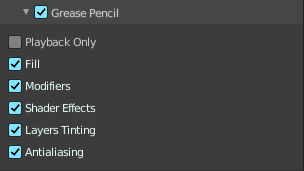
| Entry | What it does |
|---|---|
| Playback Only | Simplify the grease pencil strokes only during playback. |
| Fill | Display Fill strokes in viewport. |
| Modifiers | Display Modifiers. |
| Shader Effects | Display Shader effects. |
| Layers Tinting | Display layer tint. |
| Antialiasing | Use antialiasing to smooth stroke edges. |
Motion Blur panel
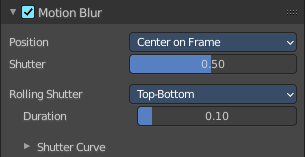
Enable Motion Blur and adjust the settings.
Each object has also its own settings to control motion blur. These options can be found in the corresponding Object tab of the Properties editor.
Enable
In the header is a checkbox to enable Simplify.
Position
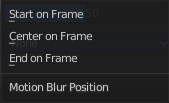
Controls at what point the shutter opens in relation to the frame.
Shutter
Time between frames over which motion blur is computed. Shutter time 1.0 blurs over the length of 1 frame, 2.0 over the length of two frames, from the previous to the next.
Rolling Shutter
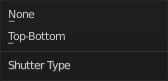
Enable Rolling Shutter.
Duration
With method Top - Bottom only. Controls balance between pure rolling shutter effect and pure motion blur effect. With zero being no rolling shutter and one being all rolling shutter.
Shutter Curve
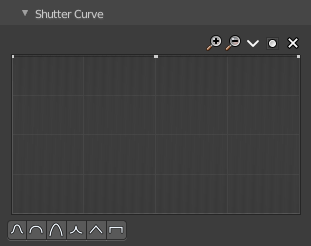
Sutter curve is a sub menu wAdjust a curve for the shutter effect.
Navigation elements

The navigation elements at the top are described from left to right.
Zoom in and out
The two buttons with the magnifying glass at it zooms in and out in the curve window.
Tools
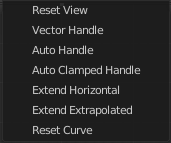
Tools is a menu that contains some curve related tools.
| Entry | What it does |
|---|---|
| Reset View | Resets the curve windows zoom. |
| Vector Handle | Set handle type to Vector. |
| Auto Handle | Set handle type to Auto. |
| Auto Clamped Handle | Set handle type to Auto Clamped. |
| Extend Horizontal | Causes the curve to stay horizontal before the first point and after the last point. |
| Extend Extrapolated | Causes the curve to extrapolate before the first point and after the last point, based on the shape of the curve. |
| Reset Curve | Resets the curve to the initial shape. |
Use Clipping
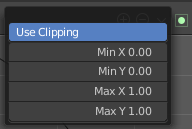
Clipping options. Set up clipping for the stroke.
Delete Points
Deletes selected curve points.
X and Y values
The coordinates of the currently selected curve point.
Presets
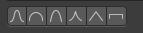
At the bottom you can find some curve presets.
Film panel
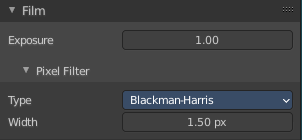
Exposure
Exposure can be used to change the brightness of an image. Different then the Exposure option found in the Color management panel this exposure option works is on the data while the Color management exposure is on the view.
Pixel Filter
The Pixel Filter randomly changes the coordinates of every sample with the given distribution. For example: When the Sobol Sampling Pattern samples near the edge of the pixel, the neighboring pixel might be lit instead with a rather high probability. Pixel filter is used to get rid of aliasing on the sharp edge of very bright objects, like mesh lights.
Type
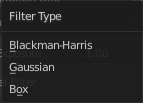
Choose the pixel filter type.
Width
Adjust the pixel filter width.
Performance panel
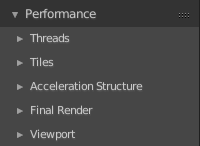
Settings to influence the render performance.
Presets
Performance presets can be applied to quickly configure Cycles.
Default
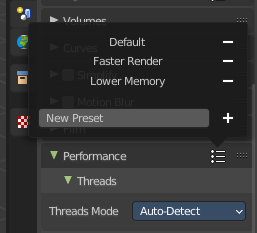
This preset are the default cycles settings.
| Entry | What it does |
|---|---|
| Faster Rendering | This preset is dedicated to speed with higher memory usage. This may be more unstable due to hardware limits. |
| Lower Memory | This preset is dedicated to lower memory. This may cause longer renders. |
Threads
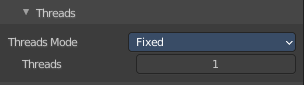
With threads, you are able to to assign as many cores as you need from your CPU as dedicated resources. Default is Auto-Detect.
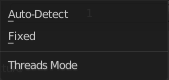
Mode
| Entry | What it does |
|---|---|
| Auto-detect | Automatically chooses the amount threads to match the number of logical processors on your computer. |
| Fixed | Manually choose the amount threads to use for rendering. · Threads: Just active when you choose Fixed. Number of threads that you want to use. |
Memory
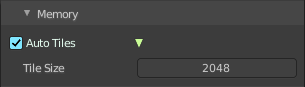
| Entry | What it does |
|---|---|
| Auto Tiles | Automatically render high resolution images in tiles to reduce memory usage. Tiles are cached to disk while rendering, to save memory. |
| Tile Size | The tile size for the tiles. |
Acceleration Structure
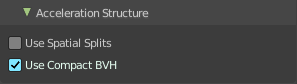
| Entry | What it does |
|---|---|
| Use Spatial Splits | Spatial splits improve rendering performance in scenes with a mix of large and small polygons. The downsides are longer BVH build times and slightly increased memory usage. |
| With CPU rendering: | Use compact BVH: Use a compact BVH code structure that uses less ram. This option renders slower. |
With GPU rendering:
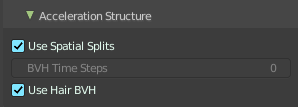
| Entry | What it does |
|---|---|
| BVH Time Steps | Is just active when Spatial Splits is off. Split BVH Primitives by this number of time steps. This speeds up rendering, but requires more memory. |
| Use Hair BVH | Use a special type of BVH for rendering hair. The bounding boxes are not axis aligned allowing a spatially closer fit to the hair geometry. Disabling this option will reduce memory, at the cost of increasing hair render time. |
Final Render
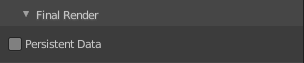
Persistent Data
Keep image data in memory after rendering, for faster re-renders at the cost of extra memory usage when performing other tasks in Blender.
Viewport
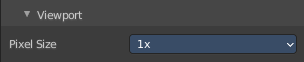
This settings is for rendering in the Viewport.
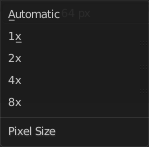
Pixel Size
Pixel Size for Viewport Rendering.
Bake panel
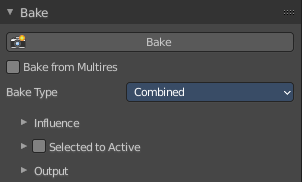
Texture baking is the process to bake specific informations from one object into the texture or the vertex colors of another object. Ambient Occlusion. Or a Normal Map for example.
Note: Baking into textures requires to have a working UV mapping and a texture at the target object!
How to use: Select the source object where you want to bake from, hold down Shift, select the target object where you want to bake to, so that both objects are selected. Adjust the settings to your needs. Then hit the Bake button.
Note: The Bake panel is visible in all Modes. But you have to bake in Object Mode.
Settings for all Texture types
Most settings in the Bake panel are available for all texture types.
| Entry | What it does |
|---|---|
| Bake Button | Start the bake process. |
| Bake from Multires | Bake directly from multi resolution object. |
Bake Type
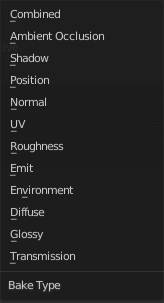
Bake Mode is a drop-down box to choose what type of information you want to bake from the source object into the texture or the vertex colors of the target object.
You can bake Subsurface, Transmission, Glossy, Diffuse, Environment, Emit, UV, Normal, Shadow, Ambient Occlusion and Combined.
| Entry | What it does |
|---|---|
| Combined | Bakes the full rendering, means materials, textures, lightning, into the texture of the target object. Except Specularity. |
| Ambient Occlusion | Bakes ambient occlusion as specified in the World panels. Ignores all lights in the scene. |
| Shadow | Bakes the Shadow into the texture of the target object. |
| Position | Bake out a position map. Position maps stores the distance from the floor. Which allows to add a dirtmap above some ground for example. |
| Normal | Creates a Normal map by using the normals of the source object, and baking them as colors into the texture of the target object. |
| UV | Bakes colors of materials and textures only, without shading. |
| Roughness | Bakes the Roughness of a material into the texture of the target object. |
| Emit | Bakes the Emission or the glow color of a material into the texture of the target object. |
| Environment | Bakes the Environment texture into the texture of the target object. As seen from the center of the object. |
| Diffuse | Bake the diffuse texture of the source object into the texture of the target object. |
| Glossy | Bakes the Glossy Passes of a material into the texture of the target object. |
| Transmission | Bakes the transmission Passes of a material into the texture of the target object. |
Influence Sub panel
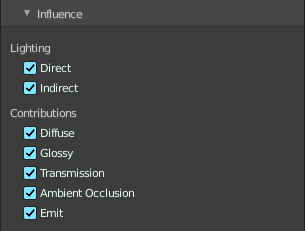
Adjust what data contributes to the bake process. The items are self explaining.
The content changes, dependent of what type you want to bake.
Glossy, Diffuse
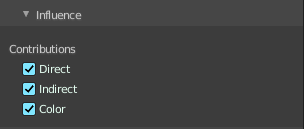
| Entry | What it does |
|---|---|
| Direct | Add direct Light. |
| Indirect | Add indirect Light. |
| Color | Add Color. |
Normal
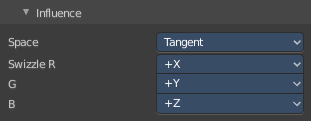
| Entry | What it does |
|---|---|
| Space | A drop-down box to chooses the Normal Space to use. |
| Swizzle | Axis to bake in red, green and blue channels. |
Combined
| Entry | What it does |
|---|---|
| Direct | Bake directly from Multires mesh. |
| Indirect | Normalizes without using material settings. |
| Diffuse | Bake with Diffuse. |
| Glossy | Bake with Glossy. |
| Transmission | Bake with Transmission. |
| Subsurface | Bake with Subsurface. |
| AO | Bake with Ambient Occlusion. |
| Emit | Bake with Emit. |
Selected to Active
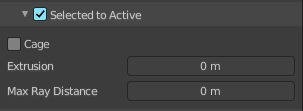
The usual way to bake is first select the Source Object, where you want to bake from, hold down Shift, select the target object where you want to bake to, so that both objects are selected. Then hit the Bake button. That's Selected to Active.
Extrusion
Inflate the active object by the specified distance for baking.
Cage
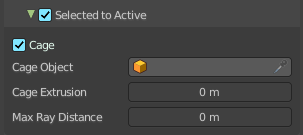
Cast Rays to active object from a cage. A value of zero means unlimited ray length.
Cage Object
Pick an object to use as a cage. Usually you create this cage object by duplicating the original object, and extrude out the faces along their normals until they fully include the original object.
Ray Distance
Distance to use for the inward ray cast when using Selected to Active.
Output Sub panel
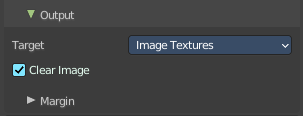
Target
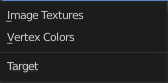
To what target to bake. You can bake to images or you can bake to the vertex colors of the mesh. Note that baking to vertex colors has no further options.
Clear Image
Clear clears the target image before baking.
Margin sub subpanel
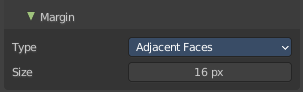
Adjust the margin width.
| Entry | What it does |
|---|---|
| Type | The margin type. · Adjacent Faces: Use pixels from adjacent faces across UV seams to create the margin. · Extend: Use the pixels at the inside of the border UV seams, and extend from there to create the margin. |
| Size | The size of the margin around the UV patches. |