

































































Render Properties Tab
Rendering is the process of calculating a 2D image (or video) from your 3D scene. For this you use a so called render engine.
Render Tab
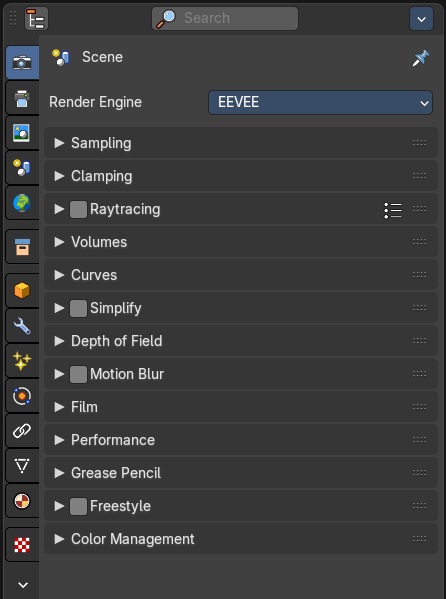
Rendering is the process of calculating a 2D image (or video) from your 3D scene. For this you use a so called render engine.
The Render tab contains the functionality and settings around the available render engines in Bforartists. and here you can choose the renderer with which you render your still or animation.
Render Engine
There are three different render engines available: Workbench, EEVEE, and Cycles.
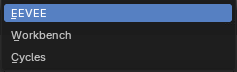
Cycles is a so called offline renderer. It is an unbiased physically correct renderer with some biased adjustments to make it usable for animations.
Cycles can render at the CPU or the GPU.
EEVEE and Workbench are so called Realtime Renderers. They render on the GPU. Workbench relies at the OpenGL render features of the graphics card. EEVEE is a full independent realtime render engine.
All renderers have different settings. And the choice of the renderer influences the tab and panel content of the whole Scene section.
This content will be covered in the chapters for the other tabs.
Cycles Feature Set
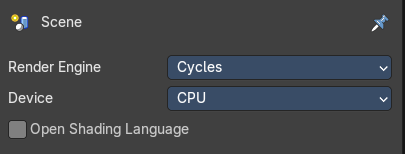
When you choose Cycles then you will see a new drop down box called Feature set. Cycles has two feature set settings. Supported and Experimental.
Supported means you have all common Cycles settings available.
Experimental means that you have access to some further experimental features of Cycles, which are somehow functional, but are still experimental features. Like Adaptive subdivision. Those features may or may not work proper. Use at own risk!
Cycles Device

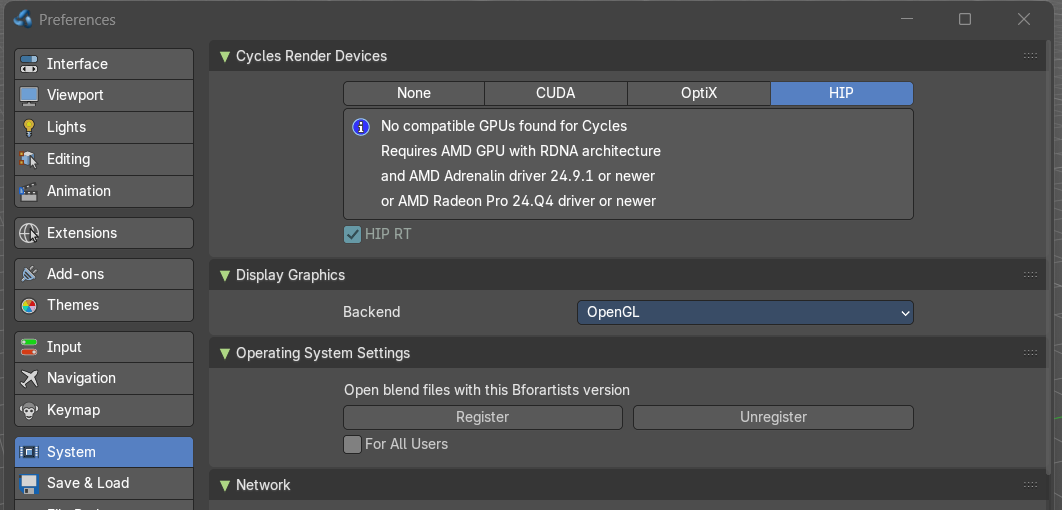
When you turn on Cuda in the User Preferences then you will get a Device drop down box to choose if you want to render with the CPU or the GPU. Note that for full support of gpu rendering you need to choose the correct render device in the properties.
Open Shading Language
When you render with Cycles at the CPU, then you can choose to use the Open Shading Language.
| Entry | What it does |
|---|---|
| EEVEE Feature Set | When you choose EEVEE, you will be able to user a raster based render engine that uses your GPU to render light and materials. This includes features like screenspace raytraced reflections and global illumination, light and reflection volumes, raytraced cast shadows, and more. This renderer is akin to modern game engine rendering techniques. |
| Workbench Feature Set | When you choose Workbench, this use the internal viewport rendering typical of mesh editing and playback. You can use matcaps and other viewport settings to render to disk from here. Note: Changing these settings will also change the sequencer preview of scene strips. |
Grease Pencil panel
Viewport Anti-Aliasing
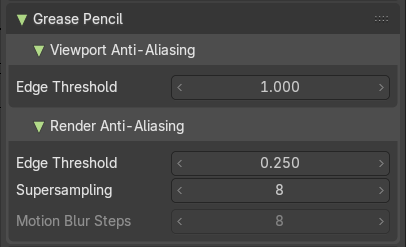
Edge Threshold
Sensitivity for detecting edges to anti-alias.
Lowering this value detects more edges at the cost of performance.
This setting is used for the SMAA (subpixel morphological anti-aliasing) for Grease Pencil objects.
Render Anti-Aliasing
| Entry | What it does |
|---|---|
| Edge Threshold | Sensitivity for detecting edges to anti-alias. Lowering this value detects more edges at the cost of performance. This setting is used for the SMAA (subpixel morphological anti-aliasing) for Grease Pencil objects. |
| Supersampling | Number of extra samples done per pixel in final render. This setting is used for SSAA (super sampling anti-aliasing) for Grease Pencil objects. (This anti-aliasing method only affects the final render.) |
| Motion Blur Steps | Controls the accuracy of Motion Blur. Motion Blur needs to be enabled. See Motion Blur panel. A value of 0 will also disable this feature. |
Freestyle panel
What is FreeStyle?
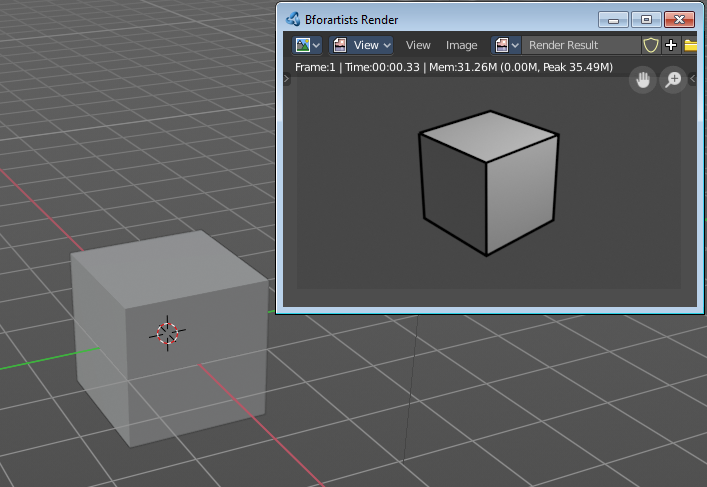
Freestyle is an edge- and line-based non-photorealistic (NPR) rendering engine that works on top of the other engines except Eeevee. It relies on mesh data and z-depth information to draw lines on selected edge types. Various line styles can be added to produce artistic or technical looks.
The two operating modes - Python Scripting and Parameter Editor - allow a diversity of line styles and results. Line styles such as Japanese big brush, cartoon, blueprint, thickness-with-depth are already pre-scripted in Python. The Parameter Editor mode allows intuitive editing of features such as dotted lines and easy setup of multiple line types and edge definitions.
There are more Freestyle settings in the View Layer tab where you can adjust and define various parameters. We will cover them there.
Enable
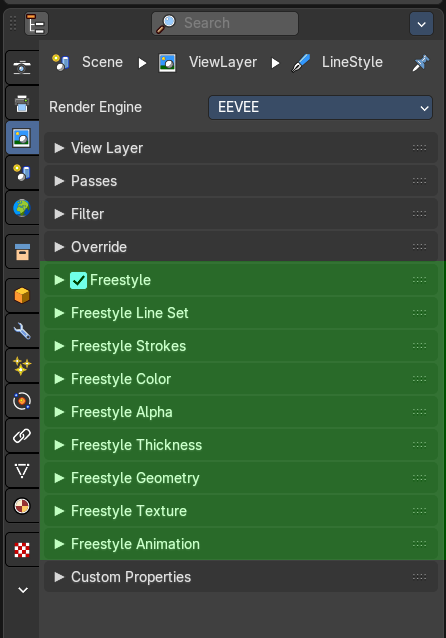
In the header is a checkbox where you can enable the Freestyle renderer.
Enabling the checkbox reveals the Freestyle Settings in the View Layer Properties.
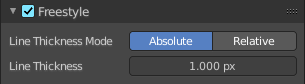
Line Thickness Mode
| Entry | What it does |
|---|---|
| Absolute | The line thickness is given by a user-specified number of pixels. The default value is 1.0. |
| Relative | The unit line thickness is scaled by the proportion of the present vertical image resolution to 480 pixels. For instance, the unit line thickness is 1.0 with the image height set to 480, 1.5 with 720, and 2.0 with 960. |
Line Thickness
Line Thickness is only available for Absolute line thickness. The base line thickness in pixels.
Color Management panel
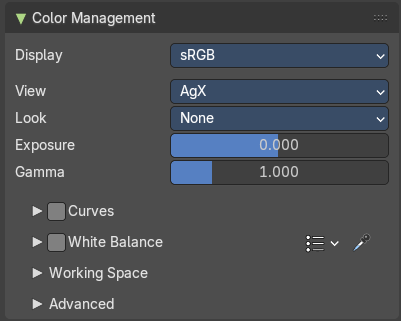
Color management is important to create renders and assets that are physically accurate and look great on multiple display devices. It is used both to ensure all parts of the pipeline interpret colors correctly, and to make artistic changes like exposure and color grading.
Bforartists color management is based on the OpenColorIO library. By using the same OpenColorIO configuration in multiple applications, the same color spaces and transforms will be available for consistent results.
In the Color Management panel you will find the settings around color management. It allows an artist to make sure that an image stays the same from rendering, to saving, to post-processing. Color management also allows an artist to tweak things like exposure, gamma, or the overall color grade.
The Color Management panel is the same for all render engines.
Display
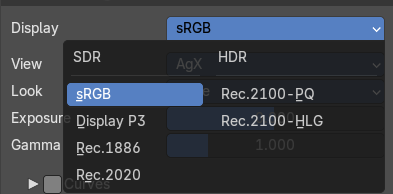
The device that the image is being viewed on. Your monitor.
Most computer monitors are configured for the sRGB (SDR) color space but you can also use high dynamic range monitors (HDR).
Color management can also be disabled by setting the device to None.
View
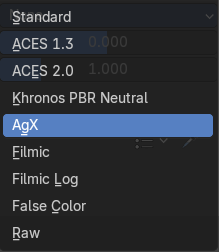
Choose between different ways to view the image on the same monitor.
| Entry | What it does |
|---|---|
| Standard | Does no extra conversion besides the conversion for the display device. |
| ACES 1.3 | Developed by the film industry, ACES is a high-fidelity color management system designed for HDR workflows, wide gamut imaging, and cinematic tone mapping. |
| ACES 2.0 | Developed by the film industry, ACES is a high-fidelity color management system designed for HDR workflows, wide gamut imaging, and cinematic tone mapping. |
| Khronos PBR Neutral | A newer tone mapper designed by the Khronos Group for physically-based rendering (PBR), especially in eCommerce, CAD, and product visualization. A tone mapper designed specifically for PBR color accuracy. It aims to get sRGB colors in the output render that match as faithfully as possible the input sRGB baseColor under gray-scale lighting. |
| AgX | A perceptually-driven tone mapper developed to aims to balance realism with usability, avoiding harsh clipping or unnatural clipped saturation. AgX is a further development to Filmic. It brings an implementation of False Colors view transform, and replaces Filmic-based. It is available for all display devices. |
| Filmic | For more photo realistic results and better handling of high dynamic range. The contrast can be adjusted by changing the Lookoption for the Filmic view transform. |
| Filmic Log | Converts to Filmic log color space. This can be used for export to color grading applications, or to inspect the image by flattening out very dark and light areas. |
| Raw | Intended for inspecting the image but not for final export. Raw gives the image without any color space conversion. |
| False Color | Shows a heat map of image intensities, to visualize the dynamic range. |
Look
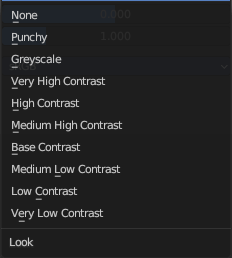
Adjust the contrast.
Exposure
Used to control the image brightness (in stops) applied before color space conversion. The calculation is:
output_value = render_value×2(exposure)
Gamma
Extra gamma correction applied after color space conversion. Note that the default sRGB or Rec709 color space conversions already include a gamma correction of approximately 2.2 (except the Raw and Log views), so this would be applied in addition to that.
Curves subpanel
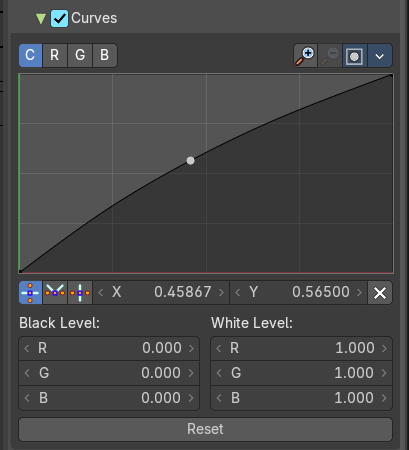
Adjust RGB Curves to control image colors before color space conversion.
C R G B
The single color channels can be chosen here.
Navigation elements
The navigation elements at the top are described from left to right.
Zoom in and out
The two buttons with the magnifying glass at it zooms in and out in the curve window.
Clipping
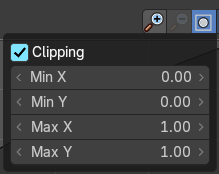
Clipping options. Set up clipping for the stroke.
Tools
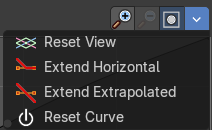
Tools is a menu that contains some cuve related tools.
| Entry | What it does |
|---|---|
| Reset View | Resets the curve windows zoom. |
| Extend Horizontal | Causes the curve to stay horizontal before the first point and after the last point. |
| Extend Extrapolated | Causes the curve to extrapolate before the first point and after the last point, based on the shape of the curve. |
| Reset Curve | Resets the curve to the initial shape. |
| Vector Handle | Set handle type to Vector. |
| Auto Handle | Set handle type to Auto. |
| Auto Clamped Handle | Set handle type to Auto Clamped. |
| Entry | What it does |
|---|---|
| X / Y | The position of the currently selected curve point. |
| Delete Points | Delete the currently selected curve point. |
Black Level
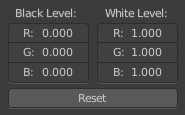
The color that Black is mapped to.
White Level
The color that White is mapped to.
Hotkeys for Black and White Level
You may want to sample the black and white level colors directly in the image by clicking at an area. There are hotkeys for that.
Ctrl + Left Mouse click in the image sets the Black level value from that position.
Shift + Left Mouse click in the image sets the White Level value from that position.
To see the result you need to tick the View as Render button.

Reset
Resets the Curve and the Black and White Level values to the default values.
White Balance
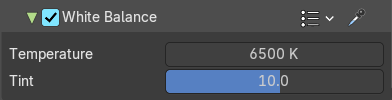
Enables manual control over the color temperature and tint of the scene or image. When checked, Blender applies the adjustments below to simulate camera-style white balance correction.
Header Operators
| Entry | What it does |
|---|---|
| Presets | These presets are based on international standards (like CIE and ISO) and are used in photography, rendering, and color science. |
| Eyedropper | Used to sample a pixel in your render or image that should appear neutral white. Once selected, the values adjusts the temperature and tint automatically to correct the overall color cast. |
Temperature
Adjusts the warmth or coolness of the image:
- Lower values (e.g., 3000 K) → warmer tones (orange/yellow), simulating indoor or sunset lighting.
- Higher values (e.g., 6500 K) → cooler tones (blue), simulating daylight or overcast conditions.
Note: 6500 K is considered neutral daylight—great for balanced lighting setups.
Tint
Shifts the green–magenta balance:
- Positive values → more magenta
- Negative values → more green
Working Space subpanel
File
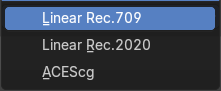
Change the color working space of all colors in this blend file.
Sequencer Color Space
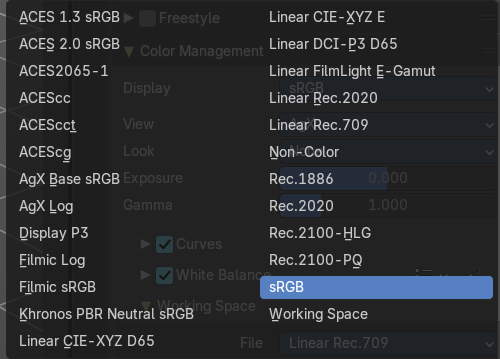
The color space that the sequencer operates in. By default, the sequencer operates in sRGB space, but it can also be set to work in Linear space like the Compositing nodes, or another color space. Different color spaces will give different results for color correction, cross fades, and other operations.
Advanced subpanel
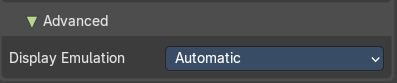
Display Emulation
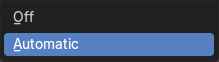
Control how images in the chosen display are mapped to the physical display.