

































































Rigid Body panel
The rigid body simulation can be used to simulate the motion of solid objects. It affects the position and orientation of objects and does not deform them.
Rigid Body
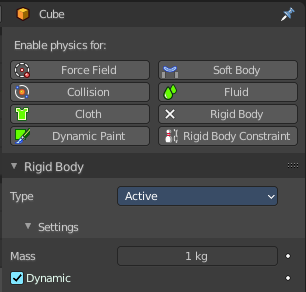
The rigid body simulation can be used to simulate the motion of solid objects. It affects the position and orientation of objects and does not deform them.
Unlike the other simulations, the rigid body sim works closer with the animation system. This means that rigid bodies can be used like regular objects and be part of parent-child relationships, animation constraints and drivers.
Rigid body physics requires a mesh object.
There are two types of rigid body: active and passive. Both types can be driven by the animation system.
Active bodies are dynamically simulated, while passive bodies remain static. It is in this regards similar to the collision physics.
The scale of the rigid body object also influences the simulation, but is always controlled by the animation system.
Tips
As with all physics-enabled objects, pay close attention to the Animated check box in the Rigid Body panel of the Physics context in the Properties window. A common mistake is to use keyframe animation on a Passive physics object without checking the Animated box. The object will move, but the physics engine will behave as if the Passive is still in its starting place, leading to disappointment.
Animation
The most common trick is to keyframe animate the location or rotation of an Active physics object as well as the Animated checkbox. When the curve on the Animated property switches to disabled, the physics engine takes over using the object’s last known location, rotation and velocities.
Animating the strengths of various other parameters (a Motor’s Target Velocity, a Hinge’s limits, etc) can be used to accomplish a wide variety of interesting results.
Enabling a constraint during the physics simulation often has dramatic results as the physics engine tries to bring into alignment two objects which are often dramatically out of alignment. It is very common for the affected objects to build up enough kinetic energy to bounce themselves out of camera (and into orbit, although the physics engine is not yet capable of simulating a planet’s gravity well, so scratch that).
Rigid Body dynamics can be baking to normal keyframes with Bake To Keyframes button in the Physics tab of the Tool Shelf.
Simulation Stability
The simplest way of improving simulation stability is to increase the steps per second. However, care has to be taken since making too many steps can cause problems and make the simulation even less stable (if you need more than 1000 steps, you should look at other ways to improve stability).
Increasing the number of solver iterations helps making constraints stronger and also improves object stacking stability.
It’s best to avoid small objects, as they’re currently unstable. Ideally, objects should be at least 20 cm in diameter. If it’s still necessary, setting the collision margin to 0, while generally not recommended, can help making small object behave more naturally.
When objects are small and/or move very fast, they can pass through each other. Besides what’s mentioned above it’s also good to avoid using mesh shapes in this case. Mesh shapes consist of individual triangles and therefore don’t really have any thickness, so objects can pass through more easily. You can give them some thickness by increasing the collision margin.
| Entry | What it does |
|---|---|
| Combining Rigid Bodies with Other Simulations | Since the rigid body simulation is part of the animation system, it can influence other simulations just like the animation system can. In order for this to work, the rigid body object needs to have a collision modifier. Simply click on Collision in the Physics context. |
| Scaling Rigid Bodies | Rigid body objects can be scaled, also during the simulation. This work well in most cases, but can sometimes cause problems. If dynamic scaling is not needed, rigid body objects should have the scale applied by using the Apply Scale command |
Rigid Body Panel
Type
Role of the rigid body in the simulation. Active objects can be simulated dynamically, passive object remain static.
| Entry | What it does |
|---|---|
| Active | Object is directly controlled by simulation results. The possibility to select this type also available with Add Active button in the Physics tab of the Tool Shelf. |
| Passive | Object is directly controlled by animation system. Thus, this type is not available for Rigid Body Dynamics. The possibility to select this type also available with Add Passive button in the Physics tab of the Tool Shelf. |
Settings subpanel
Type Active
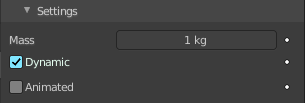
Type Passive

The passive type does not have a mass or dynamic checkbox.
| Entry | What it does |
|---|---|
| Mass | Specifies how heavy the object is and “weights” irrespective of gravity. There are predefined mass preset available with the Calculate Mass button in the Physics tab of the Toolbar. |
| Dynamic | Enables/disables rigid body simulation for object. |
| Animated | Allows the rigid body additionally to be controlled by the animation system. |
Collisions subpanel
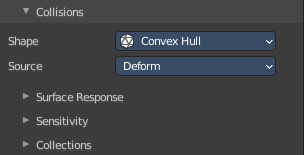
Settings around the collision behavior.
Shape
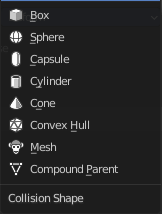
The shape of the collider mesh.
Box, Sphere, Capsule, Cylinder, Cone
Use this primitive shapes as a collider.
Convex Hull

Creates a convex hull around the rigid body mesh. Concave gaps gets closed.
Source
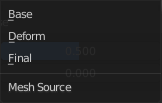
What shape to use for the calculation of the convex hull.
| Entry | What it does |
|---|---|
| Base | The base mesh of the object. |
| Deform | Includes any deformations added to the mesh (shape keys, deform modifiers). Mesh shapes can deform during simulation. |
| Final | Includes all deformations and modifiers. |
Mesh
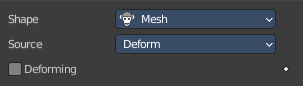
Uses the mesh of the rigid body for collision calculation.
Source
What shape to use for the calculation of the convex hull.
| Entry | What it does |
|---|---|
| Base | The base mesh of the object. |
| Deform | Includes any deformations added to the mesh (shape keys, deform modifiers). Mesh shapes can deform during simulation. |
| Final | Includes all deformations and modifiers. |
Deforming
Mesh shapes can deform during simulation.
Compound Parent

Combines all rigid bodies of child objects into one rigid body.
You need to have at least one child object with a rigid body attached.
Surface Response subpanel
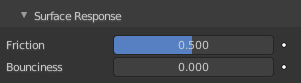
| Entry | What it does |
|---|---|
| Friction | Resistance of object to movement. Specifies how much velocity is lost when objects collide with each other. |
| Bounciness | Tendency of object to bounce after colliding with another (0 to 1) (rigid to perfectly elastic). Specifies how much objects can bounce after collisions. |
Sensitivity subpanel
Collision Margin
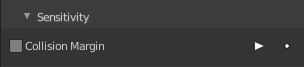
Use custom collision marging.
The collision margin is used to improve the performance and stability of rigid bodies. Depending on the shape, it behaves differently: some shapes embed it, while others have a visible gap around them.
The margin is embedded for the following shapes. Sphere, Box, Capsule, Cylinder. The margin is not embedded for the Cone and mesh object.
Convex Hull only allows for uniform scale when embedded.
Margin
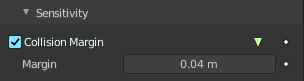
Threshold of distance near surface where collisions are still considered (best results when non-zero).
Collections subpanel

Allows rigid body collisions allocate on different groups (maximum 20). Just the rigid bodies at the same group will collide with each other.
Holding down shift allows to add the rigid body to more than one group.
Dynamics subpanel
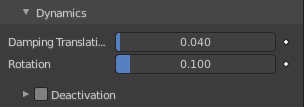
Rigid body type Active only. Dynamics is used to control the physics of the rigid body simulation.
| Entry | What it does |
|---|---|
| Damping Translation | Amount of linear velocity that is lost over time. |
| Rotation | Amount of angular velocity that is lost over time. |
Deactivation subpanel
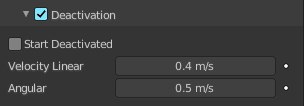
Allows resting rigid bodies to become deactivated.
| Entry | What it does |
|---|---|
| Start Deactivated | Starts objects deactivated. They are activated on collision with other objects. |
| Velocity Linear | Specifies the linear deactivation velocity below which the rigid body is deactivated and simulation stops simulating object. |
| Angular | Specifies the angular deactivation velocity below which the rigid body is deactivated and simulation stops simulating object. |