

































































Rigid Body Constraint panel
Rigid body constraints connects two rigid bodies with each other. A use case is for example to animate a chain.
Rigid Body Constraints
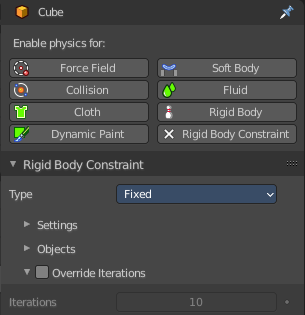
Rigid body constraints connects two rigid bodies with each other. A use case is for example to animate a chain.

Note: You need a rigid body world in the scene. This is usually created automatically in the moment when you add a rigid body. But when you create a primitive and try to add a rigid body constraint in a new scene then you will get a warning about the missing rigid body world.
Create a rigid body first before you create a rigid body constraint.
Workflow
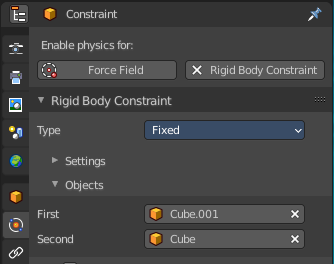
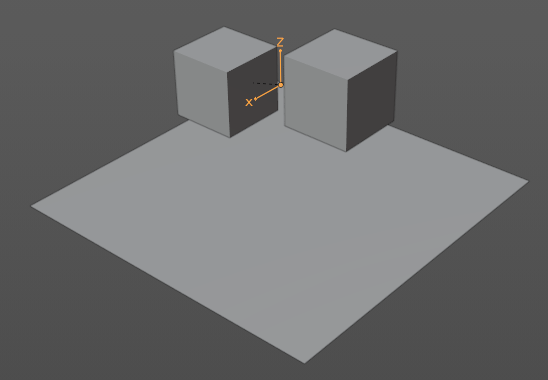
Create two objects with active rigid bodies.
Create a plane with a passive rigid body. This will be our ground.
Play the animation. The cubes will fall down independent from each other.
Now create an Empty.
You can also use one of the cubes to add the constraint. Then this cube becomes the center of the constraint.
Add a Rigid body constraint to it. And add both objects in the Object subpanel. The order does not matter in this example.
When you play the animation, then the objects will not fall independent anymore. But as one object.
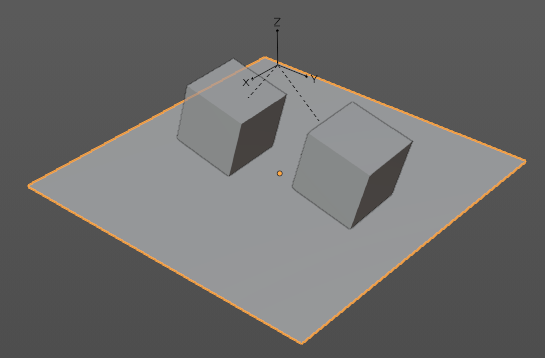
Play around with the different constraint types.
Connect rigid bodies
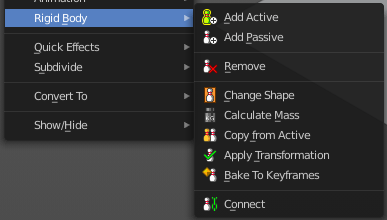
The normal way goes across the Objects sub tab in the Constraint panel by adding the two objects that you want to connect. But there is a quick way to connect two rigid bodies with a constraint in the 3D view in the Object menu.
Select the first rigid body object, hold down shift, select the second rigid body object. So that both are selected. In the Object menu choose the Rigid Body menu, and here Connect at the end of the menu.
Tips
As with all physics-enabled objects, pay close attention to the Animated checkbox in the Rigid Body panel of the Physics tab in the Properties editor. A common mistake is to use keyframe animation on a Passive physics object without checking the Animated box. The object will move, but the physics engine will behave as if the Passive is still in its starting place, leading to disappointment.
Animation
The most common trick is to keyframe animate the location or rotation of an Active physics object as well as the Animated checkbox. When the curve on the Animated property switches to disabled, the physics engine takes over using the object’s last known location, rotation and velocities.
Animating the strengths of various other parameters (a Motor’s Target Velocity, a Hinge’s limits, etc.) can be used to accomplish a wide variety of interesting results.
Enabling a constraint during the physics simulation often has dramatic results as the physics engine tries to bring into alignment two objects which are often dramatically out of alignment. It is very common for the affected objects to build up enough kinetic energy to bounce themselves out of camera (and into orbit, although the physics engine is not yet capable of simulating a planet’s gravity well, so scratch that).
Rigid body dynamics can be baking to normal keyframes with Bake To Keyframes button in the Physics tab of the Toolbar.
Simulation Stability
The simplest way of improving simulation stability is to increase the steps per second. However, care has to be taken since making too many steps can cause problems and make the simulation even less stable (if you need more than 1000 steps, you should look at other ways to improve stability).
Increasing the number of solver iterations helps making constraints stronger and also improves object stacking stability.
It is best to avoid small objects, as they are currently unstable. Ideally, objects should be at least 20 cm in diameter. If it is still necessary, setting the collision margin to 0, while generally not recommended, can help making small object behave more naturally.
When objects are small and/or move very fast, they can pass through each other. Besides what is mentioned above it’s also good to avoid using mesh shapes in this case. Mesh shapes consist of individual triangles and therefore do not really have any thickness, so objects can pass through more easily. You can give them some thickness by increasing the collision margin.
| Entry | What it does |
|---|---|
| Combining Rigid Bodies with Other Simulations | Since the rigid body simulation is part of the animation system, it can influence other simulations just like the animation system can. In order for this to work, the rigid body object needs to have a Collision Modifier. Simply click on Collision in the Physics tab. |
| Scaling Rigid Bodies | Rigid body objects can be scaled, also during the simulation. This work well in most cases, but can sometimes cause problems. If dynamic scaling is not needed, rigid body objects should have the scale applied. |
Rigid Body Constraint panel
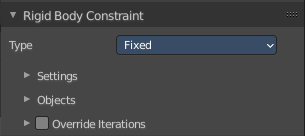
Type
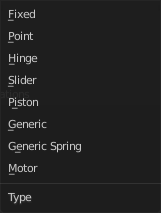
The type of the constraint. Each type has some different settings.
| Entry | What it does |
|---|---|
| Fixed | This constraint cause the two involved objects to move as one. Since the physics system does have a tiny bit of slop in it, the objects do not move as rigidly as they would if they were part of the same mesh. |
| Point | The objects are linked by a point bearing allowing any kind of rotation around the location of the constraint object, but no relative translation is permitted. The physics engine will do its best to make sure that the two points designated by the constraint object on the two constrained objects are coincident. |
Hinge
The hinge permits one degree of freedom between two objects. Translation is completely constrained. Rotation is permitted about the Z axis of the object hosting the Physics constraint (usually an empty, distinct from the two objects that are being linked). Adjusting the position and rotation of the object hosting the constraint allows you to control the anchor and axis of the hinge.
The Hinge is the only single-axis rotational constraint that uses the Z axis instead of the X axis. If something is wrong with your hinge, check your other constraints to see if this might be the problem.
| Entry | What it does |
|---|---|
| Slider | The Slider constraint allows relative translation along the X axis of the constraint object, but permits no relative rotation, or relative translation along other axes. |
| Piston | A piston constraint permits translation along the X axis of the constraint object. It also allows rotation around the X axis of the constraint object. It is like a combination of the freedoms of a slider with the freedoms of a hinge. |
Generic
The X, Y, and Z axis constraints can be used to limit the amount of translation between the objects. Clamping the min/max to zero has the same effect as the Point constraint.
Clamping the relative rotation to zero keeps the objects in alignment. Combining an absolute rotation and translation clamp would behave much like the Fixed constraint.
Using a non-zero spread on any parameter allows it to rattle around in that range throughout the course of the simulation.
Generic Spring
The generic spring constraint adds some spring parameters for the X/Y/Z axes to all the options available on the Generic constraint. Using the spring alone allows the objects to bounce around as if attached with a spring anchored at the constraint object. This is usually a little too much freedom, so most applications will benefit from enabling translation or rotation constraints.
If the damping on the springs is set to 1, then the spring forces are prevented from realigning the anchor points, leading to strange behavior. If your springs are acting weird, check the damping.
Motor
The motor constraint causes translation and/or rotation between two entities. It can drive two objects apart or together. It can drive simple rotation, or rotation and translation (although it will not be constrained like a screw since the translation can be blocked by other physics without preventing rotation).
The rotation axis is the X axis of the object hosting the constraint. This is in contrast with the Hinge which uses the Z axis. Since the Motor is vulnerable to confusing perturbations without a matching Hinge constraint, special care must be taken to align the axes. Without proper alignment, the motor will appear to have no effect (because the hinge is preventing the motion of the motor).
Rigid Body Constraint panel - Settings subpanel
Enabled
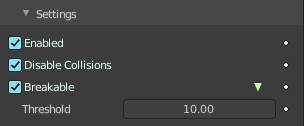
Specifies whether the constraint is active during the simulation.
| Entry | What it does |
|---|---|
| Disable Collisions | Allows constrained objects to pass through one another. |
| Breakable | Allows constraint to break during simulation. Disabled for the Motor constraint. This can be used to simulate destruction. · Threshold: Impulse strength that needs to be reached before constraint breaks. |
Rigid Body Constraint panel - Limits subpanel
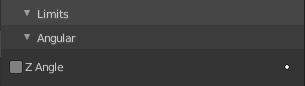
With Type Hinge
Angular
Z Angle
Limit rotation around Z axis.
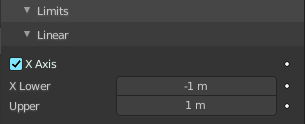
With Type Slider
Linear
| Entry | What it does |
|---|---|
| X Axis | Enables/disables limit translation around X axis. |
| X Lower | Lower limit of X axis translation. |
| Upper | Upper limit of X axis translation. |
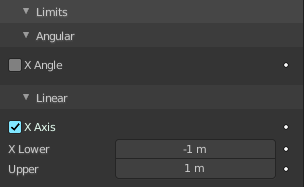
With Type Piston
| Entry | What it does |
|---|---|
| Angular | X Angle: Enables/disables limit rotation around X axis. · X Lower: Lower limit of X axis rotation. · Upper: Upper limit of X axis rotation. |
| Linear | X Axis: Enables/disables limit translation around X axis. · X Lower: Lower limit of X axis translation. · Upper: Upper limit of X axis translation. |
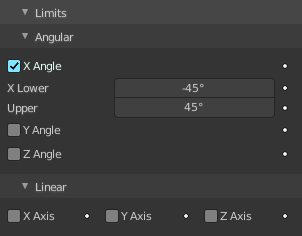
With Type Generic + Generic Spring
| Entry | What it does |
|---|---|
| Angular | X Axis/Y Axis/Z axis: Enables/disables limit translation on X, Y or Z axis respectively. · Lower: Lower limit of translation for X, Y or Z axis respectively. · Upper: Upper limit of translation for X, Y or Z axis respectively. |
| Linear | X Angle/Y Angle/Z Angle: Enables/disables limit rotation around X, Y or Z axis respectively. · Lower: Lower limit of rotation for X, Y or Z axis respectively. · Upper: Upper limit of rotation for X, Y or Z axis respectively. |
Rigid Body Constraint panel - Motor subpanel
With Type Angular
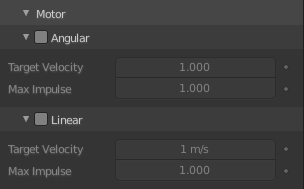
| Entry | What it does |
|---|---|
| Target Velocity | Target angular motor velocity. |
| Max Impulse | Maximum angular motor impulse. |
Linear
Target Velocity
Target linear motor velocity.
Max Impulse
Maximum linear motor impulse.
Rigid Body Constraint panel - Objects subpanel
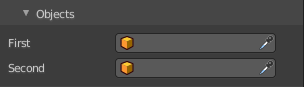
Pick the two objects that you want to constraint together.
Rigid Body Constraint panel - Override Iterations subpanel

Override the default number of iterations. Allows to make constraints stronger (more iterations) or weaker (less iterations) than specified in the rigid body world.
Iterations
Number of constraint solver iterations made per simulation step for this constraint.
Rigid Body Constraint panel - Springs subpanel
With Type Generic Spring
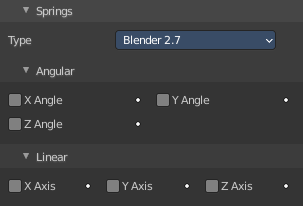
The type generic spring allows you to limit the springs.
Type
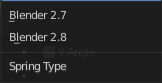
Which type of implementation to use.
| Entry | What it does |
|---|---|
| Angular | X/Y/Z Axis: Enables/disables springs translation on X, Y or Z axis respectively. · Stiffness: Spring Stiffness of the translation on X, Y or Z axis respectively. Specifies how “bendy” the spring is. · Damping: Spring Damping of the translation on X, Y or Z axis respectively. Amount of damping the spring has. |
| Linear | — |
| X/Y/Z Angle | Enables/disables springs rotation around the X, Y or Z axis respectively. · Stiffness: Spring Stiffness of the rotation around the X, Y or Z axis respectively. Specifies how “bendy” the spring is. · Damping: Spring Damping of the rotation around the X, Y or Z axis respectively. Amount of damping the spring has. |