

































































Fluid panel
Fluid physics are used to simulate physical properties of liquids. Gas or smoke simulations are a subset of the fluids system.
Fluid Simulation
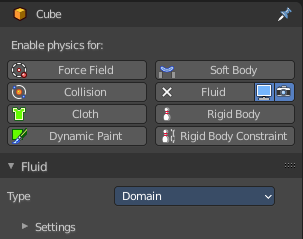
Fluid physics are used to simulate physical properties of liquids. Gas or smoke simulations are a subset of the fluids system.
A fluid system is made of at least two objects. The domain object defines the space in which the simulation happens. And the flow object defines the fluid simulation. There is a third object type called effector. This is a collider object for the simulation.
The smoke movement is controlled by airflow inside the domain, which can be influenced by Effector objects. Smoke will also be affected by the scene’s gravity and force fields. Airflow inside the domain can affect other physics simulations via the Smoke Flow force field.
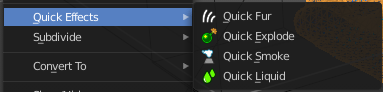
Note that you can create quick smoke and liquid effects in the Object menu in the Quick Effects sub menu. They come with the correct setup already.
Workflow Liquid
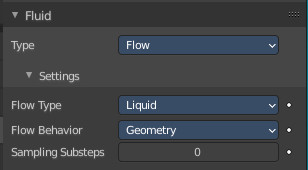
At least a Domain object and one Flow object are required to create a fluid simulation.
First create the flow object. Add a cube. Set the flow type to Liquid.
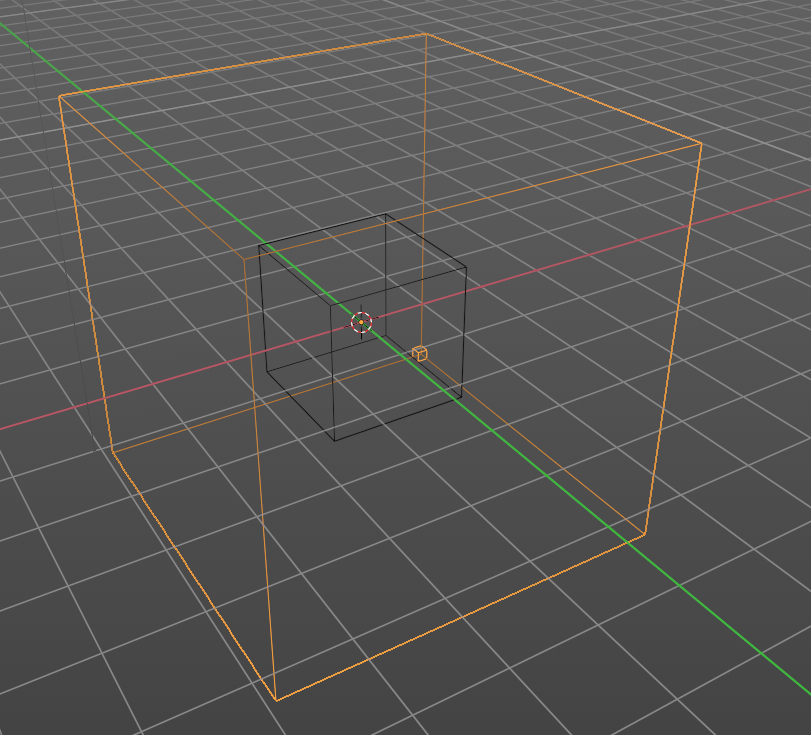
Now create a second cube. This will be our Domain object that defines the bounds of the simulation volume. Scale it a bit bigger. You should also set the render type to wire frame. So that you can see the fluid simulation. Object properties, Viewport Display, Display as ...
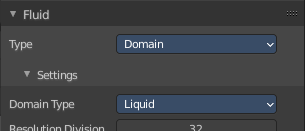
In the Fluid tab set the domain type to Liquid.
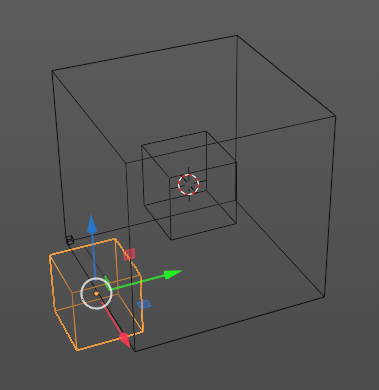
Add Effector objects. Effector objects are objects at which the fluid will collide.
Assign a material to the domain object. Glass for example.
Save the blend-file.
Bake the Cache for the simulation by hitting play. There is no bake data button with the default cache settings. It happens by playing the animation.
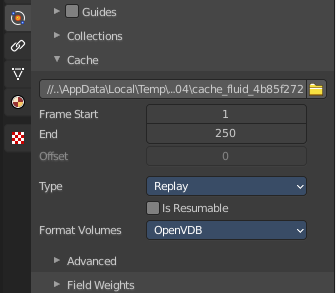
The liquid animation may not appear immediately. You need to play the animation through for at least one time. That's how the simulation gets calculated.
In case it does not show, let it play through a few more times until it does. It may also help to save the file and reload it. In case it still doesn't show you should check your setup.
Note, when you add effectors afterwards, then the effectors are not calculated. You need to update the cache. This can for example be done by changing cache settings for a moment. Ticking and unticking is resumable does the trick. You need to play the animation through again then.
Note: There are Quick Liquid and Quick Smoke tools which will automatically create a domain object with a basic liquid or smoke and fire material.
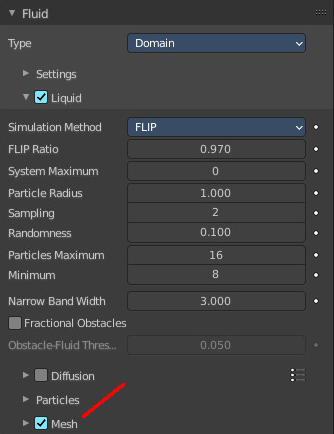
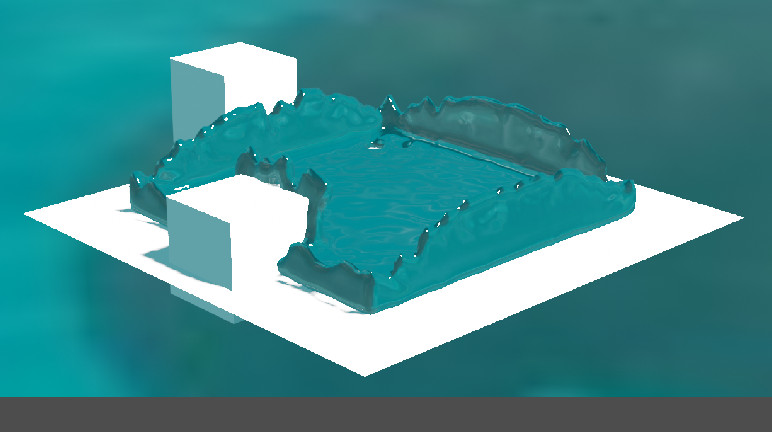
To render the fluid animation you need to activate Mesh in the Liquid tab. The Flip particles will not render.
You may also want to add some environment content like a hdri to have something to reflect in the water.
Fluid Tab
Type
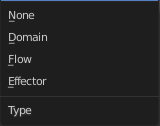
Fluid simulation is made of three object types. Two are needed to get the simulation going. Domain and Flow. Effectors are additional collider objects.
| Entry | What it does |
|---|---|
| None | No fluid type defined. |
| Domain | The domain object contains the entire simulation. Fluid simulations cannot leave the domain, it will either collide with the edge or disappear, depending on the domain’s settings. |
| Flow | Fluid Flow types are used to add or remove fluid to a domain object. Flow objects should be contained within the domain’s bounding box in order to work. |
| Effector | Effector objects are used as colliders and to influence the fluid flow. |
Type Domain - Settings subpanel
Domain type
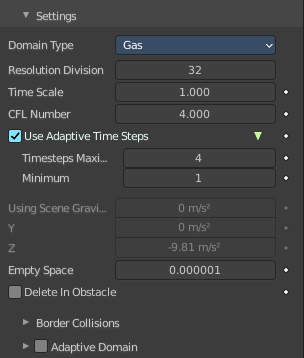
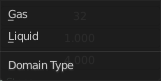
A fluid domain can control either liquid or gas flows. Liquid domains take all liquid flow objects that intersect with the domain into consideration. Gas domains consider all intersecting Smoke, Fire, and Smoke + Fire flow objects. It is not possible to change the domain type dynamically.
Resolution Divisions
The fluid domain is subdivided into many “cells” called voxels which make up “pixels” of fluid. This setting controls the number of subdivisions in the domain. Higher numbers of subdivisions are one way of creating higher resolution fluids.
Since the resolution is defined in terms of “subdivisions”, larger domains will need more divisions to get an equivalent resolution to a small domain. For example, a one meter cube with 64 Resolution Divisions will need 128 divisions to match a 2 meter cube. The dimension used as the base division is the longest dimension of the objects bounding box. To help visualize the voxel size, the Resolution Divisions can be previewed with a small cube shown in the 3D Viewport, to show the size of these divisions.
Time Scale
Controls the speed of the simulation. Low values result in a “slow motion” simulation, while higher values can be used to advance the simulation faster. Which is good for generating fluids to be used in still renders.
CFL Number
Determines the maximum velocity per grid cell and is measured in grid cells per time step. Fluid is only allowed to move up to this velocity in one time step. If this threshold is exceeded the solver will subdivide the simulation step.
In general, greater CFL (Courant–Friedrichs–Lewy) numbers will minimize the number of simulation steps and the computation time. Yet it will yield less physically accurate behavior for fast fluid flows. Smaller CFL numbers result in more simulation steps per frame, longer simulation times but more accurate behavior at high velocities (e.g. fast fluid flow colliding with obstacle).
Note: When lowering the CFL number it is recommended to increase the maximum number of time steps. Similarly, when increasing the CFL number the minimum number of time steps should be adjusted.
| Entry | What it does |
|---|---|
| Use Adaptive Time Steps | Lets the solver automatically decide when to perform multiple simulation steps per frame. It takes into account the maximum and minimum number of time steps, the current Frame Rate, and the Time Scale. |
| Timesteps Maximum | Maximum number of allowed time steps per frame. If needed, the solver will divide a simulation step up to this number of sub-steps. · Minimum: Minimum number of allowed time steps per frame. The solver will always perform at least this number of simulation steps per frame. |
Using Scene Gravity X, Y , Z
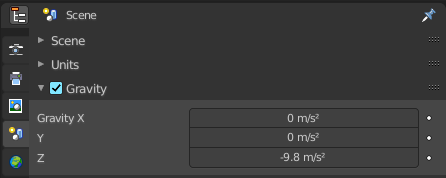
By default the fluid solver will use the global scene gravity. This behavior can be disabled in the scene settings. Disabling the global gravity will enable the fluid gravity options. And then this props becomes enabled.

| Entry | What it does |
|---|---|
| Empty Space | Gas Only! Value under which voxels are considered empty space to optimize rendering. |
| Delete In Obstacle | Remover any volume of fluid that intersects with an obstacle inside the domain. |
Border Collisions subpanel
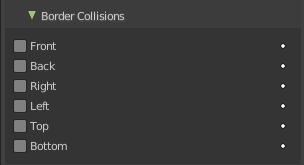
Enable collisions with the following domain sides.
Adaptive Domain
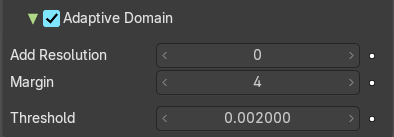
Gas only! The domain will adaptively shrink to best fit the gas, saving computation time by leaving voxels without gas out of the simulation. Unless the Add Resolution is used, the adaptive domain will not exceed the bounds of the original domain.
| Entry | What it does |
|---|---|
| Add Resolution | Number of voxels to add around the outside of the domain. |
| Margin | Amount of extra space to leave around gas, measured in voxels. With very fast-moving gas larger margins may be required to prevent the gas from being cut off by the adaptive boundary, but note this will increase the number of voxels which need to be computed. |
| Threshold | Smallest amount of gas a voxel can contain before it is considered empty and the adaptive domain is allowed to cut it out of the simulation. |
Type Domain - Gas subpanel
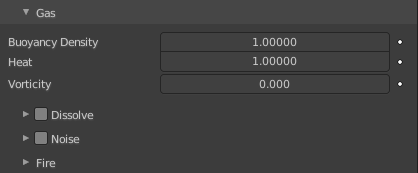
Domain type Gas only!
Buoyancy Density
Buoyant force based on smoke density.
Values above 0 will cause the smoke to rise (simulating smoke which is lighter than ambient air).
Values below 0 will cause smoke to sink (simulating smoke which is heavier than ambient air).
Buoyancy Heat
Controls how much smoke is affected by temperature. The effect this setting has on smoke depends on the per flow object Initial Temperature:
Values above 0 will result in the smoke rising when the flow object Initial Temperature is set to a positive value, and smoke sinking when the flow object Initial Temperature is set to a negative value.
Values below 0 will result in the opposite of positive values, i.e. smoke emitted from flow objects with a positive Initial Temperature will sink, and smoke from flow objects with a negative Initial Temperature will rise.
Note that smoke from multiple flow objects with different temperatures will mix and warm up or cool down until an equilibrium is reached.
Vorticity
Controls the amount of turbulence in the smoke. Higher values will make lots of small swirls, while lower values make smoother shapes.
Dissolve subpanel
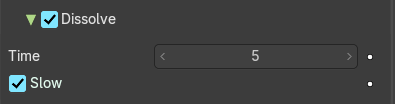
| Entry | What it does |
|---|---|
| Dissolve smoke | Lets smoke disappear over time. |
| Time | Determine how quickly the smoke dissolves. Lower values gives faster disappearing. |
| Slow | Dissolve smoke in a logarithmic fashion. Dissolves quickly at first, but lingers longer. |
Noise subpanel
Dissolve smoke
Lets smoke disappear over time.
Fire subpanel
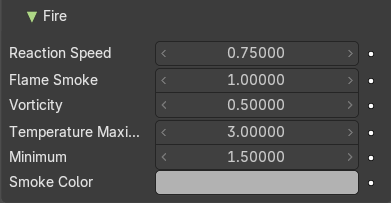
| Entry | What it does |
|---|---|
| Reaction Speed | Speed of the burning reaction. Higher values means smaller flames. |
| Flame Smoke | Amount of smoke created by burning fuel. |
| Vorticity | Additional vorticity for the flames. |
| Temperature Maximum | Maxiumum temperature of the flames. Higher values results in faster rising flames. |
| Minimum | Minimum temperature of the flames. Higher values results in faster rising flames. |
| Smoke Color | The color of the smoke. |
Type Domain - Liquid subpanel
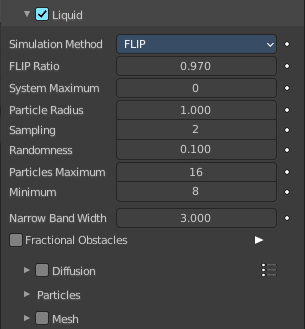
Domain type Liquid only!
Simulation Method
Determines the particle simulation method. Currently, FLIP is the only option to choose from.
FLIP Ratio
How much FLIP velocity to use when updating liquid particle velocities. A value of 1.0 will result in a completely FLIP based simulation. Completely FLIP based simulations produce more chaotic splashes and are preferable when simulating greater quantities of liquid. When using smaller values the behavior will be less turbulent and splashes are more subtle. This is optimal when simulating scenes where the liquid is supposed to be on a small scale.
Particle Radius
The radius of one liquid particle in grid cells units. This value describes how much area is covered by a particle and thus determines how much area around it can be considered as liquid. A greater radius will let particles cover more area. This will result in more grids cell being tagged as liquid instead of just being empty.
Whenever the simulation appears to leak or gain volume in an undesired, non physically accurate way it is a good idea to adjust this value. That is, when liquid seems to disappear this value needs to be increased. The inverse applies when too much liquid is being produced.
| Entry | What it does |
|---|---|
| Sampling | Factor that is used when sampling particles. A higher value will sample more particles. Note that particle resampling occurs at every single simulation step. |
| Randomness | New particles are sampled with some randomness attached to their position which can be controlled by this field. Higher values will sample the liquid particles more randomly in inflow regions. With a value of 0.0 all new particles will be sampled uniformly inside their corresponding grid cells. When trying to create a laminar inflow (with little randomness) or more turbulent flows (with greater randomness) this value can be useful. |
Particles Maximum
The maximum number of liquid particles per grid cell. During a simulation the number of liquid particles in a cell can fluctuate: Particles can flow into other cells or can get deleted if they move outside the narrow band. Resampling will add new particles considering this maximum.
This value sets the upper threshold of particles per cell. It is also a good way to estimate how many particles there can be in your simulation (one needs to take grid resolution into account too). This can be useful before baking and when planning a simulation.
Minimum
The minimum number of liquid particles per grid cell. Similarly to the maximum particle threshold, this value ensures that there are at least a certain amount of particles per cell.
Narrow Band Width
Controls the width in grid cell units of the narrow band that liquid particles are allowed to flow in. A high value will result in a thicker band and can result in an inflow region completely filled with particles. Unless the goal of the simulation is to visualize the liquid particles it is recommended to not increase the band width significantly as more particles slow down the simulation.
In some situations increasing this value can help create volume when the simulation appears to leak. In all other cases it is best to keep the narrow band as thin as possible since the liquid surface contains most details and simulating particles inside the liquid is not an optimal use of computing resources.
Fractional Obstacles
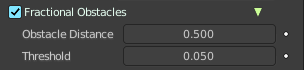
Enables finer resolution in fluid / obstacle regions (second order obstacles). This option reduces the “stepping effect” that results when an obstacles lies inclined inside the domain. It also makes liquid flow more smoothly over an obstacle.
| Entry | What it does |
|---|---|
| Obstacle Distance | How far apart fluid and obstacle are. |
| Threshold | How much fluid is allowed in an obstacle cell |
Diffusion subpanel
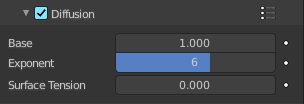
Liquid diffusion defines the physical properties of a liquid and in turn define how a liquid interacts with its environment. The main factors of diffusion are the Viscosity and Surface Tension. These properties can be adjusted to create virtual liquids that behave like water, oil, honey, or any other liquid.
Warning: The simulator is not suitable for non-fluids, such as materials that do not “flow”. Simply setting the viscosity to very large values will not result in rigid body behavior, but might cause instabilities.
Presets
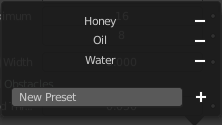
Diffusion presets. To add a preset type in a name and click at the plus button. To remove a preset click at the minus button
| Entry | What it does |
|---|---|
| Base | The base of the viscosity value. |
| Exponent | The exponent of the viscosity value. |
| Surface Tension | Surface tension in grid units. Higher value will produce liquids with greater surface tension. |
High viscosity Solver subpanel

| Entry | What it does |
|---|---|
| High viscosity Solver | Simulate fluids with high viscosity using a special viscosity solver. |
| Strength | The viscosity of the fluid. |
Particles subpanel
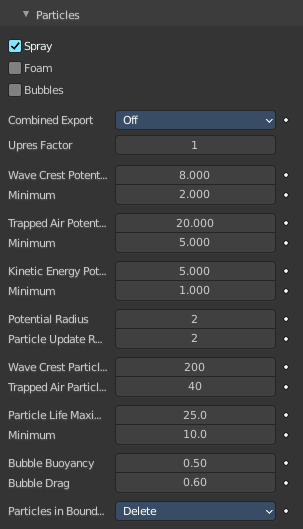
| Entry | What it does |
|---|---|
| Spray | Create spray particles during the secondary particle simulation. Spray particles are those that appear to fly through the air above the liquid surface when there is a bigger splash. |
| Foam | Create foam particles during the secondary particle simulation. Foam particles are those that solely move on the liquid surface. |
| Bubbles | Create bubble particles during the secondary particle simulation. Bubble particles are those that move below the liquid surface. Note! Enabling a secondary particle type will also create a particle system for that type of particles. Disabling a particle type will delete this particle system including its settings. |
Combined Export
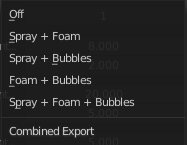
Select particle types that should go into the same particle system. This option has no effect on the outcome of the simulation. It only changes the way particle systems are allocated in the particle settings.
| Entry | What it does |
|---|---|
| Upres Factor | Factor by which to enhance the resolution of the particle simulation. The scaling factor is coupled to the Resolution Divisions (i.e. the particle simulation is this times bigger than the base simulation). |
| Wave Crest Potential Maximum | Upper clamping threshold for marking fluid cells as wave crests. A higher value results in less marked cells. |
| Wave Crest Potential Minimum | Lower clamping threshold for marking fluid cells as wave crests. A lower value results in more marked cells. |
| Trapped Air Potential Maximum | Upper clamping threshold for marking fluid cells where air is trapped. A higher value results in less marked cells. |
| Trapped Air Potential Minimum | Lower clamping threshold for marking fluid cells where air is trapped. A lower value results in more marked cells. |
| Kinetic Energy Potential Maximum | Upper clamping threshold for marking fluid cells where air is trapped. A higher value results in less marked cells. |
| Kinetic Energy Potential Minimum | Lower clamping threshold that indicates the fluid speed where cells start to emit particles. A lower values result in generally more particles. |
| Potential Radius | Radius to compute potential for each cell. Higher values are slower but create smoother potential grids. |
| Particle Update Radius | Radius to compute position update for each particle. Higher values are slower but particles move less chaotic. |
| Wave Crest Particle Sampling | Maximum number of particles generated per wave crest cell per frame. |
| Trapper Air Particle Sampling | Maximum number of particles generated per trapped air cell per frame. |
| Particle Life Maximum | Highest possible particle lifetime. |
| Particle Life Minimum | Lowest possible particle lifetime. |
| Bubble Buoyancy | Amount of buoyancy force that rises bubbles. A high value results in bubble movement mainly upwards. |
| Bubble Drag | Amount of drag force that moves bubbles along with the fluid. A high value results in bubble movement mainly along with the fluid. |
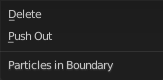
Particles in Boundary
| Entry | What it does |
|---|---|
| Delete | Delete secondary particles that are inside obstacles or left the domain. |
| Push Out | Push secondary particles that left the domain back into the domain. |
Mesh Sub tab
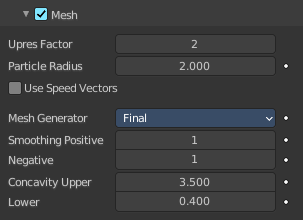
Enables the display for the fluid as a mesh. When you want to render a liquid simulation then you need to convert it to a mesh object.
| Entry | What it does |
|---|---|
| Upres Factor | Factor by which to enhance the resolution of the mesh. The scaling factor is coupled to the Resolution Divisions (i.e. the mesh is this times bigger than the base simulation). |
| Particle Radius | The radius of one liquid particle in grid cells units. This value describes how much area is covered by a particle and thus determines how much area around it can be considered as liquid. A greater radius will let particles cover more area. This will result in meshes covering more volume around liquid particles. |
| Use Speed Vectors | Store speed vectors on drive. |
Mesh Generator
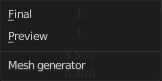
The mesh generator method determines the accuracy of the mesh.
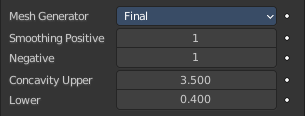
The Final option produces a higher quality mesh and provides more configuration option.
The Preview option is faster. But not as smooth. And has no settings.
| Entry | What it does |
|---|---|
| Smoothing Positive | Positive mesh smoothing iterations. Higher values will make the mesh outline increasingly smooth. Yet higher values can prevent small details (e.g. smaller liquid drops) from getting meshed. |
| Negative | Negative mesh smoothing iterations. Higher values will make the mesh outline sharper. High values will preserve details, however, the mesh outline will become more ragged. A single mesh particle will become less rounded and have more flat sides. |
| Concavity Upper | Upper mesh concavity bound. High values tend to smoothen and fill out concave regions. |
| Concavity Lower | Lower mesh concavity bound. High values tend to smoothen and fill out concave regions. Using a lower concavity which is greater the upper concavity can result in distorted, non-manifold meshes. |
Domain - Guides subpanel
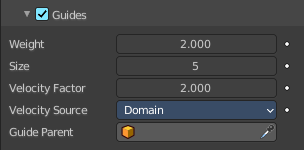
Fluid guides are used to apply forces onto the simulation. They are like simple external forces but also seek to preserve the physically accurate flow of the fluid. The Guides panel allows you to adjust guiding forces globally, for the entire domain. Enabling the guides hints the fluid solver to use the more accurate, but also computationally more expensive pressure solving step.
Even when there are no guiding objects baked or there is no guiding domain attached, the fluid solver will still perform the more expensive pressure guiding algorithm if guiding is enabled. It is therefore recommended to only enable Guides when there is a clear intention to use guiding in the simulation.
| Entry | What it does |
|---|---|
| Weight | The guiding weight. |
| Size | This setting determines the size of the vertices that the guiding produces. A greater guiding size (also known as the blur radius or “beta” guiding value) results in larger vertices. |
| Velocity Factor | All guiding velocities are multiplied by this factor. That is, every cell of the guiding grid, which has the same size as the domain object, is multiplied by this factor. |
Velocity Source
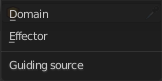
The velocity guiding source. Guiding velocities can either come from objects that move inside the domain or from other fluid domains.
Effector
All effector objects inside the domain will be considered for the global guiding velocity grid. Once effector objects have been baked it is not possible to change the fluid domain resolution anymore.
Bake Guides, Free Guides
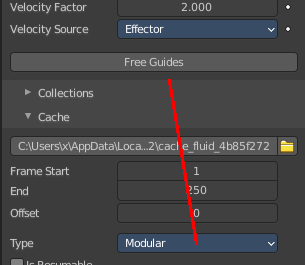
This option is only available when using the Modular cache type and when using Effector as the Velocity Source. Bake Guides writes vertex velocities of effector objects to drive. It is meant to be used before baking the fluid simulation.
The progress will be displayed in the status bar. Pressing Esc will pause the simulation.
Once the simulation has been baked, the cache can be deleted by pressing Free Guides. It is possible to pause or resume a Bake Guides process.
Domain
When using another fluid domain as the guiding velocity source this domain may have a different resolution and may also be of a different type (e.g. the guiding domain is of type Gas while the actual domain with the guiding effect in it is of type Liquid).
In order to use a domain as the velocity source, this domain needs to be baked already.
Guide Parent
Pick the guiding domain object when using Domain as the velocity source.
Domain - Collections subpanel
Flow
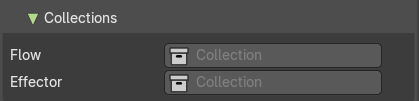
If set, only objects in the specified Collection will be allowed to act as Flow objects in this domain.
Effector
If set, only objects in the specified Collection will be allowed to act as Effector objects in this domain.
Domain - Cache subpanel
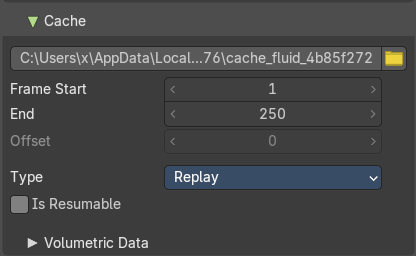
The Cache panel is used to Bake the fluid simulation and stores the outcome of a simulation so it does not need to be recalculated.
If the mesh has modifiers, the rendering settings are used for exporting the mesh to the fluid solver. Depending on the setting, calculation times and memory use might exponentially increase. For example, when using a moving mesh with Subdivision Surface as an obstacle, it might help to decrease simulation time by switching it off, or to a low subdivision level. When the setup/rig is correct, you can always increase settings to yield a more realistic result.
Note: Fluid simulations use their own cache. All other physics simulations make use of the General Baking operators.
| Entry | What it does |
|---|---|
| Cache Directory | Directory to store baked simulation files in. Inside this directory each simulation type (i.e. mesh, particles, noise) will have its own directory containing the simulation data. · Accept: Open a file browser to set a directory. |
| Frame Start | Frame on which to start the simulation. This is the first frame that will be baked. |
| End | Frame on which to stop the simulation. This is the last frame that will be baked. Note! The simulation is only calculated for positive frames between the Start and End frames of the Cache panel. So if you want a simulation that is longer than the default frame range you have to change the End frame. |
| Offset | Type Modular and All. Frame offset that is used when loading the simulation from the cache. It is not considered when baking the simulation, only when loading it. |
Type
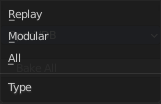
The type of the cache determines how the cache can be baked.
| Entry | What it does |
|---|---|
| Replay | The cache will be baked as the simulation is being played in the viewport. |
| Modular | The cache will be baked step by step: The bake operators for this type are spread across various panels within the domain settings (e.g. the bake tool for the mesh can be found in the Mesh panel). |
| All | The cache will be baked with a single tool. All selected settings will be considered during this bake. The bake tool for this type can be found in the Cache panel. |
Is Resumable
Extra data will be saved so that you can resumed baking after pausing. Since more data will be written to drive it is recommended to avoid enabling this option when baking at high resolutions.
Volumetric data subpanel
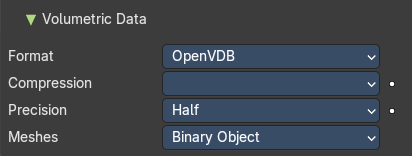
Format
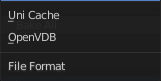
File format for volume based simulation data (i.e. grids and particles).
| Entry | What it does |
|---|---|
| Uni Cache | Blender’s own caching format with some compression. Each simulation object is stored in its own .uni cache file. |
| OpenVDB | Advanced and efficient storage format. All simulation objects (i.e. grids and particles) are stored in a single .vdb file per frame. |
Compression
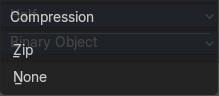
The compression method for the cache.
| Entry | What it does |
|---|---|
| Precision | Precision level that is used when writing OpenVDB cache files. · Float (Full): Volumetric data (e.g. grid values, particle positions) will be written with full precision (32 bit). · Float (Half): Volumetric data (e.g. grid values, particle positions) will be written with half precision (16 bit). |
| Mini | 8 Bit floating values. |
Meshes
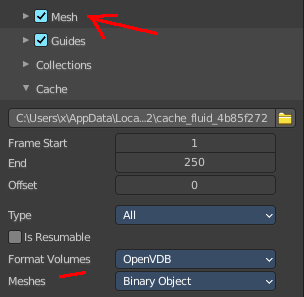
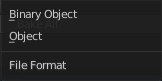
With Mesh activated.
File format for the mesh cache files.
| Entry | What it does |
|---|---|
| Binary Object | Mesh data files with some compression. |
| Object | Simple, standard data format for mesh data. |
Bake All, Free All
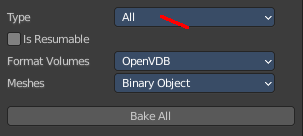
This option is only available when using the All cache type. Bake All will run the simulation considering all parameters from the settings.
The progress will be displayed in the status bar. Pressing Esc will abort the simulation.
Once the simulation has been baked, the cache can be deleted by pressing Free All. It is not possible to pause or resume a Bake All process as only the most essential cache files are stored on drive.
Advanced
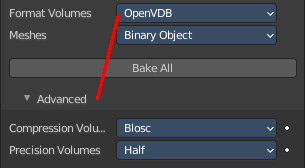
Shows with Format Volumes OpenVDB.
Export Mantaflow Script
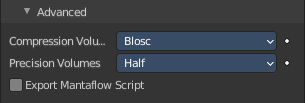
Hidden debug feature!
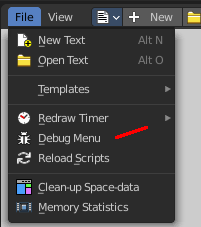
Export the simulation as a standalone Mantaflow script when baking the scene (exported on « Bake Data »). Usually, only developers and advanced users who know how to use the Mantaflow GUI will make use of this functionality. Use a Debug Value of 3001 to enable. The debug menu can be found in the Text editor in the File menu.
Domain - Field Weights subpanel
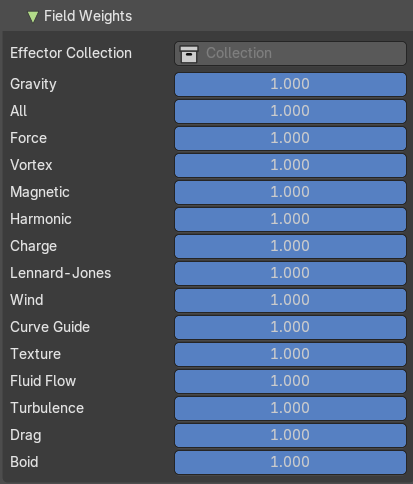
This panel allows you to adjust the single forces that affects the fluid simulation.
Domain - Viewport Display subpanel
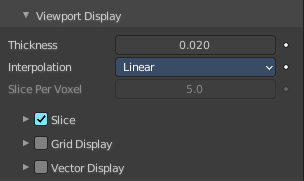
How to display the domain in the viewport.
Thickness
Thickness of smoke drawing in the viewport.
Interpolation
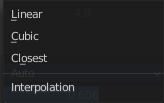
The interpolation method to use for smoke or fire volumes in solid mode.
Slice per Voxel
How many slices per voxel should be generated. This prop is just active with domain type gas and Slice off.
Slice subpanel
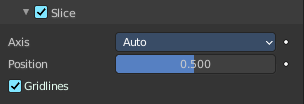
Use manual slicing. Slice per Voxel will deactivate.
Axis
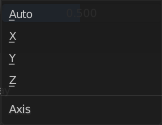
What axis to use. Auto uses the viewport orientation The orientation will change when you rotate the view. X Y and Z uses the world axis.
Position
The position of the slice.
Gridlines
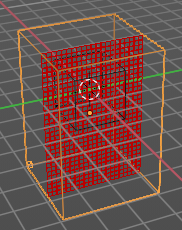
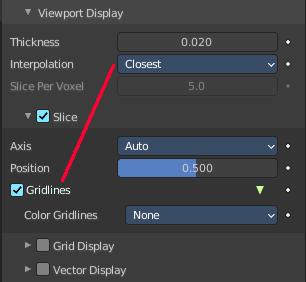
Displays a grid inside the domain. This feature requires the Interpolation to be at Closest. It is inactive with the other two methods.
Activating grid lines reveals further contentwhere you can tweak this grid further.
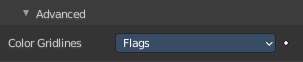
Color Gridlines
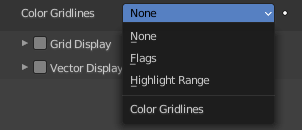
The simulation field to color map onto grid lines.
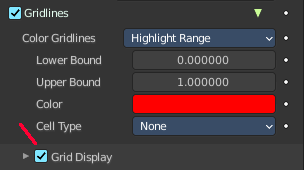
None and Flags have no further settings. The following settings belongs to Highlight Range. You need to have Grid Display ticked to get the settings for Highlight Range.
| Entry | What it does |
|---|---|
| Lower Bound | The lower bound of the highlight range. |
| Upper Bound | The upper bound of the highlight range. |
| Color | The color to highlight the range |
Cell Type
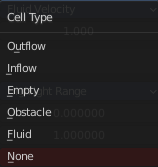
The cell type to be highlighted.
Grid display subpanel
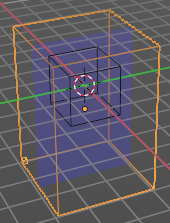
Render a simulation field while mapping its voxel values to the color of a ramp or using a predefined color code.
Domaintype Liquid
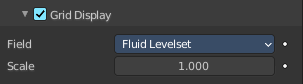
Field
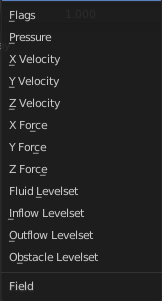
Choose the levelset representation of the fluid.
Scale
The multiplier to scale the selected field to color map.
Domaintype Gas
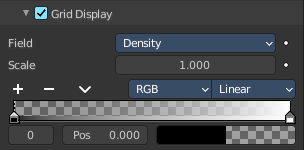
Field
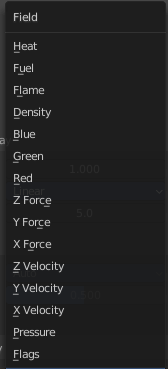
Choose the levelset representation of the fluid.
Scale
The multiplier to scale the selected field to color map.
Color ramp
Define the colors of the color ramp.
Controls
| Entry | What it does |
|---|---|
| + | Add a stop to your color ramp. The stop will be added after the selected one, in the middle to the next one. |
| - | Deletes the selected color stop from the list. |
Tools menu
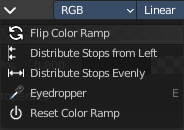
| Entry | What it does |
|---|---|
| Flip Color Ramp | Flips the gradient, inverting the values of the color ramp. |
| Distribute Stops from Left | Rearrange the stops so that every step has the same space to the right. |
| Distribute Stops Evenly | Space between all neighboring stops becomes equal. |
| Eyedropper (pipette icon) E | An Eyedropper to sample a color or gradient from the interface to be used in the color ramp. |
Reset Color Ramp
Resets the color ramp to its default state.
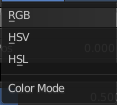
Color Mode
| Entry | What it does |
|---|---|
| RGB | Blends color by mixing each color channel and combining. |
| HSV/HSL | Blends colors by first converting to HSV or HSL, mixing, then combining again. This has the advantage of maintaining saturation between different hues, where RGB would de-saturate, this allows for a richer gradient. |
Interpolation
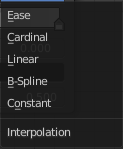
| Entry | What it does |
|---|---|
| Ease | Uses an Ease Interpolation for the color stops. |
| Cardinal | Uses a Cardinal Interpolation for the color stops. |
| Linear | Uses a Linear Interpolation for the color stops. |
| B-Spline | Uses a B-Spline Interpolation for the color stops. |
| Constant | Uses a Constant Interpolation for the color stops. |
Color Ramp

The color band. A click at one of the color stops makes it the active one. You can move the color stops by clicking at them and dragging them around.
Active Color Stop elements
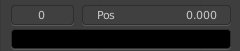
Adjust the active color stop.
| Entry | What it does |
|---|---|
| Choose active color stop | Choose the color stop by index. |
| Pos | The position of the active color stop. The range goes from 0.000 to 1.000 |
Vector display subpanel
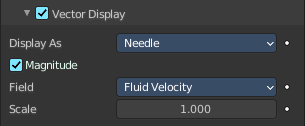
Display as
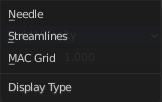
Display the vectors as Needles, Streamlines or MAC Grid.
| Entry | What it does |
|---|---|
| Magnitude | Needles and Streamlines. Scale the vectors with their magnitudes. |
| MAC Grid X Y Z | Show the x y or z component of the grid. |
Field
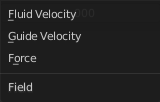
The vector field to be represented by the display vectors
Scale
The multiplier for scaling the vectors.
Advanced subpanel
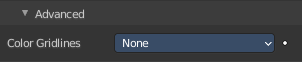
This panel is connected to the Gridlines in the Slice panel. It just shows when Gridlines is activated. And it is jut active when Slice is activated.
Color Gridlines
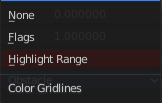
The simulation field to color map onto grid lines.
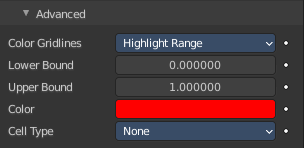
None and Flags have no further settings. The following settings belongs to Highlight Range.
| Entry | What it does |
|---|---|
| Lower Bound | The lower bound of the highlight range. |
| Upper Bound | The upper bound of the highlight range. |
| Color | The color to highlight the range |
Cell Type
The cell type to be highlighted.
Flow - Settings subpanel
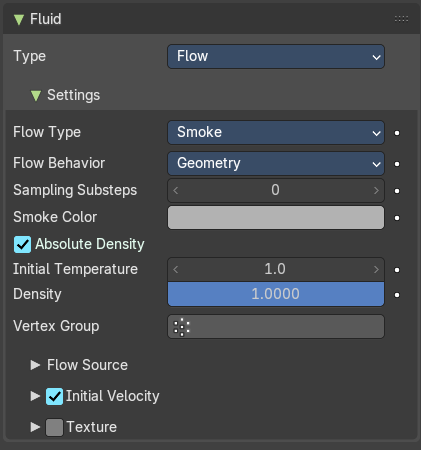
Flow Type
The type of the fluid in the simulation.
Fluid Flow types are used to add or remove fluid to a domain object. Flow objects should be contained within the domain’s bounding box in order to work.
Flow - Settings subpanel - Flow Type Smoke
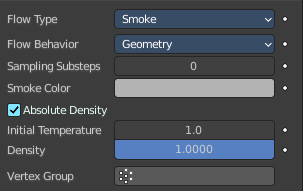
Emit only smoke.
Flow Behavior
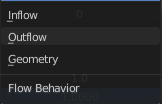
Controls if the Flow object either adds (Inflow), removes (Outflow), or turns the mesh itself into fluid (Geometry).
Inflow
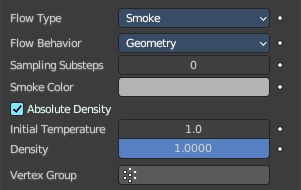
This object will emit fluid into the simulation, like a water tap or base of a fire.
| Entry | What it does |
|---|---|
| Use Flow | Enables or disables the flow of fluid, this property is useful for animations to selectively enable and disable when fluid is being added to or removed from the domain. |
| Sampling Substeps | Number of sub-steps used to reduce gaps in emission of fluid from fast-moving sources. |
| Smoke Color | The color of emitted smoke. When smoke of different colors are mixed they will blend together, eventually settling into a new combined color. |
| Absolute Density | If this checkbox is enabled, the emitter will only produce more smoke or fire if there is space for it in the emitter region. Otherwise smoke or fire will always be produced and add up. |
| Initial Temperature | Difference between the temperature of emitted smoke and the domain’s ambient temperature. This setting’s effect on smoke depends on the domain’s Heat Buoyancy. |
| Density | Amount of smoke to emit at once. Larger values result in more density being produced. |
| Vertex Group | When set, use the specified Vertex Group to control where smoke is emitted. |
Outflow
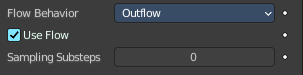
Any fluid that enters the bounding box of this object will be removed from the domain (think of a drain or a black hole). This can be useful in combination with an inflow to prevent the whole domain from filling up. Outflow objects can be animated and the area where the fluid disappears will follow the object as it moves around.
| Entry | What it does |
|---|---|
| Use Flow | Enables or disables the flow of fluid, this property is useful for animations to selectively enable and disable when fluid is being added to or removed from the domain. |
| Sampling Substeps | Number of sub-steps used to reduce gaps in emission of fluid from fast-moving sources. |
Geometry
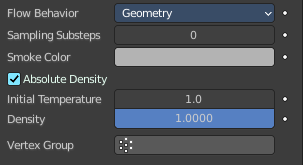
All regions of this object that are inside the domain bounding box will be used as actual fluid in the simulation. You can place more than one fluid object inside the domain. Also make sure that the surface normals are pointing outwards or else they will not simulate properly. In contrast to domain objects, the actual mesh geometry is used for fluid objects.
| Entry | What it does |
|---|---|
| Sampling Substeps | Number of sub-steps used to reduce gaps in emission of fluid from fast-moving sources. |
| Smoke Color | The color of emitted smoke. When smoke of different colors are mixed they will blend together, eventually settling into a new combined color. |
| Absolute Density | If this checkbox is enabled, the emitter will only produce more smoke or fire if there is space for it in the emitter region. Otherwise smoke or fire will always be produced and add up. |
| Initial Temperature | Difference between the temperature of emitted smoke and the domain’s ambient temperature. This setting’s effect on smoke depends on the domain’s Heat Buoyancy. |
| Density | Amount of smoke to emit at once. Larger values result in more density being produced. |
| Vertex Group | When set, use the specified Vertex Group to control where smoke is emitted. |
Flow - Settings subpanel - Flow Type Fire and Smoke
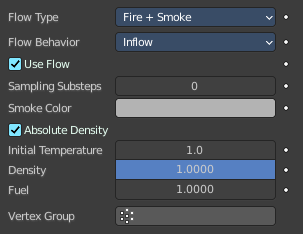
Emit fire and smoke.
Flow Behavior
Controls if the Flow object either adds (Inflow), removes (Outflow), or turns the mesh itself into fluid (Geometry).
Inflow
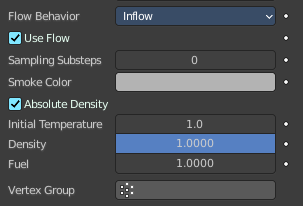
This object will emit fluid into the simulation, like a water tap or base of a fire.
| Entry | What it does |
|---|---|
| Use Flow | Enables or disables the flow of fluid, this property is useful for animations to selectively enable and disable when fluid is being added to or removed from the domain. |
| Sampling Substeps | Number of sub-steps used to reduce gaps in emission of fluid from fast-moving sources. |
| Smoke Color | The color of emitted smoke. When smoke of different colors are mixed they will blend together, eventually settling into a new combined color. |
| Absolute Density | If this checkbox is enabled, the emitter will only produce more smoke or fire if there is space for it in the emitter region. Otherwise smoke or fire will always be produced and add up. |
| Initial Temperature | Difference between the temperature of emitted smoke and the domain’s ambient temperature. This setting’s effect on smoke depends on the domain’s Heat Buoyancy. |
| Density | Amount of smoke to emit at once. Larger values result in more density being produced. |
| Fuel | Amount of “fuel” being burned per second. Larger values result in larger flames, smaller values result in smaller flames. |
| Vertex Group | When set, use the specified Vertex Group to control where smoke is emitted. |
Outflow
Any fluid that enters the bounding box of this object will be removed from the domain (think of a drain or a black hole). This can be useful in combination with an inflow to prevent the whole domain from filling up. Outflow objects can be animated and the area where the fluid disappears will follow the object as it moves around.
| Entry | What it does |
|---|---|
| Use Flow | Enables or disables the flow of fluid, this property is useful for animations to selectively enable and disable when fluid is being added to or removed from the domain. |
| Sampling Substeps | Number of sub-steps used to reduce gaps in emission of fluid from fast-moving sources. |
Geometry
All regions of this object that are inside the domain bounding box will be used as actual fluid in the simulation. You can place more than one fluid object inside the domain. Also make sure that the surface normals are pointing outwards or else they will not simulate properly. In contrast to domain objects, the actual mesh geometry is used for fluid objects.
| Entry | What it does |
|---|---|
| Sampling Substeps | Number of sub-steps used to reduce gaps in emission of fluid from fast-moving sources. |
| Smoke Color | The color of emitted smoke. When smoke of different colors are mixed they will blend together, eventually settling into a new combined color. |
| Absolute Density | If this checkbox is enabled, the emitter will only produce more smoke or fire if there is space for it in the emitter region. Otherwise smoke or fire will always be produced and add up. |
| Initial Temperature | Difference between the temperature of emitted smoke and the domain’s ambient temperature. This setting’s effect on smoke depends on the domain’s Heat Buoyancy. |
| Density | Amount of smoke to emit at once. Larger values result in more density being produced. |
| Fuel | Amount of “fuel” being burned per second. Larger values result in larger flames, smaller values result in smaller flames. |
| Vertex Group | When set, use the specified Vertex Group to control where smoke is emitted. |
Flow - Settings subpanel - Flow Type Fire
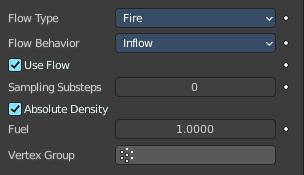
Emit only fire. Note that the domain will automatically create some smoke to simulate smoke left by burnt fuel.
Flow Behavior
Controls if the Flow object either adds (Inflow), removes (Outflow), or turns the mesh itself into fluid (Geometry).
Inflow
This object will emit fluid into the simulation, like a water tap or base of a fire.
| Entry | What it does |
|---|---|
| Use Flow | Enables or disables the flow of fluid, this property is useful for animations to selectively enable and disable when fluid is being added to or removed from the domain. |
| Sampling Substeps | Number of sub-steps used to reduce gaps in emission of fluid from fast-moving sources. |
| Smoke Color | The color of emitted smoke. When smoke of different colors are mixed they will blend together, eventually settling into a new combined color. |
| Absolute Density | If this checkbox is enabled, the emitter will only produce more smoke or fire if there is space for it in the emitter region. Otherwise smoke or fire will always be produced and add up. |
| Initial Temperature | Difference between the temperature of emitted smoke and the domain’s ambient temperature. This setting’s effect on smoke depends on the domain’s Heat Buoyancy. |
| Density | Amount of smoke to emit at once. Larger values result in more density being produced. |
| Fuel | Amount of “fuel” being burned per second. Larger values result in larger flames, smaller values result in smaller flames. |
| Vertex Group | When set, use the specified Vertex Group to control where smoke is emitted. |
Outflow
Any fluid that enters the bounding box of this object will be removed from the domain (think of a drain or a black hole). This can be useful in combination with an inflow to prevent the whole domain from filling up. Outflow objects can be animated and the area where the fluid disappears will follow the object as it moves around.
| Entry | What it does |
|---|---|
| Use Flow | Enables or disables the flow of fluid, this property is useful for animations to selectively enable and disable when fluid is being added to or removed from the domain. |
| Sampling Substeps | Number of sub-steps used to reduce gaps in emission of fluid from fast-moving sources. |
Geometry
All regions of this object that are inside the domain bounding box will be used as actual fluid in the simulation. You can place more than one fluid object inside the domain. Also make sure that the surface normals are pointing outwards or else they will not simulate properly. In contrast to domain objects, the actual mesh geometry is used for fluid objects.
| Entry | What it does |
|---|---|
| Sampling Substeps | Number of sub-steps used to reduce gaps in emission of fluid from fast-moving sources. |
| Smoke Color | The color of emitted smoke. When smoke of different colors are mixed they will blend together, eventually settling into a new combined color. |
| Absolute Density | If this checkbox is enabled, the emitter will only produce more smoke or fire if there is space for it in the emitter region. Otherwise smoke or fire will always be produced and add up. |
| Initial Temperature | Difference between the temperature of emitted smoke and the domain’s ambient temperature. This setting’s effect on smoke depends on the domain’s Heat Buoyancy. |
| Density | Amount of smoke to emit at once. Larger values result in more density being produced. |
| Fuel | Amount of “fuel” being burned per second. Larger values result in larger flames, smaller values result in smaller flames. |
| Vertex Group | When set, use the specified Vertex Group to control where smoke is emitted. |
Flow - Settings subpanel - Flow Type Liquid
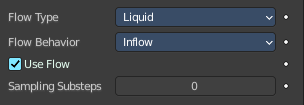
Emit liquid.
Flow Behavior
Controls if the Flow object either adds (Inflow), removes (Outflow), or turns the mesh itself into fluid (Geometry).
Inflow
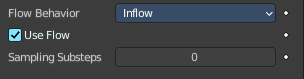
This object will emit fluid into the simulation, like a water tap or base of a fire.
| Entry | What it does |
|---|---|
| Use Flow | Enables or disables the flow of fluid, this property is useful for animations to selectively enable and disable when fluid is being added to or removed from the domain. |
| Sampling Substeps | Number of sub-steps used to reduce gaps in emission of fluid from fast-moving sources. |
Outflow
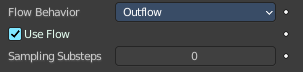
Any fluid that enters the bounding box of this object will be removed from the domain (think of a drain or a black hole). This can be useful in combination with an inflow to prevent the whole domain from filling up. Outflow objects can be animated and the area where the fluid disappears will follow the object as it moves around.
| Entry | What it does |
|---|---|
| Use Flow | Enables or disables the flow of fluid, this property is useful for animations to selectively enable and disable when fluid is being added to or removed from the domain. |
| Sampling Substeps | Number of sub-steps used to reduce gaps in emission of fluid from fast-moving sources. |
Geometry

All regions of this object that are inside the domain bounding box will be used as actual fluid in the simulation. You can place more than one fluid object inside the domain. Also make sure that the surface normals are pointing outwards or else they will not simulate properly. In contrast to domain objects, the actual mesh geometry is used for fluid objects.
Sampling Substeps
Number of sub-steps used to reduce gaps in emission of fluid from fast-moving sources.
Flow - Settings subpanel - Flow Source
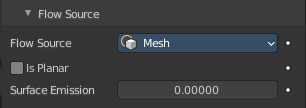
This setting defines the method used to emit fluid.
Flow Source
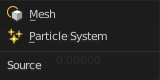
How fluid is emitted. By a mesh or a particle system. Flow Type Fluid does just show the option mesh.
Mesh
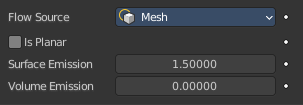
Emit fluid directly from the object’s mesh.
| Entry | What it does |
|---|---|
| Is Planar | Defines the effector as either a single dimension object i.e. a plane or the mesh is non-manifold. This ensures that the fluid simulator will give the most accurate results for these types of meshes. |
| Surface Emission | Maximum distance in voxels from the surface of the mesh in which fluid is emitted. Since this setting uses voxels to determine the distance, results will vary depending on the domain’s resolution. |
| Volume Emission | Fire or Smoke Only. Amount of fluid to emit inside the emitter mesh, where 0 is none and 1 is the full amount. Note that emitting fluid based on volume can have unpredictable results if your mesh is non-manifold. |
Particle System
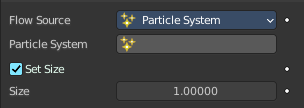
Not for Flow Type Fluid. Create smoke or fire from a particle system on the flow object. which can be select with a Data ID.
Note that only Emitter type particle systems can add smoke. See Particles for information on how to create a particle system.
| Entry | What it does |
|---|---|
| Particle System | Pick the particle system to use. It must be at the same mesh. |
| Set Size | Define the maximum distance in voxels at which particles can emit smoke, similar to the Surface Emission setting for mesh sources. When disabled, particles will fill the nearest voxel with smoke. · Size: Particle size in simulation cells. |
Flow - Settings subpanel - Initial Velocity
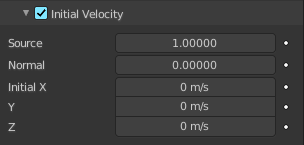
Note that with Flow Source Type Particles just the Source slider is showing.
Source
Factor for the inherited velocity. A value of 1 will emit fluid moving at the same speed as the source.
Normal
This option controls how much velocity fluid is given along a face normal. Note that, initial velocities will always be applied along all face normals. Thus with a closed flow source mesh, fluid will always be emitted in more than one direction. To set initial velocities along only one direction all normals need to point in the same direction. This is can be achieved when using a plane as the flow object.
Initial X, Y, Z
Initial velocity along X, Y, Z coordinates in world space. This can be used in addition to the initial velocity along the Normal.
Flow - Settings subpanel - Texture
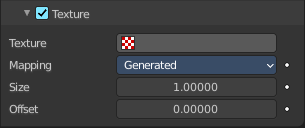
Use a specified texture and settings to control where on the mesh smoke or fire can be emitted from. These settings have no effect on Outflow Flow Behavior.
Texture
Choose the Texture. It must be created in the textures tab first.
Mapping
Controls whether to use Generated UV's or manual UV mapping.
Generated

Generated UV coordinates centered to flow object.
Size
Overall texture scale.
UV

Use an UV map of the flow object.
UV Map
Choose the UV map.
Offset
Translates the texture along the Z axis.
Effector - Settings Subpanel
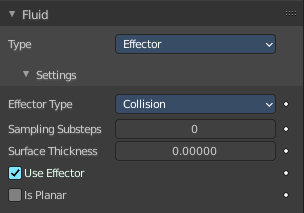
Effector objects are used to deflect fluids and influence the fluid flow. They can act as colliders or guides.
Effector Type
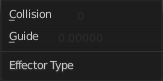
Collision
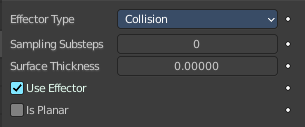
Objects of this type will collide with fluid.
Guide
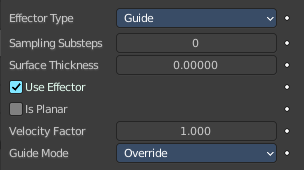
The velocity of objects of this type will be used when baking the guiding. So fluid guiding objects should move and have some velocity.
| Entry | What it does |
|---|---|
| Sampling Substeps | Number of substeps used to reduce gaps in collision of fluid from fast-moving effectors. |
| Surface Thickness | Additional area around the effector that will be considered as an effector. |
| Use Effector | Enables or disables the effector object effect on the fluid, this property is useful for animations to selectively enable and disable when the effector affects the fluid. |
| Is Planar | Defines the effector as either a single dimension object i.e. a plane or the mesh is non-manifold. This ensures that the fluid simulator will give the most accurate results for these types of meshes. A manifold mesh can also be declared as planar. The fluid solver will then ignore the volume inside the mesh and just emit fluid from the mesh sides. |
| Velocity Factor | Effector type Guide only. Multiply the guiding object velocities by this factor. This is useful when working with multiple guiding objects and some of them should have higher or smaller velocities. |
Guide Mode
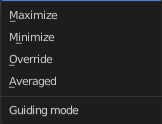
Effector type Guide only. The mode describes how guiding velocities should be written into the global guiding velocity field of the domain.
| Entry | What it does |
|---|---|
| Maximize | The guiding object will compare the existing velocity in the global velocity field with its own velocity. If its absolute value is greater than the absolute value in the velocity field the guiding velocity will be kept. |
| Minimize | A guiding object will compare the existing velocity in the global velocity field with its own velocity. If its absolute value is smaller than the absolute value in the velocity field the guiding velocity will be kept. |
| Override | The most intuitive option. A guiding object will always write its own current velocity into the global guiding velocity field. Values in the velocity field from a previous frame or guiding object will be overridden. |
| Averaged | A guiding object will write the average of its own current velocity and the existing guiding velocity at that cell into the global guiding velocity field. |