

































































Dynamic Paint panel
Dynamic paint is a modifier and physics system that allows to paint at the mesh surface of an object. You need an object that is set up as the canvas. And an object that is set up as the brush to create the required…
Dynamic Paint
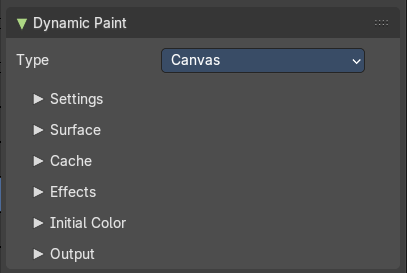
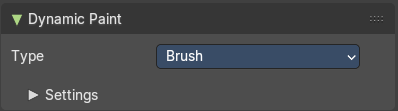
Dynamic paint is a modifier and physics system that allows to paint at the mesh surface of an object. You need an object that is set up as the canvas. And an object that is set up as the brush to create the required vertex colors, image sequences or displacement.
This combination makes many effects possible. For example footsteps in the snow, raindrops that make the ground wet, paint that sticks to walls, or objects that gradually freeze.
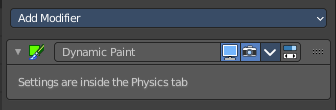
Creating a dynamic paint physics adds a modifier in the modifier tab. But the settings can just be adjusted from the physics tab.
Type
The Dynamic Paint modifier has two different types Canvas and Brush. And the panel content shows either the settings for the canvas or for the brush type.
Note: You can also enable brush and canvas simultaneously by add canvas and add brush. In that case same object’s “brush” does not influence its “canvas”, but can still interact with other objects in the scene.
Workflow
Workflow Paint simulation
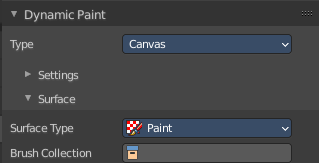
Create a grid object. Scale it a bit bigger. Add a SDS modifier with type simple.
Add a dynamic paint physics. And set the type to Canvas. In the surface section set the type to Waves.
Create a sphere.
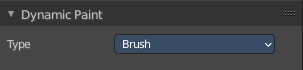
Add a dynamic paint physics. And set the type to Brush.
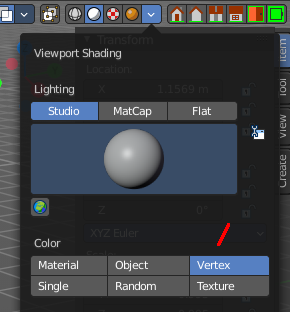
Paint is a vertex painting effect. So in the viewport shading enable vertex color to see the paint effect.
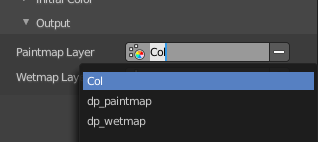
For the canvas object go to the end of the list, remove both, the paintmap layer and the wetmap layer, and add a new paintmap layer.
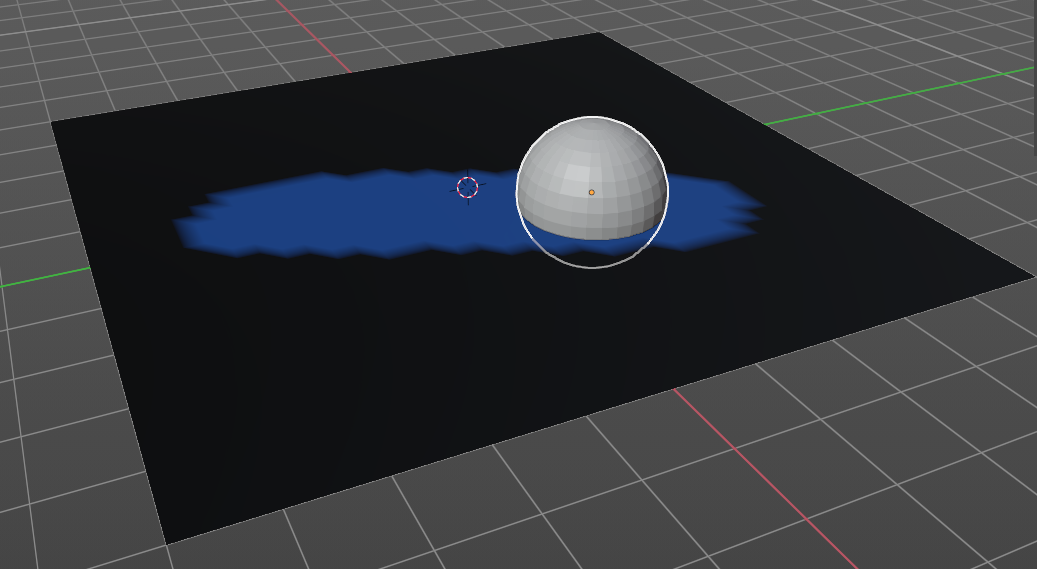

The paint effect is a dynamic and so an animated effect. And so you need to play the animation. Now, with the animation playing, move the sphere into the grid object. You will see the surface of the grid object react to the contact with the sphere.
You can of course also set keyframes to record the motion of the brush sphere.
Workflow Displace simulation
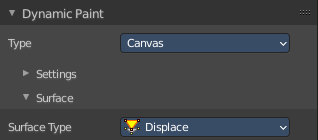
Create a grid object. Scale it a bit bigger. Add a SDS modifier with type simple.
Add a dynamic paint physics. And set the type to Canvas. In the surface section set the type to Waves.
Create a sphere.
Add a dynamic paint physics. And set the type to Brush.
The paint effect is a dynamic and so an animated effect. And so you need to play the animation. Now, with the animation playing, move the sphere into the grid object. You will see the surface of the grid object react to the contact with the sphere.
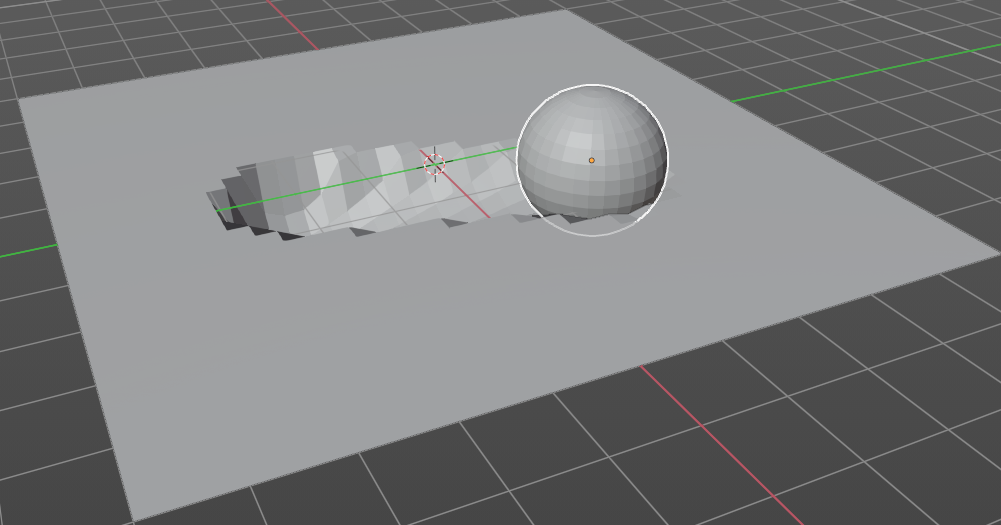
You can of course also set keyframes to record the motion of the brush sphere.
Workflow Weight simulation
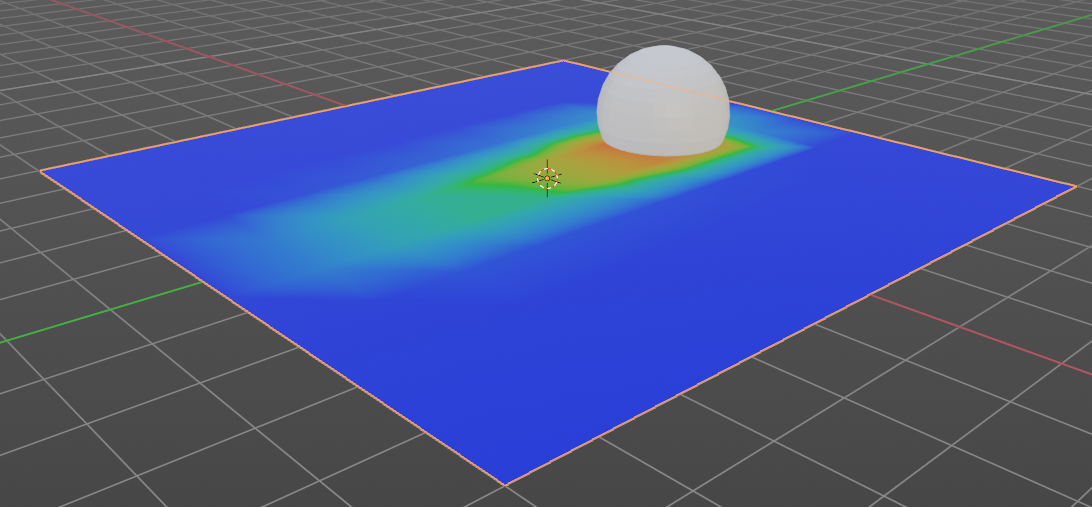
The workflow is similar to the Paint workflow. But the result cannot be visualized. The image at the right shows the in between step across paint. And you need to bake the result to use it.
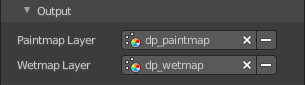
Node setup to visualize the result with the Paint method. You need to be in viewport shading method Material Preview. And in the Output of the Dynamic Paint the wetmap layer needs to be activated so that it shows up in the vertex color node.
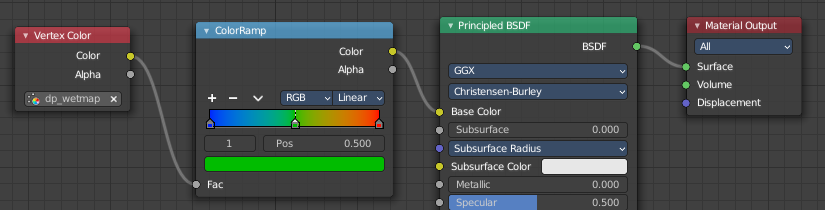
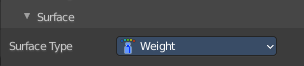
When done switch to surface type Weight.

In the Output subpanel of Dynamic Paint activate the Vertex Group. This is done by clicking at the +button behind the vertex group.

Bake the result.
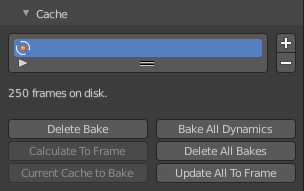
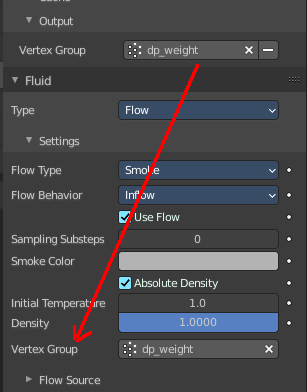
The vertex group output from dynamic paint can now be used in quick smoke for example, to determine where smoke should appear.
Workflow Ocean simulation
Create a grid object. Scale it a bit bigger. Add a SDS modifier with type simple.
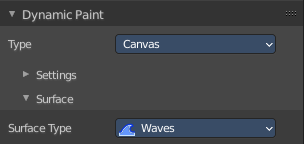
Add a dynamic paint physics. And set the type to Canvas. In the surface section set the type to Waves.
Create a sphere.
Add a dynamic paint physics. And set the type to Brush.
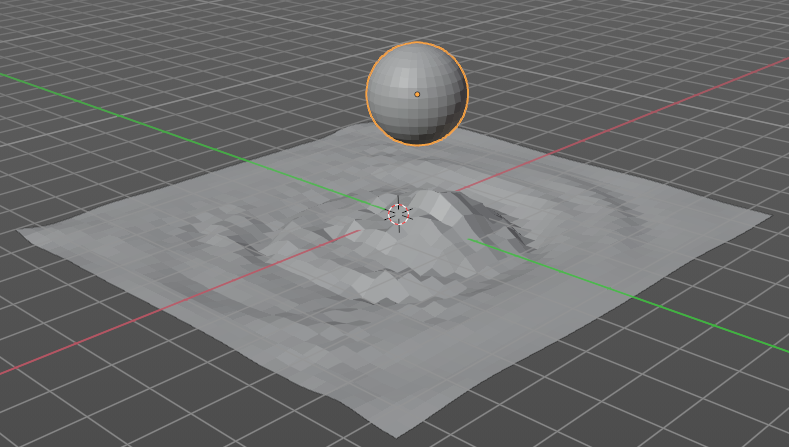
The paint effect is a dynamic and so an animated effect. And so you need to play the animation. Now, with the animation playing, move the sphere into the grid object. You will see the surface of the grid object react to the contact with the sphere.
You can of course also set keyframes to record the motion of the brush sphere.
Canvas - Settings subpanel
The Canvas type makes object receive paint from Dynamic Paint brushes.
Add Canvas / Remove Canvas
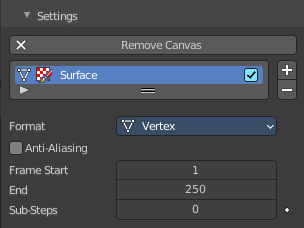
Add a canvas. When a canvas is added the button turns into the remove canvas button.
Active Point Cache Index
A list of the available point caches. You can add more than one surface here. The type of this surface can be changed in the surfaces sub tab then. But just one surface can be the active one.
Double clicking at the name allows to rename the surface point cache.
Is Active allows you to turn off the surface point cache.
Drag Handler
The two vertical lines at the end is a handler with which you can expand the list.
Search Field

You can expand a search field at the bottom of the list. Type in your term and hit enter to filter for your term.
| Entry | What it does |
|---|---|
| Invert | Exclude the search term instead of searching for it. |
| Sort by Name | Sort the List by name. |
| Entry | What it does |
|---|---|
| Add Surface Slot | Adds a surface slot |
| Remove Surface Slot | Removes the selected surface slot. |
Format
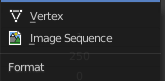
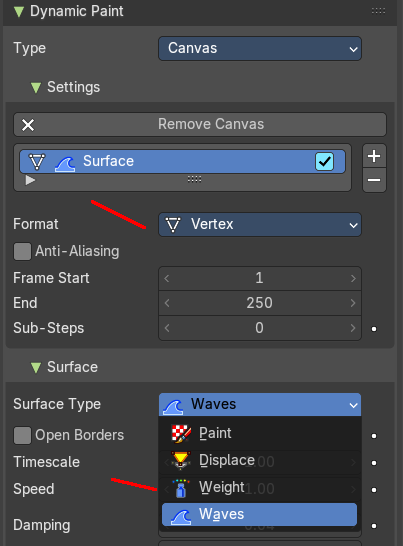
Each surface has a certain format and type. Format determines how data is stored and outputted.
Vertex
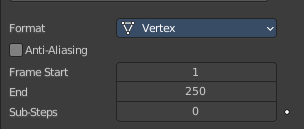
Dynamic Paint operates directly on mesh vertex data. Results are stored by point cache and can be displayed in viewport. However, using vertex level also requires a highly subdivided mesh to work.
Image Sequences
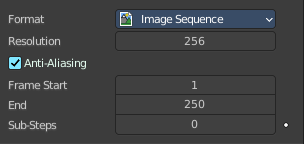
Dynamic Paint generates UV wrapped image files of defined resolution as output.
Resolution
Image Sequence format. The output resolution of the single images.
Anti-Aliasing
Use Anti-Aliasing to smooth paint edges. The anitaliasing is using a 5× multi sampling method.
| Entry | What it does |
|---|---|
| Frame Start | The start frame of the surface processing. |
| End | The end frame of the surface processing. |
| Sub-steps | Sub-steps are extra samples between frames. They are usually required when there is a very fast brush. |
Canvas - Surface subpanel
Surface Type
Each surface has a “type” that defines what surface is used for. Dependent of the chosen surface type you will see other settings.
Paint
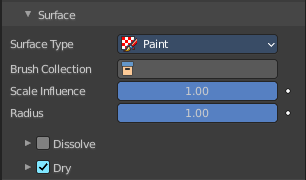
Paint outputs color and wetness values. In case of vertex surfaces, results are outputted as vertex colors.
A wetmap is a black-and-white output that visualizes paint wetness. White being maximum wetness, black being completely dry. It is usually used as mask for rendering. Some “paint effects” affect wet paint only.
Brush Collection
Define a specific collection to pick brush objects from.
| Entry | What it does |
|---|---|
| Scale Influence | The influence the brush objects have on this surface. |
| Radius | Adjust radius of proximity brushes or particles for this surface. |
Dissolve
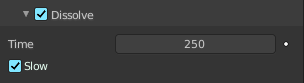
Make surface changes disappear over time.
| Entry | What it does |
|---|---|
| Time | Approximately in how many frames the dissolve should happen. |
| Slow | Use logarithmic dissolve. This makes high values to fade faster than low values. |
Dry
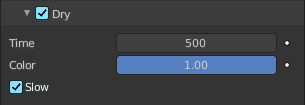
Make surface wetness dry over time. Completely disable drying can be used for indefinitely spreading paint.
| Entry | What it does |
|---|---|
| Time | Approximately in how many frames the dry should happen. |
| Color | Define the wetness level when paint colors start to shift to surface “background”. Lower values can be useful to prevent spreading paint from becoming transparent as it dries, while higher values give better results in general. |
| Slow | Use logarithmic dissolve. This makes high values to fade faster than low values. |
Displace
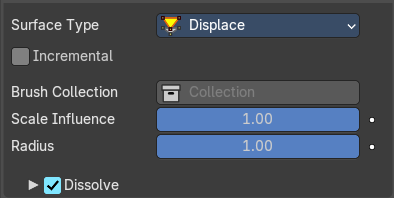
Outputs intersection depth from brush objects. It deforms the mesh.
Tip: If the displace output seems too rough it usually helps to add a Smooth Modifier after Dynamic Paint in the modifier stack.
Max Displace
The maximum level of intersection depth, larger values will be clamped to this value.
| Entry | What it does |
|---|---|
| Brush Collection | Define a specific collection to pick brush objects from. |
| Scale Influence | The influence the brush objects have on this surface. |
| Radius | Adjust radius of proximity brushes or particles for this surface. |
| Dissolve | Make surface changes disappear over time. · Time: Approximately in how many frames the dissolve should happen. · Slow: Use logarithmic dissolve. This makes high values to fade faster than low values. |
Weight
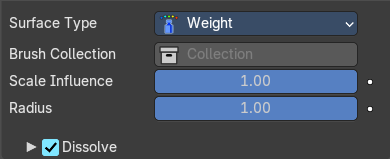
This special surface type is only available for vertex format output. It outputs vertex weight groups that can be used by other Blender modifiers and tools.
Tip: It is usually preferred to use “proximity” based brushes for weight surfaces to allow smooth falloff between weight values.
It requires a material to display the result.
Brush Collection
Define a specific collection to pick brush objects from.
| Entry | What it does |
|---|---|
| Scale Influence | The influence the brush objects have on this surface. |
| Radius | Adjust radius of proximity brushes or particles for this surface. |
| Dissolve | Make surface changes disappear over time. · Time: Approximately in how many frames the dissolve should happen. · Slow: Use logarithmic dissolve. This makes high values to fade faster than low values. |
Waves
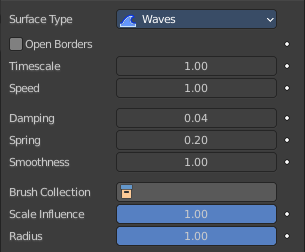
This surface type produces simulated wave motion. Like displace, wave surface also uses brush intersection depth to define brush strength.
Tip: In some cases the wave motion gets very unstable around brush. It usually helps to reduce wave speed, brush “wave factor” or even the resolution of mesh/surface.
Open Borders
Allows waves to pass through mesh “edges” instead of reflecting from them.
| Entry | What it does |
|---|---|
| Timescale | Directly adjusts simulation speed without affecting simulation outcome. Lower values make simulation go slower and otherwise. |
| Speed | Affects how fast waves travel on the surface. This setting is also corresponds to the size of the simulation. Half the speed equals surface double as large. |
| Damping | Reduces the wave strength over time. Basically adjusts how fast wave disappears. |
| Spring | Adjusts the force that pulls water back to “zero level”. |
| Smoothness | Limit maximum steepness of wave slope between simulation points. Higher values results in smoother waves and higher calculation time. |
| Brush Collection | Define a specific collection to pick brush objects from. |
| Scale Influence | The influence the brush objects have on this surface. |
| Radius | Adjust radius of proximity brushes or particles for this surface. |
Canvas - Cache subpanel
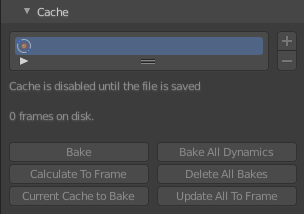
Vertex format only. For image sequence type the caching is done in the output panel.
The canvas simulation can be cached in memory or stored on a drive. This improves real-time response and avoids unnecessary recalculation of particles. But creates also big files.
The canvas system uses a unified system for caching and baking (together with Cloth, Soft Body and Emitter particle).
Important: The file needs to be saved after baking. When the file is not saved then some options are not available. Important: The canvas settings becomes unavailable once the particle cache is baked. You need to remove the bake when you want to change the settings.
Hints
The simulation is only calculated for positive frames in between the Start and End frames of the Cache panel, whether you bake or not. So if you want a simulation that is longer than the default frame range, you have to change the End frame.
When an animation is played, each physics system writes each frame to the cache. Note that for the cache to fill up, one has to start the playback before or on the frame that the simulation starts.
The cache is cleared automatically on changes. But not on all changes, so it may be necessary to free it manually. For example if you change a force field.
The system is protected against changes after baking. If for example the mesh changes the simulation is not calculated anew.
The bake result can be cleared by clicking on the Free Bake button in the simulation cache settings.
A simulation can only be edited in Particle Edit Mode when it has been baked in memory. And cannot be edited if the Disk Cache is used.
If you are not allowed to write to the required sub directory caching will not happen. For example if your blend-file path is very long and your operating system has a limit on the path length that is supported.
Be careful with the sequence of modifiers in the modifier stack. You may have a different number of faces in the 3D Viewport and for rendering (For example when using subdivision surface). Then the rendered result may be very different from what you see in the 3D Viewport.
Caches List
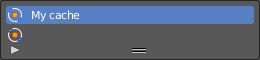
The list of available caches. The caches have no name by default. Double click to add a name.
You can store and manage multiple caches at once for the same physics object. The active cache is the one that gets used.
| Entry | What it does |
|---|---|
| Drag Handler | The two vertical lines at the end is a handler with which you can expand the list. |
| Search Field | You can expand a search field at the bottom of the list. Type in your term and hit enter to filter for your term. · Invert: Exclude the search term instead of searching for it. · Sort by Name: Sort the List by name. |
| Entry | What it does |
|---|---|
| Add New Cache | Add a new cache. |
| Delete current Cache | Deletes the selected cache. |
| Info string | An info string. Gives different messages, dependent of the status. |
Bake / Delete Bake
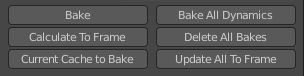
Start baking. Once you have baked the cache the button turns into a Delete bake button. And allows you to remove the bake.
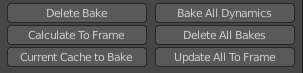
The baking progress can be seen in the footer. You need to be in Object Mode to bake.

| Entry | What it does |
|---|---|
| Calculate To Frame | Bake only up to the current frame. Limited by End frame set in the cache settings. |
| Current Cache to Bake | Store any temporarily cached simulation data as a bake. Note that playing the animation will try to simulate any visible physics simulations. Depending on the physics type, this data may be temporarily cached. Normally such temporary caches are cleared when an object or setting is modified, but converting it to a bake will “save” it. |
| Bake All Dynamics | Bake all physics systems in the scene, even those of different types. Useful for baking complex setups involving interactions between different physics types. |
| Delete All Bakes | Free bakes of all physics systems in the scene, even those of different types. |
| Update All To Frame | Bake all physics systems in the scene to the current frame. |
Canvas - Effects subpanel
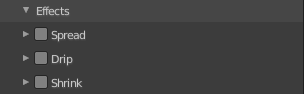
Surface Type Paint only. It generates animated movement on canvas surface.
For spread and drip effects, only “wet paint” is affected, so as the paint dries, movement becomes slower until it stops.
Spread subpanel
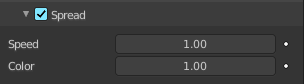
Paint slowly spreads to surrounding points eventually filling all connected areas.
| Entry | What it does |
|---|---|
| Speed | How fast the spread effect moves on the canvas surface. |
| Color | How fast the colors get mixed within wet paint. |
Drip subpanel
Paint moves in specific direction specified by Blender force fields, gravity and velocity with user-defined influences.
| Entry | What it does |
|---|---|
| Velocity | How much surface velocity affect dripping. |
| Acceleration | How much surface acceleration affects dripping. |
Weights subpanel
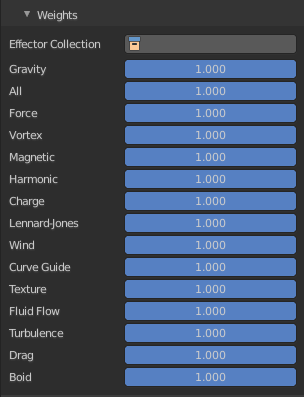
The dripping is influenced by physical forces. This panel allows you to adjust the amount of the single effector forces.
Effector collection allows you to limit the forces to a collection only.
Shrink subpanel
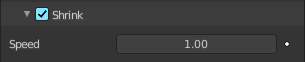
Painted area slowly shrinks until disappears completely.
Speed
How fast shrink effects move on the canvas surface.
Canvas - Initial color subpanel
Surface Type Paint only. Allows you to define the initial color of the canvas.
Type
The initial color type
None

No initial color is used.
Color
Define an initial color.
Color
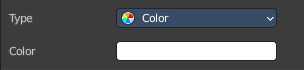
Clicking at the color field opens a color picker where you can choose a color.
UV Texture
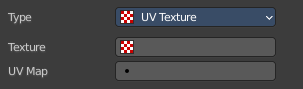
Use a UV texture as an initial color.
| Entry | What it does |
|---|---|
| Texture | The texture to use. The texture that is meant here is not an image texture. But a created one. This can be done in the Texture tab. |
| UV Map | The UV map of the mesh. Usually you will just have one UV map available. But a mesh can have several ones. |
Vertex Color
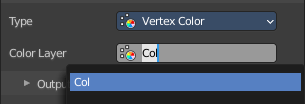
Set an initial vertex color. You need to have a vertex color at the mesh. Then choose it here.
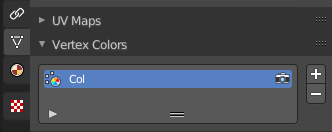
To create a vertex color layer go to the Object data properties to the Vertex color panel, and add a new one. Or simply enter the vertex paint mode and paint at least one vertice with a vertex color. Then a vertex color layer gets created.
Canvas - Output subpanel
With Vertex Format
With surface type Paint
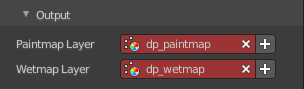
The Paintmap Layer dp_paintmap and Wetmap Layer dp_wetmap map types are vertex colors.
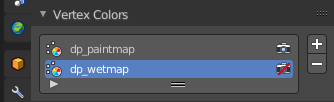
Red means this map type is deactivated. To activate the layers click at the + button at the right.
Once activated they can be found in the Vertex colors panel in the Object Data tab.
With surface type Weight

The Vertex Group dp_dp_weight is a vertex group.
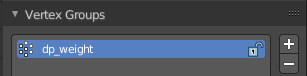
Red means this map type is deactivated. To activate the layers click at the + button at the right.
Once activated it can be found in the Vertex Group panel in the Object Data tab.
With Image Sequence format
With surface type Paint
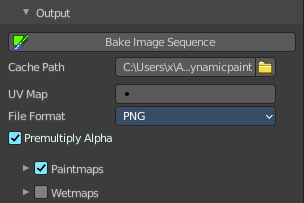
| Entry | What it does |
|---|---|
| Bake Image Sequence | Bake the image sequence to file. |
| Cache Path | The path where the cache images are stored. · Accept: Open a file browser to choose another cache directory. |
| Premultiply Alpha | Multiply color by alpha. |
Paintmaps
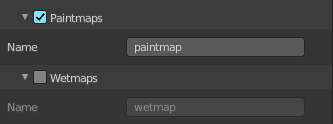
Use paintmaps.
Name
The name of the paintmap to use.
Wetmaps
Use wetmaps
Name
The name of the wetmap to use.
With surface type Displace
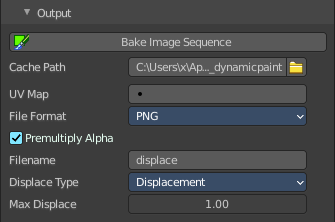
| Entry | What it does |
|---|---|
| Bake Image Sequence | Bake the image sequence to file. |
| Cache Path | The path where the cache images are stored. · Accept: Open a file browser to choose another cache directory. |
| Premultiply Alpha | Multiply color by alpha. |
| Filename | The name that is used to save the output from this surface. |
Displace Type
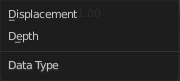
What displace type to use.
Max Displace
Maximum level of depth intersection in object space. Use 0.0 to disable it.
With surface type Waves
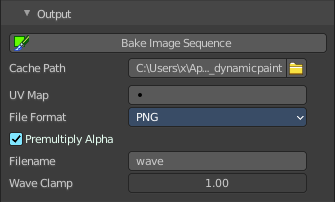
| Entry | What it does |
|---|---|
| Bake Image Sequence | Bake the image sequence to file. |
| Cache Path | The path where the cache images are stored. · Accept: Open a file browser to choose another cache directory. |
| UV Map | UU map name to use. Leave empty when you don't work with UV maps. |
File Format
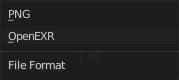
Save the images either with Open EXR or with PNG file format.
| Entry | What it does |
|---|---|
| Premultiply Alpha | Multiply color by alpha. |
| Filename | The name that is used to save the output from this surface. |
| Wave Clamp | Maximum level of depth intersection in object space. Use 0.0 to disable it. |
Brush - Settings subpanel
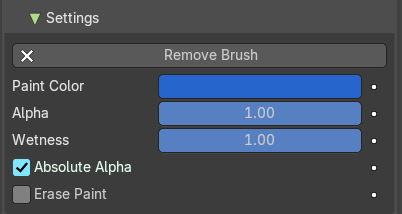
The Brush type makes object apply paint from Dynamic Paint brushes.
The settings subpanel allows you to define how brush affects canvas color surfaces.
| Entry | What it does |
|---|---|
| Add / Remove Brush | Adds or removes the brush. |
| Paint Color | The paint color |
| Alpha | The brush alpha channel value. Final wetness is also affected by alpha. |
| Wetness | The strength of the wetness. |
| Absolute Alpha | Limiting the brush alpha influence. The alpha channels does not accumulate each other. |
| Erase Paint | Erases existing paint instead of adding it. |
Brush - Source subpanel
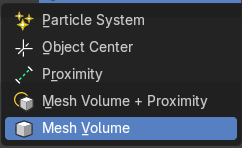
What to affect with the brush.
Paint source Particle System
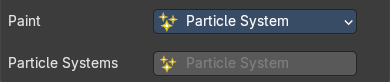
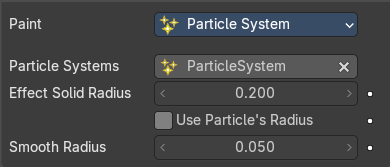
The brush influence is defined by particles from a selected particle system. You need to generate a particle system first, and then load it.
| Entry | What it does |
|---|---|
| Particle Systems | Load the particle system. |
| Effect Solid Radius | The color is solid inside this radius. |
| Use Particle Radius | Use radius from particle settings. |
| Smooth Radius | Add a smooth radius after the solid radius. |
Paint source Object Center
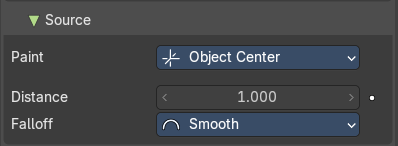
The Brush affects all surface points inside a given distance from the center of the object.
Distance
The maximum distance from brush to mesh surface to affect paint.
Falloff
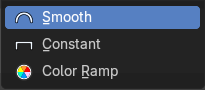
The fallof type for the paint.
| Entry | What it does |
|---|---|
| Smooth | Smooth falloff |
| Constant | No falloff. |
Color ramp
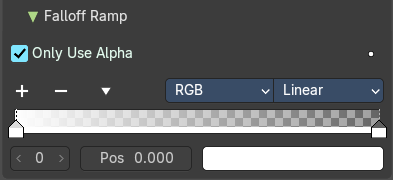
Falloff defined by a color ramp.
Paint source Proximity
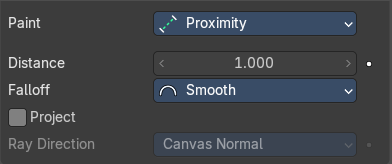
The brush affects the closest point on brush mesh surface. Note that the inside of the volume is not necessarily affected because it is not close to the surface.
Distance
The maximum distance from brush to mesh surface to affect paint.
Falloff
The fallof type for the paint.
| Entry | What it does |
|---|---|
| Smooth | Smooth falloff. |
| Constant | No falloff. |
Color ramp
Falloff defined by a color ramp.
Project
Project the brush from a defined direction.
Ray direction
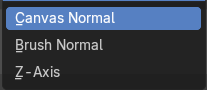
The direction to project the bush from.
Paint source Mesh Volume + Proximity
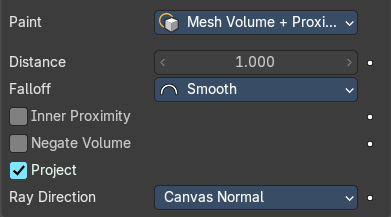
The brush affects the closest point on brush mesh surface. Additionally it provides influence over defined distance.
Distance
The maximum distance from brush to mesh surface to affect paint.
Falloff
The fallof type for the paint.
| Entry | What it does |
|---|---|
| Smooth | Smooth falloff. |
| Constant | No falloff. |
Color ramp
Falloff defined by a color ramp.
| Entry | What it does |
|---|---|
| Inner Proximity | Apply the fallof inside the volume. |
| Negate Volume | Negate the influence inside the volume. |
Project
Project the brush from a defined direction.
Ray direction
The direction to project the bush from.
Paint source Mesh volume
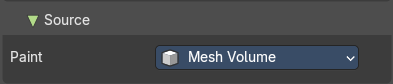
The Brush affects all surface points inside of a mesh volume.
Brush - Velocity subpanel
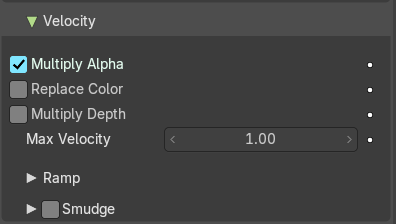
Object velocity options.
| Entry | What it does |
|---|---|
| Multiply Alpha | Multiply the bush influence by the alpha of the velocity color ramp. |
| Replace Color | Replaces the brush color with the values of the velocity color ramp. |
| Multiply Depth | Multiply the depth influence by the alpha of the velocity ramp alpha. |
| Max Velocity | The maximum allowed velocity. |
Ramp subpanel
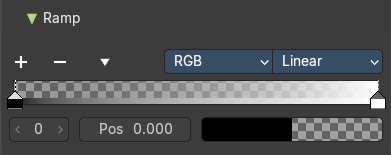
The color ramp that is used to define the brush velocity effect.
Smudge subpanel

The brush will smudge the existing paint as it moves.
Strength
The strength of the smudge effect.
Brush - Waves subpanel
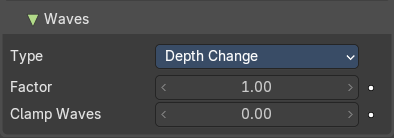
Adjust brush influence to “Wave” surfaces.
Type
| Entry | What it does |
|---|---|
| Depth Change | If you move the brusn then the brush create waves when the intersection depth with the surface is changed on that point. If the brush is not moved, it will have no effect. Using a negative “Factor” with this type can create a nice looking “wake” for moving objects like ships. |
| Obstacle | Constantly affects the water surface whenever intersecting. Waves are also reflected off this brush type. |
| Force | Directly affects the velocity of wave motion. |
| Reflect Only | This type has no visible effect on the surface alone. But reflects waves that are already on the surface. |
| Entry | What it does |
|---|---|
| Factor | Adjusts how strongly the brush “depth” affects the simulation. You can also use negative values to make the brush pull water up instead of down. |
| Clamp Waves | Limit the influence to a certain depth to avoid messing up the simulation. |